Startup Repair Infinite Loop Recovery

How to Recover from an Infinitely Looping Startup Repair Loop without Reinstalling Windows

If you've ever experienced a Startup Repair that continously loops and fails to fix the problem of not being able to load windows, even in safe mode, then you'll know that usually the only way to recover from this when System Restore does not work is to do a clean install of Windows.

Until now.

This tutorial will show you how to use the System Recovery Options provided by Windows to recover your system to a working state so that you don't have to risk losing data by performing a clean install.

   Warning
The instructions presented withing this tutorial must be followed correctly, or you can damage your Windows 7 installation even further. This tutorial is designed to help recover from a bad registry that is causing the startup repair loop. You should note that there may still be some issues remaining that cannot be fixed by manually restoring the registry.


Recovering Your System
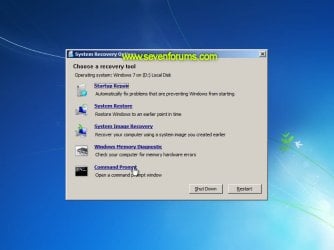
  1. Boot to the System Recovery Options screen.
    • If Windows automatically opens Startup Repair, and subsequently fails to fix a problem, you can skip ahead to step 4 below.
  2. In the System Recovery Options screen, click Startup Repair:
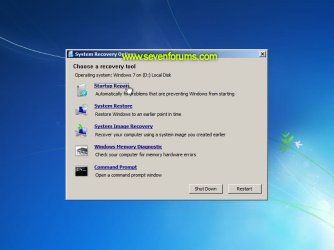
    Image05_startuprepair.jpg


  3. Windows will search for an attempt to repair startup problems:
    Image06_searching.jpg


  4. If startup problems could not be repaired, you will receive the message Windows cannot repair this computer automatically. Click View advanced options for system recovery and support:
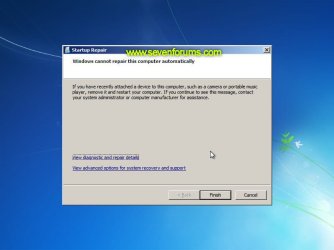
    Image07_cannotfix.jpg


  5. Click View advanced options for system recovery and support, which which bring you back to the main System Recovery Options screen.
  6. Click Command Prompt:
    Image08_clickcommand.jpg


  7. Command Prompt should open to X:, which is an internal ram disk use by System Repair:
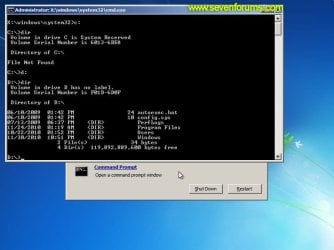
    Image10_changedrive.jpg


  8. Now you need to find your system drive. Depending on how your system is setup, this could be either C: or D:.
    • Type C: and press <ENTER>.
    • Verify that this is your system drive by typing DIR and pressing <ENTER>. If you see the Program Files, Users and Windows folders, then you have found your system drive, and can continue to step 9 below.
    • If the drive is not your system drive, repeat steps I and II above, changing the drive letter to D, E or some other letter until the system drive is located.
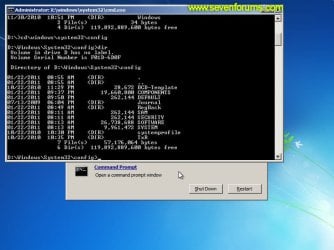
      Image11_chdir_config.jpg

  9. When you have located your Windows system drive, type CD \windows\system32\config and press <ENTER>:
  10. Type DIR and press <ENTER>, and verify that the following files and folders exist in the config folder:
    • RegBack (which is a folder)
    • DEFAULT
    • SAM
    • SECURITY
    • SOFTWARE
    • SYSTEM
      Image11_chdir_config.jpg

  11. Type MD mybackup and press <ENTER> to create a backup folder that you can use incase this procedure does not work as expected.
  12. Type copy *.* mybackup and press <ENTER>.
    • If you are prompted to overwrite existing files, press A to allow all backups to be overwritten.
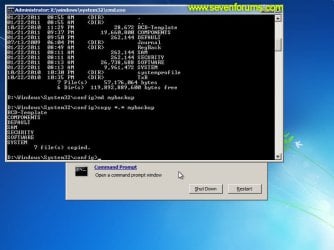
      Image12_mybackup.jpg

  13. Now you need to check if you can use the automatic Windows backups to restore your registry:
    • Type CD RegBack and press <ENTER> to go to the RegBack folder.
    • Type DIR and press <ENTER> to view the contents of the folder. All the following files must exist:
      • The DEFAULT, SAM and SECURITY files should each be about 262,000 bytes in size.
      • The SOFTWARE file should be about 26,000,000 bytes.
      • The SYSTEM file should be about 9,900,000 bytes.
      • The file sizes presented here are approximate estimations, and may vary depending on your system. If any one of them are 0 bytes, then you should stop what you're doing now and seek an alternative method of recovering your system, because Windows cannot function with a 0-byte size registry hive.
    • If the hive files listed in RegBack are ok, then proceed to step 14 of the tutorial.
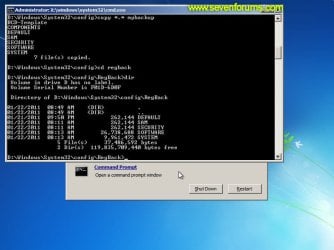
      Image13_checkregback.jpg


  14. Type copy *.* .. and press <ENTER> to copy the backup hive files to \Windows\System32\config.
    • If you are prompted to overwrite existing files, press A to allow all file to be overwritten.
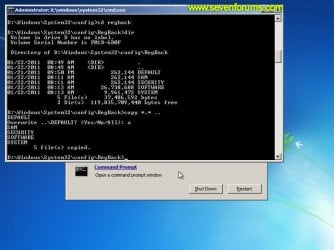
      Image14_copyregback.jpg

  15. Type exit and press <ENTER> to close the command prompt.
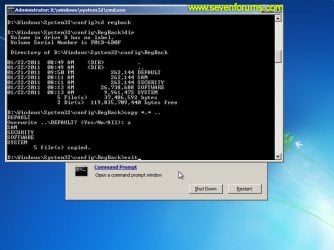
    Image15_exit.jpg


  16. Click the Restart button to reboot your computer. If all goes well, your system will boot normally.
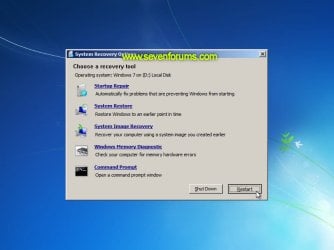
    Image16_restart.jpg
    Image17_working.jpg


Reference Information
This tutorial was made possible after learning how to manualy replace the Windows 7 Registry Hives after reading the Recovering Windows 7 Registry Hives/Files article on Microsoft Technet.


Attachments
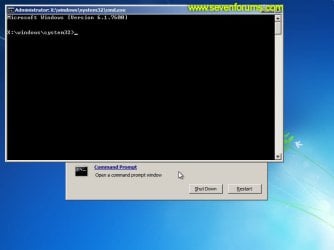
  • Image09_commandprompt.jpg
    Image09_commandprompt.jpg
    26.1 KB · Views: 373
Last edited by a moderator:
It is a Dell Inspiron (i do not know at the top of my mind which model specifically) Laptop!
 

My Computer My Computer

At a glance

Windows 7 64 bit
OS
Windows 7 64 bit
As long as is there is a way to fix is As soon as possible im happy with that! free would be nice :p
 

My Computer My Computer

At a glance

Windows 7 64 bit
OS
Windows 7 64 bit
Hello sevenforum,

I'm using Vaio VPCEB15FG, and having the same problem, but, after i tried your solution it didnt work, and now i can satart my laptop because of this thing. Please help me. Thanks in advance!
 

My Computer My Computer

At a glance

Windows 7 Home Premium 64bit
OS
Windows 7 Home Premium 64bit

My Computer My Computer

At a glance

Vista 64 Bit
OS
Vista 64 Bit
@Dzomlija thank you for preparing the tutorial and sharing it. It worked for me on my HP 6706 using Windows 7. I was without my favorite device for the last 7 days and was suffering from withdrawal symptoms!

Keep up the good work.
 

My Computer My Computer

At a glance

Windows 7 32bit
OS
Windows 7 32bit
I tried these steps, and first thanks to all that posted here - but I'm still having issues because my startup repair does not get past the "attempting repairs" part...the progress bar keeps moving, but nothing changes. Let it run for 4 hours at one point and no change and run it several times more for over an hour and several shorter times...I can't back out as the cancel button prompts a message that says that the current repair operation can't be cancelled. I had this same issue with my work PC, but was able to get that back up after a few attempts. Any ideas? Thanksk for the help :)
 

My Computer My Computer

At a glance

Windows 7 Home Premium OAIntel i3
Computer Manufacturer/Model Number
Dell Inspiron N5010
OS
Windows 7 Home Premium OA
CPU
Intel i3
I am also having a similar problem, but when I got to step 12 and looked for the directory it says the volume is reserved. I did find everything on the d drive, but up until today everything had been on the c drive--I don't understand the switch. Anyway, I didn't want to continue until I could make sure everything is ok. Thanks.
 

My Computer My Computer

At a glance

Win 7 pro 64 bit
OS
Win 7 pro 64 bit
Awesome Tutorial

at step 12 I'm not given access to my local drive D: that used to be my local drive C:
and i'm unable to launch the windows 7 from my installation dvd im thinking its because there is no device driver installed at this point the repair/recovery keeps prompting me to install drivers.

so ......now what? what do i do without having access to my local drive?:o:o
 

My Computer My Computer

At a glance

windows 7 ulitmate x64
Computer Manufacturer/Model Number
compaq presario cq62
OS
windows 7 ulitmate x64
Startup repair endless loop

Hi!

This thread seemed to be aimed at the problem I'm having, but the solution hasn't yet worked for me.

I have a Toshiba Satellite a505, purchased in December 2009, with Windows 7 Home. Has (current) McAfee antivirus protection. I don't think that I have any discs.

I was downloading a large file when, without any sign of a problem, it disconnected and shut down. Since then, logging on brings up the "Windows is laoding files" screen, followed by the Startup repair screens and dialogue boxes.

I don't know if there is an administrator account password, so I've tried my regular user password, and did go into the Command Prompt and try the solution posted in this discussion.

Everything occurs as described in the solution until step 17. While none of the files are 0 bytes, most of them are significantly different from the size estimates in the posted solution. My file sizes are approximately:

DEFAULT 246,000
SAM 70,000
SEC 29,000
SOFTWARE 25,000,000
SYSTEM 30,000,000

I did continue through the propsoed solution twice, but the Restart still brings me into the endless loop.

Any advice would be greatly appreciated. Thanks.
 

My Computer My Computer

At a glance

Windows 7 Home. Don't know 64 or 32. Purchase...
OS
Windows 7 Home. Don't know 64 or 32. Purchased in December 2009.
thank you

Worked exactly as you outlined, then I updated Windows 7 (auto updates) and blue screen, system restore all over again.

One day, possibly 23rd century, man will create something that really works with out fixes.:sarc:
 

My Computer My Computer

At a glance

windows 7 64 bit
OS
windows 7 64 bit
I tried this but when I select "Repair your computer" after i hit F8 my screen went black for like 5+ minutes then It shows the blue start up screen with the resolution messed up and my cursor one the screen(i can still move the cursor) I really dont want to pay for this. I have the CD for win7. I just want to get rid of everything and start fresh. Thanks!
 

My Computer My Computer

At a glance

Windows 7 Home Premium x64AMD Phenom II X4ATI Radeon 4 Series
Computer Manufacturer/Model Number
HP Pavillion Elite
OS
Windows 7 Home Premium x64
CPU
AMD Phenom II X4
Motherboard
Dont know
Graphics Card(s)
ATI Radeon 4 Series
Monitor(s) Displays
Viewsonic 2433wx
Hard Drives
1tb something
hi there

i have tried to follow these steps but when i get to step 10 i have no option to choose command prompt. i have a dell inspiron n411z. i only get to choose between the automatic fix or the dell restore option which i have tried unsuccesfully to do just got the laptop a week ago and it doesnt really have anything on it yet but i think it did an automatic update and got freaky after that is there a way to force a command prompt as safe mode doesnt work etc
 

My Computer My Computer

At a glance

windows 7 32bit
Computer Manufacturer/Model Number
dell inspiron n411z
OS
windows 7 32bit
Windows 7 - Startup Repair Infinite Loop Recovery

Hey:
There´s not Repair my computer when I select F8.
Please help, I´m stuck.
Thanks.
Rafael Barreto
 

My Computer My Computer

At a glance

Windows 7 Home edition 64 bits
OS
Windows 7 Home edition 64 bits

My Computer My Computer

At a glance

64-bit Windows 11 Pro for WorkstationsIntel i7-8700K OC'd to 5 GHz64 GB (4x16GB) G.SKILL TridentZ RGB DDR4 3600...ASUS ROG-STRIX-GTX1080TI-O11G-GAMING
Computer type
PC/Desktop
Computer Manufacturer/Model Number
Self built custom
OS
64-bit Windows 11 Pro for Workstations
CPU
Intel i7-8700K OC'd to 5 GHz
Motherboard
ASUS ROG Maximus XI Formula Z390
Memory
64 GB (4x16GB) G.SKILL TridentZ RGB DDR4 3600 MHz
Graphics Card(s)
ASUS ROG-STRIX-GTX1080TI-O11G-GAMING
Sound Card
Integrated
Monitor(s) Displays
2 x Samsung Odyssey G7 27"
Screen Resolution
2560x1440
Hard Drives
1TB Samsung 990 PRO M.2,
4TB Samsung 990 PRO PRO M.2,
TerraMaster F8 SSD Plus NAS
PSU
Seasonic Prime Titanium 850W
Case
Thermaltake Core P3
Cooling
Corsair Hydro H115i
Keyboard
Logitech wireless K800
Mouse
Logitech MX Master 4
Internet Speed
2 Gb/s Download and 100 Mb/s Upload
Antivirus
Malwarebyte Anti-Malware Premium
Browser
Google Chrome
Other Info
Logitech Z625 speaker system,
Logitech BRIO 4K Pro webcam,
HP Color LaserJet Pro MFP M477fdn,
APC SMART-UPS RT 1000 XL - SURT1000XLI,
Galaxy S23 Plus phone
First of all, thanks a lot for helping a lot of people! +1 to you, sir!

I've been trying to fix my laptop for a long time and after a while decided to buy a new one. Now I've found this post and tried all of it, without any problems at all.
Though, when I rebooted my computer after overwriting the files, the same problem occured and windows booted up in startup repair again...

I don't even care any more if I loose the files that are on that pc, but it even won't boot up from the installation disc. The only thing it does is starting up at system recovery, which doesn't work at all.

Do you have any suggestions for my problem?


Thanks for your time,

Tim
 

My Computer My Computer

At a glance

Windows 7 Ultimate x64
OS
Windows 7 Ultimate x64
when i check if i can use the automatic Windows backups to restore registry:

I type DIR and press <ENTER> to view the contents of the folder. All the following files exist:
  • The DEFAULT, SAM and SECURITY
  • The SOFTWARE
  • The SYSTEM
  • The files are 0 bytes, can anyone tell me what can i do to recovering these files? Windows cannot function with a 0-byte size registry hive. or try other method?
 

My Computer My Computer

At a glance

windows 7 ultimate x32
OS
windows 7 ultimate x32
Hi,

I have to use the command prompt because the others options dont work with my pc...so first of all it can't find C: , wich i find pretty weird.. D: works, but then it cannot find CD \windows\system32\config.... what can i do??
 

My Computer My Computer

At a glance

windows 7
OS
windows 7
This really saved my bacon. Thanks!
 

My Computer My Computer

At a glance

Win 7 x64
OS
Win 7 x64
Hey,

Just wanted to say I just used this to restore my PC and everything seems to be back in working order.

Many thanks!
Jonathan
 

My Computer My Computer

At a glance

Windows 7 32bit.
OS
Windows 7 32bit.
THIS WORKS

1. turn on computer
2. keep hitting F8
3. choose "last know working settings" or whatever it says
4. your welcome
 

My Computer My Computer

At a glance

64
OS
64
Back
Top