System hangs by higher HDD Activity!! Please Help!?

I've been fretting over slow disk access myself of late - which in turn led me to check the usual suspects... so if I may, here are my suggestions:

1. Is the BIOS set to SATA or IDE emulation? I know you mentioned you have SATA drivers, but still. (Note: if you change it in the BIOS without adjusting the registry as needed, you will not be able to boot up)

2. Since you have the Intel RST stuff installed, have you enabled the write caches through RST / device manager on the drives?

3. Does RST report NCQ enabled, etc?

4. Did you change the performance role - ie, background vs. foreground apps?

5. Drive alignment - since you mentioned you have cloned the drives, just wondering if the drive offset did not get done

Hi :)

I'll try answering your questions but I'm afraid I'll need some help from you :)

1. I don't have access to this part of the BIOS. It is very limited as on most notebooks
2. I haven't done anything manually, apart from updating the RST drivers...
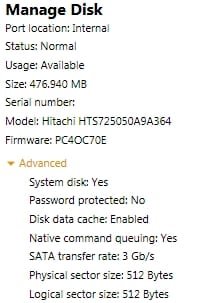
3. Yes, attached is the complete info from RST.
4. What do you mean?
5. Don't understand this one either... :rolleyes:
 

Attachments

  • ScreenShot001.jpg
    ScreenShot001.jpg
    12.3 KB · Views: 274

My Computer My Computer

OS
Windows 7 Pro x64

My Computer My Computer

Computer type
PC/Desktop
OS
Microsoft Windows 10 Professional / Windows 7 Professional
CPU
Intel i5-3570
Motherboard
Lenovo Mahobay
Memory
16GB DDR3
Graphics Card(s)
AMD Radeon HD 7850 2GB
Sound Card
(1) Realtek HD Audio (2) AMD HD Audio
Monitor(s) Displays
LG LS192WS
Screen Resolution
1440 x 900 @ 32bit color
Hard Drives
(1) SUV300S37A/120G (2) ST3500413AS SATA Disk Device AHCI mode enabled.
PSU
Corsair HX620
Case
Thermaltake V4 Black Edition
Cooling
Cooler Master Hyper 212 + Artic Silver 5 on CPU/GPU
Keyboard
Dell SK-8115
Mouse
Razer Copperhead with MAPED mat (awesome!)
Internet Speed
100 Mbps up/down
Browser
Chrome

My Computer My Computer

OS
Windows 7 Pro x64
Hi :)

I'll try answering your questions but I'm afraid I'll need some help from you :)

1. I don't have access to this part of the BIOS. It is very limited as on most notebooks

that's fine - looks like it is in sata mode

2. I haven't done anything manually, apart from updating the RST drivers...

start -> run -> devmgmt.msc
expand 'disk drives' and double click on the drive and click on 'policies' see if the caches are enabled.


3. Yes, attached is the complete info from RST.

oh good - so it is sata with ncq.

4. What do you mean?
control panel - system - advanced system settings (i think that's the name)
over there, click 'settings' under the 'performance' tab and then choose the 'advanced' tab.
is it set to 'programs' for 'processor scheduling' and 'memory usage' ?


5. Don't understand this one either... :rolleyes:

for that one, you can run the app OldMX mentioned

OK. i think i know the issue.
using the vaio discs you were fine, until you applied some windows updates.
i am thinking if you download the drivers off the sony vaio site, you should be good.
that is my current guess.
 

My Computer My Computer

OS
Windows 7 Ultimate x64
CPU
Core i7 960
Motherboard
ASUS P6TD Deluxe
Memory
Corsair XMS3 DDR3-1600 - 12 GB
Graphics Card(s)
eVGA GTX 275 1792 MB
Sound Card
Onboard HD etc
Monitor(s) Displays
Dell SP2208WFP
Hard Drives
Western Digital Caviar Black 1 TB x 2 (RAID-1)
PSU
BFG EX-1200
Case
CoolerMaster HAF 922
Cooling
Thermalright Ultra 120 Extreme with Noctua NH-12 Fan
Keyboard
MS Natural (you know, like the ones you find in nature...)
Mouse
MS Intellimouse Explorer
Sorry Gracy, had to re-read the full thread to get things clearer, can you post a screenshot of the installed updates? Seems like the videocard driver is having a nice memory leak or something. If possible download process explorer and take a screenshot of that too, lets see whats going on.
 

My Computer My Computer

Computer type
PC/Desktop
OS
Microsoft Windows 10 Professional / Windows 7 Professional
CPU
Intel i5-3570
Motherboard
Lenovo Mahobay
Memory
16GB DDR3
Graphics Card(s)
AMD Radeon HD 7850 2GB
Sound Card
(1) Realtek HD Audio (2) AMD HD Audio
Monitor(s) Displays
LG LS192WS
Screen Resolution
1440 x 900 @ 32bit color
Hard Drives
(1) SUV300S37A/120G (2) ST3500413AS SATA Disk Device AHCI mode enabled.
PSU
Corsair HX620
Case
Thermaltake V4 Black Edition
Cooling
Cooler Master Hyper 212 + Artic Silver 5 on CPU/GPU
Keyboard
Dell SK-8115
Mouse
Razer Copperhead with MAPED mat (awesome!)
Internet Speed
100 Mbps up/down
Browser
Chrome
start -> run -> devmgmt.msc
expand 'disk drives' and double click on the drive and click on 'policies' see if the caches are enabled.

Write caching is enabled. Second option there is disabled.

control panel - system - advanced system settings (i think that's the name)
over there, click 'settings' under the 'performance' tab and then choose the 'advanced' tab.
is it set to 'programs' for 'processor scheduling' and 'memory usage' ?

Processor scheduling is set to "Programs", Paging file size is 3958 MB.


for that one, you can run the app OldMX mentioned
Ok, will check that and let you know :)

OK. i think i know the issue.
using the vaio discs you were fine, until you applied some windows updates.
i am thinking if you download the drivers off the sony vaio site, you should be good.
that is my current guess.

The only driver I have updated that is not coming from Sony is the RST but I only updated it recently because of the problems, but couldn't feel any difference.

All automatic updates from windows had nothing to do with drivers.

:huh:
 

My Computer My Computer

OS
Windows 7 Pro x64
Sorry Gracy, had to re-read the full thread to get things clearer, can you post a screenshot of the installed updates? Seems like the videocard driver is having a nice memory leak or something. If possible download process explorer and take a screenshot of that too, lets see whats going on.

Thanks for trying to help me :)

I have installed 63 automatic windows updates on top of Sony's Windows + new Intel RST driver (but as I said I did it to see if it makes a difference - it doesn't) + all programs I need such as office, acrobat, browsers, etc, etc, etc....

I'm not sure how to create a list of those 63 which I can upload here?

I have also updated some of the Sony's programs (all updates official from Sony) as well as the Video drivers (also official from Sony). To be honest I haven't tried to remove those and try with the older, but I don't think this could be the problem!? It definitely isn't a visual thing - programs stop responding as well as website scripts... and as I found out only some programs are affected ... well I assume the "heavier" ones such as Firefox, Skype and partially IE. :huh:

I actually was using even newer drivers (not from sony) for the past 2-3 months and it was the same...

Not sure if I mentioned it already - I have NVIDIA GeForce 310M.
 

My Computer My Computer

OS
Windows 7 Pro x64

My Computer My Computer

Computer type
PC/Desktop
OS
Microsoft Windows 10 Professional / Windows 7 Professional
CPU
Intel i5-3570
Motherboard
Lenovo Mahobay
Memory
16GB DDR3
Graphics Card(s)
AMD Radeon HD 7850 2GB
Sound Card
(1) Realtek HD Audio (2) AMD HD Audio
Monitor(s) Displays
LG LS192WS
Screen Resolution
1440 x 900 @ 32bit color
Hard Drives
(1) SUV300S37A/120G (2) ST3500413AS SATA Disk Device AHCI mode enabled.
PSU
Corsair HX620
Case
Thermaltake V4 Black Edition
Cooling
Cooler Master Hyper 212 + Artic Silver 5 on CPU/GPU
Keyboard
Dell SK-8115
Mouse
Razer Copperhead with MAPED mat (awesome!)
Internet Speed
100 Mbps up/down
Browser
Chrome
Ok, will check it out.

Btw I just realized it is not as I thought - that particular software hangs and other not. I just made another experiment - this time I had Firefox, Opera and Safari browser opened. Surprisingly this time Mozilla was working pretty fine (small delays), whereas Opera hanged badly. Safari was also fine. Opening a .doc file didn't succeed for nearly half a minute. Adobe Acrobat also needed quite long to open.

Basically just the opposite results to what I determined with one of the last experiments and described above :shock:

It seems the HDD is overloaded and only some applications manage to get some juice out of it...
 

My Computer My Computer

OS
Windows 7 Pro x64
curiouser and curiouser.
everything seems correct.

what's missing...

start -> eventvwr show anything in the 'errors' area?
 

My Computer My Computer

OS
Windows 7 Ultimate x64
CPU
Core i7 960
Motherboard
ASUS P6TD Deluxe
Memory
Corsair XMS3 DDR3-1600 - 12 GB
Graphics Card(s)
eVGA GTX 275 1792 MB
Sound Card
Onboard HD etc
Monitor(s) Displays
Dell SP2208WFP
Hard Drives
Western Digital Caviar Black 1 TB x 2 (RAID-1)
PSU
BFG EX-1200
Case
CoolerMaster HAF 922
Cooling
Thermalright Ultra 120 Extreme with Noctua NH-12 Fan
Keyboard
MS Natural (you know, like the ones you find in nature...)
Mouse
MS Intellimouse Explorer
curiouser and curiouser.
everything seems correct.

what's missing...

start -> eventvwr show anything in the 'errors' area?

Yes, quite a few things (if I'm looking at the right spot), such as:

WindowsUpdateCLient
SideBySide
Application Error
Dhcp-client
Application Hang
Search
Service Control Manager
 

My Computer My Computer

OS
Windows 7 Pro x64
Well, if it runs fine after fresh install and happens only after some software installations then in that case, clean boot may help in finding the culprit. Have u tried clean boot?

I'm under Clean Boot right now - Don't feel much difference - Firefox is hit the most (not responding), Opera - delay, IE something inbetween...

But as I really lost sense of what is considered normal, I'll ask all of you once again - what is the normal behavior of a system under heavy HDD load and multi-tasking?

Please someone try this scenario and let me know what you observe??

Here the steps to reproduce:

1. Open at least 3-4 Firefox windows, each with at least 4-5 tabs with different websites.
2. Open 1-2 IE windows with different web sites
3. Run skype and minimize it to try
4. Start to copy ~ 10GB from one partition to the other (on the internal HDD)
5. Wait 15-20 seconds
6. Start switching windows and tabs, reloading pages, open new Firefox and IE windows, start writing in a thread
7. After a minute try maximizing Skype and opening a chat with a contact

let me know what you observe??

Could the reason be lack of sufficient RAM ?!?! I have 4GB DDR3...

Update:

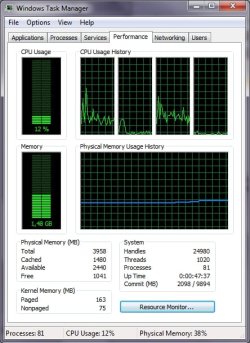
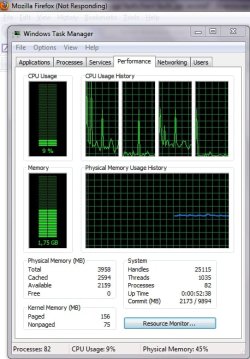
Speaking of RAM, I just realized something - I observed Task Manager -> Performance -> Physical Memory field:
as soon as I start copying process, all "Free memory" slowly goes to 0 (during the first about 10 seconds in which everything is still responsive...), once it is 0 the lags/freezes start! Is this normal? There is still plenty of "Available memory" according to the numbers, but no "Free"! Once the transfer finishes (or is being canceled) some Free memory very slowly returns but only a small portion (10 minutes after canceling I only have 20MB free and 2941 Available!)
 
Last edited:

My Computer My Computer

OS
Windows 7 Pro x64
i tried some of your scenarios - doing a large file copy while browsing - didnt see a slowdown as such.
that mem drop on copy is normal - i see it drop to 0.
but that's normal correct behaviour.

from this page: Behind the Windows 7 memory usage scaremongering

The important number is not "free," but "available." The "available" memory includes both memory that is free, and memory that can be trivially made available, and this figure is far more representative of the true amount of memory available to applications. The vast majority of cached memory can be freed up near-instantly, since it is used up merely by cached data from disk.
 

My Computer My Computer

OS
Windows 7 Ultimate x64
CPU
Core i7 960
Motherboard
ASUS P6TD Deluxe
Memory
Corsair XMS3 DDR3-1600 - 12 GB
Graphics Card(s)
eVGA GTX 275 1792 MB
Sound Card
Onboard HD etc
Monitor(s) Displays
Dell SP2208WFP
Hard Drives
Western Digital Caviar Black 1 TB x 2 (RAID-1)
PSU
BFG EX-1200
Case
CoolerMaster HAF 922
Cooling
Thermalright Ultra 120 Extreme with Noctua NH-12 Fan
Keyboard
MS Natural (you know, like the ones you find in nature...)
Mouse
MS Intellimouse Explorer
so i thought about this some more - disk partition alignment isnt the issue.
that's done by default in 7.

if you really want to verify, type the following in a command prompt (may have to be elevated, not at a 7 machine currently):

wmic partition get BlockSize, StartingOffset, Name, Index

it should report a starting offset of 1048576

having said all this, i'm still stumped as to why your system is behaving the way it is.
i want to say 'throw more ram at it' but i dont have a convincing argument just yet.
 

My Computer My Computer

OS
Windows 7 Ultimate x64
CPU
Core i7 960
Motherboard
ASUS P6TD Deluxe
Memory
Corsair XMS3 DDR3-1600 - 12 GB
Graphics Card(s)
eVGA GTX 275 1792 MB
Sound Card
Onboard HD etc
Monitor(s) Displays
Dell SP2208WFP
Hard Drives
Western Digital Caviar Black 1 TB x 2 (RAID-1)
PSU
BFG EX-1200
Case
CoolerMaster HAF 922
Cooling
Thermalright Ultra 120 Extreme with Noctua NH-12 Fan
Keyboard
MS Natural (you know, like the ones you find in nature...)
Mouse
MS Intellimouse Explorer
having said all this, i'm still stumped as to why your system is behaving the way it is.
i want to say 'throw more ram at it' but i dont have a convincing argument just yet.

I'm looking at the RAM + Paging stuff right now, and I so want to say more RAM would solve the problem, but there are some indications against that... I'm really not sure.

Here a view over my system resources before starting the copying process and while copying is running... you can see the Firefox window in the background showing "Not responding" ....

I have also been looking at the "Hard Faults/sec" in Resource Monitor which I hoped would give me a hint, but they only slightly increase during copying - from 0-2 to 0-5 or 10 ....

Maybe you will notice something valuable I don't :(
 

Attachments

  • ScreenShot001.jpg
    ScreenShot001.jpg
    54.4 KB · Views: 7
  • ScreenShot003.jpg
    ScreenShot003.jpg
    58.4 KB · Views: 7

My Computer My Computer

OS
Windows 7 Pro x64
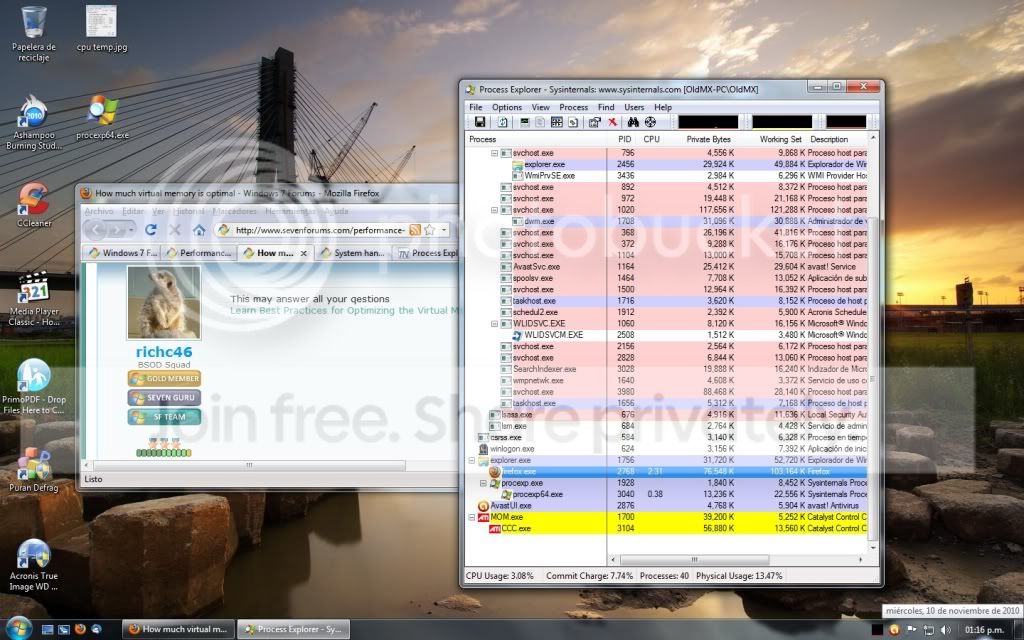
One more thing to try Gracy, Download Process Explorer , run as administrator and leave it open on top of all windows, then start your programs and check if any process is overloading the cpu or memory usage.

procexp.jpg
 

My Computer My Computer

Computer type
PC/Desktop
OS
Microsoft Windows 10 Professional / Windows 7 Professional
CPU
Intel i5-3570
Motherboard
Lenovo Mahobay
Memory
16GB DDR3
Graphics Card(s)
AMD Radeon HD 7850 2GB
Sound Card
(1) Realtek HD Audio (2) AMD HD Audio
Monitor(s) Displays
LG LS192WS
Screen Resolution
1440 x 900 @ 32bit color
Hard Drives
(1) SUV300S37A/120G (2) ST3500413AS SATA Disk Device AHCI mode enabled.
PSU
Corsair HX620
Case
Thermaltake V4 Black Edition
Cooling
Cooler Master Hyper 212 + Artic Silver 5 on CPU/GPU
Keyboard
Dell SK-8115
Mouse
Razer Copperhead with MAPED mat (awesome!)
Internet Speed
100 Mbps up/down
Browser
Chrome
One more thing to try Gracy, Download Process Explorer , run as administrator and leave it open on top of all windows, then start your programs and check if any process is overloading the cpu or memory usage.

I don't mind and I will but I have never seen my CPU or RAM overloaded on any monitor or gadget .... :) I guess you know how "easy" it is to overload an i5 :) I'm more worried about the RAM, but fortunately or unfortunately I couldn't find any indication of overload... :-/
 

My Computer My Computer

OS
Windows 7 Pro x64
One thing that's missing is a clean install. This is why many tech enthusiasts find a clean copy installer for their licensed version of Win7 to reinstall with Product Key on COA sticker.

Unless there are Sony utilities that you rely heavily upon, Win7 has better versions of almost all factory utilities. These as well as the sponsors bloatware clog the registry, corrupt system files even with their uninstall, and generally hamper Win7's natural state as a feather-light instantaneous OS.

MS also spent a fortune getting the drivers into the Win7 installer, so unlike XP or Vista you don't need to change out the drivers given by installer, only supply any missing after install and optional Windows Updates. Changing out drivers given by the installer is often a cause of performance probs, just like having a bunch of drivers for useless factory utilities and bloatware can conflict unnecessarily.

I wonder why you have 12 programs start with Win7. Is there some reason the bulk of these can't wait until you click on them to open? Having only AV and gadgets/stickies and maybe your messenger startup keeps a dozen programs from freeloading on your RAM/CPU and spying on you.

Looks like you got in-depth hardware analysis here. The only thing I could add is to run the HD maker's full diag/repair CD scan: Hard Drive Diagnostics Tools and Utilities (Storage) - TACKtech Corp.
 

Hi :)
thanks for your suggestion. This option is in my case not applicable for many reasons. A few to mention:

1. No Installation DVDs (for absolutely clean install)
2. Not all hardware features work with clean installed windows (for example lid keyboard control, auto dimming, etc., etc.) and there are no extra drivers available from sony (many have tried this already)
3. No one else with my model Vaio is complaining ... so this obviously isn't the reason

About my programs - All running at startup are needed from the start. I would have excluded them otherwise :) And again - I'm sure there are plenty of people with many more startup programs who don't have such issues.... unless they are still using 386 hardware :)

About the HardDrive diagnostics - it seems to me you have missed the already 3 or 4 times now I wrote that I have cloned my entire system to a different hard drive and there is still no difference...
 

My Computer My Computer

OS
Windows 7 Pro x64
Back
Top