System Icons - Turn On or Off

How to Turn System Icons On or Off in Windows 7 and Windows 8


   Information
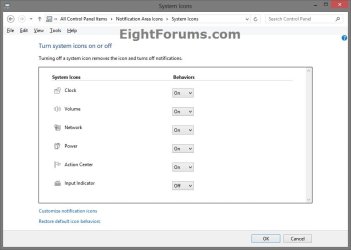
System icons, including Input indicator (Windows 8 only), Clock, Volume, Network, Power, and Action Center are special icons that are part of Windows. For these icons, you can change how the icons and notifications appear, and also whether they show up at all. You might turn off a system icon if either you or your computer manufacturer have installed a similar program. If you turn a system icon off, you can always turn it back on later.

This tutorial will show you how to turn a system icon on the taskbar on or off in Windows 7 and Windows 8.

   Note
The Power icon will be grayed out and off unless your computer is running with battery power. For example, a laptop with it's battery pack connected or a desktop computer on a UPS backup battery.
   Tip
If a system icon you want to turn on or off is grayed out, then see: How to Enable or Disable Windows 7 Notification System Icons

   Warning
Turning off a system icon will remove the icon from the taskbar and turns off notifications for the icon.


EXAMPLE: System Icons on the Taskbar
207d1225683146-system-icons-turn-off-taskbar_system_icons.jpg

Here's How:
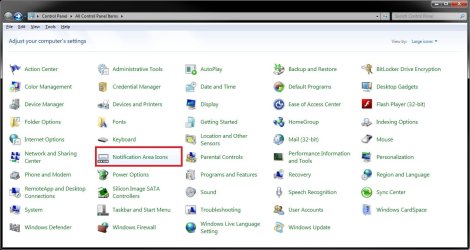
1. In Windows 7 open the Control Panel (icons view), click/tap on the System Icons icon, and do step 3, 4, or 5 below.

OR

2. Right click or press and hold on the taskbar, and click/tap on Properties.
A) Click/tap on the Customize button to the right of "Notification area". (See screenshot below)

B) Click/tap on Cancel to close the Taskbar and Start Menu Properties window.
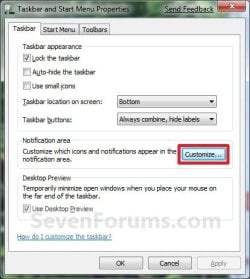
Taskbar_Properties.jpg
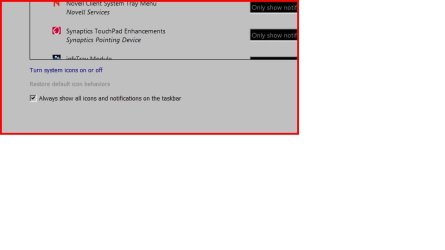
C) Click/tap on the Turn system icons on or off link at the bottom, and do step 3, 4, or 5 below. (See screenshot below)
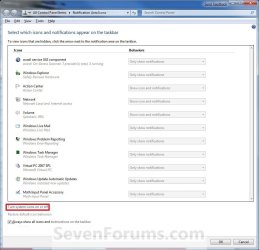
Notification_Area_Icons.jpg
3. To Turn a System Icon On
A) Click/tap on the Behaviors drop down menu to the left of the system icon you want to turn on. (See screenshot below step 6)

B) Click/tap on ON to select it.

C) Go to step 6.
4. To Turn a System Icon Off
A) Click/tap on the Behaviors drop down menu to the left of the system icon you want to turn off. (See screenshot below step 6)

B) Click/tap on OFF to select it.

C) Go to step 6.
5. To Restore the Default System Icons Behaviors
A) Click/tap on the Restore default icon behaviors link below. (See screenshot below step 6)
6. Click/tap on OK. (See screenshots below)
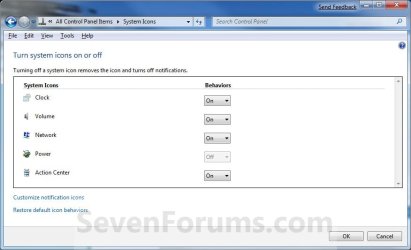
System_Icons.jpg

W8_System_Icons.jpg

7. Click/tap on OK. (See screenshot below step 2C)
NOTE: You will not see this if you had opened the System Icons window from the Control Panel above.
That's it,
Shawn


Attachments

  • Taskbar_System_Icons.jpg
    Taskbar_System_Icons.jpg
    1.9 KB · Views: 221,356
Last edited:
How to enable any system icon if it is disabled in the system icon like the power icon is disabled in your last screenshot?
 

My Computer My Computer

OS
Windows 7 Ultimate

My Computer My Computer

Computer type
PC/Desktop
Computer Manufacturer/Model Number
Self built custom
OS
64-bit Windows 11 Pro for Workstations
CPU
Intel i7-8700K OC'd to 5 GHz
Motherboard
ASUS ROG Maximus XI Formula Z390
Memory
64 GB (4x16GB) G.SKILL TridentZ RGB DDR4 3600 MHz
Graphics Card(s)
ASUS ROG-STRIX-GTX1080TI-O11G-GAMING
Sound Card
Integrated
Monitor(s) Displays
2 x Samsung Odyssey G7 27"
Screen Resolution
2560x1440
Hard Drives
1TB Samsung 990 PRO M.2,
4TB Samsung 990 PRO PRO M.2,
TerraMaster F8 SSD Plus NAS
PSU
Seasonic Prime Titanium 850W
Case
Thermaltake Core P3
Cooling
Corsair Hydro H115i
Keyboard
Logitech wireless K800
Mouse
Logitech MX Master 4
Internet Speed
2 Gb/s Download and 100 Mb/s Upload
Antivirus
Malwarebyte Anti-Malware Premium
Browser
Google Chrome
Other Info
Logitech Z625 speaker system,
Logitech BRIO 4K Pro webcam,
HP Color LaserJet Pro MFP M477fdn,
APC SMART-UPS RT 1000 XL - SURT1000XLI,
Galaxy S23 Plus phone
Not working mate, I have even tried as Administrator.
 

My Computer My Computer

OS
Windows 7 Ultimate
Which ones are you trying to enable?

Could you post a screenshot of this to see if anything may stand out?
 

My Computer My Computer

Computer type
PC/Desktop
Computer Manufacturer/Model Number
Self built custom
OS
64-bit Windows 11 Pro for Workstations
CPU
Intel i7-8700K OC'd to 5 GHz
Motherboard
ASUS ROG Maximus XI Formula Z390
Memory
64 GB (4x16GB) G.SKILL TridentZ RGB DDR4 3600 MHz
Graphics Card(s)
ASUS ROG-STRIX-GTX1080TI-O11G-GAMING
Sound Card
Integrated
Monitor(s) Displays
2 x Samsung Odyssey G7 27"
Screen Resolution
2560x1440
Hard Drives
1TB Samsung 990 PRO M.2,
4TB Samsung 990 PRO PRO M.2,
TerraMaster F8 SSD Plus NAS
PSU
Seasonic Prime Titanium 850W
Case
Thermaltake Core P3
Cooling
Corsair Hydro H115i
Keyboard
Logitech wireless K800
Mouse
Logitech MX Master 4
Internet Speed
2 Gb/s Download and 100 Mb/s Upload
Antivirus
Malwarebyte Anti-Malware Premium
Browser
Google Chrome
Other Info
Logitech Z625 speaker system,
Logitech BRIO 4K Pro webcam,
HP Color LaserJet Pro MFP M477fdn,
APC SMART-UPS RT 1000 XL - SURT1000XLI,
Galaxy S23 Plus phone
Which ones are you trying to enable?

Could you post a screenshot of this to see if anything may stand out?

I was trying to enable Network, battery and Action Center Icon. Actually I have changed the dlls to change the icons in the tray and after changing the dll those icons were disabled, I tried your method but didn't work so finally I have restored my OS and everything is fine now but the icons are default only.

BTW, thanks for your help but I am now unable to post screenshot as I have already restored my OS.
 

My Computer My Computer

OS
Windows 7 Ultimate
I'm happy to hear that you got it sorted. Yep, the tutorial will not help with modified .dll files.
 

My Computer My Computer

Computer type
PC/Desktop
Computer Manufacturer/Model Number
Self built custom
OS
64-bit Windows 11 Pro for Workstations
CPU
Intel i7-8700K OC'd to 5 GHz
Motherboard
ASUS ROG Maximus XI Formula Z390
Memory
64 GB (4x16GB) G.SKILL TridentZ RGB DDR4 3600 MHz
Graphics Card(s)
ASUS ROG-STRIX-GTX1080TI-O11G-GAMING
Sound Card
Integrated
Monitor(s) Displays
2 x Samsung Odyssey G7 27"
Screen Resolution
2560x1440
Hard Drives
1TB Samsung 990 PRO M.2,
4TB Samsung 990 PRO PRO M.2,
TerraMaster F8 SSD Plus NAS
PSU
Seasonic Prime Titanium 850W
Case
Thermaltake Core P3
Cooling
Corsair Hydro H115i
Keyboard
Logitech wireless K800
Mouse
Logitech MX Master 4
Internet Speed
2 Gb/s Download and 100 Mb/s Upload
Antivirus
Malwarebyte Anti-Malware Premium
Browser
Google Chrome
Other Info
Logitech Z625 speaker system,
Logitech BRIO 4K Pro webcam,
HP Color LaserJet Pro MFP M477fdn,
APC SMART-UPS RT 1000 XL - SURT1000XLI,
Galaxy S23 Plus phone
how to turn on systems icons on or off in windows 7

i tried your direction but came up short it wont let me restore my default behavior at all my volume system icon wont appear on my tray i use firefox and i have a gateway nv53 windows 7
 

My Computer My Computer

Computer Manufacturer/Model Number
gateway/nv53
OS
windows 7 at 64 bit
CPU
2100mhz
Motherboard
gateway sjv50tr
Memory
ddr2 4096 bytes
Graphics Card(s)
ati mobility radeon hd 4200 series
Sound Card
high definiton audio device
Monitor(s) Displays
i have a laptop
Hard Drives
WDC WD5000BEVT-22AORTO ATA DEVICE
PSU
19VOLTS
Case
laptop
Cooling
DONT KNOW HOW TO FIND WHAT KIND OF COOLING FAN I HAVE

My Computer My Computer

Computer type
PC/Desktop
Computer Manufacturer/Model Number
Self built custom
OS
64-bit Windows 11 Pro for Workstations
CPU
Intel i7-8700K OC'd to 5 GHz
Motherboard
ASUS ROG Maximus XI Formula Z390
Memory
64 GB (4x16GB) G.SKILL TridentZ RGB DDR4 3600 MHz
Graphics Card(s)
ASUS ROG-STRIX-GTX1080TI-O11G-GAMING
Sound Card
Integrated
Monitor(s) Displays
2 x Samsung Odyssey G7 27"
Screen Resolution
2560x1440
Hard Drives
1TB Samsung 990 PRO M.2,
4TB Samsung 990 PRO PRO M.2,
TerraMaster F8 SSD Plus NAS
PSU
Seasonic Prime Titanium 850W
Case
Thermaltake Core P3
Cooling
Corsair Hydro H115i
Keyboard
Logitech wireless K800
Mouse
Logitech MX Master 4
Internet Speed
2 Gb/s Download and 100 Mb/s Upload
Antivirus
Malwarebyte Anti-Malware Premium
Browser
Google Chrome
Other Info
Logitech Z625 speaker system,
Logitech BRIO 4K Pro webcam,
HP Color LaserJet Pro MFP M477fdn,
APC SMART-UPS RT 1000 XL - SURT1000XLI,
Galaxy S23 Plus phone
Here's an odd one. In Control Panel, all my icons are there except "System Icons". But, if I go to "Notification Area" from TaskBar Properties, select Customize, there is a little hotlink to "Turn system icons On or Off", where I see the normal stuff and can turn the icons on and off.
Untitled.jpg

Any idea what would make just that one icon disappear from Control Panel?

Steve
 

My Computer My Computer

Computer Manufacturer/Model Number
Dell T3400
OS
Windows 7 Pro x64 (dual-booting XPSP3 and Win7)
CPU
Intel Core-2 Quad
Memory
4GB 800 Mhz PC2 unbuffered ECC
Graphics Card(s)
NVIDIA Quadro FX 570
Sound Card
Creative SB X-Fi model SB0770
Monitor(s) Displays
Dell 19" FP
Screen Resolution
1680x1050
Hard Drives
SATA disk0 250GB disk1 500GB
Internet Speed
TW RR
Other Info
Just a baby compared to my work box!
Hello Steve,

There's not a System Icons icon in the Control Panel (icons view), but you should also be able to click on the Notification Area Icons icon in the Control Panel (icons view) to see that as well.

Control_Panel.jpg

Hope this helps,
Shawn
 

My Computer My Computer

Computer type
PC/Desktop
Computer Manufacturer/Model Number
Self built custom
OS
64-bit Windows 11 Pro for Workstations
CPU
Intel i7-8700K OC'd to 5 GHz
Motherboard
ASUS ROG Maximus XI Formula Z390
Memory
64 GB (4x16GB) G.SKILL TridentZ RGB DDR4 3600 MHz
Graphics Card(s)
ASUS ROG-STRIX-GTX1080TI-O11G-GAMING
Sound Card
Integrated
Monitor(s) Displays
2 x Samsung Odyssey G7 27"
Screen Resolution
2560x1440
Hard Drives
1TB Samsung 990 PRO M.2,
4TB Samsung 990 PRO PRO M.2,
TerraMaster F8 SSD Plus NAS
PSU
Seasonic Prime Titanium 850W
Case
Thermaltake Core P3
Cooling
Corsair Hydro H115i
Keyboard
Logitech wireless K800
Mouse
Logitech MX Master 4
Internet Speed
2 Gb/s Download and 100 Mb/s Upload
Antivirus
Malwarebyte Anti-Malware Premium
Browser
Google Chrome
Other Info
Logitech Z625 speaker system,
Logitech BRIO 4K Pro webcam,
HP Color LaserJet Pro MFP M477fdn,
APC SMART-UPS RT 1000 XL - SURT1000XLI,
Galaxy S23 Plus phone
I'd like to know if it's possible to hide the power icon when no battery is detected.
 

My Computer My Computer

Computer type
Laptop
OS
Windows 7 Home Premium 64bit
Hello Selvan,

You could use this tutorial to turn off the "Power" icon, or set the "Power" icon to Hide icon and notifications to not have it displayed. However, there's not an option to have the "Power" icon noy display except for when there's a battery detected.

Hope this helps some,
Shawn
 

My Computer My Computer

Computer type
PC/Desktop
Computer Manufacturer/Model Number
Self built custom
OS
64-bit Windows 11 Pro for Workstations
CPU
Intel i7-8700K OC'd to 5 GHz
Motherboard
ASUS ROG Maximus XI Formula Z390
Memory
64 GB (4x16GB) G.SKILL TridentZ RGB DDR4 3600 MHz
Graphics Card(s)
ASUS ROG-STRIX-GTX1080TI-O11G-GAMING
Sound Card
Integrated
Monitor(s) Displays
2 x Samsung Odyssey G7 27"
Screen Resolution
2560x1440
Hard Drives
1TB Samsung 990 PRO M.2,
4TB Samsung 990 PRO PRO M.2,
TerraMaster F8 SSD Plus NAS
PSU
Seasonic Prime Titanium 850W
Case
Thermaltake Core P3
Cooling
Corsair Hydro H115i
Keyboard
Logitech wireless K800
Mouse
Logitech MX Master 4
Internet Speed
2 Gb/s Download and 100 Mb/s Upload
Antivirus
Malwarebyte Anti-Malware Premium
Browser
Google Chrome
Other Info
Logitech Z625 speaker system,
Logitech BRIO 4K Pro webcam,
HP Color LaserJet Pro MFP M477fdn,
APC SMART-UPS RT 1000 XL - SURT1000XLI,
Galaxy S23 Plus phone
BRINK, very helpful, BUT...

Hello Brink,

This is very helpful, but!

When I get to the second screenshot down (ie: Right Click Taskbar -> Properties -> Customise -> Turn System Icons On or Off,), the very ones that are missing, and show as 'Off' (the ones I need to turn on, mainly "Network"), there is no reaction when I click on the drop down menu to turn them back on. The drop-down says 'off' in black/grey, and there's no way of bringing the menu down to select 'on', since nothing at all happens when I click the drop down arrow.

HELP PLEASE!!!!!!!!!!!!!
 

My Computer My Computer

Computer type
PC/Desktop
Computer Manufacturer/Model Number
Dell
OS
Windows 7 Professional x32
Browser
Google Chrome

My Computer My Computer

Computer type
PC/Desktop
Computer Manufacturer/Model Number
Self built custom
OS
64-bit Windows 11 Pro for Workstations
CPU
Intel i7-8700K OC'd to 5 GHz
Motherboard
ASUS ROG Maximus XI Formula Z390
Memory
64 GB (4x16GB) G.SKILL TridentZ RGB DDR4 3600 MHz
Graphics Card(s)
ASUS ROG-STRIX-GTX1080TI-O11G-GAMING
Sound Card
Integrated
Monitor(s) Displays
2 x Samsung Odyssey G7 27"
Screen Resolution
2560x1440
Hard Drives
1TB Samsung 990 PRO M.2,
4TB Samsung 990 PRO PRO M.2,
TerraMaster F8 SSD Plus NAS
PSU
Seasonic Prime Titanium 850W
Case
Thermaltake Core P3
Cooling
Corsair Hydro H115i
Keyboard
Logitech wireless K800
Mouse
Logitech MX Master 4
Internet Speed
2 Gb/s Download and 100 Mb/s Upload
Antivirus
Malwarebyte Anti-Malware Premium
Browser
Google Chrome
Other Info
Logitech Z625 speaker system,
Logitech BRIO 4K Pro webcam,
HP Color LaserJet Pro MFP M477fdn,
APC SMART-UPS RT 1000 XL - SURT1000XLI,
Galaxy S23 Plus phone
but what if....

The option is enabled on my users systems for the System Icons but I need to figure out how to script flipping that switch from Off to On, specifically for the Network Notification icon. Anyone ever have to do this? I've been searching for weeks and keep getting pointed to how to Enable the icons (as if they were grayed out) but they are not grayed out. Just switched Off. gotta switch them On.
 

My Computer My Computer

Computer type
PC/Desktop
OS
Windows 7 Enterprise x64
Back
Top