System Image Recovery

How to Do a System Image Recovery in Windows 7


   Information
This will show you how to restore your Windows 7 hard disk back to exactly how it was when you created a system image backup.
   Warning

  • You can only do a system image recovery to a HDD that is the same size or larger than the one the system image was created from. You will not be able to do a system image recovery to a smaller HDD.
  • When you restore your computer from a image backup, it is a complete restoration. You can't choose individual items to restore, and all of your current programs, system settings, and files are replaced.
  • If your backup image is on a external device (ex: USB drive), then make sure it is connected before starting. If USB drive, then also make sure that you have your BIOS settings (ex: Legacy USB) set to allow USB devices at boot.
  • A system image recovery will format everything on each hard drive that was included in a system image, and will only restore what is included (see steps 7-9 in STEP TWO below) in the system image back. Be sure to backup anything that you do not want to lose that is not included in the system image backup first.


STEP ONE

Only if You Renamed the "WindowsImageBackup" Folder


   Note
To be able to have multiple versions of system images saved on the same drive or partition, you would need to rename the older WindowsImageBackup folder from the previously created system image as described in the NOTE box at the top of this tutorial.

If you renamed the WindowsImageBackup folder for the system image version that you wanted to restore, then you will need to do the steps below before you will be able to restore that system image.

1. If you are "Able to Boot" into Windows 7 A) In Windows Explorer, navigate to the renamed (drive letter)\WindowsImageBackup folder location of the system image that you want to restore.

B) If you already have a folder named WindowsImageBackup that is not the system image version that you want to restore, then you will need to right click on it, click on Rename, and type in say WindowsImageBackup-Copy-2 as an example.

C) Now, right click on the renamed system image version (ex: WindowsImageBackup-Copy-1) that you did want to restore, click on Rename, type in WindowsImageBackup an press enter.

D) Go to the STEP TWO section below to do the System Image Recovery.
2. If you are "Not Able to Boot" into Windows 7 A) If you have the system image backup save to an external device, be sure that it is connected now.

B) Open a command prompt at boot.

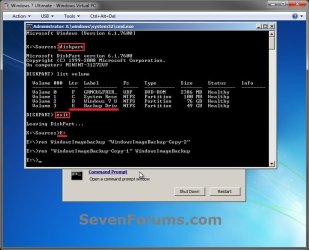
C) In the command prompt, type diskpart and press enter. (see screenshot below)

D) In the command prompt, type list volume and press enter. (see screenshot below)

E) Make note of the drive letter (ex: E: ) that you have the system image backup saved to.

F) In the command prompt, type exit and press enter. (see screenshot below)

G) In the command prompt, type the E: and press enter. (see screenshot below)
NOTE: Subsititute E: for your actual drive letter at step 2E instead.

H) If you already have a folder named "WindowsImageBackup"

NOTE: This is if you already have a folder named WindowsImageBackup that is not the system image version that you want to restore. If so, you would need to rename it to say WindowsImageBackup-Copy-2 as an example.
  • In the command prompt, type the command below and press enter. (see screenshot below)
    NOTE: Substitute WindowsImageBackup-Copy-2 in the command below with any name in quotes that you would like to rename it to instead.
Code:
[B]ren WindowsImageBackup "[COLOR=red]WindowsImageBackup-Copy-2[/COLOR]"[/B]
I) In the command prompt, type the command below and press enter. (see screenshot below)
NOTE: Substitute WindowsImageBackup-Copy-1 in the command below with the actual name of your renamed system image folder in quotes that you want to use to restore instead.
Code:
[B]ren "[COLOR=red]WindowsImageBackup-Copy-1[/COLOR]" WindowsImageBackup[/B]
J) Close the command prompt window. (see screenshot below)

K) Continue on to step 3B in the STEP TWO section below to do the System Image Recovery.
Rename-1.jpg


STEP TWO

To Do the System Image Recovery

1. If you have the system image backup save to an external device, be sure that it is connected and turned on (powered up) now.
A) Start with either step 2 or step 3 below first.
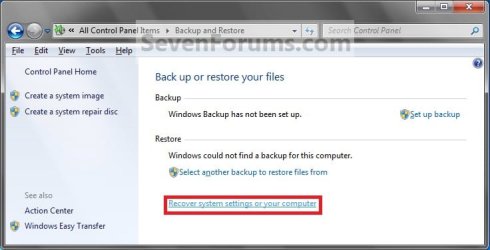
2. From "Backup and Restore" in the Control Panel while in Windows 7 A) Open the Control Panel (icons view), and click on Backup and Restore.

B) Click on the Recover system settings on your computer link. (see screenshot below) Step1.jpg
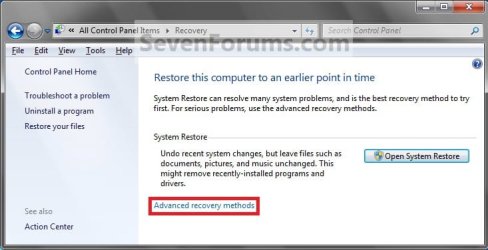
C) Click on the Advanced recovery methods link. (see screenshot below) Step2.jpg
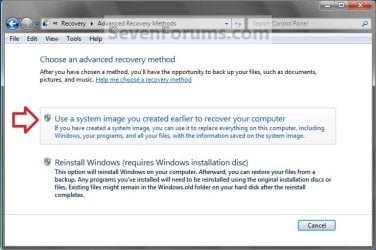
D) Select the Use a system image you created earlier to recover your computer option. (see screenshot below) Step3.jpg
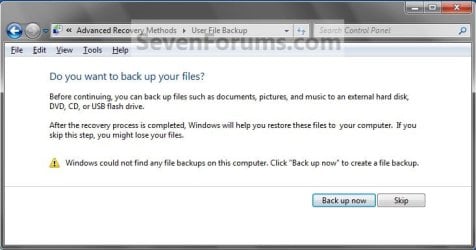
E) Select to either create a Back up now, or to Skip it and continue the system image recovery without backing up any of your current files.
NOTE: If you select Back up now, it will take you to step 6 in this tutorial link to create a User and System File back up of your current files first before continuing to step 1F. (see screenshot below) Step4A.jpg
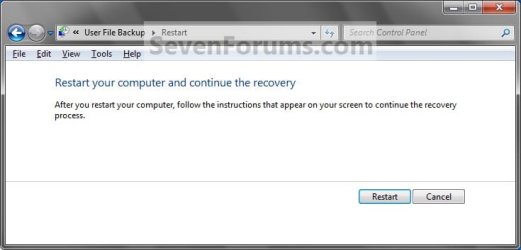
F) Click on Restart. (see screenshot below) Step5A.jpg
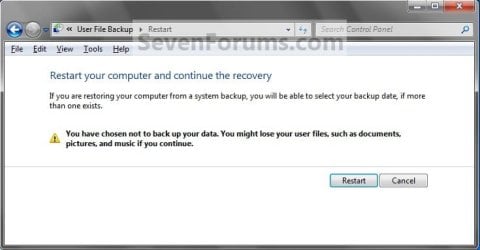
Step5B.jpg

G) Select a languange to be used for your keyboard input and click on Next. (see screenshot below) Step6.jpg
H) Go to step 4.
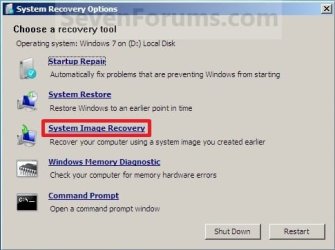
3. From the System Recovery Options Screen at Boot A) Boot to the System Recovery Options screen from your Windows 7 installation DVD/USB, or System Repair Disc.

B) Select the System Image Recovery option. (see screenshot below) System_Recovery_Options.jpg
4. If you saved the system image backup to a set of DVDs, then insert the last DVD from the set when prompted. If not, go to step 5 for a system image backup on a hard drive. A) Go to step 7 below.
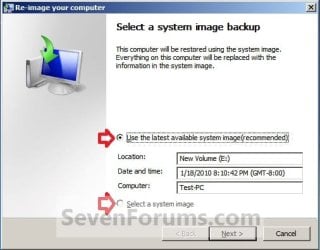
5. To Use the Latest System Image A) Select (dot) Use the latest available system image and click on Next. (see screenshot below) Step7.jpg
B) Go to step 7.
6. To Select a System Image A) Select (dot) Select a system image, and click on Next. (see screenshot above)
NOTE: This is if the system image that you want to use is not listed here and is at another location that you wish to choose from instead.

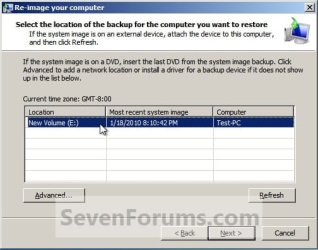
B) Select the location of the backup image for the computer you want to restore from the list, and click on Next. (see screenshot below)

   Note
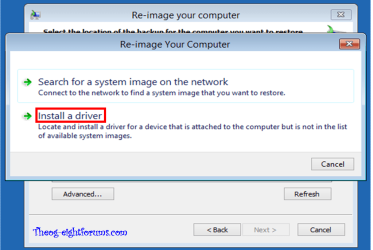
To add a image from a network location, click on the Advanced button, and on the Search for a system image on the network option.

If the drive cannot be seen to select a system image from, then you may need to use the tutorial below to load your SATA or RAID drivers before it will be seen. You would click on the Advanced button, and on the Install a driver option.

SATA Drivers - Load in Windows 8 System Image Recovery
RecoveryBackup004-8.PNG


Step8A.jpg
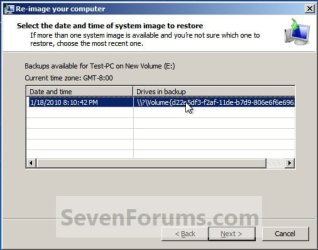
C) Select the date and time of the system image to restore, and click on Next. (see screenshot below) Step8B.jpg
7. To Do a Full System Image Recovery
NOTE: This option will format everything on each hard disk drive that was included in the system image, then restore them as they were when the system image was created.

   Note
Format and repartition disks box:
NOTE: Special thanks to MJF for this addition. 1) Grayed out and selected
You are forced to have the whole disk formatted and repartitioned to match the partition structure of the disk the image was made from. This can occur when restoring an image to a new disk or the original disk with a modified partition structure. Data on other partitions on the disk you are restoring to will be lost.

2) Grayed out and unselected
You are not given the option to format and repartition the disk. This will occur if you are restoring Windows from a partition on the same disk.

3) Not grayed out and unselected
Here you have the option to select format the whole disk and repartition or not. In this case the disk the image was taken from has a matching partition structure to the disk you are restoring the image to. By not selecting the format and repartition option your image will be restored and other partitions untouched such as valuable data partitions.
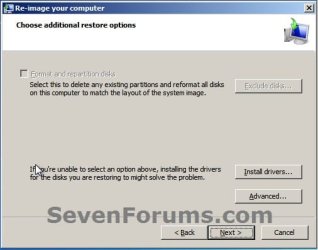
A) Check the Format and repartition disks box (if not grayed out) and uncheck Only restore system drives box (if available), and click on Next. (see screenshots below) Exclude_Disks.jpg
Step9.jpg
System_Drives.jpg
B) Go to step 10.
8. To Only Restore System Drives in System Image Recovery
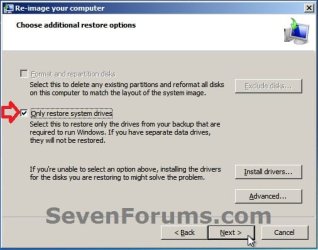
NOTE: When restoring to the same disk containing data partitions, the Format and repartition disks option may format the data partitions as well. If this is the case and you have the option to leave the Format and repartition disks box unchecked, then initially attempt your image recovery with the Format and repartition disks box unchecked. If recovery is unsuccessful, repeat the process with the format box ticked. A) If available, check the Only restore system drives box, and click on Next. (see screenshot below) System_Drives.jpg
B) Go to step 10.
9. To Exclude Restoring Specific Drives in System Image Recovery
NOTE: Since a system image recovery will format everything on each hard disk drive that was included in a system image, this will allow you to exclude specific disks so that specific disk will not be formated or restored. A) Check the Format and repartition disks box , and click on the Exclude disks button (if not grayed out). (see screenshot below)
NOTE: If the Exclude disks button is grayed out, then the HDD that you are restoring to is empty, or you do not have any disks in the system image that are able to be excluded from being restored. Exclude 001.JPG
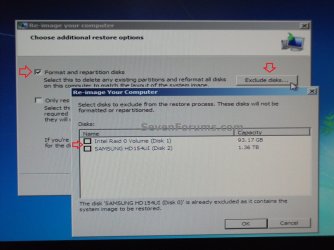
B) Unselect the drives that you want to exclude from being restored.

C) Click on Next.
10. Click on Finish. (see screenshot below) Step10.jpg
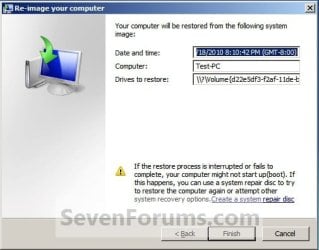
11. Click on Yes. (See screenshot below) Step11.jpg
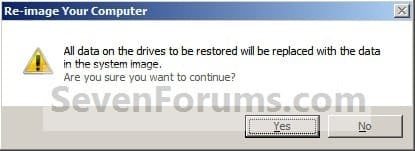
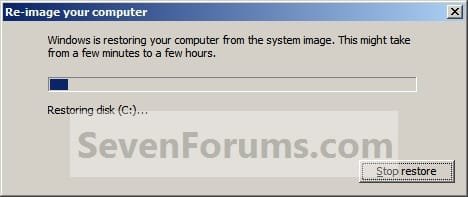
12. You will now see this screenshot below.
NOTE: If you have the backup image on DVDs, have them ready. See step 4 above. Step12.jpg
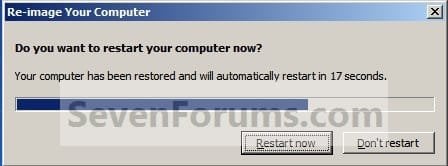
13. When it is through, click on Restart Now to finish. (see screenshot below)
NOTE: Your computer will restart and the backup image restoration will be done. Step13.jpg
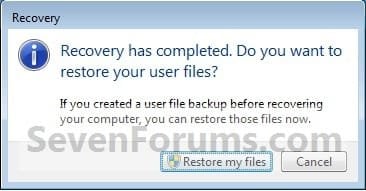
14. If you created a backup in step 1E, then you will now see this option to Restore my files after the computer restarts. (see screenshot below) Step14.jpg
That's it,
Shawn


Attachments

  • Step6A.jpg
    Step6A.jpg
    12.7 KB · Views: 244
Last edited:
Thanks for the reply, Shawn. So, to be clear, if I had other data on HDD Disk 0 outside of boot partition C, would it have been left alone, or reformatted? Thanks.
 

My Computer

Computer type
PC/Desktop
Computer Manufacturer/Model Number
Custom Build
OS
Windows 7 Home Premium 64-bit SP1
CPU
AMD Phenom II X2 550 Callisto
Motherboard
MSI 970A-G46
Memory
8.00GB Dual-Channel DDR3 @ 805MHz (9-9-9-24)
Graphics Card(s)
MSI GT210
Monitor(s) Displays
Acer X193W+ (1680x1050@59Hz)
Screen Resolution
1680x1050 pixels
Hard Drives
298GB Seagate ST3320620AS ATA Device (SATA)
932GB Hitachi HDS721010CLA332 ATA Device (SATA)
932GB Seagate ST31000528AS ATA Device (SATA)
PSU
ANTEC|EA650 RT
Case
ANTEC|THREE HUNDRED BK
Antivirus
Avast
Browser
Chrome
In addition to Brink's comments. If you have say a data partition D: on the same HDD as C: and you don't change the partition structure of the HDD then Windows System Image Recovery will have the format box unchecked. If you do not check it D: will remain in tact. If you do check it then partition D: will get formatted and you will lose your data.
Also, as Brink says if you are force to format use the exclude option to specifically exclude other attached drives.
 

My Computer

Computer type
PC/Desktop
Computer Manufacturer/Model Number
Own build
OS
Windows 7x64 Home Premium SP1
CPU
Intel i7 2600k
Motherboard
ASUS P8Z68 Deluxe
Memory
G.Skill Ripjaws (DDR3-1600) 2x4GB
Graphics Card(s)
Nvidia GeForce GTS 450; Intel HD Graphics 3000(GT2+)
Monitor(s) Displays
Dell Ultrasharp IPS panel U2311H, Samsung SyncMaster P2350
Screen Resolution
1920x1080
Hard Drives
Samsung 850 Pro SSD 256GB, Samsung SSD 840 120GB, Seagates 1TB Barracuda ST31000528AS x2
PSU
Seasonic M12II 520W
Case
Lian Li Lancool PC-K60
Cooling
Case: 1x120mm, 3x140mm CPU: Hyper 212+
Keyboard
Logitech MK520 (wireless)
Mouse
Logitech MK520
Internet Speed
6-7 Mbps
Antivirus
Norton Security Premium, Malwarebytes on 2 (MSE on 3rd PC)
Browser
FireFox
Other Info
Audio: Logitech Z523 2.1
Thanks mjf and Shawn for your replies. To summarize my situation: Win 7 failed to boot due to error reading BCD; Startup Repair couldn't find an OS; and WSIR running without selecting the format and repartition option failed with an 80070570 error. It looks like the only option I had to recover a bootable Win 7 was to format and repartition. I'll be sure not to keep any valuable data on HDD 0. This is getting way over my head, but if the backed-up System Image only contained what was in the C partition on HDD 0, why is it necessary to specifically Exclude the other HDD's during the recovery?
 

My Computer

Computer type
PC/Desktop
Computer Manufacturer/Model Number
Custom Build
OS
Windows 7 Home Premium 64-bit SP1
CPU
AMD Phenom II X2 550 Callisto
Motherboard
MSI 970A-G46
Memory
8.00GB Dual-Channel DDR3 @ 805MHz (9-9-9-24)
Graphics Card(s)
MSI GT210
Monitor(s) Displays
Acer X193W+ (1680x1050@59Hz)
Screen Resolution
1680x1050 pixels
Hard Drives
298GB Seagate ST3320620AS ATA Device (SATA)
932GB Hitachi HDS721010CLA332 ATA Device (SATA)
932GB Seagate ST31000528AS ATA Device (SATA)
PSU
ANTEC|EA650 RT
Case
ANTEC|THREE HUNDRED BK
Antivirus
Avast
Browser
Chrome
You would want to exclude them just to be extra safe. Otherwise they are at risk of being formatted by the system image recovery process if anything just happened to be included in the system image without you knowing about it.
 

My Computer

Computer type
PC/Desktop
Computer Manufacturer/Model Number
Self built custom
OS
64-bit Windows 11 Pro for Workstations
CPU
Intel i7-8700K OC'd to 5 GHz
Motherboard
ASUS ROG Maximus XI Formula Z390
Memory
64 GB (4x16GB) G.SKILL TridentZ RGB DDR4 3600 MHz
Graphics Card(s)
ASUS ROG-STRIX-GTX1080TI-O11G-GAMING
Sound Card
Integrated
Monitor(s) Displays
2 x Samsung Odyssey G7 27"
Screen Resolution
2560x1440
Hard Drives
1TB Samsung 990 PRO M.2,
4TB Samsung 990 PRO PRO M.2,
TerraMaster F8 SSD Plus NAS
PSU
Seasonic Prime Titanium 850W
Case
Thermaltake Core P3
Cooling
Corsair Hydro H115i
Keyboard
Logitech wireless K800
Mouse
Logitech MX Master 4
Internet Speed
2 Gb/s Download and 100 Mb/s Upload
Antivirus
Malwarebyte Anti-Malware Premium
Browser
Google Chrome
Other Info
Logitech Z625 speaker system,
Logitech BRIO 4K Pro webcam,
HP Color LaserJet Pro MFP M477fdn,
APC SMART-UPS RT 1000 XL - SURT1000XLI,
Galaxy S23 Plus phone
Wow! This new (to me) info is making me rethink my whole Windows 7 Backup strategy. Currently, I backup a System Image (C partition) to 2 separate HDD's in case one image was to get clobbered. I use Cobian to backup all my User data. However in the last 2 years, I've had the C boot sector corrupted twice (first when SuperAntiSpyware ran amok, recently when I tried to unlock the extra cores on my Phenom 550). I'm thinking I should use WSIR to create a Secondary bootable Win 7 partition on HDD 1. Then if the HDD 0 boot sector was to get corrupted again, I could boot Windows from the secondary partition, copy any other data off of HDD 0, and run WSIR with format and repartition to recreate the Primary Win 7 partition on HDD 0. I know this is kind of verbose, but I'd like to adopt a simple plan that gets me back online in the shortest time. Thanks.
 

My Computer

Computer type
PC/Desktop
Computer Manufacturer/Model Number
Custom Build
OS
Windows 7 Home Premium 64-bit SP1
CPU
AMD Phenom II X2 550 Callisto
Motherboard
MSI 970A-G46
Memory
8.00GB Dual-Channel DDR3 @ 805MHz (9-9-9-24)
Graphics Card(s)
MSI GT210
Monitor(s) Displays
Acer X193W+ (1680x1050@59Hz)
Screen Resolution
1680x1050 pixels
Hard Drives
298GB Seagate ST3320620AS ATA Device (SATA)
932GB Hitachi HDS721010CLA332 ATA Device (SATA)
932GB Seagate ST31000528AS ATA Device (SATA)
PSU
ANTEC|EA650 RT
Case
ANTEC|THREE HUNDRED BK
Antivirus
Avast
Browser
Chrome
Good plan. It's always best to have an extra backup plan than be sorry later if one should fail.
 

My Computer

Computer type
PC/Desktop
Computer Manufacturer/Model Number
Self built custom
OS
64-bit Windows 11 Pro for Workstations
CPU
Intel i7-8700K OC'd to 5 GHz
Motherboard
ASUS ROG Maximus XI Formula Z390
Memory
64 GB (4x16GB) G.SKILL TridentZ RGB DDR4 3600 MHz
Graphics Card(s)
ASUS ROG-STRIX-GTX1080TI-O11G-GAMING
Sound Card
Integrated
Monitor(s) Displays
2 x Samsung Odyssey G7 27"
Screen Resolution
2560x1440
Hard Drives
1TB Samsung 990 PRO M.2,
4TB Samsung 990 PRO PRO M.2,
TerraMaster F8 SSD Plus NAS
PSU
Seasonic Prime Titanium 850W
Case
Thermaltake Core P3
Cooling
Corsair Hydro H115i
Keyboard
Logitech wireless K800
Mouse
Logitech MX Master 4
Internet Speed
2 Gb/s Download and 100 Mb/s Upload
Antivirus
Malwarebyte Anti-Malware Premium
Browser
Google Chrome
Other Info
Logitech Z625 speaker system,
Logitech BRIO 4K Pro webcam,
HP Color LaserJet Pro MFP M477fdn,
APC SMART-UPS RT 1000 XL - SURT1000XLI,
Galaxy S23 Plus phone
Well, I ran into a problem with my strategy. After selecting the latest System Image that I wanted to use to make a secondary boot drive, the next frame has the Format and Repartition option greyed out and unselected. How does on go about selecting a new HDD to recover to? Thanks.

I read in the "Imaging With Free Macrium" tutorial by whs that "...when restoring to another HDD you should disconnect the original. They will both have the same disk signature and this can cause problems." Do you think this is my problem?
 
Last edited:

My Computer

Computer type
PC/Desktop
Computer Manufacturer/Model Number
Custom Build
OS
Windows 7 Home Premium 64-bit SP1
CPU
AMD Phenom II X2 550 Callisto
Motherboard
MSI 970A-G46
Memory
8.00GB Dual-Channel DDR3 @ 805MHz (9-9-9-24)
Graphics Card(s)
MSI GT210
Monitor(s) Displays
Acer X193W+ (1680x1050@59Hz)
Screen Resolution
1680x1050 pixels
Hard Drives
298GB Seagate ST3320620AS ATA Device (SATA)
932GB Hitachi HDS721010CLA332 ATA Device (SATA)
932GB Seagate ST31000528AS ATA Device (SATA)
PSU
ANTEC|EA650 RT
Case
ANTEC|THREE HUNDRED BK
Antivirus
Avast
Browser
Chrome
Belvihur,

In that case, I woud recommend to disconnect all HDD's except the one that has the system image backup on it and the one that you want to restore the image to. By default, the partition that has the image saved on it will not be touched.

Normally, it will restore to the system (Windows 7) drive by default. If no system drive is found and you have more than one drive available to restore to, then you may have an option to select which one to restore to.
 

My Computer

Computer type
PC/Desktop
Computer Manufacturer/Model Number
Self built custom
OS
64-bit Windows 11 Pro for Workstations
CPU
Intel i7-8700K OC'd to 5 GHz
Motherboard
ASUS ROG Maximus XI Formula Z390
Memory
64 GB (4x16GB) G.SKILL TridentZ RGB DDR4 3600 MHz
Graphics Card(s)
ASUS ROG-STRIX-GTX1080TI-O11G-GAMING
Sound Card
Integrated
Monitor(s) Displays
2 x Samsung Odyssey G7 27"
Screen Resolution
2560x1440
Hard Drives
1TB Samsung 990 PRO M.2,
4TB Samsung 990 PRO PRO M.2,
TerraMaster F8 SSD Plus NAS
PSU
Seasonic Prime Titanium 850W
Case
Thermaltake Core P3
Cooling
Corsair Hydro H115i
Keyboard
Logitech wireless K800
Mouse
Logitech MX Master 4
Internet Speed
2 Gb/s Download and 100 Mb/s Upload
Antivirus
Malwarebyte Anti-Malware Premium
Browser
Google Chrome
Other Info
Logitech Z625 speaker system,
Logitech BRIO 4K Pro webcam,
HP Color LaserJet Pro MFP M477fdn,
APC SMART-UPS RT 1000 XL - SURT1000XLI,
Galaxy S23 Plus phone
ditto Brink's comments. The HDD you restore the image to will have exactly the same MBR as the original including the disk signature. Windows will not allow 2 HDD to have the same disk signature.
The greyed out unselected format box is typical when your image is on the same HDD but a different partition to the OS. I guess we are assuming your image is on an external HDD?
 

My Computer

Computer type
PC/Desktop
Computer Manufacturer/Model Number
Own build
OS
Windows 7x64 Home Premium SP1
CPU
Intel i7 2600k
Motherboard
ASUS P8Z68 Deluxe
Memory
G.Skill Ripjaws (DDR3-1600) 2x4GB
Graphics Card(s)
Nvidia GeForce GTS 450; Intel HD Graphics 3000(GT2+)
Monitor(s) Displays
Dell Ultrasharp IPS panel U2311H, Samsung SyncMaster P2350
Screen Resolution
1920x1080
Hard Drives
Samsung 850 Pro SSD 256GB, Samsung SSD 840 120GB, Seagates 1TB Barracuda ST31000528AS x2
PSU
Seasonic M12II 520W
Case
Lian Li Lancool PC-K60
Cooling
Case: 1x120mm, 3x140mm CPU: Hyper 212+
Keyboard
Logitech MK520 (wireless)
Mouse
Logitech MK520
Internet Speed
6-7 Mbps
Antivirus
Norton Security Premium, Malwarebytes on 2 (MSE on 3rd PC)
Browser
FireFox
Other Info
Audio: Logitech Z523 2.1
Umm no. The C partition is on HDD 0, the image is stored on HDD 2, and I would like to make a secondary boot drive on HDD 3. The boot partition itself is only 30GB.
 

My Computer

Computer type
PC/Desktop
Computer Manufacturer/Model Number
Custom Build
OS
Windows 7 Home Premium 64-bit SP1
CPU
AMD Phenom II X2 550 Callisto
Motherboard
MSI 970A-G46
Memory
8.00GB Dual-Channel DDR3 @ 805MHz (9-9-9-24)
Graphics Card(s)
MSI GT210
Monitor(s) Displays
Acer X193W+ (1680x1050@59Hz)
Screen Resolution
1680x1050 pixels
Hard Drives
298GB Seagate ST3320620AS ATA Device (SATA)
932GB Hitachi HDS721010CLA332 ATA Device (SATA)
932GB Seagate ST31000528AS ATA Device (SATA)
PSU
ANTEC|EA650 RT
Case
ANTEC|THREE HUNDRED BK
Antivirus
Avast
Browser
Chrome
Bilvihur,

If you are wanting to have the same OS on more than one drive, then you would also need to have a separate product key number for each one to activate with as well. Otherwise it would violate the EULA.

That's not going to be a real easy task using System Image Recovery since you would basically have to disconnect HDD 0, restore to HDD 3 which would be formatted first, when finished connect HDD 0 back, then use something like the free program "EasyBCD" to fix the MBR to be able to have both OS's listed at boot to select which on you wanted to boot to. If you don't fix the MBR, then you would have to use the Boot Menu at startup to select to startup to the other HDD instead of the default one.
 

My Computer

Computer type
PC/Desktop
Computer Manufacturer/Model Number
Self built custom
OS
64-bit Windows 11 Pro for Workstations
CPU
Intel i7-8700K OC'd to 5 GHz
Motherboard
ASUS ROG Maximus XI Formula Z390
Memory
64 GB (4x16GB) G.SKILL TridentZ RGB DDR4 3600 MHz
Graphics Card(s)
ASUS ROG-STRIX-GTX1080TI-O11G-GAMING
Sound Card
Integrated
Monitor(s) Displays
2 x Samsung Odyssey G7 27"
Screen Resolution
2560x1440
Hard Drives
1TB Samsung 990 PRO M.2,
4TB Samsung 990 PRO PRO M.2,
TerraMaster F8 SSD Plus NAS
PSU
Seasonic Prime Titanium 850W
Case
Thermaltake Core P3
Cooling
Corsair Hydro H115i
Keyboard
Logitech wireless K800
Mouse
Logitech MX Master 4
Internet Speed
2 Gb/s Download and 100 Mb/s Upload
Antivirus
Malwarebyte Anti-Malware Premium
Browser
Google Chrome
Other Info
Logitech Z625 speaker system,
Logitech BRIO 4K Pro webcam,
HP Color LaserJet Pro MFP M477fdn,
APC SMART-UPS RT 1000 XL - SURT1000XLI,
Galaxy S23 Plus phone
Now we're cooking! I don't boot that often, so I wouldn't mind using BIOS to select the Primary Boot disk at startup. I just want to have an exact copy of my system available to boot from in the event of catastrophic problems (already described). This would allow me to get back online quickly, and retrieve data from the Primary boot disk before using System Image Recovery to format and repartition it (which thankfully worked well). I hope I'm being clear. I don't want to propagate copies of Windows 7, just have a working copy of my Windows 7 system available for use. Thanks
 

My Computer

Computer type
PC/Desktop
Computer Manufacturer/Model Number
Custom Build
OS
Windows 7 Home Premium 64-bit SP1
CPU
AMD Phenom II X2 550 Callisto
Motherboard
MSI 970A-G46
Memory
8.00GB Dual-Channel DDR3 @ 805MHz (9-9-9-24)
Graphics Card(s)
MSI GT210
Monitor(s) Displays
Acer X193W+ (1680x1050@59Hz)
Screen Resolution
1680x1050 pixels
Hard Drives
298GB Seagate ST3320620AS ATA Device (SATA)
932GB Hitachi HDS721010CLA332 ATA Device (SATA)
932GB Seagate ST31000528AS ATA Device (SATA)
PSU
ANTEC|EA650 RT
Case
ANTEC|THREE HUNDRED BK
Antivirus
Avast
Browser
Chrome
You're most welcome Bilvihur. Glad we could help. :)
 

My Computer

Computer type
PC/Desktop
Computer Manufacturer/Model Number
Self built custom
OS
64-bit Windows 11 Pro for Workstations
CPU
Intel i7-8700K OC'd to 5 GHz
Motherboard
ASUS ROG Maximus XI Formula Z390
Memory
64 GB (4x16GB) G.SKILL TridentZ RGB DDR4 3600 MHz
Graphics Card(s)
ASUS ROG-STRIX-GTX1080TI-O11G-GAMING
Sound Card
Integrated
Monitor(s) Displays
2 x Samsung Odyssey G7 27"
Screen Resolution
2560x1440
Hard Drives
1TB Samsung 990 PRO M.2,
4TB Samsung 990 PRO PRO M.2,
TerraMaster F8 SSD Plus NAS
PSU
Seasonic Prime Titanium 850W
Case
Thermaltake Core P3
Cooling
Corsair Hydro H115i
Keyboard
Logitech wireless K800
Mouse
Logitech MX Master 4
Internet Speed
2 Gb/s Download and 100 Mb/s Upload
Antivirus
Malwarebyte Anti-Malware Premium
Browser
Google Chrome
Other Info
Logitech Z625 speaker system,
Logitech BRIO 4K Pro webcam,
HP Color LaserJet Pro MFP M477fdn,
APC SMART-UPS RT 1000 XL - SURT1000XLI,
Galaxy S23 Plus phone
You're most welcome Bilvihur. Glad we could help. :)

Hi just about to go to the shop to buy DVDs so I can do a system image.

Anything I should know before I go?

i.e. what DVDs to look for?

around 22GB and hard drive isn't an option etc...

prefer disks tbh as more likely to work (hard drive files can get deleted etc...)
 

My Computer

OS
Windows 7 Professional 64bit
Hello Mangoh,

I wouldn't recommend using DVDs to save a system image to. It would take to many, and would have a high chance of corruption or a bad burn. It would be bad to find out if the DVDs were bad when you needed them. If you must, DVD-R or DVD+R are good to use, but you will need to check to make sure that your DVD burner supports them. Most do these days though.

Instead, I would recommend to save a system image to another internal or external HDD than the one you have included in the system image. Another HDD is a lot more reliable.
 

My Computer

Computer type
PC/Desktop
Computer Manufacturer/Model Number
Self built custom
OS
64-bit Windows 11 Pro for Workstations
CPU
Intel i7-8700K OC'd to 5 GHz
Motherboard
ASUS ROG Maximus XI Formula Z390
Memory
64 GB (4x16GB) G.SKILL TridentZ RGB DDR4 3600 MHz
Graphics Card(s)
ASUS ROG-STRIX-GTX1080TI-O11G-GAMING
Sound Card
Integrated
Monitor(s) Displays
2 x Samsung Odyssey G7 27"
Screen Resolution
2560x1440
Hard Drives
1TB Samsung 990 PRO M.2,
4TB Samsung 990 PRO PRO M.2,
TerraMaster F8 SSD Plus NAS
PSU
Seasonic Prime Titanium 850W
Case
Thermaltake Core P3
Cooling
Corsair Hydro H115i
Keyboard
Logitech wireless K800
Mouse
Logitech MX Master 4
Internet Speed
2 Gb/s Download and 100 Mb/s Upload
Antivirus
Malwarebyte Anti-Malware Premium
Browser
Google Chrome
Other Info
Logitech Z625 speaker system,
Logitech BRIO 4K Pro webcam,
HP Color LaserJet Pro MFP M477fdn,
APC SMART-UPS RT 1000 XL - SURT1000XLI,
Galaxy S23 Plus phone
Hello Mangoh,

I wouldn't recommend using DVDs to save a system image to. It would take to many, and would have a high chance of corruption or a bad burn. It would be bad to find out if the DVDs were bad when you needed them. If you must, DVD-R or DVD+R are good to use, but you will need to check to make sure that your DVD burner supports them. Most do these days though.

Instead, I would recommend to save a system image to another internal or external HDD than the one you have included in the system image. Another HDD is a lot more reliable.

This is where I get a little confused :)

"save a system image to another internal or external HDD"

so internal HDD I assume means make another partition?

external hdd I assume means external hard drive, USB etc...? HDD standing for hard disk drive so anything that can hold the data? If so I don't get how a USB falls into that category when it doesn't have a hard disk tray?
 

My Computer

OS
Windows 7 Professional 64bit

My Computer

Computer type
PC/Desktop
Computer Manufacturer/Model Number
Self built custom
OS
64-bit Windows 11 Pro for Workstations
CPU
Intel i7-8700K OC'd to 5 GHz
Motherboard
ASUS ROG Maximus XI Formula Z390
Memory
64 GB (4x16GB) G.SKILL TridentZ RGB DDR4 3600 MHz
Graphics Card(s)
ASUS ROG-STRIX-GTX1080TI-O11G-GAMING
Sound Card
Integrated
Monitor(s) Displays
2 x Samsung Odyssey G7 27"
Screen Resolution
2560x1440
Hard Drives
1TB Samsung 990 PRO M.2,
4TB Samsung 990 PRO PRO M.2,
TerraMaster F8 SSD Plus NAS
PSU
Seasonic Prime Titanium 850W
Case
Thermaltake Core P3
Cooling
Corsair Hydro H115i
Keyboard
Logitech wireless K800
Mouse
Logitech MX Master 4
Internet Speed
2 Gb/s Download and 100 Mb/s Upload
Antivirus
Malwarebyte Anti-Malware Premium
Browser
Google Chrome
Other Info
Logitech Z625 speaker system,
Logitech BRIO 4K Pro webcam,
HP Color LaserJet Pro MFP M477fdn,
APC SMART-UPS RT 1000 XL - SURT1000XLI,
Galaxy S23 Plus phone
Nope, just to provide more information. ;)
 

My Computer

Computer type
PC/Desktop
Computer Manufacturer/Model Number
Self built custom
OS
64-bit Windows 11 Pro for Workstations
CPU
Intel i7-8700K OC'd to 5 GHz
Motherboard
ASUS ROG Maximus XI Formula Z390
Memory
64 GB (4x16GB) G.SKILL TridentZ RGB DDR4 3600 MHz
Graphics Card(s)
ASUS ROG-STRIX-GTX1080TI-O11G-GAMING
Sound Card
Integrated
Monitor(s) Displays
2 x Samsung Odyssey G7 27"
Screen Resolution
2560x1440
Hard Drives
1TB Samsung 990 PRO M.2,
4TB Samsung 990 PRO PRO M.2,
TerraMaster F8 SSD Plus NAS
PSU
Seasonic Prime Titanium 850W
Case
Thermaltake Core P3
Cooling
Corsair Hydro H115i
Keyboard
Logitech wireless K800
Mouse
Logitech MX Master 4
Internet Speed
2 Gb/s Download and 100 Mb/s Upload
Antivirus
Malwarebyte Anti-Malware Premium
Browser
Google Chrome
Other Info
Logitech Z625 speaker system,
Logitech BRIO 4K Pro webcam,
HP Color LaserJet Pro MFP M477fdn,
APC SMART-UPS RT 1000 XL - SURT1000XLI,
Galaxy S23 Plus phone
Quick question if someone doesn't mind answering :)

*Insert example to explain*

1) I install Windows 7 last month on drive ( C: )
2) I decide to create a system image on the same day
3) I have finished creating an system image and have had it created on another partition but on the same Hard Disk Drive ( D: )
4) A week after creating a system image I decide to do some work and I save a word document in the "My Documents" folder
5) I decide to restore the system image that I had created last month.

Now when restoring the system image does that mean I will have to backup the word document (step 4) as I had created & saved it AFTER step 3?

Surely when I restore the system image it will erase all my documents etc... and then restore w/e was in the my documents folder before I had finished creating a system image?
 

My Computer

OS
Windows 7 Professional 64bit
Back
Top