System Image Recovery

How to Do a System Image Recovery in Windows 7


   Information
This will show you how to restore your Windows 7 hard disk back to exactly how it was when you created a system image backup.
   Warning

  • You can only do a system image recovery to a HDD that is the same size or larger than the one the system image was created from. You will not be able to do a system image recovery to a smaller HDD.
  • When you restore your computer from a image backup, it is a complete restoration. You can't choose individual items to restore, and all of your current programs, system settings, and files are replaced.
  • If your backup image is on a external device (ex: USB drive), then make sure it is connected before starting. If USB drive, then also make sure that you have your BIOS settings (ex: Legacy USB) set to allow USB devices at boot.
  • A system image recovery will format everything on each hard drive that was included in a system image, and will only restore what is included (see steps 7-9 in STEP TWO below) in the system image back. Be sure to backup anything that you do not want to lose that is not included in the system image backup first.


STEP ONE

Only if You Renamed the "WindowsImageBackup" Folder


   Note
To be able to have multiple versions of system images saved on the same drive or partition, you would need to rename the older WindowsImageBackup folder from the previously created system image as described in the NOTE box at the top of this tutorial.

If you renamed the WindowsImageBackup folder for the system image version that you wanted to restore, then you will need to do the steps below before you will be able to restore that system image.

1. If you are "Able to Boot" into Windows 7 A) In Windows Explorer, navigate to the renamed (drive letter)\WindowsImageBackup folder location of the system image that you want to restore.

B) If you already have a folder named WindowsImageBackup that is not the system image version that you want to restore, then you will need to right click on it, click on Rename, and type in say WindowsImageBackup-Copy-2 as an example.

C) Now, right click on the renamed system image version (ex: WindowsImageBackup-Copy-1) that you did want to restore, click on Rename, type in WindowsImageBackup an press enter.

D) Go to the STEP TWO section below to do the System Image Recovery.
2. If you are "Not Able to Boot" into Windows 7 A) If you have the system image backup save to an external device, be sure that it is connected now.

B) Open a command prompt at boot.

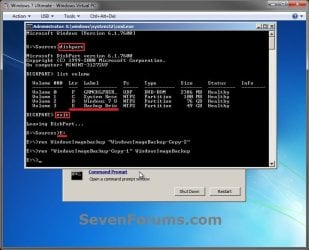
C) In the command prompt, type diskpart and press enter. (see screenshot below)

D) In the command prompt, type list volume and press enter. (see screenshot below)

E) Make note of the drive letter (ex: E: ) that you have the system image backup saved to.

F) In the command prompt, type exit and press enter. (see screenshot below)

G) In the command prompt, type the E: and press enter. (see screenshot below)
NOTE: Subsititute E: for your actual drive letter at step 2E instead.

H) If you already have a folder named "WindowsImageBackup"

NOTE: This is if you already have a folder named WindowsImageBackup that is not the system image version that you want to restore. If so, you would need to rename it to say WindowsImageBackup-Copy-2 as an example.
  • In the command prompt, type the command below and press enter. (see screenshot below)
    NOTE: Substitute WindowsImageBackup-Copy-2 in the command below with any name in quotes that you would like to rename it to instead.
Code:
[B]ren WindowsImageBackup "[COLOR=red]WindowsImageBackup-Copy-2[/COLOR]"[/B]
I) In the command prompt, type the command below and press enter. (see screenshot below)
NOTE: Substitute WindowsImageBackup-Copy-1 in the command below with the actual name of your renamed system image folder in quotes that you want to use to restore instead.
Code:
[B]ren "[COLOR=red]WindowsImageBackup-Copy-1[/COLOR]" WindowsImageBackup[/B]
J) Close the command prompt window. (see screenshot below)

K) Continue on to step 3B in the STEP TWO section below to do the System Image Recovery.
Rename-1.jpg


STEP TWO

To Do the System Image Recovery

1. If you have the system image backup save to an external device, be sure that it is connected and turned on (powered up) now.
A) Start with either step 2 or step 3 below first.
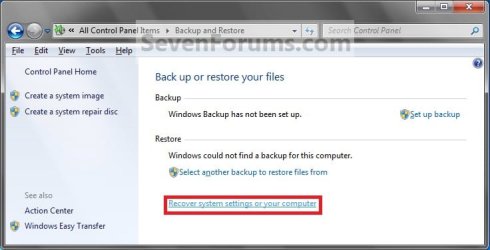
2. From "Backup and Restore" in the Control Panel while in Windows 7 A) Open the Control Panel (icons view), and click on Backup and Restore.

B) Click on the Recover system settings on your computer link. (see screenshot below) Step1.jpg
C) Click on the Advanced recovery methods link. (see screenshot below) Step2.jpg
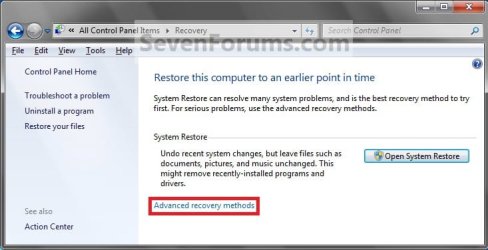
D) Select the Use a system image you created earlier to recover your computer option. (see screenshot below) Step3.jpg
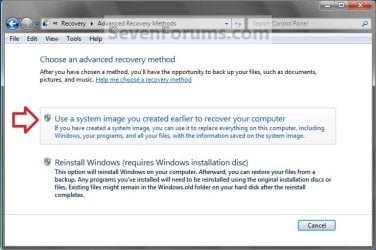
E) Select to either create a Back up now, or to Skip it and continue the system image recovery without backing up any of your current files.
NOTE: If you select Back up now, it will take you to step 6 in this tutorial link to create a User and System File back up of your current files first before continuing to step 1F. (see screenshot below) Step4A.jpg
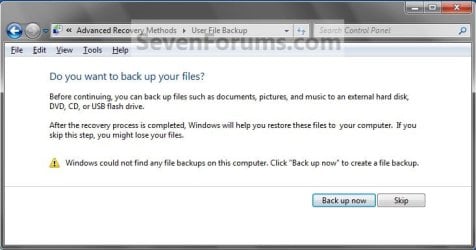
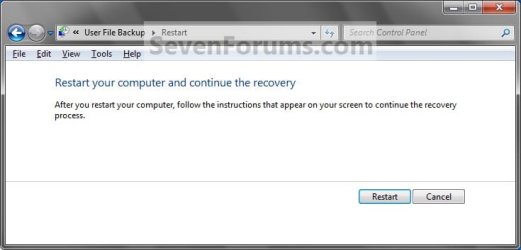
F) Click on Restart. (see screenshot below) Step5A.jpg
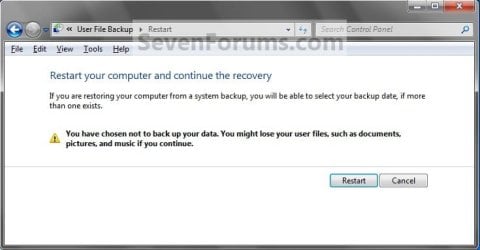
Step5B.jpg

G) Select a languange to be used for your keyboard input and click on Next. (see screenshot below) Step6.jpg
H) Go to step 4.
3. From the System Recovery Options Screen at Boot A) Boot to the System Recovery Options screen from your Windows 7 installation DVD/USB, or System Repair Disc.

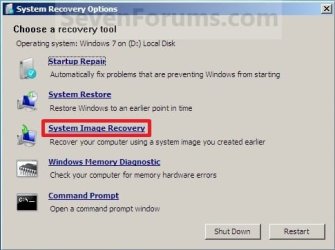
B) Select the System Image Recovery option. (see screenshot below) System_Recovery_Options.jpg
4. If you saved the system image backup to a set of DVDs, then insert the last DVD from the set when prompted. If not, go to step 5 for a system image backup on a hard drive. A) Go to step 7 below.
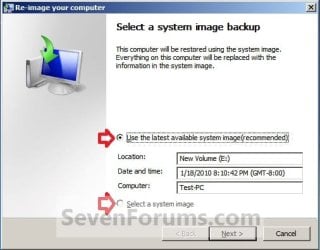
5. To Use the Latest System Image A) Select (dot) Use the latest available system image and click on Next. (see screenshot below) Step7.jpg
B) Go to step 7.
6. To Select a System Image A) Select (dot) Select a system image, and click on Next. (see screenshot above)
NOTE: This is if the system image that you want to use is not listed here and is at another location that you wish to choose from instead.

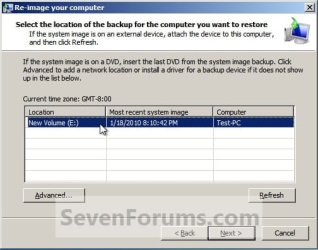
B) Select the location of the backup image for the computer you want to restore from the list, and click on Next. (see screenshot below)

   Note
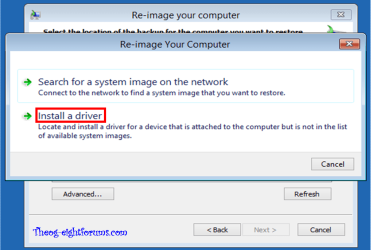
To add a image from a network location, click on the Advanced button, and on the Search for a system image on the network option.

If the drive cannot be seen to select a system image from, then you may need to use the tutorial below to load your SATA or RAID drivers before it will be seen. You would click on the Advanced button, and on the Install a driver option.

SATA Drivers - Load in Windows 8 System Image Recovery
RecoveryBackup004-8.PNG


Step8A.jpg
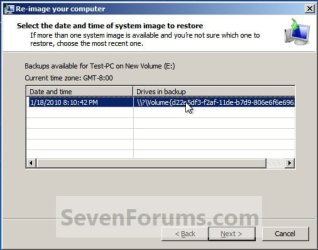
C) Select the date and time of the system image to restore, and click on Next. (see screenshot below) Step8B.jpg
7. To Do a Full System Image Recovery
NOTE: This option will format everything on each hard disk drive that was included in the system image, then restore them as they were when the system image was created.

   Note
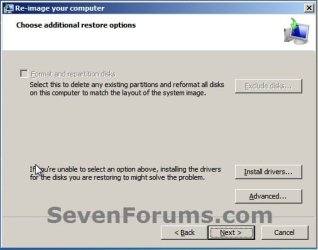
Format and repartition disks box:
NOTE: Special thanks to MJF for this addition. 1) Grayed out and selected
You are forced to have the whole disk formatted and repartitioned to match the partition structure of the disk the image was made from. This can occur when restoring an image to a new disk or the original disk with a modified partition structure. Data on other partitions on the disk you are restoring to will be lost.

2) Grayed out and unselected
You are not given the option to format and repartition the disk. This will occur if you are restoring Windows from a partition on the same disk.

3) Not grayed out and unselected
Here you have the option to select format the whole disk and repartition or not. In this case the disk the image was taken from has a matching partition structure to the disk you are restoring the image to. By not selecting the format and repartition option your image will be restored and other partitions untouched such as valuable data partitions.
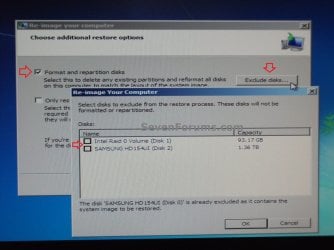
A) Check the Format and repartition disks box (if not grayed out) and uncheck Only restore system drives box (if available), and click on Next. (see screenshots below) Exclude_Disks.jpg
Step9.jpg
System_Drives.jpg
B) Go to step 10.
8. To Only Restore System Drives in System Image Recovery
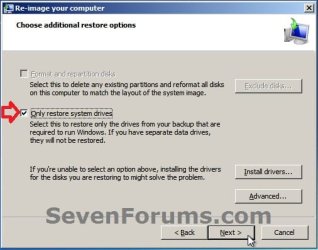
NOTE: When restoring to the same disk containing data partitions, the Format and repartition disks option may format the data partitions as well. If this is the case and you have the option to leave the Format and repartition disks box unchecked, then initially attempt your image recovery with the Format and repartition disks box unchecked. If recovery is unsuccessful, repeat the process with the format box ticked. A) If available, check the Only restore system drives box, and click on Next. (see screenshot below) System_Drives.jpg
B) Go to step 10.
9. To Exclude Restoring Specific Drives in System Image Recovery
NOTE: Since a system image recovery will format everything on each hard disk drive that was included in a system image, this will allow you to exclude specific disks so that specific disk will not be formated or restored. A) Check the Format and repartition disks box , and click on the Exclude disks button (if not grayed out). (see screenshot below)
NOTE: If the Exclude disks button is grayed out, then the HDD that you are restoring to is empty, or you do not have any disks in the system image that are able to be excluded from being restored. Exclude 001.JPG
B) Unselect the drives that you want to exclude from being restored.

C) Click on Next.
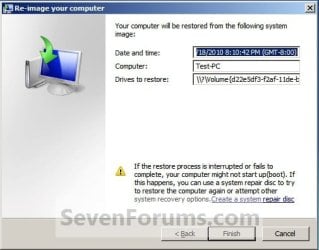
10. Click on Finish. (see screenshot below) Step10.jpg
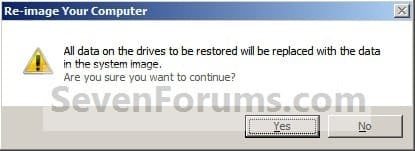
11. Click on Yes. (See screenshot below) Step11.jpg
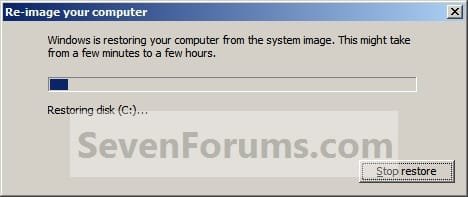
12. You will now see this screenshot below.
NOTE: If you have the backup image on DVDs, have them ready. See step 4 above. Step12.jpg
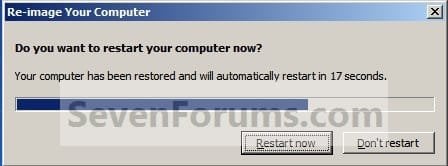
13. When it is through, click on Restart Now to finish. (see screenshot below)
NOTE: Your computer will restart and the backup image restoration will be done. Step13.jpg
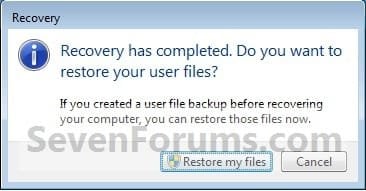
14. If you created a backup in step 1E, then you will now see this option to Restore my files after the computer restarts. (see screenshot below) Step14.jpg
That's it,
Shawn


Attachments

  • Step6A.jpg
    Step6A.jpg
    12.7 KB · Views: 244
Last edited:
Quick question if someone doesn't mind answering :)

*Insert example to explain*

1) I install Windows 7 last month on drive ( C: )
2) I decide to create a system image on the same day
3) I have finished creating an system image and have had it created on another partition but on the same Hard Disk Drive ( D: )
4) A week after creating a system image I decide to do some work and I save a word document in the "My Documents" folder
5) I decide to restore the system image that I had created last month.

Now when restoring the system image does that mean I will have to backup the word document (step 4) as I had created & saved it AFTER step 3?

Surely when I restore the system image it will erase all my documents etc... and then restore w/e was in the my documents folder before I had finished creating a system image?

Hello Mangoh,

That's correct. If you don't backpup the document before doing a system image recovery, you will lose it since the document was after the image was created. :)
 
Last edited:

My Computer My Computer

At a glance

64-bit Windows 11 Pro for WorkstationsIntel i7-8700K OC'd to 5 GHz64 GB (4x16GB) G.SKILL TridentZ RGB DDR4 3600...ASUS ROG-STRIX-GTX1080TI-O11G-GAMING
Computer type
PC/Desktop
Computer Manufacturer/Model Number
Self built custom
OS
64-bit Windows 11 Pro for Workstations
CPU
Intel i7-8700K OC'd to 5 GHz
Motherboard
ASUS ROG Maximus XI Formula Z390
Memory
64 GB (4x16GB) G.SKILL TridentZ RGB DDR4 3600 MHz
Graphics Card(s)
ASUS ROG-STRIX-GTX1080TI-O11G-GAMING
Sound Card
Integrated
Monitor(s) Displays
2 x Samsung Odyssey G7 27"
Screen Resolution
2560x1440
Hard Drives
1TB Samsung 990 PRO M.2,
4TB Samsung 990 PRO PRO M.2,
TerraMaster F8 SSD Plus NAS
PSU
Seasonic Prime Titanium 850W
Case
Thermaltake Core P3
Cooling
Corsair Hydro H115i
Keyboard
Logitech wireless K800
Mouse
Logitech MX Master 4
Internet Speed
2 Gb/s Download and 100 Mb/s Upload
Antivirus
Malwarebyte Anti-Malware Premium
Browser
Google Chrome
Other Info
Logitech Z625 speaker system,
Logitech BRIO 4K Pro webcam,
HP Color LaserJet Pro MFP M477fdn,
APC SMART-UPS RT 1000 XL - SURT1000XLI,
Galaxy S23 Plus phone
Thanks nice and easily explained :)

Understood.

Edit: "Backpup" lol nice... :D

My next question is if that's the case where can I find the my documents stored that a system image has created i.e. where in the WindowsImageBackup folder?
 

My Computer My Computer

At a glance

Windows 7 Professional 64bit
OS
Windows 7 Professional 64bit

My Computer My Computer

At a glance

64-bit Windows 11 Pro for WorkstationsIntel i7-8700K OC'd to 5 GHz64 GB (4x16GB) G.SKILL TridentZ RGB DDR4 3600...ASUS ROG-STRIX-GTX1080TI-O11G-GAMING
Computer type
PC/Desktop
Computer Manufacturer/Model Number
Self built custom
OS
64-bit Windows 11 Pro for Workstations
CPU
Intel i7-8700K OC'd to 5 GHz
Motherboard
ASUS ROG Maximus XI Formula Z390
Memory
64 GB (4x16GB) G.SKILL TridentZ RGB DDR4 3600 MHz
Graphics Card(s)
ASUS ROG-STRIX-GTX1080TI-O11G-GAMING
Sound Card
Integrated
Monitor(s) Displays
2 x Samsung Odyssey G7 27"
Screen Resolution
2560x1440
Hard Drives
1TB Samsung 990 PRO M.2,
4TB Samsung 990 PRO PRO M.2,
TerraMaster F8 SSD Plus NAS
PSU
Seasonic Prime Titanium 850W
Case
Thermaltake Core P3
Cooling
Corsair Hydro H115i
Keyboard
Logitech wireless K800
Mouse
Logitech MX Master 4
Internet Speed
2 Gb/s Download and 100 Mb/s Upload
Antivirus
Malwarebyte Anti-Malware Premium
Browser
Google Chrome
Other Info
Logitech Z625 speaker system,
Logitech BRIO 4K Pro webcam,
HP Color LaserJet Pro MFP M477fdn,
APC SMART-UPS RT 1000 XL - SURT1000XLI,
Galaxy S23 Plus phone
Hi. I have a RAID 1 assembly that unbeleivably both drives seem to have started having problem simulataneously. Dell are coming in 5 hours to replace both HD and install Win7 Pro 64-bit. I just want to be sure I have everything sorted to try to recover the system image.

My drive has 4 partitions; system reserve, C: programs/OS U: User Data B: backup for my wife's PC. I have a system image of C: & U: (I think it takes the system reserve automatically) taken from a few days ago by Windows stored on a 3rd HD internal HD. I also have all of U: backup daily onto my wife's PC (last ran succesfully also a few days ago).

As far as I understand once they have installed 2 new HD (they are the same size as my existing ones) and OS I can go through back up and restore. I don't need the B: partition as can just create a new backup later. Should I chose method 7. "To do a full system image recovery" and then create the new B: partition once complete?

Is there anything I need to do/know as it is RAID 1 image? I know you guys don't recommend RAID and having had both disks fail simulataneously twice I am wondering what the point is. If I don't recreate the RAID 1 is there any chance I can use the RAID image to restore the system to a single disk or is that a non-starter? i am just so busy with work I can't afford spending lots of time rebuilding my stystem right now so need the quickest solution. Maybe later I will break the RAID.

Appreciate any advice before the engineer turns up!

Mike
 

My Computer My Computer

At a glance

Windows 7 64 bitintel quad Q6600 2.4GHz4GBATI Radeon HD 4850 512Mb
Computer Manufacturer/Model Number
Dell XPS 430
OS
Windows 7 64 bit
CPU
intel quad Q6600 2.4GHz
Motherboard
Intel X48
Memory
4GB
Graphics Card(s)
ATI Radeon HD 4850 512Mb
Sound Card
ATI High Def
Monitor(s) Displays
Dell 1707FPV
Hard Drives
640GB RAID 0
320GB
PSU
425W
Keyboard
Logitech MX3000
Mouse
Logitech M-RAG97
Internet Speed
7Mb
Hello Mike,

Sorry to hear about your RAID 1.

You will be able to do a system image recovery with your created system image on either a single disk or on a RAID 1 again. It's really just up to for how what you would like to do. :)

If you wanted to use RAID 1 again, then it would be much easier to set it up first, then do the system image recovery. You'll just need to have your RAID drivers handy say on a USB flash drive to use the Load Drivers option during step 5 in Option Two here to get to the System Recovery Options screen.

If you use the "To do a full system image recovery", then it will restore all partitions and everything that was in the system image. This way when it's finished, you will not have to do anything else later.

Hope this helps, :)
Shawn
 

My Computer My Computer

At a glance

64-bit Windows 11 Pro for WorkstationsIntel i7-8700K OC'd to 5 GHz64 GB (4x16GB) G.SKILL TridentZ RGB DDR4 3600...ASUS ROG-STRIX-GTX1080TI-O11G-GAMING
Computer type
PC/Desktop
Computer Manufacturer/Model Number
Self built custom
OS
64-bit Windows 11 Pro for Workstations
CPU
Intel i7-8700K OC'd to 5 GHz
Motherboard
ASUS ROG Maximus XI Formula Z390
Memory
64 GB (4x16GB) G.SKILL TridentZ RGB DDR4 3600 MHz
Graphics Card(s)
ASUS ROG-STRIX-GTX1080TI-O11G-GAMING
Sound Card
Integrated
Monitor(s) Displays
2 x Samsung Odyssey G7 27"
Screen Resolution
2560x1440
Hard Drives
1TB Samsung 990 PRO M.2,
4TB Samsung 990 PRO PRO M.2,
TerraMaster F8 SSD Plus NAS
PSU
Seasonic Prime Titanium 850W
Case
Thermaltake Core P3
Cooling
Corsair Hydro H115i
Keyboard
Logitech wireless K800
Mouse
Logitech MX Master 4
Internet Speed
2 Gb/s Download and 100 Mb/s Upload
Antivirus
Malwarebyte Anti-Malware Premium
Browser
Google Chrome
Other Info
Logitech Z625 speaker system,
Logitech BRIO 4K Pro webcam,
HP Color LaserJet Pro MFP M477fdn,
APC SMART-UPS RT 1000 XL - SURT1000XLI,
Galaxy S23 Plus phone
brilliant worked like a dream.
 

My Computer My Computer

At a glance

Windows 7 64 bitintel quad Q6600 2.4GHz4GBATI Radeon HD 4850 512Mb
Computer Manufacturer/Model Number
Dell XPS 430
OS
Windows 7 64 bit
CPU
intel quad Q6600 2.4GHz
Motherboard
Intel X48
Memory
4GB
Graphics Card(s)
ATI Radeon HD 4850 512Mb
Sound Card
ATI High Def
Monitor(s) Displays
Dell 1707FPV
Hard Drives
640GB RAID 0
320GB
PSU
425W
Keyboard
Logitech MX3000
Mouse
Logitech M-RAG97
Internet Speed
7Mb
Great news Masplin. :)
 

My Computer My Computer

At a glance

64-bit Windows 11 Pro for WorkstationsIntel i7-8700K OC'd to 5 GHz64 GB (4x16GB) G.SKILL TridentZ RGB DDR4 3600...ASUS ROG-STRIX-GTX1080TI-O11G-GAMING
Computer type
PC/Desktop
Computer Manufacturer/Model Number
Self built custom
OS
64-bit Windows 11 Pro for Workstations
CPU
Intel i7-8700K OC'd to 5 GHz
Motherboard
ASUS ROG Maximus XI Formula Z390
Memory
64 GB (4x16GB) G.SKILL TridentZ RGB DDR4 3600 MHz
Graphics Card(s)
ASUS ROG-STRIX-GTX1080TI-O11G-GAMING
Sound Card
Integrated
Monitor(s) Displays
2 x Samsung Odyssey G7 27"
Screen Resolution
2560x1440
Hard Drives
1TB Samsung 990 PRO M.2,
4TB Samsung 990 PRO PRO M.2,
TerraMaster F8 SSD Plus NAS
PSU
Seasonic Prime Titanium 850W
Case
Thermaltake Core P3
Cooling
Corsair Hydro H115i
Keyboard
Logitech wireless K800
Mouse
Logitech MX Master 4
Internet Speed
2 Gb/s Download and 100 Mb/s Upload
Antivirus
Malwarebyte Anti-Malware Premium
Browser
Google Chrome
Other Info
Logitech Z625 speaker system,
Logitech BRIO 4K Pro webcam,
HP Color LaserJet Pro MFP M477fdn,
APC SMART-UPS RT 1000 XL - SURT1000XLI,
Galaxy S23 Plus phone
I saved my back up to an external hard drive with over a TB of data. Will i lose any of it after doing the backup restore?
 

My Computer My Computer

At a glance

window 7 home premium 64bitamd phenom II x4 9554x hynix 2gbPNY nVidia GeForce gtx 550 ti
Computer Manufacturer/Model Number
hp pavillion p6741f1
OS
window 7 home premium 64bit
CPU
amd phenom II x4 955
Motherboard
Gigabyte GA-970A-D3
Memory
4x hynix 2gb
Graphics Card(s)
PNY nVidia GeForce gtx 550 ti
Sound Card
none
Monitor(s) Displays
dual display LG 19"
Hard Drives
seagate sata 1tb - OS Windows 7 home premium
seagate sata 2tb- external hard drive
PSU
350w
Case
h17"-L16"-W6"
Cooling
cooler master standard
Hello iFeelLikeANoob, and welcome to Seven Forums.

If you mean a system image you saved to the external HDD, then no it will not be affected when doing a system image recovery.

Hope this helps, :)
Shawn
 

My Computer My Computer

At a glance

64-bit Windows 11 Pro for WorkstationsIntel i7-8700K OC'd to 5 GHz64 GB (4x16GB) G.SKILL TridentZ RGB DDR4 3600...ASUS ROG-STRIX-GTX1080TI-O11G-GAMING
Computer type
PC/Desktop
Computer Manufacturer/Model Number
Self built custom
OS
64-bit Windows 11 Pro for Workstations
CPU
Intel i7-8700K OC'd to 5 GHz
Motherboard
ASUS ROG Maximus XI Formula Z390
Memory
64 GB (4x16GB) G.SKILL TridentZ RGB DDR4 3600 MHz
Graphics Card(s)
ASUS ROG-STRIX-GTX1080TI-O11G-GAMING
Sound Card
Integrated
Monitor(s) Displays
2 x Samsung Odyssey G7 27"
Screen Resolution
2560x1440
Hard Drives
1TB Samsung 990 PRO M.2,
4TB Samsung 990 PRO PRO M.2,
TerraMaster F8 SSD Plus NAS
PSU
Seasonic Prime Titanium 850W
Case
Thermaltake Core P3
Cooling
Corsair Hydro H115i
Keyboard
Logitech wireless K800
Mouse
Logitech MX Master 4
Internet Speed
2 Gb/s Download and 100 Mb/s Upload
Antivirus
Malwarebyte Anti-Malware Premium
Browser
Google Chrome
Other Info
Logitech Z625 speaker system,
Logitech BRIO 4K Pro webcam,
HP Color LaserJet Pro MFP M477fdn,
APC SMART-UPS RT 1000 XL - SURT1000XLI,
Galaxy S23 Plus phone
Thank You for the quick reply :)

i should have been more specific. i have movies, music and document i have been storing on my external hard drive for while a while now.
i only just recently put the back up of my PC's OS settings (internal hard drive) on the external hard drive.
I know when i restore the Image my pc will revert back to the image settings. but will i loose anything on the external hard drive? You said in the tutorial that the restore process will format the internal and external hard drives together.
 

My Computer My Computer

At a glance

window 7 home premium 64bitamd phenom II x4 9554x hynix 2gbPNY nVidia GeForce gtx 550 ti
Computer Manufacturer/Model Number
hp pavillion p6741f1
OS
window 7 home premium 64bit
CPU
amd phenom II x4 955
Motherboard
Gigabyte GA-970A-D3
Memory
4x hynix 2gb
Graphics Card(s)
PNY nVidia GeForce gtx 550 ti
Sound Card
none
Monitor(s) Displays
dual display LG 19"
Hard Drives
seagate sata 1tb - OS Windows 7 home premium
seagate sata 2tb- external hard drive
PSU
350w
Case
h17"-L16"-W6"
Cooling
cooler master standard
Thank You for the quick reply :)

i should have been more specific. i have movies, music and document i have been storing on my external hard drive for while a while now.
i only just recently put the back up of my PC's OS settings (internal hard drive) on the external hard drive.
I know when i restore the Image my pc will revert back to the image settings. but will i loose anything on the external hard drive? You said in the tutorial that the restore process will format the internal and external hard drives together.

Just to make sure you know, that if you just copied and pasted the WindowsImageBackup folder to the root of the external drive, it may not work to do a system image recovery with. It really needs to be saved to the external HDD when it's created instead.

By default, a system image recovery will format everything on each hard drive that was included in a system image, and will only restore what is included in the system image back. Since the external HDD is not included in the system image since that's where you saved it to, it will not be formatted. :)
 
Last edited:

My Computer My Computer

At a glance

64-bit Windows 11 Pro for WorkstationsIntel i7-8700K OC'd to 5 GHz64 GB (4x16GB) G.SKILL TridentZ RGB DDR4 3600...ASUS ROG-STRIX-GTX1080TI-O11G-GAMING
Computer type
PC/Desktop
Computer Manufacturer/Model Number
Self built custom
OS
64-bit Windows 11 Pro for Workstations
CPU
Intel i7-8700K OC'd to 5 GHz
Motherboard
ASUS ROG Maximus XI Formula Z390
Memory
64 GB (4x16GB) G.SKILL TridentZ RGB DDR4 3600 MHz
Graphics Card(s)
ASUS ROG-STRIX-GTX1080TI-O11G-GAMING
Sound Card
Integrated
Monitor(s) Displays
2 x Samsung Odyssey G7 27"
Screen Resolution
2560x1440
Hard Drives
1TB Samsung 990 PRO M.2,
4TB Samsung 990 PRO PRO M.2,
TerraMaster F8 SSD Plus NAS
PSU
Seasonic Prime Titanium 850W
Case
Thermaltake Core P3
Cooling
Corsair Hydro H115i
Keyboard
Logitech wireless K800
Mouse
Logitech MX Master 4
Internet Speed
2 Gb/s Download and 100 Mb/s Upload
Antivirus
Malwarebyte Anti-Malware Premium
Browser
Google Chrome
Other Info
Logitech Z625 speaker system,
Logitech BRIO 4K Pro webcam,
HP Color LaserJet Pro MFP M477fdn,
APC SMART-UPS RT 1000 XL - SURT1000XLI,
Galaxy S23 Plus phone
Thank you so much Brink that's a load of my mind!
This is the best support forum on the web!!
 

My Computer My Computer

At a glance

window 7 home premium 64bitamd phenom II x4 9554x hynix 2gbPNY nVidia GeForce gtx 550 ti
Computer Manufacturer/Model Number
hp pavillion p6741f1
OS
window 7 home premium 64bit
CPU
amd phenom II x4 955
Motherboard
Gigabyte GA-970A-D3
Memory
4x hynix 2gb
Graphics Card(s)
PNY nVidia GeForce gtx 550 ti
Sound Card
none
Monitor(s) Displays
dual display LG 19"
Hard Drives
seagate sata 1tb - OS Windows 7 home premium
seagate sata 2tb- external hard drive
PSU
350w
Case
h17"-L16"-W6"
Cooling
cooler master standard
You're most welcome. :)
 

My Computer My Computer

At a glance

64-bit Windows 11 Pro for WorkstationsIntel i7-8700K OC'd to 5 GHz64 GB (4x16GB) G.SKILL TridentZ RGB DDR4 3600...ASUS ROG-STRIX-GTX1080TI-O11G-GAMING
Computer type
PC/Desktop
Computer Manufacturer/Model Number
Self built custom
OS
64-bit Windows 11 Pro for Workstations
CPU
Intel i7-8700K OC'd to 5 GHz
Motherboard
ASUS ROG Maximus XI Formula Z390
Memory
64 GB (4x16GB) G.SKILL TridentZ RGB DDR4 3600 MHz
Graphics Card(s)
ASUS ROG-STRIX-GTX1080TI-O11G-GAMING
Sound Card
Integrated
Monitor(s) Displays
2 x Samsung Odyssey G7 27"
Screen Resolution
2560x1440
Hard Drives
1TB Samsung 990 PRO M.2,
4TB Samsung 990 PRO PRO M.2,
TerraMaster F8 SSD Plus NAS
PSU
Seasonic Prime Titanium 850W
Case
Thermaltake Core P3
Cooling
Corsair Hydro H115i
Keyboard
Logitech wireless K800
Mouse
Logitech MX Master 4
Internet Speed
2 Gb/s Download and 100 Mb/s Upload
Antivirus
Malwarebyte Anti-Malware Premium
Browser
Google Chrome
Other Info
Logitech Z625 speaker system,
Logitech BRIO 4K Pro webcam,
HP Color LaserJet Pro MFP M477fdn,
APC SMART-UPS RT 1000 XL - SURT1000XLI,
Galaxy S23 Plus phone
Windows 7 System Image Recovery, can't find external HD (I have been through the tutorial several times, I learned a lot but still have not solved this issue)

Win 7 x64 on a HP 9340f, HDD is failing so I created system image and Win 7 Recvovery Disk.
I used Win 7 to create system image on 1 TB external HP Personal Media Drive, using another computer I can see the system image on the external drive.

Installed the new WD Cav black 2 TB HDD, fire up the PC using the Windows 7 system recovery disk. Hit F10 to go into set up menu check to see what is seen by system using mountvol.
Only X: DVD drive and C: (new 2TB WD drive) visable even though external drive HP 1TB Personal Media Drive is hooked up via usb port ( or built in HD expansion bay) at power up.

Run the Windows recovery, no operating system listed, click load drivers and the install drivers for your HD.

I have found and installed intel drivers both Vista x64 Intel Matrix Storage Manager and Win 7 Intel Rapid Storage Manager driver sets.

Windows cannot find a system image on the computer. Attach the backup hard disk or insert the final DVD from a backup set & check retry.
Alternatively, close this dialog for more options.

"Windows cannot find a system image on the computer. Attach the backup hard disk or insert the final DVD from a backup set & check retry. Alternatively, close this dialog for more options."
I keep hitting "Refresh"..same error. I choose "Advanced" and a get the following 2 choices:


"Search for a system image on the network" or "Install a driver"


Windows can't to find the external USB drive & the image is sitting on the drive named as Windows named it when it was created "WindowsImageBackup".

Checking External HD for contents of WindowsBackupImage


H:\WindowsImageBackup\GOP-pc
Backup 2012-12-21 040152\
Catalog\
MediaId

contents of folders
Backup 2012-12-21 040152\
First.VHD 47,119 KB
Second.VHD 746,018,256 KB
Catalog\
BackupGlobalCataolg 6 KB
GlobalCatalog 6 KB
MediaId 1 KB


While working through the explorer in the load driver dialogue I can navigate to the External HD.

Looking at Set Up Menu:

Boot Sequence:

1st Boot Floopy Group not enabled
2nd Boot CD-ROM enabled
3rd Boot HD Group enabled
4th Boot N/W Group not enabled


When in Recovery Center, Go to DOS, use MOUNTVOL, then DIR H: I can see the Windows Image Backup


Any other clues ??? Is it truely a driver hunt and load? Neither HP nor WD supply drivers for their HDD in Win 7, you just use the ones that come with Win 7.

I have all my data backed up to another HDD, and have install disks so could rebuild the image, but I want to solve this puzzle.

Thanks in advance, if you would prefere I move this to a more appropriate thread please let me know.
 

My Computer My Computer

At a glance

windows 7 Ultimate x64Intel Core 2 Quad6GBNvidea GF9500
Computer Manufacturer/Model Number
HP9340f
OS
windows 7 Ultimate x64
CPU
Intel Core 2 Quad
Motherboard
IPIBL-LB (Benicia) motherboard
Memory
6GB
Graphics Card(s)
Nvidea GF9500
Hard Drives
WD 2TB Cav Black
Hello 1schoo, and welcome to Seven Forums.

Since this is at boot, double check through all of your BIOS settings to make sure that you have "Legacy USB" and any other "USB" option enabled to allow the USB drive to be seen/used at boot.

Hope this helps, :)
Shawn
 

My Computer My Computer

At a glance

64-bit Windows 11 Pro for WorkstationsIntel i7-8700K OC'd to 5 GHz64 GB (4x16GB) G.SKILL TridentZ RGB DDR4 3600...ASUS ROG-STRIX-GTX1080TI-O11G-GAMING
Computer type
PC/Desktop
Computer Manufacturer/Model Number
Self built custom
OS
64-bit Windows 11 Pro for Workstations
CPU
Intel i7-8700K OC'd to 5 GHz
Motherboard
ASUS ROG Maximus XI Formula Z390
Memory
64 GB (4x16GB) G.SKILL TridentZ RGB DDR4 3600 MHz
Graphics Card(s)
ASUS ROG-STRIX-GTX1080TI-O11G-GAMING
Sound Card
Integrated
Monitor(s) Displays
2 x Samsung Odyssey G7 27"
Screen Resolution
2560x1440
Hard Drives
1TB Samsung 990 PRO M.2,
4TB Samsung 990 PRO PRO M.2,
TerraMaster F8 SSD Plus NAS
PSU
Seasonic Prime Titanium 850W
Case
Thermaltake Core P3
Cooling
Corsair Hydro H115i
Keyboard
Logitech wireless K800
Mouse
Logitech MX Master 4
Internet Speed
2 Gb/s Download and 100 Mb/s Upload
Antivirus
Malwarebyte Anti-Malware Premium
Browser
Google Chrome
Other Info
Logitech Z625 speaker system,
Logitech BRIO 4K Pro webcam,
HP Color LaserJet Pro MFP M477fdn,
APC SMART-UPS RT 1000 XL - SURT1000XLI,
Galaxy S23 Plus phone
Raid Image Restore

Hello All,

I have used Windows Image restore a few times with just a single disk with the saved image on an external hdd...Had no problems at all.

My question is: If I create an image of my os drive and select my raid 0 array will there be any special steps that I will need to do when restoring this saved image..

What my hardware is set up to in bios settings is: Raid

OS drive - SSD as non member raid and two Wd spinners set up as a raid 0 array.

Thanks for any advise,

Ron
 

My Computer My Computer

At a glance

Windows 7 Home Premium 64-bitIntel Core i5-2500KG.Skill F3-12800CL9D 8gb @ 1600SAPPHIRE 100312-3SR Radeon HD 6950 Dirt3 Edit...
Computer type
PC/Desktop
Computer Manufacturer/Model Number
Custom
OS
Windows 7 Home Premium 64-bit
CPU
Intel Core i5-2500K
Motherboard
Asus P8P67 Rev. 3.1
Memory
G.Skill F3-12800CL9D 8gb @ 1600
Graphics Card(s)
SAPPHIRE 100312-3SR Radeon HD 6950 Dirt3 Edition 2GB
Sound Card
RealTecK onboard
Monitor(s) Displays
Dell 24 Lcd
Screen Resolution
1920X1080
Hard Drives
Crucial M4 SSD 128 OS drive + Raid 0 array 2-WD 500 Drives
PSU
OCZ500MXSP
Case
ThermalTake
Cooling
XIGMATEK Aegir SD128264 Cooler
Keyboard
Dell
Mouse
Razor
Internet Speed
Download 52 Mbps - Upload 10.5 Mbps - ping 5ms
Antivirus
Microsoft Security Essentials
Browser
IE 9
Hello Ron, and welcome to Seven Forums.

It may not see the RAID array until you load the bootable RAID drivers (.inf file). Otherwise, it should go just as before.

Hope this helps, :)
Shawn
 

My Computer My Computer

At a glance

64-bit Windows 11 Pro for WorkstationsIntel i7-8700K OC'd to 5 GHz64 GB (4x16GB) G.SKILL TridentZ RGB DDR4 3600...ASUS ROG-STRIX-GTX1080TI-O11G-GAMING
Computer type
PC/Desktop
Computer Manufacturer/Model Number
Self built custom
OS
64-bit Windows 11 Pro for Workstations
CPU
Intel i7-8700K OC'd to 5 GHz
Motherboard
ASUS ROG Maximus XI Formula Z390
Memory
64 GB (4x16GB) G.SKILL TridentZ RGB DDR4 3600 MHz
Graphics Card(s)
ASUS ROG-STRIX-GTX1080TI-O11G-GAMING
Sound Card
Integrated
Monitor(s) Displays
2 x Samsung Odyssey G7 27"
Screen Resolution
2560x1440
Hard Drives
1TB Samsung 990 PRO M.2,
4TB Samsung 990 PRO PRO M.2,
TerraMaster F8 SSD Plus NAS
PSU
Seasonic Prime Titanium 850W
Case
Thermaltake Core P3
Cooling
Corsair Hydro H115i
Keyboard
Logitech wireless K800
Mouse
Logitech MX Master 4
Internet Speed
2 Gb/s Download and 100 Mb/s Upload
Antivirus
Malwarebyte Anti-Malware Premium
Browser
Google Chrome
Other Info
Logitech Z625 speaker system,
Logitech BRIO 4K Pro webcam,
HP Color LaserJet Pro MFP M477fdn,
APC SMART-UPS RT 1000 XL - SURT1000XLI,
Galaxy S23 Plus phone
Thanks Brink,

So when I get to this sreen in recovery, I will select Install drivers, then insert the disk with the Intel raid drivers on it and load them...then continue with recovery?


Thanks again,

Ron
 

My Computer My Computer

At a glance

Windows 7 Home Premium 64-bitIntel Core i5-2500KG.Skill F3-12800CL9D 8gb @ 1600SAPPHIRE 100312-3SR Radeon HD 6950 Dirt3 Edit...
Computer type
PC/Desktop
Computer Manufacturer/Model Number
Custom
OS
Windows 7 Home Premium 64-bit
CPU
Intel Core i5-2500K
Motherboard
Asus P8P67 Rev. 3.1
Memory
G.Skill F3-12800CL9D 8gb @ 1600
Graphics Card(s)
SAPPHIRE 100312-3SR Radeon HD 6950 Dirt3 Edition 2GB
Sound Card
RealTecK onboard
Monitor(s) Displays
Dell 24 Lcd
Screen Resolution
1920X1080
Hard Drives
Crucial M4 SSD 128 OS drive + Raid 0 array 2-WD 500 Drives
PSU
OCZ500MXSP
Case
ThermalTake
Cooling
XIGMATEK Aegir SD128264 Cooler
Keyboard
Dell
Mouse
Razor
Internet Speed
Download 52 Mbps - Upload 10.5 Mbps - ping 5ms
Antivirus
Microsoft Security Essentials
Browser
IE 9
That screenshot is after you already have selected the system image, and for how you want to restore the image.

Since the system image is on the RAID array, this what needs to be seen instead.

If you are able to select the system image from the RAID array at step 5 or 6 (in STEP TWO section), then you are good to go, and don't have to worry about anything else.

If not, then you could load your RAID drivers using the same method in the tutorial below. The trick is that the RAID driver cannot be an .exe file, but the bootable type. Usually it would be a ZIP file that contains an .inf file as the driver.

SATA Drivers - Load in Windows 8 System Image Recovery

I've added a Note box under step 6B to better help with this. :)
 

My Computer My Computer

At a glance

64-bit Windows 11 Pro for WorkstationsIntel i7-8700K OC'd to 5 GHz64 GB (4x16GB) G.SKILL TridentZ RGB DDR4 3600...ASUS ROG-STRIX-GTX1080TI-O11G-GAMING
Computer type
PC/Desktop
Computer Manufacturer/Model Number
Self built custom
OS
64-bit Windows 11 Pro for Workstations
CPU
Intel i7-8700K OC'd to 5 GHz
Motherboard
ASUS ROG Maximus XI Formula Z390
Memory
64 GB (4x16GB) G.SKILL TridentZ RGB DDR4 3600 MHz
Graphics Card(s)
ASUS ROG-STRIX-GTX1080TI-O11G-GAMING
Sound Card
Integrated
Monitor(s) Displays
2 x Samsung Odyssey G7 27"
Screen Resolution
2560x1440
Hard Drives
1TB Samsung 990 PRO M.2,
4TB Samsung 990 PRO PRO M.2,
TerraMaster F8 SSD Plus NAS
PSU
Seasonic Prime Titanium 850W
Case
Thermaltake Core P3
Cooling
Corsair Hydro H115i
Keyboard
Logitech wireless K800
Mouse
Logitech MX Master 4
Internet Speed
2 Gb/s Download and 100 Mb/s Upload
Antivirus
Malwarebyte Anti-Malware Premium
Browser
Google Chrome
Other Info
Logitech Z625 speaker system,
Logitech BRIO 4K Pro webcam,
HP Color LaserJet Pro MFP M477fdn,
APC SMART-UPS RT 1000 XL - SURT1000XLI,
Galaxy S23 Plus phone
That screenshot is after you already have selected the system image, and for how you want to restore the image.

Since the system image is on the RAID array, this what needs to be seen instead.

If you are able to select the system image from the RAID array at step 5 or 6 (in STEP TWO section), then you are good to go, and don't have to worry about anything else.

If not, then you could load your RAID drivers using the same method in the tutorial below. The trick is that the RAID driver cannot be an .exe file, but the bootable type. Usually it would be a ZIP file that contains an .inf file as the driver.

SATA Drivers - Load in Windows 8 System Image Recovery

I am sorry Brink,

Let me clarify....The system image is not going to be stored on the raid 0 drive..It is saved to an external usb hard drive.

The system image will contain the os hard drive plus the two drives that are set up as raid 0

Sorry about not saying this first,

Ron
 

My Computer My Computer

At a glance

Windows 7 Home Premium 64-bitIntel Core i5-2500KG.Skill F3-12800CL9D 8gb @ 1600SAPPHIRE 100312-3SR Radeon HD 6950 Dirt3 Edit...
Computer type
PC/Desktop
Computer Manufacturer/Model Number
Custom
OS
Windows 7 Home Premium 64-bit
CPU
Intel Core i5-2500K
Motherboard
Asus P8P67 Rev. 3.1
Memory
G.Skill F3-12800CL9D 8gb @ 1600
Graphics Card(s)
SAPPHIRE 100312-3SR Radeon HD 6950 Dirt3 Edition 2GB
Sound Card
RealTecK onboard
Monitor(s) Displays
Dell 24 Lcd
Screen Resolution
1920X1080
Hard Drives
Crucial M4 SSD 128 OS drive + Raid 0 array 2-WD 500 Drives
PSU
OCZ500MXSP
Case
ThermalTake
Cooling
XIGMATEK Aegir SD128264 Cooler
Keyboard
Dell
Mouse
Razor
Internet Speed
Download 52 Mbps - Upload 10.5 Mbps - ping 5ms
Antivirus
Microsoft Security Essentials
Browser
IE 9
Back
Top