Solved System Reserve Partition

Local time
1:20 PM
Messages
237
Location
Tucson, AZ
After a long, frustrating struggle I finally have Windows 7 loaded onto my desktop computer. It seems to be operating as it should. However, I am now concerned that I have either done something wrong or have failed to do something.

I read in several places about a 100MB system reserve partition that I don't seem to have.

Should I? If I should, would it be apparent when viewing "Disk Manager"?

Since it is only used when in the recovery mode, does it provide the same service as the "System Repair Disk".
 

My Computer

Computer Manufacturer/Model Number
Polywell
OS
Windows 7x32 Home Premium & XP SP3 x86
CPU
Athlon 64FX
Motherboard
ASUS M2N32SLI Delux
Memory
Corsair CM2X1024-8500C5
Graphics Card(s)
GeForce 7950X2 (Dual)
Monitor(s) Displays
ViewSonic A90f+ (Two)
Screen Resolution
1280x1024
Hard Drives
WD1500ADFD-00NLR1 (Originally Raid5)

Changed to three individual drives after HD crashed. May return to RAID5 if I locate a suitable HD.
PSU
TurboColl 1KW
Case
Polywell
Cooling
Cool'n'Quiet (Questionable Operation)
Keyboard
Logitech
Mouse
Logitech
Internet Speed
1GHertz (I think)
Other Info
Sony CD-RW CRX320EE

HP DVD Writer 1140d (may need to replace??)
http://www.sevenforums.com/backup-r...-reserve-partition-win-7-a-3.html#post1570121

Ok, here comes the cavalry. The only thing the sysres is required for is bitlocker, if you use that feature. Its not required for F8-Repair your computer to function (this is about the nth time I'm saying it and soon I'll start sounding like a parrot). So, IF you wish you can manage things without sysres quite nicely. But if you're lazy like me and already have it, let it be, its harmless and only takes a corner of your massive hard disk.


If you have installed Windows 7, you have the F8 option installed, or can use the Windows 7 DVD or use the Startup Repair CD

http://www.sevenforums.com/tutorials/2083-system-repair-disc-create.html


You have the F8 option with or without system reserve partition.
 

My Computer

OS
ME/XP/Vista/Win7
Dusty would you please reboot this computer and tap the F8 key repeatedly.

Does Repair My Computer appear on the menu?

Post up a screenshot of your full Disk Mgmt drive map with listings also when you get a chance.
 
Dusty would you please reboot this computer and tap the F8 key repeatedly.

Does Repair My Computer appear on the menu? NO

Post up a screenshot of your full Disk Mgmt drive map with listings also when you get a chance.

Greg, tapping F8 takes me to the one time boot option menu.

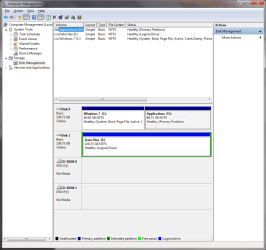
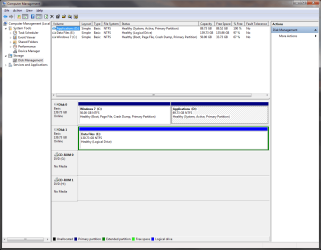
Here is a snip of my "Disk Management".

Disk Management Snip.png
 
Last edited:

My Computer

Computer Manufacturer/Model Number
Polywell
OS
Windows 7x32 Home Premium & XP SP3 x86
CPU
Athlon 64FX
Motherboard
ASUS M2N32SLI Delux
Memory
Corsair CM2X1024-8500C5
Graphics Card(s)
GeForce 7950X2 (Dual)
Monitor(s) Displays
ViewSonic A90f+ (Two)
Screen Resolution
1280x1024
Hard Drives
WD1500ADFD-00NLR1 (Originally Raid5)

Changed to three individual drives after HD crashed. May return to RAID5 if I locate a suitable HD.
PSU
TurboColl 1KW
Case
Polywell
Cooling
Cool'n'Quiet (Questionable Operation)
Keyboard
Logitech
Mouse
Logitech
Internet Speed
1GHertz (I think)
Other Info
Sony CD-RW CRX320EE

HP DVD Writer 1140d (may need to replace??)
Why are the System Boot files on D if it is only for applications? Did you have it marked Active which tells the installer to place the boot files there?

D appears to be empty. I would mark Win7 partition Active in Disk management, reboot into Win7 DVD Repair console to run Startup Repair repeatedly with reboots until Win7 writes the System Boot Files to C and starts on its own.

Once this occurs, reboot and tap the F8 key repeatedly, choose the Win7 HD to boot, then tap the F8 key again repeatedly to see the Advanced Boot Tools menu. Is Repair console a choice?
 
As Greg pointed out, this is a rather strange configuration. But the Win7 installer seems to place the bootmgr into the first partition it can find and if it does not find any, it creates the 100MB partition.

I have the same problem on one system where it placed the bootmger on the first HDD it found although I was installing on an SSD. I was aware of that but since I could not unplug this HDD during the installation, I let it go.

There is really nothing to worry about as long as you do not reformat D: - but if you rather have a "clean" setup, follow Gregs steps.
 

My Computer

Computer Manufacturer/Model Number
HP, Dell, Gateway, Toshiba - 4 laptops and 2 desktops
OS
Vista, Windows7, Mint Mate, Zorin, Windows 8
CPU
from 1.6GHz Duo to i7
Monitor(s) Displays
2x HP w2207
Hard Drives
5x HDD, 7x SSD, 12x Externals
Keyboard
with trackball - no mices
Mouse
Trackball mice
Internet Speed
DSL 6000
Why are the System Boot files on D if it is only for applications? Did you have it marked Active which tells the installer to place the boot files there?

D appears to be empty. I would mark Win7 partition Active in Disk management, reboot into Win7 DVD Repair console to run Startup Repair repeatedly with reboots until Win7 writes the System Boot Files to C and starts on its own.

Once this occurs, reboot and tap the F8 key repeatedly, choose the Win7 HD to boot, then tap the F8 key again repeatedly to see the Advanced Boot Tools menu. Is Repair console a choice?

I don't know what happened, even though I am the one who did it.

In the beginning there was only one HDD. I can not say just exactly how I proceeded from there but using diskpart and partition wizard I formatted and partitioned the HD. When I began to install W7, the HD was partitioned with 50GB for OS, 100MB for system reserve, and the rest unallocated. There was no other HD in the system.

Just recently, I loaded Office onto the same HD. To do that I had to create the partition where Office now resides. It had been my intention for all of the Apps to be in a separate partition but I failed to do that. In my rush to do this, I loaded a few things like Google Firefox, CPUID, CPU-Z and others. Because I had not yet defined the "Applications" partition they ended up on the HD along with the OS. I intend to move those applications but have not yet done so.

I stopped doing anything when I began to question the whereabouts of the "System Reserve" and whether or not I had screwed up with the installation.

Thus my question and the reason for this thread.

Do I have recovery capability without doing anything else OR have I messed up to the point where I cannot recover without starting all over.

I really do not want to take a chance of reentering that fiasco. If I was more computer literate I would jump right in and do as has just been recommended but I am not that self confident.

My inclination is to uninstall or move the applications from disk 0 and put those elsewhere (disk 1). This would leave disk 0 with nothing but the OS and an awful lot of unused space.

Am I at serious risk using the system the way I now have it configured?
 

My Computer

Computer Manufacturer/Model Number
Polywell
OS
Windows 7x32 Home Premium & XP SP3 x86
CPU
Athlon 64FX
Motherboard
ASUS M2N32SLI Delux
Memory
Corsair CM2X1024-8500C5
Graphics Card(s)
GeForce 7950X2 (Dual)
Monitor(s) Displays
ViewSonic A90f+ (Two)
Screen Resolution
1280x1024
Hard Drives
WD1500ADFD-00NLR1 (Originally Raid5)

Changed to three individual drives after HD crashed. May return to RAID5 if I locate a suitable HD.
PSU
TurboColl 1KW
Case
Polywell
Cooling
Cool'n'Quiet (Questionable Operation)
Keyboard
Logitech
Mouse
Logitech
Internet Speed
1GHertz (I think)
Other Info
Sony CD-RW CRX320EE

HP DVD Writer 1140d (may need to replace??)
Why are the System Boot files on D if it is only for applications? Did you have it marked Active which tells the installer to place the boot files there? I don't know what was marked as active.

D appears to be empty. MS Word is the only thing on D: I would mark Win7 partition Active in Disk management, reboot into Win7 DVD Repair console to run Startup Repair repeatedly with reboots until Win7 writes the System Boot Files to C and starts on its own.

Once this occurs, reboot and tap the F8 key repeatedly, choose the Win7 HD to boot, then tap the F8 key again repeatedly to see the Advanced Boot Tools menu. Is Repair console a choice?

I think I understand but lack confidence to do this.
 

My Computer

Computer Manufacturer/Model Number
Polywell
OS
Windows 7x32 Home Premium & XP SP3 x86
CPU
Athlon 64FX
Motherboard
ASUS M2N32SLI Delux
Memory
Corsair CM2X1024-8500C5
Graphics Card(s)
GeForce 7950X2 (Dual)
Monitor(s) Displays
ViewSonic A90f+ (Two)
Screen Resolution
1280x1024
Hard Drives
WD1500ADFD-00NLR1 (Originally Raid5)

Changed to three individual drives after HD crashed. May return to RAID5 if I locate a suitable HD.
PSU
TurboColl 1KW
Case
Polywell
Cooling
Cool'n'Quiet (Questionable Operation)
Keyboard
Logitech
Mouse
Logitech
Internet Speed
1GHertz (I think)
Other Info
Sony CD-RW CRX320EE

HP DVD Writer 1140d (may need to replace??)
Why are the System Boot files on D if it is only for applications? Did you have it marked Active which tells the installer to place the boot files there? I don't know what was marked as active.

D appears to be empty. MS Word is the only thing on D: I would mark Win7 partition Active in Disk management, reboot into Win7 DVD Repair console to run Startup Repair repeatedly with reboots until Win7 writes the System Boot Files to C and starts on its own.

Once this occurs, reboot and tap the F8 key repeatedly, choose the Win7 HD to boot, then tap the F8 key again repeatedly to see the Advanced Boot Tools menu. Is Repair console a choice?

I think I understand but lack confidence to do this.
As I said before, leave it alone. There is no risk as long as you do not reformat D: . And then (when you get the "bootmgr missing") you can still fix it by changing the active partition and running system repair 3 times.
 

My Computer

Computer Manufacturer/Model Number
HP, Dell, Gateway, Toshiba - 4 laptops and 2 desktops
OS
Vista, Windows7, Mint Mate, Zorin, Windows 8
CPU
from 1.6GHz Duo to i7
Monitor(s) Displays
2x HP w2207
Hard Drives
5x HDD, 7x SSD, 12x Externals
Keyboard
with trackball - no mices
Mouse
Trackball mice
Internet Speed
DSL 6000
If by system recovery, you refer to the capabilities of the "recovery partititon", then simply make yourself a system repair disc:
:orb: | type System Repair | Enter


My Computer

Computer Manufacturer/Model Number
Toshiba Satellite S875D-S7239 laptop
OS
MS Windows 7 Ultimate SP1 64-bit
CPU
AMD A10-4600M
Motherboard
AMD Pumori (Socket FT1)
Memory
6.00 GB Dual-Channel DDR3 @ 798MHz (11-11-12-28)
Graphics Card(s)
AMD Radeon HD 7660G
Sound Card
High Definition Audio Device
Monitor(s) Displays
Generic PnP Monitor (1600x900@60Hz)
Screen Resolution
1600x900@60Hz
Hard Drives
SSD 119GB Corsair CSSD-V128GB2 ATA Device
Keyboard
Standard PS/2 Keyboard
Mouse
HP Wireless Optical Mobile Mouse Model FHA-3410
Internet Speed
What the local pub, local coffee shop offers.
Other Info
Optical Drive:MATSHITA BD-CMB UJ160B ATA Device


Also have an Asus ha1002xp netbook with Win 7 Ultimate installed.
If by system recovery, you refer to the capabilities of the "recovery partititon", then simply make yourself a system repair disc:
:orb: | type System Repair | Enter


I created a System Recovery Disk for Windows 7x32 via Control Panel/All Control Panel Items/Backup and Restore/Create a System Recovery Disk. It is 144MB in size and contains two folders (Boot and Sources) and a file named bootmgr.
 

My Computer

Computer Manufacturer/Model Number
Polywell
OS
Windows 7x32 Home Premium & XP SP3 x86
CPU
Athlon 64FX
Motherboard
ASUS M2N32SLI Delux
Memory
Corsair CM2X1024-8500C5
Graphics Card(s)
GeForce 7950X2 (Dual)
Monitor(s) Displays
ViewSonic A90f+ (Two)
Screen Resolution
1280x1024
Hard Drives
WD1500ADFD-00NLR1 (Originally Raid5)

Changed to three individual drives after HD crashed. May return to RAID5 if I locate a suitable HD.
PSU
TurboColl 1KW
Case
Polywell
Cooling
Cool'n'Quiet (Questionable Operation)
Keyboard
Logitech
Mouse
Logitech
Internet Speed
1GHertz (I think)
Other Info
Sony CD-RW CRX320EE

HP DVD Writer 1140d (may need to replace??)
Why are the System Boot files on D if it is only for applications? Did you have it marked Active which tells the installer to place the boot files there?

D appears to be empty. I would mark Win7 partition Active in Disk management, reboot into Win7 DVD Repair console to run Startup Repair repeatedly with reboots until Win7 writes the System Boot Files to C and starts on its own.

Once this occurs, reboot and tap the F8 key repeatedly, choose the Win7 HD to boot, then tap the F8 key again repeatedly to see the Advanced Boot Tools menu. Is Repair console a choice?

I don't know what was marked active. D: contains only Microsoft Office which was not put there until just a couple days ago.

I can not get to the repair console by rebooting from the Installation CD and just using the F8 key.

F8 takes me to the "One Time Boot Menu". If I then boot from the location of the Installation Disk I will get to the W7 Installation Disk which begins by Loading Installation Files, Starts Installation, brings up Language Select Window and then an option to go to Repair Console.
 

My Computer

Computer Manufacturer/Model Number
Polywell
OS
Windows 7x32 Home Premium & XP SP3 x86
CPU
Athlon 64FX
Motherboard
ASUS M2N32SLI Delux
Memory
Corsair CM2X1024-8500C5
Graphics Card(s)
GeForce 7950X2 (Dual)
Monitor(s) Displays
ViewSonic A90f+ (Two)
Screen Resolution
1280x1024
Hard Drives
WD1500ADFD-00NLR1 (Originally Raid5)

Changed to three individual drives after HD crashed. May return to RAID5 if I locate a suitable HD.
PSU
TurboColl 1KW
Case
Polywell
Cooling
Cool'n'Quiet (Questionable Operation)
Keyboard
Logitech
Mouse
Logitech
Internet Speed
1GHertz (I think)
Other Info
Sony CD-RW CRX320EE

HP DVD Writer 1140d (may need to replace??)
As Greg pointed out, this is a rather strange configuration. But the Win7 installer seems to place the bootmgr into the first partition it can find and if it does not find any, it creates the 100MB partition.

I have the same problem on one system where it placed the bootmger on the first HDD it found although I was installing on an SSD. I was aware of that but since I could not unplug this HDD during the installation, I let it go.

There is really nothing to worry about as long as you do not reformat D: - but if you rather have a "clean" setup, follow Gregs steps.

Thanks. I believe this puts me at ease.

I am seriously contemplating the relocation of all those Applications that got stuck in with the OS. Everything is working as is but it looks so disorganized and totally rediculous with MS Office the only thing on D: with all that unused space.

I don't know if it really matters but I would prefer having the OS stand alone in a separate partition. I have seen a couple systems with EVERYTHING co-mingled in a single partition. That just does not seem wise though it obviously works. I guess that is sorta what I have.:(
 

My Computer

Computer Manufacturer/Model Number
Polywell
OS
Windows 7x32 Home Premium & XP SP3 x86
CPU
Athlon 64FX
Motherboard
ASUS M2N32SLI Delux
Memory
Corsair CM2X1024-8500C5
Graphics Card(s)
GeForce 7950X2 (Dual)
Monitor(s) Displays
ViewSonic A90f+ (Two)
Screen Resolution
1280x1024
Hard Drives
WD1500ADFD-00NLR1 (Originally Raid5)

Changed to three individual drives after HD crashed. May return to RAID5 if I locate a suitable HD.
PSU
TurboColl 1KW
Case
Polywell
Cooling
Cool'n'Quiet (Questionable Operation)
Keyboard
Logitech
Mouse
Logitech
Internet Speed
1GHertz (I think)
Other Info
Sony CD-RW CRX320EE

HP DVD Writer 1140d (may need to replace??)
Dusty,

You may be interested in:
User Folders - Change Default Location
How to Change the Default Location of Windows 7 User Folders

A convenient way of moving your documents, pictures, videos, and other user folders to another partition.
 

My Computer

Computer Manufacturer/Model Number
Toshiba Satellite S875D-S7239 laptop
OS
MS Windows 7 Ultimate SP1 64-bit
CPU
AMD A10-4600M
Motherboard
AMD Pumori (Socket FT1)
Memory
6.00 GB Dual-Channel DDR3 @ 798MHz (11-11-12-28)
Graphics Card(s)
AMD Radeon HD 7660G
Sound Card
High Definition Audio Device
Monitor(s) Displays
Generic PnP Monitor (1600x900@60Hz)
Screen Resolution
1600x900@60Hz
Hard Drives
SSD 119GB Corsair CSSD-V128GB2 ATA Device
Keyboard
Standard PS/2 Keyboard
Mouse
HP Wireless Optical Mobile Mouse Model FHA-3410
Internet Speed
What the local pub, local coffee shop offers.
Other Info
Optical Drive:MATSHITA BD-CMB UJ160B ATA Device


Also have an Asus ha1002xp netbook with Win 7 Ultimate installed.
Dusty, please follow the steps I wrote out exactly as given and not the last step first.

If you have any questions then ask back, but this time do them in order.
 
Dusty, please follow the steps I wrote out exactly as given and not the last step first. I think that I have done that. Since I am as illiterate as I am, I don't deliberately deviate from instructions.

If you have any questions then ask back, but this time do them in order.

Done as close as I could to exactly as directed. There was some deviation because I did not always understand. I think that there were three iterations before possible success.


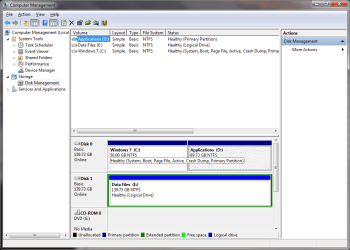
Following is a snip of what the HD looks like in diskmgr now.

after bootmgr repair.png

after bootmgr repair 2.png

Using the F8 key, I am able to access the "Advanced Boot Tools". in the "Repair Console. Lacking instructions to do otherwise, I went to W7 normally from here.

The system booted into W7 with no intervention.

If I read and UNDERSTAND all of what has just happened, I have relocated the bootmgr from wherever it was to somewhere on disk 0 partition 0 (along with the OS).

In the snips above, the significant change being that partition 0 is Active and partition 1 is not.

What I do not understand is shown in the first snip (this thread). It shows Disk 0 Partition 1 as System, Active. That partition was never the location of the OS. The OS is on Disk 0 Partition 0.

Is this the location of the bootmgr and not the OS?

Also, I am curious about why the repair routine needed to be repeated two or three or four times to facilitate the repair.
 
Last edited:

My Computer

Computer Manufacturer/Model Number
Polywell
OS
Windows 7x32 Home Premium & XP SP3 x86
CPU
Athlon 64FX
Motherboard
ASUS M2N32SLI Delux
Memory
Corsair CM2X1024-8500C5
Graphics Card(s)
GeForce 7950X2 (Dual)
Monitor(s) Displays
ViewSonic A90f+ (Two)
Screen Resolution
1280x1024
Hard Drives
WD1500ADFD-00NLR1 (Originally Raid5)

Changed to three individual drives after HD crashed. May return to RAID5 if I locate a suitable HD.
PSU
TurboColl 1KW
Case
Polywell
Cooling
Cool'n'Quiet (Questionable Operation)
Keyboard
Logitech
Mouse
Logitech
Internet Speed
1GHertz (I think)
Other Info
Sony CD-RW CRX320EE

HP DVD Writer 1140d (may need to replace??)
Looks good.
 

My Computer

Computer Manufacturer/Model Number
HP, Dell, Gateway, Toshiba - 4 laptops and 2 desktops
OS
Vista, Windows7, Mint Mate, Zorin, Windows 8
CPU
from 1.6GHz Duo to i7
Monitor(s) Displays
2x HP w2207
Hard Drives
5x HDD, 7x SSD, 12x Externals
Keyboard
with trackball - no mices
Mouse
Trackball mice
Internet Speed
DSL 6000
Dusty, please follow the steps I wrote out exactly as given and not the last step first. I think that I have done that. Since I am as illiterate as I am, I don't deliberately deviate from instructions.

If you have any questions then ask back, but this time do them in order.

Done as close as I could to exactly as directed. There was some deviation because I did not always understand. I think that there were three iterations before possible success.


Following is a snip of what the HD looks like in diskmgr now.

View attachment 174567

Using the F8 key, I am able to access the "Advanced Boot Tools". in the "Repair Console. Lacking instructions to do otherwise, I went to W7 normally from here.

The system booted into W7 with no intervention.

If I read and UNDERSTAND all of what has just happened, I have relocated the bootmgr from wherever it was to somewhere on disk 0 partition 0 (along with the OS).

In the snip above, the significant change being that partition 0 is Active and partition 1 is not.

http://www.sevenforums.com/backup-r...-reserve-partition-win-7-a-3.html#post1570121

Ok, here comes the cavalry. The only thing the sysres is required for is bitlocker, if you use that feature. Its not required for F8-Repair your computer to function (this is about the nth time I'm saying it and soon I'll start sounding like a parrot). So, IF you wish you can manage things without sysres quite nicely. But if you're lazy like me and already have it, let it be, its harmless and only takes a corner of your massive hard disk.


If you have installed Windows 7, you have the F8 option installed, or can use the Windows 7 DVD or use the Startup Repair CD

http://www.sevenforums.com/tutorials/2083-system-repair-disc-create.html


You have the F8 option with or without system reserve partition.


Above is my reply to a delete post.
 

My Computer

OS
ME/XP/Vista/Win7
Once again, I want to say thank you to all who have responded to my call for help. Thankfully, it did not take two weeks for me to "catch on" this time.
 

My Computer

Computer Manufacturer/Model Number
Polywell
OS
Windows 7x32 Home Premium & XP SP3 x86
CPU
Athlon 64FX
Motherboard
ASUS M2N32SLI Delux
Memory
Corsair CM2X1024-8500C5
Graphics Card(s)
GeForce 7950X2 (Dual)
Monitor(s) Displays
ViewSonic A90f+ (Two)
Screen Resolution
1280x1024
Hard Drives
WD1500ADFD-00NLR1 (Originally Raid5)

Changed to three individual drives after HD crashed. May return to RAID5 if I locate a suitable HD.
PSU
TurboColl 1KW
Case
Polywell
Cooling
Cool'n'Quiet (Questionable Operation)
Keyboard
Logitech
Mouse
Logitech
Internet Speed
1GHertz (I think)
Other Info
Sony CD-RW CRX320EE

HP DVD Writer 1140d (may need to replace??)
Back
Top