System Reserved : Create Using Disk Management

Create the New Windows 7 System Reserved Partition Using Windows Disk Management

This information can be used to create the Windows 7 System Reserved partition after you have installed Windows using only Windows native disk management.

The main advantage of the System Reserved partition, it adds a link to WinRE (Windows Recovery Environment) to the F8 advanced boot options in Windows 7 that can be accessed during PC startup to repair startup errors if a Windows installer or a system repair disk isn't available for use; it also creates a central location to store the boot files needed to start Windows in a dual/multi boot situation and that makes it very easy to replace/remove a single OS when needed.

There must be at least one (1) Primary partition for creation/use as the System Reserved partition will not function as intended from an Extended partition; for further information on this requirement see Option Two #2 below.
   Warning

As with anything that makes changes to the Windows structure there is always the chance for an error to occur, it would be advisable to make reliable backups to the media of your choice of any important data, i.e. pictures, music or documents, that you would not want to lose before you attempt any of the methods out-lined here, it is always better to be safe than sorry.

Let's get started!

Have a look at this tutorial before you start this for an alternative method.

System Reserved : Create for Dual Boot


Option One

Create the Windows 7 Syetem Reserved Partition


In the Windows start menu search box type diskmgmt.msc right click the entry and click "Run as Administrator" if you get a User Account Control (UAC) prompt enter your user credentials and click Yes.

1) In the disk management window and assuming you have created or already have unallocated space to start with, right click that space and click New Simple Volume then Next for the first "Wizard" dialog box.
click any image to enlarge
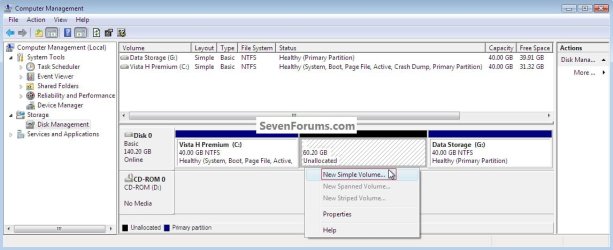
NewSimpleVolume.jpg
2) In the "Specify Volume Size" box type 200 for the size to create and click Next.

The reason for suggesting to create the System Reserved at 200MB instead of the new default of 100MB is an attempt to curb some of the issues we're now seeing with the partition being too small when dual/multi booting and it also being needed for use with the Windows 7 Backup and Restore and BitLocker programs.
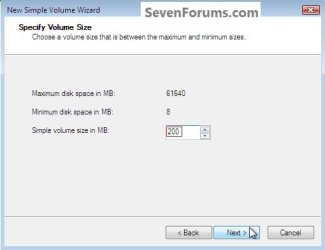
Size.jpg
3) In the "Assign Drive Letter" box do not assign a drive letter and click Next.
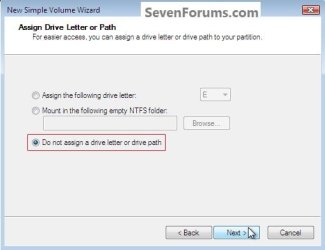
Assign.jpg
4) In the "Format" box at the "Volume Label" line type System Reserved and do not put a check/tic at the "quick" box and click Next
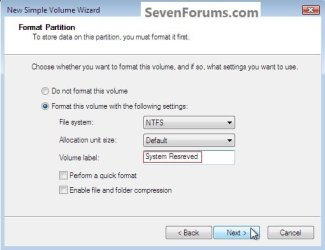
Label.jpg
5) At the last "Completing" wizard dialog box click Finish to complete the process.


Option Two

Install a second Windows Operating System


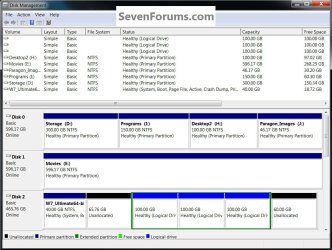
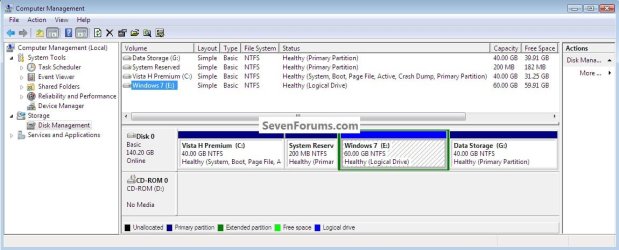
1) Now if you want to install a second Windows OS using the remaining unallocated space it's a very easy process; create this partition in the same way you created the SysResv partition; when you get to the "Specify Volume Size" dialog box click Next to accept the offered size or you can choose to create a specific size; for this one you can assign the next available drive letter; then at the "Format" box you would use a Label (name) that you choose like Windows 7 or whatever you like and click Finish for the last "Wizard" dialog box.
click any image to enlarge
W_7Logical.jpg
2) If there are already three (3) existing Primary partitions Windows will only create the fourth partition as an Extended partition, if you end up with an Extended/Logical drive, you can choose to do the Windows installation to the Logical drive and there will be no issues at all if you do and it can always be converted to a Primary partition at a later time if you choose.

For further information on the creation and use of Extended partition / Logical drives, have a look at this tutorial and its related links listed below.

System Reserved : Multi Boot from Logical Partitions

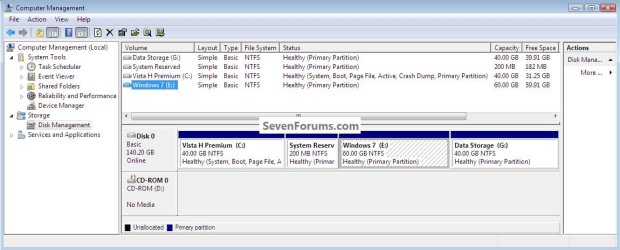
3) Strictly for demonstration purposes here, I'm going to use the free Partition Wizard bootable disk (PWBD) to convert the Extended to a Primary partition before the Windows installation so that I will have four (4) Primary partitions, for an out-line of the process see Option Four in this tutorial.

Partition Wizard : Use the Bootable CD
W_7Primary.jpg
SetPrimary.jpg
Method One: Install Windows 7 / Vista

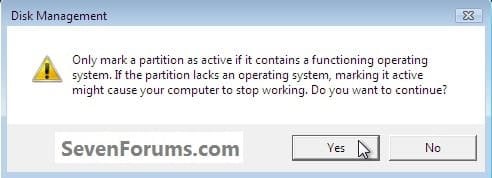
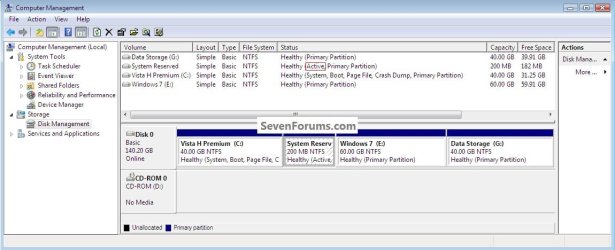
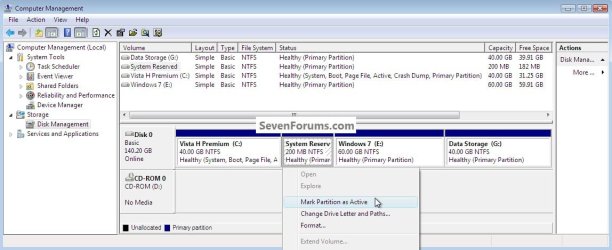
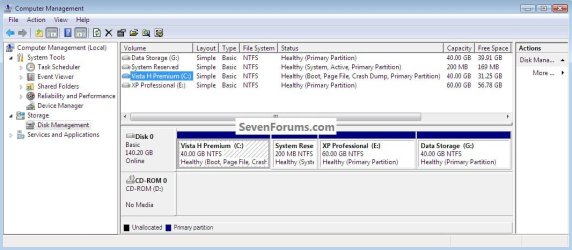
1) The first thing is to mark the "System Reserved" partition as "Active" so Windows will know where to create the system volume, where the system boot files are stored; in Windows disk management right click the SysResv partition and click "Mark as Active" then Yes for the conformation dialog box, the third snip is what you will have.
SRW_7MarkActive.jpg
ActiveYes.jpg
SRActive2.jpg
2) Now insert the Windows install media into the Optical Disk Drive and restart the PC to set the first boot device as the ODD in the BIOS and install Windows 7 to the created "Windows 7" partition.

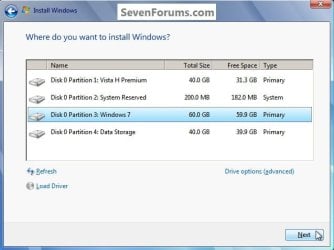
You will want to do a clean install choosing the "Custom (advanced)" not the "Upgrade" option, when you are presented with this "Where do you want ... " dialog box click to choose the created "Windows 7" partition and click next; do not use the installer to format anything.
W_7Choose.jpg
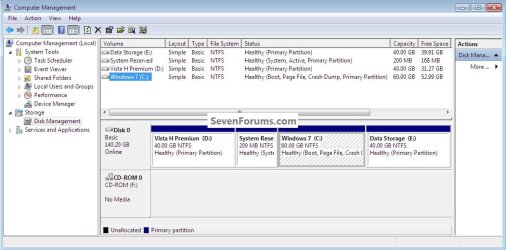
3) Here's the end result.
BootW_7.jpg
4) You will have to use EasyBCD from within Windows 7 to add an entry for Vista to the Windows boot (dual boot) menu but that's the easiest part of this process.
BootVista.jpg
Vista.jpg
Method Two: Install Windows XP

The XP partition has to remain the system volume for the installation process or it will cause all sorts of issues that have to be corrected before XP will boot correctly in conjunction with the use of the "System Reserved" partition in a dual/multi boot configuration; this method is only possible using a Primary partition, it is not possible using an Extended/Logical drive.

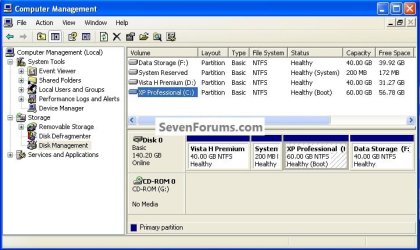
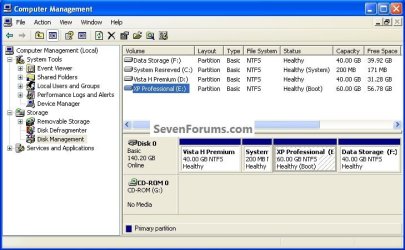
1) Use the same methods above to create both the SysResv and a partition to install XP to; right click the created XP partition and click "Mark as Active" then Yes for the conformation dialog box.
click any image to enlarge
XPMarkActive.jpg
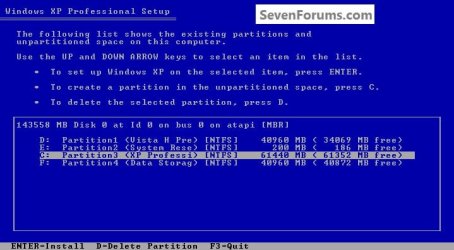
2) Now insert the Windows install media into the Optical Disk Drive and restart the PC to set the first boot device as the ODD in the BIOS and install Windows XP to the created "XP Professional" partition; do not use the installer to format anything.
XPChoose.jpg
When XP starts, these next steps have to be done and done in this order to get XP and whichever OS (Vista / Windows7) you're dual booting to boot correctly so you won't have issues later.

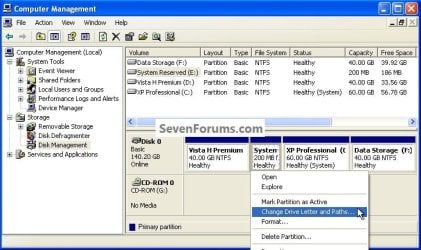
3) In Windows XP disk management, right click the "System Reserved" partition and click "Change Drive Letter" then in the dialog box that opens click "Remove" then Yes for the "Confirm" dialog box.
XPRemoveLetter.jpg
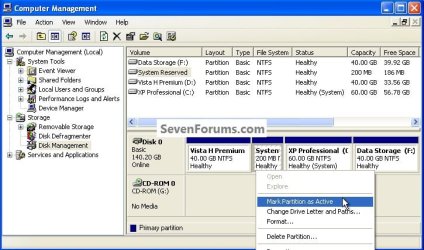
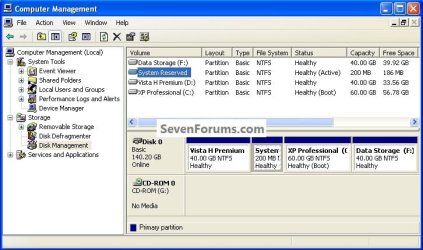
4) Now right click the SysResv partition and click "Mark as Active" then Yes for the "Disk Management" conformation dialog box; the second snip is what you should have.
SysResvMarkActive.jpg
SysResvActive.jpg
5) Now put a Windows 7 / Vista full installer DVD or a created repair disk into the Optical Disk Drive (ODD) and restart the PC, at the BIOS select the ODD as the first boot device and run the 3 separate startup repairs with a system restart between each repair to create the boot files needed to start the dual boot to the "System Reserved" partition; information on the entire process can be viewed at these tutorials below.

Startup Repair - Run 3 Separate Times

How to Run a Startup Repair in Windows 7
BootVista.jpg
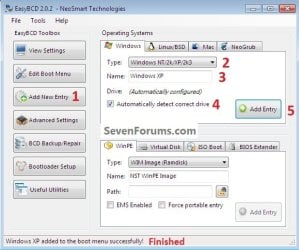
6) One last step; you will have to use EasyBCD from within Vista / Windows 7 to add an entry for XP to the Windows boot (dual boot) menu to get back to XP but that's the easiest part of this process.
BootXP.jpg
XPAdd.jpg
Enjoy :)


Attachments

  • XPBoot.jpg
    XPBoot.jpg
    196.5 KB · Views: 30
Last edited by a moderator:
No it doesn't.

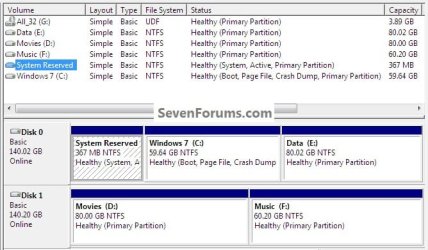
Edit: by the way i should mention here, windows dunno why has a habit of screwing around with my drive letters after a reinstall. i have just reinstalled it a couple of days ago (the first time since i got this system) and it had modified my drive letters i really don't know why so i had changed them to the original order since they were breaking a few things apart from the change perception after being used to the order for years.
 

My Computer

OS
Windows 7 Ultimate x86
CPU
Intel e5300 @2.6
Motherboard
MSI g31tm-p21
Memory
Kingston 2x1+1x1 DDR2 800mhz
Graphics Card(s)
Sapphire radeon 5670 1GB
Hard Drives
WD 320GB
PSU
FSP Saga II 400watts
Post a maximized snip of disk management, not some little ol thing, for me to see the whole thing.
 

My Computer

Computer Manufacturer/Model Number
* BFK Customs *
OS
W 7 64-bit Ultimate
CPU
Intel Q9550 Yorkfield
Motherboard
ASUS P5Q Pro
Memory
8GB Dominator 8500C5D
Graphics Card(s)
ATI : XFX 5870
Sound Card
Realtek HD Audio 7-1
Monitor(s) Displays
1x 47" LCD HDMI & 3x 26" LCD HDMI
Screen Resolution
1920x1080P & 1920x1200
Hard Drives
1x 80GB Intel X25-M G2 SSD : 1x 500GB & 1x 640GB WD Caviar Black(s)
PSU
Corsair 620HX
Case
Cooler Master RC-690
Cooling
Tuniq Tower 120, 2x 140mm and 3x 120mm case fans
Keyboard
Microsoft 500
Mouse
Razer Diamondback 3G
Internet Speed
14 Mb/s
Other Info
1x Koutech 3Gb/s SATA HDD Hot Swap Rack
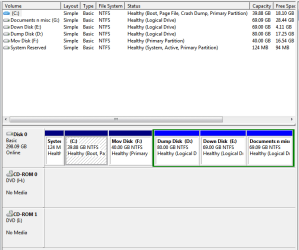
Here it is... also do note the edit on my last post.
 

Attachments

  • Capture.PNG
    Capture.PNG
    38.9 KB · Views: 368

My Computer

OS
Windows 7 Ultimate x86
CPU
Intel e5300 @2.6
Motherboard
MSI g31tm-p21
Memory
Kingston 2x1+1x1 DDR2 800mhz
Graphics Card(s)
Sapphire radeon 5670 1GB
Hard Drives
WD 320GB
PSU
FSP Saga II 400watts
Everything looks to be in order, are all the contents of the partitions/drives present?

I don't have a clue why it would break the drive letters, creating the SysResv shouldn't have any issue with that though.
 

My Computer

Computer Manufacturer/Model Number
* BFK Customs *
OS
W 7 64-bit Ultimate
CPU
Intel Q9550 Yorkfield
Motherboard
ASUS P5Q Pro
Memory
8GB Dominator 8500C5D
Graphics Card(s)
ATI : XFX 5870
Sound Card
Realtek HD Audio 7-1
Monitor(s) Displays
1x 47" LCD HDMI & 3x 26" LCD HDMI
Screen Resolution
1920x1080P & 1920x1200
Hard Drives
1x 80GB Intel X25-M G2 SSD : 1x 500GB & 1x 640GB WD Caviar Black(s)
PSU
Corsair 620HX
Case
Cooler Master RC-690
Cooling
Tuniq Tower 120, 2x 140mm and 3x 120mm case fans
Keyboard
Microsoft 500
Mouse
Razer Diamondback 3G
Internet Speed
14 Mb/s
Other Info
1x Koutech 3Gb/s SATA HDD Hot Swap Rack
Yeah all contents are present and accessible. this drive letter issue also used to happen back when i was on xp (and on a different computer)...maybe cause of many partitions or cause it might've arranged them in alphabetical order according to the labels during the install?
 

My Computer

OS
Windows 7 Ultimate x86
CPU
Intel e5300 @2.6
Motherboard
MSI g31tm-p21
Memory
Kingston 2x1+1x1 DDR2 800mhz
Graphics Card(s)
Sapphire radeon 5670 1GB
Hard Drives
WD 320GB
PSU
FSP Saga II 400watts
Yeah all contents are present and accessible. this drive letter issue also used to happen back when i was on xp (and on a different computer)...maybe cause of many partitions or cause it might've arranged them in alphabetical order according to the labels during the install?


If that's what you are referring to, it will do that all by its lonesome. :shock:
 

My Computer

Computer Manufacturer/Model Number
* BFK Customs *
OS
W 7 64-bit Ultimate
CPU
Intel Q9550 Yorkfield
Motherboard
ASUS P5Q Pro
Memory
8GB Dominator 8500C5D
Graphics Card(s)
ATI : XFX 5870
Sound Card
Realtek HD Audio 7-1
Monitor(s) Displays
1x 47" LCD HDMI & 3x 26" LCD HDMI
Screen Resolution
1920x1080P & 1920x1200
Hard Drives
1x 80GB Intel X25-M G2 SSD : 1x 500GB & 1x 640GB WD Caviar Black(s)
PSU
Corsair 620HX
Case
Cooler Master RC-690
Cooling
Tuniq Tower 120, 2x 140mm and 3x 120mm case fans
Keyboard
Microsoft 500
Mouse
Razer Diamondback 3G
Internet Speed
14 Mb/s
Other Info
1x Koutech 3Gb/s SATA HDD Hot Swap Rack
Well anyways its working fine so no worries. i'l only have 3 partitions on each drive from now on hopefully it should sort itself out.
 

My Computer

OS
Windows 7 Ultimate x86
CPU
Intel e5300 @2.6
Motherboard
MSI g31tm-p21
Memory
Kingston 2x1+1x1 DDR2 800mhz
Graphics Card(s)
Sapphire radeon 5670 1GB
Hard Drives
WD 320GB
PSU
FSP Saga II 400watts

My Computer

Computer Manufacturer/Model Number
* BFK Customs *
OS
W 7 64-bit Ultimate
CPU
Intel Q9550 Yorkfield
Motherboard
ASUS P5Q Pro
Memory
8GB Dominator 8500C5D
Graphics Card(s)
ATI : XFX 5870
Sound Card
Realtek HD Audio 7-1
Monitor(s) Displays
1x 47" LCD HDMI & 3x 26" LCD HDMI
Screen Resolution
1920x1080P & 1920x1200
Hard Drives
1x 80GB Intel X25-M G2 SSD : 1x 500GB & 1x 640GB WD Caviar Black(s)
PSU
Corsair 620HX
Case
Cooler Master RC-690
Cooling
Tuniq Tower 120, 2x 140mm and 3x 120mm case fans
Keyboard
Microsoft 500
Mouse
Razer Diamondback 3G
Internet Speed
14 Mb/s
Other Info
1x Koutech 3Gb/s SATA HDD Hot Swap Rack
Did that..some good info over there..
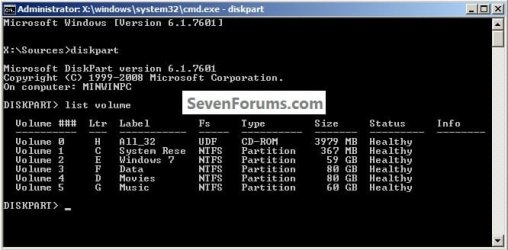
I checked with cmd on winre, it lists

c: as system reserved
d: my present d
e: as present e
f: as my present g:
g: as windows partition
h: as my present f:
 

My Computer

OS
Windows 7 Ultimate x86
CPU
Intel e5300 @2.6
Motherboard
MSI g31tm-p21
Memory
Kingston 2x1+1x1 DDR2 800mhz
Graphics Card(s)
Sapphire radeon 5670 1GB
Hard Drives
WD 320GB
PSU
FSP Saga II 400watts
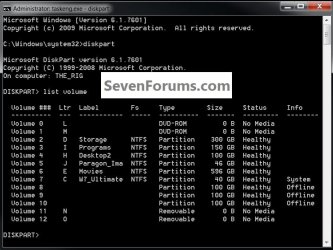
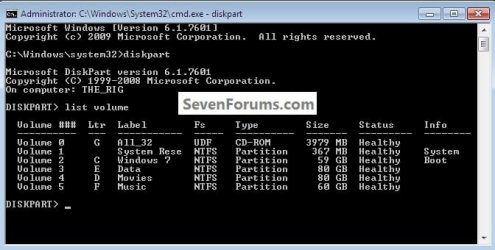
Yeah they don't always agree, this first one is from my machine in diskpart in an elevated command window while in Windows 7
click to enlarge
2.jpg
and this one is booted to diskpart
DISKPART : At PC Startup

1.jpg
this is disk management
3.jpg
 
Last edited:

My Computer

Computer Manufacturer/Model Number
* BFK Customs *
OS
W 7 64-bit Ultimate
CPU
Intel Q9550 Yorkfield
Motherboard
ASUS P5Q Pro
Memory
8GB Dominator 8500C5D
Graphics Card(s)
ATI : XFX 5870
Sound Card
Realtek HD Audio 7-1
Monitor(s) Displays
1x 47" LCD HDMI & 3x 26" LCD HDMI
Screen Resolution
1920x1080P & 1920x1200
Hard Drives
1x 80GB Intel X25-M G2 SSD : 1x 500GB & 1x 640GB WD Caviar Black(s)
PSU
Corsair 620HX
Case
Cooler Master RC-690
Cooling
Tuniq Tower 120, 2x 140mm and 3x 120mm case fans
Keyboard
Microsoft 500
Mouse
Razer Diamondback 3G
Internet Speed
14 Mb/s
Other Info
1x Koutech 3Gb/s SATA HDD Hot Swap Rack
aah alright sorry i didn't notice that before :D lol...thnx for clarifying
i suppose its seeing system reserved partition as the system partition so quickly assigning c: to it and pushing the actual windows drive down the line.
 

My Computer

OS
Windows 7 Ultimate x86
CPU
Intel e5300 @2.6
Motherboard
MSI g31tm-p21
Memory
Kingston 2x1+1x1 DDR2 800mhz
Graphics Card(s)
Sapphire radeon 5670 1GB
Hard Drives
WD 320GB
PSU
FSP Saga II 400watts
OK mate, I just simulated this in VirtualBox just for S&Gs! ;)
click to enlarge
5.jpg

elevated command in Windows 7
7.jpg

booted to diskpart
6.jpg
 

My Computer

Computer Manufacturer/Model Number
* BFK Customs *
OS
W 7 64-bit Ultimate
CPU
Intel Q9550 Yorkfield
Motherboard
ASUS P5Q Pro
Memory
8GB Dominator 8500C5D
Graphics Card(s)
ATI : XFX 5870
Sound Card
Realtek HD Audio 7-1
Monitor(s) Displays
1x 47" LCD HDMI & 3x 26" LCD HDMI
Screen Resolution
1920x1080P & 1920x1200
Hard Drives
1x 80GB Intel X25-M G2 SSD : 1x 500GB & 1x 640GB WD Caviar Black(s)
PSU
Corsair 620HX
Case
Cooler Master RC-690
Cooling
Tuniq Tower 120, 2x 140mm and 3x 120mm case fans
Keyboard
Microsoft 500
Mouse
Razer Diamondback 3G
Internet Speed
14 Mb/s
Other Info
1x Koutech 3Gb/s SATA HDD Hot Swap Rack
Thanks for that. so i guess its the general behavior to screw around with the drive letters ;)
 

My Computer

OS
Windows 7 Ultimate x86
CPU
Intel e5300 @2.6
Motherboard
MSI g31tm-p21
Memory
Kingston 2x1+1x1 DDR2 800mhz
Graphics Card(s)
Sapphire radeon 5670 1GB
Hard Drives
WD 320GB
PSU
FSP Saga II 400watts

My Computer

Computer Manufacturer/Model Number
* BFK Customs *
OS
W 7 64-bit Ultimate
CPU
Intel Q9550 Yorkfield
Motherboard
ASUS P5Q Pro
Memory
8GB Dominator 8500C5D
Graphics Card(s)
ATI : XFX 5870
Sound Card
Realtek HD Audio 7-1
Monitor(s) Displays
1x 47" LCD HDMI & 3x 26" LCD HDMI
Screen Resolution
1920x1080P & 1920x1200
Hard Drives
1x 80GB Intel X25-M G2 SSD : 1x 500GB & 1x 640GB WD Caviar Black(s)
PSU
Corsair 620HX
Case
Cooler Master RC-690
Cooling
Tuniq Tower 120, 2x 140mm and 3x 120mm case fans
Keyboard
Microsoft 500
Mouse
Razer Diamondback 3G
Internet Speed
14 Mb/s
Other Info
1x Koutech 3Gb/s SATA HDD Hot Swap Rack
You Know Brink You Rule!

It's just My luck to finally get somewhere since Nov.,2010, just to run out of ink and
paper on the same night, however, I know that patience will persevere, and I can return back to Web Site, with printer full of Toner & Paper.I don't know I guess choked, the first, night I installed, Win7 Home. received"Low Disk space" on System Reserved, 1st thought something got inherited from my XP-Pro System, as I would get BSOD's, by the second, got so bad I salvaged the Hard Drive, And Spent a weekend in my Brother in laws John Deere 8-Wheel Drive, Combine, and made this peice of Crap part of the highway at 5 in the Morning, anyway it was a release, but know I see the ghost still invades the machine, starting to realize that PC's are much more overated that they are worth.My Greatest Appreciation to People Such as yourself Brink, You make the most confusing things seem so easy, and care free to those such a myself who wouldn't know better!:CUDOS BRINK.
 

My Computer

Computer Manufacturer/Model Number
HP-Pavillion Desktop
OS
Windows7HOMEPREMIUM (x64)- bit
CPU
AMD Phenom 8450 Triple- Core 2.10 gigahertz
Motherboard
ASUSTek Computer INC.NARRA3 3.02
Memory
4096MB RAM
Graphics Card(s)
NVIDIA GeForce 6150SEnForce 430 (Microsoft Corp.-WDDM)
Sound Card
Raeltek High Definition Audio
Monitor(s) Displays
Samsung SyncMaster 2253LW
Screen Resolution
1920x1050
Hard Drives
Western Digital 640.13GB
Western Digital1000.20GB
Western Digital 2000.39GB
SEAGATE Brracuda 7200.10/500GB
PSU
HP-Pavillion
Case
HP-Pavillion Desktop
Cooling
Air
Keyboard
Dell USB
Mouse
Dell USB
Internet Speed
100 MBS
dear barefootkid, earlier this year, i saw a tutorial by you about creating system reserved on a clean install using diskpart, i couldn't seem to find it now though, do you mind pointing to me the link to those tutorials?

or would you mind posting here the diskpart command when i would like to do diskpart => clean => create system reserved 200 mb

i would like to do a clean reinstall but i couldn't rmmbr the command for the creating 200 mb system reserved via diskpart, thank you very much,

kungfupanda
 

My Computer

Computer type
Laptop
Computer Manufacturer/Model Number
Asus K43S
OS
windows 7 home premium 64bit
CPU
Intel Core i3-2330m
Memory
6 Gib 10600 DDR3 RAM
Graphics Card(s)
Radeon 6730
Monitor(s) Displays
Generic PnP Monitor
Hard Drives
Intel SSD 330 Series 120 Gb
Seagate Momentus 750 Gb
Internet Speed
Slow, lol
Antivirus
KIS 2013

My Computer

Computer type
PC/Desktop
Computer Manufacturer/Model Number
Self built custom
OS
64-bit Windows 11 Pro for Workstations
CPU
Intel i7-8700K OC'd to 5 GHz
Motherboard
ASUS ROG Maximus XI Formula Z390
Memory
64 GB (4x16GB) G.SKILL TridentZ RGB DDR4 3600 MHz
Graphics Card(s)
ASUS ROG-STRIX-GTX1080TI-O11G-GAMING
Sound Card
Integrated
Monitor(s) Displays
2 x Samsung Odyssey G7 27"
Screen Resolution
2560x1440
Hard Drives
1TB Samsung 990 PRO M.2,
4TB Samsung 990 PRO PRO M.2,
TerraMaster F8 SSD Plus NAS
PSU
Seasonic Prime Titanium 850W
Case
Thermaltake Core P3
Cooling
Corsair Hydro H115i
Keyboard
Logitech wireless K800
Mouse
Logitech MX Master 4
Internet Speed
2 Gb/s Download and 100 Mb/s Upload
Antivirus
Malwarebyte Anti-Malware Premium
Browser
Google Chrome
Other Info
Logitech Z625 speaker system,
Logitech BRIO 4K Pro webcam,
HP Color LaserJet Pro MFP M477fdn,
APC SMART-UPS RT 1000 XL - SURT1000XLI,
Galaxy S23 Plus phone
Hello mate, sorry for the long response time.


Have a look at Step Two #3 of the tutorial linked below for that method.

SSD / HDD : Optimize for Windows Reinstallation


dear barefootkid, earlier this year, i saw a tutorial by you about creating system reserved on a clean install using diskpart, i couldn't seem to find it now though, do you mind pointing to me the link to those tutorials?

or would you mind posting here the diskpart command when i would like to do diskpart => clean => create system reserved 200 mb

i would like to do a clean reinstall but i couldn't rmmbr the command for the creating 200 mb system reserved via diskpart, thank you very much,

kungfupanda
 

My Computer

Computer Manufacturer/Model Number
* BFK Customs *
OS
W 7 64-bit Ultimate
CPU
Intel Q9550 Yorkfield
Motherboard
ASUS P5Q Pro
Memory
8GB Dominator 8500C5D
Graphics Card(s)
ATI : XFX 5870
Sound Card
Realtek HD Audio 7-1
Monitor(s) Displays
1x 47" LCD HDMI & 3x 26" LCD HDMI
Screen Resolution
1920x1080P & 1920x1200
Hard Drives
1x 80GB Intel X25-M G2 SSD : 1x 500GB & 1x 640GB WD Caviar Black(s)
PSU
Corsair 620HX
Case
Cooler Master RC-690
Cooling
Tuniq Tower 120, 2x 140mm and 3x 120mm case fans
Keyboard
Microsoft 500
Mouse
Razer Diamondback 3G
Internet Speed
14 Mb/s
Other Info
1x Koutech 3Gb/s SATA HDD Hot Swap Rack
So if I didn't want to install a second Windows OS and just create the System reserved partition after installation, should I just follow the steps in 'Option One'?

I still don't know how this works. From what I see you're just creating a generic partition with the volume label System Reserved. I don't know how Windows will realize that it must put the System files there. Any help?
 

My Computer

Computer type
Laptop
Computer Manufacturer/Model Number
Sony Vaio
OS
Windows 7 Home Premium 64bit
Hi,

Everything running fine till a few days ago, when all WU failed. Installed several updates manually & left with just a few that simply refuse to install; KB3008627, KB3003057, KB2976978 & KB3011780. They all seem to install fine, but during the reboot I get "Failure configuring Windows Updates", it undoes & restarts twice. Then WU says "pending restart".

I've tried; Windows 8.1 WU fixit, DISM restorehealth, SFC /scannow, removing Windows UEFI in the BIOS, reset permissions, full chkdsk, uninstalling all AV/MalWare software & numerous other things.

I used Microsoft Support. They connected remotely & tried the same things. They then said they are seeing 0x800F0922 on systems where there is no "System Reserved". I installed Windows 8.1 into an existing partition on my SSD (I realized the previous OS had a SR partition - but at the end of the drive...? So I now have 448Mb unallocated at the end of the SSD (C drive).

MS said I needed to reinstall Windows 8.1 - from scratch, deleting all partitions & creating new, which will then create a new SR partition. I'm not keen - since I have lots of apps, so it'll take an age.

I only have the 1 OS installed to C:WINDOWS. 1 Samsung 250Gb SSD. C is 238Gb; System, Boot, Page File, Active, Crash Dump, Primary Partition.

Apparently the 0x800F0922 error indicates insufficient space in the SR partition. Of course - I don't even have one!

Is there a way to create the SR partition without reinstalling Windows 8.1 completely? Will EasyBCD do it? If so, what options/how etc?

Thanks
Martin
 

My Computer

Computer type
PC/Desktop
OS
Windows 8.1
Back
Top