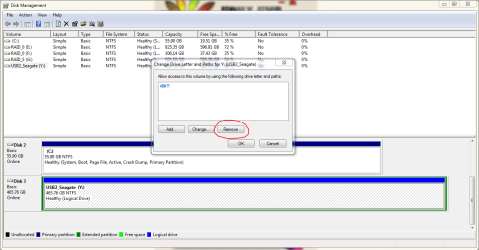
System Reserved Partition

Blair Carter

New member
Local time
7:48 PM
Messages
2
Hello,

I just recently purchased computers for our office. When we booted the computer up for the first time it went through the initial install of Windows 7 32-bit. There is one thing I dislike about per-configured computers -- and that is the multiple partitions they assign the hard drive. Anyways, I will stop ranting about this and get into the question I have today. :focus:

There are currently two partitions on the hard drives. One is C: and the other D: (System Reserved). I would not have a problem with this, but System Reserved can be accessed. It is not hidden. On the older hard drives, this partition was hidden. These computers are being pushed out to the public, so I wish to hide this partition. I do not want to delete it, because I am sure that would do harm to the hard drive.

Please help. :picnic:
~ Blair
 

My Computer

OS
Windows 7 32-bit
Hey,

You can go to the Start orb, go to Administrative Tools (it can be accessed thru search) and go to Computer Management. On the left-hand sidebar, go to "Storage" and the 1 sub-category under that. Wait for the disk information to load and right-click the partition you wish to hide, and change the mounting, to remove the drive letter it is mounted under.

Good luck!
 

My Computer

OS
N/A
that will do it!

Thanks Injust!
It was right under my nose.

You rawk.
~ Blair
 

My Computer

OS
Windows 7 32-bit
Hi,

The System Reserved partition is required in order for the PC to boot, so you shouldn't delete it. To remove the drive letter, in Disk Management, simple right click on this partition, choose Change Drive letters and path, and select remove, as shown below.

However...............before you do that, lets just double-check your partitions : post a screen capture image of your Disk Management screen.

Regards,
Golden
 

Attachments

  • capture.png
    capture.png
    30.4 KB · Views: 92

My Computer

Computer type
PC/Desktop
Computer Manufacturer/Model Number
Golden Mk. I.4
OS
Windows 10 Pro x64 ; Xubuntu x64
CPU
Intel i7 860 @ 2.80 GHz O/C'ed to 4.0GHz
Motherboard
Gigabyte P55A-UD3R Rev.1. Award BIOS F13
Memory
16GB Corsair Vengance DDR3 @ 661 MHz Dual Channel (9-9-9-24)
Graphics Card(s)
EVGA NVidia GTX 560 1024MB
Sound Card
Realtek Integrated
Monitor(s) Displays
Dual Samsung SyncMaster 2494HS
Screen Resolution
1920*1080 and 1920*1080
Hard Drives
1*Samsung 840 EVO 120GB SSD;
1*OCZ Vertex 2 60GB SSD;
2*Samsung F3 SpinPoint 1TB in RAID0;
1*Samsung F1 SpinPoint 1TB;
2*Western Digital 1TB External USB 3.0
1*Western Digital 500GB External USB 3.0
1*Seagate 500GB External USB 2.0
PSU
Thermaltake ToughPower QFan 750W
Case
Thermaltake Element S VK60001W2Z
Cooling
Corsair H60 Water Cooling, 2*230mm and 2*80mm case fans
Keyboard
Logitech G110
Mouse
Logitech MX518
Isn't the System Recovery Partition just the manufacturer (HP, Acer, etc.)'s recovery tools OR/AND the Windows Repair Files?
So it won't matter if you hide it, cause it's still there.
He's not DELETING it :D
 

My Computer

OS
N/A
Isn't the System Recovery Partition just the manufacturer (HP, Acer, etc.)'s recovery tools OR/AND the Windows Repair Files?
So it won't matter if you hide it, cause it's still there.
He's not DELETING it :D

System Recovery and System Reserve are two totally different things.

By default Windows 7 creates a system reserve partition that is Usually at the front of the drive and is hidden, IE No Drive letter.

A System Recovery Partition is installed by the manufacturer and can hold some diagnostic program and usually a Restore Image.

The OP said they Installed Win 7 32bit, why 32bit I don't know (I certainly wouldn't install that) and it created a D drive that is Labeled System Reserve. It should of been at the beginning of the disk and hidden.
 

My Computer

OS
7 x64
Back
Top