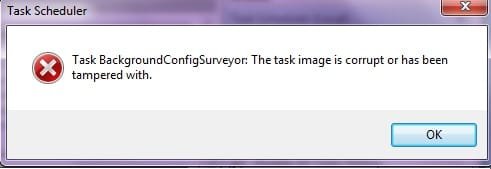
task backgroundconfigsurveyor:The task image is corrupt

killer

New member
When i start task Scheduler it say that
Task BackgroundConfigSurveyor:The task image is corrupt or has been tampered with
what should i do to perform a task.
:cry:
 

Attachments

  • task.jpg
    task.jpg
    19.5 KB · Views: 101

My Computer

Computer Manufacturer/Model Number
hcl
OS
windows 7 ultimate 64bit
CPU
amd athlon core 2 duo 5500+
Motherboard
asus m2n68 AM
Memory
4gb ddr2 trnscend 800mhz
Graphics Card(s)
1gb 9400gt
Monitor(s) Displays
crt 17inch
Screen Resolution
1024*768
Hard Drives
250gb sta
Keyboard
logitech
Mouse
220 logitech for note books
Internet Speed
100mbps and a maximum downloading speed o0f 200KBps

My Computer

Computer type
PC/Desktop
Computer Manufacturer/Model Number
Dell XPS 420
OS
Windows 10, Home Clean Install
CPU
Intel Core2 processsor Q8200(2.33Ghz 1333FSB) Quad Core Tech
Motherboard
Dell
Memory
6 gb
Graphics Card(s)
ATI Radeon 256MB HD3650
Sound Card
Intergrated 7.1 Channel Audio
Monitor(s) Displays
Dell SP2009W 20"
Hard Drives
640 GB Serial ATA Hard drive
Cooling
Fan
Keyboard
Dell USB Keyboard
Mouse
Dell Premium Optical USB
Internet Speed
DSL 2.85
I had the same problem and I think I've fixed it. At least on my computer, the task image seemed completely fine. I just had to trick Windows into recognizing it again. Here's what I did:
  1. Navigate to C:\Windows\System32\Tasks\Microsoft\Windows\PerfTrack and copy BackgroundConfigSurveyor to a backup location.
  2. Open regedit, find HKLM\SOFTWARE\Microsoft\Windows NT\CurrentVersion\Schedule\TaskCache\Tree\Microsoft\Windows\PerfTrack, right click it and export it to a backup location. Do the same for HKLM\SOFTWARE\Microsoft\Windows NT\CurrentVersion\Schedule\TaskCache\Plain. If something goes wrong, you can import these files to undo your changes.
  3. Go back to the ...\PerfTrack registry key and look at the BackgroundConfigSurveyor key inside it. It should contain a string called Id. The value for Id should be a big hexadecimal number inside curly braces. Find the key with the same name as this value inside ...\TaskCache\Plain and delete it.
  4. Delete the BackgroundConfigSurveyor key inside ...\PerfTrack
  5. Open Task Scheduler and the error should be gone.

Now, to rebuild the task:
  • Inside Task Scheduler, navigate to Task Scheduler Library\Microsoft\Windows\PerfTrack. There should be no tasks in the center pane.
  • Right click the empty space in the center pane and choose Import Task...
  • In the Open dialog, change XML files (*.xml) in the bottom right to All files (*.*)
  • Find and import the BackgroundConfigSurveyor file you backed up at the beginning.
  • A properties window should come up. Click OK.

If that doesn't work and you have another Windows 7 installation, try copying the uncorrupted BackgroundConfigSurveyor file from it.
 

My Computer

Computer Manufacturer/Model Number
Dell Studio 14z
OS
Windows 7 Professional (64 bit)
CPU
Intel Core 2 Duo T6500
Memory
3GB
Graphics Card(s)
Nvidia GeForce 9400M G

My Computer

Computer Manufacturer/Model Number
Homebrew
OS
Windows 7 Professional x64
CPU
Intel Core i5-2500K @ 3.3GHz
Motherboard
Fatal1ty P67 Professional
Memory
8GB
Graphics Card(s)
Zotac ZONE GeForce GT 240 1GB [ZT-20404-20L]
Sound Card
On board
Monitor(s) Displays
2x Samsung SyncMaster 203B
Screen Resolution
1400 x 1050
Case
CoolerMaster Elite
Cooling
Zalman
Keyboard
Microsoft Natural Wireless Ergonomic 7000
Mouse
Microsoft Natural Wireless Laser 7000
Idolon Thanks. Has very much helped.
 

My Computer

OS
Windows 7 Professional x64
CPU
Intel Core i7 920, 2800 MHz (21 x 133)
Motherboard
Gigabyte GA-EX58-UD5
Memory
Corsair CMD12GX3M6A1600C8
Graphics Card(s)
NVIDIA GeForce GTX 480 x2
Sound Card
Realtek ALC889A
Monitor(s) Displays
Samsung SyncMaster 2233RZ,NEC MultiSync 90GX2
Hard Drives
WDC WD5001AALS-00J7B1
PSU
HIPER HPU-4M880-PE
Keyboard
Razer Tarantula USB Keyboard
Mouse
G9 Laser Mouse
Internet Speed
25600 Kbps
Works perfectly

I had the same problem and I think I've fixed it. At least on my computer, the task image seemed completely fine. I just had to trick Windows into recognizing it again. Here's what I did:
  1. Navigate to C:\Windows\System32\Tasks\Microsoft\Windows\PerfTrack and copy BackgroundConfigSurveyor to a backup location.
  2. Open regedit, find HKLM\SOFTWARE\Microsoft\Windows NT\CurrentVersion\Schedule\TaskCache\Tree\Microsoft\Windows\PerfTrack, right click it and export it to a backup location. Do the same for HKLM\SOFTWARE\Microsoft\Windows NT\CurrentVersion\Schedule\TaskCache\Plain. If something goes wrong, you can import these files to undo your changes.
  3. Go back to the ...\PerfTrack registry key and look at the BackgroundConfigSurveyor key inside it. It should contain a string called Id. The value for Id should be a big hexadecimal number inside curly braces. Find the key with the same name as this value inside ...\TaskCache\Plain and delete it.
  4. Delete the BackgroundConfigSurveyor key inside ...\PerfTrack
  5. Open Task Scheduler and the error should be gone.

Now, to rebuild the task:
  1. Inside Task Scheduler, navigate to Task Scheduler Library\Microsoft\Windows\PerfTrack. There should be no tasks in the center pane.
  2. Right click the empty space in the center pane and choose Import Task...
  3. In the Open dialog, change XML files (*.xml) in the bottom right to All files (*.*)
  4. Find and import the BackgroundConfigSurveyor file you backed up at the beginning.
  5. A properties window should come up. Click OK.

If that doesn't work and you have another Windows 7 installation, try copying the uncorrupted BackgroundConfigSurveyor file from it.

Just want to say, "THANKS" it worked perfectly. The only thing I did'n have to do is delete the ID number.;)
 

My Computer

Computer Manufacturer/Model Number
HP DV6785SE
OS
Win7 Ult 64
CPU
Centrino T5650
Motherboard
Intel
Memory
2gig
Graphics Card(s)
Nvidia
Sound Card
realtek
Hard Drives
500gig Seagate
Hi, I have just attempted to fix the problem as in post#1
The repair install failed to start as my system was newer i.e. SP1 installed.
What I did, was some of the suggestions by 'Idolon':-
1 copy:- C:\Windows\System32\Tasks\Microsoft\Windows\PerfTrack and copy BackgroundConfigSurveyor to a thumb drive, from my desktop pc.
2 delete all entrys in 'Task Schedule Library' and BackgroundConfigSurveyor file on my laptop, import the copied file as above & it worked.
Both pc's are Win7 H Prem 32bit
Many Thanks to all.
 

My Computer

Computer Manufacturer/Model Number
Look in my Signature.
OS
Win7 H.Prem. 32bit+SP1
Neatly Explained

I had this problem and the instruction by Idolon worked. Thanks...
 

My Computer

OS
Windows 7 Home Premium 64bit
I have the same problem only with a task called 'autokmsdaily' and I have no idea what that is.
 

My Computer

OS
win 7 x64
I've attached the copy I found on my computer. I had to change the extension to .txt (from no extension) so the forum would allow me to upload it.

 

Attachments

My Computer

Computer Manufacturer/Model Number
Dell Studio 14z
OS
Windows 7 Professional (64 bit)
CPU
Intel Core 2 Duo T6500
Memory
3GB
Graphics Card(s)
Nvidia GeForce 9400M G
Hey all on this thread. It's now January 2012 and Idolon's instructions fixed it for me also :D
 

My Computer

Computer Manufacturer/Model Number
HP m7690n
OS
Windows Home Premium 64 bit
CPU
Intel e6400 2.13 GHz
Motherboard
ASUSTek Computer INC. Basswood
Memory
4 Gb
Graphics Card(s)
MSI GeForce 8400 GS
Sound Card
Realtek High Definition Audio
Monitor(s) Displays
Sharp 40" HDMI
Hard Drives
ST3300831SCE

WDC WD2500JS-60NCB1
Just used this description to solve the same problem. I would recommend to terminate Task Scheduler after completion and to restart once more in order to be sure, that the problem has really gone.

Well done Idolon! Very good description!
 

My Computer

OS
Windows 7 Ultimate x64
CPU
Phenom II X6 1090
Motherboard
ASUS CROSSHAIR IV Formula
Memory
4x2G Kingston HyperX DDR3 1366 (7-7-7-20)
Graphics Card(s)
ASUS NVIDIA GeForce 9600GT
Monitor(s) Displays
2xSyncMaster 245e 1920x1280
Hard Drives
6x Samsung 1GB HD103SJ
PSU
Enermax Modu87+ 700W
Case
Zahlman GS100Plus
Cooling
Scythe Kabuto
Hmmm, just checked my Registry as I was looking for a second problem of the same type.

I was very astonished to see no BackgroundConfigSurveyor key in HKLM\SOFTWARE\Microsoft\Windows NT\CurrentVersion\Schedule\TaskCache\Tree\Microsoft\Windows\PerfTrack. Is that ok? Nor do I find the deleted Id value in HKLM\SOFTWARE\Microsoft\Windows NT\CurrentVersion\Schedule\TaskCache\Plain!

=====

Edit:
I looked at this again. I can not confirm there were really no entries in the registry. But sure the task does not show up in the Task Scheduler Library\Microsoft\Windows\PerfTrack and I could not import the task again!

I went to the registry and started all over. I found the following:
- the tasks looks perfect when I import it before I press OK (forward reference to next step: It does show the name 'BackgroundConfigSurveyor' in the name field)
- when I press OK, the tasks gets created in the the center pane but it does not get a name. The field will be empty!
- as soon as I leave the Task Scheduler and restart it again, I will find the center pane for PerfTrack empty
- if I try to import the task again I will get the message: "An error has occurred for task BackgroundConfigSurveyor. Error message: A task or folder with this name already exists." I verfied this: BackgroundConfigSurveyor really exists in C:\Windows\System32\Tasks\Microsoft\Windows\PerfTrack
- I had a look at the saved 'BackgroundConfigSurveyor'-file. Interestingly the header is different from Idalon's file (see first post on this page)
Code:
<?xml version="1.0" encoding="UTF-16"?>
<Task version="1.3" xmlns="http://schemas.microsoft.com/windows/2004/02/mit/task">
- I looked at the same file on my Notebook. This file is identical to Idalon's-file! I took a copy of it and moved it to my desktop. Reinstalled it in 'Task Scheduler'. Interestingly it created a task named according to it's filename. Grrr.
- Removed the task again using Idalon's description
- Renamed the Copy of the 'BackgroundConfigSurveyor'-file to 'BackgroundConfigSurveyor'. Imported this taks into Task Scheduler again. Again this file looks perfect before I press OK. Again it will loose the name as soon as I press OK and vanish as soon as I restart the Task Scheduler!
- I removed the whole stuff again. Ran 'sfc /verifyonly'. No errors!
- I exported 'BackgroundConfigSurveyor' from my Notebook (right-click on the task 'BackgroundConfigSurveyor' offers an 'Export...'. I compared the exported file against the copied one from C:\Windows\System32\Tasks\Microsoft\Windows\PerfTrack. They are different! However importing this file led again to the same problems!

Now I wonder:
1) Should I ask the 'BackgroundConfigSurveyor'-task just using an other name? I can add a task 'BackgroundConfigSurveyor1' without problems. It will keep its name and it will not vanish as soon as I close the Task Scheduler!
2) Maybe all this is not important at all! The history on my Notebook shows 'BackgroundConfigSurveyor' never ran! So maybe the big benefit from Idalon's solution is, that we no longer get the 'Task BackgroundConfigSurveyor: The task image is corrupt or has been tampered with.' message...
Does anyone know what 'PerfMon' and 'BackgroundConfigSurveyor' do?

And before you ask: Yes I did run Task Scheduler with 'Run as Admin...' and to make sure I'll be testing this once more with the Adminstrator account as soon as I have published this.

I attached a screenshot and a copy of 'BackgroundConfigSurveyor' created by teh Export.... Note: this file must be named 'BackgroundConfigSurveyor.xml'. I had to change the extension to .xml.txt so the forum would allow me to upload it.
 

Attachments

Last edited:

My Computer

OS
Windows 7 Ultimate x64
CPU
Phenom II X6 1090
Motherboard
ASUS CROSSHAIR IV Formula
Memory
4x2G Kingston HyperX DDR3 1366 (7-7-7-20)
Graphics Card(s)
ASUS NVIDIA GeForce 9600GT
Monitor(s) Displays
2xSyncMaster 245e 1920x1280
Hard Drives
6x Samsung 1GB HD103SJ
PSU
Enermax Modu87+ 700W
Case
Zahlman GS100Plus
Cooling
Scythe Kabuto
Yuppeee! To my greatest surprise I found today when rechecking my Task Scheduler:
- the name of the task s now visible
- the task does run every night

So just follow the instruction and be not concerned about anomalities, but go sleep :-)

Seems like my 3 hour testing last week was all in vain. Curse MS!
 

My Computer

OS
Windows 7 Ultimate x64
CPU
Phenom II X6 1090
Motherboard
ASUS CROSSHAIR IV Formula
Memory
4x2G Kingston HyperX DDR3 1366 (7-7-7-20)
Graphics Card(s)
ASUS NVIDIA GeForce 9600GT
Monitor(s) Displays
2xSyncMaster 245e 1920x1280
Hard Drives
6x Samsung 1GB HD103SJ
PSU
Enermax Modu87+ 700W
Case
Zahlman GS100Plus
Cooling
Scythe Kabuto
I had the same problem and I think I've fixed it. At least on my computer, the task image seemed completely fine. I just had to trick Windows into recognizing it again. Here's what I did:
  1. Navigate to C:\Windows\System32\Tasks\Microsoft\Windows\PerfTrack and copy BackgroundConfigSurveyor to a backup location.
  2. Open regedit, find HKLM\SOFTWARE\Microsoft\Windows NT\CurrentVersion\Schedule\TaskCache\Tree\Microsoft\Windows\PerfTrack, right click it and export it to a backup location. Do the same for HKLM\SOFTWARE\Microsoft\Windows NT\CurrentVersion\Schedule\TaskCache\Plain. If something goes wrong, you can import these files to undo your changes.
  3. Go back to the ...\PerfTrack registry key and look at the BackgroundConfigSurveyor key inside it. It should contain a string called Id. The value for Id should be a big hexadecimal number inside curly braces. Find the key with the same name as this value inside ...\TaskCache\Plain and delete it.
  4. Delete the BackgroundConfigSurveyor key inside ...\PerfTrack
  5. Open Task Scheduler and the error should be gone.

Now, to rebuild the task:
  • Inside Task Scheduler, navigate to Task Scheduler Library\Microsoft\Windows\PerfTrack. There should be no tasks in the center pane.
  • Right click the empty space in the center pane and choose Import Task...
  • In the Open dialog, change XML files (*.xml) in the bottom right to All files (*.*)
  • Find and import the BackgroundConfigSurveyor file you backed up at the beginning.
  • A properties window should come up. Click OK.

If that doesn't work and you have another Windows 7 installation, try copying the uncorrupted BackgroundConfigSurveyor file from it.

I've recently had this issue (probably because of a system crash).
Thanks a lot! This solution worked fine. :cool:
My .xml was a bit different in the first lines (Win7 SP1 x64 ITA) but identical for the rest. See attached.

More infos about Perftrack, for those interested (quite a useful feature indeed): David Fields and Bill Karagounis: Inside Windows 7 - Reliability, Performance and PerfTrack | Charles | Channel 9
 

Attachments

My Computer

Computer type
Laptop
Computer Manufacturer/Model Number
MSI GX660-262it
OS
Windows 7 Home Premium x64 SP1
CPU
Intel Core i7 840QM
Memory
8GB DDR3 1333MHz
Graphics Card(s)
ATI Mobility HD 7970M 2GB DDR5
Screen Resolution
1920x1080
Hard Drives
Intel SSDSA2CT040G3
Hybrid ST750LX0ST750LX003
Antivirus
360 Internet Security
Browser
IE10
Thanks, Idolon. Your instructions were great - clear, concise, and complete. They worked! :-)
 

My Computer

OS
Windows 7 Pro x64
I had the same problem and I think I've fixed it. At least on my computer, the task image seemed completely fine. I just had to trick Windows into recognizing it again. Here's what I did:
  1. Navigate to C:\Windows\System32\Tasks\Microsoft\Windows\PerfTrack and copy BackgroundConfigSurveyor to a backup location.
  2. Open regedit, find HKLM\SOFTWARE\Microsoft\Windows NT\CurrentVersion\Schedule\TaskCache\Tree\Microsoft\Windows\PerfTrack, right click it and export it to a backup location. Do the same for HKLM\SOFTWARE\Microsoft\Windows NT\CurrentVersion\Schedule\TaskCache\Plain. If something goes wrong, you can import these files to undo your changes.
  3. Go back to the ...\PerfTrack registry key and look at the BackgroundConfigSurveyor key inside it. It should contain a string called Id. The value for Id should be a big hexadecimal number inside curly braces. Find the key with the same name as this value inside ...\TaskCache\Plain and delete it.
  4. Delete the BackgroundConfigSurveyor key inside ...\PerfTrack
  5. Open Task Scheduler and the error should be gone.

Now, to rebuild the task:
  1. Inside Task Scheduler, navigate to Task Scheduler Library\Microsoft\Windows\PerfTrack. There should be no tasks in the center pane.
  2. Right click the empty space in the center pane and choose Import Task...
  3. In the Open dialog, change XML files (*.xml) in the bottom right to All files (*.*)
  4. Find and import the BackgroundConfigSurveyor file you backed up at the beginning.
  5. A properties window should come up. Click OK.
If that doesn't work and you have another Windows 7 installation, try copying the uncorrupted BackgroundConfigSurveyor file from it.


Hello!
I followed the above procedure step by step but whenever I try to rebuild the task inside Task Scheduler, an error message windows popups telling me that a task or folder with the same name already exists.
However there are not tasks in the center pane: any idea on how can I solve this annoying issue?
Thanks in advance.
 

My Computer

OS
Windows 7 Ultimate 32bit
Maybe it's complaining about the BackgroundConfigSurveyor file still existing at C:\Windows\System32\Tasks\Microsoft\Windows\PerfTrack ? If it still exists there, try moving elsewhere it before re-importing it.
 

My Computer

Computer Manufacturer/Model Number
Dell Studio 14z
OS
Windows 7 Professional (64 bit)
CPU
Intel Core 2 Duo T6500
Memory
3GB
Graphics Card(s)
Nvidia GeForce 9400M G
Hi!
Thank you very much for your reply!
Yes that file is there: so can I DELETE it?
But if I had this problem it means that the file (BackgroundConfigSurveyor) was corrupted: is that right?
So how can I solve this issue if I import that file, I had previously backed up, again in my system?
And have you ever tried this FREE tool?

Fix My Task Scheduler Free Download

I've used it today and it has apparently fixed one issue, without telling me which one though.
 

My Computer

OS
Windows 7 Ultimate 32bit
Back
Top