Task Scheduler - Create Task to Display a Message Reminder

How to Display a Message Reminder in Windows with Task Scheduler

   Information
This will show you how to create yourself, or another user or group, a message reminder scheduled to display for when and how often you like in Windows 7 or Vista using Task Scheduler.

All users on the computer will be able to do this.

   Note
The steps may look long and complicated, but this is really quite easy to do. I just included a lot of details to help make it easy. :)

   Warning
The message reminder might not always appear on top of the current active window if you just happen to be typing or clicking in the window (ex: Internet Explorer) at the same time when the message reminder displays causing the message reminder to no longer be the active window and not on top.

The message reminder will also have a icon on the taskbar to indicate that it has displayed.

You could also use what Dwarf's posted below to avoid this as well.


EXAMPLE: Message Reminder
NOTE: This is the type of message reminder pop-up dialog that will be displayed on your desktop with your message title and message you set for when and how often in Task Scheduler.
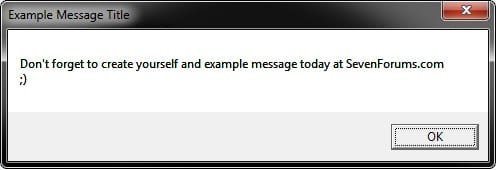
Example.jpg


Here's How:
1. Open the Start Menu, type taskschd.msc, and press Enter.

2. If prompted by UAC, then click on Yes (Windows 7) or Continue (Vista).

3. In the left pane, click on Task Scheduler Library folder to select it, then click on Create Task in the right pane. (see screenshot below)
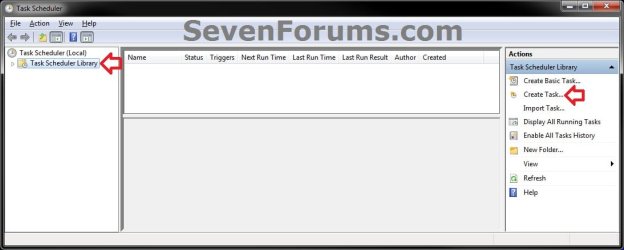
Step1.jpg
4. In the General tab, type in a Name and Description for this task to help let you know what it's for. (see screenshot below)
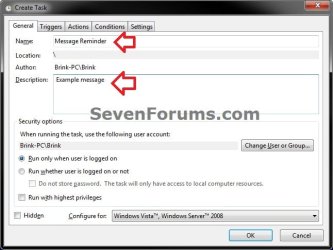
Step2.jpg
5. If you wanted to change what user or group this message reminder will display for other than than the default of your user account, then click on the Change User or Group button and follow the steps in the screenshot below to select a user or group. If not, then skip this step and go to step 6.
NOTE: The steps are numbered in the order to follow for how to select a different user or group. The Users group would be for all users.
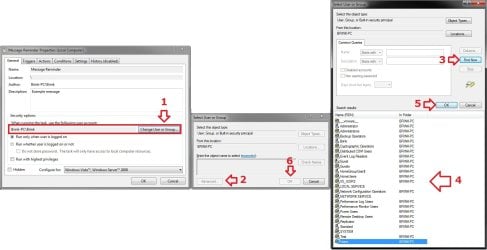
Step2B.jpg
6. Click on the Triggers tab, and click on the New button. (see screenshot below)
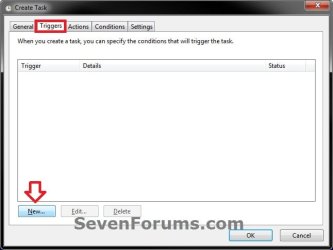
Step3.jpg
7. If not already selected, then select On a schedule. (see screenshot below)
NOTE: You could select what event you would like or works better for you instead, but I'm just using this one as an example. If you select a different option, then you will have different setting to set instead of the ones in steps 7A-7B below.
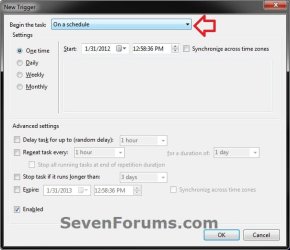
Step4.jpg

A) Select how often you want the message reminder to display. (see screenshot below)
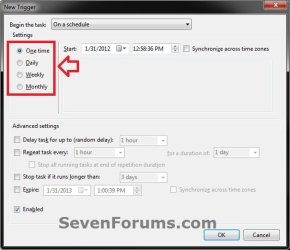
Step5.jpg
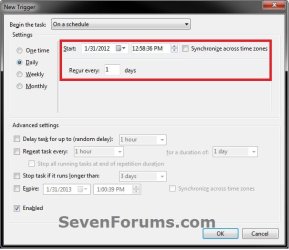
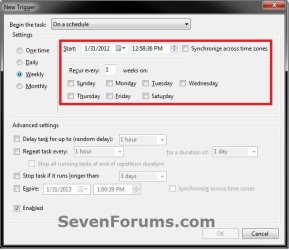
B) Depending on what you selected in step 7A, select and set when (ex: date and time) you want the message reminder to display. (see screenshots below)
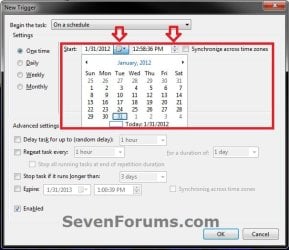
Step6A.jpgStep6B.jpg
Step6C.jpgStep6D.jpg
C) When finished, click on OK. (see screenshot above)
8. Click on the Actions tab, and click on the New button. (see screenshot below)
Step7.jpg
9. In the Action drop down menu, select Display a message. (see screenshot above)
NOTE: See red warning box at the top of the tutorial.
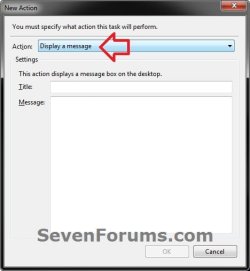
Step8.jpg
10. Type in a Title and Message that you want displayed in the message reminder, and click on OK. (see screenshot above)
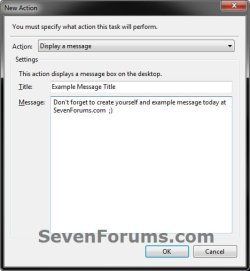
Step9.jpg
11. Click on the Conditions tab, uncheck the Stop if the computer switches to batter power box, and uncheck the Start the task only if the computer is on AC power box. (see screenshot below)
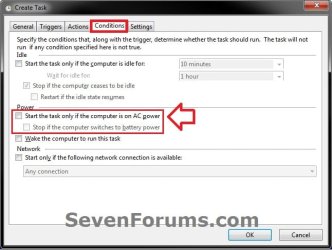
Step10.jpg
12. Click on the Settings tab, check the Run task as soon as possible after a scheduled start is missed box, and check the If the task fails, restart every: box. (see screenshot below)
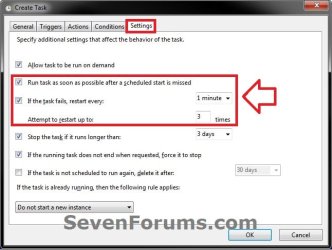
Step11.jpg
13. Click on OK. (see screenshot below)

14. You will now see this task listed in the Task Scheduler Library folder. (see screenshot below)
NOTE: You will always be able to edit or delete this task.
Step12.jpg
15. Close Task Scheduler. You're message reminder will now display for the user or group and when you have it set for in this task.
That's it,
Shawn


Last edited:
Another great Tutorial, Shawn. :)

In some cases, the message might not appear on top of the current window. In order to alleviate this, a slight change needs to be made at Step 9. Instead of selecting the action Display a message, choose Start a program instead. This allows you to have greater flexibility, as you can have the same message appear for all users, for some users (and nothing for the others), or different messages for each user.

The basic code for the program (a .vbs file) is as follows:

Code:
[B]MsgBox "Don't forget to create yourself an example message today at SevenForums.com", vbSystemModal[/B]

For more information, please see Section TWO of this Tutorial: Task Scheduler - Windows 8 Forums
 

My Computer

Computer type
PC/Desktop
Computer Manufacturer/Model Number
Dwarf Dwf/11/2012 r09/2013
OS
Windows 8.1 Pro RTM x64
CPU
Intel Core-i5-3570K 4-core @ 3.4GHz (Ivy Bridge) (OC 4.4GHz)
Motherboard
ASRock Z77 Extreme4-M
Memory
4 x 4GB DDR3-1600 Corsair Vengeance CMZ8GX3M2A1600C9B (16GB)
Graphics Card(s)
MSI GeForce GTX770 Gaming OC 2GB
Sound Card
Realtek High Definition on board solution (ALC 898)
Monitor(s) Displays
ViewSonic VA1912w Widescreen (VGA)
Screen Resolution
1440x900
Hard Drives
OCZ Agility 3 SSD 120GB SATA III x2 (RAID 0)
Samsung HD501LJ 500GB SATA II x2
Hitachi HDS721010CLA332 1TB SATA II
Iomega 1.5TB Ext USB 2.0
WD 2.0TB Ext USB 3.0
PSU
XFX Pro Series 850W Semi-Modular
Case
Gigabyte IF233
Cooling
1 x 120mm Front Inlet 1 x 120mm Rear Exhaust
Keyboard
Microsoft Comfort Curve Keyboard 3000 (USB)
Mouse
Microsoft Comfort Mouse 3000 for Business (USB)
Internet Speed
NetGear DG834Gv3 ADSL Modem/Router (Ethernet) ~4.0 Mb/s (O2)
Antivirus
Avast! 8.0.1497
Browser
IE 11
Other Info
Optical Drive: HL-DT-ST BD-RE BH10LS30 SATA Bluray
Lexmark S305 Printer/Scanner/Copier (USB)
WEI Score: 8.1/8.1/8.5/8.5/8.25
Asus Eee PC 1011PX Netbook (Windows 7 x86 Starter)
Thank you Dwarf for another option. I added a warning for this. :)
 
Last edited:

My Computer

Computer type
PC/Desktop
Computer Manufacturer/Model Number
Self built custom
OS
64-bit Windows 11 Pro for Workstations
CPU
Intel i7-8700K OC'd to 5 GHz
Motherboard
ASUS ROG Maximus XI Formula Z390
Memory
64 GB (4x16GB) G.SKILL TridentZ RGB DDR4 3600 MHz
Graphics Card(s)
ASUS ROG-STRIX-GTX1080TI-O11G-GAMING
Sound Card
Integrated
Monitor(s) Displays
2 x Samsung Odyssey G7 27"
Screen Resolution
2560x1440
Hard Drives
1TB Samsung 990 PRO M.2,
4TB Samsung 990 PRO PRO M.2,
TerraMaster F8 SSD Plus NAS
PSU
Seasonic Prime Titanium 850W
Case
Thermaltake Core P3
Cooling
Corsair Hydro H115i
Keyboard
Logitech wireless K800
Mouse
Logitech MX Master 4
Internet Speed
2 Gb/s Download and 100 Mb/s Upload
Antivirus
Malwarebyte Anti-Malware Premium
Browser
Google Chrome
Other Info
Logitech Z625 speaker system,
Logitech BRIO 4K Pro webcam,
HP Color LaserJet Pro MFP M477fdn,
APC SMART-UPS RT 1000 XL - SURT1000XLI,
Galaxy S23 Plus phone
In some cases, the message might not appear on top of the current window. In order to alleviate this, a slight change needs to be made at Step 9. Instead of selecting the action Display a message, choose Start a program instead. This allows you to have greater flexibility, as you can have the same message appear for all users, for some users (and nothing for the others), or different messages for each user.

The basic code for the program (a .vbs file) is as follows:

Code:
[B]MsgBox "Don't forget to create yourself an example message today at SevenForums.com", vbSystemModal[/B]

For more information, please see Section TWO of this Tutorial: Task Scheduler - Windows 8 Forums

Thank you very much for this! I found the Task Scheduler reminder message to be quite useless, as it displays underneath everything so I never see it, so the vbs option is perfect. :)
 

My Computer

OS
Windows 7 Home Premium x64
POPPING UP ON TOP

Hello Shawn,

Do you know any trick to get the POP UP WINDOW of that message to POP UP ON TOP OF THE OTHER opened windows? Also do you know how we could assign a louder sound?

It is working real neat but I would dearly like to add these two features...

Regards,

cybersun
 

My Computer

OS
win 7 64
CPU
INTEL CORE2 QUAD Q8400 2.67
Motherboard
gigabyte motherboard
Memory
6 GB
Graphics Card(s)
NVIDIA
Sound Card
REALTEK HD
Monitor(s) Displays
LG
Hello Cybersun,

You could use the alternative option in the red warning box at the top of the tutorial to use a .vbs file to run with a task instead for it to appear on top.

I don't remember what sound event (Alert ?? maybe) the task message pop-up belongs to, but it would be in Sounds to change it to play whatever sound (.wav) file you like.

http://www.sevenforums.com/tutorials/285-sounds-change.html

Hope this helps, :)
Shawn
 

My Computer

Computer type
PC/Desktop
Computer Manufacturer/Model Number
Self built custom
OS
64-bit Windows 11 Pro for Workstations
CPU
Intel i7-8700K OC'd to 5 GHz
Motherboard
ASUS ROG Maximus XI Formula Z390
Memory
64 GB (4x16GB) G.SKILL TridentZ RGB DDR4 3600 MHz
Graphics Card(s)
ASUS ROG-STRIX-GTX1080TI-O11G-GAMING
Sound Card
Integrated
Monitor(s) Displays
2 x Samsung Odyssey G7 27"
Screen Resolution
2560x1440
Hard Drives
1TB Samsung 990 PRO M.2,
4TB Samsung 990 PRO PRO M.2,
TerraMaster F8 SSD Plus NAS
PSU
Seasonic Prime Titanium 850W
Case
Thermaltake Core P3
Cooling
Corsair Hydro H115i
Keyboard
Logitech wireless K800
Mouse
Logitech MX Master 4
Internet Speed
2 Gb/s Download and 100 Mb/s Upload
Antivirus
Malwarebyte Anti-Malware Premium
Browser
Google Chrome
Other Info
Logitech Z625 speaker system,
Logitech BRIO 4K Pro webcam,
HP Color LaserJet Pro MFP M477fdn,
APC SMART-UPS RT 1000 XL - SURT1000XLI,
Galaxy S23 Plus phone
Is this all the code there is to it?

MsgBox "Don't forget to create yourself an example message today at SevenForums.com", vbSystemModal

I assume this can be written in any text editor and save as for instance: MSG01.VBS?

PLease confirm, as I am no at all familiar with VBS.

How is the VBS file written? ANy comment field indicators?

Does it need to be saved to a specific folder or can it be run from any?

thanks for your help

PS: can you also let me know of a good site to refer to for VBS?

cybersun


My Computer

OS
win 7 64
CPU
INTEL CORE2 QUAD Q8400 2.67
Motherboard
gigabyte motherboard
Memory
6 GB
Graphics Card(s)
NVIDIA
Sound Card
REALTEK HD
Monitor(s) Displays
LG
Yes, that would be correct. You would just copy and paste that in notepad, then save it as whatever.vbs. Afterwards, use Task Scheduler to run the .vbs file how you like. :)

Code:
MsgBox "[COLOR=red][B]Whatever message you want[/B][/COLOR]", vbSystemModal

I think the sound event is "System Notification".

The link below can give you the basics about VBS files.

VBScript - Wikipedia, the free encyclopedia
 

My Computer

Computer type
PC/Desktop
Computer Manufacturer/Model Number
Self built custom
OS
64-bit Windows 11 Pro for Workstations
CPU
Intel i7-8700K OC'd to 5 GHz
Motherboard
ASUS ROG Maximus XI Formula Z390
Memory
64 GB (4x16GB) G.SKILL TridentZ RGB DDR4 3600 MHz
Graphics Card(s)
ASUS ROG-STRIX-GTX1080TI-O11G-GAMING
Sound Card
Integrated
Monitor(s) Displays
2 x Samsung Odyssey G7 27"
Screen Resolution
2560x1440
Hard Drives
1TB Samsung 990 PRO M.2,
4TB Samsung 990 PRO PRO M.2,
TerraMaster F8 SSD Plus NAS
PSU
Seasonic Prime Titanium 850W
Case
Thermaltake Core P3
Cooling
Corsair Hydro H115i
Keyboard
Logitech wireless K800
Mouse
Logitech MX Master 4
Internet Speed
2 Gb/s Download and 100 Mb/s Upload
Antivirus
Malwarebyte Anti-Malware Premium
Browser
Google Chrome
Other Info
Logitech Z625 speaker system,
Logitech BRIO 4K Pro webcam,
HP Color LaserJet Pro MFP M477fdn,
APC SMART-UPS RT 1000 XL - SURT1000XLI,
Galaxy S23 Plus phone
Thanks Brink, It worked fine. I will get a little more litterate with VBS before adventuring further ahead! But id does look like a promising option to do even more stuff in conjunction with the TASK SCHEDULER.

Regards,

cybersun
 

My Computer

OS
win 7 64
CPU
INTEL CORE2 QUAD Q8400 2.67
Motherboard
gigabyte motherboard
Memory
6 GB
Graphics Card(s)
NVIDIA
Sound Card
REALTEK HD
Monitor(s) Displays
LG
You're most welcome cybersun. :)
 

My Computer

Computer type
PC/Desktop
Computer Manufacturer/Model Number
Self built custom
OS
64-bit Windows 11 Pro for Workstations
CPU
Intel i7-8700K OC'd to 5 GHz
Motherboard
ASUS ROG Maximus XI Formula Z390
Memory
64 GB (4x16GB) G.SKILL TridentZ RGB DDR4 3600 MHz
Graphics Card(s)
ASUS ROG-STRIX-GTX1080TI-O11G-GAMING
Sound Card
Integrated
Monitor(s) Displays
2 x Samsung Odyssey G7 27"
Screen Resolution
2560x1440
Hard Drives
1TB Samsung 990 PRO M.2,
4TB Samsung 990 PRO PRO M.2,
TerraMaster F8 SSD Plus NAS
PSU
Seasonic Prime Titanium 850W
Case
Thermaltake Core P3
Cooling
Corsair Hydro H115i
Keyboard
Logitech wireless K800
Mouse
Logitech MX Master 4
Internet Speed
2 Gb/s Download and 100 Mb/s Upload
Antivirus
Malwarebyte Anti-Malware Premium
Browser
Google Chrome
Other Info
Logitech Z625 speaker system,
Logitech BRIO 4K Pro webcam,
HP Color LaserJet Pro MFP M477fdn,
APC SMART-UPS RT 1000 XL - SURT1000XLI,
Galaxy S23 Plus phone
Hi

I'm new to this & struggling a bit

I managed to do the schedule as per the first instruction but cannot figure out the VBS bit. Can anyone help? :)

There are 6 cars in the family & I'm trying to schedule reminders for the MOT's for each car as I've found I'm forgetting to check them.

I have put the C:\logonscript.vbs in as the started program but not sure what to do with the actual message now, also how will the program differentiate between other messages??

Thanks in advance

Junks :)
 

My Computer

Computer Manufacturer/Model Number
HP 8200 Elite
OS
Windows 7 Professional x64
Hello Junks, and welcome to Seven Forums.

To use the VBS option, you would use it with Section TWO of this Tutorial instead: Task Scheduler - Windows 8 Forums

To create the VBS file itself, you would type this below in notepad, then save it as say logonscript.vbs in C: since that's what you typed in Task Manager already. Afterwards, you can use Task Scheduler to run the .vbs file how you like.


Code:
MsgBox "[COLOR=red][B]Whatever message you want[/B][/COLOR]", vbSystemModal


If you wanted a different message per user account, the you would need to create a separate VBS file and task for each user. In Task Scheduler, you would click on the Change User or Group button like below for each new task to specify what user you want this task to run for.

user.jpg

Hope this helps, :)
Shawn
 

My Computer

Computer type
PC/Desktop
Computer Manufacturer/Model Number
Self built custom
OS
64-bit Windows 11 Pro for Workstations
CPU
Intel i7-8700K OC'd to 5 GHz
Motherboard
ASUS ROG Maximus XI Formula Z390
Memory
64 GB (4x16GB) G.SKILL TridentZ RGB DDR4 3600 MHz
Graphics Card(s)
ASUS ROG-STRIX-GTX1080TI-O11G-GAMING
Sound Card
Integrated
Monitor(s) Displays
2 x Samsung Odyssey G7 27"
Screen Resolution
2560x1440
Hard Drives
1TB Samsung 990 PRO M.2,
4TB Samsung 990 PRO PRO M.2,
TerraMaster F8 SSD Plus NAS
PSU
Seasonic Prime Titanium 850W
Case
Thermaltake Core P3
Cooling
Corsair Hydro H115i
Keyboard
Logitech wireless K800
Mouse
Logitech MX Master 4
Internet Speed
2 Gb/s Download and 100 Mb/s Upload
Antivirus
Malwarebyte Anti-Malware Premium
Browser
Google Chrome
Other Info
Logitech Z625 speaker system,
Logitech BRIO 4K Pro webcam,
HP Color LaserJet Pro MFP M477fdn,
APC SMART-UPS RT 1000 XL - SURT1000XLI,
Galaxy S23 Plus phone
Thanks for the reply Shawn - I did check section two beforehand but didn't really understand the vbs section at all with all the codes that were written in there, I really wanted to be able to have several different messages come up at different times of the year (normally only one instance at a time) on one user account but I can only see how this would work for one message per user account - I guess its a bit beyond my capabilities so maybe I'll just stick to using a post it on my desk!! Thanks for trying to help anyway ;)
 

My Computer

Computer Manufacturer/Model Number
HP 8200 Elite
OS
Windows 7 Professional x64

My Computer

Computer type
PC/Desktop
Computer Manufacturer/Model Number
Self built custom
OS
64-bit Windows 11 Pro for Workstations
CPU
Intel i7-8700K OC'd to 5 GHz
Motherboard
ASUS ROG Maximus XI Formula Z390
Memory
64 GB (4x16GB) G.SKILL TridentZ RGB DDR4 3600 MHz
Graphics Card(s)
ASUS ROG-STRIX-GTX1080TI-O11G-GAMING
Sound Card
Integrated
Monitor(s) Displays
2 x Samsung Odyssey G7 27"
Screen Resolution
2560x1440
Hard Drives
1TB Samsung 990 PRO M.2,
4TB Samsung 990 PRO PRO M.2,
TerraMaster F8 SSD Plus NAS
PSU
Seasonic Prime Titanium 850W
Case
Thermaltake Core P3
Cooling
Corsair Hydro H115i
Keyboard
Logitech wireless K800
Mouse
Logitech MX Master 4
Internet Speed
2 Gb/s Download and 100 Mb/s Upload
Antivirus
Malwarebyte Anti-Malware Premium
Browser
Google Chrome
Other Info
Logitech Z625 speaker system,
Logitech BRIO 4K Pro webcam,
HP Color LaserJet Pro MFP M477fdn,
APC SMART-UPS RT 1000 XL - SURT1000XLI,
Galaxy S23 Plus phone
Ok Shawn thanks but I don't think that would do what I need, its probably not possible to do what I want with this system but thanks for your help :)
 

My Computer

Computer Manufacturer/Model Number
HP 8200 Elite
OS
Windows 7 Professional x64
This message reminder thing is nearly perfect since my Works 6 calendar won't pop up messages in Windows 7.
Now, if only the taskbar button flashed when it shows up, I wouldn't care if the message got buried under my already-opened windows... :)
 

My Computer

Computer type
PC/Desktop
Computer Manufacturer/Model Number
Self-Built
OS
Win10 Pro 64-bit
CPU
AMD Ryzen 7 3800X
Motherboard
Gigabyte X570 UD
Memory
32 GB Kingston DDR4-2666
Graphics Card(s)
MSI nVidia GT 710 (2GB)
Sound Card
Creative Audigy FX 5.1
Monitor(s) Displays
ViewSonic VG2439Smh 24"
Screen Resolution
1920x1080
Hard Drives
3xWD1TB; 1xSeagate 1TB... all spinning rust
PSU
EVGA 100-W1-0500-KR (500w)
Case
SilverStone PS10 (modified)
Cooling
CPU:AMD Wraith Prism. Case:3x Noctua 120mm
Keyboard
Compaq Professional PS/2
Mouse
Microsoft Basic Optical Mouse 2.0
Internet Speed
Fiber 1Gbit/sec down/up
Antivirus
Avast Free
Browser
FF, Chrome
Other Info
2x LG GH24NSC0 DVD burners, Mackie CR3 monitor speakers
Ok Shawn thanks but I don't think that would do what I need, its probably not possible to do what I want with this system but thanks for your help :)

It's possible, but you would just need to do what was posted above to create a separate task and VBS file for each user you want a different message for, then set each one how often you want them to display.

When finished, you could change the message anytime you like by editing the VBS file and saving it. :)
 

My Computer

Computer type
PC/Desktop
Computer Manufacturer/Model Number
Self built custom
OS
64-bit Windows 11 Pro for Workstations
CPU
Intel i7-8700K OC'd to 5 GHz
Motherboard
ASUS ROG Maximus XI Formula Z390
Memory
64 GB (4x16GB) G.SKILL TridentZ RGB DDR4 3600 MHz
Graphics Card(s)
ASUS ROG-STRIX-GTX1080TI-O11G-GAMING
Sound Card
Integrated
Monitor(s) Displays
2 x Samsung Odyssey G7 27"
Screen Resolution
2560x1440
Hard Drives
1TB Samsung 990 PRO M.2,
4TB Samsung 990 PRO PRO M.2,
TerraMaster F8 SSD Plus NAS
PSU
Seasonic Prime Titanium 850W
Case
Thermaltake Core P3
Cooling
Corsair Hydro H115i
Keyboard
Logitech wireless K800
Mouse
Logitech MX Master 4
Internet Speed
2 Gb/s Download and 100 Mb/s Upload
Antivirus
Malwarebyte Anti-Malware Premium
Browser
Google Chrome
Other Info
Logitech Z625 speaker system,
Logitech BRIO 4K Pro webcam,
HP Color LaserJet Pro MFP M477fdn,
APC SMART-UPS RT 1000 XL - SURT1000XLI,
Galaxy S23 Plus phone
Ok Shawn thanks but I don't think that would do what I need, its probably not possible to do what I want with this system but thanks for your help :)

It's possible, but you would just need to do what was posted above to create a separate task and VBS file for each user you want a different message for, then set each one how often you want them to display.

When finished, you could change the message anytime you like by editing the VBS file and saving it. :)

Sorry, didn't make it clear, only one user but several alerts needed throughout the year - possible do you think? Maybe something in Outlook would be easier? Thanks for your time (and patience!!) :)
 

My Computer

Computer Manufacturer/Model Number
HP 8200 Elite
OS
Windows 7 Professional x64
It's no problem. :)

I agree that using the calendar feature in Outlook would be much easier for this.

To use Task Scheduler, you would need to create a separate task per alert. If you wanted a different message per alert, then you would also need to create a separate VBS file to use with each task for the alert.
 

My Computer

Computer type
PC/Desktop
Computer Manufacturer/Model Number
Self built custom
OS
64-bit Windows 11 Pro for Workstations
CPU
Intel i7-8700K OC'd to 5 GHz
Motherboard
ASUS ROG Maximus XI Formula Z390
Memory
64 GB (4x16GB) G.SKILL TridentZ RGB DDR4 3600 MHz
Graphics Card(s)
ASUS ROG-STRIX-GTX1080TI-O11G-GAMING
Sound Card
Integrated
Monitor(s) Displays
2 x Samsung Odyssey G7 27"
Screen Resolution
2560x1440
Hard Drives
1TB Samsung 990 PRO M.2,
4TB Samsung 990 PRO PRO M.2,
TerraMaster F8 SSD Plus NAS
PSU
Seasonic Prime Titanium 850W
Case
Thermaltake Core P3
Cooling
Corsair Hydro H115i
Keyboard
Logitech wireless K800
Mouse
Logitech MX Master 4
Internet Speed
2 Gb/s Download and 100 Mb/s Upload
Antivirus
Malwarebyte Anti-Malware Premium
Browser
Google Chrome
Other Info
Logitech Z625 speaker system,
Logitech BRIO 4K Pro webcam,
HP Color LaserJet Pro MFP M477fdn,
APC SMART-UPS RT 1000 XL - SURT1000XLI,
Galaxy S23 Plus phone
I'll try Outlook calendar then Shawn since I use that every day anyway, not very up on all this technical malarky!! ;) Thanks matey

Phil :)
 

My Computer

Computer Manufacturer/Model Number
HP 8200 Elite
OS
Windows 7 Professional x64
Back
Top