Taskbar Pinned Icons - Change

Pinned Taskbar Icons - Change

How to Change the Icons of Programs Pinned to the Taskbar


   Information
This tutorial will show you how to change the icons of the programs and shortcuts pinned to the taskbar.
   Note
Icons must be have a .ico extension. Image files such as .png or .jpeg will not work. Such icon files can be found at websites such as deviantART.


Here's How:
1. Hit the Start Orb :orb: .
screenshotstep1.png
2. Search the following in the Start Menu search bar...
%appdata%/Microsoft/Internet Explorer/Quick Launch/User Pinned/Taskbar
...and hit Enter on your keyboard.
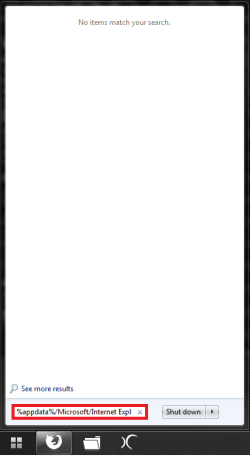
screenshotstep2.png

   Note
If no items show up in this folder, it may be hidden. To make it visible, just show all folders using the following tutorial.
http://www.sevenforums.com/tutorials/394-hidden-files-folders-show-hide.html

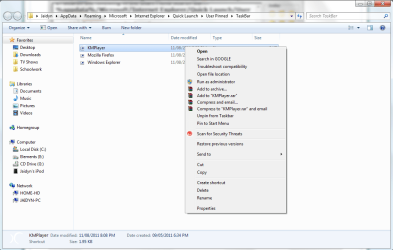
3. A new folder should pop up filled with shortcuts of the programs you have pinned to your taskbar. Right click on the program of the icon you want to change.
screenshotstep3.png
4. Click on Properties.
screenshotstep4.png
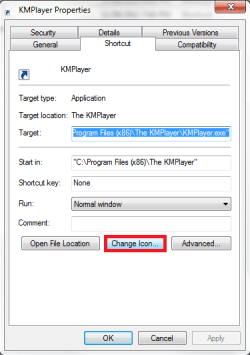
5. In the window that pops up, in the Shortcut tab, click on Change Icon....
screenshotstep5.png
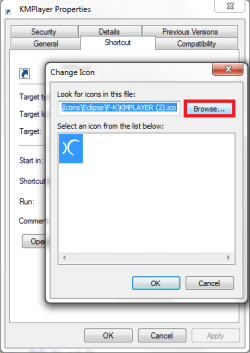
6. On the next window that pops up, click Browse....
screenshotstep6.png
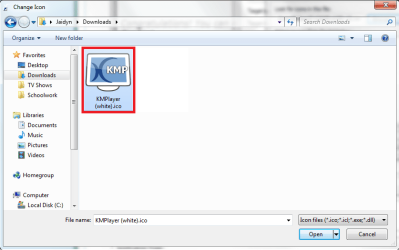
7. Navigate to the folder of the required icon (file must have .ico extension) and double click the icon file.
screenshotstep7.png
8. Click OK.
screenshotstep8.png
9. Click Apply then OK in the Properties window.
NOTE: At this point, the shortcut in the pinned programs folder will have a new icon but the actual icon in the taskbar will not have changed.
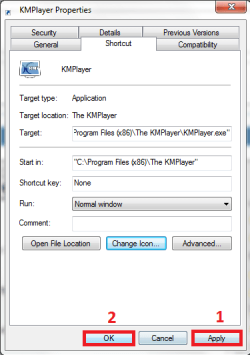
screenshotstep9.png
10. Go back to the pinned programs folder and click on the shortcut with the newly changed icon.
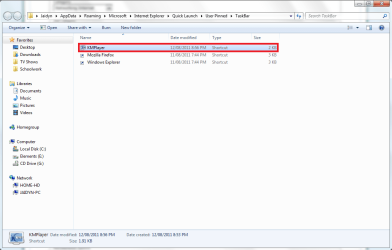
screenshotstep10.png
11. Hit Ctrl+X (cut).
screenshotstep11.png
12. Navigate to your desktop and hit Ctrl+V (paste).
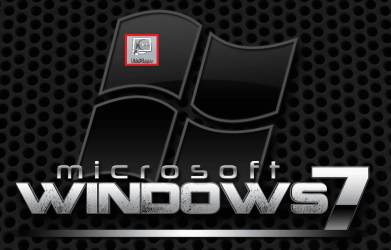
screenshotstep12.png
13. Right click the program on the taskbar (with the old icon), and from the options that pop up, click Unpin this program from taskbar.
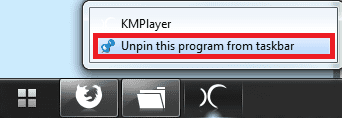
screenshotstep13.png
14. Drag the shortcut (with the new icon) from your desktop, to the taskbar.
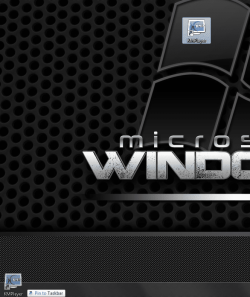
screenshotstep14.png
15. The taskbar icon should now be changed.

screenshotstep15.png
   Note
You can now delete the shortcut from the desktop.


Congratulations! You have changed one of your taskbar icons!


That's it,
Jaidyn ;)


Last edited by a moderator:
You can also usually just right click the pinned icon on the taskbar, then right click the main name of the pinned item (if Firefox is pinned for example, right click on the icon, then on "Firefox"), choose properties, and change from the "Change Icon" button under the "Shortcut" tab. May only require a reboot or log off/on to change into new icon.

Also should mention "Appdata" folder is hidden, and how to make it visible.
 

My Computer

Computer type
PC/Desktop
Computer Manufacturer/Model Number
Airbot 2.0
OS
Windows 7 Ultimate x64 SP1
CPU
Core i7 920 (D0) @ 4Ghz, *26c idle *65c full load on air
Motherboard
Asus P6X58D Premium - Sata 6Gb/s - USB 3.0
Memory
12GB DDR3 Corsair Dominator -CMD12GX3M6A1600C8 at 1600MHz
Graphics Card(s)
Zotac Geforce GTX 770
Sound Card
ASUS Xonar D2X
Monitor(s) Displays
1 LG 24" Flatron W2453V-PF 1 Samsung 24" P2450H both 2ms RT
Screen Resolution
1920x1080@60hz
Hard Drives
1 Samsung 250GB 840 Evo SSD
1 OCZ Vertex2 180GB SSD
1 TB Samsung Spinpoint F1 7200RPM 32MB cache
2 500GB WD Caviar Blacks 7200RPM 32MB cache (WD5001AALS)

Pioneer DVD Burner DVR-S18M
PSU
Corsair HX1000W
Case
Cooler Master HAF 932
Cooling
Case Fans *3 230mm, *1 140mm/CPU - *Tuniq Tower 120 Extreme
Keyboard
Logitech Wireless MK700
Mouse
Logitech Wireless MK700
Internet Speed
DL 15 Mbps UL 0.98 Mbps
Antivirus
None
Browser
Firefox Nightly
Other Info
Processor-7.7 *RAM- 7.9 *Graphics-7.9 *Gaming Graphics- 7.9 *SSD- 7.8 W.E.I final score= 7.7
*Phone- LG Nexus 5
One thing I have found with icons on pinned shortcuts, particularly shortcuts to Google Apps, is that unless you make the shortcut read only it can get changed back when you run the program.
 

My Computer

Computer type
Laptop
Computer Manufacturer/Model Number
Hewlett-Packard/G62-107SA Notebook
OS
Microsoft Windows 7 Home Premium 64-bit Service Pack 1
CPU
Intel(R) Core(TM) i3 CPU M 330 @ 2.13GHz
Motherboard
Hewlett-Packard 1425
Memory
8 GB DDR3
Graphics Card(s)
Intel(R) HD Graphics
Sound Card
Realtek High Definition Audio
Monitor(s) Displays
Builtin
Screen Resolution
1366 x 768 x 32 bits (4294967296 colors) @ 60 Hz
Hard Drives
250 GB SATA Hard Disk Drive 7200 rpm
2TB Seagate GoFlex USB 2 Drive
1TB Iomega Prestige USB 2 Drive
1.5TB Iomega Prestige USB 2 Drive (Samsung)
2TB WD MyBook Live NAS.
Mouse
Logitech Anywhere MX
Internet Speed
152 Mbs download 10 Mbs upload
Antivirus
Norton 360
Browser
Chrome
You can also usually just right click the pinned icon on the taskbar, then right click the main name of the pinned item (if Firefox is pinned for example, right click on the icon, then on "Firefox"), choose properties, and change from the "Change Icon" button under the "Shortcut" tab. May only require a reboot or log off/on to change into new icon.

Also should mention "Appdata" folder is hidden, and how to make it visible.

Ah... I didn't realise. Anyway, I've added a tutorial that explains how to show all folders. Thanks for the tip.

One thing I have found with icons on pinned shortcuts, particularly shortcuts to Google Apps, is that unless you make the shortcut read only it can get changed back when you run the program.

Hm... I haven't encountered this problem before. Any other programs it affects?
 

My Computer

Computer Manufacturer/Model Number
Custom Build
OS
Windows 7 Ultimate x64/Windows 8 Consumer Preview x64/Ubuntu 11.04
CPU
Intel Pentium Dual Core E6700 3.2GHz
Motherboard
ASUS P5G41T-M LX
Memory
Strontium 8192MB DDR3 1333Mhz
Graphics Card(s)
msi GeForce N560GTX-M2D1GD5 1GB
Sound Card
Realtek HD Audio
Monitor(s) Displays
CHIMEI CMV 221D 22"
Screen Resolution
1680x1050
Hard Drives
Seagate Barracuda LP Green 3.5'' 2TB Internal HDD 5900RPM + WD Elements Desktop 1TB External HDD 7200RPM
PSU
SHAW Viper-1500w Gaming PSU
Case
Black eMaxx ATX Mini Tower Case
Keyboard
Microsoft Wireless Keyboard 1000
Mouse
Microsoft Wireless Optical Mouse 2000
Internet Speed
100GB @ 4.76Mbps
Hm... I haven't encountered this problem before. Any other programs it affects?

No, but then I don't pin anything to the task bar anymore. I have so many programs I use frequently that I have built a toolbar to hold them.

Capture.JPG
 

My Computer

Computer type
Laptop
Computer Manufacturer/Model Number
Hewlett-Packard/G62-107SA Notebook
OS
Microsoft Windows 7 Home Premium 64-bit Service Pack 1
CPU
Intel(R) Core(TM) i3 CPU M 330 @ 2.13GHz
Motherboard
Hewlett-Packard 1425
Memory
8 GB DDR3
Graphics Card(s)
Intel(R) HD Graphics
Sound Card
Realtek High Definition Audio
Monitor(s) Displays
Builtin
Screen Resolution
1366 x 768 x 32 bits (4294967296 colors) @ 60 Hz
Hard Drives
250 GB SATA Hard Disk Drive 7200 rpm
2TB Seagate GoFlex USB 2 Drive
1TB Iomega Prestige USB 2 Drive
1.5TB Iomega Prestige USB 2 Drive (Samsung)
2TB WD MyBook Live NAS.
Mouse
Logitech Anywhere MX
Internet Speed
152 Mbs download 10 Mbs upload
Antivirus
Norton 360
Browser
Chrome
No, but then I don't pin anything to the task bar anymore. I have so many programs I use frequently that I have built a toolbar to hold them.

If you find any, let me know.
 
Last edited:

My Computer

Computer Manufacturer/Model Number
Custom Build
OS
Windows 7 Ultimate x64/Windows 8 Consumer Preview x64/Ubuntu 11.04
CPU
Intel Pentium Dual Core E6700 3.2GHz
Motherboard
ASUS P5G41T-M LX
Memory
Strontium 8192MB DDR3 1333Mhz
Graphics Card(s)
msi GeForce N560GTX-M2D1GD5 1GB
Sound Card
Realtek HD Audio
Monitor(s) Displays
CHIMEI CMV 221D 22"
Screen Resolution
1680x1050
Hard Drives
Seagate Barracuda LP Green 3.5'' 2TB Internal HDD 5900RPM + WD Elements Desktop 1TB External HDD 7200RPM
PSU
SHAW Viper-1500w Gaming PSU
Case
Black eMaxx ATX Mini Tower Case
Keyboard
Microsoft Wireless Keyboard 1000
Mouse
Microsoft Wireless Optical Mouse 2000
Internet Speed
100GB @ 4.76Mbps
Will do.
 

My Computer

Computer type
Laptop
Computer Manufacturer/Model Number
Hewlett-Packard/G62-107SA Notebook
OS
Microsoft Windows 7 Home Premium 64-bit Service Pack 1
CPU
Intel(R) Core(TM) i3 CPU M 330 @ 2.13GHz
Motherboard
Hewlett-Packard 1425
Memory
8 GB DDR3
Graphics Card(s)
Intel(R) HD Graphics
Sound Card
Realtek High Definition Audio
Monitor(s) Displays
Builtin
Screen Resolution
1366 x 768 x 32 bits (4294967296 colors) @ 60 Hz
Hard Drives
250 GB SATA Hard Disk Drive 7200 rpm
2TB Seagate GoFlex USB 2 Drive
1TB Iomega Prestige USB 2 Drive
1.5TB Iomega Prestige USB 2 Drive (Samsung)
2TB WD MyBook Live NAS.
Mouse
Logitech Anywhere MX
Internet Speed
152 Mbs download 10 Mbs upload
Antivirus
Norton 360
Browser
Chrome
If you want to change Google Chrome icon that is shown on the Windows Taskbar once Google Chrome is started, then you should follow this link:
windows 8 - Is it possible to customize taskbar icons? If so how? - Super User

The answer is given in comments: you need to change icons that are stored in chrome.dll using Resource Tuner (use Trial version) or Resource Hacker (free).

I've used IcoFX (Trial version) to generate various .ico icons.

Currently I'm running 4 separate instances of Google Chrome v37.0.2062.124. One instance is installed and three other instances of Google Chrome are portable, downloaded from:
Google Chrome Portable | PortableApps.com - Portable software for USB, portable and cloud drives

Here's how my Windows 7 Taskbar looks like when all 4 instances of Chrome are opened:

Taskbar%20chrome.png
 
Last edited:

My Computer

Computer type
PC/Desktop
OS
Windows 7 Ultimate x64
Back
Top