How to Use Small or Large Icons on the Windows 7 Taskbar
Information
This will show you how to set the Windows 7 taskbar to display with either small or large icons.
Tip
Microsoft has made available a hotfix that will resolve a problem where the taskbar customizations are lost and reset to defaults when automatic logon is enabled in Windows 7 and Windows Server 2008 R2. More details are available at FIX: The Taskbar is reset to the default settings when you use the "Automatically Log On" feature in Windows 7 and in Windows Server 2008 R2.
EXAMPLE: Taskbar with Large Icons
NOTE: This is the default setting.

EXAMPLE: Taskbar with Small Icons

OPTION ONE
Through Taskbar Properties
1. Right click on a empty space on the taskbar and click on Properties.
2. To Use Small Icons on the Taskbar
A) Check the Use small icons box. (see screenshot below step 3A)
B) Go to step 4.
3. To Use Large Icons on the Taskbar
A) Uncheck the Use small icons box. (see screenshot below)
NOTE: This is the default setting.
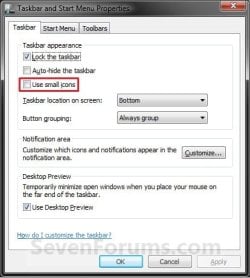
4. Click on OK. (See screenshot above)
OPTION TWO
Using a REG file Download
1. To Use Small Icons on the Taskbar
A) Click on the Download button below to download the file below.
Small_Icons_for_Taskbar.reg
Download
B) Go to step 3.
2. To Use Large Icons on the Taskbar
A) Click on the Download button below to download the file below.
NOTE: This is the default setting.
Large_Icons_for_Taskbar.reg
Download
3. Click on Save, and save the .reg file to the desktop.
4. Right click on the downloaded .reg file and click on Merge.
5. Click on Run, Yes, Yes, and OK when prompted.
6. Log off and log on, or restart the computer to apply.
7. When done, you can delete the downloaded .reg file if you like.
OPTION THREE
Manually in Registry Editor
1. Open the Start Menu, then type regedit in the search box and press Enter.
2. If prompted by UAC, then click on Yes.
3. In regedit, navigate to the location below. (see screenshot below)
HKEY_CURRENT_USER\Software\Microsoft\Windows\CurrentVersion\Explorer\Advanced

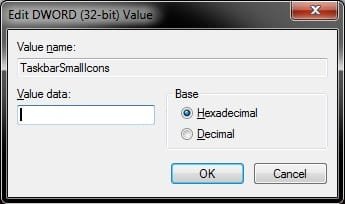
4. In the right pane of Advanced, right click on TaskbarSmallIcons and click on Modify. (see screenshot above)
5. To Use Large Icons on the Taskbar
A) Type 0 (number zero), and click on OK. (see screenshot below)
NOTE: This is the default setting.
B) Go to step 7.
6. To Use Small Icons on the Taskbar
A) Type 1, and click on OK. (see screenshot above)
7. Close regedit.
8. Log off and log on, or restart the computer to apply.
That's it,
Shawn
Related Tutorials
- How to Pin or Unpin a Folder to the Windows 7 Taskbar
- How to Pin or Unpin a Program to the Windows 7 Taskbar
- How to Enable or Disable Windows 7 Taskbar Button Grouping
- How to Allow or Prevent Taskbar Button Grouping in Windows 7
- How to Use Small or Large Icons in the Windows 7 Start Menu
- How to Enable or Disable QuickLaunch in Windows 7
- How to Lock or Unlock the Windows 7 Taskbar
- How to Move the Windows 7 Taskbar Location on the Desktop
- How to Show or Hide the Windows 7 Taskbar with Auto-hide
- How to Change the Windows 7 Taskbar Icon Width Size
- How to Pin or Unpin a Drive to the Windows 7 Taskbar
- How to Create a Taskbar Properties Shortcut in Windows 7
- How to Resize the Taskbar in Vista and Windows 7
- How to "Pin to Taskbar" Transparent Invisible Icons for Programs in Windows 7
Attachments


Last edited: