taskbar week day

kiki9

New member
Local time
3:22 PM
Messages
8
Hi, I'm trying to get the name of the weekday in the date/time option on the task bar to show, I have read all the customizations on your site(that's how I found you), but try as I might , I haven't been able to get the day of the week and date to continually show in the task bar. It will show the format I selected, IF I hover my mouse curser over it. I have tried all the combinations and how to's on the internet, and nothing has worked. Is there a setting I'm not seeing that has to be enabled or disabled? Please help.I have a gateway computer 62 bit and running windows 7:confused::mad:
 

My Computer

Computer type
PC/Desktop
Computer Manufacturer/Model Number
Gateway
OS
Windows 7 Home Premium 62bit.
Hello,

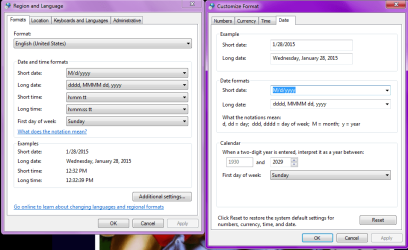
Just to be sure and not to belittle you in case you did, but you went into the date/time settings within the options and altered the dd/mm/yy settings correct?
 

Attachments

  • date.png
    date.png
    31.3 KB · Views: 0

My Computer

Computer type
PC/Desktop
OS
Microsoft Windows 7 Professional 64-bit SP1
CPU
Intel(R) Core(TM) i5 CPU M 520 @ 2.40GHz
Motherboard
Dell Inc. 0K42JR
Memory
8.00 GB
Graphics Card(s)
NVIDIA NVS 3100M
Sound Card
(1) NVIDIA High Definition Audio (2) IDT High Definition A
Monitor(s) Displays
1
Screen Resolution
1440 x 900 x 32 bits (4294967296 colors) @ 59 Hz
Hard Drives
Samsung SSD 840 PRO Series ATA Device
yes I did, as far as I know I did it the way I described
 

My Computer

Computer type
PC/Desktop
Computer Manufacturer/Model Number
Gateway
OS
Windows 7 Home Premium 62bit.
this is how I set the long time dddd dd, MMMM yyyy , and still wont display the name of the day
 

My Computer

Computer type
PC/Desktop
Computer Manufacturer/Model Number
Gateway
OS
Windows 7 Home Premium 62bit.
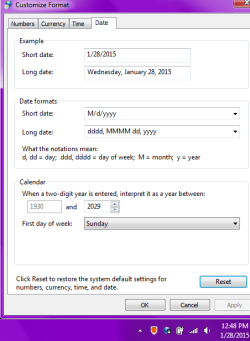
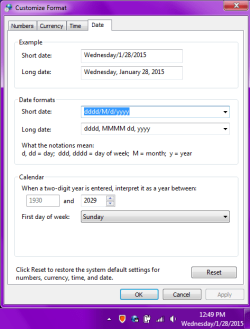
Try resetting the to the default settings via the button in the corner, then try manually adding the letters in the short date. For instance this is what I had before and after
 

Attachments

  • before.png
    before.png
    14.5 KB · Views: 17
  • after.png
    after.png
    16.8 KB · Views: 18

My Computer

Computer type
PC/Desktop
OS
Microsoft Windows 7 Professional 64-bit SP1
CPU
Intel(R) Core(TM) i5 CPU M 520 @ 2.40GHz
Motherboard
Dell Inc. 0K42JR
Memory
8.00 GB
Graphics Card(s)
NVIDIA NVS 3100M
Sound Card
(1) NVIDIA High Definition Audio (2) IDT High Definition A
Monitor(s) Displays
1
Screen Resolution
1440 x 900 x 32 bits (4294967296 colors) @ 59 Hz
Hard Drives
Samsung SSD 840 PRO Series ATA Device
this is how I set the long time dddd dd, MMMM yyyy , and still wont display the name of the day

I'd try putting those into the short date, as it is the short date appears on the taskbar
 

My Computer

Computer type
PC/Desktop
OS
Microsoft Windows 7 Professional 64-bit SP1
CPU
Intel(R) Core(TM) i5 CPU M 520 @ 2.40GHz
Motherboard
Dell Inc. 0K42JR
Memory
8.00 GB
Graphics Card(s)
NVIDIA NVS 3100M
Sound Card
(1) NVIDIA High Definition Audio (2) IDT High Definition A
Monitor(s) Displays
1
Screen Resolution
1440 x 900 x 32 bits (4294967296 colors) @ 59 Hz
Hard Drives
Samsung SSD 840 PRO Series ATA Device
I just tried what you showed and when I hit Apply, it just reverts to show just the time. I'm beginning to suspect that there is just no way to make the day of the week to show
 

My Computer

Computer type
PC/Desktop
Computer Manufacturer/Model Number
Gateway
OS
Windows 7 Home Premium 62bit.
Right click on taskbar and click properties and see if "use small icons" is ticked. if it is, you'll have to unlock the taskbar and manually expand it to show the date.
 

My Computer

Computer type
PC/Desktop
OS
Microsoft Windows 7 Professional 64-bit SP1
CPU
Intel(R) Core(TM) i5 CPU M 520 @ 2.40GHz
Motherboard
Dell Inc. 0K42JR
Memory
8.00 GB
Graphics Card(s)
NVIDIA NVS 3100M
Sound Card
(1) NVIDIA High Definition Audio (2) IDT High Definition A
Monitor(s) Displays
1
Screen Resolution
1440 x 900 x 32 bits (4294967296 colors) @ 59 Hz
Hard Drives
Samsung SSD 840 PRO Series ATA Device
tried that and "small icons is not checked
 

My Computer

Computer type
PC/Desktop
Computer Manufacturer/Model Number
Gateway
OS
Windows 7 Home Premium 62bit.
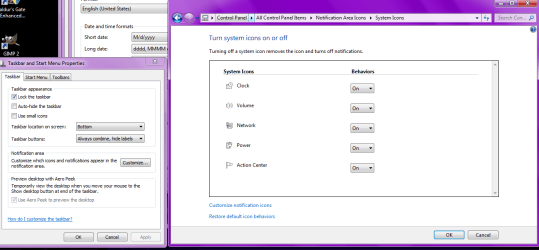
Also, in the taskbar properties, double check that the clock and date are enabled by clicking on the "customize" tab, then the "turn system icons of/off"
 

Attachments

  • clock.png
    clock.png
    37.6 KB · Views: 0

My Computer

Computer type
PC/Desktop
OS
Microsoft Windows 7 Professional 64-bit SP1
CPU
Intel(R) Core(TM) i5 CPU M 520 @ 2.40GHz
Motherboard
Dell Inc. 0K42JR
Memory
8.00 GB
Graphics Card(s)
NVIDIA NVS 3100M
Sound Card
(1) NVIDIA High Definition Audio (2) IDT High Definition A
Monitor(s) Displays
1
Screen Resolution
1440 x 900 x 32 bits (4294967296 colors) @ 59 Hz
Hard Drives
Samsung SSD 840 PRO Series ATA Device
Another option would be try going to:
Control Panel -> Clock, Language and Region -> Region and Language.

The Region and Language window will be opened. Click on "Additional Settings" button.
Click on the "Date" Tab.
And whatever are the defaults, replace the text in the "Short date" field in the "Date Formats" Section with "dd-mm-yyyy" and click on "Apply" button
 

My Computer

Computer type
PC/Desktop
OS
Microsoft Windows 7 Professional 64-bit SP1
CPU
Intel(R) Core(TM) i5 CPU M 520 @ 2.40GHz
Motherboard
Dell Inc. 0K42JR
Memory
8.00 GB
Graphics Card(s)
NVIDIA NVS 3100M
Sound Card
(1) NVIDIA High Definition Audio (2) IDT High Definition A
Monitor(s) Displays
1
Screen Resolution
1440 x 900 x 32 bits (4294967296 colors) @ 59 Hz
Hard Drives
Samsung SSD 840 PRO Series ATA Device
yup, all on, well it just has the time , like on your picture, but all on
 

My Computer

Computer type
PC/Desktop
Computer Manufacturer/Model Number
Gateway
OS
Windows 7 Home Premium 62bit.
just did that and it shows 28-01-2015, but no written day of the week
 

My Computer

Computer type
PC/Desktop
Computer Manufacturer/Model Number
Gateway
OS
Windows 7 Home Premium 62bit.
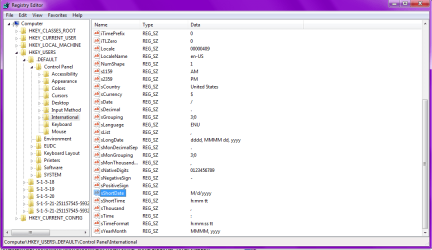
Could go into the registry if you feel comfortable doing so, but I would create a restore point before doing so:

http://www.sevenforums.com/tutorials/697-system-restore-point-create.html

In Registry Editor, open the following key:
HKEY_USERS\.Default\Control Panel\International
Add or edit the sShortDate string value using a value data for the short date format contained in the following list:
MM/dd/yyyy
M/d/yy
M/d/yyyy
MM/dd/yy
yy/MM/dd
yyyy-MM-dd
dd-MMM-yy

Quit Registry Editor.
Log off Windows, and then log on to Windows again to save the setting.
 

Attachments

  • reg.png
    reg.png
    28.7 KB · Views: 0

My Computer

Computer type
PC/Desktop
OS
Microsoft Windows 7 Professional 64-bit SP1
CPU
Intel(R) Core(TM) i5 CPU M 520 @ 2.40GHz
Motherboard
Dell Inc. 0K42JR
Memory
8.00 GB
Graphics Card(s)
NVIDIA NVS 3100M
Sound Card
(1) NVIDIA High Definition Audio (2) IDT High Definition A
Monitor(s) Displays
1
Screen Resolution
1440 x 900 x 32 bits (4294967296 colors) @ 59 Hz
Hard Drives
Samsung SSD 840 PRO Series ATA Device
thanks , I will try that , I hope that will work
 

My Computer

Computer type
PC/Desktop
Computer Manufacturer/Model Number
Gateway
OS
Windows 7 Home Premium 62bit.

My Computer

Computer type
PC/Desktop
OS
Microsoft Windows 7 Professional 64-bit SP1
CPU
Intel(R) Core(TM) i5 CPU M 520 @ 2.40GHz
Motherboard
Dell Inc. 0K42JR
Memory
8.00 GB
Graphics Card(s)
NVIDIA NVS 3100M
Sound Card
(1) NVIDIA High Definition Audio (2) IDT High Definition A
Monitor(s) Displays
1
Screen Resolution
1440 x 900 x 32 bits (4294967296 colors) @ 59 Hz
Hard Drives
Samsung SSD 840 PRO Series ATA Device
Back
Top