trojan rootkit and virus prevention

Sure that is OK. I use the same external for all my computers. I do put the different images in folders for each system so I won't get confused when and if I need to restore each computer. I use the Computer Names as the folder names and name the backup images with a date.

Like the PC I am on right now is named i5 (As it has an i5 CPU in it) so the folder on the external is named i5 Images. When I create an image from the i5 PC I name it i5 MM-DD-YY (I use the - as the divider as you can't us the / in a file name) and it goes in the i5 Images folder. I always create Full images of my systems never incremental images. With incremental images you need ALL of them, from the first full image and all of the incremental images, to do a proper restore.
 

My Computer My Computer

OS
7 x64

My Computer My Computer

Computer type
PC/Desktop
Computer Manufacturer/Model Number
Home made Desktop
OS
Windows 10 Pro. 64/ version 1709 Windows 7 Pro/64
CPU
Intel i7-6800K @ 4.3
Motherboard
ASUS X-99 Deluxe II
Memory
Corsair Platinum 16 gig @2400
Graphics Card(s)
EVGA GTX 1070 OC
Monitor(s) Displays
Asus 27" LED LCD/VE278Q
Screen Resolution
1920-1080 or 1280-720 HDMI
Hard Drives
INTEL SSD 730-240 Gb Sata 3.0/
PSU
EVGA Platium 1200W
Case
Phanteks Luxe Tempered Glass 8 fans/ one radiator
Cooling
XSPC/ Water Cooled CPU
Keyboard
Das 4 Professional
Mouse
Logitech M705/MX Anywhere 2-S
Internet Speed
100 mbits
Antivirus
Microsoft Security Essentials/ Malwarebytes Premium 3.0/ SAS
Browser
I.E. 11 default/Firefox/ ISP Time Warner Cable/Spectrum
Other Info
LG BluRay Burner/
Sound system-KLipsch-THX/
Icy Dock ssd Hot Swap bays.
thank you both for taking the time to reply.

excellent replies.
 

My Computer My Computer

Computer Manufacturer/Model Number
sony vaio vpcsc31fm
OS
Microsoft Windows 7 Home Premium 64-bit 7601 Multiprocessor Free Service Pack 1
CPU
Intel(R) Core(TM) i5-2430M CPU @ 2.40GHz
Motherboard
Sony Corporation VAIO
Memory
6.00 GB
Graphics Card(s)
Intel(R) HD Graphics Family
Sound Card
(1) High Definition Audio Device (2) Bluetooth Hands-free
Screen Resolution
1366 x 768 x 32 bits (4294967296 colors) @ 59 Hz
Hard Drives
ST95005620AS
"If you're absolutely sure that your computer was not infected AFTER you did the clean install it should be OK. If there's any chance you picked up any kind of malware and if you're absolutely sure your tech didn't accidentally get malware on your machine ... well, if there's any doubt in your mind another clean install might be warranted."


I made a repair disk. thank you again for the advice.

now I am going to create a system image onto my external hard drive.

but first, is there a way to tell for absolutely sure that my computer has not been (and is not) infected before I create the system image?
 

My Computer My Computer

Computer Manufacturer/Model Number
sony vaio vpcsc31fm
OS
Microsoft Windows 7 Home Premium 64-bit 7601 Multiprocessor Free Service Pack 1
CPU
Intel(R) Core(TM) i5-2430M CPU @ 2.40GHz
Motherboard
Sony Corporation VAIO
Memory
6.00 GB
Graphics Card(s)
Intel(R) HD Graphics Family
Sound Card
(1) High Definition Audio Device (2) Bluetooth Hands-free
Screen Resolution
1366 x 768 x 32 bits (4294967296 colors) @ 59 Hz
Hard Drives
ST95005620AS
I made a repair disk. thank you again for the advice.

now I am going to create a system image onto my external hard drive.

but first, is there a way to tell for absolutely sure that my computer has not been (and is not) infected before I create the system image?

Absolutely? As in 100% sure? No. Only erasing the hard drive and doing a clean install of everything would give you a nearly 100% guarantee of a clean system. Some malware can infect the BIOS. And since the the BIOS makes sure all the other chips, hard drives, ports and CPU function together, even with a clean install malware can be transferred over to the newly installed operating system. Fortunately, that's a rare situation.

Researcher Creates Proof-of-concept Malware That Infects BIOS, Network Cards | PCWorld

HowStuffWorks "How BIOS Works"

The more scans that you run that come back "no threats found" the more likely it is that your computer is clean. But it's not going to be an absolute certainty. If you run the scans in Post # 7, I think you'll be reasonably sure your computer is clean. A quick google of "best online virus scanners" should provide several more free and paid scanners.
 

My Computer My Computer

Computer type
Laptop
Computer Manufacturer/Model Number
Sony Vaio VPCEB47GM Laptop
OS
Win 7 Pro 64-bit
CPU
Intel i5 2.4 Ghz
Memory
8GB DDR3
Graphics Card(s)
Intel HD 3000
Sound Card
IDT High Definition
Monitor(s) Displays
15.6 WGXA Anti-Glare LED
Screen Resolution
1280x800
Hard Drives
640Gb 7200rpm
Antivirus
MSE
Browser
Opera (primary) with IE9 backup
I made a repair disk. thank you again for the advice.

now I am going to create a system image onto my external hard drive.

but first, is there a way to tell for absolutely sure that my computer has not been (and is not) infected before I create the system image?

Absolutely? As in 100% sure? No. Only erasing the hard drive and doing a clean install of everything would give you a nearly 100% guarantee of a clean system. Some malware can infect the BIOS. And since the the BIOS makes sure all the other chips, hard drives, ports and CPU function together, even with a clean install malware can be transferred over to the newly installed operating system. Fortunately, that's a rare situation.

Researcher Creates Proof-of-concept Malware That Infects BIOS, Network Cards | PCWorld

HowStuffWorks "How BIOS Works"

The more scans that you run that come back "no threats found" the more likely it is that your computer is clean. But it's not going to be an absolute certainty. If you run the scans in Post # 7, I think you'll be reasonably sure your computer is clean. A quick google of "best online virus scanners" should provide several more free and paid scanners.

you so rock.

thank you again for another so very generous informative excellent reply.

am going to post #7 now.
 

My Computer My Computer

Computer Manufacturer/Model Number
sony vaio vpcsc31fm
OS
Microsoft Windows 7 Home Premium 64-bit 7601 Multiprocessor Free Service Pack 1
CPU
Intel(R) Core(TM) i5-2430M CPU @ 2.40GHz
Motherboard
Sony Corporation VAIO
Memory
6.00 GB
Graphics Card(s)
Intel(R) HD Graphics Family
Sound Card
(1) High Definition Audio Device (2) Bluetooth Hands-free
Screen Resolution
1366 x 768 x 32 bits (4294967296 colors) @ 59 Hz
Hard Drives
ST95005620AS
hey guys,

I am trying to create a system image onto my external hard drive.

I have almost nothing on my laptop, since my clean install.

I have microsoft office and itunes. and just the regular stuff that I would guess comes with windows 7.

all told I think I have 3.5 Gb of sony vaio drivers.

and 45 GB of whatever the usual that comes with windows 7.

I tried creating a system image. when it got to the part of saving the image, it just stayed there for quite a while, maybe 20 minutes.

so I then canceled it. I thought maybe something was not working right.

I looked on my external hard drive and there were 2 folders. one was sony vaio drivers and the other was windows whatever (they were 3.5 GB and 45 GB respectively). I deleted them off my external hard drive.

would anyone please tell me if they think I should try again and just wait longer?

or if it sounds like something is not right?

thanks alot,
Charlie
 

My Computer My Computer

Computer Manufacturer/Model Number
sony vaio vpcsc31fm
OS
Microsoft Windows 7 Home Premium 64-bit 7601 Multiprocessor Free Service Pack 1
CPU
Intel(R) Core(TM) i5-2430M CPU @ 2.40GHz
Motherboard
Sony Corporation VAIO
Memory
6.00 GB
Graphics Card(s)
Intel(R) HD Graphics Family
Sound Card
(1) High Definition Audio Device (2) Bluetooth Hands-free
Screen Resolution
1366 x 768 x 32 bits (4294967296 colors) @ 59 Hz
Hard Drives
ST95005620AS
Are you using the native (built in) Windows 7 imaging tool?
Has the external hard drive ever been formatted?
How many gigabytes is the external?

Since there's nothing on the external right now I'd do a quick format. With the external plugged in to the laptop, click Start > Computer. Is the external recognized and does it have a drive letter assigned? If yes, right-click the external drive > select Format...

In the "Format" dialog box that opens, under File System select NTFS. Put a check mark in the Quick Format option. Click the Start button in the dialog box. Depending on how large the external drive is, the format shouldn't take more than a couple of minutes. Once it's finished OK your way out.

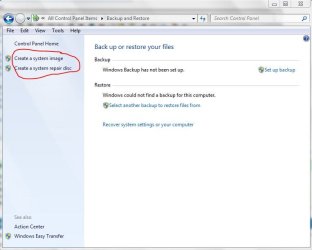
If you're using the Windows 7 imaging tool you should see this after clicking Start > Control Panel > Backup and Restore:

sysimage.JPG

I would strongly suggest you create the system repair disk (either now or when you see the prompt when the system image is finished.) The repair disk gives you several repair options, including a way to start your computer if the operating system ever gets totally damaged or corrupted. You have to be able to start your computer in order to access and use the system image.

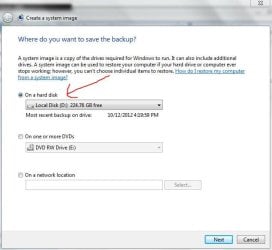
If you click on Create a System Image a new dialog box should open showing that Windows 7 is searching for a location to save the image. After a couple of minutes it should detect your external drive by default. If it does, you can click the Next button and the system image should begin. The total process may take more than 30 minutes but probably less than an hour based on how many gigabytes you'll be imaging.

savebackup.JPG

Is this what you saw with your first attempt? If the System Image completes successfully the only thing your external hard drive should show is a file called WindowsImageBackup.
 

My Computer My Computer

Computer type
Laptop
Computer Manufacturer/Model Number
Sony Vaio VPCEB47GM Laptop
OS
Win 7 Pro 64-bit
CPU
Intel i5 2.4 Ghz
Memory
8GB DDR3
Graphics Card(s)
Intel HD 3000
Sound Card
IDT High Definition
Monitor(s) Displays
15.6 WGXA Anti-Glare LED
Screen Resolution
1280x800
Hard Drives
640Gb 7200rpm
Antivirus
MSE
Browser
Opera (primary) with IE9 backup
thanks alot for your excellent reply marsmimar.

I am using the native built in windows 7 imaging tool.

I am guessing that I formatted the external hard drive when I got it. I used it on my desktop computer. this is probably the first time I plugged it into my sony vaio laptop.
the external hard drive is a 1000 GB. 742 Gb are free.

I have created a system repair disk for the sony vaio laptop. thank you for suggesting that I do that.

when I tried to create a system image for the sony vaio, everything went just as you described. (so there were no problems to that point).

I wondered after a while though if the machine was stuck or somehow goofed up.

if I have to I will reformat the external hard drive.
I'll just back up the stuff from my desktop computer again, after I'm done creating a system image for my sony vaio laptop.

I should create a system image and repair disk for my desktop computer too.
 

My Computer My Computer

Computer Manufacturer/Model Number
sony vaio vpcsc31fm
OS
Microsoft Windows 7 Home Premium 64-bit 7601 Multiprocessor Free Service Pack 1
CPU
Intel(R) Core(TM) i5-2430M CPU @ 2.40GHz
Motherboard
Sony Corporation VAIO
Memory
6.00 GB
Graphics Card(s)
Intel(R) HD Graphics Family
Sound Card
(1) High Definition Audio Device (2) Bluetooth Hands-free
Screen Resolution
1366 x 768 x 32 bits (4294967296 colors) @ 59 Hz
Hard Drives
ST95005620AS
Just to add a little to marsmimar great instruction. The time will vary according to your system specs. Which are not filled in. Before you get done with this thread could you fill in your ((My System Specs)) using User CP at the top of the page. This little program will help you.
Speccy - System Information - Free Download
Those specs once posted in My System Specs will follow your every post. It help us help you.
 

My Computer My Computer

Computer type
PC/Desktop
Computer Manufacturer/Model Number
Home made Desktop
OS
Windows 10 Pro. 64/ version 1709 Windows 7 Pro/64
CPU
Intel i7-6800K @ 4.3
Motherboard
ASUS X-99 Deluxe II
Memory
Corsair Platinum 16 gig @2400
Graphics Card(s)
EVGA GTX 1070 OC
Monitor(s) Displays
Asus 27" LED LCD/VE278Q
Screen Resolution
1920-1080 or 1280-720 HDMI
Hard Drives
INTEL SSD 730-240 Gb Sata 3.0/
PSU
EVGA Platium 1200W
Case
Phanteks Luxe Tempered Glass 8 fans/ one radiator
Cooling
XSPC/ Water Cooled CPU
Keyboard
Das 4 Professional
Mouse
Logitech M705/MX Anywhere 2-S
Internet Speed
100 mbits
Antivirus
Microsoft Security Essentials/ Malwarebytes Premium 3.0/ SAS
Browser
I.E. 11 default/Firefox/ ISP Time Warner Cable/Spectrum
Other Info
LG BluRay Burner/
Sound system-KLipsch-THX/
Icy Dock ssd Hot Swap bays.
Just to add a little to marsmimar great instruction. The time will vary according to your system specs. Which are not filled in. Before you get done with this thread could you fill in your ((My System Specs)) using User CP at the top of the page. This little program will help you.
Speccy - System Information - Free Download
Those specs once posted in My System Specs will follow your every post. It help us help you.

roger that.

thank you Layback Bear.
 

My Computer My Computer

Computer Manufacturer/Model Number
sony vaio vpcsc31fm
OS
Microsoft Windows 7 Home Premium 64-bit 7601 Multiprocessor Free Service Pack 1
CPU
Intel(R) Core(TM) i5-2430M CPU @ 2.40GHz
Motherboard
Sony Corporation VAIO
Memory
6.00 GB
Graphics Card(s)
Intel(R) HD Graphics Family
Sound Card
(1) High Definition Audio Device (2) Bluetooth Hands-free
Screen Resolution
1366 x 768 x 32 bits (4294967296 colors) @ 59 Hz
Hard Drives
ST95005620AS
system image created successfully. I just had to give it more time.

thanks for all the help you guys and gals.
 

My Computer My Computer

Computer Manufacturer/Model Number
sony vaio vpcsc31fm
OS
Microsoft Windows 7 Home Premium 64-bit 7601 Multiprocessor Free Service Pack 1
CPU
Intel(R) Core(TM) i5-2430M CPU @ 2.40GHz
Motherboard
Sony Corporation VAIO
Memory
6.00 GB
Graphics Card(s)
Intel(R) HD Graphics Family
Sound Card
(1) High Definition Audio Device (2) Bluetooth Hands-free
Screen Resolution
1366 x 768 x 32 bits (4294967296 colors) @ 59 Hz
Hard Drives
ST95005620AS
Usb 2.0 hdd?

If you are using a USB 2.0 external HDD it will take longer to save a backup image.

On my PC, for example:

  • Macrium Reflect normally images at ~50 MB/s
  • My USB 2.0 external HDDs only accept data at ~25 MB/s
I have multiple internal HDDs and I save my backup images to one of those.
I copy the images to the external HDD later (e.g. when I'm not going to use the PC for a while).
 
Last edited:

My Computer My Computer

Computer type
PC/Desktop
Computer Manufacturer/Model Number
n/a
OS
W7 Ultimate SP1, LM19.2 MATE, W10 Home 1703, W10 Pro 1703 VM, #All 64 bit
CPU
AMD Phenom II x6 1100T, 3.3 GHz
Motherboard
ASUS M4A88T-M/USB3 (AM3)
Memory
12GB DDR3 1333 G-Skill (4GB x 2), G-Skill (2GB x 2)
Graphics Card(s)
NVIDIA GeForce GTX 660
Sound Card
Realtek?
Monitor(s) Displays
Samsung S23B350
Screen Resolution
1920x1080
Hard Drives
WD Green 2TB (SATA), WD Green 3TB (SATA), WD Blue 4TB (SATA), WD Blue 6TB (SATA)
PSU
Cooler Master
Case
Antec GX300 Tower
Cooling
3x Antec TRICOOL 120mm Fans
Mouse
Wired Optical
Internet Speed
DSL
Antivirus
Avast
Browser
Pale Moon (64 bit)
Other Info
2018-12-27 Upgraded HDDs
2015-12-10 Upgraded case, graphics card, storage
2015-08-15 Upgraded motherboard & RAM
2015-07-15 Upgraded LM17.1 to LM17.2
If you are using a USB 2.0 external HDD it will take longer to save a backup image.

On my PC, for example:

  • Macrium Reflect normally images at ~50 MB/s
  • My USB 2.0 external HDDs only accept data at ~25 MB/s
I have multiple internal HDDs and I save my backup images to one of those.
I copy the images to the external HDD later (e.g. when I'm not going to use the PC for a while).


roger that. thank you very much.

yes I used an external HDD connected with a USB 2.0 cable.
 

My Computer My Computer

Computer Manufacturer/Model Number
sony vaio vpcsc31fm
OS
Microsoft Windows 7 Home Premium 64-bit 7601 Multiprocessor Free Service Pack 1
CPU
Intel(R) Core(TM) i5-2430M CPU @ 2.40GHz
Motherboard
Sony Corporation VAIO
Memory
6.00 GB
Graphics Card(s)
Intel(R) HD Graphics Family
Sound Card
(1) High Definition Audio Device (2) Bluetooth Hands-free
Screen Resolution
1366 x 768 x 32 bits (4294967296 colors) @ 59 Hz
Hard Drives
ST95005620AS
system image created successfully. I just had to give it more time.

thanks for all the help you guys and gals.

That's certainly great news! Thanks for posting back. :thumbsup:
 

My Computer My Computer

Computer type
Laptop
Computer Manufacturer/Model Number
Sony Vaio VPCEB47GM Laptop
OS
Win 7 Pro 64-bit
CPU
Intel i5 2.4 Ghz
Memory
8GB DDR3
Graphics Card(s)
Intel HD 3000
Sound Card
IDT High Definition
Monitor(s) Displays
15.6 WGXA Anti-Glare LED
Screen Resolution
1280x800
Hard Drives
640Gb 7200rpm
Antivirus
MSE
Browser
Opera (primary) with IE9 backup
system image created successfully. I just had to give it more time.

thanks for all the help you guys and gals.

That's certainly great news! Thanks for posting back. :thumbsup:


thank you very much again marsmimar.

it is a good thing that I have made a repair disk and created a system image on my external HDD.

now I should do the same for my desktop computer.
 

My Computer My Computer

Computer Manufacturer/Model Number
sony vaio vpcsc31fm
OS
Microsoft Windows 7 Home Premium 64-bit 7601 Multiprocessor Free Service Pack 1
CPU
Intel(R) Core(TM) i5-2430M CPU @ 2.40GHz
Motherboard
Sony Corporation VAIO
Memory
6.00 GB
Graphics Card(s)
Intel(R) HD Graphics Family
Sound Card
(1) High Definition Audio Device (2) Bluetooth Hands-free
Screen Resolution
1366 x 768 x 32 bits (4294967296 colors) @ 59 Hz
Hard Drives
ST95005620AS
hey guys and gals,

I want to create a system image for my desktop computer.

does anyone please know if I can do it for just the C drive?
 

My Computer My Computer

Computer Manufacturer/Model Number
sony vaio vpcsc31fm
OS
Microsoft Windows 7 Home Premium 64-bit 7601 Multiprocessor Free Service Pack 1
CPU
Intel(R) Core(TM) i5-2430M CPU @ 2.40GHz
Motherboard
Sony Corporation VAIO
Memory
6.00 GB
Graphics Card(s)
Intel(R) HD Graphics Family
Sound Card
(1) High Definition Audio Device (2) Bluetooth Hands-free
Screen Resolution
1366 x 768 x 32 bits (4294967296 colors) @ 59 Hz
Hard Drives
ST95005620AS
The Windows 7 imaging tool should allow you to select which drives (partitions) you want to image. You should see a dialog box similar to this screenshot (taken from a Seven Forums tutorial):


http://www.sevenforums.com/tutorials/663-backup-complete-computer-create-image-backup.html

In an ideal world that is what is supposed to happen. :p But if by chance you're not given the opportunity to choose, you may have to use a 3rd party imaging software. I can highly recommend Macrium Free. The steps and user interaface are a little different from Windows 7 but it's a more versatile program. And one of the Forum experts made a tutorial.

Macrium Reflect FREE Edition - Information and download

http://www.sevenforums.com/tutorials/73828-imaging-free-macrium.html
 

My Computer My Computer

Computer type
Laptop
Computer Manufacturer/Model Number
Sony Vaio VPCEB47GM Laptop
OS
Win 7 Pro 64-bit
CPU
Intel i5 2.4 Ghz
Memory
8GB DDR3
Graphics Card(s)
Intel HD 3000
Sound Card
IDT High Definition
Monitor(s) Displays
15.6 WGXA Anti-Glare LED
Screen Resolution
1280x800
Hard Drives
640Gb 7200rpm
Antivirus
MSE
Browser
Opera (primary) with IE9 backup
wow marsmimar.

you are really awesome.

thank you so much again.
 

My Computer My Computer

Computer Manufacturer/Model Number
sony vaio vpcsc31fm
OS
Microsoft Windows 7 Home Premium 64-bit 7601 Multiprocessor Free Service Pack 1
CPU
Intel(R) Core(TM) i5-2430M CPU @ 2.40GHz
Motherboard
Sony Corporation VAIO
Memory
6.00 GB
Graphics Card(s)
Intel(R) HD Graphics Family
Sound Card
(1) High Definition Audio Device (2) Bluetooth Hands-free
Screen Resolution
1366 x 768 x 32 bits (4294967296 colors) @ 59 Hz
Hard Drives
ST95005620AS
This is a ready-made Macrium WinPE rescue boot ISO - it will allow you to both create & restore images, without the need to install Macrium, or download the 1.7GB WAIK to create your own WinPE.

Index of /~badeco
 

My Computer My Computer

Computer type
PC/Desktop
Computer Manufacturer/Model Number
Golden Mk. I.4
OS
Windows 10 Pro x64 ; Xubuntu x64
CPU
Intel i7 860 @ 2.80 GHz O/C'ed to 4.0GHz
Motherboard
Gigabyte P55A-UD3R Rev.1. Award BIOS F13
Memory
16GB Corsair Vengance DDR3 @ 661 MHz Dual Channel (9-9-9-24)
Graphics Card(s)
EVGA NVidia GTX 560 1024MB
Sound Card
Realtek Integrated
Monitor(s) Displays
Dual Samsung SyncMaster 2494HS
Screen Resolution
1920*1080 and 1920*1080
Hard Drives
1*Samsung 840 EVO 120GB SSD;
1*OCZ Vertex 2 60GB SSD;
2*Samsung F3 SpinPoint 1TB in RAID0;
1*Samsung F1 SpinPoint 1TB;
2*Western Digital 1TB External USB 3.0
1*Western Digital 500GB External USB 3.0
1*Seagate 500GB External USB 2.0
PSU
Thermaltake ToughPower QFan 750W
Case
Thermaltake Element S VK60001W2Z
Cooling
Corsair H60 Water Cooling, 2*230mm and 2*80mm case fans
Keyboard
Logitech G110
Mouse
Logitech MX518
Back
Top