Two drive C volumes?

Nikitaq

New member
Local time
4:16 PM
Messages
10
Location
Chesterfield, UK
Hi,

Further to your very helpful comments regarding the installation of a new SSD - with 64-bit windows 7 home premium on - the disc is now up and running - and lightening fast!

However, I have a problem!

Having unhooked the two HDD's I have, then setup the new SSD - the new install has labelled the drive as 'C'. This is the problem - as one of the HDD's is also a 'C' drive - so my idea of connecting them both and using F8 to select the boot device now won't work.

Upon completing the install of Windows 7 - I checked online about how to re-assign the drive letter. I tried to do it using the 'manage devices' option - but the system would not allow me to change it from 'C' to any other letter.

Is there a way to do that with the SSD - so that I can use F8 to select the SSD or HDD and boot to it - without affecting the other device? I don't necessarily want to access the HDD's while using the SSD anyway - but it's going to be a paid having to physically unhook the HDD's every time I want to boot to the SSD.

I'm sure it's just a stupid mistake I've made when setting up the new installation, but any help would be appreciated.
 

My Computer

OS
Windows 7 Home 32-bit
There can be multiple C drives on multiple volumes. The "active" OS will assume C. There should be no reason that you cannot switch the boot sequence between volumes with the BIOS. Is F8 the way to get into the BIOS boot sequence on your system? What is the make of your system?
 

My Computer

Computer Manufacturer/Model Number
HP, Dell, Gateway, Toshiba - 4 laptops and 2 desktops
OS
Vista, Windows7, Mint Mate, Zorin, Windows 8
CPU
from 1.6GHz Duo to i7
Monitor(s) Displays
2x HP w2207
Hard Drives
5x HDD, 7x SSD, 12x Externals
Keyboard
with trackball - no mices
Mouse
Trackball mice
Internet Speed
DSL 6000
Thanks for the quick response.

The system is an AMD Phenom II 955 BE one based around an Asus motherboard.

My only concern about the SSD taking C - is what happens to the other C drive (the HDD one)? As I use this drive as my 'primary drive' for emails and such, I don't want it to be assigned a different letter and change paths etc? If it does that, then I try to boot to it the next time - does it change back to it's proper C drive and all the paths are unaffected?

I just can't afford to loose the data on there - but at the same time, I don't want to mess around having to unplug hardware each time.
 

My Computer

OS
Windows 7 Home 32-bit
1. you will not loose data by a change of drive letter.
2. you apparently have a custom built system. My question was whether F8 gets you into the BIOS boot sequence
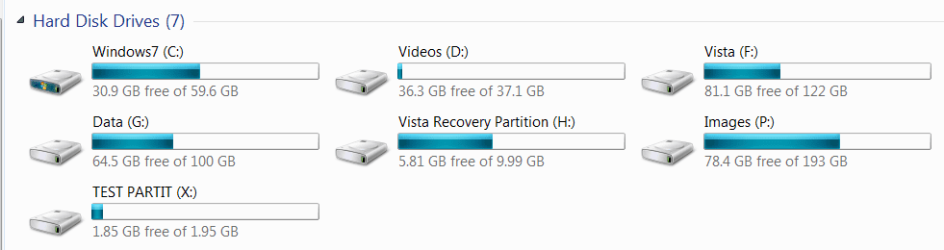
3. C is always the sytem you boot. The "other" C can be anything. E.g. on this system I have Win7 and Vista. On the picture below it shows the Vista partition as F (it is on a different hard drive and has it's own bootmgr - like in your system). But when I boot into Vista, it will be C and Win7 is another letter.
 

Attachments

  • 2011-07-14_1742.png
    2011-07-14_1742.png
    11.7 KB · Views: 58

My Computer

Computer Manufacturer/Model Number
HP, Dell, Gateway, Toshiba - 4 laptops and 2 desktops
OS
Vista, Windows7, Mint Mate, Zorin, Windows 8
CPU
from 1.6GHz Duo to i7
Monitor(s) Displays
2x HP w2207
Hard Drives
5x HDD, 7x SSD, 12x Externals
Keyboard
with trackball - no mices
Mouse
Trackball mice
Internet Speed
DSL 6000
Sorry - I forgot to say - yes, F8 gets me to the boot manager for the system and brings up the list of drives. It was a little strange yesterday when I put the machine back together and my old XP drive booted first - and that is now only used for storage but still has the windows folder on it! (Which has now changed!)

So, with some confidence, I could install the other drive, and boot either to Windows 7 32-bit on the HDD - which will retain 'drive C' status and work fine.

Or, I can boot to Windows 7 64-bit onthe SSD - which will then take over as 'drive C' and allow me to use it - without loosing the data on my HDD drive C?

That would be great news!! (and thank you for the helpful comments)
 

My Computer

OS
Windows 7 Home 32-bit
Yes you can do that. Just make sure that the HDDs are disconnected when you install the x64 Win7 on the SSD.

And, you can even share the user Data folders from the HDDs with the x64 SSD system. When you are in the x64 system, just navigate to those folders, right click on them and INCLUDE them into the appropriate x64 library. I share my Vista folders this way with my x64 Win7 on the SSD.
 

My Computer

Computer Manufacturer/Model Number
HP, Dell, Gateway, Toshiba - 4 laptops and 2 desktops
OS
Vista, Windows7, Mint Mate, Zorin, Windows 8
CPU
from 1.6GHz Duo to i7
Monitor(s) Displays
2x HP w2207
Hard Drives
5x HDD, 7x SSD, 12x Externals
Keyboard
with trackball - no mices
Mouse
Trackball mice
Internet Speed
DSL 6000
I used to dual boot Windows Vista and Windows 7.

Whichever system I booted into was allocated drive letter C and the OS not being used was allocated drive letter D and vice versa.

As whs rightly says, sharing data folders between the two system drives is a doddle so you should be perfectly OK with your setup.

As an aside, I'm thinking of getting an SSD. Is it worth the extra expense?
 

My Computer

Computer Manufacturer/Model Number
HP Pavilion Elite 495UK
OS
Windows 7 Ultimate SP1 64-Bit
CPU
Intel Core i7 870 @ 2.93GHz
Motherboard
MSI 2A9C (CPU1)
Memory
8Gb Dual-Channel DDR3 @ 664MHz
Graphics Card(s)
nVidia GeForce GTX 460 1024MB dedicated RAM
Sound Card
Realtek HD Audio
Monitor(s) Displays
HP2310i
Screen Resolution
1920 x 1080
Hard Drives
1x1954GB Hitachi HDS22020ALA 330 (RAID), 1x1954GB Hitachi External for backup and storage
PSU
460W
Case
HP Elite
Cooling
Air cooled
Keyboard
Logitech K750 solar-powered keyboard
Mouse
Logitech Wireless M180 mouse
Internet Speed
2Mb
Other Info
Pure Avanti Flow Internet Radio with iPod Dock, 64Gb iPod, HP USB Speakers, Sony MDR-V500 Headphones, Sony Vaio F-Series Laptop
As an aside, I'm thinking of getting an SSD. Is it worth the extra expense?
For the OS, yes. It gives you fantastic responsiveness. I have SSDs on all my systems. But there is no need to go overboard. A 60GB Gen2 SSD is ample. The faster ones (Gen3) are impressive in the measurements, but will not make a big difference for the OS performance (reason: the access time of 0.1ms is the same and data transfer rates do not play a big role for the OS). And more than 60GBs is a waste for the OS. With proper planning, you really do not need more than 30GBs - but a bit of buffer is useful and let's you sleep better.
 

My Computer

Computer Manufacturer/Model Number
HP, Dell, Gateway, Toshiba - 4 laptops and 2 desktops
OS
Vista, Windows7, Mint Mate, Zorin, Windows 8
CPU
from 1.6GHz Duo to i7
Monitor(s) Displays
2x HP w2207
Hard Drives
5x HDD, 7x SSD, 12x Externals
Keyboard
with trackball - no mices
Mouse
Trackball mice
Internet Speed
DSL 6000
AHCI - making changes on two drives in same machine?

Thanks again guys - with a little bit of re-assurance from another colleague, I hooked up both drives and they appear to be working fine - switching the drive letters as I boot.

Seavixen32 - I paid £79.99 from Ebuyer . com for this Kingston V100 60gb drive - and if I'm honest, the load times, reboot times and program responsiveness is pretty awesome - I would get one.

whs - another question for you now - sorry about this - I sound like a proper nooblet!

Having discovered that I didn't have AHCI enabled on the m/board but should be using it to get full advantage of the SSD - when I turn it on, the OS bluescreens! I've read on the net that you can stop this by editing the registry and changing the msahci value to 0 - it's currently 3.

Whilst I'm happy to try this on the new install on the SSD - I also have the original install on the HDD. Is there a way to change the registry on the HDD while booted into the SSD, or visa-versa - so that I can change both. Otherwise, is I change on the SSD, when I boot to the HDD, it will BSOD - and it will mean switching AHCI off in the BIOS to get into that system.

What would you recommend? I though one work around would be to change it in one drive, leave it disabled in the BIOS, then boot to the 2nd drive (still in SATA mode, not AHCI) and change it there - then, reboot again and enable it in the BIOS - and hopefully, when I then boot to either drive, it should recognise AHCI and install it / work okay?

What do you think - and do you have any 'easier' suggestions?
 

My Computer

OS
Windows 7 Home 32-bit
There is a forum's tutorial on how to change to AHCI after install: http://www.sevenforums.com/tutorials/61869-ahci-enable-windows-7-vista.html?ltr=A

In a dual boot where both must be changed I think I would remove the other HD while I change over the first one, then repeat the same with the other HD set to its native SATA mode to start.

As I've not done this myself, I'd wait for Wolfgang or the tutorial author to sign off on it before proceeding. Also, other than the ability to have modern hotplugging there are no reports I can remember of improved performance.
 
Reinstall on the ssd again, this time leave the other drives connected. You should get the option to boot to either drive. And each will be the C drive. I`ve done this dozens of times.
 

My Computer

Computer Manufacturer/Model Number
Myself
OS
Windows 7 Ultimate 64Bit
CPU
C2D E8200
Motherboard
XFX 750i
Memory
8GB PNY PC2-6400
Graphics Card(s)
BFG 9600GT x 2
Sound Card
Stock XFX Optical
Monitor(s) Displays
Gateway 22" HD Display
Hard Drives
C: 1 TB G: 500 GB H: 500 GB
PSU
Ultra LSP 550 Pro Lifetime Series
Case
Xion2
Cooling
ThermalTake
It is not preferable to have Windows configure a Dual Boot as it interlocks the HD's requiring major surgery to remove one. This is why we recommend unplugging existing OS HD before installing to a second HD.

Separate HD's booted via the BIOS leaves them independent to come and go as you please.
 
But the way I describe is sooooo much easier.
 

My Computer

Computer Manufacturer/Model Number
Myself
OS
Windows 7 Ultimate 64Bit
CPU
C2D E8200
Motherboard
XFX 750i
Memory
8GB PNY PC2-6400
Graphics Card(s)
BFG 9600GT x 2
Sound Card
Stock XFX Optical
Monitor(s) Displays
Gateway 22" HD Display
Hard Drives
C: 1 TB G: 500 GB H: 500 GB
PSU
Ultra LSP 550 Pro Lifetime Series
Case
Xion2
Cooling
ThermalTake
There is a forum's tutorial on how to change to AHCI after install: http://www.sevenforums.com/tutorials/61869-ahci-enable-windows-7-vista.html?ltr=A

In a dual boot where both must be changed I think I would remove the other HD while I change over the first one, then repeat the same with the other HD set to its native SATA mode to start.

As I've not done this myself, I'd wait for Wolfgang or the tutorial author to sign off on it before proceeding. Also, other than the ability to have modern hotplugging there are no reports I can remember of improved performance.
I am in the same position as Greg - I have never tried that because in my multiboot systems I run my SSDs in IDE mode. I found that the performance advantage with AHCI is minimal and I like to stay out of trouble.

But the way Greg described it should work. Set the BIOS to IDE and boot into the HDD system. There you set the registry to AHCI as described in the linked tutorial. Then you can go back to AHCI in the BIOS. Try that and let us know whether it works.
 

My Computer

Computer Manufacturer/Model Number
HP, Dell, Gateway, Toshiba - 4 laptops and 2 desktops
OS
Vista, Windows7, Mint Mate, Zorin, Windows 8
CPU
from 1.6GHz Duo to i7
Monitor(s) Displays
2x HP w2207
Hard Drives
5x HDD, 7x SSD, 12x Externals
Keyboard
with trackball - no mices
Mouse
Trackball mice
Internet Speed
DSL 6000
Currently, all the drives are working very well in SATA mode. I'm a little reluctant to change to AHCI if there is no perceptible difference in speed?

I might try it with the SSD and there isn't much on it at the moment and I can afford for it to go wrong.

However - one quick question - can you go back to SATA from AHCI without causing the same BSOD issues?
 

My Computer

OS
Windows 7 Home 32-bit
However - one quick question - can you go back to SATA from AHCI without causing the same BSOD issues?
I guess you can if you do it in the right sequence - OS first, BIOS second.
 

My Computer

Computer Manufacturer/Model Number
HP, Dell, Gateway, Toshiba - 4 laptops and 2 desktops
OS
Vista, Windows7, Mint Mate, Zorin, Windows 8
CPU
from 1.6GHz Duo to i7
Monitor(s) Displays
2x HP w2207
Hard Drives
5x HDD, 7x SSD, 12x Externals
Keyboard
with trackball - no mices
Mouse
Trackball mice
Internet Speed
DSL 6000
Back
Top