UEFI (Unified Extensible Firmware Interface) - Install Windows 7 with

How to Install Windows 7 Using the "Unified Extensible Firmware Interface" (UEFI)


   Information
In addition to better interoperability, UEFI firmware provides several technical advantages:
  • Compatibility with operating systems that support only BIOS
  • Ability to boot from large disks
  • CPU-independent architecture
  • CPU-independent drivers
  • Flexible pre-OS environment
  • Modular design
Two of the most notable Windows features for UEFI systems are the following:
  • Multicast deployment, which enables large scale network-based image deployment in manufacturing and enterprise settings.
  • Fast boot and resume from hibernation, which improves user experience.
The rich UEFI interface provides ample room for innovation in the development of operating system features. Along with the other members of the Unified EFI Forum, Microsoft is investigating the following:
  • Rootkit prevention
  • Network authentication
-Microsoft Corporation
This method can also be used for the UEFI installation of Windows 8, Windows Server 2008 SP1, Windows Server 2008 R2, and Windows Vista SP1.

   Note
You will need to satisfy the following requirements in order to proceed:

  • A Windows 7 compatible system
  • A Windows 7 x64-bit installation media. 32-bit is not supported.
  • A UEFI v2.0+ compliant PC. Check your chipset manufacturer/firmware documentation.
  • A blank, partition-free, hard disk for installation.
   Warning

  • Disabling UEFI will make the system unbootable as there is no MBR on the disks.
  • You CANNOT make a sector-by-sector copy of GPT disks. The Disk and Partition GUIDs will no longer be unique. This must never happen. You can make a sector-by-sector copy of the contents of ESP or basic data partitions.
  • Disable secure boot before installing Windows 7.


Here's How:

1. Do step 2 or 3 below depending on what installation Media you are using.

2. If using a Retail 64-bit Windows 7 Installation DVD A) Insert the DVD, restart the computer, and go to step 4 below.
3. If using a 64-bit Windows 7 Installation USB Flash Drive with UEFI A) If you have not already, you will need to create a Windows 7 installation bootable USB flash drive for UEFI from either a Windows 7 installation ISO or DVD.

B) Connect the USB, restart the computer, and go to step 4 below.
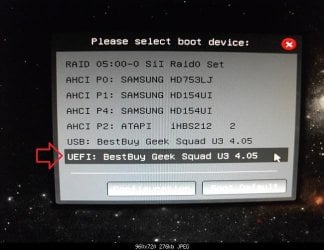
4. Press whatever key (ex: F11) it shows to boot to your motherboard's boot menu, and select to boot from the DVD or UEFI USB. (see screenshot below) UEFI_USB_Boot_Menu.jpg
5. Do steps 3 to 7 in the tutorial link below. http://www.sevenforums.com/tutorials/1649-clean-install-windows-7-a.html
6. Delete all partitions/volumes on the disk # (ex: Disk 0) that you want to install Windows 7 as UEFI on until that disk # shows as unallocated space. (see screenshot below) Step7.jpg
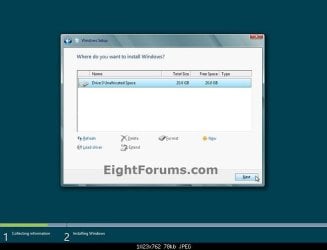
7. When you are finished, click/tap on New, Apply (for full size of disk), and OK. (see screenshot above)

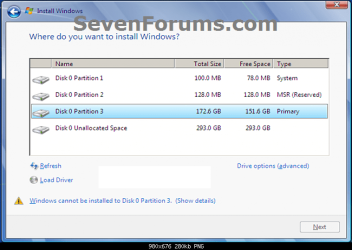
8. You will notice that the disk has now been formatted as GPT with 3 partitions. Select the "Primary" partition 3, and click/tap on Next. (see screenshot below)
NOTE: You might receive a "Windows can't be installed on drive 0" warning, but as long as you can click on the Next button, you're fine.
   Note
The 3 partitions are:
  • Partition 1 - System - The EFI System partition that contains the NTLDR, HAL, Boot.txt, and other files that are needed to boot the system, such as drivers.
  • Partition 2 - MSR - The Microsoft Reserved (MSR) partition that reserves space on each disk drive for subsequent use by operating system software.
  • Partition 3 - Primary - Where Windows is to be installed to.

    It is imperative that these 3 partitions remain in the exact order as they are


Windows7.PNG
9. You can now finish doing the steps in either tutorial below.

10. That's it. You have successfully installed Windows 7 on an UEFI system.


External Links:


Windows and GPT FAQ
Unified Extensible Firmware Interface - Wikipedia, the free encyclopedia
UEFI and Windows
 
Last edited by a moderator:
Where exactly does the SSD show up in the BIOS now? I didn't see it at all in your screenshots. It may have failed or need reseating to be recognized. Also, are you sure you have only a 32gb SSD, as this almost always means a hybrid hard drive with an SSD caching chip on it. If in doubt I'd want to access the hard drive bay underneath to see exactly what is there, google the serial to be sure, and reseat it to see if it can be recognized in BIOS if it isn't.

Then try the new ISO to create a UEFI installer for GPT following closely these steps in option one of UEFI Bootable USB Flash Drive - Create in Windows. The ISO you had previously used in this method must be replaced to be sure.

Another thing to try is formatting the stick by both methods to attempt reinstalling the version of Windows which came with the PC. Is it recognized then?

If these all fail, then I'd focus on the steps in your model's Downloads FAQ to flash the latest BIOS update from within the BIOS. This is because in the past when UEFI firmware didn't have any CSM or Legacy options, or lacked other settings to install Win7 or reinstall the native OS, updating the firmware solved this. But you must follow the steps precisely and with no chance of power cut as otherwise this can be risky.
 
Last edited:
I checked by taking the back cover off and as it says, it is an SSD... embedded straight on the little motherboard.. no connecters to re-seat :P (I hate these new systems)

I did the BIOS update and it was v.205 now its v.208 but still the same menu and sub-menus. I will try a new flash drive plus making a new ISO image and then transferring it. Thanks for now.
 

My Computer My Computer

At a glance

Windows 7 32bitAtom 1.33 GHz2GB RAM
Computer type
PC/Desktop
Computer Manufacturer/Model Number
Asus X205TA
OS
Windows 7 32bit
CPU
Atom 1.33 GHz
Memory
2GB RAM
Hard Drives
32 GB SSD
Did you reset BIOS to defaults after flashing? See if there are any new settings for UEFI, CSM, Legacy BIOS, or Boot Priority or Override.

I never saw the choices for Boot Override.

Try to get the flash stick detected as UEFI or Legacy. Change ports. If that fails, try a different stick. Try also a DVD in your external OD. Do any of these show up in Boot Priority or Boot Override?
 
I did reset the bios after updating it and changing it to defaults, restarting, still the same menu. The boot override is on the last page but it is Black in colour - means it cannot be pressed. I did try a bootable Windows 7 DVD in my external optical but doesn't show in the boot options. Restarted... same...but I'm surprised that it updated the BIOS through USB...which I thought it wasn't capable of reading when in BIOS mode....
 

My Computer My Computer

At a glance

Windows 7 32bitAtom 1.33 GHz2GB RAM
Computer type
PC/Desktop
Computer Manufacturer/Model Number
Asus X205TA
OS
Windows 7 32bit
CPU
Atom 1.33 GHz
Memory
2GB RAM
Hard Drives
32 GB SSD
That's why I gave you the FAQ available on the model's Support site which showed how to update from within the BIOS. Did you follow those steps exactly? If not I would do it over.

Otherwise unless you are missing a setting, it appears the USB stick is not being read. This could be because of its formatting - try UEFI and Legacy, the stick itself being faulty, or the ISO being bad.

I would go over every setting in the BIOS, highlight each to read about it. If in doubt google to read more about what that means or ask back here.

I asked if you could reinstall Windows 8 or 8.1. This should tell us if the issue is that the BIOS is not reading external media, or the problem is with Win7.

Did you make Recovery media during the Setup of the PC? Is it within a year old, so that you can contact Asus Tech Support to see if this is a known issue. Read everything on the model's SUpport site to see if you find your issue's solution, plus ask Google in every way possible to know you've looked everywhere.
 
I purchased the laptop just a week ago from Staples and did make a backup DVD from within Windows 8.1 recovery.

I searched a lot on Google too and one thing I am not sure about. In the USB stick that I made for booting in UEFI, it has the boot, efi, sources, support, upgrade, autorun, bootmgr and setup files. I read on Google that the efi folder should have a boot folder with bootx64.efi file in it... it should read as efi/boot/bootx64.efi but there is only one folder in EFI and that is Microsoft. So just asking if that is the problem?
 

My Computer My Computer

At a glance

Windows 7 32bitAtom 1.33 GHz2GB RAM
Computer type
PC/Desktop
Computer Manufacturer/Model Number
Asus X205TA
OS
Windows 7 32bit
CPU
Atom 1.33 GHz
Memory
2GB RAM
Hard Drives
32 GB SSD
I read on Google someplace and just simply formatted my USB disk to Fat32 and then copied all the files from my Windows 7 32bit edition DVD to my USB flash disk directly. Did not use RUFUS or anything and amazingly, my USB showed up in the bootable devices in the UEFI menu. So thanks again for all your help and support guys. I really appreciate it.
 

My Computer My Computer

At a glance

Windows 7 32bitAtom 1.33 GHz2GB RAM
Computer type
PC/Desktop
Computer Manufacturer/Model Number
Asus X205TA
OS
Windows 7 32bit
CPU
Atom 1.33 GHz
Memory
2GB RAM
Hard Drives
32 GB SSD
Now the USB flash does show in the bootable devices in the UEFI boot option priorities but does not go further than that. Cannot boot from it.... not even from Boot override
 

My Computer My Computer

At a glance

Windows 7 32bitAtom 1.33 GHz2GB RAM
Computer type
PC/Desktop
Computer Manufacturer/Model Number
Asus X205TA
OS
Windows 7 32bit
CPU
Atom 1.33 GHz
Memory
2GB RAM
Hard Drives
32 GB SSD
In RUFUS, except for the GPT partition scheme, it does not let me format the USB in FAT32 mode. and NTFS is not supported on my UEFI
 

My Computer My Computer

At a glance

Windows 7 32bitAtom 1.33 GHz2GB RAM
Computer type
PC/Desktop
Computer Manufacturer/Model Number
Asus X205TA
OS
Windows 7 32bit
CPU
Atom 1.33 GHz
Memory
2GB RAM
Hard Drives
32 GB SSD
Try UEFI install first so you can benefit from those features, unless it will not install.

To attempt a UEFI install you should use Rufus set as shown in Option One of tutorial to UEFI to GPT. Make sure all the other settings are exactly copied too.

Then boot the stick as a UEFI device using BIOS Boot menu key at boot. If it wouldn't show up before it is likely because it was not formatted correctly in the first place. If Rufus isn't used then it must be manually edited as shown in the other option. But Rufus is what works best and is automated so please do it now.
 
The UEFI does not recognize the USB if it is formatted in anything other than FAT32 and RUFUS only formats to NTFS and if you change the format settings, it will give an error and then goes back to NTFS.

The only thing that works is that I format it to FAT32 in my other Windows 7 operating system and then paste the contents of a bootable Windows 7 32bit DVD to the USB. The UEFI only detects the USB that way but it does not go beyond that. It only shows in the bootable devices and I cannot override nor boot from it by pressing ESC before the UEFI menu comes up
 

My Computer My Computer

At a glance

Windows 7 32bitAtom 1.33 GHz2GB RAM
Computer type
PC/Desktop
Computer Manufacturer/Model Number
Asus X205TA
OS
Windows 7 32bit
CPU
Atom 1.33 GHz
Memory
2GB RAM
Hard Drives
32 GB SSD
Did you look at the steps for Option One in UEFI Bootable USB Flash Drive - Create in Windows
which clearly show both in a picture and the settings specified for the stick File System to be FAT32?

22848d1370830848-uefi-bootable-usb-flash-drive-create-windows-rufus.jpg
 
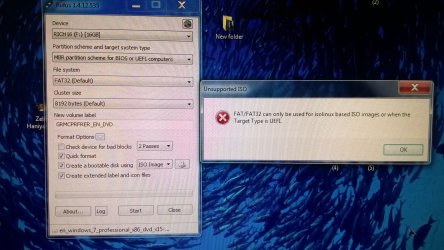
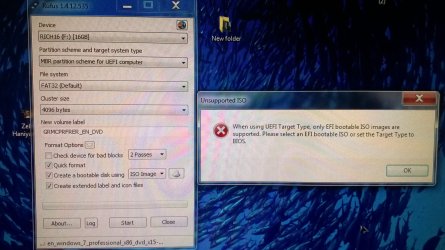
Yes but when I give the ISO file to RUFUS, it changes the parameters to NTFS. I downloaded the Windows 7 iso file from the link that was given to me in previous posts here plus I have another two ISO files... all from different sources but everytime I give the ISO, it changes back and when I change the parameters after giving the ISO, it gives an error. Attaching screenshots. Only makes NTFS partitions and always changes back.
Use the Windows 7 USB DVD download tool too and that too converts the file table to NTFS which my UEFI does not recognize
 

Attachments

  • WP_20150127_006.jpg
    WP_20150127_006.jpg
    1,007 KB · Views: 249
  • WP_20150127_007.jpg
    WP_20150127_007.jpg
    1,004.1 KB · Views: 273

My Computer My Computer

At a glance

Windows 7 32bitAtom 1.33 GHz2GB RAM
Computer type
PC/Desktop
Computer Manufacturer/Model Number
Asus X205TA
OS
Windows 7 32bit
CPU
Atom 1.33 GHz
Memory
2GB RAM
Hard Drives
32 GB SSD
If you look at Partition Scheme it is MBR and not UEFI.

Compare the picture in the tutorial to your picture to make the changes needed.
 
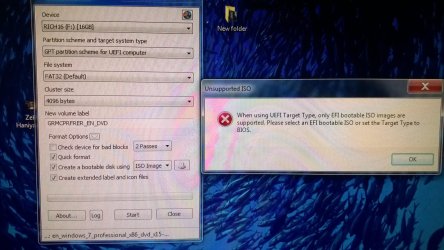
Tried the third option GPT partition scheme for UEFI too.. but with a different error
 

Attachments

  • WP_20150127_008.jpg
    WP_20150127_008.jpg
    1,006.5 KB · Views: 137

My Computer My Computer

At a glance

Windows 7 32bitAtom 1.33 GHz2GB RAM
Computer type
PC/Desktop
Computer Manufacturer/Model Number
Asus X205TA
OS
Windows 7 32bit
CPU
Atom 1.33 GHz
Memory
2GB RAM
Hard Drives
32 GB SSD
Didn't understand that....
 

My Computer My Computer

At a glance

Windows 7 32bitAtom 1.33 GHz2GB RAM
Computer type
PC/Desktop
Computer Manufacturer/Model Number
Asus X205TA
OS
Windows 7 32bit
CPU
Atom 1.33 GHz
Memory
2GB RAM
Hard Drives
32 GB SSD
Yes I did and that utility again formats it to NTFS which does not show up. So you mean to say that nothing can be installed on that?
 

My Computer My Computer

At a glance

Windows 7 32bitAtom 1.33 GHz2GB RAM
Computer type
PC/Desktop
Computer Manufacturer/Model Number
Asus X205TA
OS
Windows 7 32bit
CPU
Atom 1.33 GHz
Memory
2GB RAM
Hard Drives
32 GB SSD
Back
Top