USB Windows 7 Installation Key Drive - Create

How to Create a Bootable Windows 7 Installation USB Flash Drive


   Information
This will show you how to create a USB flash key drive that you can boot from to install Windows 7 with.
   Tip
If the USB flash drive is of sufficient capacity, say 8GB, then after copying the Windows 7 installation DVD onto it, you can create a new folder (ex: Device Drivers) in the USB key and place all of your latest driver installation files in it. This way you will have them handy to manually install the drivers after installing Windows 7 from the USB key.
   Note
If you booted from the USB drive to install Windows 7, then you may need to change the hard drive back to being listed before the USB key in the boot order in BIOS after the computer restarts during installation to prevent the computer from booting right back into the USB key starting the installation process over and over.
   Warning

  • The USB key needs to be at least 4 GB in size.
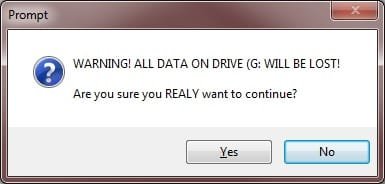
  • This will delete everything on the USB key. Be sure to save anything that you do not want to lose on it somewhere else.
  • Before installing Windows 7 from the USB key, you will need to:
    • Enable Legacy USB storage detect in the BIOS.
  • When ready to install Windows 7 from the USB key:
    • Connect the USB key.
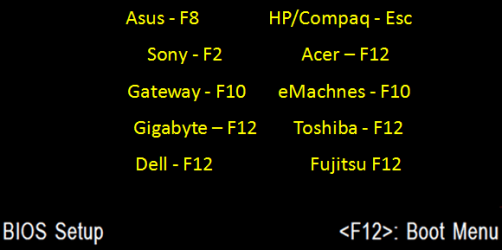
    • Restart the computer, and keep tapping the F key (see screenshot below) responsible to open the Boot Menu screen for the brand and model of your motherboard or computer until it does.

      • Boot-Menu.png
    • Select the USB key to boot from.
    • Start installing Windows 7.

CONTENTS:
  • Option One: Use "Windows 7 USB/DVD Download Tool" to Create Bootable Windows 7 Installation USB
  • Option Two: Use "Rufus" to Create Bootable Windows 7 Installation USB
  • Option Three: Manually Create Bootable Windows 7 Installation USB Flash Drive


OPTION ONE

Use "Windows 7 USB/DVD Download Tool" to Create Bootable Windows 7 Installation USB


   Tip
If you do not have a Windows 7 ISO file, then you can either download the latest ISO version at the links below.

:ar: Microsoft Software Recovery

:ar: Microsoft: Windows 7 Direct Download Links

You could also use a free program like ImgBurn or ISODisk to create a ISO from your Windows 7 installation DVD.


1. For how, see the Part 2 section here: Windows 7 USB/DVD Download Tool.


OPTION TWO

Use "Rufus" to Create Bootable Windows 7 Installation USB


1. Download the latest version of Rufus at the link below, and save it's .exe file to your desktop.
:ar: Rufus - Create bootable USB drives the easy way
   Note
This is a standalone exe file that doesn't install anything to your PC.

For Rufus FAQs, see: https://github.com/pbatard/rufus/wiki/FAQ
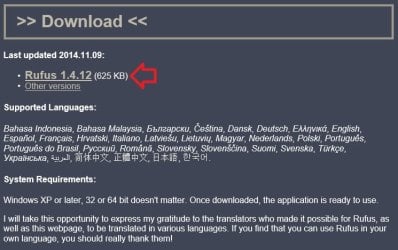

download_rufus.jpg
2. Connect your USB flash drive if you have not already.

3. Run the rufus_v###.exe file, and click/tap on Yes if prompted by UAC.
NOTE: ### = latest version number.

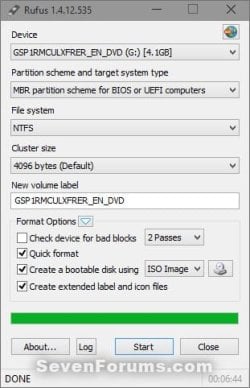
4. Set Rufus with the settings below: (see screenshot below step 5)

  • [Under Device, select the USB flash drive you want to format and use.
  • Under Format Options, check Create a bootable disk using, click/tap on the browse icon to navigate to and select your 64-bit Windows 7 ISO file.
  • Under Partition scheme and target system type, select MBR partition scheme for BIOS or UEFI computers.
  • Under File system, select NTFS.
  • Under Cluster size, select the (Default) (ex: 16 kilobytes or 4096 bytes) it has listed.
  • Under Format Options, check Quick format.
  • Under Format Options, check Create extended label and icon files.
  • Under New volume label, you can enter any name you like for the USB flash drive, or leave the default name.
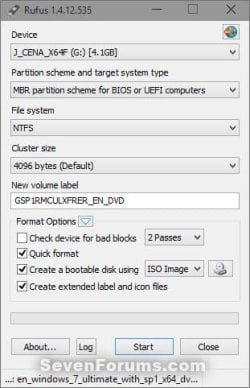
5. When ready, click/tap on Start. (see screenshot below)
Rufus-1.jpg
6. Click/tap on OK to confirm. (see screenshot below)
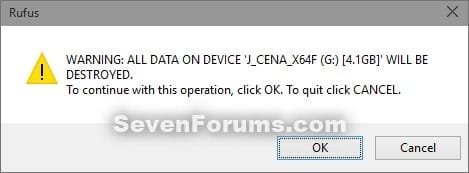
Rufus-2.jpg
7. Rufus will now start creating the bootable UEFI USB flash drive. (see screenshot below)
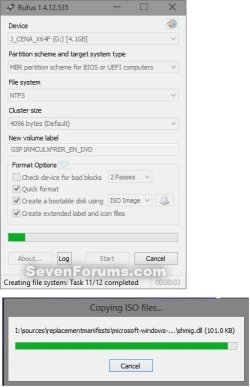
Rufus-3.jpg
8. When Rufus is "DONE", you can close Rufus. (see screenshot below)
NOTE: It could take a little while to finish.
Rufus-4.jpg
9. You are now ready to installWindows 7 with your bootable USB flash drive.


OPTION THREE

Manually Create Bootable Windows 7 Installation USB Flash Drive


   Warning
Using this method:
  • You will only be able to create a 64-bit Windows 7 bootable USB flash drive if your current Windows 7 installation is also 64-bit.
  • You will be able to create a 32-bit Windows 7 bootable USB flash drive if your current Windows 7 installation is 32-bit or 64-bit.
64-bit installation + 64-bit ISO = 64-bit flash drive
64-bit installation + 32-bit ISO = 32-bit flash drive
32-bit installation + 32-bit ISO = 32-bit flash drive
32-bit installation + 64-bit ISO = unable to create

1. Plug the USB key in.

2. If AutoPlay opens a pop-up for the USB key, then just close it.
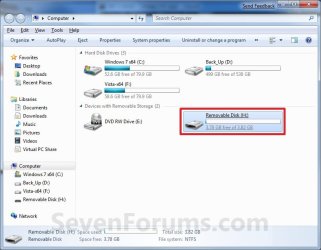
NOTE: Make note of what the drive size is for the USB key for use in step 6 below. You can also open Computer (step 19) to see what the drive size is to. For example, mine is 3920 MB. (See screenshot below)
Computer.jpg
3. Open an elevated command prompt.

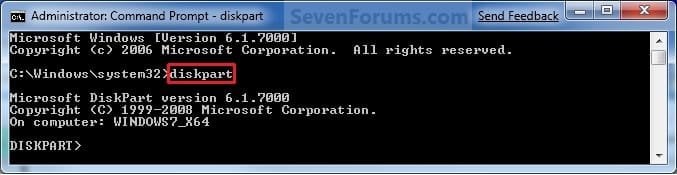
4. In the elevated command prompt, type diskpart and press Enter. (See screenshot below)
Step1.jpg
5. In the elevated command prompt, type list disk and press Enter. (See screenshot below)
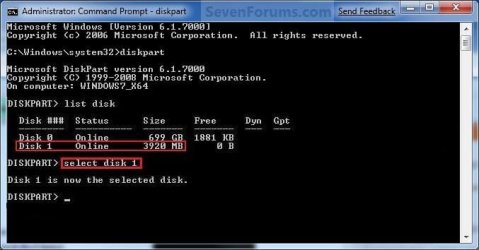
NOTE: Make note of what disk # your USB key is listed as to use in step 6 below. You can also look for the drive size (step 2) of the USB key to help ID the disk number. For example, mine is listed as Disk 1 here for the 3920 MB disk.
Step2.jpg
6. In the elevated command prompt, type select disk # (your USB disk #) and press Enter. (See screenshot below)
NOTE: For example, my USB key is listed as Disk 1, so I would type select disk 1 and press Enter.
Step3.jpg
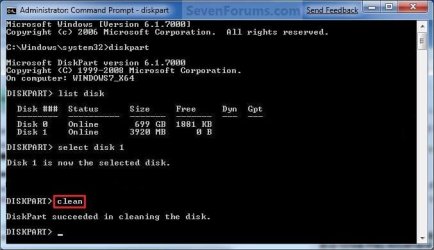
7. In the elevated command prompt, type clean and press Enter. (See screenshot below)
Step4.jpg
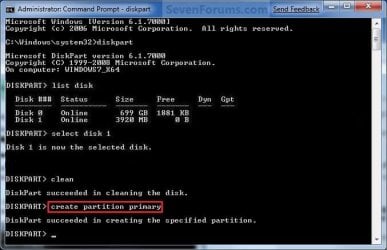
8. In the elevated command prompt, type create partition primary and press Enter. (See screenshot below)
Step5.jpg
9. In the elevated command prompt, type select partition 1 and press Enter. (See screenshot below)
Step6.jpg
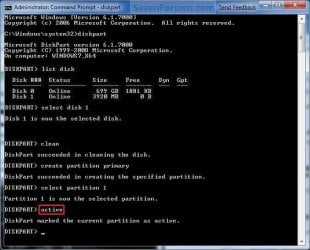
10. In the elevated command prompt, type active and press Enter. (See screenshot below)
Step7.jpg
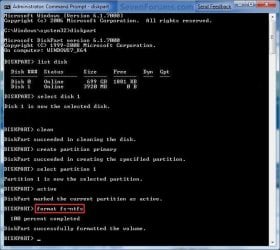
11. In the elevated command prompt, type in the command below to format the USB as NTFS or FAT32, and press Enter. (See screenshot below)
NOTE: This may take a few moments to finish formatting the USB key.

   Note
You can substitute Windows 7 within quotes in the commands below with whatever name (drive label) you would like to have displayed for the USB drive instead.

See also: Choosing between NTFS, FAT, and FAT32


FAT32 volume labels
  • If you have an UEFI instead of BIOS motherboard, then you will need to use FAT32 and not NTFS.
  • Volume labels can contain as many as 11 characters and can include spaces but no tabs.
  • Volume labels cannot contain the following characters: ? / \ | . , ; : + = [ ] < > "
  • Volume labels are stored as uppercase regardless of whether they contain lowercase letters.
NTFS volume labels

  • Volume labels can contain as many as 32 characters.
format fs=ntfs label="Windows 7" quick

OR

format fs=fat32 label="Windows 7" quick
Step8.jpg
12. If AutoPlay opens a pop-up for the USB key, then just close it.

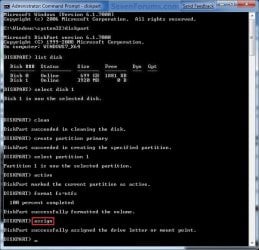
13. In the elevated command prompt, type assign and press Enter. (See screenshot below)
NOTE: This will assign a new drive letter to the USB key. Make note of the new USB drive letter to use in step 22 below. For example, mine is now H.
Step9.jpg
14. If AutoPlay opens a pop-up for the USB key, then just close it.

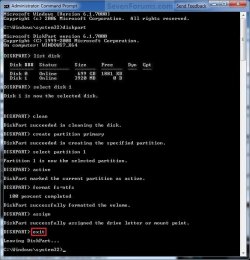
15. In the elevated command prompt, type exit and press Enter. (See screenshot below)
NOTE: This will exit you from DiskPart from step 4.
Step10.jpg
16. Close the elevated command prompt.

17. Insert your Windows 7 installation DVD into the DVD drive.

18. If AutoPlay opens a pop-up for the Windows 7 installation DVD, then just close it.

19. Open the Start Menu, right click on the Computer button, and click on Open.

20. Right click on the DVD drive (ex: E: ) that has the Windows 7 installation DVD in it, and click on Open. (See screenshot below)
Open.jpg
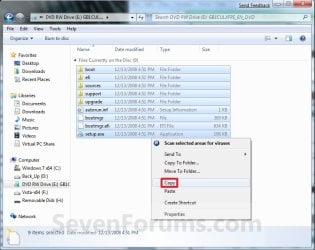
21. Highlight all of the contents, right click on the highlighted contents, and click on Copy. (See screenshot below)
NOTE: You will need to copy all of the files and folders on the Windows 7 installation DVD to the USB key.
Copy.jpg
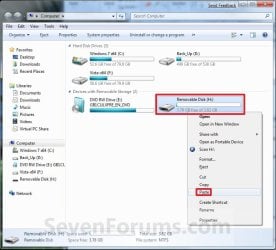
22. Go back to Computer, right click on the USB key drive (ex: H ), and click on Paste. (See screenshot below)
Paste.jpg
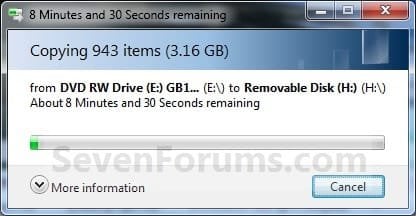
23. The contents of the Windows 7 installation DVD will now start copying over to the USB key. (See screenshot below)
NOTE: This may take a few moments to complete.
Copying.jpg
24. When finished, you can close the Computer window and unplug the USB key.

25. You now have a Windows 7 Installation USB key. ;)

   Warning
If you have UEFI instead of BIOS motherboard, then you will need to temporarily disable Secure Boot to use the USB to install Windows. After installation is complete, you can enable Secure Boot again.

That's it,
Shawn


Attachments

  • Computer-9.jpg
    Computer-9.jpg
    57 KB · Views: 103
  • UltrISO-2.jpg
    UltrISO-2.jpg
    51.3 KB · Views: 13,126
  • UltrISO-3.jpg
    UltrISO-3.jpg
    69.4 KB · Views: 13,576
  • UltrISO-5.jpg
    UltrISO-5.jpg
    72.2 KB · Views: 15,194
  • UltrISO-6.jpg
    UltrISO-6.jpg
    23.1 KB · Views: 12,843
  • UltrISO-7.jpg
    UltrISO-7.jpg
    9.5 KB · Views: 11,222
  • UltrISO-8.jpg
    UltrISO-8.jpg
    34.5 KB · Views: 11,724
Last edited:
Hi,

You shouldn't have to change the "Legacy USB" option - thats there to allow the keyboard amd mouse to work prior to the Windows driver for those being loaded. Moving the USB to the top of the boot priority is the correct thing to do.

Regards,
Golden
 

My Computer

Computer type
PC/Desktop
Computer Manufacturer/Model Number
Golden Mk. I.4
OS
Windows 10 Pro x64 ; Xubuntu x64
CPU
Intel i7 860 @ 2.80 GHz O/C'ed to 4.0GHz
Motherboard
Gigabyte P55A-UD3R Rev.1. Award BIOS F13
Memory
16GB Corsair Vengance DDR3 @ 661 MHz Dual Channel (9-9-9-24)
Graphics Card(s)
EVGA NVidia GTX 560 1024MB
Sound Card
Realtek Integrated
Monitor(s) Displays
Dual Samsung SyncMaster 2494HS
Screen Resolution
1920*1080 and 1920*1080
Hard Drives
1*Samsung 840 EVO 120GB SSD;
1*OCZ Vertex 2 60GB SSD;
2*Samsung F3 SpinPoint 1TB in RAID0;
1*Samsung F1 SpinPoint 1TB;
2*Western Digital 1TB External USB 3.0
1*Western Digital 500GB External USB 3.0
1*Seagate 500GB External USB 2.0
PSU
Thermaltake ToughPower QFan 750W
Case
Thermaltake Element S VK60001W2Z
Cooling
Corsair H60 Water Cooling, 2*230mm and 2*80mm case fans
Keyboard
Logitech G110
Mouse
Logitech MX518
Hello Golden,

You don't if it's just Legacy USB, but if it's Legacy USB storage detect, then you would need to. That is if there is a setting for in the BIOS. ;)
 

My Computer

Computer type
PC/Desktop
Computer Manufacturer/Model Number
Self built custom
OS
64-bit Windows 11 Pro for Workstations
CPU
Intel i7-8700K OC'd to 5 GHz
Motherboard
ASUS ROG Maximus XI Formula Z390
Memory
64 GB (4x16GB) G.SKILL TridentZ RGB DDR4 3600 MHz
Graphics Card(s)
ASUS ROG-STRIX-GTX1080TI-O11G-GAMING
Sound Card
Integrated
Monitor(s) Displays
2 x Samsung Odyssey G7 27"
Screen Resolution
2560x1440
Hard Drives
1TB Samsung 990 PRO M.2,
4TB Samsung 990 PRO PRO M.2,
TerraMaster F8 SSD Plus NAS
PSU
Seasonic Prime Titanium 850W
Case
Thermaltake Core P3
Cooling
Corsair Hydro H115i
Keyboard
Logitech wireless K800
Mouse
Logitech MX Master 4
Internet Speed
2 Gb/s Download and 100 Mb/s Upload
Antivirus
Malwarebyte Anti-Malware Premium
Browser
Google Chrome
Other Info
Logitech Z625 speaker system,
Logitech BRIO 4K Pro webcam,
HP Color LaserJet Pro MFP M477fdn,
APC SMART-UPS RT 1000 XL - SURT1000XLI,
Galaxy S23 Plus phone
Thanks Brink - I wasn't even aware that that option for storage existed. :)
 

My Computer

Computer type
PC/Desktop
Computer Manufacturer/Model Number
Golden Mk. I.4
OS
Windows 10 Pro x64 ; Xubuntu x64
CPU
Intel i7 860 @ 2.80 GHz O/C'ed to 4.0GHz
Motherboard
Gigabyte P55A-UD3R Rev.1. Award BIOS F13
Memory
16GB Corsair Vengance DDR3 @ 661 MHz Dual Channel (9-9-9-24)
Graphics Card(s)
EVGA NVidia GTX 560 1024MB
Sound Card
Realtek Integrated
Monitor(s) Displays
Dual Samsung SyncMaster 2494HS
Screen Resolution
1920*1080 and 1920*1080
Hard Drives
1*Samsung 840 EVO 120GB SSD;
1*OCZ Vertex 2 60GB SSD;
2*Samsung F3 SpinPoint 1TB in RAID0;
1*Samsung F1 SpinPoint 1TB;
2*Western Digital 1TB External USB 3.0
1*Western Digital 500GB External USB 3.0
1*Seagate 500GB External USB 2.0
PSU
Thermaltake ToughPower QFan 750W
Case
Thermaltake Element S VK60001W2Z
Cooling
Corsair H60 Water Cooling, 2*230mm and 2*80mm case fans
Keyboard
Logitech G110
Mouse
Logitech MX518
You're welcome Golden.

It can be a real handy setting, if the motherboard has it, to allow or prevent booting from a USB by setting it and password protecting BIOS.
 

My Computer

Computer type
PC/Desktop
Computer Manufacturer/Model Number
Self built custom
OS
64-bit Windows 11 Pro for Workstations
CPU
Intel i7-8700K OC'd to 5 GHz
Motherboard
ASUS ROG Maximus XI Formula Z390
Memory
64 GB (4x16GB) G.SKILL TridentZ RGB DDR4 3600 MHz
Graphics Card(s)
ASUS ROG-STRIX-GTX1080TI-O11G-GAMING
Sound Card
Integrated
Monitor(s) Displays
2 x Samsung Odyssey G7 27"
Screen Resolution
2560x1440
Hard Drives
1TB Samsung 990 PRO M.2,
4TB Samsung 990 PRO PRO M.2,
TerraMaster F8 SSD Plus NAS
PSU
Seasonic Prime Titanium 850W
Case
Thermaltake Core P3
Cooling
Corsair Hydro H115i
Keyboard
Logitech wireless K800
Mouse
Logitech MX Master 4
Internet Speed
2 Gb/s Download and 100 Mb/s Upload
Antivirus
Malwarebyte Anti-Malware Premium
Browser
Google Chrome
Other Info
Logitech Z625 speaker system,
Logitech BRIO 4K Pro webcam,
HP Color LaserJet Pro MFP M477fdn,
APC SMART-UPS RT 1000 XL - SURT1000XLI,
Galaxy S23 Plus phone
Thanks! I've used method 2 from this post about a year ago, successfully. Perfect if you have a fast flash drive and a legal volume key.

Any idea if I can just copy or clone this over to another, larger drive, or if I have to do it all over again?
 

My Computer

OS
Windows 7 32 Pro
Hello Kar, and welcome to Seven Forums.

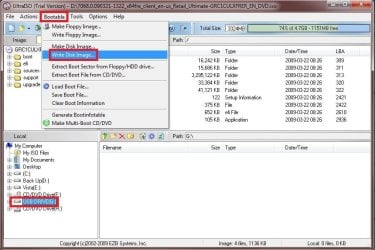
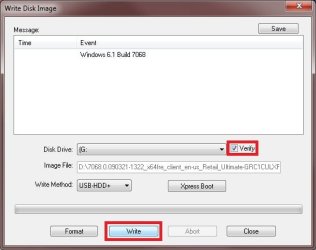
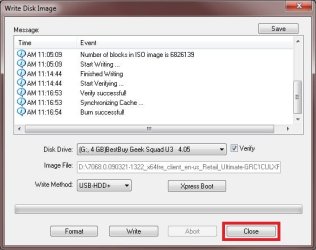
You could create a ISO from the USB key, then burn the ISO to another USB key using OPTION ONE to make it bootable as well. :)

Hope this helps,
Shawn
 

My Computer

Computer type
PC/Desktop
Computer Manufacturer/Model Number
Self built custom
OS
64-bit Windows 11 Pro for Workstations
CPU
Intel i7-8700K OC'd to 5 GHz
Motherboard
ASUS ROG Maximus XI Formula Z390
Memory
64 GB (4x16GB) G.SKILL TridentZ RGB DDR4 3600 MHz
Graphics Card(s)
ASUS ROG-STRIX-GTX1080TI-O11G-GAMING
Sound Card
Integrated
Monitor(s) Displays
2 x Samsung Odyssey G7 27"
Screen Resolution
2560x1440
Hard Drives
1TB Samsung 990 PRO M.2,
4TB Samsung 990 PRO PRO M.2,
TerraMaster F8 SSD Plus NAS
PSU
Seasonic Prime Titanium 850W
Case
Thermaltake Core P3
Cooling
Corsair Hydro H115i
Keyboard
Logitech wireless K800
Mouse
Logitech MX Master 4
Internet Speed
2 Gb/s Download and 100 Mb/s Upload
Antivirus
Malwarebyte Anti-Malware Premium
Browser
Google Chrome
Other Info
Logitech Z625 speaker system,
Logitech BRIO 4K Pro webcam,
HP Color LaserJet Pro MFP M477fdn,
APC SMART-UPS RT 1000 XL - SURT1000XLI,
Galaxy S23 Plus phone
Hey Brink, thanks for this tutorial. I didn't even have to read through, I just opened the first pic and kept clicking the next arrow to advance to the next pic. I wish everyone made their tutorials like this.

Anyhow, the USB key worked, but unfortunately my system still would hang on various installs... either expanding the files, or finalizing installation. Frustrated, I went to bed, and when I woke up this morning, I researched for another solution and I can't believe I overlooked this (as it never happened before), but when the install was expanding the files, I unplugged the USB cable and keyboard (I went back to trying to install from DVD). This worked perfectly. This took all but of 15 minutes or so, unlike when it got stalled I would wait up to an hour just to find out the system was installed.

I know this thread is over 2 years old, but if what I said above helps anyone else in my predicament...;)
 

My Computer

OS
Windows 7 RTM x64
CPU
Q9300 - overclocked to 3.10ghz
Motherboard
XFX 750i SLI
Memory
PNY 8GB DDR2 800
Graphics Card(s)
Palit Sonic GTX 460 x2 SLI
Sound Card
mainboard
Monitor(s) Displays
Optoma GT720 projector
Screen Resolution
1280 x 720 (for 3D)
Hard Drives
WD Caviar Green 640 GB, 16 MB Cache, SATA 3 Gb/s
PSU
XFX Black Edition 750w
Case
NMedia 2000B
Cooling
EVERCOOL HPH-9525CU 95mm Ever Lubricate CPU Cooler
Keyboard
Microsoft wireless
Mouse
Microsoft wireless
Internet Speed
Comcast hi-speed
Hello BishopLord,

I'm happy to hear that you got it sorted. Thank you for posting your results so that they may help others with the same issue. :)
 

My Computer

Computer type
PC/Desktop
Computer Manufacturer/Model Number
Self built custom
OS
64-bit Windows 11 Pro for Workstations
CPU
Intel i7-8700K OC'd to 5 GHz
Motherboard
ASUS ROG Maximus XI Formula Z390
Memory
64 GB (4x16GB) G.SKILL TridentZ RGB DDR4 3600 MHz
Graphics Card(s)
ASUS ROG-STRIX-GTX1080TI-O11G-GAMING
Sound Card
Integrated
Monitor(s) Displays
2 x Samsung Odyssey G7 27"
Screen Resolution
2560x1440
Hard Drives
1TB Samsung 990 PRO M.2,
4TB Samsung 990 PRO PRO M.2,
TerraMaster F8 SSD Plus NAS
PSU
Seasonic Prime Titanium 850W
Case
Thermaltake Core P3
Cooling
Corsair Hydro H115i
Keyboard
Logitech wireless K800
Mouse
Logitech MX Master 4
Internet Speed
2 Gb/s Download and 100 Mb/s Upload
Antivirus
Malwarebyte Anti-Malware Premium
Browser
Google Chrome
Other Info
Logitech Z625 speaker system,
Logitech BRIO 4K Pro webcam,
HP Color LaserJet Pro MFP M477fdn,
APC SMART-UPS RT 1000 XL - SURT1000XLI,
Galaxy S23 Plus phone
Hello Kar, and welcome to Seven Forums.

You could create a ISO from the USB key, then burn the ISO to another USB key using OPTION ONE to make it bootable as well. :)

Hope this helps,
Shawn

Well, on that note, I just took my W7 install ISO and made it into another USB key ;)
This time, since I was actually doing it _with_ W7 installed on an actual computer, method one worked without a hitch.
The previous time, all I had to work with was XP in a virtual machine so I had to use method two, because the MS tool bitched about "invalid ISO" or words to that effect.
 

My Computer

OS
Windows 7 32 Pro
Kar,

That's great to hear. I'm glad that you got it sorted. :)
 

My Computer

Computer type
PC/Desktop
Computer Manufacturer/Model Number
Self built custom
OS
64-bit Windows 11 Pro for Workstations
CPU
Intel i7-8700K OC'd to 5 GHz
Motherboard
ASUS ROG Maximus XI Formula Z390
Memory
64 GB (4x16GB) G.SKILL TridentZ RGB DDR4 3600 MHz
Graphics Card(s)
ASUS ROG-STRIX-GTX1080TI-O11G-GAMING
Sound Card
Integrated
Monitor(s) Displays
2 x Samsung Odyssey G7 27"
Screen Resolution
2560x1440
Hard Drives
1TB Samsung 990 PRO M.2,
4TB Samsung 990 PRO PRO M.2,
TerraMaster F8 SSD Plus NAS
PSU
Seasonic Prime Titanium 850W
Case
Thermaltake Core P3
Cooling
Corsair Hydro H115i
Keyboard
Logitech wireless K800
Mouse
Logitech MX Master 4
Internet Speed
2 Gb/s Download and 100 Mb/s Upload
Antivirus
Malwarebyte Anti-Malware Premium
Browser
Google Chrome
Other Info
Logitech Z625 speaker system,
Logitech BRIO 4K Pro webcam,
HP Color LaserJet Pro MFP M477fdn,
APC SMART-UPS RT 1000 XL - SURT1000XLI,
Galaxy S23 Plus phone
Brink,

I've got a 250 GB USB HDD with spare space - can I create a new partition on that with an ISO image that is bootable, or does this still require the entire USB drive to be wiped?

I have an OEM Win 7 Pro install DVD, but no USB sticks over 2 GB in size. I have copied all the files to both this USB HDD as well as one on my laptop.

I could just install from the DVD, but as this is my second install on this machine, I want to be ready to reinstall faster next time.

Thanks.
 

My Computer

Computer Manufacturer/Model Number
Lenovo T510 Laptop
OS
Windows 7 Professional SP1
CPU
Intel Core i7 M620 2.67GHz
Memory
4 GB
Graphics Card(s)
NVIDIA NVS 3100M
Sound Card
Conexant 2085 SmartAudio HD
Monitor(s) Displays
HP w2408 Wide LCD
Hard Drives
Samsung MMCRE28G8MXP 1.8-inch 128GB Solid State Drive
Seagate Momentus XT ST92505610AS 250GB 7200 RPM 32MB Cache 2.5" SATA 3.0Gb/s
Hello Winwolf,

Unfortunately, the USB flash drive will still get formatted when you burn a ISO to it to make the USB bootable. However, you could temporarily copy what you do not want to lose on the USB flash drive to another location, then after creating the bootable USB flash drive, you could copy the files back onto the USB flash drive if you still have enough free space.

Hope this helps,
Shawn
 

My Computer

Computer type
PC/Desktop
Computer Manufacturer/Model Number
Self built custom
OS
64-bit Windows 11 Pro for Workstations
CPU
Intel i7-8700K OC'd to 5 GHz
Motherboard
ASUS ROG Maximus XI Formula Z390
Memory
64 GB (4x16GB) G.SKILL TridentZ RGB DDR4 3600 MHz
Graphics Card(s)
ASUS ROG-STRIX-GTX1080TI-O11G-GAMING
Sound Card
Integrated
Monitor(s) Displays
2 x Samsung Odyssey G7 27"
Screen Resolution
2560x1440
Hard Drives
1TB Samsung 990 PRO M.2,
4TB Samsung 990 PRO PRO M.2,
TerraMaster F8 SSD Plus NAS
PSU
Seasonic Prime Titanium 850W
Case
Thermaltake Core P3
Cooling
Corsair Hydro H115i
Keyboard
Logitech wireless K800
Mouse
Logitech MX Master 4
Internet Speed
2 Gb/s Download and 100 Mb/s Upload
Antivirus
Malwarebyte Anti-Malware Premium
Browser
Google Chrome
Other Info
Logitech Z625 speaker system,
Logitech BRIO 4K Pro webcam,
HP Color LaserJet Pro MFP M477fdn,
APC SMART-UPS RT 1000 XL - SURT1000XLI,
Galaxy S23 Plus phone
Thanks, that's what I thought. I'll go the DVD route for now.
 

My Computer

Computer Manufacturer/Model Number
Lenovo T510 Laptop
OS
Windows 7 Professional SP1
CPU
Intel Core i7 M620 2.67GHz
Memory
4 GB
Graphics Card(s)
NVIDIA NVS 3100M
Sound Card
Conexant 2085 SmartAudio HD
Monitor(s) Displays
HP w2408 Wide LCD
Hard Drives
Samsung MMCRE28G8MXP 1.8-inch 128GB Solid State Drive
Seagate Momentus XT ST92505610AS 250GB 7200 RPM 32MB Cache 2.5" SATA 3.0Gb/s
You're welcome Winwolf. :)
 

My Computer

Computer type
PC/Desktop
Computer Manufacturer/Model Number
Self built custom
OS
64-bit Windows 11 Pro for Workstations
CPU
Intel i7-8700K OC'd to 5 GHz
Motherboard
ASUS ROG Maximus XI Formula Z390
Memory
64 GB (4x16GB) G.SKILL TridentZ RGB DDR4 3600 MHz
Graphics Card(s)
ASUS ROG-STRIX-GTX1080TI-O11G-GAMING
Sound Card
Integrated
Monitor(s) Displays
2 x Samsung Odyssey G7 27"
Screen Resolution
2560x1440
Hard Drives
1TB Samsung 990 PRO M.2,
4TB Samsung 990 PRO PRO M.2,
TerraMaster F8 SSD Plus NAS
PSU
Seasonic Prime Titanium 850W
Case
Thermaltake Core P3
Cooling
Corsair Hydro H115i
Keyboard
Logitech wireless K800
Mouse
Logitech MX Master 4
Internet Speed
2 Gb/s Download and 100 Mb/s Upload
Antivirus
Malwarebyte Anti-Malware Premium
Browser
Google Chrome
Other Info
Logitech Z625 speaker system,
Logitech BRIO 4K Pro webcam,
HP Color LaserJet Pro MFP M477fdn,
APC SMART-UPS RT 1000 XL - SURT1000XLI,
Galaxy S23 Plus phone
Printer's Devil

Aah Brinks,
Seems like the 'printer's devil' got you in this tut also.
Your notes in steps
13. In the elevated command prompt, type assign and press Enter. (See screenshot below)
NOTE: This will assign a new drive letter to the USB key. Make note of the new USB drive letter for step 19 below.
and
14. If AutoPlay opens a pop-up for the USB key, then just close it.
NOTE: Make note of the new USB drive letter for step 19 below.

should read "for step 22 below"; and

18. If AutoPlay opens a pop-up for the Windows 7 installation DVD, then just close it.
NOTE: Make note of what the drive letter is for the DVD drive that has the Windows 7 installation DVD in for step 18 below. You can also open Computer (step 21) to see what the drive letter is to. (See right screenshot below)

should read "for step 20 below"

and "You can also open Computer (step 21)"

should read "(step 19)"

Hope I'm not being a PITA, just trying to be helpful, and thanks from us 'noobs' for writing these very informative, stepwise tutorials.
P.S; your last suggestion to me in the "SFC thread" triggered my need to read up on the ways I could install my OS.
Frank
 

My Computer

Computer type
PC/Desktop
Computer Manufacturer/Model Number
LENOVO
OS
Microsoft Windows 7 Home Premium 64-bit
CPU
Intel(R) Core(TM) i3-2100 CPU @ 3.10GHz
Motherboard
LENOVO
Memory
6.00 GB Hyundai
Graphics Card(s)
Onboard Intel(R) HD Graphics
Sound Card
Onboard Realtek High Definition Audio
Monitor(s) Displays
32" Sony Bravia LCD TV, 19" LCD
Screen Resolution
1368 x 768 @60Hz (32bit)
Hard Drives
<Internal - 1.5Tb Hitachi>
<Externals -(2) 1TB Seagate Barracuda 7200.12 via NexStar eSATA HD Dock
160GB WD My Book (USB)
500GB Lacie (USB)
500GB Seagate (internal but not connected)
Keyboard
Logitech MK320 Wireless
Mouse
Logitech Wireless
Antivirus
Avira
Browser
Opera
Hello Frank,

No you're not being a PITA. With these tutorials constantly being updated all the time, I'm sure that I missed a few things here and there. Anyone that helps to point out these mistakes are always most welcomed. :)

Thank you.
 

My Computer

Computer type
PC/Desktop
Computer Manufacturer/Model Number
Self built custom
OS
64-bit Windows 11 Pro for Workstations
CPU
Intel i7-8700K OC'd to 5 GHz
Motherboard
ASUS ROG Maximus XI Formula Z390
Memory
64 GB (4x16GB) G.SKILL TridentZ RGB DDR4 3600 MHz
Graphics Card(s)
ASUS ROG-STRIX-GTX1080TI-O11G-GAMING
Sound Card
Integrated
Monitor(s) Displays
2 x Samsung Odyssey G7 27"
Screen Resolution
2560x1440
Hard Drives
1TB Samsung 990 PRO M.2,
4TB Samsung 990 PRO PRO M.2,
TerraMaster F8 SSD Plus NAS
PSU
Seasonic Prime Titanium 850W
Case
Thermaltake Core P3
Cooling
Corsair Hydro H115i
Keyboard
Logitech wireless K800
Mouse
Logitech MX Master 4
Internet Speed
2 Gb/s Download and 100 Mb/s Upload
Antivirus
Malwarebyte Anti-Malware Premium
Browser
Google Chrome
Other Info
Logitech Z625 speaker system,
Logitech BRIO 4K Pro webcam,
HP Color LaserJet Pro MFP M477fdn,
APC SMART-UPS RT 1000 XL - SURT1000XLI,
Galaxy S23 Plus phone
LOL, seems I missed one myself, Brink,

2. If AutoPlay opens a pop-up for the USB key, then just close it.
NOTE: Make note of what the drive size is for the USB key for step 6 below. You can also open Computer (step 21) to see what the drive size is to. For example, mine is 3920 MB. (See screenshot below)

"(step 21)" should be (step 19); or
instead of necessitating scrolling down to step 19, the note may be better stated:
"Open computer (Start>Computer) and make a note of the drive size and disc letter of the USB key for use in later steps of this procedure. For example, mine is 3920 MB and listed as disc G: (See screen shot below)"

(P.S) the note in step 5 is OK
the note in step 6 (unchanged) will now refer correctly to step 2.

But step 18 says:
18. If AutoPlay opens a pop-up for the Windows 7 installation DVD, then just close it.
NOTE: Make note of what the drive letter is for the DVD drive that has the Windows 7 installation DVD in for step 20 below. You can also open Computer (step 19) to see what the drive letter is to. (See right screenshot below)

since step 19 requires you to open Computer etc, and step 20 follows then there really is no need for step 18's note, if you catch my drift.

Again, just my two cents.
Your friend
Frank
 

My Computer

Computer type
PC/Desktop
Computer Manufacturer/Model Number
LENOVO
OS
Microsoft Windows 7 Home Premium 64-bit
CPU
Intel(R) Core(TM) i3-2100 CPU @ 3.10GHz
Motherboard
LENOVO
Memory
6.00 GB Hyundai
Graphics Card(s)
Onboard Intel(R) HD Graphics
Sound Card
Onboard Realtek High Definition Audio
Monitor(s) Displays
32" Sony Bravia LCD TV, 19" LCD
Screen Resolution
1368 x 768 @60Hz (32bit)
Hard Drives
<Internal - 1.5Tb Hitachi>
<Externals -(2) 1TB Seagate Barracuda 7200.12 via NexStar eSATA HD Dock
160GB WD My Book (USB)
500GB Lacie (USB)
500GB Seagate (internal but not connected)
Keyboard
Logitech MK320 Wireless
Mouse
Logitech Wireless
Antivirus
Avira
Browser
Opera
Hello Frank,

Thank you. I fixed up the missed typos. Unfortunately, you cannot use the drive letter of the USB drive until you actually get down to step 13 since the drive letter will change from step 2.
 

My Computer

Computer type
PC/Desktop
Computer Manufacturer/Model Number
Self built custom
OS
64-bit Windows 11 Pro for Workstations
CPU
Intel i7-8700K OC'd to 5 GHz
Motherboard
ASUS ROG Maximus XI Formula Z390
Memory
64 GB (4x16GB) G.SKILL TridentZ RGB DDR4 3600 MHz
Graphics Card(s)
ASUS ROG-STRIX-GTX1080TI-O11G-GAMING
Sound Card
Integrated
Monitor(s) Displays
2 x Samsung Odyssey G7 27"
Screen Resolution
2560x1440
Hard Drives
1TB Samsung 990 PRO M.2,
4TB Samsung 990 PRO PRO M.2,
TerraMaster F8 SSD Plus NAS
PSU
Seasonic Prime Titanium 850W
Case
Thermaltake Core P3
Cooling
Corsair Hydro H115i
Keyboard
Logitech wireless K800
Mouse
Logitech MX Master 4
Internet Speed
2 Gb/s Download and 100 Mb/s Upload
Antivirus
Malwarebyte Anti-Malware Premium
Browser
Google Chrome
Other Info
Logitech Z625 speaker system,
Logitech BRIO 4K Pro webcam,
HP Color LaserJet Pro MFP M477fdn,
APC SMART-UPS RT 1000 XL - SURT1000XLI,
Galaxy S23 Plus phone
My 1½¢ worth :)

Hi Brink,
Couldn't one simply insert the USB drive, go to Computer, right click the drive, click format, uncheck Quick Format, then start the copying from the Win 7 DVD after it's formatted?

I'm a total novice at doing this, but it would seem simpler unless going through the elevated cmd prompt does something else I'm unaware of.:)

I'm trying to create a bootable Win 7 X86 USB drive to use on my wife's PC which has XP now. My Win 7 DVD is a University Upgrade version. Will this still work on a USB?
 

My Computer

Computer type
PC/Desktop
Computer Manufacturer/Model Number
Home Built Desktop By DataTech
OS
Windows 7 Ultimate X64 SP1
CPU
Intel i5-2550K, Differing ~4.4-4.8GHz No built in GPU
Motherboard
ASUS P8Z68-V PRO/GEN3
Memory
16GB G.Skill Sniper 1866MHz @ 2133MHz 2x8GB
Graphics Card(s)
ASUS GTX650TIB-DC2OC-2GD5, (650TI Boost)
Sound Card
Onboard Realtek 5-1
Monitor(s) Displays
Samsung P2570HD
Screen Resolution
1920x1080
Hard Drives
Samsung 840 Pro 256GB SSD for OS, 500GB Seagate Constellation (Enterprise drive) for Data
PSU
Corsair HX650W
Case
Inwin Dragon Rider
Cooling
Hyper 212 EVO w/two Noctua fans, push-pull, @1300 RPM
Keyboard
E-Z Eyes, bright yellow keys with large characters
Mouse
steelseries SENSEI Laser Pro Gaming
Internet Speed
48-51Mbs Mbs down, 11 Mbs up Xfinity Cable
Antivirus
Norton Internet Security 2013
Browser
IE 10, Opera, Pale Moon if needed
Other Info
4 case fans, LG BluRay-RE, ASUS DVD-RW, Mr. Fusion power supply, 1.21 gigawatts.
Hello Britton,

Q1) It wouldn't be a "bootable" USB if done that way. You could do it that way if you only wanted to run the USB from within XP though.


Q2) Yes, it should be able to be used the same as a retail Windows 7 DVD in the tutorial.
 

My Computer

Computer type
PC/Desktop
Computer Manufacturer/Model Number
Self built custom
OS
64-bit Windows 11 Pro for Workstations
CPU
Intel i7-8700K OC'd to 5 GHz
Motherboard
ASUS ROG Maximus XI Formula Z390
Memory
64 GB (4x16GB) G.SKILL TridentZ RGB DDR4 3600 MHz
Graphics Card(s)
ASUS ROG-STRIX-GTX1080TI-O11G-GAMING
Sound Card
Integrated
Monitor(s) Displays
2 x Samsung Odyssey G7 27"
Screen Resolution
2560x1440
Hard Drives
1TB Samsung 990 PRO M.2,
4TB Samsung 990 PRO PRO M.2,
TerraMaster F8 SSD Plus NAS
PSU
Seasonic Prime Titanium 850W
Case
Thermaltake Core P3
Cooling
Corsair Hydro H115i
Keyboard
Logitech wireless K800
Mouse
Logitech MX Master 4
Internet Speed
2 Gb/s Download and 100 Mb/s Upload
Antivirus
Malwarebyte Anti-Malware Premium
Browser
Google Chrome
Other Info
Logitech Z625 speaker system,
Logitech BRIO 4K Pro webcam,
HP Color LaserJet Pro MFP M477fdn,
APC SMART-UPS RT 1000 XL - SURT1000XLI,
Galaxy S23 Plus phone
Back
Top