USB Windows 7 Installation Key Drive - Create

How to Create a Bootable Windows 7 Installation USB Flash Drive


   Information
This will show you how to create a USB flash key drive that you can boot from to install Windows 7 with.
   Tip
If the USB flash drive is of sufficient capacity, say 8GB, then after copying the Windows 7 installation DVD onto it, you can create a new folder (ex: Device Drivers) in the USB key and place all of your latest driver installation files in it. This way you will have them handy to manually install the drivers after installing Windows 7 from the USB key.
   Note
If you booted from the USB drive to install Windows 7, then you may need to change the hard drive back to being listed before the USB key in the boot order in BIOS after the computer restarts during installation to prevent the computer from booting right back into the USB key starting the installation process over and over.
   Warning

  • The USB key needs to be at least 4 GB in size.
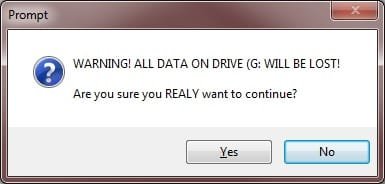
  • This will delete everything on the USB key. Be sure to save anything that you do not want to lose on it somewhere else.
  • Before installing Windows 7 from the USB key, you will need to:
    • Enable Legacy USB storage detect in the BIOS.
  • When ready to install Windows 7 from the USB key:
    • Connect the USB key.
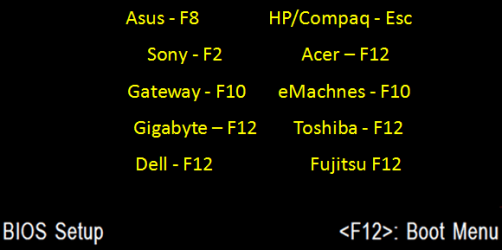
    • Restart the computer, and keep tapping the F key (see screenshot below) responsible to open the Boot Menu screen for the brand and model of your motherboard or computer until it does.

      • Boot-Menu.png
    • Select the USB key to boot from.
    • Start installing Windows 7.

CONTENTS:
  • Option One: Use "Windows 7 USB/DVD Download Tool" to Create Bootable Windows 7 Installation USB
  • Option Two: Use "Rufus" to Create Bootable Windows 7 Installation USB
  • Option Three: Manually Create Bootable Windows 7 Installation USB Flash Drive


OPTION ONE

Use "Windows 7 USB/DVD Download Tool" to Create Bootable Windows 7 Installation USB


   Tip
If you do not have a Windows 7 ISO file, then you can either download the latest ISO version at the links below.

:ar: Microsoft Software Recovery

:ar: Microsoft: Windows 7 Direct Download Links

You could also use a free program like ImgBurn or ISODisk to create a ISO from your Windows 7 installation DVD.


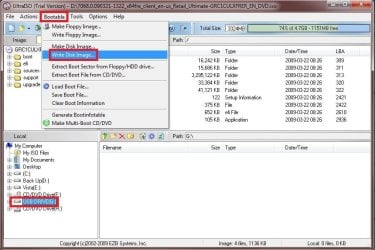
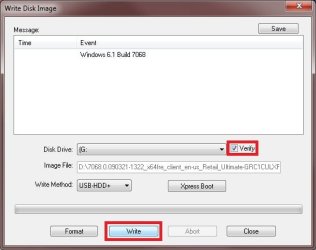
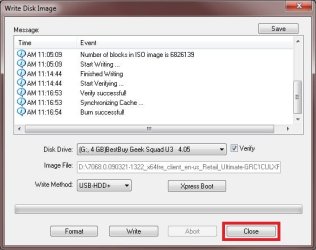
1. For how, see the Part 2 section here: Windows 7 USB/DVD Download Tool.


OPTION TWO

Use "Rufus" to Create Bootable Windows 7 Installation USB


1. Download the latest version of Rufus at the link below, and save it's .exe file to your desktop.
:ar: Rufus - Create bootable USB drives the easy way
   Note
This is a standalone exe file that doesn't install anything to your PC.

For Rufus FAQs, see: https://github.com/pbatard/rufus/wiki/FAQ
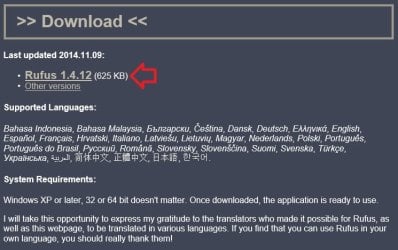

download_rufus.jpg
2. Connect your USB flash drive if you have not already.

3. Run the rufus_v###.exe file, and click/tap on Yes if prompted by UAC.
NOTE: ### = latest version number.

4. Set Rufus with the settings below: (see screenshot below step 5)

  • [Under Device, select the USB flash drive you want to format and use.
  • Under Format Options, check Create a bootable disk using, click/tap on the browse icon to navigate to and select your 64-bit Windows 7 ISO file.
  • Under Partition scheme and target system type, select MBR partition scheme for BIOS or UEFI computers.
  • Under File system, select NTFS.
  • Under Cluster size, select the (Default) (ex: 16 kilobytes or 4096 bytes) it has listed.
  • Under Format Options, check Quick format.
  • Under Format Options, check Create extended label and icon files.
  • Under New volume label, you can enter any name you like for the USB flash drive, or leave the default name.
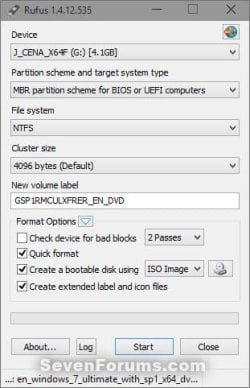
5. When ready, click/tap on Start. (see screenshot below)
Rufus-1.jpg
6. Click/tap on OK to confirm. (see screenshot below)
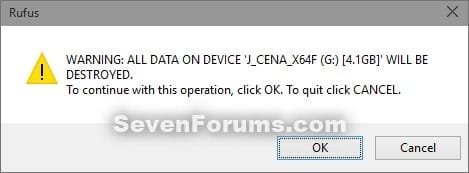
Rufus-2.jpg
7. Rufus will now start creating the bootable UEFI USB flash drive. (see screenshot below)
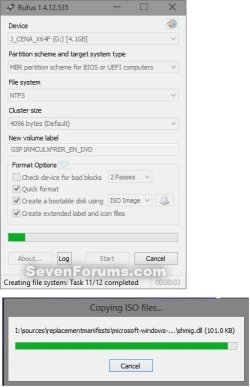
Rufus-3.jpg
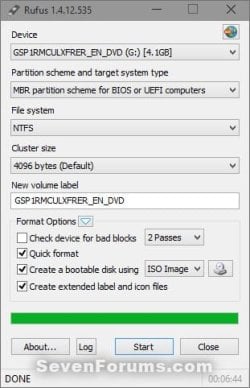
8. When Rufus is "DONE", you can close Rufus. (see screenshot below)
NOTE: It could take a little while to finish.
Rufus-4.jpg
9. You are now ready to installWindows 7 with your bootable USB flash drive.


OPTION THREE

Manually Create Bootable Windows 7 Installation USB Flash Drive


   Warning
Using this method:
  • You will only be able to create a 64-bit Windows 7 bootable USB flash drive if your current Windows 7 installation is also 64-bit.
  • You will be able to create a 32-bit Windows 7 bootable USB flash drive if your current Windows 7 installation is 32-bit or 64-bit.
64-bit installation + 64-bit ISO = 64-bit flash drive
64-bit installation + 32-bit ISO = 32-bit flash drive
32-bit installation + 32-bit ISO = 32-bit flash drive
32-bit installation + 64-bit ISO = unable to create

1. Plug the USB key in.

2. If AutoPlay opens a pop-up for the USB key, then just close it.
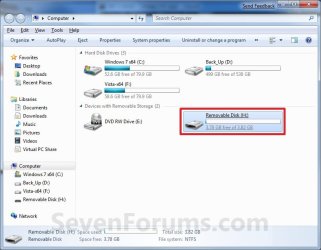
NOTE: Make note of what the drive size is for the USB key for use in step 6 below. You can also open Computer (step 19) to see what the drive size is to. For example, mine is 3920 MB. (See screenshot below)
Computer.jpg
3. Open an elevated command prompt.

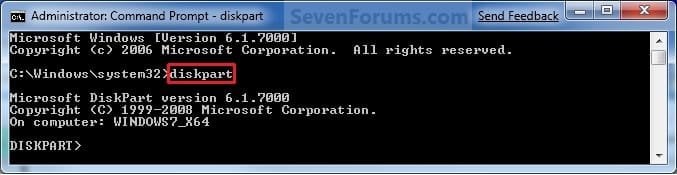
4. In the elevated command prompt, type diskpart and press Enter. (See screenshot below)
Step1.jpg
5. In the elevated command prompt, type list disk and press Enter. (See screenshot below)
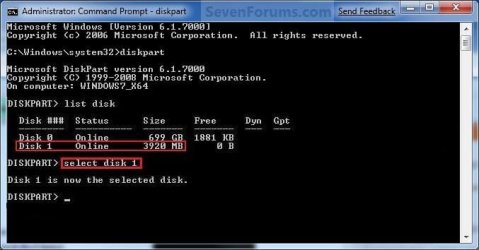
NOTE: Make note of what disk # your USB key is listed as to use in step 6 below. You can also look for the drive size (step 2) of the USB key to help ID the disk number. For example, mine is listed as Disk 1 here for the 3920 MB disk.
Step2.jpg
6. In the elevated command prompt, type select disk # (your USB disk #) and press Enter. (See screenshot below)
NOTE: For example, my USB key is listed as Disk 1, so I would type select disk 1 and press Enter.
Step3.jpg
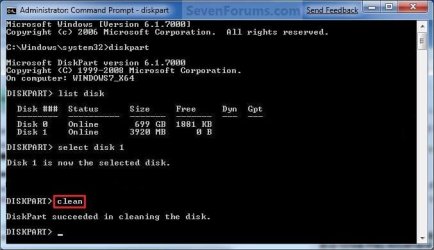
7. In the elevated command prompt, type clean and press Enter. (See screenshot below)
Step4.jpg
8. In the elevated command prompt, type create partition primary and press Enter. (See screenshot below)
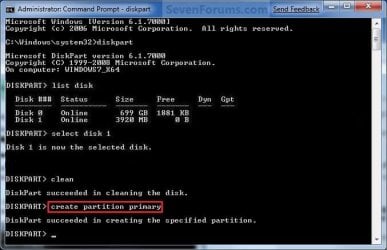
Step5.jpg
9. In the elevated command prompt, type select partition 1 and press Enter. (See screenshot below)
Step6.jpg
10. In the elevated command prompt, type active and press Enter. (See screenshot below)
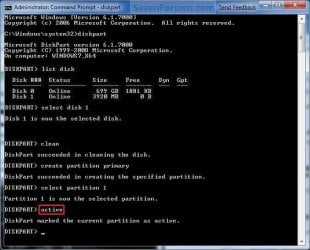
Step7.jpg
11. In the elevated command prompt, type in the command below to format the USB as NTFS or FAT32, and press Enter. (See screenshot below)
NOTE: This may take a few moments to finish formatting the USB key.

   Note
You can substitute Windows 7 within quotes in the commands below with whatever name (drive label) you would like to have displayed for the USB drive instead.

See also: Choosing between NTFS, FAT, and FAT32


FAT32 volume labels
  • If you have an UEFI instead of BIOS motherboard, then you will need to use FAT32 and not NTFS.
  • Volume labels can contain as many as 11 characters and can include spaces but no tabs.
  • Volume labels cannot contain the following characters: ? / \ | . , ; : + = [ ] < > "
  • Volume labels are stored as uppercase regardless of whether they contain lowercase letters.
NTFS volume labels

  • Volume labels can contain as many as 32 characters.
format fs=ntfs label="Windows 7" quick

OR

format fs=fat32 label="Windows 7" quick
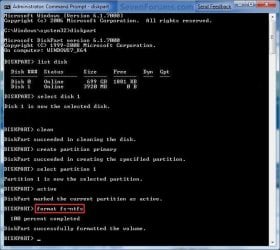
Step8.jpg
12. If AutoPlay opens a pop-up for the USB key, then just close it.

13. In the elevated command prompt, type assign and press Enter. (See screenshot below)
NOTE: This will assign a new drive letter to the USB key. Make note of the new USB drive letter to use in step 22 below. For example, mine is now H.
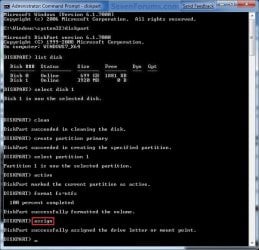
Step9.jpg
14. If AutoPlay opens a pop-up for the USB key, then just close it.

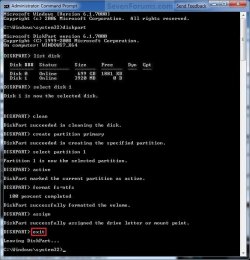
15. In the elevated command prompt, type exit and press Enter. (See screenshot below)
NOTE: This will exit you from DiskPart from step 4.
Step10.jpg
16. Close the elevated command prompt.

17. Insert your Windows 7 installation DVD into the DVD drive.

18. If AutoPlay opens a pop-up for the Windows 7 installation DVD, then just close it.

19. Open the Start Menu, right click on the Computer button, and click on Open.

20. Right click on the DVD drive (ex: E: ) that has the Windows 7 installation DVD in it, and click on Open. (See screenshot below)
Open.jpg
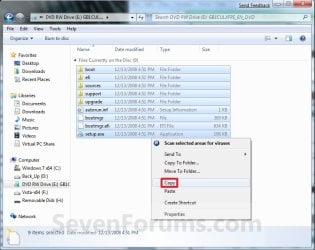
21. Highlight all of the contents, right click on the highlighted contents, and click on Copy. (See screenshot below)
NOTE: You will need to copy all of the files and folders on the Windows 7 installation DVD to the USB key.
Copy.jpg
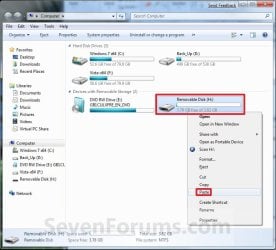
22. Go back to Computer, right click on the USB key drive (ex: H ), and click on Paste. (See screenshot below)
Paste.jpg
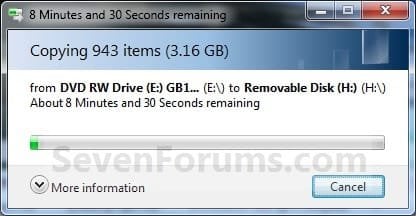
23. The contents of the Windows 7 installation DVD will now start copying over to the USB key. (See screenshot below)
NOTE: This may take a few moments to complete.
Copying.jpg
24. When finished, you can close the Computer window and unplug the USB key.

25. You now have a Windows 7 Installation USB key. ;)

   Warning
If you have UEFI instead of BIOS motherboard, then you will need to temporarily disable Secure Boot to use the USB to install Windows. After installation is complete, you can enable Secure Boot again.

That's it,
Shawn


Attachments

  • Computer-9.jpg
    Computer-9.jpg
    209.3 KB · Views: 103
  • UltrISO-2.jpg
    UltrISO-2.jpg
    108.9 KB · Views: 13,126
  • UltrISO-3.jpg
    UltrISO-3.jpg
    154.1 KB · Views: 13,576
  • UltrISO-5.jpg
    UltrISO-5.jpg
    148.2 KB · Views: 15,194
  • UltrISO-6.jpg
    UltrISO-6.jpg
    48.6 KB · Views: 12,843
  • UltrISO-7.jpg
    UltrISO-7.jpg
    20.5 KB · Views: 11,222
  • UltrISO-8.jpg
    UltrISO-8.jpg
    70.9 KB · Views: 11,724
Last edited:
Thanks for the great guide but I have a slight problem. I have downloaded the 64bit version of Win7 but am currently running 32bit vista.
Would I be able to download the 64bit version of the vista repair disk and use diskpart within the cmd line of the disk to run all the commands and then just copy the files across using 32bit vista?
 

My Computer

OS
Vista(Soon to be Win7)
Hello Gaming Warrior, and welcome to Seven Forums.

Using this method:
  • You can only create a 64-bit Windows 7 bootable USB flash drive if your current Windows 7 installation is also 64-bit.
  • You can create a 32-bit Windows 7 bootable USB flash drive if your current Windows 7 installation is 32-bit or 64-bit
Shawn
 
Last edited:

My Computer

Computer type
PC/Desktop
Computer Manufacturer/Model Number
Self built custom
OS
64-bit Windows 11 Pro for Workstations
CPU
Intel i7-8700K OC'd to 5 GHz
Motherboard
ASUS ROG Maximus XI Formula Z390
Memory
64 GB (4x16GB) G.SKILL TridentZ RGB DDR4 3600 MHz
Graphics Card(s)
ASUS ROG-STRIX-GTX1080TI-O11G-GAMING
Sound Card
Integrated
Monitor(s) Displays
2 x Samsung Odyssey G7 27"
Screen Resolution
2560x1440
Hard Drives
1TB Samsung 990 PRO M.2,
4TB Samsung 990 PRO PRO M.2,
TerraMaster F8 SSD Plus NAS
PSU
Seasonic Prime Titanium 850W
Case
Thermaltake Core P3
Cooling
Corsair Hydro H115i
Keyboard
Logitech wireless K800
Mouse
Logitech MX Master 4
Internet Speed
2 Gb/s Download and 100 Mb/s Upload
Antivirus
Malwarebyte Anti-Malware Premium
Browser
Google Chrome
Other Info
Logitech Z625 speaker system,
Logitech BRIO 4K Pro webcam,
HP Color LaserJet Pro MFP M477fdn,
APC SMART-UPS RT 1000 XL - SURT1000XLI,
Galaxy S23 Plus phone
Regarding your x86 v. x64 warning...

Brink,
In preparation of installing to my Mini 9, I just installed Windows 7 x86 to a USB key using my x64 desktop. Afterwards, I tried booting the desktop to it and it appeared to go. I went as far as Install Now/Accept License/Custom(Advanced) Install/Drive Options. Obviously, I didn't actually install it but it DID get that far with a 32-bit USB key created on a 64-bit system. I'll know for sure when I actually have the Mini in hand and get a round tuit (I used to have a round tuit on my desk but can't find it...LOL).
 

My Computer

Computer type
PC/Desktop
Computer Manufacturer/Model Number
Dell: XPS 420 (2), XPS M1330 (several), XPS 14z, Mini 9, Mini 10v
OS
W8 Pro, W7 Ultimate, XP Pro x64, Vista x64, Ubuntu
CPU
Q6600, Q6700, T7500, T7500, N270, N270
Motherboard
Dell
Memory
8GB, 8GB, 4GB, 4GB, 2GB, 2GB
Graphics Card(s)
ATI, nVidia, nVidia, nVidia, Intel, Intel
Monitor(s) Displays
Dell 2408WFP
Hard Drives
A drawer full. OCZ Vertex's in RAID 0. Vertex 3's, Vertex 4, Samsung 830's, Samsung 840's, Intel 330. Don't use dino drives any more except for servers.
Keyboard
Logitech Wave
Internet Speed
29 Mbps DL / .95 Mbps UL
Other Info
New project(2013)...Another low power server. Zotac H67ITX, i3-2100T, Windows Server 2012 Essentials on Samsung SSD.
Previous project...Low power (38-40 watts using Kill-a-Watt) Windows Home Server. Zotac ION (Atom 330, GeForce9400), 4GB RAM, 2x2TB WD Green, IN WIM miniITX Case. Fits on a shelf in laundry closet, practically silent.
Hello Zrtom,

I had only placed that warning there as a precaution since a lot of people were unable to create a 64-bit USB while using a 32-bit OS, and the other way around.

Some people get lucky and have no problems either way though. :confused:

Thank you for posting your results. I'm happy to hear that you are one of the lucky ones. :)

Shawn
 

My Computer

Computer type
PC/Desktop
Computer Manufacturer/Model Number
Self built custom
OS
64-bit Windows 11 Pro for Workstations
CPU
Intel i7-8700K OC'd to 5 GHz
Motherboard
ASUS ROG Maximus XI Formula Z390
Memory
64 GB (4x16GB) G.SKILL TridentZ RGB DDR4 3600 MHz
Graphics Card(s)
ASUS ROG-STRIX-GTX1080TI-O11G-GAMING
Sound Card
Integrated
Monitor(s) Displays
2 x Samsung Odyssey G7 27"
Screen Resolution
2560x1440
Hard Drives
1TB Samsung 990 PRO M.2,
4TB Samsung 990 PRO PRO M.2,
TerraMaster F8 SSD Plus NAS
PSU
Seasonic Prime Titanium 850W
Case
Thermaltake Core P3
Cooling
Corsair Hydro H115i
Keyboard
Logitech wireless K800
Mouse
Logitech MX Master 4
Internet Speed
2 Gb/s Download and 100 Mb/s Upload
Antivirus
Malwarebyte Anti-Malware Premium
Browser
Google Chrome
Other Info
Logitech Z625 speaker system,
Logitech BRIO 4K Pro webcam,
HP Color LaserJet Pro MFP M477fdn,
APC SMART-UPS RT 1000 XL - SURT1000XLI,
Galaxy S23 Plus phone
Hello Brink..

I just wanted to point out that the E:\boot\bootsect.exe /nt60 H: part is not necessary, cause since you copy the whole dvd contents the bootmgr file is included,so after you've made the partition active from diskpart, all you need is to copy the source files, boots just fine.

So perhaps you might want to skip this step as it might cause troubles if they make a mistake with the target letter...
 

My Computer

Computer Manufacturer/Model Number
ENIAC
OS
Windows 7 RC 7100 32bit/64bit
CPU
Intel Core2Duo E4500 2.20 GHz
Motherboard
ASUS P5LD2-X/1333
Memory
2x1GB Kinsgston DDR2 800MHz
Graphics Card(s)
Nvidia 8500GT
Sound Card
Onboard High Definition Audio Device
Monitor(s) Displays
Sony Bravia 42"
Case
LINKW 2222
Cooling
Standard Intel
Keyboard
Some cheap one
Mouse
Microsoft Intellimouse something
Internet Speed
24MBps ADSL
limneos,

I rather doubt it, but do you think by doing the E:\boot\bootsect.exe /nt60 H:
that would explain why the boot screen on my Mini 9 is the Vista-style green bar? Or is that a known functionality with SSD drives? (Only the Mini 9 uses the Vista-type boot screen, all the other (non-SSD) laptops and desktops use the normal Windows 7 boot screen).

Tom
 

My Computer

Computer type
PC/Desktop
Computer Manufacturer/Model Number
Dell: XPS 420 (2), XPS M1330 (several), XPS 14z, Mini 9, Mini 10v
OS
W8 Pro, W7 Ultimate, XP Pro x64, Vista x64, Ubuntu
CPU
Q6600, Q6700, T7500, T7500, N270, N270
Motherboard
Dell
Memory
8GB, 8GB, 4GB, 4GB, 2GB, 2GB
Graphics Card(s)
ATI, nVidia, nVidia, nVidia, Intel, Intel
Monitor(s) Displays
Dell 2408WFP
Hard Drives
A drawer full. OCZ Vertex's in RAID 0. Vertex 3's, Vertex 4, Samsung 830's, Samsung 840's, Intel 330. Don't use dino drives any more except for servers.
Keyboard
Logitech Wave
Internet Speed
29 Mbps DL / .95 Mbps UL
Other Info
New project(2013)...Another low power server. Zotac H67ITX, i3-2100T, Windows Server 2012 Essentials on Samsung SSD.
Previous project...Low power (38-40 watts using Kill-a-Watt) Windows Home Server. Zotac ION (Atom 330, GeForce9400), 4GB RAM, 2x2TB WD Green, IN WIM miniITX Case. Fits on a shelf in laundry closet, practically silent.
Hello zrtom.

It has nothing to do with your drives.
This happens to most of the mini netbooks because of the screen resolution.

In order for the new windows logo to appear, you need to have a supported native resolution of 1024x768 and above.
Your netbook probably has 1024x600 like most of them, in which it does not display the new logo but the old vista bar.
I was frustrated to see that to my netbook too, but this is the case, no fixes yet.

Hope it helps
 

My Computer

Computer Manufacturer/Model Number
ENIAC
OS
Windows 7 RC 7100 32bit/64bit
CPU
Intel Core2Duo E4500 2.20 GHz
Motherboard
ASUS P5LD2-X/1333
Memory
2x1GB Kinsgston DDR2 800MHz
Graphics Card(s)
Nvidia 8500GT
Sound Card
Onboard High Definition Audio Device
Monitor(s) Displays
Sony Bravia 42"
Case
LINKW 2222
Cooling
Standard Intel
Keyboard
Some cheap one
Mouse
Microsoft Intellimouse something
Internet Speed
24MBps ADSL
Hello zrtom.

It has nothing to do with your drives.
This happens to most of the mini netbooks because of the screen resolution.

In order for the new windows logo to appear, you need to have a supported native resolution of 1024x768 and above.
Your netbook probably has 1024x600 like most of them, in which it does not display the new logo but the old vista bar.
I was frustrated to see that to my netbook too, but this is the case, no fixes yet.

Hope it helps

Yes, it helps alot. I thought it might be due to the SSD or perhaps screen resolution after reading the Windows 7 boot-screen blog a couple days ago. I've searched on this (but not dutifully) and haven't found much. I'm guessing that explains the resume-from-hibernate white bar too. Thanks for the help.
Tom
 

My Computer

Computer type
PC/Desktop
Computer Manufacturer/Model Number
Dell: XPS 420 (2), XPS M1330 (several), XPS 14z, Mini 9, Mini 10v
OS
W8 Pro, W7 Ultimate, XP Pro x64, Vista x64, Ubuntu
CPU
Q6600, Q6700, T7500, T7500, N270, N270
Motherboard
Dell
Memory
8GB, 8GB, 4GB, 4GB, 2GB, 2GB
Graphics Card(s)
ATI, nVidia, nVidia, nVidia, Intel, Intel
Monitor(s) Displays
Dell 2408WFP
Hard Drives
A drawer full. OCZ Vertex's in RAID 0. Vertex 3's, Vertex 4, Samsung 830's, Samsung 840's, Intel 330. Don't use dino drives any more except for servers.
Keyboard
Logitech Wave
Internet Speed
29 Mbps DL / .95 Mbps UL
Other Info
New project(2013)...Another low power server. Zotac H67ITX, i3-2100T, Windows Server 2012 Essentials on Samsung SSD.
Previous project...Low power (38-40 watts using Kill-a-Watt) Windows Home Server. Zotac ION (Atom 330, GeForce9400), 4GB RAM, 2x2TB WD Green, IN WIM miniITX Case. Fits on a shelf in laundry closet, practically silent.
Hello Brink..

I just wanted to point out that the E:\boot\bootsect.exe /nt60 H: part is not necessary, cause since you copy the whole dvd contents the bootmgr file is included,so after you've made the partition active from diskpart, all you need is to copy the source files, boots just fine.

So perhaps you might want to skip this step as it might cause troubles if they make a mistake with the target letter...

Hi Limneos,

It was added as a backup precaution to make sure that the USB boot file was correct so that it would boot to it at startup. :)
 

My Computer

Computer type
PC/Desktop
Computer Manufacturer/Model Number
Self built custom
OS
64-bit Windows 11 Pro for Workstations
CPU
Intel i7-8700K OC'd to 5 GHz
Motherboard
ASUS ROG Maximus XI Formula Z390
Memory
64 GB (4x16GB) G.SKILL TridentZ RGB DDR4 3600 MHz
Graphics Card(s)
ASUS ROG-STRIX-GTX1080TI-O11G-GAMING
Sound Card
Integrated
Monitor(s) Displays
2 x Samsung Odyssey G7 27"
Screen Resolution
2560x1440
Hard Drives
1TB Samsung 990 PRO M.2,
4TB Samsung 990 PRO PRO M.2,
TerraMaster F8 SSD Plus NAS
PSU
Seasonic Prime Titanium 850W
Case
Thermaltake Core P3
Cooling
Corsair Hydro H115i
Keyboard
Logitech wireless K800
Mouse
Logitech MX Master 4
Internet Speed
2 Gb/s Download and 100 Mb/s Upload
Antivirus
Malwarebyte Anti-Malware Premium
Browser
Google Chrome
Other Info
Logitech Z625 speaker system,
Logitech BRIO 4K Pro webcam,
HP Color LaserJet Pro MFP M477fdn,
APC SMART-UPS RT 1000 XL - SURT1000XLI,
Galaxy S23 Plus phone
Well I'm finally going to givie this a try :o
 

My Computer

Computer type
PC/Desktop
OS
Windows 11 Workstation

My Computer

Computer Manufacturer/Model Number
Home Brew
OS
Windows 7 Ultimate Vista Ultimate x64
CPU
Core 2 Duo E8500 3.16Ghz @ 3.8Ghz
Motherboard
eVGA 750i FTW
Memory
2x2Gigs Patriot PC2-6400 LL
Graphics Card(s)
Inno3D GeForce GTX260 216 SP
Monitor(s) Displays
ASUS VW222U 22" 2ms Response time
Screen Resolution
1680x1050
Hard Drives
SATA 150GB
SATA II 250GB
USB IDE 750GB Ext.
PSU
HYTEC 600W & Thermaltake 650W Toughpower Power Exp
Case
Thermaltake Armor LCS (Liquid Cooling System)
Cooling
Liquid Cooling System
Keyboard
Logitech G15 Gaming Keyboard
Mouse
Logitech G9 Gaming Mouse
I knew I shouldn't of used the 16gb stick the formating is taking ages :(
 

My Computer

Computer type
PC/Desktop
OS
Windows 11 Workstation
I gave this a go with the last build using a 8Gig stick but I couldn't get it to work for me, I don't have the right options in the bios to select boot from USB
 

My Computer

Computer Manufacturer/Model Number
Home Brew
OS
Windows 7 Ultimate Vista Ultimate x64
CPU
Core 2 Duo E8500 3.16Ghz @ 3.8Ghz
Motherboard
eVGA 750i FTW
Memory
2x2Gigs Patriot PC2-6400 LL
Graphics Card(s)
Inno3D GeForce GTX260 216 SP
Monitor(s) Displays
ASUS VW222U 22" 2ms Response time
Screen Resolution
1680x1050
Hard Drives
SATA 150GB
SATA II 250GB
USB IDE 750GB Ext.
PSU
HYTEC 600W & Thermaltake 650W Toughpower Power Exp
Case
Thermaltake Armor LCS (Liquid Cooling System)
Cooling
Liquid Cooling System
Keyboard
Logitech G15 Gaming Keyboard
Mouse
Logitech G9 Gaming Mouse
I spend £300 on a mobo so it better have the option :p
 

My Computer

Computer type
PC/Desktop
OS
Windows 11 Workstation
Yes well this board wasn't cheap either so I was a bit disappointed, especially when Nick was saying it only took 4 minutes to install from a USB, although I think he may have been exaggerating a bit.
 

My Computer

Computer Manufacturer/Model Number
Home Brew
OS
Windows 7 Ultimate Vista Ultimate x64
CPU
Core 2 Duo E8500 3.16Ghz @ 3.8Ghz
Motherboard
eVGA 750i FTW
Memory
2x2Gigs Patriot PC2-6400 LL
Graphics Card(s)
Inno3D GeForce GTX260 216 SP
Monitor(s) Displays
ASUS VW222U 22" 2ms Response time
Screen Resolution
1680x1050
Hard Drives
SATA 150GB
SATA II 250GB
USB IDE 750GB Ext.
PSU
HYTEC 600W & Thermaltake 650W Toughpower Power Exp
Case
Thermaltake Armor LCS (Liquid Cooling System)
Cooling
Liquid Cooling System
Keyboard
Logitech G15 Gaming Keyboard
Mouse
Logitech G9 Gaming Mouse
The article about the USB Key installation on the Windows 7 beta 1 tips page merely says it installs "a lot faster". The video with Dennis Chung on that page goes into some detail about preparing the USB thumb drive.
 

My Computer

OS
Vista
I gave this a go with the last build using a 8Gig stick but I couldn't get it to work for me, I don't have the right options in the bios to select boot from USB

This must be my situation. I cannot find the option. That's too bad...it would sure be nice. I guess some mobos don't have the option....especially very cheap ones. Thanks guys.

I'm an idiot....I guess you need to have the flash drive PLUGGED IN when you go into the bios to set it up to boot from a flash drive right? Didn't think of that. haha
 

My Computer

Computer Manufacturer/Model Number
Keeps changing - (Custom)
OS
Windows 7 Professional x64
CPU
Intel Core i7 860
Motherboard
Gigabyte GA-P55-UD4P
Memory
4GB DDR3 Mushkin 1600Mhz @ 7-8-7-20
Graphics Card(s)
MSI GTS250 1GB DDR3 Twin Frozr
Sound Card
Onboard realtek
Monitor(s) Displays
Samsung SyncMaster 24" P2450 + Samsung 20" 2033
Screen Resolution
1920 X 1080 and 1600 X 900 (#2 system 1440 X 900)
Hard Drives
Patriot Inferno 120GB SSD + 3 WD Blue 640GB drives
PSU
Corsair 750 HX Modular
Case
Lancool PC-K62
Cooling
Cooler Master TX3 CPU cooler and 4-140mm and 1-120mm case
Keyboard
Gigabyte USB keyboard
Mouse
Microsoft wireless laser mouse 5000
Internet Speed
7 Mb down 1.5 up
Other Info
System #2: AMD Phenom II X6 1055T (Freezer 7 Pro cooler) - Gigabyte 880GMA-UD2H - WD 500GB Black - 9500GT (1GB) 500W OCZ modular PSU - Antec 200 case. System #3 (LapTop) Core 2 Duo T6670 - 320GB 7200RPM HD - 4GB DDR3 RAM.
Thanks for this. I've now created working keys for both the x86 and x64 versions of 7077 through 7077 x86.
 

My Computer

Computer Manufacturer/Model Number
HP Pavillion dv2550se
OS
Windows 7 Build 7229 x64
CPU
Intel Core2 Duo T5250 @ 1.50GHz
Memory
2GB DDR2
Graphics Card(s)
Moble Intel 965 Express
Screen Resolution
1280x800
Hard Drives
160GB
750GB External
You're welcome Azural. :)
 

My Computer

Computer type
PC/Desktop
Computer Manufacturer/Model Number
Self built custom
OS
64-bit Windows 11 Pro for Workstations
CPU
Intel i7-8700K OC'd to 5 GHz
Motherboard
ASUS ROG Maximus XI Formula Z390
Memory
64 GB (4x16GB) G.SKILL TridentZ RGB DDR4 3600 MHz
Graphics Card(s)
ASUS ROG-STRIX-GTX1080TI-O11G-GAMING
Sound Card
Integrated
Monitor(s) Displays
2 x Samsung Odyssey G7 27"
Screen Resolution
2560x1440
Hard Drives
1TB Samsung 990 PRO M.2,
4TB Samsung 990 PRO PRO M.2,
TerraMaster F8 SSD Plus NAS
PSU
Seasonic Prime Titanium 850W
Case
Thermaltake Core P3
Cooling
Corsair Hydro H115i
Keyboard
Logitech wireless K800
Mouse
Logitech MX Master 4
Internet Speed
2 Gb/s Download and 100 Mb/s Upload
Antivirus
Malwarebyte Anti-Malware Premium
Browser
Google Chrome
Other Info
Logitech Z625 speaker system,
Logitech BRIO 4K Pro webcam,
HP Color LaserJet Pro MFP M477fdn,
APC SMART-UPS RT 1000 XL - SURT1000XLI,
Galaxy S23 Plus phone
Back
Top