
You are using an out of date browser. It may not display this or other websites correctly.
You should upgrade or use an alternative browser.
You should upgrade or use an alternative browser.
use different sort option in each folder
- Thread starter jeff2
- Start date

Jeff,
Look here for info on your sorting.
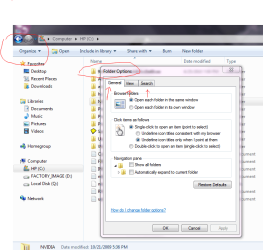
Also look under open right next to it...
Look here for info on your sorting.
Also look under open right next to it...
My Computer
- Computer Manufacturer/Model Number
- HP M9077c
- OS
- Windows 7 Home Premium 64bit
- CPU
- Intel(R)Core(TM)2 quad [email protected] 2.39GHz
- Motherboard
- ASUSeK
- Memory
- 6GB DDR2 6400
- Graphics Card(s)
- GeForce 8500/512MB
- Sound Card
- Realtek High Def Audio
- Monitor(s) Displays
- HP w2408 LCD 24" widescreen
- Screen Resolution
- 1920x1200
- Cooling
- 6 pack of Bud
- Keyboard
- MS wireless Inteli
- Mouse
- MS wireless Inteli
hi,
Thanks for your prompt reply. unfortunately, i didn't find any option to specify the "sort" format, in the way you suggested.
when we select a sort format, it applies for all folders.
I like to find a way that if all files in all folders has been sorted by Name, file in specific folder sort by "Date modified ", and this change dose not affect other folders
Thanks for your prompt reply. unfortunately, i didn't find any option to specify the "sort" format, in the way you suggested.
when we select a sort format, it applies for all folders.
I like to find a way that if all files in all folders has been sorted by Name, file in specific folder sort by "Date modified ", and this change dose not affect other folders
My Computer
- OS
- Windows 7 Ultimate x64
What kind of files are you trying to sort?
My Computer
- Computer Manufacturer/Model Number
- HP M9077c
- OS
- Windows 7 Home Premium 64bit
- CPU
- Intel(R)Core(TM)2 quad [email protected] 2.39GHz
- Motherboard
- ASUSeK
- Memory
- 6GB DDR2 6400
- Graphics Card(s)
- GeForce 8500/512MB
- Sound Card
- Realtek High Def Audio
- Monitor(s) Displays
- HP w2408 LCD 24" widescreen
- Screen Resolution
- 1920x1200
- Cooling
- 6 pack of Bud
- Keyboard
- MS wireless Inteli
- Mouse
- MS wireless Inteli
In my MS Office 2007, I opened MS Word and to the right upper side

Where you see arrange by: Folder with a drop down arrow
Are any of these going to help you in your sorting tasks?
Where you see arrange by: Folder with a drop down arrow
Are any of these going to help you in your sorting tasks?
My Computer
- Computer Manufacturer/Model Number
- HP M9077c
- OS
- Windows 7 Home Premium 64bit
- CPU
- Intel(R)Core(TM)2 quad [email protected] 2.39GHz
- Motherboard
- ASUSeK
- Memory
- 6GB DDR2 6400
- Graphics Card(s)
- GeForce 8500/512MB
- Sound Card
- Realtek High Def Audio
- Monitor(s) Displays
- HP w2408 LCD 24" widescreen
- Screen Resolution
- 1920x1200
- Cooling
- 6 pack of Bud
- Keyboard
- MS wireless Inteli
- Mouse
- MS wireless Inteli
Glad to help you out and thank you for saying thanks....................
Now it's your turn to help someone else out.
Have a great day Jeff2!
Now it's your turn to help someone else out.
Have a great day Jeff2!
My Computer
- Computer Manufacturer/Model Number
- HP M9077c
- OS
- Windows 7 Home Premium 64bit
- CPU
- Intel(R)Core(TM)2 quad [email protected] 2.39GHz
- Motherboard
- ASUSeK
- Memory
- 6GB DDR2 6400
- Graphics Card(s)
- GeForce 8500/512MB
- Sound Card
- Realtek High Def Audio
- Monitor(s) Displays
- HP w2408 LCD 24" widescreen
- Screen Resolution
- 1920x1200
- Cooling
- 6 pack of Bud
- Keyboard
- MS wireless Inteli
- Mouse
- MS wireless Inteli
Hi guys!, i have the exact same problem and unfortunately i cannot apply that solution given because what i want to sort is different subfolders and also files, like video, txt, lrf, mpg, etc.
If i try to sort them by name (for example) in such a folder, then it takes all the files in the subfolders and puts all of them together by name. What i need is to have the subfolders sorted by name within the folder, but having still those subfolders on sight. Im not sure if im making myself clear...
Any ideas about this would be appreciated.
If i try to sort them by name (for example) in such a folder, then it takes all the files in the subfolders and puts all of them together by name. What i need is to have the subfolders sorted by name within the folder, but having still those subfolders on sight. Im not sure if im making myself clear...
Any ideas about this would be appreciated.
My Computer
- OS
- windows 7 ultimate 64b
If you open folder properties and go to Customize tab, you can choose different templates, and then untick the box "Also apply this template to all subfolders", so then you can choose different templates, and different sort selections to the subfolders. This may or may not give you exactly what you want, but it gives a little more flexibility.
My Computer
- OS
- Windows 7
Thank you debugged, but i cannot find that "customize tab" anywhere no matter how i look for it. Im using windows 7 ultimate 64b, if that makes any difference.
Also i dont know what you mean by "templates", although im quite sure i would if i had the "customize tab" and could look at those templates.
Perhaps im lacking something on my OS?
Also i dont know what you mean by "templates", although im quite sure i would if i had the "customize tab" and could look at those templates.
Perhaps im lacking something on my OS?
My Computer
- OS
- windows 7 ultimate 64b
Right click on the folder, or on an empty space inside the folder, and click on Properties. Then you'll see the Customize tab.
There's lots of info about templates around here, but basically, you select the folder type from the "Optimize this folder for" dropdown in the Customize tab, (for instance, "General Items"), then OK. Now set up the folder the way you want for all folders like this one: the View type (list, details, etc.), which columns to display, their placement and width, the Sort by order, and any Groupings. Then you go to Folder options (In the toolbar in any folder: Organize dropdown > Folder and search options), click on View tab, then click the "Apply fo Folders" button. Now all folders of the type "General Items" will have the setup you just made. Then you do the same procedure for folders you want to be of the other types - Documents, Music, Pictures, Video.
As long as you untick the box for "Also apply this template for all subfolders", you can have one folder type within a different folder type.
Edit: you probably know, but I thought I'd better state the obvious - that you can keep different View types, sort order, etc. for individual folders. The Folder templates are just to make it easier to get the starting default arrangement for the different types, but go ahead and individualize as much as you can and want.
There's lots of info about templates around here, but basically, you select the folder type from the "Optimize this folder for" dropdown in the Customize tab, (for instance, "General Items"), then OK. Now set up the folder the way you want for all folders like this one: the View type (list, details, etc.), which columns to display, their placement and width, the Sort by order, and any Groupings. Then you go to Folder options (In the toolbar in any folder: Organize dropdown > Folder and search options), click on View tab, then click the "Apply fo Folders" button. Now all folders of the type "General Items" will have the setup you just made. Then you do the same procedure for folders you want to be of the other types - Documents, Music, Pictures, Video.
As long as you untick the box for "Also apply this template for all subfolders", you can have one folder type within a different folder type.
Edit: you probably know, but I thought I'd better state the obvious - that you can keep different View types, sort order, etc. for individual folders. The Folder templates are just to make it easier to get the starting default arrangement for the different types, but go ahead and individualize as much as you can and want.
Last edited:
My Computer
- OS
- Windows 7
Im afraid it doesnt work like that in my computer but I think i know where the problem is, although no idea of why or how can it be solved in a satisfactory way.
This is going to be difficult to explain for me, as english is not my first language and my knowledge of computers is very limited, but i will try:
I have 2 hard disks, and i keep all my files in the secondary D hard disk, not in C where the OS is.
I have linked the "my documents" shortcut to the files in D, so that when i go to my documents, it actually takes me to D where they really are.
Every time i try to do whatever you said in "my documents", i just dont have that "customize" tab, it doesnt matter if i right click anywhere, click on properties, etc. This being the case, i dont have the option of "apply to folders" or "also apply this template to all subfolders" either, so i cannot do anything you told me to.
But i found out that if i go to my computer and then to D, i do have all those options there!.
So my solution has been to create a shortcut to D on my desktop, so i can manage all my folders and files from there and i will stop using windows libraries altogether, as for me they are useless.
Its not the best solution, as i should be able to do that from "my documents", but it will have to do until they make this OS better if they ever do.
I find the way windows 7 organizes stuff really cumbersome and not user friendly at all, and the worse thing is that they took away the possibility to cancel the auto arrange feature that was in any other windows version except this one.
In any case, i really appreciate your help, i know now more than i did thanks to your explanations!.
This is going to be difficult to explain for me, as english is not my first language and my knowledge of computers is very limited, but i will try:
I have 2 hard disks, and i keep all my files in the secondary D hard disk, not in C where the OS is.
I have linked the "my documents" shortcut to the files in D, so that when i go to my documents, it actually takes me to D where they really are.
Every time i try to do whatever you said in "my documents", i just dont have that "customize" tab, it doesnt matter if i right click anywhere, click on properties, etc. This being the case, i dont have the option of "apply to folders" or "also apply this template to all subfolders" either, so i cannot do anything you told me to.
But i found out that if i go to my computer and then to D, i do have all those options there!.
So my solution has been to create a shortcut to D on my desktop, so i can manage all my folders and files from there and i will stop using windows libraries altogether, as for me they are useless.
Its not the best solution, as i should be able to do that from "my documents", but it will have to do until they make this OS better if they ever do.
I find the way windows 7 organizes stuff really cumbersome and not user friendly at all, and the worse thing is that they took away the possibility to cancel the auto arrange feature that was in any other windows version except this one.
In any case, i really appreciate your help, i know now more than i did thanks to your explanations!.
My Computer
- OS
- windows 7 ultimate 64b
Glad to be of help. I think you are correct - it's a "Libraries" issue. Not a defect in your system, just the characteristics of the Libraries. I abandoned the "Libraries" after a fair 3 months trial. I know some people like them, but I just didn't find them useful, only annoying.
My Computer
- OS
- Windows 7
Im glad to find that someone agrees with me about at least one of the issues i see with windows 7!. I was just assuming the libraries worked in a similar way to any other windows only with more options, but obviously thats not the case.
Now if they could just bring back the option to arrange files within a folder manually, i would be quite happy!.
Thanks again.
Now if they could just bring back the option to arrange files within a folder manually, i would be quite happy!.
Thanks again.
My Computer
- OS
- windows 7 ultimate 64b

it's interesting. I noticed that you can have two different "views" of a folder at the same time. One when you look at it via a library and the other when viewed direct. Makes weird sense I suppose.The library controls one view and overrides the physical view.
My Computer
- Computer type
- Laptop
- Computer Manufacturer/Model Number
- Hewlett-Packard/G62-107SA Notebook
- OS
- Microsoft Windows 7 Home Premium 64-bit Service Pack 1
- CPU
- Intel(R) Core(TM) i3 CPU M 330 @ 2.13GHz
- Motherboard
- Hewlett-Packard 1425
- Memory
- 8 GB DDR3
- Graphics Card(s)
- Intel(R) HD Graphics
- Sound Card
- Realtek High Definition Audio
- Monitor(s) Displays
- Builtin
- Screen Resolution
- 1366 x 768 x 32 bits (4294967296 colors) @ 60 Hz
- Hard Drives
- 250 GB SATA Hard Disk Drive 7200 rpm
2TB Seagate GoFlex USB 2 Drive
1TB Iomega Prestige USB 2 Drive
1.5TB Iomega Prestige USB 2 Drive (Samsung)
2TB WD MyBook Live NAS.
- Mouse
- Logitech Anywhere MX
- Internet Speed
- 152 Mbs download 10 Mbs upload
- Antivirus
- Norton 360
- Browser
- Chrome
I guess it's a matter of user preference. Personally I like libraries. I create them for everything. They are just anther tool to keep your life organised.
By the way. Thanks to Brink for the excellent tutorial on changing library icons. Makes it so much easier to tell at a glance which is which.
By the way. Thanks to Brink for the excellent tutorial on changing library icons. Makes it so much easier to tell at a glance which is which.
My Computer
- Computer type
- Laptop
- Computer Manufacturer/Model Number
- Hewlett-Packard/G62-107SA Notebook
- OS
- Microsoft Windows 7 Home Premium 64-bit Service Pack 1
- CPU
- Intel(R) Core(TM) i3 CPU M 330 @ 2.13GHz
- Motherboard
- Hewlett-Packard 1425
- Memory
- 8 GB DDR3
- Graphics Card(s)
- Intel(R) HD Graphics
- Sound Card
- Realtek High Definition Audio
- Monitor(s) Displays
- Builtin
- Screen Resolution
- 1366 x 768 x 32 bits (4294967296 colors) @ 60 Hz
- Hard Drives
- 250 GB SATA Hard Disk Drive 7200 rpm
2TB Seagate GoFlex USB 2 Drive
1TB Iomega Prestige USB 2 Drive
1.5TB Iomega Prestige USB 2 Drive (Samsung)
2TB WD MyBook Live NAS.
- Mouse
- Logitech Anywhere MX
- Internet Speed
- 152 Mbs download 10 Mbs upload
- Antivirus
- Norton 360
- Browser
- Chrome
Similar threads

- Replies
- 2
- Views
- 718
- Replies
- 2
- Views
- 2K

- Replies
- 0
- Views
- 5K
- Replies
- 0
- Views
- 3K
- Replies
- 4
- Views
- 2K