User Account - Create

How to Create a User Account in Windows 7

   Information
This will show you different ways on how to create a guest, standard user, and administrator user account or domain user account in Windows 7.

You must be logged in as an administrator to be able to create a user account.

   Note

Guests - A guest account allows people to have temporary access to your computer. People using the guest account can't install software, hardware, or change settings. While the default "Guest" account cannot be password protected, an existing user account made into only a guest account using an option below can have a password.

Standard user (Users) - The standard account can help protect your computer by preventing users from making changes that affect the system or other users. If a standard user wants to do something that affects the system or other users, they will get a UAC prompt to provide the administrator's password before being allowed to do so. If UAC is not turned on, then the standard user will not be allowed to do so.

Administrators - Administrators have complete access to the computer and can make any desired changes. To help make the computer more secure, administrators may get a UAC prompt, if UAC is turned on, to provide their password or confirmation before being allowed to make changes that affect the system or other users.


OPTION ONE

Create a User Account in "User Accounts" in Control Panel


1. Open the Control Panel (icons view), and click on the User Accounts icon.

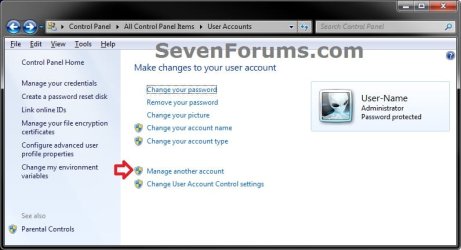
2. Click on the Manage another account link. (see screenshot below)
User-Accounts-1.jpg
3. If prompted by UAC, then click on Yes.

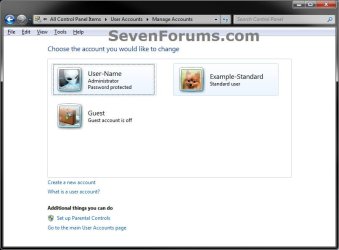
4. Click on the Create a new account link. (see screenshot below)
User-Accounts-2.jpg
5. Type in a name for the user account, select (dot) to make the user account either a Standard user or Administrator account, then click on the Create Account button. (see screenshot below)
User-Accounts-3.jpg
6. The user account is now created. It is recommended that you create a password for this user account so that it will be password protected.
User-Accounts-4.jpg
7. When finished, you can close the User Accounts window.

8. The new account's C:\Users\(user-name) folder will not be created until it is logged in to for the first time.


OPTION TWO

Create a User Account in "Local Users and Groups"


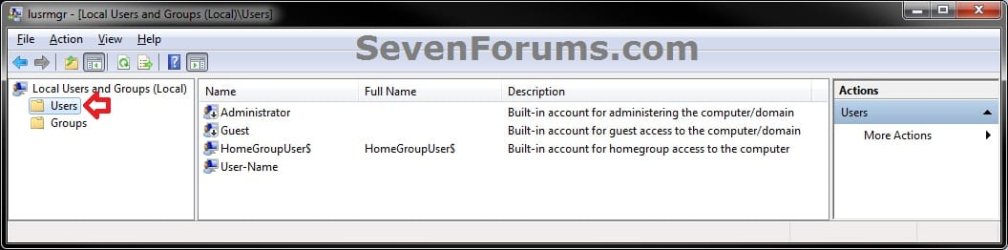
1. Open Local Users and Groups, and click on the Users folder in the left pane to open it. (see screenshot below)
lusrmgr-1.jpg
2. Right click on Users in the left pane, and click on New User. (see screenshot above)

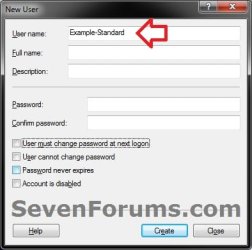
3. Type in a User Name (ex: Example-Standard) for the user account, fill out any other details (ex: password) if you like, check the options that you would like to apply to this user account, and click on Create and Close when finished. (see screenshot below)
lusrmgr-2.jpg
4. The user account is now created. (see screenshot below)
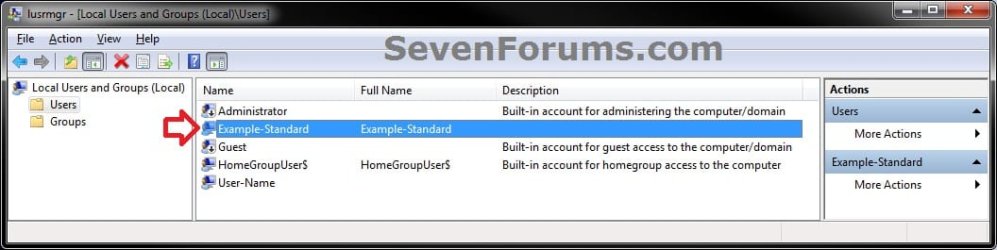
lusrmgr-3.jpg
5. By default, this will be a standard user (Users) account. If you would like to change the user account type of this user account to be either a guest or administrator user account instead, then see OPTION FIVE at this tutorial link for how.
lusrmgr-4.jpg
6. The new account's C:\Users\(user-name) folder will not be created until it is logged in to for the first time.


OPTION THREE

Create a User Account in a "Elevated Command Prompt"


NOTE: This option will use the net user command to create a user account with.
1. Open an elevated command prompt.

2. Do either step 3, 4, or 5 below for how you would like to create the user account.

3. To Create a User Account without a Password
A) In the elevated command prompt, type the command below and press Enter. (see screenshot below)
NOTE: Substitute UserName in the command below with a user name that you want for the user account (ex: Example-Standard) within quotes.
net user "UserName" /add
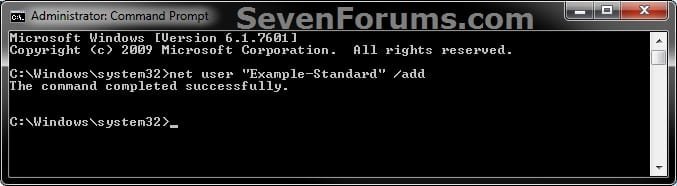
CMD-1.jpg
B) Go to step 6.
4. To Create a User Account with a Password
A) In the elevated command prompt, type the command below and press Enter. (see screenshot below)
NOTE: Substitute UserName in the command below with a user name that you want for the user account (ex: Example-Standard) within quotes. Substitute Password in the command below with a password that you want to be created for the user account within quotes.
net user "UserName" "Password" /add
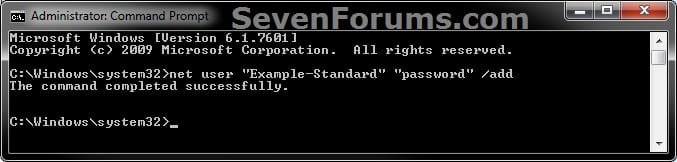
CMD-2.jpg
B) Go to step 6.
5. To Create a User Account with a Password on a Domain
NOTE: This is for only if your computer is on a domain.
A) In the elevated command prompt, type the command below and press Enter. (see screenshot below)
NOTE: Substitute UserName in the command below with a user name that you want for the user account (ex: Example-Standard) within quotes. Substitute Password in the command below with a password that you want to be created for the user account within quotes.
net user "UserName" "Password" /add /domain
B) Go to step 6.
6. By default, this will be a standard user (Users) account. If you would like to change the user account type of this user account to be either a guest or administrator user account instead, then see OPTION FOUR at this tutorial link for how.

7. When finished, close the elevated command prompt.

8. The new account's C:\Users\(user-name) folder will not be created until it is logged in to for the first time.
That's it,
Shawn


Last edited:
I created a standard acct. for somebody but theirs is on the left side of mine on the log on screen. How do I put mine on the left and theirs on the right? Kind of like this.
 

Attachments

  • 1.jpg
    1.jpg
    11.9 KB · Views: 51,600
  • 2.jpg
    2.jpg
    11.6 KB · Views: 51,755

My Computer

Computer type
PC/Desktop
Computer Manufacturer/Model Number
HP
OS
Windows 7 home premium 64
Hello UserNameTaken,

Users are arranged in alphabetical order from left to right on the sign in screen. The only way to get your account to the left of their account is to rename your account so that it's name comes before there name in the alphabet.

Hope this helps. :)
 
Last edited:

My Computer

Computer type
PC/Desktop
Computer Manufacturer/Model Number
Self built custom
OS
64-bit Windows 11 Pro for Workstations
CPU
Intel i7-8700K OC'd to 5 GHz
Motherboard
ASUS ROG Maximus XI Formula Z390
Memory
64 GB (4x16GB) G.SKILL TridentZ RGB DDR4 3600 MHz
Graphics Card(s)
ASUS ROG-STRIX-GTX1080TI-O11G-GAMING
Sound Card
Integrated
Monitor(s) Displays
2 x Samsung Odyssey G7 27"
Screen Resolution
2560x1440
Hard Drives
1TB Samsung 990 PRO M.2,
4TB Samsung 990 PRO PRO M.2,
TerraMaster F8 SSD Plus NAS
PSU
Seasonic Prime Titanium 850W
Case
Thermaltake Core P3
Cooling
Corsair Hydro H115i
Keyboard
Logitech wireless K800
Mouse
Logitech MX Master 4
Internet Speed
2 Gb/s Download and 100 Mb/s Upload
Antivirus
Malwarebyte Anti-Malware Premium
Browser
Google Chrome
Other Info
Logitech Z625 speaker system,
Logitech BRIO 4K Pro webcam,
HP Color LaserJet Pro MFP M477fdn,
APC SMART-UPS RT 1000 XL - SURT1000XLI,
Galaxy S23 Plus phone
Hello UserNameTaken,

Users are arranged in alphabetical order from left to right on the sign in screen. The only way to get your account to the left of their account is to rename your account so that it's name comes before there name in the alphabet.

Hope this helps. :)
Actually I already tried that but it was the same thing. But when I wrote their name uncapitalized it switched and then I could rename 'em with a cap and it stayed the way I wanted it to.
 

My Computer

Computer type
PC/Desktop
Computer Manufacturer/Model Number
HP
OS
Windows 7 home premium 64
Glad to hear that you got it sorted. :)
 

My Computer

Computer type
PC/Desktop
Computer Manufacturer/Model Number
Self built custom
OS
64-bit Windows 11 Pro for Workstations
CPU
Intel i7-8700K OC'd to 5 GHz
Motherboard
ASUS ROG Maximus XI Formula Z390
Memory
64 GB (4x16GB) G.SKILL TridentZ RGB DDR4 3600 MHz
Graphics Card(s)
ASUS ROG-STRIX-GTX1080TI-O11G-GAMING
Sound Card
Integrated
Monitor(s) Displays
2 x Samsung Odyssey G7 27"
Screen Resolution
2560x1440
Hard Drives
1TB Samsung 990 PRO M.2,
4TB Samsung 990 PRO PRO M.2,
TerraMaster F8 SSD Plus NAS
PSU
Seasonic Prime Titanium 850W
Case
Thermaltake Core P3
Cooling
Corsair Hydro H115i
Keyboard
Logitech wireless K800
Mouse
Logitech MX Master 4
Internet Speed
2 Gb/s Download and 100 Mb/s Upload
Antivirus
Malwarebyte Anti-Malware Premium
Browser
Google Chrome
Other Info
Logitech Z625 speaker system,
Logitech BRIO 4K Pro webcam,
HP Color LaserJet Pro MFP M477fdn,
APC SMART-UPS RT 1000 XL - SURT1000XLI,
Galaxy S23 Plus phone
creating several user accounts by one command

Hi
How can i Create several User accounts in cmd by one command?
 

My Computer

Computer type
PC/Desktop
Computer Manufacturer/Model Number
Acer
OS
Windows 7 Enterprise x64
Hello MAYK, and welcome to Seven Forums.

If you like, you could create a .bat file with a separate command line for each account you wanted to create. You would then only have to right click on the .bat file and click on "Run as administrator" to create them all at once. :)
 

My Computer

Computer type
PC/Desktop
Computer Manufacturer/Model Number
Self built custom
OS
64-bit Windows 11 Pro for Workstations
CPU
Intel i7-8700K OC'd to 5 GHz
Motherboard
ASUS ROG Maximus XI Formula Z390
Memory
64 GB (4x16GB) G.SKILL TridentZ RGB DDR4 3600 MHz
Graphics Card(s)
ASUS ROG-STRIX-GTX1080TI-O11G-GAMING
Sound Card
Integrated
Monitor(s) Displays
2 x Samsung Odyssey G7 27"
Screen Resolution
2560x1440
Hard Drives
1TB Samsung 990 PRO M.2,
4TB Samsung 990 PRO PRO M.2,
TerraMaster F8 SSD Plus NAS
PSU
Seasonic Prime Titanium 850W
Case
Thermaltake Core P3
Cooling
Corsair Hydro H115i
Keyboard
Logitech wireless K800
Mouse
Logitech MX Master 4
Internet Speed
2 Gb/s Download and 100 Mb/s Upload
Antivirus
Malwarebyte Anti-Malware Premium
Browser
Google Chrome
Other Info
Logitech Z625 speaker system,
Logitech BRIO 4K Pro webcam,
HP Color LaserJet Pro MFP M477fdn,
APC SMART-UPS RT 1000 XL - SURT1000XLI,
Galaxy S23 Plus phone
Thank you Brink, it was useful
i want to know if there is a command that create several users by typing user names burst and a "," between them.
 

My Computer

Computer type
PC/Desktop
Computer Manufacturer/Model Number
Acer
OS
Windows 7 Enterprise x64
Not that I'm aware of, but a .bat file will create them all at once though.
 

My Computer

Computer type
PC/Desktop
Computer Manufacturer/Model Number
Self built custom
OS
64-bit Windows 11 Pro for Workstations
CPU
Intel i7-8700K OC'd to 5 GHz
Motherboard
ASUS ROG Maximus XI Formula Z390
Memory
64 GB (4x16GB) G.SKILL TridentZ RGB DDR4 3600 MHz
Graphics Card(s)
ASUS ROG-STRIX-GTX1080TI-O11G-GAMING
Sound Card
Integrated
Monitor(s) Displays
2 x Samsung Odyssey G7 27"
Screen Resolution
2560x1440
Hard Drives
1TB Samsung 990 PRO M.2,
4TB Samsung 990 PRO PRO M.2,
TerraMaster F8 SSD Plus NAS
PSU
Seasonic Prime Titanium 850W
Case
Thermaltake Core P3
Cooling
Corsair Hydro H115i
Keyboard
Logitech wireless K800
Mouse
Logitech MX Master 4
Internet Speed
2 Gb/s Download and 100 Mb/s Upload
Antivirus
Malwarebyte Anti-Malware Premium
Browser
Google Chrome
Other Info
Logitech Z625 speaker system,
Logitech BRIO 4K Pro webcam,
HP Color LaserJet Pro MFP M477fdn,
APC SMART-UPS RT 1000 XL - SURT1000XLI,
Galaxy S23 Plus phone
Hi,

Try using the below batch file to create the local accounts.
You need to create a text file on your desktop called users.txt and list the users you want to create (1 name on each line, no spaces)

Code:
for /f %%n in (%userprofile%\desktop\users.txt) do (net user %%n /random /add /expires:never /passwordchg:no)

You will need to run the batch file as administrator (Right Click >> Run as administrator)

Regards,
Jamie
 

My Computer

Computer type
PC/Desktop
Computer Manufacturer/Model Number
Self Built
OS
Windows 8.1 Pro x64
CPU
Intel Core i5-2500K @ 3.30GHz - S1155
Motherboard
Asus P8P67 LE Rev3, Intel P67, S115
Memory
8GB Corsair DDR3 XMS3, PC3-12800
Graphics Card(s)
NVIDIA GeForce GTX 650
Sound Card
On-Board
Monitor(s) Displays
3 x 24" {Extended Display}
Screen Resolution
1920 x 1080
Hard Drives
300GB Seagate Barracuda 7200
PSU
550W Coolermaster GX550
Case
Silverstone Precision PS04B
Cooling
Stock
Keyboard
Logitech K120
Mouse
World of Warcraft Cataclysm MMO Gaming Mouse
Internet Speed
80 MB
Antivirus
MSE / Windows Defender
Browser
Chrome
Thanks a lot Jamie:)
and how can they have password?
 

My Computer

Computer type
PC/Desktop
Computer Manufacturer/Model Number
Acer
OS
Windows 7 Enterprise x64
Thanks a lot Jamie:)
and how can they have password?

It actually creates a password with the /random option however as it is run in a batch file you don't see that output but we can create the password differently so i have removed the /random from the below code however it depends what you want their password to be, all the same password or different?

Here are a few options:

  1. Manually set the password after they are created.
  2. Create them all with the same password (see red text)
    Code:
    for /f %%n in (%userprofile%\desktop\users.txt) do (net user %%n [COLOR="Red"]password_here[/COLOR] /add /expires:never)


3rd Option - Create them with different passwords based on a variable
This is a little different and requires 2 batch files due to the way variables work in a for loop but this is just as easy to run.

Create 2 batch files with the below codes and place them on your desktop:

Call this accounts.bat
Code:
for /f %%n in (%userprofile%\desktop\users.txt) do (set usr=%%n & call account2.bat)

Call this accounts2.bat
Code:
set rand=%random:~0,3%
set usr1=%usr%

net user %usr1% Password.%rand% /add /expires:never & echo %usr1% Password.%rand%>> %userprofile%\desktop\output.txt


Now, same as before...
  1. Put the text file users.txt with the list of names on the desktop.
  2. Run accounts.bat and it will create the accounts.

You will now see another text file on your desktop called output.txt, this is a list of the users created and the password assigned to it.

Essentially, it will generate a password called "Password.random_3_digits"

Example:
Code:
testuser1 Password.521
testuser2 Password.123
testuser3 Password.452
etc...

Regards,
Jamie
 

My Computer

Computer type
PC/Desktop
Computer Manufacturer/Model Number
Self Built
OS
Windows 8.1 Pro x64
CPU
Intel Core i5-2500K @ 3.30GHz - S1155
Motherboard
Asus P8P67 LE Rev3, Intel P67, S115
Memory
8GB Corsair DDR3 XMS3, PC3-12800
Graphics Card(s)
NVIDIA GeForce GTX 650
Sound Card
On-Board
Monitor(s) Displays
3 x 24" {Extended Display}
Screen Resolution
1920 x 1080
Hard Drives
300GB Seagate Barracuda 7200
PSU
550W Coolermaster GX550
Case
Silverstone Precision PS04B
Cooling
Stock
Keyboard
Logitech K120
Mouse
World of Warcraft Cataclysm MMO Gaming Mouse
Internet Speed
80 MB
Antivirus
MSE / Windows Defender
Browser
Chrome
it is not working!
i did the steps and this is the output.txt after several times running accounts.bat & accounts2.bat:
Password.244
Password.245
Password.248
Password.248
Password.248
every time i run these two one line attach to output.txt & one account create.
the account's names are:
Password.244
Password.245
Password.248
Password.248
Password.248
Thanks
 

My Computer

Computer type
PC/Desktop
Computer Manufacturer/Model Number
Acer
OS
Windows 7 Enterprise x64
You should only run accounts.bat not accounts2.bat
accounts2.bat is automatically used by accounts.bat when needed.

Couple of things...
  • Make sure you have users.txt on your desktop with a list of names you need to create (1 name per line do a test with 2 accounts... say test1 and test2)
  • Make sure you run accounts.bat as administrator (right click accounts.bat and select run as administrator)

What output do you get then?

Regards,
Jamie
 

My Computer

Computer type
PC/Desktop
Computer Manufacturer/Model Number
Self Built
OS
Windows 8.1 Pro x64
CPU
Intel Core i5-2500K @ 3.30GHz - S1155
Motherboard
Asus P8P67 LE Rev3, Intel P67, S115
Memory
8GB Corsair DDR3 XMS3, PC3-12800
Graphics Card(s)
NVIDIA GeForce GTX 650
Sound Card
On-Board
Monitor(s) Displays
3 x 24" {Extended Display}
Screen Resolution
1920 x 1080
Hard Drives
300GB Seagate Barracuda 7200
PSU
550W Coolermaster GX550
Case
Silverstone Precision PS04B
Cooling
Stock
Keyboard
Logitech K120
Mouse
World of Warcraft Cataclysm MMO Gaming Mouse
Internet Speed
80 MB
Antivirus
MSE / Windows Defender
Browser
Chrome
nothing happen,
no new account & no output.txt:(
 

My Computer

Computer type
PC/Desktop
Computer Manufacturer/Model Number
Acer
OS
Windows 7 Enterprise x64
nothing happen,
no new account & no output.txt:(

Sorry to hear this isn't working for you, unfortunately i can't offer any more help on it as i'm not sure what the issue it as that works for me on my Windows 7 and Windows 8 computers.

Regards,
Jamie
 

My Computer

Computer type
PC/Desktop
Computer Manufacturer/Model Number
Self Built
OS
Windows 8.1 Pro x64
CPU
Intel Core i5-2500K @ 3.30GHz - S1155
Motherboard
Asus P8P67 LE Rev3, Intel P67, S115
Memory
8GB Corsair DDR3 XMS3, PC3-12800
Graphics Card(s)
NVIDIA GeForce GTX 650
Sound Card
On-Board
Monitor(s) Displays
3 x 24" {Extended Display}
Screen Resolution
1920 x 1080
Hard Drives
300GB Seagate Barracuda 7200
PSU
550W Coolermaster GX550
Case
Silverstone Precision PS04B
Cooling
Stock
Keyboard
Logitech K120
Mouse
World of Warcraft Cataclysm MMO Gaming Mouse
Internet Speed
80 MB
Antivirus
MSE / Windows Defender
Browser
Chrome
Back
Top