How to Create a User Account in Windows 7
Information
This will show you different ways on how to create a guest, standard user, and administrator user account or domain user account in Windows 7.
You must be logged in as an administrator to be able to create a user account.
You must be logged in as an administrator to be able to create a user account.
Note
Guests - A guest account allows people to have temporary access to your computer. People using the guest account can't install software, hardware, or change settings. While the default "Guest" account cannot be password protected, an existing user account made into only a guest account using an option below can have a password.
Standard user (Users) - The standard account can help protect your computer by preventing users from making changes that affect the system or other users. If a standard user wants to do something that affects the system or other users, they will get a UAC prompt to provide the administrator's password before being allowed to do so. If UAC is not turned on, then the standard user will not be allowed to do so.
Administrators - Administrators have complete access to the computer and can make any desired changes. To help make the computer more secure, administrators may get a UAC prompt, if UAC is turned on, to provide their password or confirmation before being allowed to make changes that affect the system or other users.
OPTION ONE
Create a User Account in "User Accounts" in Control Panel
1. Open the Control Panel (icons view), and click on the User Accounts icon.
2. Click on the Manage another account link. (see screenshot below)
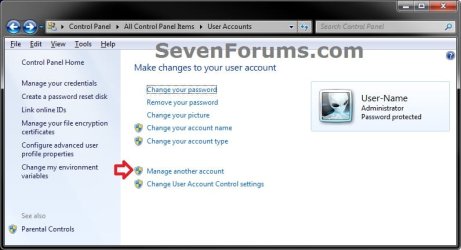
3. If prompted by UAC, then click on Yes.
4. Click on the Create a new account link. (see screenshot below)

5. Type in a name for the user account, select (dot) to make the user account either a Standard user or Administrator account, then click on the Create Account button. (see screenshot below)

6. The user account is now created. It is recommended that you create a password for this user account so that it will be password protected.
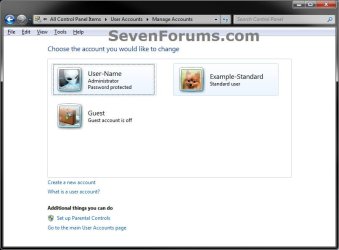
7. When finished, you can close the User Accounts window.
8. The new account's C:\Users\(user-name) folder will not be created until it is logged in to for the first time.
OPTION TWO
Create a User Account in "Local Users and Groups"
1. Open Local Users and Groups, and click on the Users folder in the left pane to open it. (see screenshot below)
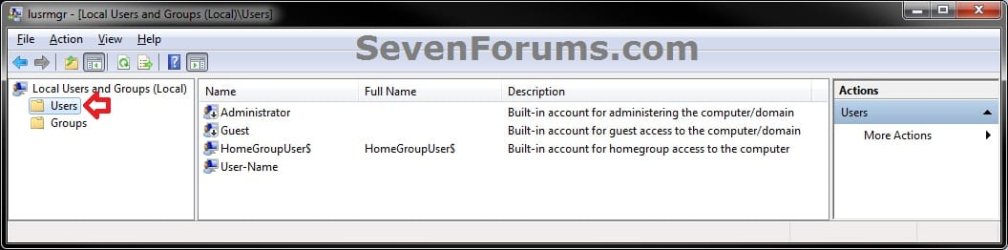
2. Right click on Users in the left pane, and click on New User. (see screenshot above)
3. Type in a User Name (ex: Example-Standard) for the user account, fill out any other details (ex: password) if you like, check the options that you would like to apply to this user account, and click on Create and Close when finished. (see screenshot below)
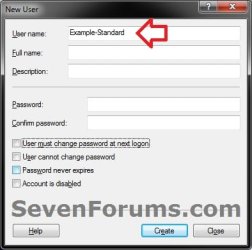
4. The user account is now created. (see screenshot below)
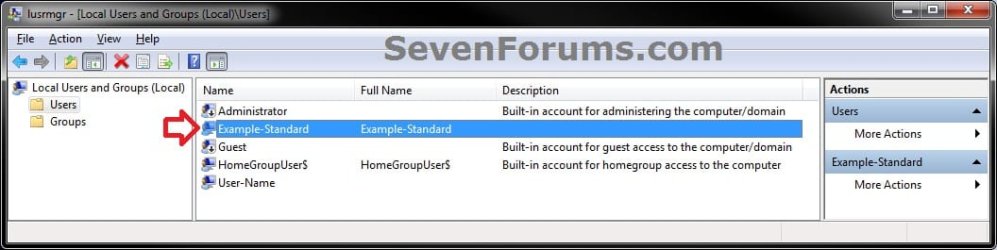
5. By default, this will be a standard user (Users) account. If you would like to change the user account type of this user account to be either a guest or administrator user account instead, then see OPTION FIVE at this tutorial link for how.

6. The new account's C:\Users\(user-name) folder will not be created until it is logged in to for the first time.
OPTION THREE
Create a User Account in a "Elevated Command Prompt"
NOTE: This option will use the net user command to create a user account with.
1. Open an elevated command prompt.
2. Do either step 3, 4, or 5 below for how you would like to create the user account.
3. To Create a User Account without a Password
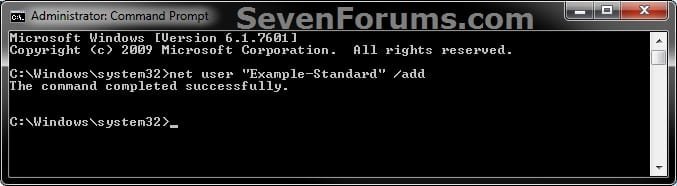
A) In the elevated command prompt, type the command below and press Enter. (see screenshot below)
NOTE: Substitute UserName in the command below with a user name that you want for the user account (ex: Example-Standard) within quotes.
net user "UserName" /add
B) Go to step 6.
4. To Create a User Account with a Password
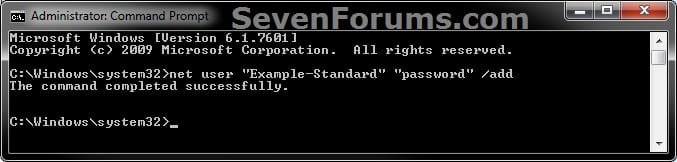
A) In the elevated command prompt, type the command below and press Enter. (see screenshot below)
NOTE: Substitute UserName in the command below with a user name that you want for the user account (ex: Example-Standard) within quotes. Substitute Password in the command below with a password that you want to be created for the user account within quotes.
net user "UserName" "Password" /add
B) Go to step 6.
5. To Create a User Account with a Password on a Domain
NOTE: This is for only if your computer is on a domain.
A) In the elevated command prompt, type the command below and press Enter. (see screenshot below)
NOTE: Substitute UserName in the command below with a user name that you want for the user account (ex: Example-Standard) within quotes. Substitute Password in the command below with a password that you want to be created for the user account within quotes.
net user "UserName" "Password" /add /domain
B) Go to step 6.
6. By default, this will be a standard user (Users) account. If you would like to change the user account type of this user account to be either a guest or administrator user account instead, then see OPTION FOUR at this tutorial link for how.
7. When finished, close the elevated command prompt.
8. The new account's C:\Users\(user-name) folder will not be created until it is logged in to for the first time.
That's it,
Shawn
Related Tutorials
- How to Delete a User Account in Windows 7
- How to Create a Password for a Windows 7 User Account
- How to Create a User Accounts Shortcut in Windows 7
- How to Change Your User Account Picture in Windows 7
- How to Enable or Disable the Built-in Administrator Account in Windows 7
- How to Turn the Guest Account On or Off in Windows 7
- How to Add or Remove User Accounts from Groups in Windows 7 and Vista
- How to Create and Delete a User Group in Windows 7 and Vista
- How to Enable or Disable a User Account in Windows 7
- How to Change the User Folder Name of a User Profile in Windows 7
Last edited: