
How to Change a User Account Type in Windows 7
Information
This will show you how to change a already created user account to be either a guest, standard user, or administrator type in Windows 7.
Note
Guests - A guest account allows people to have temporary access to your computer. People using the guest account can't install software, hardware, or change settings. While the default "Guest" account cannot be password protected, an existing user account made into only a guest account using an option below can have a password.
Standard user (Users) - A limited unelevated standard "users" account that can use most software and change system settings that do not affect other users. If a standard user wants to do an action that requires elevated rights or affects other users, then they will be prompted by UAC (if set to notify) to provide an administrator's password before being allowed to do so. If UAC is not set to notify, then the standard user will just be denied and not allowed to do the action.
Administrator - An unelevated administrator account that has complete access to the computer and can make any desired changes. Based on your UAC notification settings, administrators may be prompted to provide their password or confirmation before being allowed to open or run anything that requires elevated rights to do so, and make changes that affect the system or other users.
OPTION ONE
Use "User Accounts" in Control Panel to Change "Your" User Account Type
2. Click on the Change your account type link. (see screenshot below)
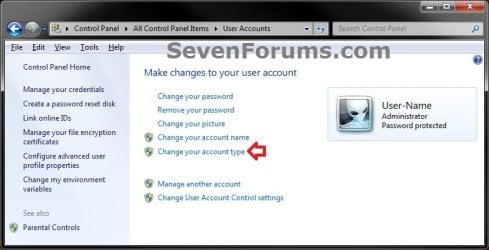
3. If prompted by UAC, then click on Yes (administrator) or enter the administrator's password (standard user).
4. Select (dot) what type of user account (Standard user or Administrator) you want this user account to be now, and click on the Change Account Type button. (see screenshot below)
NOTE: If the user account is originally an administrator account, then Windows 7 will not let you change it to a standard user account unless you already have another administrator account on the computer.
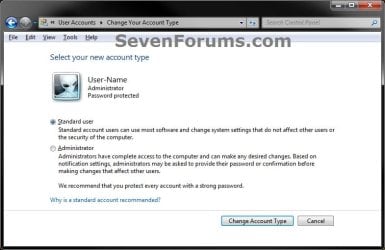
5. Close the User Accounts window when finished. (see screenshot below step 2)
OPTION TWO
Change "Another" User Account's Type in "User Accounts" in Control Panel
2. Click on the Manage another account link. (see screenshot below)
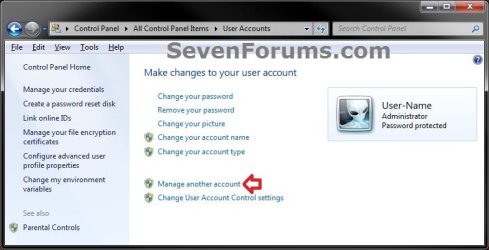
3. If prompted by UAC, then click on Yes (administrator) or enter the administrator's password (standard user).
4. Click on the Administrator or Standard user account that you want to change the type of. (see screenshot below)
NOTE: If this is a guest account type, and not the actual default "Guest" account, then the only way to change it's type would be to change it to an Administrator account type first. Afterwards, you will be able to leave it as Administrator, or be able to change it to a Standard User account type.
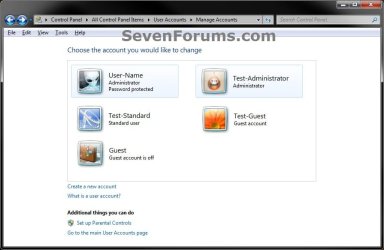
5. Click on the Change your account type link. (see screenshot below)
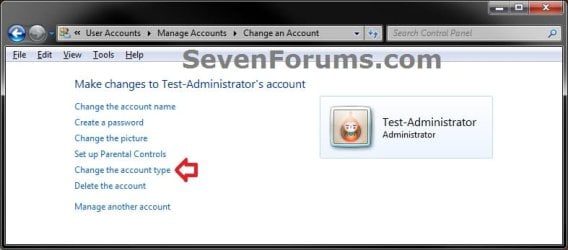
6. Select (dot) what type of user account (Standard user or Administrator) you want this user account to be now, and click on the Change Account Type button. (see screenshot below)
NOTE: If the user account is originally an administrator account, then Windows 7 will not let you change it to a standard user account unless you already have another administrator account on the computer.
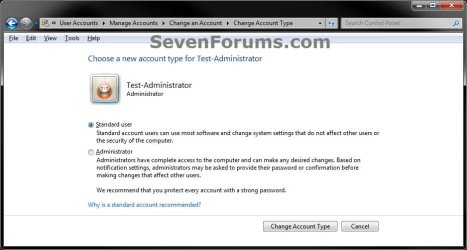
7. Close the Change an Account window when finished. (see screenshot below step 5)
OPTION THREE
Change "Any" User Account's Type in Advanced User Accounts
2. If prompted by UAC, then click on Yes (administrator) or enter the administrator's password (standard user).
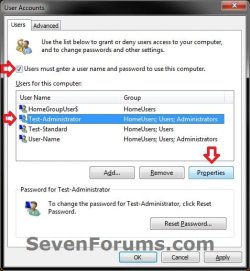
3. Check the Users must enter a user name and password to use this computer box, select (highlight) the Administrators or Users (Standard user) account under Group that you want to change the type of, then click on the Properties button. (see screenshot below)
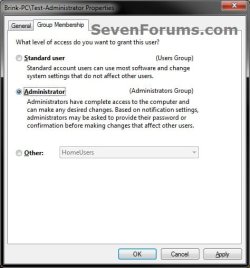
4. Click on the Group Membership tab, select (dot) what type of user account (Standard user or Administrator) you want this user account to be now, and click on OK. (see screenshot below)
:warn: WARNING: If the user account is originally an administrator account, then do not change it to a standard user account unless you already have another administrator account on the computer. You will lose access to everything that a standard user cannot open if you do.
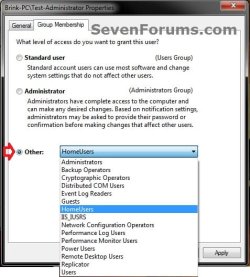
5. If you had a user account set to be logged on to at startup automatically, then you will need to set this back for that user account.
6. Close the advanced User Accounts window when finished. (see screenshot below step 3)
OPTION FOUR
Change User Account Type in Elevated Command Prompt
NOTE: This option will use the net localgroup command to basically add an "existing user account" to the group that you want the account type to be, then remove the user account from any other group (account type) that it belongs to, leaving the user account as only a member of the group that you want the account type to be. 1. Open an elevated command prompt.
2. To See What Groups the Existing User Account Currently Belongs To
NOTE: This will give you a list of user account names that are a member of each user account type. For example, to see what account types my Example-Standard (name) user account is a member of.
A) In the elevated command prompt, copy and paste the commands below one at a time for each account type, and press Enter after each one. (see screenshots below)
- net localgroup guests
- net localgroup users
- net localgroup administrators
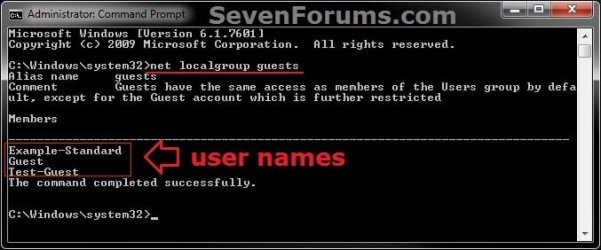
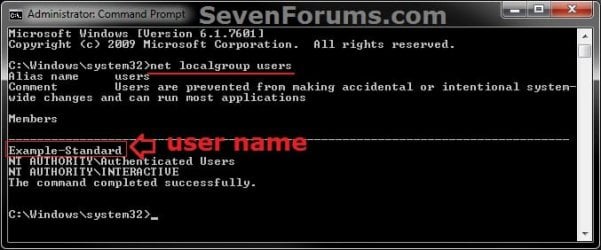
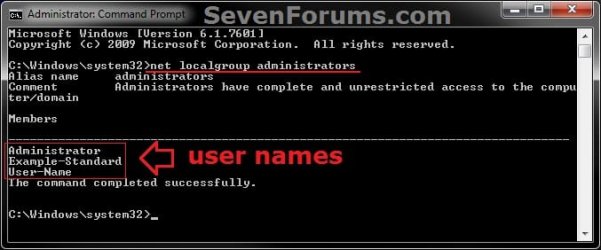
3. Do either step 4, 5, or 6 below for what account type you want the user account (ex: Example-Standard) to be.
4. To Add User Account to Administrators Group
NOTE: This is to make the user account (ex: Example-Standard) a administrator account type by adding it to the administrators group, and removing the user account from the users and guests groups if the user account is a part of them. A) In the elevated command prompt, type the command below and press Enter. (see screenshot below)
NOTE: Substitute UserName in the command below with the actual user name of the user account (ex: Example-Standard) within quotes that you want to add to the administrators group. net localgroup administrators "UserName" /add
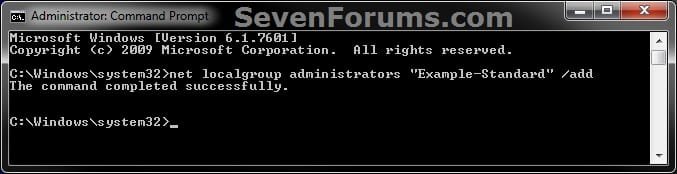
B) Go to step 7, and remove the user account from the users and guests groups if listed as being a member of them from step 2.
5. To Add User Account to Users Group
NOTE: This is to make the user account (ex: Example-Standard) a standard user account type by adding it to the users group, and removing the user account from the administrators and guests groups if the user account is a part of them. A) In the elevated command prompt, type the command below and press Enter. (see screenshot below)
NOTE: Substitute UserName in the command below with the actual user name of the user account (ex: Example-Standard) within quotes that you want to add to the users group. net localgroup users "UserName" /add
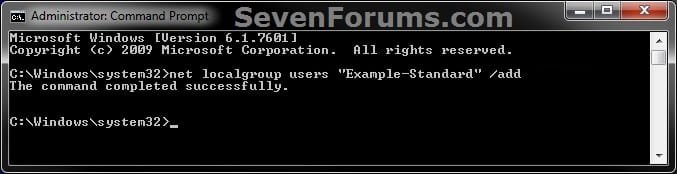
B) Go to step 7, and remove the user account from the administrators and guests groups if listed as being a member of them from step 2.
6. To Add User Account to Guests Group
NOTE: This is to make the user account (ex: Example-Standard) a guest account type by adding it to the guests group, and removing the user account from the users and administrators groups if the user account is a part of them. A) In the elevated command prompt, type the command below and press Enter. (see screenshot below)
NOTE: Substitute UserName in the command below with the actual user name of the user account (ex: Example-Standard) within quotes that you want to add to the guests group. net localgroup guests "UserName" /add
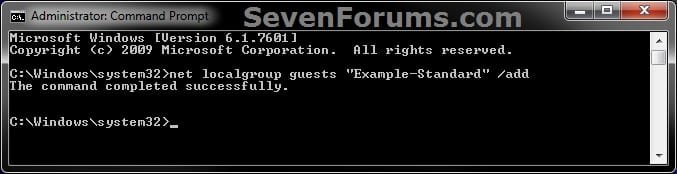
B) Go to step 7, and remove the user account from the users and administrators groups if listed as being a member of them from step 2.
7. To Remove User Account from Groups
NOTE: This is to remove the user account (ex: Example-Standard) from all of the groups that is was listed as being a member of from step 2 except for the group (account type) that you want the user account to be. A) In the elevated command prompt, type the commands below one at a time for only each group (account type) that you want to remove the user account from being a member of, and press Enter after each one. (see screenshots below)
NOTE: Substitute UserName in the command below with the actual user name of the user account (ex: Example-Standard) within quotes that you want to remove from being a member of the group.
- net localgroup administrators "UserName" /delete
- net localgroup users "UserName" /delete
- net localgroup guests "UserName" /delete
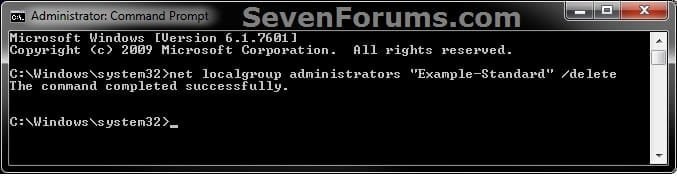

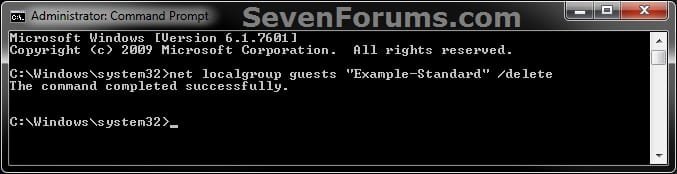
8. When finished, close the elevated command prompt.
OPTION FIVE
Change User Account Type in Local Users and Groups

2. In the middle pane, double click on the user account (ex: Example-Standard) under the Name column that you want to change the account type of. (see screenshot below)
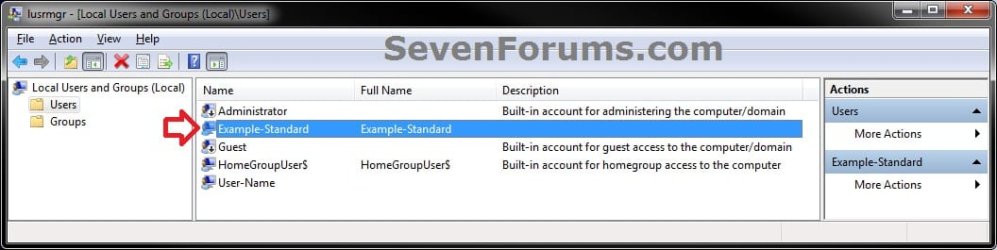
3. Click on the Member of tab, and do either step 4, 5, or 6 below for what account type you want the user account (ex: Example-Standard) to be. (see screenshot below)
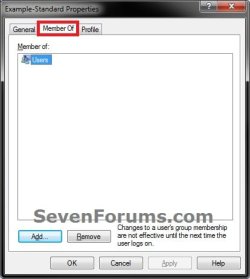
4. To Add User Account to Administrators Group
NOTE: This is to make the user account (ex: Example-Standard) a administrator account type by adding it to the administrators group, and removing the user account from the users and guests groups if the user account is a part of them. A) Click on the Add button, and add "Administrators". (see Option One at link for how)
B) If listed, select Users and Guests, and click on the Remove button. (see Option One at link for how)
NOTE: You can press and hold the CTRL key to select more than one listed group.
C) Go to step 7.
5. To Add User Account to Users Group
NOTE: This is to make the user account (ex: Example-Standard) a standard user account type by adding it to the users group, and removing the user account from the administrators and guests groups if the user account is a part of them. A) Click on the Add button, and add "Users". (see Option One at link for how)
B) If listed, select Administrators and Guests, and click on the Remove button. (see Option One at link for how)
NOTE: You can press and hold the CTRL key to select more than one listed group.
C) Go to step 7.
6. To Add User Account to Guests Group
NOTE: This is to make the user account (ex: Example-Standard) a guest account type by adding it to the guests group, and removing the user account from the users and administrators groups if the user account is a part of them. A) Click on the Add button, and add "Guests". (see Option One at link for how)
B) If listed, select Users and Administrators, and click on the Remove button. (see Option One at link for how)
NOTE: You can press and hold the CTRL key to select more than one listed group.
C) Go to step 7.
7. When finished, click on OK. (see screenshot below step 3)
8. Close Local Users and Groups.
That's it
Shawn
Related Tutorials
- How to Create a Password for a Windows 7 User Account
- How to Create a User Accounts Shortcut in Windows 7
- How to Change Your User Account Picture in Windows 7
- How to Change the Password for Your or Another User Account in Windows 7
- How to Enable or Disable the Windows 7 Built-in Administrator Account
- How to Add or Remove User Accounts from Groups in Windows 7 and Vista
- How to Create and Delete a User Group in Windows 7 and Vista
- How to Hide or Unhide a User Account in Vista and Windows 7
- How to Change the User Folder Name of a User Profile in Windows 7
Last edited:


