User Folders - Restore Default Location

How to Restore Default Location of User Folders in Windows 7 and Windows 8

   Information
This will show you how to restore the default location of all or a single user folder of your choice in Windows 7 and Windows 8.

   Note
If you have duplicate user folders instead, then you will need to backup the contents of the duplicate user folders, do OPTION TWO below, delete the duplicate folders, then you may need to restart the computer a couple of times first before the default location is restored.

Windows 8.1 Update released on April 8th 2014 via Windows Update, renamed SkyDrive to OneDrive.


CONTENTS:
  • Option One: To Restore Default Location of User Folders in Properties
  • Option Two: To Restore Default Location of User Folders using a BAT file


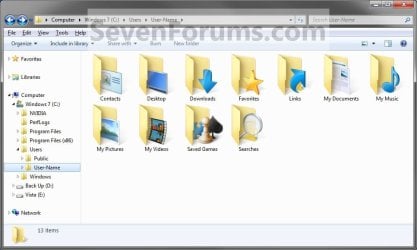
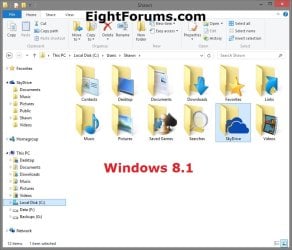
EXAMPLE: User folders
NOTE: This is at the default C:\Users\(user-name) location.
Example1.jpg

Windows_8.1.jpg


OPTION ONE

To Restore Default Location of User Folders in Properties


NOTE: If using this option does not restore the user folder back to the default location, then use OPTION TWO below instead.
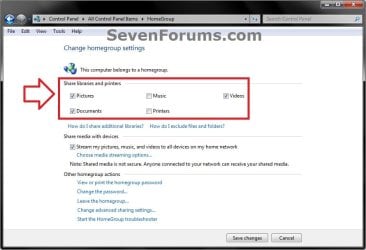
1. If you are in a homegroup, then you will need to change the homegroup settings to no longer share the user folder (ex: My Music) that you want to move first by unchecking the folder and clicking on Save Changes. (see screenshot below)
NOTE: This is so the user folder (ex: My Music) will not be shared on the homegroup anymore.
Homegroup.jpg
2. Press the Windows+R keys to open the Run dialog, type shell:UsersFilesFolder, and press enter.
NOTE: This will open your C:\Users\(user-name) folder.

3. Right click or press and hold on the user folder (ex: My Music) that you want to restore the default location for, and click/tap on Properties.

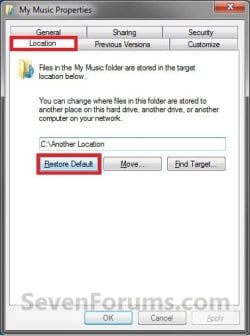
4. Click/tap on the Location tab, and Restore Default button. (See screenshot below)
Properties1.jpg
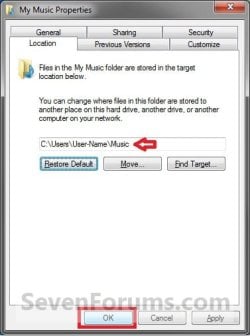
5. Click/tap on OK. (See screenshot below)
NOTE: Notice that the location has changed to the default C:\Users\(user-name) location.
Properties2.jpg
6. Click/tap on Yes. (See screenshot below)
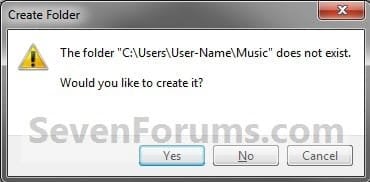
Properties3.jpg

   Note
If you have a folder in the default location named for the user folder already, then you will not see this dialog box.

Windows 8 will not have the "My" in front of the user folder name anymore.

User Folder | Folder Name Contacts |Contacts
Desktop |Desktop
My Documents |Documents
Downloads |Downloads
Favorites |Favorites
Links |Links
My Music |Music
My Pictures |Pictures
OneDrive (Windows 8.1 Update)|OneDrive
Saved Games |Saved Games
Searches |Searches
SkyDrive (Windows 8.1)|SkyDrive
My Videos |Videos


7. Click/tap on Yes. (See screenshot below)
WARNING: If you do not click/tap on Yes, then you will have two copies of this user folder at the C:\Users\(user-name) location. One will be a normal folder (same name) with the contents and the other as the now restored user folder. It is recommended that you click/tap on YES.
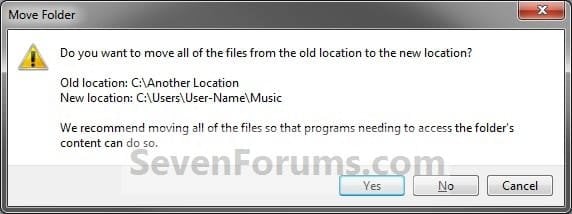
Properties4.jpg
8. After a few seconds when the location has been restored, the Properties window (screenshot under step 5) will then close.

9. If you are in a homegroup, then you can now change the homegroup settings back to share the user folder (ex: My Music) again if you like by checking the folder and clicking on Save Changes. (see screenshot below)
Homegroup.jpg


OPTION TWO

To Restore Default Location of User Folders using a BAT file


   Note
This is an example of the contents of the .bat files below. The parts in red are what will vary per .bat file based on what user folder it is for.

Code:
@echo off 
 
taskkill /f /im explorer.exe
 
timeout /t 2 /nobreak >nul
 
if not exist "%UserProfile%\[B][COLOR=red]Pictures[/COLOR][/B]" mkdir "%UserProfile%\[COLOR=red][B]Pictures[/B][/COLOR]"
 
reg add "HKCU\Software\Microsoft\Windows\CurrentVersion\Explorer\Shell Folders" /v "[COLOR=red][B]My Pictures[/B][/COLOR]" /t REG_SZ /d "C:\Users\%USERNAME%\[COLOR=red][B]Pictures[/B][/COLOR]" /f
 
reg add "HKCU\Software\Microsoft\Windows\CurrentVersion\Explorer\User Shell Folders" /v "[COLOR=red][B]My Pictures[/B][/COLOR]" /t REG_EXPAND_SZ /d %%USERPROFILE%%"\[COLOR=red][B]Pictures[/B][/COLOR]" /f
 
attrib +r -s -h "%USERPROFILE%\[COLOR=red][B]Pictures[/B][/COLOR]" /S /D
 
timeout /t 1 /nobreak >nul
 
start explorer.exe


1. Do step 2 to 13 below for what user folder you need to restore the default location of.


2. To Restore the Default Contacts Folder Location
A) Click/tap on the download button below to download the file below, and go to step 14 below.

Restore_Contacts_Default_Location.bat


Download


3. To Restore the Default Desktop Folder Location
A) Click/tap on the download button below to download the file below, and go to step 14 below.

Restore_Desktop_Default_Location.bat


Download


4. To Restore the Default My Documents Folder Location
A) Click/tap on the download button below to download the file below, and go to step 14 below.

Restore_Documents_Default_Location.bat


Download


5. To Restore the Default Downloads Folder Location
A) Click/tap on the download button below to download the file below, and go to step 14 below.

Restore_Downloads_Default_Location.bat


Download


6. To Restore the Default Favorites Folder Location
A) Click/tap on the download button below to download the file below, and go to step 14 below.

Restore_Favorites_Default_Location.bat


Download


7. To Restore the Default Links Folder Location
A) Click/tap on the download button below to download the file below, and go to step 14 below.

Restore_Links_Default_Location.bat


Download


8. To Restore the Default My Music Folder Location
A) Click/tap on the download button below to download the file below, and go to step 14 below.

Restore_Music_Default_Location.bat


Download


9. To Restore Default OneDrive Folder Location in Windows 8.1 Update
A) Click/tap on the download button below to download the file below, and go to step 14 below.

Restore_OneDrive_Default_Location.bat


Download


10. To Restore the Default My Pictures Folder Location
A) Click/tap on the download button below to download the file below, and go to step 14 below.

Restore_Pictures_Default_Location.bat


Download


11. To Restore the Default Saved Games Folder Location
A) Click/tap on the download button below to download the file below, and go to step 14 below.

Restore_Saved_Games_Default_Location.bat


Download


12. To Restore the Default Searches Folder Location
A) Click/tap on the download button below to download the file below, and go to step 14 below.

Restore_Searches_Default_Location.bat


Download


13. To Restore the Default My Videos Folder Location
A) Click/tap on the download button below to download the file below, and go to step 14 below.

Restore_Videos_Default_Location.bat


Download


14. Save the .bat file to your Desktop.

15. Unblock the downloaded .bat file(s).

16. Double click/tap on the downloaded .bat file to run it.

17. The .bat file will now kill explorer causing your screen to go blank, then open a command prompt to quickly restore the default location of the folder in the registry, restore the default attributes of the folder, restart explorer, and close the command prompt.

18. Repeat step 1 above for any other user folder you need to restore the default location of.

19. When finished, check the user folder(s) to verify that they have been restored to their default location.

20. If the user folder(s) still have not been restored to their default locations, then restart the computer and check again.

21. When restored, copy your files from the old folder location back into your now restored default folder location in "C:\Users\(user-name)".


That's it,
Shawn


Attachments

Last edited:
Hello Kevvyb,

At step 23 in OPTION TWO, you just would need to use the command exactly as it is in the tutorial and not substitute it with your user name instead. :)
 

My Computer

Computer type
PC/Desktop
Computer Manufacturer/Model Number
Self built custom
OS
64-bit Windows 11 Pro for Workstations
CPU
Intel i7-8700K OC'd to 5 GHz
Motherboard
ASUS ROG Maximus XI Formula Z390
Memory
64 GB (4x16GB) G.SKILL TridentZ RGB DDR4 3600 MHz
Graphics Card(s)
ASUS ROG-STRIX-GTX1080TI-O11G-GAMING
Sound Card
Integrated
Monitor(s) Displays
2 x Samsung Odyssey G7 27"
Screen Resolution
2560x1440
Hard Drives
1TB Samsung 990 PRO M.2,
4TB Samsung 990 PRO PRO M.2,
TerraMaster F8 SSD Plus NAS
PSU
Seasonic Prime Titanium 850W
Case
Thermaltake Core P3
Cooling
Corsair Hydro H115i
Keyboard
Logitech wireless K800
Mouse
Logitech MX Master 4
Internet Speed
2 Gb/s Download and 100 Mb/s Upload
Antivirus
Malwarebyte Anti-Malware Premium
Browser
Google Chrome
Other Info
Logitech Z625 speaker system,
Logitech BRIO 4K Pro webcam,
HP Color LaserJet Pro MFP M477fdn,
APC SMART-UPS RT 1000 XL - SURT1000XLI,
Galaxy S23 Plus phone
Hi

Thanks for the quick response. That's what I did originally and so that's why I tried to substitute 'userprofile' for my user name.

I am running elevated cmd prompt and and I am copying and pasting.

Trying again now though.

Can't even get the text to paste into cmd prompt now from website or from text file....:mad:

OK missed out step 23 although I think it may have worked for the documents folder. Very odd.

Position now is I have all the folders back in the c:/users/[username] location. All are showing a location tab and the correct location. Just that the ones I wanted to restore back (i.e. the folders on which I had changed the location) don't have the correct icons (apart from the documents folder which appears to have worked.

I wonder if they are now ok and the folder icons will reappear as documents are added... I think I have seen similar behaviour before.

I also have three folders one each for Music, Pictures and Videos in a Temp folder under users which I have been able to delete.

I **think** I may be just about there..... how does it sound?
 
Last edited by a moderator:

My Computer

Computer type
PC/Desktop
Computer Manufacturer/Model Number
Arbico Computers
OS
Windows 7 Pro x64
CPU
Intel i7 2.66GHz @ 3.6GHz
Motherboard
Gigabit EX58 UD5
Memory
6GB Corsair PC10600 1333Mhz DDR3
Graphics Card(s)
1GB nVidia GTX 280
Sound Card
Creative X-Fi Xtreme Audio 7.1
Monitor(s) Displays
NEC 22470WNX
Screen Resolution
1920 x 1200
Hard Drives
DISK 0 - System - WDC Blue 149GB ~
DISK 1 - Data - 1TB Samsung F1 Spinpoint (3 platter) ~
DISK 2 - Copy Data - 1TB Samsung F1 Spinpoint (3 platter)
PSU
Corsair HX 1000w
Case
Coolermaster Cosmos S
Cooling
Zalman CNPS 9700 LED
Internet Speed
16 - 17Kbps Down ~ 700 -850Kbps Up
Browser
Using SRWareIron, Google Chrome, Firefox, IE9 in that order
Other Info
Billion 7800 N Wireless Router ~
Develo dLan 200AVPlus HomePlug
System drive and data disks encrypted with truecrypt 7.1a

My Computer

Computer type
PC/Desktop
Computer Manufacturer/Model Number
Self built custom
OS
64-bit Windows 11 Pro for Workstations
CPU
Intel i7-8700K OC'd to 5 GHz
Motherboard
ASUS ROG Maximus XI Formula Z390
Memory
64 GB (4x16GB) G.SKILL TridentZ RGB DDR4 3600 MHz
Graphics Card(s)
ASUS ROG-STRIX-GTX1080TI-O11G-GAMING
Sound Card
Integrated
Monitor(s) Displays
2 x Samsung Odyssey G7 27"
Screen Resolution
2560x1440
Hard Drives
1TB Samsung 990 PRO M.2,
4TB Samsung 990 PRO PRO M.2,
TerraMaster F8 SSD Plus NAS
PSU
Seasonic Prime Titanium 850W
Case
Thermaltake Core P3
Cooling
Corsair Hydro H115i
Keyboard
Logitech wireless K800
Mouse
Logitech MX Master 4
Internet Speed
2 Gb/s Download and 100 Mb/s Upload
Antivirus
Malwarebyte Anti-Malware Premium
Browser
Google Chrome
Other Info
Logitech Z625 speaker system,
Logitech BRIO 4K Pro webcam,
HP Color LaserJet Pro MFP M477fdn,
APC SMART-UPS RT 1000 XL - SURT1000XLI,
Galaxy S23 Plus phone
Will do. Thanks.

Have a laptop with same windows 7 installation and, you'll never believe this, I can't, there are duplicate user folders on there!! This machine has been fine up until very recently. Only noticed it tonight. So this is not the result of 'improperly moving' the folders.

I am wondering if system drive encryption with truecrypt has caused any problems (on both laptop and desktop). If not that in itself then I wonder if regular syncing, copying, mirroring between the volume encrypted drive on my desktop and system encrypted drive on my desktop and regular syncing and copying of files between desktop and laptop machines has screwed things up somehow?

Anyway thanks for the last link.

Also just noticed that registry on my laptop shows the data for each user folder with %userprofile% and on my desktop it showed as per your screen shot, i,e with my account user name.

Any ideas why that is?
 

My Computer

Computer type
PC/Desktop
Computer Manufacturer/Model Number
Arbico Computers
OS
Windows 7 Pro x64
CPU
Intel i7 2.66GHz @ 3.6GHz
Motherboard
Gigabit EX58 UD5
Memory
6GB Corsair PC10600 1333Mhz DDR3
Graphics Card(s)
1GB nVidia GTX 280
Sound Card
Creative X-Fi Xtreme Audio 7.1
Monitor(s) Displays
NEC 22470WNX
Screen Resolution
1920 x 1200
Hard Drives
DISK 0 - System - WDC Blue 149GB ~
DISK 1 - Data - 1TB Samsung F1 Spinpoint (3 platter) ~
DISK 2 - Copy Data - 1TB Samsung F1 Spinpoint (3 platter)
PSU
Corsair HX 1000w
Case
Coolermaster Cosmos S
Cooling
Zalman CNPS 9700 LED
Internet Speed
16 - 17Kbps Down ~ 700 -850Kbps Up
Browser
Using SRWareIron, Google Chrome, Firefox, IE9 in that order
Other Info
Billion 7800 N Wireless Router ~
Develo dLan 200AVPlus HomePlug
System drive and data disks encrypted with truecrypt 7.1a
Not sure, but it sounds like it's going to be a repeat of what you just did to restore their default locations to get them straightened out as well. :(
 

My Computer

Computer type
PC/Desktop
Computer Manufacturer/Model Number
Self built custom
OS
64-bit Windows 11 Pro for Workstations
CPU
Intel i7-8700K OC'd to 5 GHz
Motherboard
ASUS ROG Maximus XI Formula Z390
Memory
64 GB (4x16GB) G.SKILL TridentZ RGB DDR4 3600 MHz
Graphics Card(s)
ASUS ROG-STRIX-GTX1080TI-O11G-GAMING
Sound Card
Integrated
Monitor(s) Displays
2 x Samsung Odyssey G7 27"
Screen Resolution
2560x1440
Hard Drives
1TB Samsung 990 PRO M.2,
4TB Samsung 990 PRO PRO M.2,
TerraMaster F8 SSD Plus NAS
PSU
Seasonic Prime Titanium 850W
Case
Thermaltake Core P3
Cooling
Corsair Hydro H115i
Keyboard
Logitech wireless K800
Mouse
Logitech MX Master 4
Internet Speed
2 Gb/s Download and 100 Mb/s Upload
Antivirus
Malwarebyte Anti-Malware Premium
Browser
Google Chrome
Other Info
Logitech Z625 speaker system,
Logitech BRIO 4K Pro webcam,
HP Color LaserJet Pro MFP M477fdn,
APC SMART-UPS RT 1000 XL - SURT1000XLI,
Galaxy S23 Plus phone
Will do. Thanks.

Also just noticed that registry on my laptop shows the data for each user folder with %userprofile% and on my desktop it showed as per your screen shot, i,e with my account user name.

Any ideas why that is?

Realised that I was in wrong registry folder!!! User Shell Folders not Shell Folders. AAAARRARRRRGG
 

My Computer

Computer type
PC/Desktop
Computer Manufacturer/Model Number
Arbico Computers
OS
Windows 7 Pro x64
CPU
Intel i7 2.66GHz @ 3.6GHz
Motherboard
Gigabit EX58 UD5
Memory
6GB Corsair PC10600 1333Mhz DDR3
Graphics Card(s)
1GB nVidia GTX 280
Sound Card
Creative X-Fi Xtreme Audio 7.1
Monitor(s) Displays
NEC 22470WNX
Screen Resolution
1920 x 1200
Hard Drives
DISK 0 - System - WDC Blue 149GB ~
DISK 1 - Data - 1TB Samsung F1 Spinpoint (3 platter) ~
DISK 2 - Copy Data - 1TB Samsung F1 Spinpoint (3 platter)
PSU
Corsair HX 1000w
Case
Coolermaster Cosmos S
Cooling
Zalman CNPS 9700 LED
Internet Speed
16 - 17Kbps Down ~ 700 -850Kbps Up
Browser
Using SRWareIron, Google Chrome, Firefox, IE9 in that order
Other Info
Billion 7800 N Wireless Router ~
Develo dLan 200AVPlus HomePlug
System drive and data disks encrypted with truecrypt 7.1a
LOL, thank goodness. ;)
 

My Computer

Computer type
PC/Desktop
Computer Manufacturer/Model Number
Self built custom
OS
64-bit Windows 11 Pro for Workstations
CPU
Intel i7-8700K OC'd to 5 GHz
Motherboard
ASUS ROG Maximus XI Formula Z390
Memory
64 GB (4x16GB) G.SKILL TridentZ RGB DDR4 3600 MHz
Graphics Card(s)
ASUS ROG-STRIX-GTX1080TI-O11G-GAMING
Sound Card
Integrated
Monitor(s) Displays
2 x Samsung Odyssey G7 27"
Screen Resolution
2560x1440
Hard Drives
1TB Samsung 990 PRO M.2,
4TB Samsung 990 PRO PRO M.2,
TerraMaster F8 SSD Plus NAS
PSU
Seasonic Prime Titanium 850W
Case
Thermaltake Core P3
Cooling
Corsair Hydro H115i
Keyboard
Logitech wireless K800
Mouse
Logitech MX Master 4
Internet Speed
2 Gb/s Download and 100 Mb/s Upload
Antivirus
Malwarebyte Anti-Malware Premium
Browser
Google Chrome
Other Info
Logitech Z625 speaker system,
Logitech BRIO 4K Pro webcam,
HP Color LaserJet Pro MFP M477fdn,
APC SMART-UPS RT 1000 XL - SURT1000XLI,
Galaxy S23 Plus phone
Still struggling

DoctorJ,

Open a elevated command prompt, then type the command below and press enter to see if that may help bring it out of hiding for you.

attrib +r -s -h %USERPROFILE%\Pictures /S /D

That worked! For some reason it took a couple of attempts (or maybe the effect just was not immediate). But eventually it worked. Do I need to reset that folder to be a system folder? (thats what the -s does, right? make it not system).

===================
Thank you very much for you help. All this was a fix to a previous botched attempt to move My Pictures to a different drive. I will be more careful this time.

The above is not working for me. When i input it in Command prompt... here is the message I get : Parameter format not correct -
ANd it is not that i am typing it in.. i have copied pasted it.

Can you help.
FK
 

My Computer

OS
Win Home Premimum 64 bit
Hello FK, and welcome to Seven Forums.

Has your Pictures folder already been restored to the default location yet?

Could you post a screenshot of the command prompt showing this to see if I may may be able to spot anything that may be a cause? :)
 

My Computer

Computer type
PC/Desktop
Computer Manufacturer/Model Number
Self built custom
OS
64-bit Windows 11 Pro for Workstations
CPU
Intel i7-8700K OC'd to 5 GHz
Motherboard
ASUS ROG Maximus XI Formula Z390
Memory
64 GB (4x16GB) G.SKILL TridentZ RGB DDR4 3600 MHz
Graphics Card(s)
ASUS ROG-STRIX-GTX1080TI-O11G-GAMING
Sound Card
Integrated
Monitor(s) Displays
2 x Samsung Odyssey G7 27"
Screen Resolution
2560x1440
Hard Drives
1TB Samsung 990 PRO M.2,
4TB Samsung 990 PRO PRO M.2,
TerraMaster F8 SSD Plus NAS
PSU
Seasonic Prime Titanium 850W
Case
Thermaltake Core P3
Cooling
Corsair Hydro H115i
Keyboard
Logitech wireless K800
Mouse
Logitech MX Master 4
Internet Speed
2 Gb/s Download and 100 Mb/s Upload
Antivirus
Malwarebyte Anti-Malware Premium
Browser
Google Chrome
Other Info
Logitech Z625 speaker system,
Logitech BRIO 4K Pro webcam,
HP Color LaserJet Pro MFP M477fdn,
APC SMART-UPS RT 1000 XL - SURT1000XLI,
Galaxy S23 Plus phone
DoctorJ,

Open a elevated command prompt, then type the command below and press enter to see if that may help bring it out of hiding for you.

attrib +r -s -h %USERPROFILE%\Pictures /S /D

Hi Shawn,

My problem is the same with DoctorJ, only in my case it's Downloads folder, it's hidden.

I've tried attrib +r -s -h %USERPROFILE%\Downloads /S /D[/QUOTE] but didn't worked.

Please help.
 

My Computer

Computer Manufacturer/Model Number
A42f
OS
Win 7 Basic
CPU
i3-350m
Motherboard
asus
Memory
kingston
Graphics Card(s)
intel onboard
Sound Card
intel onboard
Monitor(s) Displays
asus
DoctorJ,

Open a elevated command prompt, then type the command below and press enter to see if that may help bring it out of hiding for you.

attrib +r -s -h %USERPROFILE%\Pictures /S /D

Hi Shawn,

My problem is the same with DoctorJ, only in my case it's Downloads folder, it's hidden.

I've tried attrib +r -s -h %USERPROFILE%\Downloads /S /D
but didn't worked.

Hi again Shawn,

I just tried again and it worked.
I'm changing the icon right now.
Thank you very much for the help.

Mesakh

Please help.[/QUOTE]
 

My Computer

Computer Manufacturer/Model Number
A42f
OS
Win 7 Basic
CPU
i3-350m
Motherboard
asus
Memory
kingston
Graphics Card(s)
intel onboard
Sound Card
intel onboard
Monitor(s) Displays
asus
You're most welcome Mesakh. I'm happy to hear that it worked for you. :)
 

My Computer

Computer type
PC/Desktop
Computer Manufacturer/Model Number
Self built custom
OS
64-bit Windows 11 Pro for Workstations
CPU
Intel i7-8700K OC'd to 5 GHz
Motherboard
ASUS ROG Maximus XI Formula Z390
Memory
64 GB (4x16GB) G.SKILL TridentZ RGB DDR4 3600 MHz
Graphics Card(s)
ASUS ROG-STRIX-GTX1080TI-O11G-GAMING
Sound Card
Integrated
Monitor(s) Displays
2 x Samsung Odyssey G7 27"
Screen Resolution
2560x1440
Hard Drives
1TB Samsung 990 PRO M.2,
4TB Samsung 990 PRO PRO M.2,
TerraMaster F8 SSD Plus NAS
PSU
Seasonic Prime Titanium 850W
Case
Thermaltake Core P3
Cooling
Corsair Hydro H115i
Keyboard
Logitech wireless K800
Mouse
Logitech MX Master 4
Internet Speed
2 Gb/s Download and 100 Mb/s Upload
Antivirus
Malwarebyte Anti-Malware Premium
Browser
Google Chrome
Other Info
Logitech Z625 speaker system,
Logitech BRIO 4K Pro webcam,
HP Color LaserJet Pro MFP M477fdn,
APC SMART-UPS RT 1000 XL - SURT1000XLI,
Galaxy S23 Plus phone
First: I'd like to say thanks for this tutorial :)

But sadly I still have some troubles.

The most important issue I'm facing is that, for example in My Music folder, it is said that the folder is empty.
If I search a specific song in the start bar, it does appear to be located in the mentioned folder (in this case "My music"). I guess that none of my files were deleted from the computer but I've no access to them except by searching for them. I certainly not know by heart more than 100 Gs of documents, videos and music files ... How can I make all visible again ?

Second problem is less important but still... The "Users" folder does not appear in C:\. How could I make it visible again?
I can reach it by different ways but I'd like my computer to be back to normal :D

In advance, thanks again for your future help. Also, sorry if it was easy to find by searching on the websites, I did search during the last two hours already, but get bored.

Kevin W.

PS: I'd like to apologize as well for my certainly not perfect English, I still got to learn the language :p

Thanks Shawn, you are a true life savior :D
 
Last edited by a moderator:

My Computer

OS
windows 7 home premium
Hello Kevin,

Did you get this issue sorted as well from your other post? :)
 

My Computer

Computer type
PC/Desktop
Computer Manufacturer/Model Number
Self built custom
OS
64-bit Windows 11 Pro for Workstations
CPU
Intel i7-8700K OC'd to 5 GHz
Motherboard
ASUS ROG Maximus XI Formula Z390
Memory
64 GB (4x16GB) G.SKILL TridentZ RGB DDR4 3600 MHz
Graphics Card(s)
ASUS ROG-STRIX-GTX1080TI-O11G-GAMING
Sound Card
Integrated
Monitor(s) Displays
2 x Samsung Odyssey G7 27"
Screen Resolution
2560x1440
Hard Drives
1TB Samsung 990 PRO M.2,
4TB Samsung 990 PRO PRO M.2,
TerraMaster F8 SSD Plus NAS
PSU
Seasonic Prime Titanium 850W
Case
Thermaltake Core P3
Cooling
Corsair Hydro H115i
Keyboard
Logitech wireless K800
Mouse
Logitech MX Master 4
Internet Speed
2 Gb/s Download and 100 Mb/s Upload
Antivirus
Malwarebyte Anti-Malware Premium
Browser
Google Chrome
Other Info
Logitech Z625 speaker system,
Logitech BRIO 4K Pro webcam,
HP Color LaserJet Pro MFP M477fdn,
APC SMART-UPS RT 1000 XL - SURT1000XLI,
Galaxy S23 Plus phone
First, sorry for not answering faster, wasn't in front of a screen for a while (Thanks god, a real life still does exists :geek:).

Well part of it, yes.
Before asking a question/some questions again, I will try by myself a bit more, I think it should be fine now. But thanks a lot for asking. :)
 

My Computer

OS
windows 7 home premium
Ok. Thank you for posting back. Just let us know if you have any questions. :)
 

My Computer

Computer type
PC/Desktop
Computer Manufacturer/Model Number
Self built custom
OS
64-bit Windows 11 Pro for Workstations
CPU
Intel i7-8700K OC'd to 5 GHz
Motherboard
ASUS ROG Maximus XI Formula Z390
Memory
64 GB (4x16GB) G.SKILL TridentZ RGB DDR4 3600 MHz
Graphics Card(s)
ASUS ROG-STRIX-GTX1080TI-O11G-GAMING
Sound Card
Integrated
Monitor(s) Displays
2 x Samsung Odyssey G7 27"
Screen Resolution
2560x1440
Hard Drives
1TB Samsung 990 PRO M.2,
4TB Samsung 990 PRO PRO M.2,
TerraMaster F8 SSD Plus NAS
PSU
Seasonic Prime Titanium 850W
Case
Thermaltake Core P3
Cooling
Corsair Hydro H115i
Keyboard
Logitech wireless K800
Mouse
Logitech MX Master 4
Internet Speed
2 Gb/s Download and 100 Mb/s Upload
Antivirus
Malwarebyte Anti-Malware Premium
Browser
Google Chrome
Other Info
Logitech Z625 speaker system,
Logitech BRIO 4K Pro webcam,
HP Color LaserJet Pro MFP M477fdn,
APC SMART-UPS RT 1000 XL - SURT1000XLI,
Galaxy S23 Plus phone
Some answers at last

Hi Brink

I have had a number of the problems reported in this and other threads and think I've figured them out.

First when moving the folders, My Documents was fine but My Pictures, My Videos and My Music kept creating a duplicate Pictures, Videos and Music folder despite my clicking "Yes" to move all the files.

Trying to delete, rename or take ownership of through windowns or an elevated command prompt always failed.

It aslo prevented right clicking on the My Pictures, My Videos and My Music folder to restoring the location. This also resulted in access denied.

I thought it might be soemthing to do with the choice of whether to overwrite an existing desktop.ini but no.

I was following your instructions for restoring the default location of Windows 7 user folders when I got to step 23:
In elevated command prompt paste:
Code:
attrib +r -s -h %USERPROFILE%\Videos /S /D
attrib +r -s -h %USERPROFILE%\Pictures /S /D
attrib +r -s -h %USERPROFILE%\Music /S /D
These gave an error of "Parameter format not correct"

The reason was that my user name had a space in it. What were needed were quotes:
Code:
attrib +r -s -h "%USERPROFILE%\Videos" /S /D
attrib +r -s -h "%USERPROFILE%\Pictures" /S /D
attrib +r -s -h "%USERPROFILE%\Music" /S /D

Once that worked but then I had to do another user and got a different error
Code:
Access denied - C:\Users\John Smith\Videos
Access denied - C:\Users\John Smith\Pictures
Access denied - C:\Users\John Smith\Music

Eventaully I came acroos Unlocker
I installed it and ran it against each of my folders.
It showed that they were double locked by wmpnetwk.exe
I first tried to stop the Windows Media Player Network Sharing Service but it wouldn't die (I expect it would have if I had disabled it and rebooted).
So I used Unlocker to unlock each folder.
As soon as I did, it disappeared from both C:\Users\(user-name) location and Start Menu (shell:UsersFilesFolder) location.
That left just the correct My folder in just the Start Menu location and nothing in the C:\Users location!
With it gone the restore feature also works.

I hope that help prevent someone else from pulling their hair out like I have been for past few hours.

James
 

My Computer

Computer Manufacturer/Model Number
Asus
OS
Windows 7 Home Premium 32bit
CPU
2Ghz
Memory
2GB
Graphics Card(s)
ATI Radeon Saphire
Monitor(s) Displays
2
Hard Drives
500GB + NAS
Restoring problem

22. Open a elevated command prompt (Right click -> Run as administrator).

Have successfully restored My Pictures but My Music is now a folder without the Location tab and the command prompt says 'file not file'

Any idea about what I've done wrong?

Cheers
 

My Computer

OS
Windows 7 Home Premium 64bit
22. Open a elevated command prompt (Right click -> Run as administrator).

Have successfully restored My Pictures but My Music is now a folder without the Location tab and the command prompt says 'file not file'

Any idea about what I've done wrong?

Cheers

Hello R0adking, and welcome to Seven Forums.

Double check while doing OPTION TWO again in case you may have made a mistake while doing it the first time for My Music. :)
 

My Computer

Computer type
PC/Desktop
Computer Manufacturer/Model Number
Self built custom
OS
64-bit Windows 11 Pro for Workstations
CPU
Intel i7-8700K OC'd to 5 GHz
Motherboard
ASUS ROG Maximus XI Formula Z390
Memory
64 GB (4x16GB) G.SKILL TridentZ RGB DDR4 3600 MHz
Graphics Card(s)
ASUS ROG-STRIX-GTX1080TI-O11G-GAMING
Sound Card
Integrated
Monitor(s) Displays
2 x Samsung Odyssey G7 27"
Screen Resolution
2560x1440
Hard Drives
1TB Samsung 990 PRO M.2,
4TB Samsung 990 PRO PRO M.2,
TerraMaster F8 SSD Plus NAS
PSU
Seasonic Prime Titanium 850W
Case
Thermaltake Core P3
Cooling
Corsair Hydro H115i
Keyboard
Logitech wireless K800
Mouse
Logitech MX Master 4
Internet Speed
2 Gb/s Download and 100 Mb/s Upload
Antivirus
Malwarebyte Anti-Malware Premium
Browser
Google Chrome
Other Info
Logitech Z625 speaker system,
Logitech BRIO 4K Pro webcam,
HP Color LaserJet Pro MFP M477fdn,
APC SMART-UPS RT 1000 XL - SURT1000XLI,
Galaxy S23 Plus phone
22. Open a elevated command prompt (Right click -> Run as administrator).

Have successfully restored My Pictures but My Music is now a folder without the Location tab and the command prompt says 'file not file'

Any idea about what I've done wrong?

Cheers

Hello R0adking, and welcome to Seven Forums.

Double check while doing OPTION TWO again in case you may have made a mistake while doing it the first time for My Music. :)

Hi Brink

Double checked and doing everything correct. In the end did a system restore and am back to the default locations now!

Cheers

John
 

My Computer

OS
Windows 7 Home Premium 64bit
Back
Top