User Folders - Restore Default Location

How to Restore Default Location of User Folders in Windows 7 and Windows 8

   Information
This will show you how to restore the default location of all or a single user folder of your choice in Windows 7 and Windows 8.

   Note
If you have duplicate user folders instead, then you will need to backup the contents of the duplicate user folders, do OPTION TWO below, delete the duplicate folders, then you may need to restart the computer a couple of times first before the default location is restored.

Windows 8.1 Update released on April 8th 2014 via Windows Update, renamed SkyDrive to OneDrive.


CONTENTS:
  • Option One: To Restore Default Location of User Folders in Properties
  • Option Two: To Restore Default Location of User Folders using a BAT file


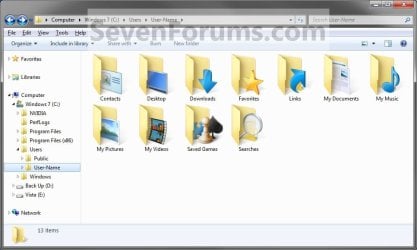
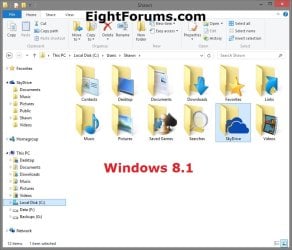
EXAMPLE: User folders
NOTE: This is at the default C:\Users\(user-name) location.
Example1.jpg

Windows_8.1.jpg


OPTION ONE

To Restore Default Location of User Folders in Properties


NOTE: If using this option does not restore the user folder back to the default location, then use OPTION TWO below instead.
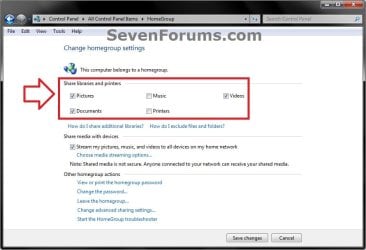
1. If you are in a homegroup, then you will need to change the homegroup settings to no longer share the user folder (ex: My Music) that you want to move first by unchecking the folder and clicking on Save Changes. (see screenshot below)
NOTE: This is so the user folder (ex: My Music) will not be shared on the homegroup anymore.
Homegroup.jpg
2. Press the Windows+R keys to open the Run dialog, type shell:UsersFilesFolder, and press enter.
NOTE: This will open your C:\Users\(user-name) folder.

3. Right click or press and hold on the user folder (ex: My Music) that you want to restore the default location for, and click/tap on Properties.

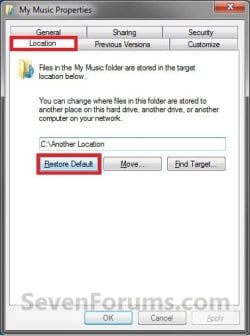
4. Click/tap on the Location tab, and Restore Default button. (See screenshot below)
Properties1.jpg
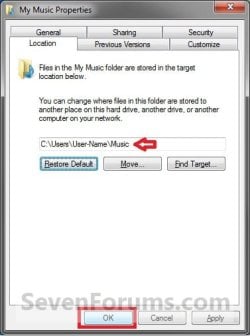
5. Click/tap on OK. (See screenshot below)
NOTE: Notice that the location has changed to the default C:\Users\(user-name) location.
Properties2.jpg
6. Click/tap on Yes. (See screenshot below)
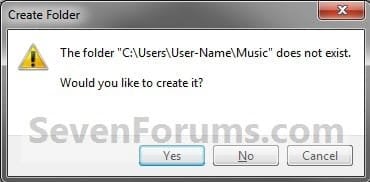
Properties3.jpg

   Note
If you have a folder in the default location named for the user folder already, then you will not see this dialog box.

Windows 8 will not have the "My" in front of the user folder name anymore.

User Folder | Folder Name Contacts |Contacts
Desktop |Desktop
My Documents |Documents
Downloads |Downloads
Favorites |Favorites
Links |Links
My Music |Music
My Pictures |Pictures
OneDrive (Windows 8.1 Update)|OneDrive
Saved Games |Saved Games
Searches |Searches
SkyDrive (Windows 8.1)|SkyDrive
My Videos |Videos


7. Click/tap on Yes. (See screenshot below)
WARNING: If you do not click/tap on Yes, then you will have two copies of this user folder at the C:\Users\(user-name) location. One will be a normal folder (same name) with the contents and the other as the now restored user folder. It is recommended that you click/tap on YES.
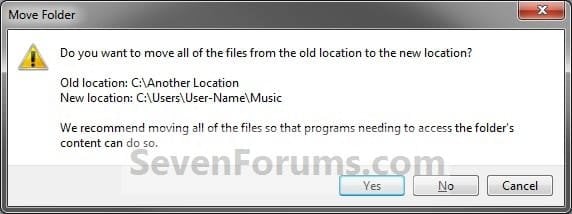
Properties4.jpg
8. After a few seconds when the location has been restored, the Properties window (screenshot under step 5) will then close.

9. If you are in a homegroup, then you can now change the homegroup settings back to share the user folder (ex: My Music) again if you like by checking the folder and clicking on Save Changes. (see screenshot below)
Homegroup.jpg


OPTION TWO

To Restore Default Location of User Folders using a BAT file


   Note
This is an example of the contents of the .bat files below. The parts in red are what will vary per .bat file based on what user folder it is for.

Code:
@echo off 
 
taskkill /f /im explorer.exe
 
timeout /t 2 /nobreak >nul
 
if not exist "%UserProfile%\[B][COLOR=red]Pictures[/COLOR][/B]" mkdir "%UserProfile%\[COLOR=red][B]Pictures[/B][/COLOR]"
 
reg add "HKCU\Software\Microsoft\Windows\CurrentVersion\Explorer\Shell Folders" /v "[COLOR=red][B]My Pictures[/B][/COLOR]" /t REG_SZ /d "C:\Users\%USERNAME%\[COLOR=red][B]Pictures[/B][/COLOR]" /f
 
reg add "HKCU\Software\Microsoft\Windows\CurrentVersion\Explorer\User Shell Folders" /v "[COLOR=red][B]My Pictures[/B][/COLOR]" /t REG_EXPAND_SZ /d %%USERPROFILE%%"\[COLOR=red][B]Pictures[/B][/COLOR]" /f
 
attrib +r -s -h "%USERPROFILE%\[COLOR=red][B]Pictures[/B][/COLOR]" /S /D
 
timeout /t 1 /nobreak >nul
 
start explorer.exe


1. Do step 2 to 13 below for what user folder you need to restore the default location of.


2. To Restore the Default Contacts Folder Location
A) Click/tap on the download button below to download the file below, and go to step 14 below.

Restore_Contacts_Default_Location.bat


Download


3. To Restore the Default Desktop Folder Location
A) Click/tap on the download button below to download the file below, and go to step 14 below.

Restore_Desktop_Default_Location.bat


Download


4. To Restore the Default My Documents Folder Location
A) Click/tap on the download button below to download the file below, and go to step 14 below.

Restore_Documents_Default_Location.bat


Download


5. To Restore the Default Downloads Folder Location
A) Click/tap on the download button below to download the file below, and go to step 14 below.

Restore_Downloads_Default_Location.bat


Download


6. To Restore the Default Favorites Folder Location
A) Click/tap on the download button below to download the file below, and go to step 14 below.

Restore_Favorites_Default_Location.bat


Download


7. To Restore the Default Links Folder Location
A) Click/tap on the download button below to download the file below, and go to step 14 below.

Restore_Links_Default_Location.bat


Download


8. To Restore the Default My Music Folder Location
A) Click/tap on the download button below to download the file below, and go to step 14 below.

Restore_Music_Default_Location.bat


Download


9. To Restore Default OneDrive Folder Location in Windows 8.1 Update
A) Click/tap on the download button below to download the file below, and go to step 14 below.

Restore_OneDrive_Default_Location.bat


Download


10. To Restore the Default My Pictures Folder Location
A) Click/tap on the download button below to download the file below, and go to step 14 below.

Restore_Pictures_Default_Location.bat


Download


11. To Restore the Default Saved Games Folder Location
A) Click/tap on the download button below to download the file below, and go to step 14 below.

Restore_Saved_Games_Default_Location.bat


Download


12. To Restore the Default Searches Folder Location
A) Click/tap on the download button below to download the file below, and go to step 14 below.

Restore_Searches_Default_Location.bat


Download


13. To Restore the Default My Videos Folder Location
A) Click/tap on the download button below to download the file below, and go to step 14 below.

Restore_Videos_Default_Location.bat


Download


14. Save the .bat file to your Desktop.

15. Unblock the downloaded .bat file(s).

16. Double click/tap on the downloaded .bat file to run it.

17. The .bat file will now kill explorer causing your screen to go blank, then open a command prompt to quickly restore the default location of the folder in the registry, restore the default attributes of the folder, restart explorer, and close the command prompt.

18. Repeat step 1 above for any other user folder you need to restore the default location of.

19. When finished, check the user folder(s) to verify that they have been restored to their default location.

20. If the user folder(s) still have not been restored to their default locations, then restart the computer and check again.

21. When restored, copy your files from the old folder location back into your now restored default folder location in "C:\Users\(user-name)".


That's it,
Shawn


Attachments

Last edited:
I used option 2 to restore. After restarting several times without the My Documents folder showing up, I created a new My Documents folder. A warning came up saying that the folder already existed, when I continued the linked folder appeared.

If I click on continue, another window appears saying that I have been denied permission to access the folder and that I need to use the security tab to gain access. However the security tab does not allow me to change permissions.
 

My Computer

OS
Windows 7 Home Premium 64bit

My Computer

Computer type
PC/Desktop
Computer Manufacturer/Model Number
Self built custom
OS
64-bit Windows 11 Pro for Workstations
CPU
Intel i7-8700K OC'd to 5 GHz
Motherboard
ASUS ROG Maximus XI Formula Z390
Memory
64 GB (4x16GB) G.SKILL TridentZ RGB DDR4 3600 MHz
Graphics Card(s)
ASUS ROG-STRIX-GTX1080TI-O11G-GAMING
Sound Card
Integrated
Monitor(s) Displays
2 x Samsung Odyssey G7 27"
Screen Resolution
2560x1440
Hard Drives
1TB Samsung 990 PRO M.2,
4TB Samsung 990 PRO PRO M.2,
TerraMaster F8 SSD Plus NAS
PSU
Seasonic Prime Titanium 850W
Case
Thermaltake Core P3
Cooling
Corsair Hydro H115i
Keyboard
Logitech wireless K800
Mouse
Logitech MX Master 4
Internet Speed
2 Gb/s Download and 100 Mb/s Upload
Antivirus
Malwarebyte Anti-Malware Premium
Browser
Google Chrome
Other Info
Logitech Z625 speaker system,
Logitech BRIO 4K Pro webcam,
HP Color LaserJet Pro MFP M477fdn,
APC SMART-UPS RT 1000 XL - SURT1000XLI,
Galaxy S23 Plus phone
I was able to delete the linked folder and then after restarting the normal My Documents folder appeared. Guess I was too impatient before.

Now instead of moving the user folders, I am using your tip to save HDD space by creating new folders and adding them to the appropriate libraries.

Thank you for your assistance and for posting such good information.
 

My Computer

OS
Windows 7 Home Premium 64bit
That's great news Arron. You're welcome. :)
 

My Computer

Computer type
PC/Desktop
Computer Manufacturer/Model Number
Self built custom
OS
64-bit Windows 11 Pro for Workstations
CPU
Intel i7-8700K OC'd to 5 GHz
Motherboard
ASUS ROG Maximus XI Formula Z390
Memory
64 GB (4x16GB) G.SKILL TridentZ RGB DDR4 3600 MHz
Graphics Card(s)
ASUS ROG-STRIX-GTX1080TI-O11G-GAMING
Sound Card
Integrated
Monitor(s) Displays
2 x Samsung Odyssey G7 27"
Screen Resolution
2560x1440
Hard Drives
1TB Samsung 990 PRO M.2,
4TB Samsung 990 PRO PRO M.2,
TerraMaster F8 SSD Plus NAS
PSU
Seasonic Prime Titanium 850W
Case
Thermaltake Core P3
Cooling
Corsair Hydro H115i
Keyboard
Logitech wireless K800
Mouse
Logitech MX Master 4
Internet Speed
2 Gb/s Download and 100 Mb/s Upload
Antivirus
Malwarebyte Anti-Malware Premium
Browser
Google Chrome
Other Info
Logitech Z625 speaker system,
Logitech BRIO 4K Pro webcam,
HP Color LaserJet Pro MFP M477fdn,
APC SMART-UPS RT 1000 XL - SURT1000XLI,
Galaxy S23 Plus phone
all pictures lost?

Hello,

Thank you very much for this tutorial. I followed the second option to recover my lost \Pictures.

I was moving this folder to a different partition. I wanted to move the files manual, because it was more than 1gb of pictures. And i had duplicated files, so I was checking and merging. (visipics)

I changed the path in the location tab. Windows asked if it should move the files. I clicked 'NO'.
The location worked nice.

But when looking at the old folder, it was gone! :(
I tried this tutariol to get the old folder back. But it did not help. It just got back to the new location.
I rebooted several times.

I searched for deleted files with recuva, diskdigger. Recuva cant find anything. Diskdigger hangs at 50%; after about an hour I stopped it. I used both the light and heavy searches.

I began to doubt if the old folder was a the physical location or that is was a symlink already.
But I did check that, and did not see another location.
I have about 5 partitions. The userfolder is in E: and the documents symlinked already. So I have done this before and i (think i) know what i am doing ;)

It seems the settings are ok, but the physical folder is lost and wont come back.

Is it possible for windows to remove the directory location without any trace? That even the files in it, cannot be found by recuva?
if so, is there a way to recover the dir, so the files come up again.

I have searched for hours now. I just cant find the answer :(

I hope someone can help me out.

Thanks in advance!
Flexjoly
 

My Computer

OS
Windows 7 Home Premium
Hello Flexjoly, and welcome to Seven Forums.

Yep, you should have clicked on "Yes" to move the files with the folder. :(

You might see if using OPTION TWO in the tutorial to restore the default location may still have the file in the original C: location when finished.
 
Last edited:

My Computer

Computer type
PC/Desktop
Computer Manufacturer/Model Number
Self built custom
OS
64-bit Windows 11 Pro for Workstations
CPU
Intel i7-8700K OC'd to 5 GHz
Motherboard
ASUS ROG Maximus XI Formula Z390
Memory
64 GB (4x16GB) G.SKILL TridentZ RGB DDR4 3600 MHz
Graphics Card(s)
ASUS ROG-STRIX-GTX1080TI-O11G-GAMING
Sound Card
Integrated
Monitor(s) Displays
2 x Samsung Odyssey G7 27"
Screen Resolution
2560x1440
Hard Drives
1TB Samsung 990 PRO M.2,
4TB Samsung 990 PRO PRO M.2,
TerraMaster F8 SSD Plus NAS
PSU
Seasonic Prime Titanium 850W
Case
Thermaltake Core P3
Cooling
Corsair Hydro H115i
Keyboard
Logitech wireless K800
Mouse
Logitech MX Master 4
Internet Speed
2 Gb/s Download and 100 Mb/s Upload
Antivirus
Malwarebyte Anti-Malware Premium
Browser
Google Chrome
Other Info
Logitech Z625 speaker system,
Logitech BRIO 4K Pro webcam,
HP Color LaserJet Pro MFP M477fdn,
APC SMART-UPS RT 1000 XL - SURT1000XLI,
Galaxy S23 Plus phone
Hi Brink,
Thanks for your reply.

I did not find 'option three', only one and two in your tutorial.
My user profiles are on E: , so there should be no files on C:

Did windows delete the dir?
But no files are found with recuva. Is that normal?
Or does that mean I looked wrong and the files were already in another location?
It seems too strange that the files are totally gone.

Greetz, Flexjoly
 

My Computer

OS
Windows 7 Home Premium
Sorry, that should be OPTION TWO. :o
 

My Computer

Computer type
PC/Desktop
Computer Manufacturer/Model Number
Self built custom
OS
64-bit Windows 11 Pro for Workstations
CPU
Intel i7-8700K OC'd to 5 GHz
Motherboard
ASUS ROG Maximus XI Formula Z390
Memory
64 GB (4x16GB) G.SKILL TridentZ RGB DDR4 3600 MHz
Graphics Card(s)
ASUS ROG-STRIX-GTX1080TI-O11G-GAMING
Sound Card
Integrated
Monitor(s) Displays
2 x Samsung Odyssey G7 27"
Screen Resolution
2560x1440
Hard Drives
1TB Samsung 990 PRO M.2,
4TB Samsung 990 PRO PRO M.2,
TerraMaster F8 SSD Plus NAS
PSU
Seasonic Prime Titanium 850W
Case
Thermaltake Core P3
Cooling
Corsair Hydro H115i
Keyboard
Logitech wireless K800
Mouse
Logitech MX Master 4
Internet Speed
2 Gb/s Download and 100 Mb/s Upload
Antivirus
Malwarebyte Anti-Malware Premium
Browser
Google Chrome
Other Info
Logitech Z625 speaker system,
Logitech BRIO 4K Pro webcam,
HP Color LaserJet Pro MFP M477fdn,
APC SMART-UPS RT 1000 XL - SURT1000XLI,
Galaxy S23 Plus phone
Brink,

I've tried OPTION TWO several times and keep having the same problem: after the first restart, it appears that everything is working fine. However, after a second restart, all the registry values revert to what they were before and everything is screwed up again.

This computer is on a domain and the Music, Pictures, Videos, and Documents folder are all defaulting to the user's Active Directory Home location instead of the local path. For example, the Location tab for "My Documents" has the Location as "\\SERVERNAME\Home\username\My Documents" instead of "C:\Users\username\Documents".

None of the other computers on this network and domain have this problem, so I know it's not an Active Directory issue. When I log on to another laptop (on the same domain/network) with my username, everything is fine. shell:Personal leads to the local My Documents folder in the C:\Users folder. Only on this one computer, shell:Personal leads to the network location. And it's not just my username, any user that logs onto this one specific computer has the same problem.

Like I said, I've tried option #2, but after a couple restarts, the registry values just revert back to the network locations.

Any thoughts?
 

My Computer

Computer type
Laptop
Computer Manufacturer/Model Number
Lenovo
OS
Windows 7 Pro 64bit
Hello gbds, and welcome to Seven Forums.

I'm afraid that I have no experience with domain issues. This tutorial was intended for local accounts instead.

I wish I could help more. :(
 

My Computer

Computer type
PC/Desktop
Computer Manufacturer/Model Number
Self built custom
OS
64-bit Windows 11 Pro for Workstations
CPU
Intel i7-8700K OC'd to 5 GHz
Motherboard
ASUS ROG Maximus XI Formula Z390
Memory
64 GB (4x16GB) G.SKILL TridentZ RGB DDR4 3600 MHz
Graphics Card(s)
ASUS ROG-STRIX-GTX1080TI-O11G-GAMING
Sound Card
Integrated
Monitor(s) Displays
2 x Samsung Odyssey G7 27"
Screen Resolution
2560x1440
Hard Drives
1TB Samsung 990 PRO M.2,
4TB Samsung 990 PRO PRO M.2,
TerraMaster F8 SSD Plus NAS
PSU
Seasonic Prime Titanium 850W
Case
Thermaltake Core P3
Cooling
Corsair Hydro H115i
Keyboard
Logitech wireless K800
Mouse
Logitech MX Master 4
Internet Speed
2 Gb/s Download and 100 Mb/s Upload
Antivirus
Malwarebyte Anti-Malware Premium
Browser
Google Chrome
Other Info
Logitech Z625 speaker system,
Logitech BRIO 4K Pro webcam,
HP Color LaserJet Pro MFP M477fdn,
APC SMART-UPS RT 1000 XL - SURT1000XLI,
Galaxy S23 Plus phone
Hello Brink, first I want to thank you for this great tutorial!
I tried to restore 4 messed up folders: downloads, documents, pictures and music. Restoring the first 2 folders worked fine, but I am encountering problems with the 2 other ones. Though I followed your guide exactly for 3 times already, I still get a "file not found" when I execute step 25. I already restarted my system for 6 times and there are no duplicate files. Also both folders do not have a location properties tab.

I followed your guide before, about a year ago. At that time all went fine. I don't get it and it's driving me crazy! Hope you can help me?

best regards,
Edwin.
 

My Computer

Computer type
PC/Desktop
Computer Manufacturer/Model Number
custom build
OS
Windows 8 pro - 64 bit
CPU
i5 3570k
Motherboard
MSI Z77A-G45 (MS-7752)
Memory
8192 MB DDR3-SDRAM
Graphics Card(s)
Sapphire HD 7950
Hard Drives
SAMSUNG SSD 830
Seagate ST2000DM001
Western Digital WDC WD10EACS
Antivirus
MS Defender - Private Firewall 7
Browser
Firefox 20
Hello Edwin, and welcome to Seven Forums.

Double check both registry locations (step 18 and note box at top of OPTION TWO) to see if they have the correct paths and names as shown in the screenshots.

Not sure why it took as long, but some folks have reported that the correct default folder didn't show up until the next day.

Hope this helps some for now, :)
Shawn
 

My Computer

Computer type
PC/Desktop
Computer Manufacturer/Model Number
Self built custom
OS
64-bit Windows 11 Pro for Workstations
CPU
Intel i7-8700K OC'd to 5 GHz
Motherboard
ASUS ROG Maximus XI Formula Z390
Memory
64 GB (4x16GB) G.SKILL TridentZ RGB DDR4 3600 MHz
Graphics Card(s)
ASUS ROG-STRIX-GTX1080TI-O11G-GAMING
Sound Card
Integrated
Monitor(s) Displays
2 x Samsung Odyssey G7 27"
Screen Resolution
2560x1440
Hard Drives
1TB Samsung 990 PRO M.2,
4TB Samsung 990 PRO PRO M.2,
TerraMaster F8 SSD Plus NAS
PSU
Seasonic Prime Titanium 850W
Case
Thermaltake Core P3
Cooling
Corsair Hydro H115i
Keyboard
Logitech wireless K800
Mouse
Logitech MX Master 4
Internet Speed
2 Gb/s Download and 100 Mb/s Upload
Antivirus
Malwarebyte Anti-Malware Premium
Browser
Google Chrome
Other Info
Logitech Z625 speaker system,
Logitech BRIO 4K Pro webcam,
HP Color LaserJet Pro MFP M477fdn,
APC SMART-UPS RT 1000 XL - SURT1000XLI,
Galaxy S23 Plus phone
I already double checked those locations many times. Also I've read the note box. I checked it all; all is like it is supposed to be, it just doesn't work.

Guess I have to wait till tomorrow, hope a miracle will happen then...:confused:
 

My Computer

Computer type
PC/Desktop
Computer Manufacturer/Model Number
custom build
OS
Windows 8 pro - 64 bit
CPU
i5 3570k
Motherboard
MSI Z77A-G45 (MS-7752)
Memory
8192 MB DDR3-SDRAM
Graphics Card(s)
Sapphire HD 7950
Hard Drives
SAMSUNG SSD 830
Seagate ST2000DM001
Western Digital WDC WD10EACS
Antivirus
MS Defender - Private Firewall 7
Browser
Firefox 20
If it doesn't show up tomorrow, then you could either do a repair install or create a new administrator user account for yourself to use instead.

After creating the new account, log in to it, and copy anything you want from the old account into the new one.

For example:
 

My Computer

Computer type
PC/Desktop
Computer Manufacturer/Model Number
Self built custom
OS
64-bit Windows 11 Pro for Workstations
CPU
Intel i7-8700K OC'd to 5 GHz
Motherboard
ASUS ROG Maximus XI Formula Z390
Memory
64 GB (4x16GB) G.SKILL TridentZ RGB DDR4 3600 MHz
Graphics Card(s)
ASUS ROG-STRIX-GTX1080TI-O11G-GAMING
Sound Card
Integrated
Monitor(s) Displays
2 x Samsung Odyssey G7 27"
Screen Resolution
2560x1440
Hard Drives
1TB Samsung 990 PRO M.2,
4TB Samsung 990 PRO PRO M.2,
TerraMaster F8 SSD Plus NAS
PSU
Seasonic Prime Titanium 850W
Case
Thermaltake Core P3
Cooling
Corsair Hydro H115i
Keyboard
Logitech wireless K800
Mouse
Logitech MX Master 4
Internet Speed
2 Gb/s Download and 100 Mb/s Upload
Antivirus
Malwarebyte Anti-Malware Premium
Browser
Google Chrome
Other Info
Logitech Z625 speaker system,
Logitech BRIO 4K Pro webcam,
HP Color LaserJet Pro MFP M477fdn,
APC SMART-UPS RT 1000 XL - SURT1000XLI,
Galaxy S23 Plus phone
It didn't work for me. I used option 2. Everything goes well till step 25. When I give the shell command: shell:Personal
I got a window saying: access denied. I logged off and on again and gave the shell command again. This worked and the window with username\Documents opened.
However when I open under Libraries Documents I see next to the name My Documents: This folder is unavailable.
When I double click on My Documents under Documents I get a window with the following text:
Location is not available.
C:\Users\username\Documents\My Documents refers to a location that is unavailable.It could be on a hard drive on this computer, or on a network. Check to make sure that the disk is properly inserted, or that you are connected to the Internet or your network, and then try again. If it still cannot be located, the information might have been moved to a different location.
I checked but my documents are in the directory C:\Users\username\Documents\My Documents.
What to do next? How can I make the directory available?
 

My Computer

Computer type
PC/Desktop
Computer Manufacturer/Model Number
Fujitsu Siemens Esprimo
OS
Windows 7 Ultimate 32
CPU
Intel Core (TM)2 6300 @1.86GHz
Motherboard
ACPIx86
Memory
3 GB
Graphics Card(s)
Intell Q965/Q963
Hard Drives
Maxtor 6Y080M0
ST3808110AS
Antivirus
Microsoft Security Essentials
Browser
Internet Explorer
Hello Marionet, and welcome to Seven Forums.

The "Location" tab, will only be available if you open your "My Documents" folder from the actual "C:\Users\(user-name)\My Documents" folder location and not from any other location (ex: library).

User folders are symbolic links, and that's why it has two paths linked together. The "My Documents" path is just for backwards compatibility, and the "Documents" path is the true reference path. It can get a bit confusing.

In the Documents library, the actual path to include your My Documents folder is "C:\Users\(user-name)\Documents" instead of "C:\Users\(user-name)\My Documents". Changing the path to the correct one should sort that for you.

Hope this helps, :)
Shawn
 

My Computer

Computer type
PC/Desktop
Computer Manufacturer/Model Number
Self built custom
OS
64-bit Windows 11 Pro for Workstations
CPU
Intel i7-8700K OC'd to 5 GHz
Motherboard
ASUS ROG Maximus XI Formula Z390
Memory
64 GB (4x16GB) G.SKILL TridentZ RGB DDR4 3600 MHz
Graphics Card(s)
ASUS ROG-STRIX-GTX1080TI-O11G-GAMING
Sound Card
Integrated
Monitor(s) Displays
2 x Samsung Odyssey G7 27"
Screen Resolution
2560x1440
Hard Drives
1TB Samsung 990 PRO M.2,
4TB Samsung 990 PRO PRO M.2,
TerraMaster F8 SSD Plus NAS
PSU
Seasonic Prime Titanium 850W
Case
Thermaltake Core P3
Cooling
Corsair Hydro H115i
Keyboard
Logitech wireless K800
Mouse
Logitech MX Master 4
Internet Speed
2 Gb/s Download and 100 Mb/s Upload
Antivirus
Malwarebyte Anti-Malware Premium
Browser
Google Chrome
Other Info
Logitech Z625 speaker system,
Logitech BRIO 4K Pro webcam,
HP Color LaserJet Pro MFP M477fdn,
APC SMART-UPS RT 1000 XL - SURT1000XLI,
Galaxy S23 Plus phone
If it doesn't show up tomorrow, then you could either do a repair install or create a new administrator user account for yourself to use instead.

After creating the new account, log in to it, and copy anything you want from the old account into the new one.
For example:

I successfully repaired Windows, all seems to be ok now. But I seem to have 2 new (hidden) folders now: $SysReset and $WINDOWS.~BT. What should I do with those folders, can I throw them away?
 

My Computer

Computer type
PC/Desktop
Computer Manufacturer/Model Number
custom build
OS
Windows 8 pro - 64 bit
CPU
i5 3570k
Motherboard
MSI Z77A-G45 (MS-7752)
Memory
8192 MB DDR3-SDRAM
Graphics Card(s)
Sapphire HD 7950
Hard Drives
SAMSUNG SSD 830
Seagate ST2000DM001
Western Digital WDC WD10EACS
Antivirus
MS Defender - Private Firewall 7
Browser
Firefox 20
That's great news flupke.

These are left over files from the repair install. Double check in them to make sure that there's nothing in them that you want to copy back. If not, then they are perfectly safe to use Disk Cleanup from step 22 in the tutorial below to delete them. :)

http://www.sevenforums.com/tutorials/3413-repair-install.html
 

My Computer

Computer type
PC/Desktop
Computer Manufacturer/Model Number
Self built custom
OS
64-bit Windows 11 Pro for Workstations
CPU
Intel i7-8700K OC'd to 5 GHz
Motherboard
ASUS ROG Maximus XI Formula Z390
Memory
64 GB (4x16GB) G.SKILL TridentZ RGB DDR4 3600 MHz
Graphics Card(s)
ASUS ROG-STRIX-GTX1080TI-O11G-GAMING
Sound Card
Integrated
Monitor(s) Displays
2 x Samsung Odyssey G7 27"
Screen Resolution
2560x1440
Hard Drives
1TB Samsung 990 PRO M.2,
4TB Samsung 990 PRO PRO M.2,
TerraMaster F8 SSD Plus NAS
PSU
Seasonic Prime Titanium 850W
Case
Thermaltake Core P3
Cooling
Corsair Hydro H115i
Keyboard
Logitech wireless K800
Mouse
Logitech MX Master 4
Internet Speed
2 Gb/s Download and 100 Mb/s Upload
Antivirus
Malwarebyte Anti-Malware Premium
Browser
Google Chrome
Other Info
Logitech Z625 speaker system,
Logitech BRIO 4K Pro webcam,
HP Color LaserJet Pro MFP M477fdn,
APC SMART-UPS RT 1000 XL - SURT1000XLI,
Galaxy S23 Plus phone
Hello Marten, and welcome to Seven Forums.

If you use OPTION ONE, then be sure to click on Yes at step 7 to have your files moved back with your My Documents folder when it's restored to the default "C:\User\(user-name)" location. If you don't, then the files will just remain in the folder on your D: drive.

Using either option is pretty straight forward and safe, but I would recommend to copy your files to another location just to be extra safe. This way if something should go wrong while moving your folder back, you will still have the copied files as a backup.

The hard drive will not be affected.

Hope this helps, :)
Shawn
 

My Computer

Computer type
PC/Desktop
Computer Manufacturer/Model Number
Self built custom
OS
64-bit Windows 11 Pro for Workstations
CPU
Intel i7-8700K OC'd to 5 GHz
Motherboard
ASUS ROG Maximus XI Formula Z390
Memory
64 GB (4x16GB) G.SKILL TridentZ RGB DDR4 3600 MHz
Graphics Card(s)
ASUS ROG-STRIX-GTX1080TI-O11G-GAMING
Sound Card
Integrated
Monitor(s) Displays
2 x Samsung Odyssey G7 27"
Screen Resolution
2560x1440
Hard Drives
1TB Samsung 990 PRO M.2,
4TB Samsung 990 PRO PRO M.2,
TerraMaster F8 SSD Plus NAS
PSU
Seasonic Prime Titanium 850W
Case
Thermaltake Core P3
Cooling
Corsair Hydro H115i
Keyboard
Logitech wireless K800
Mouse
Logitech MX Master 4
Internet Speed
2 Gb/s Download and 100 Mb/s Upload
Antivirus
Malwarebyte Anti-Malware Premium
Browser
Google Chrome
Other Info
Logitech Z625 speaker system,
Logitech BRIO 4K Pro webcam,
HP Color LaserJet Pro MFP M477fdn,
APC SMART-UPS RT 1000 XL - SURT1000XLI,
Galaxy S23 Plus phone
I'm glad that this TUT really help.. Finally i can restore my folders default location without formatting! Thanks a lot!
 

My Computer

Computer type
PC/Desktop
Computer Manufacturer/Model Number
Unknown
OS
Windows 7 Ultimate x64
CPU
Bitfenix Prodigy
Motherboard
Ga-z77n WIFI
Memory
Corsair Vengeance 8GB (2x4)1600mhz
Graphics Card(s)
PowerColor HD7870 PCS+ Vortex II 2GB ddr5
Hard Drives
240GB Intel® Solid-State Drive 335 Series
1 TB Western Digital Caviar Blue
Antivirus
Micosoft Essentials
Browser
Google Chrome
Back
Top