User Profiles - Create and Move During Windows 7 Installation

How to Create User Accounts on another Partition or Disk During Windows 7 Installation

   Information
There are several methods to move user profiles to another disk or partition after you have installed Windows 7. The easiest way is to use Audit Mode and System Preparation Tool, both built-in Windows 7 features, to permanently move the location of the folder Users.

This tutorial shows how to relocate both Users and ProgramData to another disk or partition when doing a new, fresh and clean install of Windows 7. If you have already installed Seven, and you'd like to move those folders away from their default location in C: drive, please read first post number 22 in this thread. Follow the steps told in that post, and continue then from beginning of the page 4 in this tutorial.
When Windows 7 is installed, 5 or 6 system folders are created depending on chosen bit-version:

  • PerfLogs (Performance Logs), where Windows stores performance and reliability logs
  • Program Files, where applications and software are installed. Windows x86 (32-bit) stores all applications here, Windows x64 (64-bit) only native 64-bit applications
  • Program Files (x86), only in Windows x64. All non-x64 applications are stored here
  • Windows, which contains core operating system files and drivers
  • ProgramData, where some applications store application and user specific settings and configuration files
  • Users. This is the "home" of all user folders. When a new user account is created and this new user logs in first time, Windows creates a set of user specific folders Users\New_User
Moving Windows and Program Files folders is not recommend by Microsoft. However, moving both Users and ProgramData folders is safe and can save a lot of space on system disk. Pictures, mp3’s videos, documents and so on, a user folder with its subfolders can be tens, sometimes hundreds of gigabytes.

For instance, using this laptop of mine as an example, the total size of Users folder and subfolders is at the moment about 240 GB. The size of ProgramData folder is at the moment almost 18 GB. I simply could not have these folders stored in my system C: drive, there’s not enough space.

When installing Windows 7, I recommend using Windows System Preparation Tool (Sysprep) in so called Audit Mode to relocate Users and ProgramData, leaving C: drive only for Windows and applications.

   Warning

An upgraded Windows cannot be sysprepped. As this method is based in sysprepping, this tutorial is valid only for Windows setups which have not been upgraded.

This means that if you have for instance in-place upgraded Vista to Seven, you cannot sysprep. The same applies if you have upgraded from a lesser edition to a better edition, for instance from Windows 7 Home Premium to Professional.

Notice that a repair install is also an upgrade install, so if you have ever done a repair install (= in-place upgrade to same edition), you cannot sysprep.

In other words, when sysprepping an existing Windows setup it only works if the Windows was installed clean and has never been upgraded or repaired using repair install, or if it is the original pre-installed Windows.

Using this method causes Windows 7 to lose activation information, and it needs to be reactivated afterwards. If your Windows 7 is an OEM version, you might not be able to reactivate it, at least not without phone activation option.

   Warning
IE10 Users: Please read this article first: Sysprep Fatal Error With IE 10 (FIX) | System Administration


Complete tutorial as PDF: View attachment Relocate User folders during Windows 7 installation.pdf (1.22 MB)

Kari


Last edited:
Hi Kari,

A huge thanks for all the time and trouble you have taken to deal with our individual queries and problems. I don't want to put you to any more trouble as I think I may go back to XP.

I wonder if the problem is some manufacturer's change or restriction in their version of the W7 install disk or the configuration of the hardware or bios etc? I am trying to install on a Fujitsu Esprimo Mobile V6555 Notebook Core 2 Duo which comes as a twinload with either XP or W7. For the last 2 years I have happily carried on with XP because W7 seems difficult/complicated and offers no obvious advantages (at least for the way I use the laptop). My recent experience has confirmed this opinion and I think I will Ghost back my XP installation and put it down to experience.

Thanks again,

Martin
 

My Computer My Computer

Computer Manufacturer/Model Number
asus
OS
xp 32
CPU
amd 3200
Motherboard
asus
Windows Search not working with this..

I have tried this but I'm not able to get it work in 100%. After the system startup all users are located in D:\Users, the same is with D:\ProgramData. Except the Windows Search that is using C:\ProgramData. When I uninstall/turn off it I can delete the C:\ProgramData folder. But when I turn on the Windows Search the folder ProgramData is recreated on C: drive.

Am I missing something from the instruction?
Any ideas how to solve this issue ?
 

My Computer My Computer

OS
Windows 7 Pro x64
Hi Cogito, welcome to the Seven Forums.

Regarding original ProgramData folder reappearing on C:, please read post #30 in this thread. There is no issue to be solved :).

Kari
 

My Computer My Computer

Computer type
Laptop
Computer Manufacturer/Model Number
HP ENVY 17-1150eg
OS
Windows 10 Pro x64 EN-GB
CPU
1.6 GHz Intel Core i7-720QM Processor
Memory
6 GB
Graphics Card(s)
ATI Mobility Radeon HD 5850 Graphics
Sound Card
Beats sound system with integrated subwoofer
Monitor(s) Displays
17" laptop display, 22" LED and 32" Full HD TV through HDMI
Screen Resolution
1600*900 (1), 1920*1080 (2&3)
Hard Drives
Internal: 2 x 500 GB SATA Hard Disk Drive 7200 rpm
External: 2TB for backups, 3TB USB3 network drive for media
Cooling
As Envy runs a bit warm, I have it on a Cooler Master pad
Keyboard
Logitech diNovo Media Desktop Laser (bluetooth)
Mouse
Logitech Performance Mouse MX
Internet Speed
50/10 Mbps VDSL
Antivirus
Windows Defender 4.3.9431.0
Browser
Maxthon 3.5.2., IE11
Hi All!
Many thanks for pointing post #30.. I didn't manage to skim all of the posts.

But I would like to suggest a solution to all in need to be almost perfect:
Create a junction (link from one folder to another). As it is described in many solutions to the concept of moving the Users folder.

I was able to:

  • "turn off" Windows Search
  • remove the C:\ProgramData
  • create junction from C:\ProgramData to D:\ProgramData
  • "turn on" windows search
This should solve issues with other hard coded software... except he multilanguage thing :).

Best regards to All,
cogito
 

My Computer My Computer

OS
Windows 7 Pro x64
Blue Folders

:huh:

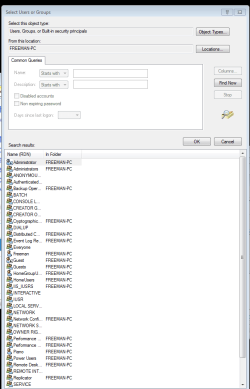
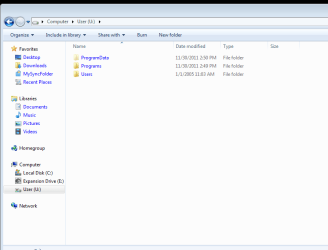
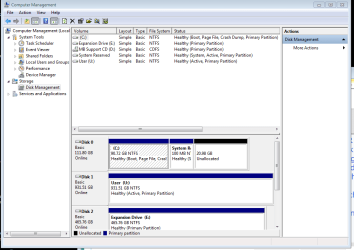
Hello, I finally got done reading this whole thing and I couldnt find a solution to my problem. I have followed the tutorial "Relocate User Folders During Windows 7 Installation" that went ok followed it to a tee. I did notice...since I left the HDD in "during installation" that the MBR installed over their for some reason. Who knows. I used Acronis to move the MBR over to the SDD (Revodrive 3 x2 MAX IOPS). That went ok also. But all of my folders are blue now. I have tried the right click on the HDD's and selected properties and have shared the drive. I noticed when I was doing that their is alot of the same Usernames claiming the same Hat. For example. My username is Freeman. So I took a Snip it picture and attached it. Hopefully that can give you some details. I guess I just dont understand this. I have spent the last 10 hours reading about this. Please can someone help me.

Thank you.;)


Attachments

  • Sharing.PNG
    Sharing.PNG
    21.4 KB · Views: 182
  • See the Blue Folders.PNG
    See the Blue Folders.PNG
    13.7 KB · Views: 189
  • Computer Management.PNG
    Computer Management.PNG
    24.8 KB · Views: 190

My Computer My Computer

Computer Manufacturer/Model Number
Home Built
OS
64
CPU
Intel Core i7 2600K
Motherboard
Asus P8Z68-V Pro
Memory
16 Gigabytes of Corsair DDR3 1600 MHz
Graphics Card(s)
2 X EVGA GTX570HD
Sound Card
onboard Realtek
Monitor(s) Displays
Samsung 27 LCD LED
Hard Drives
OCZ Revodrive 3
Western Digital Black Edition 1TB
PSU
Raidmax 1000AE
Case
Corsair
Cooling
Corsair H100
Hello Crazy88, and welcome to Seven Forums.

The "FREEMAN-PC" that you see under the "In Folder" column in your 1st screenshot is your computer name. This is normal. It's not a user account.

The blue text name indicates that the folder(s) or file(s) have been compressed by you somehow. My guess is that you compressed those 3 folders in your 2nd screenshot. You'll need to decompress them. Does anything else have blue text names other than what is in your 2nd screenshot?
 

My Computer My Computer

Computer type
PC/Desktop
Computer Manufacturer/Model Number
Self built custom
OS
64-bit Windows 11 Pro for Workstations
CPU
Intel i7-8700K OC'd to 5 GHz
Motherboard
ASUS ROG Maximus XI Formula Z390
Memory
64 GB (4x16GB) G.SKILL TridentZ RGB DDR4 3600 MHz
Graphics Card(s)
ASUS ROG-STRIX-GTX1080TI-O11G-GAMING
Sound Card
Integrated
Monitor(s) Displays
2 x Samsung Odyssey G7 27"
Screen Resolution
2560x1440
Hard Drives
1TB Samsung 990 PRO M.2,
4TB Samsung 990 PRO PRO M.2,
TerraMaster F8 SSD Plus NAS
PSU
Seasonic Prime Titanium 850W
Case
Thermaltake Core P3
Cooling
Corsair Hydro H115i
Keyboard
Logitech wireless K800
Mouse
Logitech MX Master 4
Internet Speed
2 Gb/s Download and 100 Mb/s Upload
Antivirus
Malwarebyte Anti-Malware Premium
Browser
Google Chrome
Other Info
Logitech Z625 speaker system,
Logitech BRIO 4K Pro webcam,
HP Color LaserJet Pro MFP M477fdn,
APC SMART-UPS RT 1000 XL - SURT1000XLI,
Galaxy S23 Plus phone
Kari:

First of all, thank you very, very much for your excellent tutorials and for the support you give to them. Incredible work. I wish I had something like this 4 years ago when I set up my Vista computer and moved the Users folders to a different partition. (Lot's of robocopying and mklinks back then!)

I have a new computer arriving and plan to install Windows 7 on a 120 gig SSD. I was also planning on moving my Users and ProgramData folders to a partion on an internal HDD. However, a couple of comments on this thread have given me pause. One relates to backups (images) and the second relates to performance.

Issue 1 (Images): I understand from earlier posts that you highly recommend including both the Users and ProgramData folders in any image. This makes sense. However, if the Users and ProgramData folders are located on a different drive from the OS, I'm wondering how a recovery would work as a practical matter. Presumably, I'll have an image comprising two partions (e.g. C (containing the OS and Program files) and D (containing the User/Program Data). If my SSD fails and I attempt to recover from a recent image, will I be able to recover the C partition image to a new SSD and D partition image back to the healty HDD?

Issue 2 (Performance): One poster, Madindehead, wrote in June that he found that moving AppData and ProgramData off his SSD was slowing down the system boot. If this is true, am I really gaining an advantage by moving my Users and ProgramData folders off of the SSD?

I suppose I could divide my SSD into 2 partions - one for the OS and one for Users/ProgramData folders. It's 120 gig, so it's probably large enough -- particularly if I use Library management to keep larger files (e.g. photos, movies, videos, etc) on the HDD. If I did that, presumably I wouldn't take the speed hit and I guess I could actually use the Original tutorial (as opposed to the page 22 modification)? But, at this point, again, am I really gaining anything by simply having the two partitions?
 

My Computer My Computer

OS
Windows 7 Home Premium 64bit
Hi SHPWin7, welcome to the Seven Forums.

First, AppData must be located as a subfolder in your userprofile folder. Ergo, if you relocate Users, you must accept that AppData is also relocated. ProgramData is then a totally different thing, it can be freely relocated and its location is not tied to location of other folders.

I am currently testing and working for a backup / imaging method for SSD systems where userprofiles and / or other system folders are located on secondary drives. Personally I have had no issues in imaging, the only negative aspect being that when userprofiles are not located on system drive, Windows native backup solution becomes almost useless; if you really want imaging to work in multidrive systems, it's better to use third party solutions for backup and imaging.

Relocated AppData and ProgramData slowing down boot process? Might be so, but if so then we are talking about fractions of a second, not even seconds. Even if it were a few seconds, what's the problem? How often do you need to boot? How much it affects your life or computing if your PC boots in 34 seconds instead of 30 seconds?

Your 120GB for system and user profiles is enough for most of the users. I can not tell you if it would be enough for you, not knowing your "habits", how much and what you store on Users. In my case it would not be enough, not even close:

Users_Properties.PNG

I am sorry I have no simple and clear answers for you.

Kari
 
Last edited:

My Computer My Computer

Computer type
Laptop
Computer Manufacturer/Model Number
HP ENVY 17-1150eg
OS
Windows 10 Pro x64 EN-GB
CPU
1.6 GHz Intel Core i7-720QM Processor
Memory
6 GB
Graphics Card(s)
ATI Mobility Radeon HD 5850 Graphics
Sound Card
Beats sound system with integrated subwoofer
Monitor(s) Displays
17" laptop display, 22" LED and 32" Full HD TV through HDMI
Screen Resolution
1600*900 (1), 1920*1080 (2&3)
Hard Drives
Internal: 2 x 500 GB SATA Hard Disk Drive 7200 rpm
External: 2TB for backups, 3TB USB3 network drive for media
Cooling
As Envy runs a bit warm, I have it on a Cooler Master pad
Keyboard
Logitech diNovo Media Desktop Laser (bluetooth)
Mouse
Logitech Performance Mouse MX
Internet Speed
50/10 Mbps VDSL
Antivirus
Windows Defender 4.3.9431.0
Browser
Maxthon 3.5.2., IE11
Kari:

Thanks for the fast response! After my moment of existential doubt, I took a deep breath and thought over why I've run my existing Vista system with the Users folders on a different partition: It provides good protection of my data (most important) if the OS becomes corrupted. So, I think I will go ahead and move the Users and ProgramData folders to a partition on the HDD.

Now, I've got an idea that I may try. Rather than do the initial W7 installation on the SSD, I think I may do it on an HDD (with two partitions) and simply follow your first post. After I ensure that my system is set up properly and running smoothly, I will image the installation (using my standby imaging software, Acronis) and following WHS's tutorial move the OS partition to the new SSD (and move the Data partiton to the HDD - if it's different from the one I used for the image). I see two small advantages doing it this way. First, I won't have the small residual C:/Users folder that I would get following the post #22 method. Second (and more importantly), I get to test my imaging protocol right away.

What do you think?
 

My Computer My Computer

OS
Windows 7 Home Premium 64bit
That's an interesting way to to do it. Can not find any errors in your logics.

Let us know how it went.

Kari
 

My Computer My Computer

Computer type
Laptop
Computer Manufacturer/Model Number
HP ENVY 17-1150eg
OS
Windows 10 Pro x64 EN-GB
CPU
1.6 GHz Intel Core i7-720QM Processor
Memory
6 GB
Graphics Card(s)
ATI Mobility Radeon HD 5850 Graphics
Sound Card
Beats sound system with integrated subwoofer
Monitor(s) Displays
17" laptop display, 22" LED and 32" Full HD TV through HDMI
Screen Resolution
1600*900 (1), 1920*1080 (2&3)
Hard Drives
Internal: 2 x 500 GB SATA Hard Disk Drive 7200 rpm
External: 2TB for backups, 3TB USB3 network drive for media
Cooling
As Envy runs a bit warm, I have it on a Cooler Master pad
Keyboard
Logitech diNovo Media Desktop Laser (bluetooth)
Mouse
Logitech Performance Mouse MX
Internet Speed
50/10 Mbps VDSL
Antivirus
Windows Defender 4.3.9431.0
Browser
Maxthon 3.5.2., IE11
It's a plan then. I'll report back after the new year and let you know how it goes.
 

My Computer My Computer

OS
Windows 7 Home Premium 64bit
I had already just installed Windows 7 before seeing this tutorial, so I attempted the post-install procedure starting on post 22, but sysprep kept encountering fatal errors during cleaning, so since it wasn't a big deal, I just followed the PDF and did a clean install. Worked perfectly. I now have Users and Program Data on my G drive. Thanks a lot!
 

My Computer My Computer

OS
Windows 7 Ultimate x64
CPU
Intel Core 2 Quad q6600
Motherboard
DFI DK p35 T2RS
Screen Resolution
1920x1080
Hard Drives
OCZ Vertex 3 SSD (120 GB): OS + Program Files
2x WD Blue (500 GB RAID 1): Users, Program data, data
Case
Antec p180
Hi R5Ryder, welcome to the Seven Forums.

Sorry to hear it did not working for existing installation. I am quite sure it is one of Windows services that sometimes prevents it, although I have not yet identified which one.

Glad to hear it worked for your clean install, anyway. Thanks for taking the time to tell.

Kari
 

My Computer My Computer

Computer type
Laptop
Computer Manufacturer/Model Number
HP ENVY 17-1150eg
OS
Windows 10 Pro x64 EN-GB
CPU
1.6 GHz Intel Core i7-720QM Processor
Memory
6 GB
Graphics Card(s)
ATI Mobility Radeon HD 5850 Graphics
Sound Card
Beats sound system with integrated subwoofer
Monitor(s) Displays
17" laptop display, 22" LED and 32" Full HD TV through HDMI
Screen Resolution
1600*900 (1), 1920*1080 (2&3)
Hard Drives
Internal: 2 x 500 GB SATA Hard Disk Drive 7200 rpm
External: 2TB for backups, 3TB USB3 network drive for media
Cooling
As Envy runs a bit warm, I have it on a Cooler Master pad
Keyboard
Logitech diNovo Media Desktop Laser (bluetooth)
Mouse
Logitech Performance Mouse MX
Internet Speed
50/10 Mbps VDSL
Antivirus
Windows Defender 4.3.9431.0
Browser
Maxthon 3.5.2., IE11
When I try to do the sysprep thing in command prompt, at first it shows the "processing cleanup phase Sysprep plugins..." but then it says "A fatal error occurred while trying to sysprep the machine." What do I do?
 

My Computer My Computer

Computer Manufacturer/Model Number
Alienware m17x r3
OS
Windows 7 HP x64
CPU
Core i7 2630 QM
Graphics Card(s)
Radeon HD 6970m
Hard Drives
Intel 320 series 120GB SSD
Seagate 320GB HDD
Hi Ferrari, welcome to the Seven forums.

Did you read the bottom of the last page of the tutorial:
EDIT: Based on my own experience, sysprep does not always like Windows Media Player Network Sharing Service (WMPNetworkSvc). Reason is unknown to me.

If you get an error message when trying to run the XML script, end the service and try again.

Type this to Command Prompt to stop the mentioned service and press Enter: net stop WMPNetworkSvc

Now run the script with sysprep command once again.

Kari
 

My Computer My Computer

Computer type
Laptop
Computer Manufacturer/Model Number
HP ENVY 17-1150eg
OS
Windows 10 Pro x64 EN-GB
CPU
1.6 GHz Intel Core i7-720QM Processor
Memory
6 GB
Graphics Card(s)
ATI Mobility Radeon HD 5850 Graphics
Sound Card
Beats sound system with integrated subwoofer
Monitor(s) Displays
17" laptop display, 22" LED and 32" Full HD TV through HDMI
Screen Resolution
1600*900 (1), 1920*1080 (2&3)
Hard Drives
Internal: 2 x 500 GB SATA Hard Disk Drive 7200 rpm
External: 2TB for backups, 3TB USB3 network drive for media
Cooling
As Envy runs a bit warm, I have it on a Cooler Master pad
Keyboard
Logitech diNovo Media Desktop Laser (bluetooth)
Mouse
Logitech Performance Mouse MX
Internet Speed
50/10 Mbps VDSL
Antivirus
Windows Defender 4.3.9431.0
Browser
Maxthon 3.5.2., IE11
Hello,
My Asus laptop have a hidden partition with Windows Home Premium x64 : During the very first boot, sysprep was run to select the desired language and complete the installation. I have no Windows DVD to run sysprep again. Is there a way to accomodate your tutorial to my situation ? I want to move my existsing users folder to another drive.
TIA.
 

My Computer My Computer

OS
Windows 7 Home Premium x64
Hello HandsNOTinmypocket ;), welcome tothe Seven Forums.

The easiest for you would be to forget this method and use this instead.

Using method described in this tutorial you have three options:
  1. Find out a drive letter for that hidden partition and use it instead of DVD
  2. Download Seven Home Premium in your language, burn it to DVD and use it
  3. Borrow a Seven Home Premium DVD from a friend
Last two options, please pay attention to what bit version you have, 32 or 64, and use respective version.

Kari

Kari
 

My Computer My Computer

Computer type
Laptop
Computer Manufacturer/Model Number
HP ENVY 17-1150eg
OS
Windows 10 Pro x64 EN-GB
CPU
1.6 GHz Intel Core i7-720QM Processor
Memory
6 GB
Graphics Card(s)
ATI Mobility Radeon HD 5850 Graphics
Sound Card
Beats sound system with integrated subwoofer
Monitor(s) Displays
17" laptop display, 22" LED and 32" Full HD TV through HDMI
Screen Resolution
1600*900 (1), 1920*1080 (2&3)
Hard Drives
Internal: 2 x 500 GB SATA Hard Disk Drive 7200 rpm
External: 2TB for backups, 3TB USB3 network drive for media
Cooling
As Envy runs a bit warm, I have it on a Cooler Master pad
Keyboard
Logitech diNovo Media Desktop Laser (bluetooth)
Mouse
Logitech Performance Mouse MX
Internet Speed
50/10 Mbps VDSL
Antivirus
Windows Defender 4.3.9431.0
Browser
Maxthon 3.5.2., IE11
Thank for you the quick reply! It worked. Also, I wasn't following this guide when I started, I was following something similar by Brian wilder, but he recommended your guide as it was more concise and easier to understand. Anyway, his guide didn't say anything about not creating a homegroup for the WiFi network, and I'm pretty sure I set one up...So is that a major problem and is there a way to undo it without starting over with the whole process?
Edit: I went ahead with booting into oobe and it rebooted and then said that it couldn't read the answer file, and then it said it could not complete the installation and if I want to install Windows in this computer, I need to restart the installation. What do I do????
 
Last edited:

My Computer My Computer

Computer Manufacturer/Model Number
Alienware m17x r3
OS
Windows 7 HP x64
CPU
Core i7 2630 QM
Graphics Card(s)
Radeon HD 6970m
Hard Drives
Intel 320 series 120GB SSD
Seagate 320GB HDD
Error message about install not able to read answer file can mean one of two things: The answer file is not found (wrong address or typo in the path), or it contains errors.

Check the answer file for typos, check that you give the path for answerfile correctly.

Kari
 

My Computer My Computer

Computer type
Laptop
Computer Manufacturer/Model Number
HP ENVY 17-1150eg
OS
Windows 10 Pro x64 EN-GB
CPU
1.6 GHz Intel Core i7-720QM Processor
Memory
6 GB
Graphics Card(s)
ATI Mobility Radeon HD 5850 Graphics
Sound Card
Beats sound system with integrated subwoofer
Monitor(s) Displays
17" laptop display, 22" LED and 32" Full HD TV through HDMI
Screen Resolution
1600*900 (1), 1920*1080 (2&3)
Hard Drives
Internal: 2 x 500 GB SATA Hard Disk Drive 7200 rpm
External: 2TB for backups, 3TB USB3 network drive for media
Cooling
As Envy runs a bit warm, I have it on a Cooler Master pad
Keyboard
Logitech diNovo Media Desktop Laser (bluetooth)
Mouse
Logitech Performance Mouse MX
Internet Speed
50/10 Mbps VDSL
Antivirus
Windows Defender 4.3.9431.0
Browser
Maxthon 3.5.2., IE11
Well how do I get back into audit mode? When I press okay for the error, it just reboots into the same error.
 

My Computer My Computer

Computer Manufacturer/Model Number
Alienware m17x r3
OS
Windows 7 HP x64
CPU
Core i7 2630 QM
Graphics Card(s)
Radeon HD 6970m
Hard Drives
Intel 320 series 120GB SSD
Seagate 320GB HDD
Back
Top