User Profiles - Create and Move During Windows 7 Installation

How to Create User Accounts on another Partition or Disk During Windows 7 Installation

   Information
There are several methods to move user profiles to another disk or partition after you have installed Windows 7. The easiest way is to use Audit Mode and System Preparation Tool, both built-in Windows 7 features, to permanently move the location of the folder Users.

This tutorial shows how to relocate both Users and ProgramData to another disk or partition when doing a new, fresh and clean install of Windows 7. If you have already installed Seven, and you'd like to move those folders away from their default location in C: drive, please read first post number 22 in this thread. Follow the steps told in that post, and continue then from beginning of the page 4 in this tutorial.
When Windows 7 is installed, 5 or 6 system folders are created depending on chosen bit-version:

  • PerfLogs (Performance Logs), where Windows stores performance and reliability logs
  • Program Files, where applications and software are installed. Windows x86 (32-bit) stores all applications here, Windows x64 (64-bit) only native 64-bit applications
  • Program Files (x86), only in Windows x64. All non-x64 applications are stored here
  • Windows, which contains core operating system files and drivers
  • ProgramData, where some applications store application and user specific settings and configuration files
  • Users. This is the "home" of all user folders. When a new user account is created and this new user logs in first time, Windows creates a set of user specific folders Users\New_User
Moving Windows and Program Files folders is not recommend by Microsoft. However, moving both Users and ProgramData folders is safe and can save a lot of space on system disk. Pictures, mp3’s videos, documents and so on, a user folder with its subfolders can be tens, sometimes hundreds of gigabytes.

For instance, using this laptop of mine as an example, the total size of Users folder and subfolders is at the moment about 240 GB. The size of ProgramData folder is at the moment almost 18 GB. I simply could not have these folders stored in my system C: drive, there’s not enough space.

When installing Windows 7, I recommend using Windows System Preparation Tool (Sysprep) in so called Audit Mode to relocate Users and ProgramData, leaving C: drive only for Windows and applications.

   Warning

An upgraded Windows cannot be sysprepped. As this method is based in sysprepping, this tutorial is valid only for Windows setups which have not been upgraded.

This means that if you have for instance in-place upgraded Vista to Seven, you cannot sysprep. The same applies if you have upgraded from a lesser edition to a better edition, for instance from Windows 7 Home Premium to Professional.

Notice that a repair install is also an upgrade install, so if you have ever done a repair install (= in-place upgrade to same edition), you cannot sysprep.

In other words, when sysprepping an existing Windows setup it only works if the Windows was installed clean and has never been upgraded or repaired using repair install, or if it is the original pre-installed Windows.

Using this method causes Windows 7 to lose activation information, and it needs to be reactivated afterwards. If your Windows 7 is an OEM version, you might not be able to reactivate it, at least not without phone activation option.

   Warning
IE10 Users: Please read this article first: Sysprep Fatal Error With IE 10 (FIX) | System Administration


Complete tutorial as PDF: View attachment Relocate User folders during Windows 7 installation.pdf (1.22 MB)

Kari


Last edited:
Nope, this is not working at all. My XML content below:

<?xml version="1.0" encoding="utf-8"?>
<unattend xmlns="urn:schemas-microsoft-com:unattend">
<settings pass="oobeSystem">
<component name="Microsoft-Windows-Shell-Setup" processorArchitecture="amd64" publicKeyToken="31bf3856ad364e35" language="neutral" versionScope="nonSxS" xmlns:wcm="Error" xmlns:xsi="http://www.w3.org/2001/XMLSchema-instance">
<FolderLocations>
<ProfilesDirectory>g:\Users</ProfilesDirectory>
</FolderLocations>
</component>
</settings>
<cpi:offlineImage cpi:source="wim:F:/sources/install.wim#Windows 7 HOMEPREMIUM" xmlns:cpi="urn:schemas-microsoft-com:cpi" />
</unattend>

I can't see anything wrong in there can you?

I've checked the ISO and sure enough as expected the "install.wim" is right there as it should be.

I wonder if the OEM "Restore" and "HP_TOOLS" partitions are preventing this working in some way...............I've also tried changing the drive letters from the OEM originally designated drive letter just in case anything should try to point to the original OEM "Restore" and "HP_TOOLS" partitions............and I've tried changing them back again, but still no joy either way.

Have you, Britton30, and Kari any other ideas??
 

My Computer My Computer

At a glance

Windows 7 Home Premium 64 bit
OS
Windows 7 Home Premium 64 bit
Code:
<cpi:offlineImage cpi:source="[COLOR=red]wim:E:/sources/install.wim[/COLOR]#Windows 7 ULTIMATE" xmlns:cpi="urn:schemas-microsoft-com:cpi" />
In the same light Kari, I will need to use the Windows DVD to run the answer file to move ProgramData back to C: then?
Yes. The install.wim file is essential to run sysprep with an unattended answer file.

Hi Kari,
1) In exactly what way is the OEM recovery disk set not a normal Windows install media?
Because I do not know the contents of your specific recovery disks, I can not answer this question. Simply put, you need install.wim. If you do not have it or can not find it on your recovery disks, then you need a "real" install media.
2) Surely the OEM recovery disks contain everything needed for a W7 install? Otherwise in the event of a HD replacement and subsequent install of the OS, the installation would fail, which of course it doesn't. Can the answer file text not be amended to suit?
See my answer above.

3) Will the use of the ISO W7 media now completely overwrite my existing System installation, or will the Sysrep / Audit text be the only thing used, and merely locate the "Users" and if I wish, the "ProgramData" to the partition / drive of my choice, leaving all other parts of my original installation untouched and intact?
Nothing is overwritten, nothing is deleted. The script (= unattended answer file) just changes one or two of the internal Windows 7 environment variables.

Amicus, as Derek suggested above, I think you'd better to choose the other method, the one he told in his post above.

Kari
 

My Computer My Computer

At a glance

Windows 10 Pro x64 EN-GB1.6 GHz Intel Core i7-720QM Processor6 GBATI Mobility Radeon HD 5850 Graphics
Computer type
Laptop
Computer Manufacturer/Model Number
HP ENVY 17-1150eg
OS
Windows 10 Pro x64 EN-GB
CPU
1.6 GHz Intel Core i7-720QM Processor
Memory
6 GB
Graphics Card(s)
ATI Mobility Radeon HD 5850 Graphics
Sound Card
Beats sound system with integrated subwoofer
Monitor(s) Displays
17" laptop display, 22" LED and 32" Full HD TV through HDMI
Screen Resolution
1600*900 (1), 1920*1080 (2&3)
Hard Drives
Internal: 2 x 500 GB SATA Hard Disk Drive 7200 rpm
External: 2TB for backups, 3TB USB3 network drive for media
Cooling
As Envy runs a bit warm, I have it on a Cooler Master pad
Keyboard
Logitech diNovo Media Desktop Laser (bluetooth)
Mouse
Logitech Performance Mouse MX
Internet Speed
50/10 Mbps VDSL
Antivirus
Windows Defender 4.3.9431.0
Browser
Maxthon 3.5.2., IE11
Hi Kari,

I'm now using the downloaded W7 Home Premium x64 ISO, the "install.wim" is in there within "Sources" as it should be.

The script I am using and which I shared in my last post above would appear to be correct to me......... g: being the chosen location, f: being the CD/DVD drive, and I've simply placed the XML-script on the root of any chosen drive (in the first instance I chose C: and when that didn't work I chose G: and altering my cmd line in each instance to suit).

I understand your comment re., derekimo's posted link http://www.sevenforums.com/tutorials...-location.html but what if I now or in the future want to include "ProgramData" in the move?

I really do need to resolve this for my sake and for the sake of others who may be in the same unfortunate position.

What am I doing wrong here.....all this should work now with the ISO and "install.wim"???
 
Last edited:

My Computer My Computer

At a glance

Windows 7 Home Premium 64 bit
OS
Windows 7 Home Premium 64 bit
Hi Kari and others,

I have now tested this every which way, following the tutorial instructions, and without any error messages appearing, and all apparently going to plan, but without any ultimate success.

I must confess I am now beginning to think that your method is just not possible to achieve on a laptop (I've only been testing this on a laptop) which is already running an OEM install of W7 Home Premium 64 bit, notwithstanding the fact that a downloaded "Digital River" W7 ISO of W7 Home Premium 64 bit is used as the source of "install.wim".

  • Have you, or indeed anyone else out there for that matter, ever actually achieved this in the circumstances described in my paragraph above??
  • If so, please share your methodology.
I now suspect that the only way "Users" and / or "ProgramData" can be moved is by using the aforementioned ISO to do a completely clean install and activate the OS by using the OEM product key supplied with the laptop..................that will of course mean that you will lose the entire OEM Recovery partition, and also in my case the HP_TOOLS partition...............you'll have the "one-off" recovery disk set of course (if you've created it), but if you now use that as a recovery install method, the new location of "Users" and / or "ProgramData" will revert to where the OEM wants it / them placed, and not where you had moved them!

Your thoughts please?

Amicus
 

My Computer My Computer

At a glance

Windows 7 Home Premium 64 bit
OS
Windows 7 Home Premium 64 bit
Yes, see post #236 and follow the tutorial Derek linked to. Should work fine. I don't know specifically if someone has done either on an OEM factory install, but I would be certain it would work.
 

My Computer My Computer

At a glance

Windows 7 Ultimate X64 SP1Intel i5-2550K, Differing ~4.4-4.8GHz No buil...16GB G.Skill Sniper 1866MHz @ 2133MHz 2x8GBASUS GTX650TIB-DC2OC-2GD5, (650TI Boost)
Computer type
PC/Desktop
Computer Manufacturer/Model Number
Home Built Desktop By DataTech
OS
Windows 7 Ultimate X64 SP1
CPU
Intel i5-2550K, Differing ~4.4-4.8GHz No built in GPU
Motherboard
ASUS P8Z68-V PRO/GEN3
Memory
16GB G.Skill Sniper 1866MHz @ 2133MHz 2x8GB
Graphics Card(s)
ASUS GTX650TIB-DC2OC-2GD5, (650TI Boost)
Sound Card
Onboard Realtek 5-1
Monitor(s) Displays
Samsung P2570HD
Screen Resolution
1920x1080
Hard Drives
Samsung 840 Pro 256GB SSD for OS, 500GB Seagate Constellation (Enterprise drive) for Data
PSU
Corsair HX650W
Case
Inwin Dragon Rider
Cooling
Hyper 212 EVO w/two Noctua fans, push-pull, @1300 RPM
Keyboard
E-Z Eyes, bright yellow keys with large characters
Mouse
steelseries SENSEI Laser Pro Gaming
Internet Speed
48-51Mbs Mbs down, 11 Mbs up Xfinity Cable
Antivirus
Norton Internet Security 2013
Browser
IE 10, Opera, Pale Moon if needed
Other Info
4 case fans, LG BluRay-RE, ASUS DVD-RW, Mr. Fusion power supply, 1.21 gigawatts.
First a reminder, a really, really, really important thing: If you follow the tutorial, you
A) Boot to Audit Mode
B) Run sysprep from elevated command prompt with answer file which causes Windows to boot back to Audit Mode
C) Run sysprep from GUI without answer file booting to Oobe mode (Welcome Mode, normal "first boot")

So, Amicus, an important question, a question I ask because it's been reason in a lot of cases I have been called over to friends and neighbors when they call in panic telling the folders did not move: Did you go through all the above mentioned steps A, B and C?

Explanation: When you run sysprep with answer file (sysprep.exe /audit /reboot/ /unattend:X:\name_of_the_script.xml), Windows boots back to Audit Mode. Folders are not moved at this stage so if you check the drive where you were moving your folders, they will not be there! Instead they will still be on C:.

Only the last, most crucial step, booting to Oobe, will move the folders, as told in tutorial. One more time: When the answer file is run and computer is rebooted, it is still in Audit Mode if you followed the tutorial, and no folders have yet been moved.

OEM has nothing to do with failure or success of sysprepping with an answer file. As mentioned several times throughout this thread, sometimes this fails which, also mentioned several times, I believe to be because of one or another running Windows service disrupting sysprep. As I have told, I have had identical laptops, bought at the same time from the same place, with identical OEM Windows and application setup, where one fails and one works.

As you can read in this thread, this method mostly works, also in those cases where it has first failed we have often found a small error and when it has been fixed, the result has been OK. But, in some cases it simply does not work and I have had nor do I have no time at the moment to do more reseach.

A short checklist:
- Place answer file on root of a drive THAT KEEPS THE DRIVE LETTER IN EVERY REBOOT! Some fails have been because answer file is in D: but reboot gives D: to CD/DVD drive and sysprep can no longer find the file.
- Check for syntax errors, for instance when sysprepping Home Basic or Home Premium remember that they are written as one word in answer file (HOMEBASIC, HOMEPREMIUM).
- Check the processor architecture in answer file. For 64-bit systems it must be amd64, for 32-bit systems x86.
- Follow the tutorial to the letter. There are no unnecessary steps, nothing you can skip to save time or typing.

That's it. If it works for you, good. If not, I do not think I'm able to help you more.

Kari
 
Last edited:

My Computer My Computer

At a glance

Windows 10 Pro x64 EN-GB1.6 GHz Intel Core i7-720QM Processor6 GBATI Mobility Radeon HD 5850 Graphics
Computer type
Laptop
Computer Manufacturer/Model Number
HP ENVY 17-1150eg
OS
Windows 10 Pro x64 EN-GB
CPU
1.6 GHz Intel Core i7-720QM Processor
Memory
6 GB
Graphics Card(s)
ATI Mobility Radeon HD 5850 Graphics
Sound Card
Beats sound system with integrated subwoofer
Monitor(s) Displays
17" laptop display, 22" LED and 32" Full HD TV through HDMI
Screen Resolution
1600*900 (1), 1920*1080 (2&3)
Hard Drives
Internal: 2 x 500 GB SATA Hard Disk Drive 7200 rpm
External: 2TB for backups, 3TB USB3 network drive for media
Cooling
As Envy runs a bit warm, I have it on a Cooler Master pad
Keyboard
Logitech diNovo Media Desktop Laser (bluetooth)
Mouse
Logitech Performance Mouse MX
Internet Speed
50/10 Mbps VDSL
Antivirus
Windows Defender 4.3.9431.0
Browser
Maxthon 3.5.2., IE11
Britton30,
With respect, that would appear to be skirting around the issue in hand.

I am seeking to use the method proposed by Kari in the way in which it is described as being possible at the start of the post and in the tutorial, to achieve the end result.

In that regard, I am also seeking confirmation as to whether or not this has ever actually been successfully achieved on a laptop which is already running an OEM install of Windows 7 Home Premium 64 bit, using a downloaded "Digital River" (or similar) Windows 7 Home Premium 64 bit ISO as the source of "install.wim".

In the event that no one has achieved this, it would seem sensible to place an additional note at the head of the tutorial to make this clear...............would save others from possibly wasting their time trying.

Kari
Many thanks for your detailed reply. In an earlier post (#116) I seem to recall you stating that you'd been there, done that, etc., with an already installed OS........however, have you successfully achieved this in the OEM circumstances which I have described?

Re., your last post, yes, I followed the tutorial to the letter, understood completely about the correct sequence and number of audit reboots etc.,.........repeated it so many times now it's burned into my brain Lol. It all appears to go correctly, created Test account, logged into my original account etc., etc., etc., but the folders remain stubbornly on C:

Disappointingly, I do understand your comment about sometimes it works and sometimes it just doesn't, but I must confess, I am not as confident as you that this failure has nothing to do with the OEM situation...........proof would be others reporting that they have achieved it.

Also, reviewing the whole thread, issues doing this with Home Premium do seem to be rather common............unless I am mistaken?

Gone through your very useful summary checklist at the foot of your last post, and yes all seems to be as I have done, but sadly still no success for me.

I really do appreciate all the time you have put into creating your tutorial and to reviewing well over 200 posts now, and to trying to help 'all-comers'. Thanks.

Any other ideas on this which may spring to mind by you or any others would be very much appreciated.

Amicus.
 
Last edited:

My Computer My Computer

At a glance

Windows 7 Home Premium 64 bit
OS
Windows 7 Home Premium 64 bit
I am also seeking confirmation as to whether or not this has ever actually been successfully achieved on a laptop which is already running an OEM install of Windows 7 Home Premium 64 bit, using a downloaded "Digital River" (or similar) Windows 7 Home Premium 64 bit ISO as the source of "install.wim".
I have done this several times, so have others, on a laptop with OEM Windows. Although I simply can not believe failing has anything to do with Windows edition, sysprep being a native tool in every edition, I have to admit all my rigs and those I have prepared for others have been at least Professional, mostly Ultimate.

To revert to original folder locations by running sysprep with this answer file on an existing setup, that too I have done a few times. Mostly because the secondary HD have been changed so I have to first move Users back to C:, then swap HD's, then once again move Users to D:, but I have also done this solely for test purposes.

One clear tendence can be seen in this: the older the setup i.e. the more software and devices installed and processes running, the chance to fail grows exponentially. In my opinion this again supports my theory of a service (or process) being the culprit.

Kari
 

My Computer My Computer

At a glance

Windows 10 Pro x64 EN-GB1.6 GHz Intel Core i7-720QM Processor6 GBATI Mobility Radeon HD 5850 Graphics
Computer type
Laptop
Computer Manufacturer/Model Number
HP ENVY 17-1150eg
OS
Windows 10 Pro x64 EN-GB
CPU
1.6 GHz Intel Core i7-720QM Processor
Memory
6 GB
Graphics Card(s)
ATI Mobility Radeon HD 5850 Graphics
Sound Card
Beats sound system with integrated subwoofer
Monitor(s) Displays
17" laptop display, 22" LED and 32" Full HD TV through HDMI
Screen Resolution
1600*900 (1), 1920*1080 (2&3)
Hard Drives
Internal: 2 x 500 GB SATA Hard Disk Drive 7200 rpm
External: 2TB for backups, 3TB USB3 network drive for media
Cooling
As Envy runs a bit warm, I have it on a Cooler Master pad
Keyboard
Logitech diNovo Media Desktop Laser (bluetooth)
Mouse
Logitech Performance Mouse MX
Internet Speed
50/10 Mbps VDSL
Antivirus
Windows Defender 4.3.9431.0
Browser
Maxthon 3.5.2., IE11
Re., the Windows edition, you may well be right Kari, you may well be right, but it does seem curious though!

Yep, I know your theory of a service (or process) being the culprit may seems like a good call on the face of it, but in this case, you'll remember from my first post that my rig is new and straight out of the box, clean, with no connections as yet. In these circumstances I feel it would be slightly unusual for a Windows process to be the cause. Had it been used and messed around with etc., ......a different matter.

I've got to admit Kari, I am perplexed by all this.........it should work!
 

My Computer My Computer

At a glance

Windows 7 Home Premium 64 bit
OS
Windows 7 Home Premium 64 bit
Amicus, a Windows service being the culprit in a totally new system is not strange at all. Keep in mind the EDIT at the very bottom of the last page of the tutorial, added there when I almost accidentally stumbled upon one of the Windows Media Player services preventing sysprepping:
EDIT: Based on my own experience, sysprep does not always like Windows Media Player Network Sharing Service (WMPNetworkSvc). Reason is unknown to me. If you get an error message when trying to run the XML script, end the service and try again.

Type this to Command Prompt to stop the mentioned service and press Enter:
Code:
net stop WMPNetworkSvc
Now run the script with sysprep command once again.

Kari
 

My Computer My Computer

At a glance

Windows 10 Pro x64 EN-GB1.6 GHz Intel Core i7-720QM Processor6 GBATI Mobility Radeon HD 5850 Graphics
Computer type
Laptop
Computer Manufacturer/Model Number
HP ENVY 17-1150eg
OS
Windows 10 Pro x64 EN-GB
CPU
1.6 GHz Intel Core i7-720QM Processor
Memory
6 GB
Graphics Card(s)
ATI Mobility Radeon HD 5850 Graphics
Sound Card
Beats sound system with integrated subwoofer
Monitor(s) Displays
17" laptop display, 22" LED and 32" Full HD TV through HDMI
Screen Resolution
1600*900 (1), 1920*1080 (2&3)
Hard Drives
Internal: 2 x 500 GB SATA Hard Disk Drive 7200 rpm
External: 2TB for backups, 3TB USB3 network drive for media
Cooling
As Envy runs a bit warm, I have it on a Cooler Master pad
Keyboard
Logitech diNovo Media Desktop Laser (bluetooth)
Mouse
Logitech Performance Mouse MX
Internet Speed
50/10 Mbps VDSL
Antivirus
Windows Defender 4.3.9431.0
Browser
Maxthon 3.5.2., IE11
Yep, I was aware of the EDIT to which you refer, but because I did not receive any errors whatsoever, I was inclined to think that it would not be relevant in this instance.

To be certain, just typed it into the cmd prompt, and as I thought, WM Player Network Sharing Service is not started.

Thanks for the reminder tip in any event.

In your experience, any other service(s) which you feel may be worth ending?
 

My Computer My Computer

At a glance

Windows 7 Home Premium 64 bit
OS
Windows 7 Home Premium 64 bit
No. The next weekend mentioned in this post has not yet come due to heavy workload :o.

Kari
 

My Computer My Computer

At a glance

Windows 10 Pro x64 EN-GB1.6 GHz Intel Core i7-720QM Processor6 GBATI Mobility Radeon HD 5850 Graphics
Computer type
Laptop
Computer Manufacturer/Model Number
HP ENVY 17-1150eg
OS
Windows 10 Pro x64 EN-GB
CPU
1.6 GHz Intel Core i7-720QM Processor
Memory
6 GB
Graphics Card(s)
ATI Mobility Radeon HD 5850 Graphics
Sound Card
Beats sound system with integrated subwoofer
Monitor(s) Displays
17" laptop display, 22" LED and 32" Full HD TV through HDMI
Screen Resolution
1600*900 (1), 1920*1080 (2&3)
Hard Drives
Internal: 2 x 500 GB SATA Hard Disk Drive 7200 rpm
External: 2TB for backups, 3TB USB3 network drive for media
Cooling
As Envy runs a bit warm, I have it on a Cooler Master pad
Keyboard
Logitech diNovo Media Desktop Laser (bluetooth)
Mouse
Logitech Performance Mouse MX
Internet Speed
50/10 Mbps VDSL
Antivirus
Windows Defender 4.3.9431.0
Browser
Maxthon 3.5.2., IE11
Ah ha..........so it's been next w/e, followed by next w/e, followed by next.............Geeze Kari, you've had a heavy workload since November '11...........take it easy man.........you'll burn yourself out!

:geek:
 

My Computer My Computer

At a glance

Windows 7 Home Premium 64 bit
OS
Windows 7 Home Premium 64 bit
Just for the record, my Q4 2011 average working week was over 65 hours ;)
 

My Computer My Computer

At a glance

Windows 10 Pro x64 EN-GB1.6 GHz Intel Core i7-720QM Processor6 GBATI Mobility Radeon HD 5850 Graphics
Computer type
Laptop
Computer Manufacturer/Model Number
HP ENVY 17-1150eg
OS
Windows 10 Pro x64 EN-GB
CPU
1.6 GHz Intel Core i7-720QM Processor
Memory
6 GB
Graphics Card(s)
ATI Mobility Radeon HD 5850 Graphics
Sound Card
Beats sound system with integrated subwoofer
Monitor(s) Displays
17" laptop display, 22" LED and 32" Full HD TV through HDMI
Screen Resolution
1600*900 (1), 1920*1080 (2&3)
Hard Drives
Internal: 2 x 500 GB SATA Hard Disk Drive 7200 rpm
External: 2TB for backups, 3TB USB3 network drive for media
Cooling
As Envy runs a bit warm, I have it on a Cooler Master pad
Keyboard
Logitech diNovo Media Desktop Laser (bluetooth)
Mouse
Logitech Performance Mouse MX
Internet Speed
50/10 Mbps VDSL
Antivirus
Windows Defender 4.3.9431.0
Browser
Maxthon 3.5.2., IE11
It's a plan then. I'll report back after the new year and let you know how it goes.


Kari (et al):

Here's my report: I did in fact try this procedure and it seems to work. I first followed the standard Kari method and placed both the OS (C) partition and Users/ProgramFiles (D) partitions on the same HDD. I then imaged the C partition using Acronis and restored it to the SSD. I then booted from the SSD and it seemed to find everything perfectly.

My report is still preliminary. Before I declare it ready for prime time, I will want to a) delete the OS partition from the HDD; b) verify that the new OS partition is properly aligned on the SSD; and, c) practice some backups and recoveries. I haven't yet had time to do this but hope to soon. However, it does look promising.
 

My Computer My Computer

At a glance

Windows 7 Home Premium 64bit
OS
Windows 7 Home Premium 64bit
@Webjockey:
The problem is not only usernames, it's the folder Users. It's a system folder. Because of several ownership and permission issues it should only be used by one computer / installation.

To put it short:
- All user accounts (profiles) on one computer and one Windows installation can and will be stored under Users. This is OK, you can have as many user accounts as you need. Using the script in this tutorial takes care of that, all future user account folders will be automatically created to this new location of Users.
- Users should only include account profiles of one computer or installation. When more Windows installations exist on the same computer (dual / triple whatever boot), the Users folder (as well as all other system folders) should always be located on the system drive of that installation, or be relocated on a drive that does not have any system folders from any other Windows installation.

To put it even shorter:
- Don't do that.

Kari

Kari:

I think the above post answers my question but I want to be sure. On my older computer I'm currently running Vista. I've got my OS on one partition ("C:") and my Users folders on a different partition ("D:"). (FWIW: When I set it up that way 4 years ago, it was much more complicated than your method!)

I'm now planning to install Windows 7 to my older computer. I will set it up to dual boot Vista and Windows 7. When I install Windows 7 I would like to move the Users/ProgramData folders to a different partition. Am I correct that the partition I designate for Window 7's Users/ProgramData folders cannot be the current D: partition (i.e. the partition that currently stores my Vista Users files) even if the users names are different?

Thanks.
 

My Computer My Computer

At a glance

Windows 7 Home Premium 64bit
OS
Windows 7 Home Premium 64bit
Am I correct that the partition I designate for Window 7's Users/ProgramData folders cannot be the current D: partition (i.e. the partition that currently stores my Vista Users files) even if the users names are different?

Thanks.
You could try that to be sure. I've only tried once, which resulted a reinstall of two OS's. In my test, the usernames were the same.

Seems to be quite difficult to find hard facts to support my recommendation, so let's put it this way: The following is more my subjective opinion than a fact, based on my experience with dual/triple boots. Basically, one drive should never contain system files and / or folders from two or more Windows setups. My advice is: do not even think of it!

However, it's your rig. You decide.

Kari
 

My Computer My Computer

At a glance

Windows 10 Pro x64 EN-GB1.6 GHz Intel Core i7-720QM Processor6 GBATI Mobility Radeon HD 5850 Graphics
Computer type
Laptop
Computer Manufacturer/Model Number
HP ENVY 17-1150eg
OS
Windows 10 Pro x64 EN-GB
CPU
1.6 GHz Intel Core i7-720QM Processor
Memory
6 GB
Graphics Card(s)
ATI Mobility Radeon HD 5850 Graphics
Sound Card
Beats sound system with integrated subwoofer
Monitor(s) Displays
17" laptop display, 22" LED and 32" Full HD TV through HDMI
Screen Resolution
1600*900 (1), 1920*1080 (2&3)
Hard Drives
Internal: 2 x 500 GB SATA Hard Disk Drive 7200 rpm
External: 2TB for backups, 3TB USB3 network drive for media
Cooling
As Envy runs a bit warm, I have it on a Cooler Master pad
Keyboard
Logitech diNovo Media Desktop Laser (bluetooth)
Mouse
Logitech Performance Mouse MX
Internet Speed
50/10 Mbps VDSL
Antivirus
Windows Defender 4.3.9431.0
Browser
Maxthon 3.5.2., IE11
Hi Kari, first of all many thanks for your precious tutorial! :)

Just want to give an advice/idea for this...:
Basically, one drive should never contain system files and / or folders from two or more Windows setups. My advice is: do not even think of it!
well, I'm trying to dual boot Seven/Xp (but could be Vista/Seven or maybe Seven/Seven, etc) and that's not the first time I do that.

I also usually move profiledir in Xp to D:\Users.

But since I know that Win7 and Xp cannot use the same folder for storing profiles, I think you just CAN use the same drive but MUST use different folders.

The simple idea is to use something like "D:\P1_W7" for storing Win7 profiles and for eg "D:\P2_XP" for Xp profiles.
So we'll have something like D:\P1_W7\Users for Win7 and D:\P2_XP\Users for Xp (or D:\P2...what u want, for the other O.S.)

One drive, two big folders. Same drive, but separate folders.

What u think? I'm trying with Virtual Machine... let u know.:)

- - - - - - - - - - - - - - - - - - - - - - - - - - - - - - - - - - - -

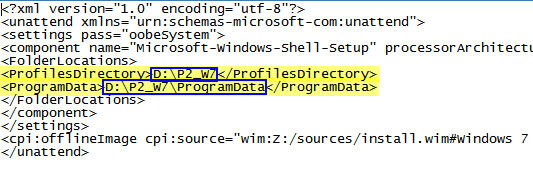
here is how I'm trying to do it with changes to relocate.xml:
AHNo8.png


EDIT: tested with vbox, but the above method fails: it doesn't create folder "P2_W7"...
(result is "D:\Users" and not what I wanted that was "D:\P2_W7\Users")

maybe I have to manually create folder before doing the trick?
or there is another string to use our personalized profiledir folder, different from the default one (d/users)?
 
Last edited:

My Computer My Computer

At a glance

Win 7 premium x64
OS
Win 7 premium x64
I think you would have to create the folders first on the root of drive your are moving Users and ProgramData to.
 

My Computer My Computer

At a glance

Windows 7 Ultimate X64 SP1Intel i5-2550K, Differing ~4.4-4.8GHz No buil...16GB G.Skill Sniper 1866MHz @ 2133MHz 2x8GBASUS GTX650TIB-DC2OC-2GD5, (650TI Boost)
Computer type
PC/Desktop
Computer Manufacturer/Model Number
Home Built Desktop By DataTech
OS
Windows 7 Ultimate X64 SP1
CPU
Intel i5-2550K, Differing ~4.4-4.8GHz No built in GPU
Motherboard
ASUS P8Z68-V PRO/GEN3
Memory
16GB G.Skill Sniper 1866MHz @ 2133MHz 2x8GB
Graphics Card(s)
ASUS GTX650TIB-DC2OC-2GD5, (650TI Boost)
Sound Card
Onboard Realtek 5-1
Monitor(s) Displays
Samsung P2570HD
Screen Resolution
1920x1080
Hard Drives
Samsung 840 Pro 256GB SSD for OS, 500GB Seagate Constellation (Enterprise drive) for Data
PSU
Corsair HX650W
Case
Inwin Dragon Rider
Cooling
Hyper 212 EVO w/two Noctua fans, push-pull, @1300 RPM
Keyboard
E-Z Eyes, bright yellow keys with large characters
Mouse
steelseries SENSEI Laser Pro Gaming
Internet Speed
48-51Mbs Mbs down, 11 Mbs up Xfinity Cable
Antivirus
Norton Internet Security 2013
Browser
IE 10, Opera, Pale Moon if needed
Other Info
4 case fans, LG BluRay-RE, ASUS DVD-RW, Mr. Fusion power supply, 1.21 gigawatts.
No, no need to create folders. Sysprep takes care of that. Folder names must be Users and ProgramData.

Kari
 

My Computer My Computer

At a glance

Windows 10 Pro x64 EN-GB1.6 GHz Intel Core i7-720QM Processor6 GBATI Mobility Radeon HD 5850 Graphics
Computer type
Laptop
Computer Manufacturer/Model Number
HP ENVY 17-1150eg
OS
Windows 10 Pro x64 EN-GB
CPU
1.6 GHz Intel Core i7-720QM Processor
Memory
6 GB
Graphics Card(s)
ATI Mobility Radeon HD 5850 Graphics
Sound Card
Beats sound system with integrated subwoofer
Monitor(s) Displays
17" laptop display, 22" LED and 32" Full HD TV through HDMI
Screen Resolution
1600*900 (1), 1920*1080 (2&3)
Hard Drives
Internal: 2 x 500 GB SATA Hard Disk Drive 7200 rpm
External: 2TB for backups, 3TB USB3 network drive for media
Cooling
As Envy runs a bit warm, I have it on a Cooler Master pad
Keyboard
Logitech diNovo Media Desktop Laser (bluetooth)
Mouse
Logitech Performance Mouse MX
Internet Speed
50/10 Mbps VDSL
Antivirus
Windows Defender 4.3.9431.0
Browser
Maxthon 3.5.2., IE11
Back
Top