User Profiles - Create and Move During Windows 7 Installation

How to Create User Accounts on another Partition or Disk During Windows 7 Installation

   Information
There are several methods to move user profiles to another disk or partition after you have installed Windows 7. The easiest way is to use Audit Mode and System Preparation Tool, both built-in Windows 7 features, to permanently move the location of the folder Users.

This tutorial shows how to relocate both Users and ProgramData to another disk or partition when doing a new, fresh and clean install of Windows 7. If you have already installed Seven, and you'd like to move those folders away from their default location in C: drive, please read first post number 22 in this thread. Follow the steps told in that post, and continue then from beginning of the page 4 in this tutorial.
When Windows 7 is installed, 5 or 6 system folders are created depending on chosen bit-version:

  • PerfLogs (Performance Logs), where Windows stores performance and reliability logs
  • Program Files, where applications and software are installed. Windows x86 (32-bit) stores all applications here, Windows x64 (64-bit) only native 64-bit applications
  • Program Files (x86), only in Windows x64. All non-x64 applications are stored here
  • Windows, which contains core operating system files and drivers
  • ProgramData, where some applications store application and user specific settings and configuration files
  • Users. This is the "home" of all user folders. When a new user account is created and this new user logs in first time, Windows creates a set of user specific folders Users\New_User
Moving Windows and Program Files folders is not recommend by Microsoft. However, moving both Users and ProgramData folders is safe and can save a lot of space on system disk. Pictures, mp3’s videos, documents and so on, a user folder with its subfolders can be tens, sometimes hundreds of gigabytes.

For instance, using this laptop of mine as an example, the total size of Users folder and subfolders is at the moment about 240 GB. The size of ProgramData folder is at the moment almost 18 GB. I simply could not have these folders stored in my system C: drive, there’s not enough space.

When installing Windows 7, I recommend using Windows System Preparation Tool (Sysprep) in so called Audit Mode to relocate Users and ProgramData, leaving C: drive only for Windows and applications.

   Warning

An upgraded Windows cannot be sysprepped. As this method is based in sysprepping, this tutorial is valid only for Windows setups which have not been upgraded.

This means that if you have for instance in-place upgraded Vista to Seven, you cannot sysprep. The same applies if you have upgraded from a lesser edition to a better edition, for instance from Windows 7 Home Premium to Professional.

Notice that a repair install is also an upgrade install, so if you have ever done a repair install (= in-place upgrade to same edition), you cannot sysprep.

In other words, when sysprepping an existing Windows setup it only works if the Windows was installed clean and has never been upgraded or repaired using repair install, or if it is the original pre-installed Windows.

Using this method causes Windows 7 to lose activation information, and it needs to be reactivated afterwards. If your Windows 7 is an OEM version, you might not be able to reactivate it, at least not without phone activation option.

   Warning
IE10 Users: Please read this article first: Sysprep Fatal Error With IE 10 (FIX) | System Administration


Complete tutorial as PDF: View attachment Relocate User folders during Windows 7 installation.pdf (1.22 MB)

Kari


Last edited:
I've already done this during clean install of Windows 7 long time ago. Is it possible to redone this? Because after I perform a chkdsk, it seems that it doesn't recognize the users folder anymore. It says "preparing your desktop" on login screen and when I login successfully on desktop, a message pops up on tray saying that "Windows has loaded the default user profile..." and then, the explorer.exe stops responding.

Thanks for response! :)
 

My Computer My Computer

Computer type
PC/Desktop
Computer Manufacturer/Model Number
Custom Build
OS
Windows 7 Ultimate x64
CPU
Intel Core i5 2500k
Motherboard
ASUS P8Z68-M PRO
Memory
Corsair Vengeance Low Profile 8gb kit
Graphics Card(s)
HIS HD7850 1gb
When relocating the main profile folder Users with sysprep in an existing Windows setup, all user folders must be located under the current location of it. If your Users folder is at the moment located in C: (C:\Users), you must first move your Documents folder back there (C:\Users\Your_Username\Documents).

.....In other words, when sysprepping an existing Windows setup it only works if the Windows was installed clean and has never been upgraded or repaired using repair install, or if it is the original pre-installed Windows.[/warn]

Kari

Thanks very much, Kari! I really appreciate it. I am going to try this on my already installed Windows 7 (was installed as brand new installation, not an upgrade or repair, but thanks for the info). If some programs cry because ProgramData was moved, I will just reinstall them. Hopefully all will work as planned. I know on my work PC's, your method worked flawlessly and thanks again for that. You are a true hero :)
 

My Computer My Computer

Computer type
PC/Desktop
Computer Manufacturer/Model Number
Custom Build
OS
Windows 7 Ultimate x64
CPU
i7-3770k
Motherboard
Asrock Z77 Extreme4
Memory
Crucial Ballistix (2 x 8gb)
Graphics Card(s)
Zotac GTX 660
Sound Card
On board Realtek HD
Monitor(s) Displays
LG L246WP
Screen Resolution
1920 x 1200
Hard Drives
Samsung 840 Pro (256gb)
WD 1tb Blue
PSU
SeaSonic 500w
Cooling
Cooler Master Hyper 212 Evo
Keyboard
Logitech MK550
Mouse
Evoluent Vertical Mouse
Antivirus
AVG
Browser
Coolnovo
I've already done this during clean install of Windows 7 long time ago. Is it possible to redone this? Because after I perform a chkdsk, it seems that it doesn't recognize the users folder anymore. It says "preparing your desktop" on login screen and when I login successfully on desktop, a message pops up on tray saying that "Windows has loaded the default user profile..." and then, the explorer.exe stops responding.

Thanks for response! :)
You give awfully little information but it sounds like a user profile service issue. See this tutorial for possible help: http://www.sevenforums.com/tutorial...-failed-logon-user-profile-cannot-loaded.html

Thanks very much, Kari! I really appreciate it. I am going to try this on my already installed Windows 7 (was installed as brand new installation, not an upgrade or repair, but thanks for the info). If some programs cry because ProgramData was moved, I will just reinstall them. Hopefully all will work as planned. I know on my work PC's, your method worked flawlessly and thanks again for that. You are a true hero :)
I need that last sentence in official signed letter, to show to my ex-wives :).

Come back with any issues.
 

My Computer My Computer

Computer type
Laptop
Computer Manufacturer/Model Number
HP ENVY 17-1150eg
OS
Windows 10 Pro x64 EN-GB
CPU
1.6 GHz Intel Core i7-720QM Processor
Memory
6 GB
Graphics Card(s)
ATI Mobility Radeon HD 5850 Graphics
Sound Card
Beats sound system with integrated subwoofer
Monitor(s) Displays
17" laptop display, 22" LED and 32" Full HD TV through HDMI
Screen Resolution
1600*900 (1), 1920*1080 (2&3)
Hard Drives
Internal: 2 x 500 GB SATA Hard Disk Drive 7200 rpm
External: 2TB for backups, 3TB USB3 network drive for media
Cooling
As Envy runs a bit warm, I have it on a Cooler Master pad
Keyboard
Logitech diNovo Media Desktop Laser (bluetooth)
Mouse
Logitech Performance Mouse MX
Internet Speed
50/10 Mbps VDSL
Antivirus
Windows Defender 4.3.9431.0
Browser
Maxthon 3.5.2., IE11
When you move Users and ProgramData, what is the effect on restoring an OS image or reinstalling Windows? Programs store hidden data and settings in Users/username/AppData and also ProgramData, so it would seem that restoring an image that's out of date could restore prior versions of programs that might not work with the current data and settings due to format changes. It might be impossible or dangerous to use those programs before updating them. When you leave Users and ProgramData on the system drive, this is not an issue, though the data files you've saved yourself might be. However, the restored programs should be good to go, internally consistent, and immediately usable.

Also, with Users and ProgramData moved, the OS installation doesn't stand on its own. That is, it's not usable without those folders being present wherever you moved them to. What happens when your user profile drive dies, or you boot without it connected?

I didn't see anything about these potential issues on the front page or the PDF.

I'm interested in this topic because I'm always seeing it on the "New Posts" entry page, and it's something I used to do for NT4/2K/XP until I gave up on it in Vista, although I was doing it manually through registry edits and whatnot, which got progressively more difficult with each release. Actually, I would just move MY entire profile folder to another drive and leave the Users folder on the system drive. Nevertheless, ISTR encountering a serious problem in Vista when my user profile drive died, and double Ctrl+Alt+Del wouldn't let me into the Administrator account. Ever since that bad experience, I've been relocating just my data folders. I'm interested in how disaster scenarios unfold under the more sophisticated method presented here, and if there are any special considerations, it would be good to mention them in the documentation.
 

My Computer My Computer

Computer type
PC/Desktop
OS
Windows 7 Ultimate x64
When you move Users and ProgramData, what is the effect on restoring an OS image or reinstalling Windows?
Creating a system image with relocated Users and / or ProgramData folders, the drive containing them must of course be included. No difference there compared to a system image from a one drive system, which would also naturally include those two folders.

Restoring a dual drive system image is as if you restored a normal system image with everything on one drive (partition), only difference being you of course need two drives to restore to.

Reinstalling is exactly as when reinstalling a system where everything is on one drive:
  • Backup your user data to external storage
  • Wipe / format User Profile drive if exists
  • Reinstall Windows
  • If wanted, use sysprep to relocate Users and / or Program Data folders
  • Restore your user data from backup to respective folders

Also, with Users and ProgramData moved, the OS installation doesn't stand on its own. That is, it's not usable without those folders being present wherever you moved them to. What happens when your user profile drive dies, or you boot without it connected?
Why would you want to boot without a user profile drive connected? What happens if you have everything on C: and that drive dies or becomes corrupt? Totally irrelevant questions.

Today it's more and more normal to have system on SSD which is more likely to crash than a spinner; really, the chance to lose your user data is less likely when it's safely located on another than system drive.

I didn't see anything about these potential issues on the front page or the PDF.
I do not see any potential issues in your post. Please if you find some, let me know and I will add them to tutorial.

Kari
 
Last edited:

My Computer My Computer

Computer type
Laptop
Computer Manufacturer/Model Number
HP ENVY 17-1150eg
OS
Windows 10 Pro x64 EN-GB
CPU
1.6 GHz Intel Core i7-720QM Processor
Memory
6 GB
Graphics Card(s)
ATI Mobility Radeon HD 5850 Graphics
Sound Card
Beats sound system with integrated subwoofer
Monitor(s) Displays
17" laptop display, 22" LED and 32" Full HD TV through HDMI
Screen Resolution
1600*900 (1), 1920*1080 (2&3)
Hard Drives
Internal: 2 x 500 GB SATA Hard Disk Drive 7200 rpm
External: 2TB for backups, 3TB USB3 network drive for media
Cooling
As Envy runs a bit warm, I have it on a Cooler Master pad
Keyboard
Logitech diNovo Media Desktop Laser (bluetooth)
Mouse
Logitech Performance Mouse MX
Internet Speed
50/10 Mbps VDSL
Antivirus
Windows Defender 4.3.9431.0
Browser
Maxthon 3.5.2., IE11
Creating a system image with relocated Users and / or ProgramData folders, the drive containing them must of course be included. No difference there compared to a system image from a one drive system, which would also naturally include those two folders.

There is a difference, because a person who moves Users isn't likely to automatically think to move his data folders out of his already moved user folder, so this naive fellow is going to end up imaging all his data, which wouldn't have come up if he had left Users alone and just moved his data folders. Also, I don't know if the Terabyte imaging programs I use account for these split up Windows systems you're promoting, so that would be another thing to address in a document that discusses potential issues and compares and contrasts to less drastic measures.

To be more specific, I image my OS drive, but I back up my moved data folders separately using a conventional file-based backup program, the programs being Image for Linux and SyncBackSE, respectively. I can restore my OS to a single small drive and immediately have a completely functional system with fully working programs. I can plug my backup drives into my dock and immediately access my files. If for some reason I can't immediately get my system fully back to normal with multiple drives, at least I can still use it.

Restoring a dual drive system image is as if you restored a normal system image with everything on one drive (partition), only difference being you of course need two drives to restore to.
That's a pretty serious consequence.

Also, with Users and ProgramData moved, the OS installation doesn't stand on its own. That is, it's not usable without those folders being present wherever you moved them to. What happens when your user profile drive dies, or you boot without it connected?
Why would you want to boot without a user profile drive connected? What happens if you have everything on C: and that drive dies or becomes corrupt? Totally irrelevant questions.
Obviously, it is possible for your profile drive to die. As I mentioned in my next paragraph, which you clipped and ignored, it happened to me in Vista, and it left me in a very sticky situation. There are also various troubleshooting scenarios in which I would want to be able to run with just the one drive connected. Besides drives outright dying, I've had ports and cables go bad.

Today it's more and more normal to have system on SSD which is more likely to crash than a spinner; really, the chance to lose your user data is less likely when it's safely located on another than system drive.
Actually, using more drives increases the number of failure modes, such as a dead profile drive rendering the system useless, something that would not have happened if you had just moved data folders to the malfunctioning drive.

I do not see any potential issues in your post. Please if you find some, let me know and I will add them to tutorial.

Kari
Re-read first message and my reply to you in this one. If you manage to respond to them meaningfully, I'll consider adding a more obscure one.
 

My Computer My Computer

Computer type
PC/Desktop
OS
Windows 7 Ultimate x64
I repeat what I said: if you find a potential issue, please let me know and I will add it to the tutorial. Until now you have only told something that might or might not happen, be it a one drive system or one with system folders located on different drives.

Some comments:

There is a difference, because a person who moves Users isn't likely to automatically think to move his data folders out of his already moved user folder, so this naive fellow is going to end up imaging all his data

If a user is so careless, he / she might as well forget the same personal data on C:\Users, result being the same: a huge image with all personal files and folders. An experienced user knows better, but mistakes happen, whether you are using a single or multi drive system. The same mistakes.

Restoring a dual drive system image is as if you restored a normal system image with everything on one drive (partition), only difference being you of course need two drives to restore to.
That's a pretty serious consequence.

Excuse me? Pretty serious consequence? To create an image of two drives and restore it to two drives?

Obviously, it is possible for your profile drive to die. As I mentioned in my next paragraph, which you clipped and ignored, it happened to me in Vista
Are you serious? Of course I ignored it, what has something that happened years ago for your Vista installation to do with much more evolved Seven? Be serious.

Please understand this: I am in no position to tell you what to do; it is of course up to you to decide. This is a fully functioning method, reading for instance this thread through you'd notice that all issues we have had have been user caused. Mistakes. And, as I mentioned before, those mistakes can happen to any user, experienced or not, using a multi drive system setup or not.

Every user with some Windows knowledge and experience will know that if you have modified your setup, you need to take some extra steps when imaging, upgrading and so on.

Kari
 

My Computer My Computer

Computer type
Laptop
Computer Manufacturer/Model Number
HP ENVY 17-1150eg
OS
Windows 10 Pro x64 EN-GB
CPU
1.6 GHz Intel Core i7-720QM Processor
Memory
6 GB
Graphics Card(s)
ATI Mobility Radeon HD 5850 Graphics
Sound Card
Beats sound system with integrated subwoofer
Monitor(s) Displays
17" laptop display, 22" LED and 32" Full HD TV through HDMI
Screen Resolution
1600*900 (1), 1920*1080 (2&3)
Hard Drives
Internal: 2 x 500 GB SATA Hard Disk Drive 7200 rpm
External: 2TB for backups, 3TB USB3 network drive for media
Cooling
As Envy runs a bit warm, I have it on a Cooler Master pad
Keyboard
Logitech diNovo Media Desktop Laser (bluetooth)
Mouse
Logitech Performance Mouse MX
Internet Speed
50/10 Mbps VDSL
Antivirus
Windows Defender 4.3.9431.0
Browser
Maxthon 3.5.2., IE11
Program Data and (personal) data are different, Program data has file need for, well, program, to run, personal data isn't even needed.

I do remember that I have moved them. An image program, e.g. Macrium, can make a System image that includes both drives anyway.
 

My Computer My Computer

Computer type
PC/Desktop
Computer Manufacturer/Model Number
Home Built Desktop By DataTech
OS
Windows 7 Ultimate X64 SP1
CPU
Intel i5-2550K, Differing ~4.4-4.8GHz No built in GPU
Motherboard
ASUS P8Z68-V PRO/GEN3
Memory
16GB G.Skill Sniper 1866MHz @ 2133MHz 2x8GB
Graphics Card(s)
ASUS GTX650TIB-DC2OC-2GD5, (650TI Boost)
Sound Card
Onboard Realtek 5-1
Monitor(s) Displays
Samsung P2570HD
Screen Resolution
1920x1080
Hard Drives
Samsung 840 Pro 256GB SSD for OS, 500GB Seagate Constellation (Enterprise drive) for Data
PSU
Corsair HX650W
Case
Inwin Dragon Rider
Cooling
Hyper 212 EVO w/two Noctua fans, push-pull, @1300 RPM
Keyboard
E-Z Eyes, bright yellow keys with large characters
Mouse
steelseries SENSEI Laser Pro Gaming
Internet Speed
48-51Mbs Mbs down, 11 Mbs up Xfinity Cable
Antivirus
Norton Internet Security 2013
Browser
IE 10, Opera, Pale Moon if needed
Other Info
4 case fans, LG BluRay-RE, ASUS DVD-RW, Mr. Fusion power supply, 1.21 gigawatts.
I repeat what I said: if you find a potential issue, please let me know and I will add it to the tutorial. Until now you have only told something that might or might not happen, be it a one drive system or one with system folders located on different drives.

I was being polite characterizing these things as "potential" issues. Something that happens is a real issue. The only "potential" involved is whether or not a given user ever encounters it. The questions are, what exactly happens, and how do you deal with it when it does. These are things worth talking about.

Some comments:
And. Here. We. Go.

Again. :confused:

There is a difference, because a person who moves Users isn't likely to automatically think to move his data folders out of his already moved user folder, so this naive fellow is going to end up imaging all his data

If a user is so careless, he / she might as well forget the same personal data on C:\Users, result being the same: a huge image with all personal files and folders. An experienced user knows better, but mistakes happen, whether you are using a single or multi drive system. The same mistakes.
Therefore, you're tacitly promoting yet another drive or partition to hold the data folders. This is something I think is worth mentioning in your article. Saving space on your system drive is nice, but if you're concerned with backups, and you should be, this is something else you must consider. Of course, it adds more complexity and clutter, including the guesswork in choosing partition sizes.

That's a pretty serious consequence.

Excuse me? Pretty serious consequence? To create an image of two drives and restore it to two drives?
As I explained immediately before that, and you again clipped:

To be more specific, I image my OS drive, but I back up my moved data folders separately using a conventional file-based backup program, the programs being Image for Linux and SyncBackSE, respectively. I can restore my OS to a single small drive and immediately have a completely functional system with fully working programs. I can plug my backup drives into my dock and immediately access my files. If for some reason I can't immediately get my system fully back to normal with multiple drives, at least I can still use it.

In contrast to me, if you don't have those two drives to perform the restore, you're screwed. That's a "pretty serious consequence" in my book. You really don't seem to be thinking about disaster recovery in the slightest, and worse, you're openly disdainful when it's brought up.

Obviously, it is possible for your profile drive to die. As I mentioned in my next paragraph, which you clipped and ignored, it happened to me in Vista
Are you serious? Of course I ignored it, what has something that happened years ago for your Vista installation to do with much more evolved Seven? Be serious.
A reasonable response to my comments about Vista would have been to explain how Windows 7 reacts when you boot with the data drive dead or disconnected, which I directly asked in my first message:

I'm interested in this topic because I'm always seeing it on the "New Posts" entry page, and it's something I used to do for NT4/2K/XP until I gave up on it in Vista, although I was doing it manually through registry edits and whatnot, which got progressively more difficult with each release. Actually, I would just move MY entire profile folder to another drive and leave the Users folder on the system drive. Nevertheless, ISTR encountering a serious problem in Vista when my user profile drive died, and double Ctrl+Alt+Del wouldn't let me into the Administrator account. Ever since that bad experience, I've been relocating just my data folders. I'm interested in how disaster scenarios unfold under the more sophisticated method presented here, and if there are any special considerations, it would be good to mention them in the documentation.

Note that I wasn't even moving the Users folder, just my profile folder. My hope would be that Windows 7 would offer to create a new Users folder and a temporary profile, but I don't know that, and my Vista experience makes it the first thing I think of when I see your thread for the umpteenth time on the "New Posts" page due to all the difficulty people encounter trying to apply your advice. Even if it does create a temporary profile, your followers are still more or less up a creek if they moved ProgramData, which is an even worse idea than the bad idea of moving Users. A person can get the majority of space saving benefits simply by moving data folders and avoid the complications that are brought by relocating the Users and ProgramData folders.

Instead of answering the polite question, you ignored it, and then you came back and ridiculed it by asserting that Windows 7 is more "evolved". If you don't know the answer, you'd do better to admit it, and a serious person genuinely concerned with giving solid advice would answer it simply and directly. You've responded similarly to the other consequences of splitting Windows up, which either you don't understand, or they're something you'd rather not talk about because you seem to have so much invested in this thread.
 

My Computer My Computer

Computer type
PC/Desktop
OS
Windows 7 Ultimate x64
Crawfish, have you even tried the process yet, or are you just making comments, or trolling? :confused:

"Disaster scenarios" are the result of two things, inability to read or bad hardware.
 

My Computer My Computer

Computer type
PC/Desktop
Computer Manufacturer/Model Number
Home Built Desktop By DataTech
OS
Windows 7 Ultimate X64 SP1
CPU
Intel i5-2550K, Differing ~4.4-4.8GHz No built in GPU
Motherboard
ASUS P8Z68-V PRO/GEN3
Memory
16GB G.Skill Sniper 1866MHz @ 2133MHz 2x8GB
Graphics Card(s)
ASUS GTX650TIB-DC2OC-2GD5, (650TI Boost)
Sound Card
Onboard Realtek 5-1
Monitor(s) Displays
Samsung P2570HD
Screen Resolution
1920x1080
Hard Drives
Samsung 840 Pro 256GB SSD for OS, 500GB Seagate Constellation (Enterprise drive) for Data
PSU
Corsair HX650W
Case
Inwin Dragon Rider
Cooling
Hyper 212 EVO w/two Noctua fans, push-pull, @1300 RPM
Keyboard
E-Z Eyes, bright yellow keys with large characters
Mouse
steelseries SENSEI Laser Pro Gaming
Internet Speed
48-51Mbs Mbs down, 11 Mbs up Xfinity Cable
Antivirus
Norton Internet Security 2013
Browser
IE 10, Opera, Pale Moon if needed
Other Info
4 case fans, LG BluRay-RE, ASUS DVD-RW, Mr. Fusion power supply, 1.21 gigawatts.
Crawfish, have you even tried the process yet, or are you just making comments, or trolling? :confused:

I explained what I'm doing here in my first post and reiterated it in my last one. After seeing this thread bumped in "New Posts" here and at eightforums a million times due to all the problems people have applying it, I'm trying to understand if anything has changed since I concluded its subject was a bad idea back in 2008 or so, after doing it myself for NT4/2K/Vista. I've documented various issues that I did not see mentioned on the first page or in the PDF, which I think people considering following Kari's advice should consider and compare and contrast to the much less drastic yet nearly as space-saving alternative of moving data folders.

"Disaster scenarios" are the result of two things, inability to read or bad hardware.
It's not just disaster scenarios that I've been talking about, and glibly dismissing their inevitability as you've done is just so strange to me. We can have a conversation if you respond to what I've written, but this last post of yours is just uselessly argumentative, and I won't entertain any more like it.
 

My Computer My Computer

Computer type
PC/Desktop
OS
Windows 7 Ultimate x64
Perhaps this is also, in your opinion, "uselessly argumentative", but I have used this method, very successfully, several times, maybe 7, without issue, except when I forgot to disable the WMP network service the 1st time.
Again, have you tried it?

If you have and encounter issues, then we can argue talk about them.
 

My Computer My Computer

Computer type
PC/Desktop
Computer Manufacturer/Model Number
Home Built Desktop By DataTech
OS
Windows 7 Ultimate X64 SP1
CPU
Intel i5-2550K, Differing ~4.4-4.8GHz No built in GPU
Motherboard
ASUS P8Z68-V PRO/GEN3
Memory
16GB G.Skill Sniper 1866MHz @ 2133MHz 2x8GB
Graphics Card(s)
ASUS GTX650TIB-DC2OC-2GD5, (650TI Boost)
Sound Card
Onboard Realtek 5-1
Monitor(s) Displays
Samsung P2570HD
Screen Resolution
1920x1080
Hard Drives
Samsung 840 Pro 256GB SSD for OS, 500GB Seagate Constellation (Enterprise drive) for Data
PSU
Corsair HX650W
Case
Inwin Dragon Rider
Cooling
Hyper 212 EVO w/two Noctua fans, push-pull, @1300 RPM
Keyboard
E-Z Eyes, bright yellow keys with large characters
Mouse
steelseries SENSEI Laser Pro Gaming
Internet Speed
48-51Mbs Mbs down, 11 Mbs up Xfinity Cable
Antivirus
Norton Internet Security 2013
Browser
IE 10, Opera, Pale Moon if needed
Other Info
4 case fans, LG BluRay-RE, ASUS DVD-RW, Mr. Fusion power supply, 1.21 gigawatts.
Perhaps this is also, in your opinion, "uselessly argumentative", but I have used this method, very successfully, several times, maybe 7, without issue, except when I forgot to disable the WMP network service the 1st time.

Given that I haven't once said it doesn't "work", either you're still being "uselessly argumentative", or you haven't been reading very carefully. I'm giving you the benefit of the doubt that it's the latter, or I wouldn't be responding now. I guess your next post will probably settle the question. :p

Again, have you tried it?

I have no reason to try it. I get all the space saving I need out of moving data folders. I have no doubt that moving Users and ProgramData "works". I also have no doubt that it brings with it the issues that I don't care to deal with that I've already discussed, that I avoid by moving data folders. My only question is if Windows 7 handles the missing profile drive better than Vista, and I can't get any kind of answer on that.

If you have and encounter issues, then we can argue talk about them.

I've been talking about consequences of using this method. If you choose to live with them, that's up to you, but I think it would be nice to have them spelled out, rather than being left to stumble upon them later. Is that really so difficult to understand?
 

My Computer My Computer

Computer type
PC/Desktop
OS
Windows 7 Ultimate x64
If your user data disk crashes, you lose your user data exactly as if you would lose it if it was located on system drive when it crashes. Worst case scenario: reinstall.

I will end this useless discussion from my part by repeating this once more:

If any of you find a real or potential issue regarding the sysprep method to relocate Users and / or ProgramData folders, please let me know and I will check and add them to the tutorial.

Thank you.

Kari
 

My Computer My Computer

Computer type
Laptop
Computer Manufacturer/Model Number
HP ENVY 17-1150eg
OS
Windows 10 Pro x64 EN-GB
CPU
1.6 GHz Intel Core i7-720QM Processor
Memory
6 GB
Graphics Card(s)
ATI Mobility Radeon HD 5850 Graphics
Sound Card
Beats sound system with integrated subwoofer
Monitor(s) Displays
17" laptop display, 22" LED and 32" Full HD TV through HDMI
Screen Resolution
1600*900 (1), 1920*1080 (2&3)
Hard Drives
Internal: 2 x 500 GB SATA Hard Disk Drive 7200 rpm
External: 2TB for backups, 3TB USB3 network drive for media
Cooling
As Envy runs a bit warm, I have it on a Cooler Master pad
Keyboard
Logitech diNovo Media Desktop Laser (bluetooth)
Mouse
Logitech Performance Mouse MX
Internet Speed
50/10 Mbps VDSL
Antivirus
Windows Defender 4.3.9431.0
Browser
Maxthon 3.5.2., IE11
I will end this useless discussion from my part by repeating this once more:

If any of you find a real or potential issue regarding the sysprep method to relocate Users and / or ProgramData folders, please let me know and I will check them and and them in to the tutorial.

Thank you.

Kari
True Kari the guy is talking about something he hasn't tried. HE states there's no reason to try it yet has to try to pick it apart. I sure hope my systems don't blow up or something dire. :p
 

My Computer My Computer

Computer type
PC/Desktop
Computer Manufacturer/Model Number
Home Built Desktop By DataTech
OS
Windows 7 Ultimate X64 SP1
CPU
Intel i5-2550K, Differing ~4.4-4.8GHz No built in GPU
Motherboard
ASUS P8Z68-V PRO/GEN3
Memory
16GB G.Skill Sniper 1866MHz @ 2133MHz 2x8GB
Graphics Card(s)
ASUS GTX650TIB-DC2OC-2GD5, (650TI Boost)
Sound Card
Onboard Realtek 5-1
Monitor(s) Displays
Samsung P2570HD
Screen Resolution
1920x1080
Hard Drives
Samsung 840 Pro 256GB SSD for OS, 500GB Seagate Constellation (Enterprise drive) for Data
PSU
Corsair HX650W
Case
Inwin Dragon Rider
Cooling
Hyper 212 EVO w/two Noctua fans, push-pull, @1300 RPM
Keyboard
E-Z Eyes, bright yellow keys with large characters
Mouse
steelseries SENSEI Laser Pro Gaming
Internet Speed
48-51Mbs Mbs down, 11 Mbs up Xfinity Cable
Antivirus
Norton Internet Security 2013
Browser
IE 10, Opera, Pale Moon if needed
Other Info
4 case fans, LG BluRay-RE, ASUS DVD-RW, Mr. Fusion power supply, 1.21 gigawatts.
Yes.

Backup and restore: Check
Reinstall: Check
Disk crash: Check

I really have nothing more to say.
 

My Computer My Computer

Computer type
Laptop
Computer Manufacturer/Model Number
HP ENVY 17-1150eg
OS
Windows 10 Pro x64 EN-GB
CPU
1.6 GHz Intel Core i7-720QM Processor
Memory
6 GB
Graphics Card(s)
ATI Mobility Radeon HD 5850 Graphics
Sound Card
Beats sound system with integrated subwoofer
Monitor(s) Displays
17" laptop display, 22" LED and 32" Full HD TV through HDMI
Screen Resolution
1600*900 (1), 1920*1080 (2&3)
Hard Drives
Internal: 2 x 500 GB SATA Hard Disk Drive 7200 rpm
External: 2TB for backups, 3TB USB3 network drive for media
Cooling
As Envy runs a bit warm, I have it on a Cooler Master pad
Keyboard
Logitech diNovo Media Desktop Laser (bluetooth)
Mouse
Logitech Performance Mouse MX
Internet Speed
50/10 Mbps VDSL
Antivirus
Windows Defender 4.3.9431.0
Browser
Maxthon 3.5.2., IE11
Hi Kari, it's been awhile since I posted last and have only recently been able to apply your advice for my Vista system. It worked beautifully as you showed in your post, BUT...while Windows Updates does work, I am getting the "Can't upgrade to service pack 2 because components are missing". When I followed the tutorial I used my Vista Ultimate disk not vLite or any other unattended install disk so I am puzzled to why it would throw that error. Not wanting to derail the topic at hand since I know this is the Win 7 forum (and I am too new to PM you.), any advice you can give would be great because I was happy with the result just want to make sure everything is working properly. Especially before I try this on my Win 7 system. Thanks
 

My Computer My Computer

Computer type
Laptop
Computer Manufacturer/Model Number
Asus
OS
Windows 7 Home Premium x64
Unsurprisingly, my concerns from my first message were well-founded.

1. Since no answer was forthcoming, I created a new VM with two hard drives and applied Kari's procedure to a new Windows 7 w/ SP1 installation. After finishing the installation and verifying the Users and ProgramData folders had been moved to the second drive, I shut down Windows, copied the VM for future testing, and deleted the second drive from the original VM using the VMWare Player interface to simulate what happens when the Users/ProgramData drive has died, or you need to boot with just the system drive connected for troubleshooting or whatever reason. I for one would like to be able to use my Windows installation under those conditions, which have occurred IRL for me; after all, the "real" system drive is fine.

Let's see how it goes.

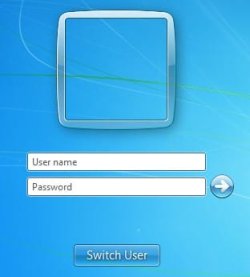
2. I booted the VM, and unsurprisingly, Windows didn't like that the Users/ProgramData drive was missing. It gave me this logon screen, which I cropped to keep the image size down:

1.jpg

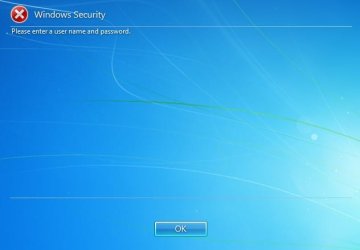
3. I pressed OK, and it took me to this logon screen:

2.jpg

Choosing "crawfish" brought me right back to the screen in (2), and pressing OK there brought me back to (3). Wheeee.

4. Pressing "Other User" (What's that? I don't know.) brought me here, which was strange because I haven't entered any user names other than "crawfish", nor have I created any passwords:

3.jpg

5. Perplexed, I pressed the right arrow, and it took me here:

4.jpg

6. I pressed OK, and I was back to (4). Then I tried "administrator" for the name, and it took me here:

5.jpg

7. I tried double Ctrl+Alt+Del, and that didn't work, because Microsoft did away with it in Vista. So just like what happened to me in Vista when my profile drive failed, I found myself locked out of the system. Note that this is in the "much more evolved Seven", as Kari put it one of the several times he rudely dismissed my questions, clipped out the parts which preempted his "Are you serious?" type responses, etc, which I had to tediously unravel in my replies as I was trying to have a meaningful discussion.

8. So, there's no getting into my Windows installation, despite the data drive being the only thing that has gone wrong, except it's not really a "data drive", is it? It's really a second system drive, and Windows has been split across two system drives, creating a new failure mode. This would not have been a problem if I had stuck to moving data folders; then the failing or unavailable data drive really would be just a "data drive", and I would still have full use of my Windows installation.

9. Now let's try the F8 troubleshooting options:

Last Known Good Configuration: No help, exactly the same result.
Repair Your Computer: System Restore = No restore points have been created; Startup Repair = Startup Repair could not detect a problem.

No luck here.

10. The only option that got me into the computer was Safe Mode, with all its limitations. If you can't correct the problem there, you sure aren't going to be able to use your computer normally in Safe Mode, not to mention your ProgramData folder is missing, so programs that use it won't work right. Your system is effectively dead, when if you had just moved data folders, you could still use it, because there is nothing wrong with the system drive. If you had been backing up your data to file-based backups, you could easily retrieve what you need and use it then and there. Instead, if the Users/ProgramData drive has actually died, you're faced with restoring a system image, which remember, requires two drives. Oops.

To add to the fun, I also got frequent annoying message boxes as I navigated around Explorer in Safe Mode:

6.jpg

Conclusions

While of course it works, Kari's procedure creates a new failure mode that is every bit as bad as it was in Vista when my profile drive died, after which I wised up and stopped doing this sort of nonsense circa 2008.

In contrast, moving data folders leaves you with a self-contained, fully functional system image that requires only one drive to restore, while moving Users/ProgramData requires two of sufficient capacity, which you may not have at the moment you need them while waiting on an RMA or whatever. Leaving Users/ProgramData on the system drive also means you can operate the system with just the system drive connected, which is very nice when the data drive dies or you are troubleshooting and need to disconnect all but the system drive.

The lion's share of space-saving is achieved by moving data folders, which avoids the new failure mode. Note that if you accept the consequences of moving Users/ProgramData and want to reduce system image sizes, you still have to move the data folders, which means needing a third partition or drive for the data folders in addition to the two drives for system and Users/ProgramData.

Most people aren't going to think of any of this stuff until they trip over it. All these things should be mentioned in documentation of the procedure, with the emphasis being that moving Users/ProgramData is an extreme measure and the absolute last choice, with moving data folders being the best practice. These days, 120 GB SSDs are cheap and way larger than most people need for a system drive, and I can't see there's even a space-saving reason to want to move Users and ProgramData anymore; remember, it doesn't help with system image sizes, and all it ever helped was reducing the space needed on the system drive. More than ever, my advice is to move just the data folders using the UI in Windows Explorer and call it a day.
 

My Computer My Computer

Computer type
PC/Desktop
OS
Windows 7 Ultimate x64
Hi Kari, it's been awhile since I posted last and have only recently been able to apply your advice for my Vista system. It worked beautifully as you showed in your post, BUT...while Windows Updates does work, I am getting the "Can't upgrade to service pack 2 because components are missing". When I followed the tutorial I used my Vista Ultimate disk not vLite or any other unattended install disk so I am puzzled to why it would throw that error. Not wanting to derail the topic at hand since I know this is the Win 7 forum (and I am too new to PM you.), any advice you can give would be great because I was happy with the result just want to make sure everything is working properly. Especially before I try this on my Win 7 system. Thanks

You have two options with Vista:
1) Do first updates, including the SP2, first thereafter sysprep to relocate Users
2) Use Sysprep on an existing installation to relocate folders back to C:, install SP2, use sysprep again to relocate folders to new location

Kari


   Note
@Crawfish, can't you find another place to troll? This is a serious IT forum, with serious real issues. Generally speaking, I could start posting these "made with purpose" errors and start telling people how they show that something is not working. Clean Install Windows, then format C: and surprise surprise Windows does not boot! That's the essence of your posts, using a similar example.

Who on earth is so stupid that intentionally moves users to another drive, disconnect said drive and comes here to complain that user profiles are missing. Of course they are missing because YOU DISCONNECTED THE DRIVE!!!

Do you really mean that I should add a warning to the tutorial, like this:

   Warning
If your disk dies or you disconnect it, Windows might have issues in finding your data!


I usually do not react when I see a troll. I apologize to all readers of this thread, I have tried my best to keep it clean and solve your relocating and sysprep issues together with Britton and other active members. Let's do that in the future, too, do not let this troll to scare you. S*** happens, disks die, even on single drive systems.

Kari
 

My Computer My Computer

Computer type
Laptop
Computer Manufacturer/Model Number
HP ENVY 17-1150eg
OS
Windows 10 Pro x64 EN-GB
CPU
1.6 GHz Intel Core i7-720QM Processor
Memory
6 GB
Graphics Card(s)
ATI Mobility Radeon HD 5850 Graphics
Sound Card
Beats sound system with integrated subwoofer
Monitor(s) Displays
17" laptop display, 22" LED and 32" Full HD TV through HDMI
Screen Resolution
1600*900 (1), 1920*1080 (2&3)
Hard Drives
Internal: 2 x 500 GB SATA Hard Disk Drive 7200 rpm
External: 2TB for backups, 3TB USB3 network drive for media
Cooling
As Envy runs a bit warm, I have it on a Cooler Master pad
Keyboard
Logitech diNovo Media Desktop Laser (bluetooth)
Mouse
Logitech Performance Mouse MX
Internet Speed
50/10 Mbps VDSL
Antivirus
Windows Defender 4.3.9431.0
Browser
Maxthon 3.5.2., IE11
Kari, even I can see the fish is not following your protocols which have, and continue, to work for 1000s of people. Don't respond except to real people who want real help and not some hogwash solutions to hogwash procedures. He has said a few times he won't do this anyway and has had issues with older OSes so I don't see him having luck with w7 either.

"Insanity is doing the same thing over and over and expecting different results".
~Einstein.
 

My Computer My Computer

Computer type
PC/Desktop
Computer Manufacturer/Model Number
Home Built Desktop By DataTech
OS
Windows 7 Ultimate X64 SP1
CPU
Intel i5-2550K, Differing ~4.4-4.8GHz No built in GPU
Motherboard
ASUS P8Z68-V PRO/GEN3
Memory
16GB G.Skill Sniper 1866MHz @ 2133MHz 2x8GB
Graphics Card(s)
ASUS GTX650TIB-DC2OC-2GD5, (650TI Boost)
Sound Card
Onboard Realtek 5-1
Monitor(s) Displays
Samsung P2570HD
Screen Resolution
1920x1080
Hard Drives
Samsung 840 Pro 256GB SSD for OS, 500GB Seagate Constellation (Enterprise drive) for Data
PSU
Corsair HX650W
Case
Inwin Dragon Rider
Cooling
Hyper 212 EVO w/two Noctua fans, push-pull, @1300 RPM
Keyboard
E-Z Eyes, bright yellow keys with large characters
Mouse
steelseries SENSEI Laser Pro Gaming
Internet Speed
48-51Mbs Mbs down, 11 Mbs up Xfinity Cable
Antivirus
Norton Internet Security 2013
Browser
IE 10, Opera, Pale Moon if needed
Other Info
4 case fans, LG BluRay-RE, ASUS DVD-RW, Mr. Fusion power supply, 1.21 gigawatts.
Back
Top