User Profiles - Create and Move During Windows 7 Installation

How to Create User Accounts on another Partition or Disk During Windows 7 Installation

   Information
There are several methods to move user profiles to another disk or partition after you have installed Windows 7. The easiest way is to use Audit Mode and System Preparation Tool, both built-in Windows 7 features, to permanently move the location of the folder Users.

This tutorial shows how to relocate both Users and ProgramData to another disk or partition when doing a new, fresh and clean install of Windows 7. If you have already installed Seven, and you'd like to move those folders away from their default location in C: drive, please read first post number 22 in this thread. Follow the steps told in that post, and continue then from beginning of the page 4 in this tutorial.
When Windows 7 is installed, 5 or 6 system folders are created depending on chosen bit-version:

  • PerfLogs (Performance Logs), where Windows stores performance and reliability logs
  • Program Files, where applications and software are installed. Windows x86 (32-bit) stores all applications here, Windows x64 (64-bit) only native 64-bit applications
  • Program Files (x86), only in Windows x64. All non-x64 applications are stored here
  • Windows, which contains core operating system files and drivers
  • ProgramData, where some applications store application and user specific settings and configuration files
  • Users. This is the "home" of all user folders. When a new user account is created and this new user logs in first time, Windows creates a set of user specific folders Users\New_User
Moving Windows and Program Files folders is not recommend by Microsoft. However, moving both Users and ProgramData folders is safe and can save a lot of space on system disk. Pictures, mp3’s videos, documents and so on, a user folder with its subfolders can be tens, sometimes hundreds of gigabytes.

For instance, using this laptop of mine as an example, the total size of Users folder and subfolders is at the moment about 240 GB. The size of ProgramData folder is at the moment almost 18 GB. I simply could not have these folders stored in my system C: drive, there’s not enough space.

When installing Windows 7, I recommend using Windows System Preparation Tool (Sysprep) in so called Audit Mode to relocate Users and ProgramData, leaving C: drive only for Windows and applications.

   Warning

An upgraded Windows cannot be sysprepped. As this method is based in sysprepping, this tutorial is valid only for Windows setups which have not been upgraded.

This means that if you have for instance in-place upgraded Vista to Seven, you cannot sysprep. The same applies if you have upgraded from a lesser edition to a better edition, for instance from Windows 7 Home Premium to Professional.

Notice that a repair install is also an upgrade install, so if you have ever done a repair install (= in-place upgrade to same edition), you cannot sysprep.

In other words, when sysprepping an existing Windows setup it only works if the Windows was installed clean and has never been upgraded or repaired using repair install, or if it is the original pre-installed Windows.

Using this method causes Windows 7 to lose activation information, and it needs to be reactivated afterwards. If your Windows 7 is an OEM version, you might not be able to reactivate it, at least not without phone activation option.

   Warning
IE10 Users: Please read this article first: Sysprep Fatal Error With IE 10 (FIX) | System Administration


Complete tutorial as PDF: View attachment Relocate User folders during Windows 7 installation.pdf (1.22 MB)

Kari


Last edited:
I would just copy and paste from the link you provided, but I get a message saying "that information is oudated and has been archived".

Please tell what link gives you that message?
 

My Computer My Computer

At a glance

Windows 10 Pro x64 EN-GB1.6 GHz Intel Core i7-720QM Processor6 GBATI Mobility Radeon HD 5850 Graphics
Computer type
Laptop
Computer Manufacturer/Model Number
HP ENVY 17-1150eg
OS
Windows 10 Pro x64 EN-GB
CPU
1.6 GHz Intel Core i7-720QM Processor
Memory
6 GB
Graphics Card(s)
ATI Mobility Radeon HD 5850 Graphics
Sound Card
Beats sound system with integrated subwoofer
Monitor(s) Displays
17" laptop display, 22" LED and 32" Full HD TV through HDMI
Screen Resolution
1600*900 (1), 1920*1080 (2&3)
Hard Drives
Internal: 2 x 500 GB SATA Hard Disk Drive 7200 rpm
External: 2TB for backups, 3TB USB3 network drive for media
Cooling
As Envy runs a bit warm, I have it on a Cooler Master pad
Keyboard
Logitech diNovo Media Desktop Laser (bluetooth)
Mouse
Logitech Performance Mouse MX
Internet Speed
50/10 Mbps VDSL
Antivirus
Windows Defender 4.3.9431.0
Browser
Maxthon 3.5.2., IE11
Install Disc Necessary ???

If I already have Win7 installed do I need to have the install DVD in the disc drive to move my user profiles? The script seems to imply that but will it work without it as I am not installing Win7 again?

Thanks,
ThorsteinO
 

My Computer My Computer

At a glance

Win 7 Home Premium x64
Computer type
PC/Desktop
Computer Manufacturer/Model Number
Home Build
OS
Win 7 Home Premium x64
If I already have Win7 installed do I need to have the install DVD in the disc drive to move my user profiles? The script seems to imply that but will it work without it as I am not installing Win7 again?

Thanks,
ThorsteinO

Hi Thorstein, welcome to Seven Forums.

No, you can remove the CPI Source line from answer file. I've highlighted the part that can be left out / removed in this sample answer file:

Code:
<?xml version="1.0" encoding="utf-8"?>
<unattend xmlns="urn:schemas-microsoft-com:unattend">
     <settings pass="oobeSystem">
         <component name="Microsoft-Windows-Shell-Setup" processorArchitecture="amd64" publicKeyToken="31bf3856ad364e35" language="neutral" versionScope="nonSxS" xmlns:wcm="http://schemas.microsoft.com/WMIConfig/2002/State" xmlns:xsi="http://www.w3.org/2001/XMLSchema-instance">
             <FolderLocations>
                 <ProfilesDirectory>d:\Users</ProfilesDirectory>
                 <ProgramData>d:\ProgramData</ProgramData>
             </FolderLocations>
         </component>
     </settings>
     [hl]<cpi:offlineImage cpi:source="wim:E:/sources/install.wim#Windows 7 ULTIMATE" xmlns:cpi="urn:schemas-microsoft-com:cpi" />[/hl]
</unattend>


Kari
 

My Computer My Computer

At a glance

Windows 10 Pro x64 EN-GB1.6 GHz Intel Core i7-720QM Processor6 GBATI Mobility Radeon HD 5850 Graphics
Computer type
Laptop
Computer Manufacturer/Model Number
HP ENVY 17-1150eg
OS
Windows 10 Pro x64 EN-GB
CPU
1.6 GHz Intel Core i7-720QM Processor
Memory
6 GB
Graphics Card(s)
ATI Mobility Radeon HD 5850 Graphics
Sound Card
Beats sound system with integrated subwoofer
Monitor(s) Displays
17" laptop display, 22" LED and 32" Full HD TV through HDMI
Screen Resolution
1600*900 (1), 1920*1080 (2&3)
Hard Drives
Internal: 2 x 500 GB SATA Hard Disk Drive 7200 rpm
External: 2TB for backups, 3TB USB3 network drive for media
Cooling
As Envy runs a bit warm, I have it on a Cooler Master pad
Keyboard
Logitech diNovo Media Desktop Laser (bluetooth)
Mouse
Logitech Performance Mouse MX
Internet Speed
50/10 Mbps VDSL
Antivirus
Windows Defender 4.3.9431.0
Browser
Maxthon 3.5.2., IE11
Thanks

Thanks I'll give that a try
 

My Computer My Computer

At a glance

Win 7 Home Premium x64
Computer type
PC/Desktop
Computer Manufacturer/Model Number
Home Build
OS
Win 7 Home Premium x64
Had to make an account to tell you thanks so much for this information! I Googled for a couple hours trying to remember how I set up my SSD and HDD a year ago and couldn't remember. Finally found this and it was so painless, fast and easy thanks so much! Once I did this it brought back up my old desktop from my HDD. I had to reinstall Windows 7 on my SSD. Had already installed it before I found this and just followed your instruction to get it to audit mode through cmd, run the script (without the cpi line), create the test account and it worked like a charm. Thanks again for your time put in to this and helping others!
 

My Computer My Computer

At a glance

Windows 7 Home Premium 64bit16 GB RamAMD Radeon
Computer type
PC/Desktop
Computer Manufacturer/Model Number
custom build
OS
Windows 7 Home Premium 64bit
Motherboard
Gigabyte
Memory
16 GB Ram
Graphics Card(s)
AMD Radeon
Hard Drives
240 GB SSD and 2 TB HDD

My Computer My Computer

At a glance

Windows 10 Pro x64 EN-GB1.6 GHz Intel Core i7-720QM Processor6 GBATI Mobility Radeon HD 5850 Graphics
Computer type
Laptop
Computer Manufacturer/Model Number
HP ENVY 17-1150eg
OS
Windows 10 Pro x64 EN-GB
CPU
1.6 GHz Intel Core i7-720QM Processor
Memory
6 GB
Graphics Card(s)
ATI Mobility Radeon HD 5850 Graphics
Sound Card
Beats sound system with integrated subwoofer
Monitor(s) Displays
17" laptop display, 22" LED and 32" Full HD TV through HDMI
Screen Resolution
1600*900 (1), 1920*1080 (2&3)
Hard Drives
Internal: 2 x 500 GB SATA Hard Disk Drive 7200 rpm
External: 2TB for backups, 3TB USB3 network drive for media
Cooling
As Envy runs a bit warm, I have it on a Cooler Master pad
Keyboard
Logitech diNovo Media Desktop Laser (bluetooth)
Mouse
Logitech Performance Mouse MX
Internet Speed
50/10 Mbps VDSL
Antivirus
Windows Defender 4.3.9431.0
Browser
Maxthon 3.5.2., IE11
You are welcome :)

It is always nice to get positive feedback, especially from users like you who join us just to be able to say thanks. I appreciate it.

A bookmark to save for the day that will eventually (probably?) come in the future for you, too, here's the same tutorial written for Windows 10: Users Folder - Move Location in Windows 10 - Windows 10 Forums

Kari

Oh awesome! I'll be using that probably this weekend! I wasn't expecting to go back to 10, but I decided to upgrade again so I will be using this thanks! Weird enough it seems in the upgrade to 10 it moved my ProgramData back from my HDD to the SSD where the OS is. On another note - do I need to clear my HDD and will the Users folder get overwritten in the move? I see your quote here on that page:

"If upgrading from Windows 7 with not only the Users folder but also the ProgramData folder relocated, you have to move the folders back to C: drive before upgrading. as told below. This is not necessary if the ProgramData folder is not relocated."

I believe you also noted to have a cleared Users folder on the HDD? Thanks for all your help.
 

My Computer My Computer

At a glance

Windows 7 Home Premium 64bit16 GB RamAMD Radeon
Computer type
PC/Desktop
Computer Manufacturer/Model Number
custom build
OS
Windows 7 Home Premium 64bit
Motherboard
Gigabyte
Memory
16 GB Ram
Graphics Card(s)
AMD Radeon
Hard Drives
240 GB SSD and 2 TB HDD
I believe you also noted to have a cleared Users folder on the HDD? Thanks for all your help.

No users folder at all on target drive, it will be created when you run Sysprep.

This quote from á post at this same tutorial at Ten Forums:

Does the partition that I want the 'Users' folder to be located on HAVE to be empty? Will the method(s) described erase existing data on the selected partition?

It does not have to be empty but it may not contain any system files or folders from any Windows installation.


It's just that if at all possible I'd like to have the 'Users' folder on the same partition as my Videos, Documents, Music and Picture folders are on.

If you have used Settings app to change storage location for the folders you mentioned, then these must be removed before you use Sysprep to relocate Users folder. See above what I said about system files or folders.


If I'm dual booting two Windows 10 installs can I have both installs using the same 'Users' folder or will this cause problems.

No.

Again, see above what I said about system files and folders: the target drive may contain other folders created by user or third party apps, but it may not contain any system files and folders from any other Windows installation, be it from previous Windows installations on the same machine or from other installations.

I know that I can use the same documents, music, video etc folders for both OS's (because I am doing) so I was wondering if the same would apply for App data folders?

No. See all above.

Original post: Users Folder - Move Location in Windows 10 - Page 80 - Windows 10 Forums

Kari
 

My Computer My Computer

At a glance

Windows 10 Pro x64 EN-GB1.6 GHz Intel Core i7-720QM Processor6 GBATI Mobility Radeon HD 5850 Graphics
Computer type
Laptop
Computer Manufacturer/Model Number
HP ENVY 17-1150eg
OS
Windows 10 Pro x64 EN-GB
CPU
1.6 GHz Intel Core i7-720QM Processor
Memory
6 GB
Graphics Card(s)
ATI Mobility Radeon HD 5850 Graphics
Sound Card
Beats sound system with integrated subwoofer
Monitor(s) Displays
17" laptop display, 22" LED and 32" Full HD TV through HDMI
Screen Resolution
1600*900 (1), 1920*1080 (2&3)
Hard Drives
Internal: 2 x 500 GB SATA Hard Disk Drive 7200 rpm
External: 2TB for backups, 3TB USB3 network drive for media
Cooling
As Envy runs a bit warm, I have it on a Cooler Master pad
Keyboard
Logitech diNovo Media Desktop Laser (bluetooth)
Mouse
Logitech Performance Mouse MX
Internet Speed
50/10 Mbps VDSL
Antivirus
Windows Defender 4.3.9431.0
Browser
Maxthon 3.5.2., IE11
Problem running sysprep

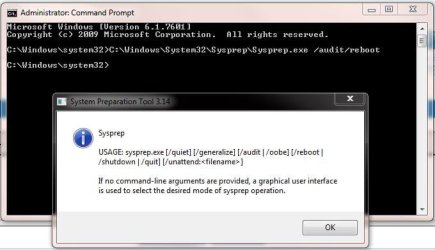
I get an informational alert but it wont run sysprep. When I click OK nothing happens.
Maybe I'm more of a Noob than I thought. Any help would be appreciated.

Sysprep

USAGE: sysprep.exe [/quiet][/generalize][/audit][/oobe][/reboot][/shutdown][/quit][/unattend:<filename>]

If no command-line arguments are provided, a graphical user interface is used to select the desired mode of sysprep operation.

OK
 

My Computer My Computer

At a glance

Win 7 Home Premium x64
Computer type
PC/Desktop
Computer Manufacturer/Model Number
Home Build
OS
Win 7 Home Premium x64
I get an informational alert but it wont run sysprep. When I click OK nothing happens.
Maybe I'm more of a Noob than I thought. Any help would be appreciated.

Sysprep

USAGE: sysprep.exe [/quiet][/generalize][/audit][/oobe][/reboot][/shutdown][/quit][/unattend:<filename>]

If no command-line arguments are provided, a graphical user interface is used to select the desired mode of sysprep operation.

OK

I have no idea what you are talking about, maybe you could try to post some more details.

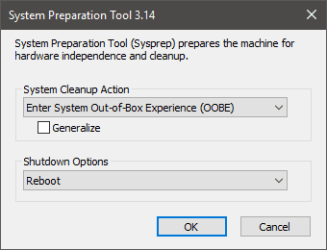
Yes, if no arguments and switches are given to sysprep command it just opens this:

2016-10-24_23h24_32.png

Clicking OK starts sysprep with selected system cleanup action and shutdown options.
 

My Computer My Computer

At a glance

Windows 10 Pro x64 EN-GB1.6 GHz Intel Core i7-720QM Processor6 GBATI Mobility Radeon HD 5850 Graphics
Computer type
Laptop
Computer Manufacturer/Model Number
HP ENVY 17-1150eg
OS
Windows 10 Pro x64 EN-GB
CPU
1.6 GHz Intel Core i7-720QM Processor
Memory
6 GB
Graphics Card(s)
ATI Mobility Radeon HD 5850 Graphics
Sound Card
Beats sound system with integrated subwoofer
Monitor(s) Displays
17" laptop display, 22" LED and 32" Full HD TV through HDMI
Screen Resolution
1600*900 (1), 1920*1080 (2&3)
Hard Drives
Internal: 2 x 500 GB SATA Hard Disk Drive 7200 rpm
External: 2TB for backups, 3TB USB3 network drive for media
Cooling
As Envy runs a bit warm, I have it on a Cooler Master pad
Keyboard
Logitech diNovo Media Desktop Laser (bluetooth)
Mouse
Logitech Performance Mouse MX
Internet Speed
50/10 Mbps VDSL
Antivirus
Windows Defender 4.3.9431.0
Browser
Maxthon 3.5.2., IE11
More detail

Sorry that was the alert I got. When I click on "OK" nothing happens. I don't get the window you show.Capture.JPG
 

My Computer My Computer

At a glance

Win 7 Home Premium x64
Computer type
PC/Desktop
Computer Manufacturer/Model Number
Home Build
OS
Win 7 Home Premium x64
Sorry that was the alert I got. When I click on "OK" nothing happens. I don't get the window you show.View attachment 393099

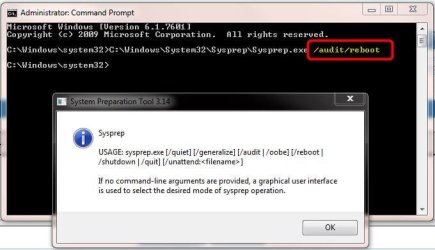
A prompt telling the correct syntax of a command is always shown, regardless the command, if a user has typed the command wrong as now in your case. When this prompt is shown, OK button is there only to close the prompt, giving user a chance to fix the typing errors.

There should be a space between the /audit and /reboot switches, you have written them with no space separating them. Sysprep does not understand what /audit/reboot means.

Capture1.jpg

A user error, caused by yourself.

Kari
 

My Computer My Computer

At a glance

Windows 10 Pro x64 EN-GB1.6 GHz Intel Core i7-720QM Processor6 GBATI Mobility Radeon HD 5850 Graphics
Computer type
Laptop
Computer Manufacturer/Model Number
HP ENVY 17-1150eg
OS
Windows 10 Pro x64 EN-GB
CPU
1.6 GHz Intel Core i7-720QM Processor
Memory
6 GB
Graphics Card(s)
ATI Mobility Radeon HD 5850 Graphics
Sound Card
Beats sound system with integrated subwoofer
Monitor(s) Displays
17" laptop display, 22" LED and 32" Full HD TV through HDMI
Screen Resolution
1600*900 (1), 1920*1080 (2&3)
Hard Drives
Internal: 2 x 500 GB SATA Hard Disk Drive 7200 rpm
External: 2TB for backups, 3TB USB3 network drive for media
Cooling
As Envy runs a bit warm, I have it on a Cooler Master pad
Keyboard
Logitech diNovo Media Desktop Laser (bluetooth)
Mouse
Logitech Performance Mouse MX
Internet Speed
50/10 Mbps VDSL
Antivirus
Windows Defender 4.3.9431.0
Browser
Maxthon 3.5.2., IE11
Thanks

Thanks I'll give that a try
 

My Computer My Computer

At a glance

Win 7 Home Premium x64
Computer type
PC/Desktop
Computer Manufacturer/Model Number
Home Build
OS
Win 7 Home Premium x64
Hello, I will test this shortly and I have seen it works fine, but what I will like to know is that if I do a clean install of win7 with this and then either me or the person I would be installing it wants to upgrade to 8/8.1/10, what would I require to do in order to maintain this?

Thanks
 

My Computer My Computer

At a glance

Windows 7 x32/64 Professional
Computer type
PC/Desktop
OS
Windows 7 x32/64 Professional
Good afternoon,

I have a new laptop that I intend to setup with two extra partitions.
One for users and data and one for system image.
I intend to setup the users and data on the newly created partition on the C: drive using the excellent instructions and PDF in post #1 by Kari.
My question is, if I need to restore my system from an image file, what do I need to do, if anything, to make sure the system can still read the data etc from the newly created partition drive?

Thanks in advance,
Paul
 

My Computer My Computer

At a glance

Win 7 HP SP1 64-bit Vista HB SP2 32-bit Linux...Intel(R) Pentium(R) CPU P6200 @ 2.13GHz4.00 GBIntel(R) Graphics Media Accelerator HD
Computer type
Laptop
Computer Manufacturer/Model Number
Fujitsu LIFEBOOK
OS
Win 7 HP SP1 64-bit Vista HB SP2 32-bit Linux Mint 18.3
CPU
Intel(R) Pentium(R) CPU P6200 @ 2.13GHz
Motherboard
FUJITSU FJNBB06
Memory
4.00 GB
Graphics Card(s)
Intel(R) Graphics Media Accelerator HD
Sound Card
[1] Realtek High Definition Audio [2] Intel(R) Display Audio
Screen Resolution
1366 x 768 x 32 bits (4294967296 colors) @ 59 Hz
Hard Drives
TOSHIBA MK5076GSX
Antivirus
AVG FREE
Hello, I will test this shortly and I have seen it works fine, but what I will like to know is that if I do a clean install of win7 with this and then either me or the person I would be installing it wants to upgrade to 8/8.1/10, what would I require to do in order to maintain this?

Thanks

I have no explanation to why I have completely missed this post. I subscribe to this thread, getting email notifications every time something new is posted, yet I have missed this. Like I said, I have no explanation, just a sincere apology.

This might not help OP any more but for posterity, to explain it to future readers of this tutorial, here's how it works:

Upgrading to Windows 8 or 8.1 the Users folder must be relocated back to C: drive before upgrade, otherwise it will fail. The same applies to ProgramData folder. This can easily be done with same relocate.xml answer file, just change folder location paths to C:\Users and C:\ProgramData.

You can then relocate Users folder back to another drive in Windows 8 or 8.1. Notice that Windows 8 and later do not support relocating ProgramData folder!

With Windows 10 you only have to put ProgramData back to C: drive, upgrade to Windows 10 works perfectly with relocated Users folder.

Tutorials for Windows 8 & 10 on our sister sites EightForums.com and TenForums.com:


Good afternoon,

I have a new laptop that I intend to setup with two extra partitions.
One for users and data and one for system image.
I intend to setup the users and data on the newly created partition on the C: drive using the excellent instructions and PDF in post #1 by Kari.
My question is, if I need to restore my system from an image file, what do I need to do, if anything, to make sure the system can still read the data etc from the newly created partition drive?

Thanks in advance,
Paul

Using my machines as an example, I have C: and D: on first HDD, C: being Windows partition and D: used to store my Hyper-V virtual machines. On second HDD is only one partition E: for user profiles.

When imaging, only BIOS or EFI system partitions and partition C: need to be included in image. When image is then restored, it finds and Windows will use Users folder on partition E: without issues.

If I want to include user data (profile folders) in backup, I include partition E: on second HDD to image, in other words my image would now contain UEFI system partitions, C: from first disk and E: from second disk. I never include drive D: (my virtual machines) in backups; Hyper-V has an extremely easy to use Export / Import feature which backs up my virtual machines fast, no reason to add them in image, especially as partition always has some 300 GB data which would take a long time for Macrium Reflect (my chosen backup solution) to write in image file.

The above applies also when C: and your user profile partition are on same disk. Including user profile partition in image is not required, but if you prefer user data being backed up, too, then included it.

Kari
 

My Computer My Computer

At a glance

Windows 10 Pro x64 EN-GB1.6 GHz Intel Core i7-720QM Processor6 GBATI Mobility Radeon HD 5850 Graphics
Computer type
Laptop
Computer Manufacturer/Model Number
HP ENVY 17-1150eg
OS
Windows 10 Pro x64 EN-GB
CPU
1.6 GHz Intel Core i7-720QM Processor
Memory
6 GB
Graphics Card(s)
ATI Mobility Radeon HD 5850 Graphics
Sound Card
Beats sound system with integrated subwoofer
Monitor(s) Displays
17" laptop display, 22" LED and 32" Full HD TV through HDMI
Screen Resolution
1600*900 (1), 1920*1080 (2&3)
Hard Drives
Internal: 2 x 500 GB SATA Hard Disk Drive 7200 rpm
External: 2TB for backups, 3TB USB3 network drive for media
Cooling
As Envy runs a bit warm, I have it on a Cooler Master pad
Keyboard
Logitech diNovo Media Desktop Laser (bluetooth)
Mouse
Logitech Performance Mouse MX
Internet Speed
50/10 Mbps VDSL
Antivirus
Windows Defender 4.3.9431.0
Browser
Maxthon 3.5.2., IE11
I successfully used this method to relocate Users and ProgramData while installing Windows 7 PROFESSIONAL a few years ago.
Now I want to reinstall to a new SSD. I have the entire installation configured to run with a sysprepped image, and the basic installation (up to audit mode) has worked fine. However, I cannot get the relocate part to work. No matter what I try, sysprep correctly copies my "relocate.xml" to C:\Windows\Panther\unattend.xml when it executes, but then only reboots into audit mode, complaining in C:\Windows\Panther\UnattendGC\setupact.log that the XML file "does not meet criteria to be used for this unattend pass". Since it obviously worked before, I even tried copying the old "relocate.xml" file from C:\Windows\Panther\unattend.xml on the old C: drive, removing only the parameter wasPassProcessed="true" from <settings pass="oobeSystem">.
I no longer have a WAIK installation, nor do I have a running Win 7 system on which to install one (unless you count the one I am sysprepping).
How can I find out what "criteria" are not being met and get sysprep to use my xml file?
 

My Computer My Computer

At a glance

Windows 7 Pro x64 SP1Intel i5-2500 @3.3GHz32 GB DDR3Intel HD2000 onboard
Computer type
PC/Desktop
Computer Manufacturer/Model Number
Fujitsu Siemens Scaleo E
OS
Windows 7 Pro x64 SP1
CPU
Intel i5-2500 @3.3GHz
Motherboard
Intel DH67GD
Memory
32 GB DDR3
Graphics Card(s)
Intel HD2000 onboard
Sound Card
Realtek HDA (onboard)
Monitor(s) Displays
Philips 46PFL9706
Screen Resolution
1920x1080
Hard Drives
SanDisk SSD Plus 120GB SATA III
Toshiba MQ series 2TB
PSU
OEM 250W
Case
OEM (Elonex Artisan)
Cooling
Scythe 4" low profile
Keyboard
Fujitsu Siemens RK0410
Mouse
trackball integrated in keyboard
Internet Speed
80 Mbps
Antivirus
Avast free
Browser
Firefox
I successfully used this method to relocate Users and ProgramData while installing Windows 7 PROFESSIONAL a few years ago.
...
...
How can I find out what "criteria" are not being met and get sysprep to use my xml file?


Please post your answer file here, pasting it in CODE tags ([CODE]Your answer file text here[/CODE])

Also, tell the disk and partitioning setup, how many disks connected when you sysprep, which partitions (drive letters) on which disk, which is the target partition for USers folder.

Finally, tell the exact command you use when running Sysprep in Audit Mode.

Kari
 

My Computer My Computer

At a glance

Windows 10 Pro x64 EN-GB1.6 GHz Intel Core i7-720QM Processor6 GBATI Mobility Radeon HD 5850 Graphics
Computer type
Laptop
Computer Manufacturer/Model Number
HP ENVY 17-1150eg
OS
Windows 10 Pro x64 EN-GB
CPU
1.6 GHz Intel Core i7-720QM Processor
Memory
6 GB
Graphics Card(s)
ATI Mobility Radeon HD 5850 Graphics
Sound Card
Beats sound system with integrated subwoofer
Monitor(s) Displays
17" laptop display, 22" LED and 32" Full HD TV through HDMI
Screen Resolution
1600*900 (1), 1920*1080 (2&3)
Hard Drives
Internal: 2 x 500 GB SATA Hard Disk Drive 7200 rpm
External: 2TB for backups, 3TB USB3 network drive for media
Cooling
As Envy runs a bit warm, I have it on a Cooler Master pad
Keyboard
Logitech diNovo Media Desktop Laser (bluetooth)
Mouse
Logitech Performance Mouse MX
Internet Speed
50/10 Mbps VDSL
Antivirus
Windows Defender 4.3.9431.0
Browser
Maxthon 3.5.2., IE11
Hi Kari,
Thanks for the quick response. I have tried many variations; here is an example of F:\relocate.com:
Code:
<?xml version="1.0" encoding="utf-8"?>
<unattend xmlns="urn:schemas-microsoft-com:unattend">
    <settings pass="oobeSystem">
        <component name="Microsoft-Windows-Shell-Setup" processorArchitecture="amd64" publicKeyToken="31bf3856ad364e35" language="neutral" versionScope="nonSxS" xmlns:wcm="http://schemas.microsoft.com/WMIConfig/2002/State" xmlns:xsi="http://www.w3.org/2001/XMLSchema-instance">
            <FolderLocations>
                <ProfilesDirectory>d:\Users</ProfilesDirectory>
                <ProgramData>d:\ProgramData</ProgramData>
            </FolderLocations>
            <Display>
                <ColorDepth>32</ColorDepth>
                <HorizontalResolution>1920</HorizontalResolution>
                <VerticalResolution>1080</VerticalResolution>
            </Display>
        </component>
    </settings>
    <cpi:offlineImage cpi:source="wim:f:/sources/install.wim#Windows 7 PROFESSIONAL" xmlns:cpi="urn:schemas-microsoft-com:cpi"></cpi:offlineImage>
</unattend>
Attached drives are:
C: SSD containing freshly installed Windows 7 Pro from sysprep (one partition)
D: 2TB 2.5" Toshiba containing data (one partition), existing Users and ProgramData folders renamed to protect them
E: Blu-Ray drive, empty
F: 16GB thumb drive (one partition) with sysprep files, etc.
The oobeSystem pass in the original AutoUnattend.xml did not contain the <FolderLocations> section because I found it ineffective. Instead I let the system start in audit mode at the end of the installation and followed your instructions in this tutorial. This approach worked for me in the previous installation.
Command line:
Code:
sysprep.exe /audit /reboot /unattend:F:\Relocate.xml
Sysprep starts, copies whatever version of relocate.xml it finds in F:\ to C:\Windows\Panther\unattend.xml, but restarts in audit mode without applying it (see message above).
 
Last edited:

My Computer My Computer

At a glance

Windows 7 Pro x64 SP1Intel i5-2500 @3.3GHz32 GB DDR3Intel HD2000 onboard
Computer type
PC/Desktop
Computer Manufacturer/Model Number
Fujitsu Siemens Scaleo E
OS
Windows 7 Pro x64 SP1
CPU
Intel i5-2500 @3.3GHz
Motherboard
Intel DH67GD
Memory
32 GB DDR3
Graphics Card(s)
Intel HD2000 onboard
Sound Card
Realtek HDA (onboard)
Monitor(s) Displays
Philips 46PFL9706
Screen Resolution
1920x1080
Hard Drives
SanDisk SSD Plus 120GB SATA III
Toshiba MQ series 2TB
PSU
OEM 250W
Case
OEM (Elonex Artisan)
Cooling
Scythe 4" low profile
Keyboard
Fujitsu Siemens RK0410
Mouse
trackball integrated in keyboard
Internet Speed
80 Mbps
Antivirus
Avast free
Browser
Firefox
followed your instructions in this tutorial. This approach worked for me in the previous installation.

Command line:
Code:
sysprep.exe /audit /reboot /unattend:F:\Relocate.xml

Sysprep starts, copies whatever version of relocate.xml it finds in F:\ to C:\Windows\Panther\unattend.xml, but restarts in audit mode without applying it (see message above).

The reason you get the error message is that you have those completely unnecessary display settings in answer file. Remove DISPLAY tags and everything in them from your answer file. All this should be removed:

Code:
            <Display>
                <ColorDepth>32</ColorDepth>
                <HorizontalResolution>1920</HorizontalResolution>
                <VerticalResolution>1080</VerticalResolution>
            </Display>

You can't tell you followed my instructions if you then show me that you have added some utterly profoundly unnecessary nonsense elements in your answer file, something that I would never use nor advice to use, something I have never told to use in any of my Sysprep related tutorials.

Windows returns to Audit Mode because you tell it to do that. Audit Mode cannot apply your given display settings. Fix the answer file and sysprep again, then when back in Audit Mode exit it as told in tutorial (page 6 "Exiting Audit Mode").

Kari
 

My Computer My Computer

At a glance

Windows 10 Pro x64 EN-GB1.6 GHz Intel Core i7-720QM Processor6 GBATI Mobility Radeon HD 5850 Graphics
Computer type
Laptop
Computer Manufacturer/Model Number
HP ENVY 17-1150eg
OS
Windows 10 Pro x64 EN-GB
CPU
1.6 GHz Intel Core i7-720QM Processor
Memory
6 GB
Graphics Card(s)
ATI Mobility Radeon HD 5850 Graphics
Sound Card
Beats sound system with integrated subwoofer
Monitor(s) Displays
17" laptop display, 22" LED and 32" Full HD TV through HDMI
Screen Resolution
1600*900 (1), 1920*1080 (2&3)
Hard Drives
Internal: 2 x 500 GB SATA Hard Disk Drive 7200 rpm
External: 2TB for backups, 3TB USB3 network drive for media
Cooling
As Envy runs a bit warm, I have it on a Cooler Master pad
Keyboard
Logitech diNovo Media Desktop Laser (bluetooth)
Mouse
Logitech Performance Mouse MX
Internet Speed
50/10 Mbps VDSL
Antivirus
Windows Defender 4.3.9431.0
Browser
Maxthon 3.5.2., IE11
Back
Top