Vista Home Premium to Win 7 Pro In Place Upgrade

ABC190

New member
Member
Local time
5:15 PM
Messages
42
I am going to be upgrading to Win 7 Professional 64bit Upgrade soon (been saying this for over a year). I am upgrading from Vista Home Premium 64bit. I plan on doing an in place upgrade so I don't have to manually reinstall many programs (which I run in specific configurations ect.).

I have recently been reading that it is not possible to do an in place upgrade of Win 7 Pro over Vista Home Premium. Is this true?

And can someone link me to an updated Digital River .iso with Win 7 Professional 64bit with SP1? Apparently the Digital River site has changed now. Hopefully my almost two year CD key of Win 7 still works.
 
Last edited:

My Computer My Computer

At a glance

Vista
OS
Vista

My Computer My Computer

At a glance

Windows 7 Ultimate x64/Windows 8 Consumer Pre...Intel Pentium Dual Core E6700 3.2GHzStrontium 8192MB DDR3 1333Mhzmsi GeForce N560GTX-M2D1GD5 1GB
Computer Manufacturer/Model Number
Custom Build
OS
Windows 7 Ultimate x64/Windows 8 Consumer Preview x64/Ubuntu 11.04
CPU
Intel Pentium Dual Core E6700 3.2GHz
Motherboard
ASUS P5G41T-M LX
Memory
Strontium 8192MB DDR3 1333Mhz
Graphics Card(s)
msi GeForce N560GTX-M2D1GD5 1GB
Sound Card
Realtek HD Audio
Monitor(s) Displays
CHIMEI CMV 221D 22"
Screen Resolution
1680x1050
Hard Drives
Seagate Barracuda LP Green 3.5'' 2TB Internal HDD 5900RPM + WD Elements Desktop 1TB External HDD 7200RPM
PSU
SHAW Viper-1500w Gaming PSU
Case
Black eMaxx ATX Mini Tower Case
Keyboard
Microsoft Wireless Keyboard 1000
Mouse
Microsoft Wireless Optical Mouse 2000
Internet Speed
100GB @ 4.76Mbps

My Computer My Computer

At a glance

Windows 7 Ultimate SP1 64-BitIntel Core i7 870 @ 2.93GHz8Gb Dual-Channel DDR3 @ 664MHznVidia GeForce GTX 460 1024MB dedicated RAM
Computer Manufacturer/Model Number
HP Pavilion Elite 495UK
OS
Windows 7 Ultimate SP1 64-Bit
CPU
Intel Core i7 870 @ 2.93GHz
Motherboard
MSI 2A9C (CPU1)
Memory
8Gb Dual-Channel DDR3 @ 664MHz
Graphics Card(s)
nVidia GeForce GTX 460 1024MB dedicated RAM
Sound Card
Realtek HD Audio
Monitor(s) Displays
HP2310i
Screen Resolution
1920 x 1080
Hard Drives
1x1954GB Hitachi HDS22020ALA 330 (RAID), 1x1954GB Hitachi External for backup and storage
PSU
460W
Case
HP Elite
Cooling
Air cooled
Keyboard
Logitech K750 solar-powered keyboard
Mouse
Logitech Wireless M180 mouse
Internet Speed
2Mb
Other Info
Pure Avanti Flow Internet Radio with iPod Dock, 64Gb iPod, HP USB Speakers, Sony MDR-V500 Headphones, Sony Vaio F-Series Laptop
Thanks for the reply. Looks like I'll have to do a clean install then. Is there anyway I can downgrade Professional to Home Premium during installation to do an in place upgrade? :p

I bought the key from Digital River a long time ago ($30 student promotion). It is for Win 7 Professional 64bit Upgrade. I still have the .iso and also have the .iso burned to a disc, but was hoping Digital River had a newer .iso with the latest updates installed. My .iso is from 2009, so it means I'll have to install SP1 and all the other updates.
 

My Computer My Computer

At a glance

Vista
OS
Vista

My Computer My Computer

At a glance

Windows 7 Ultimate SP1 64-BitIntel Core i7 870 @ 2.93GHz8Gb Dual-Channel DDR3 @ 664MHznVidia GeForce GTX 460 1024MB dedicated RAM
Computer Manufacturer/Model Number
HP Pavilion Elite 495UK
OS
Windows 7 Ultimate SP1 64-Bit
CPU
Intel Core i7 870 @ 2.93GHz
Motherboard
MSI 2A9C (CPU1)
Memory
8Gb Dual-Channel DDR3 @ 664MHz
Graphics Card(s)
nVidia GeForce GTX 460 1024MB dedicated RAM
Sound Card
Realtek HD Audio
Monitor(s) Displays
HP2310i
Screen Resolution
1920 x 1080
Hard Drives
1x1954GB Hitachi HDS22020ALA 330 (RAID), 1x1954GB Hitachi External for backup and storage
PSU
460W
Case
HP Elite
Cooling
Air cooled
Keyboard
Logitech K750 solar-powered keyboard
Mouse
Logitech Wireless M180 mouse
Internet Speed
2Mb
Other Info
Pure Avanti Flow Internet Radio with iPod Dock, 64Gb iPod, HP USB Speakers, Sony MDR-V500 Headphones, Sony Vaio F-Series Laptop
Have a look at the email you received from Digital River, you will find a link to your account.
You can download ISO's from the account.
 

My Computer My Computer

At a glance

ME/XP/Vista/Win7
OS
ME/XP/Vista/Win7
You can unlock all versions in your ISO file using this tool: Unlock any version eicfg removal tool

Back up your files, run an in-place Upgrade Vista HP to Win7 HP after working out any compatibiility issues flagged.

Then type Anytime in Start Search box, insert Pro key in Anytime Upgrade which will unlock the extra features in minutes and activate Pro at Computer>properties.

I did this myself awhile back. Ask back for any question or more help.
 
You can unlock all versions in your ISO file using this tool: Unlock any version eicfg removal tool

Back up your files, run an in-place Upgrade Vista HP to Win7 HP after working out any compatibiility issues flagged.

Then type Anytime in Start Search box, insert Pro key in Anytime Upgrade which will unlock the extra features in minutes and activate Pro at Computer>properties.

I did this myself awhile back. Ask back for any question or more help.

Thanks for this reply. So essentially I am:

1) Installing Win 7 HP 64bit via an In Place upgrade. It will not ask me for a key when installing correct? (I only have a Win 7 Pro 64bit serial key).

2) When installing Win 7, I choose to activate my serial key manually.

3) As soon as the upgrade is done/Win 7 HP is installed, I do not activate my product key.

4) I search for Anytime, run the process and type in my serial key.

5) It will upgrade to Win 7 Pro 64bit. I am guessing it will require a reboot, but is there anything else I would have to install or do?


And this program will work for my .iso DVD even though it is just a DVR+ R and now a rewritable?

And do I download the checksums.md5, eicfg_removal_utility.zip, and windows7_iso_image_edition_switcher.zip? Or do I just need the last file?


And if the upgrade gets corrupted, I can just format my drive and install Win 7 and start from scratch correct?

And does anyone have any input on how or if I should partition my drive? Currently my Windows/program drive is not partitioned.
 

My Computer My Computer

At a glance

Vista
OS
Vista
When you say upgrade, do you mean you are just installing a new operating system? Or did you buy a Windows 7 Upgrade package and not the full retail version ? As they are 2 different things.

You really want to do a clean install and of course you will be reinstalling all your programs.
 

My Computer My Computer

At a glance

Windows 7 Ultimate 64BitC2D E82008GB PNY PC2-6400BFG 9600GT x 2
Computer Manufacturer/Model Number
Myself
OS
Windows 7 Ultimate 64Bit
CPU
C2D E8200
Motherboard
XFX 750i
Memory
8GB PNY PC2-6400
Graphics Card(s)
BFG 9600GT x 2
Sound Card
Stock XFX Optical
Monitor(s) Displays
Gateway 22" HD Display
Hard Drives
C: 1 TB G: 500 GB H: 500 GB
PSU
Ultra LSP 550 Pro Lifetime Series
Case
Xion2
Cooling
ThermalTake
When you say upgrade, do you mean you are just installing a new operating system? Or did you buy a Windows 7 Upgrade package and not the full retail version ? As they are 2 different things.

You really want to do a clean install and of course you will be reinstalling all your programs.

Win 7 Pro 64bit Upgrade is what I bought. I would like to do an inplace upgrade over Vista Home Premium OEM 64bit, but as I read above there is so extra work involved. I will just be upgrading to Win 7, my hardware will stay exactly the same.
 

My Computer My Computer

At a glance

Vista
OS
Vista

My Computer My Computer

At a glance

W 7 64-bit UltimateIntel Q9550 Yorkfield8GB Dominator 8500C5DATI : XFX 5870
Computer Manufacturer/Model Number
* BFK Customs *
OS
W 7 64-bit Ultimate
CPU
Intel Q9550 Yorkfield
Motherboard
ASUS P5Q Pro
Memory
8GB Dominator 8500C5D
Graphics Card(s)
ATI : XFX 5870
Sound Card
Realtek HD Audio 7-1
Monitor(s) Displays
1x 47" LCD HDMI & 3x 26" LCD HDMI
Screen Resolution
1920x1080P & 1920x1200
Hard Drives
1x 80GB Intel X25-M G2 SSD : 1x 500GB & 1x 640GB WD Caviar Black(s)
PSU
Corsair 620HX
Case
Cooler Master RC-690
Cooling
Tuniq Tower 120, 2x 140mm and 3x 120mm case fans
Keyboard
Microsoft 500
Mouse
Razer Diamondback 3G
Internet Speed
14 Mb/s
Other Info
1x Koutech 3Gb/s SATA HDD Hot Swap Rack
Thanks for the replies. It seems simple enough. That being said, I am thinking of doing a format/clean install of Win 7. My Vista has .NET and MS Installer issues. The more I think of it, I feel I will be better off doing a clean install.

Which leads me to another question - can I create a partition on Vista, place my data/files on it, and then format my partition with Vista/programs and do a clean install resulting in a clean install of Win 7 Pro with a partition with my data already on it?

I made a more in depth post on the Vista forums:

Creating a partition - Vista Forums

Hello all. I am about to upgrade to Win 7 Pro 64bit Upgrade. Currently my Vista Home Premium 64bit OEM is installed on Drive C, along with everything else. Programs, data, ect. I have no partitions.

I plan on doing a clean install of Win 7 - I will format Drive C and start from scratch. However, is it possible for me to create a partition right now within Vista? I have 300GB of spare space, and if this is possible I can place my data on this new partition. If possible, my partition will be called Drive D.

Can I then install Win 7 Pro, format Drive/Partition C but retain Partition D with my data on it? This would save me a lot of time if I can just wipe Vista/programs, install Windows 7 and already have my data on my hard drive in partition D.

Thanks in advance.
Again, thanks for all the help. I really appreciate it.
 

My Computer My Computer

At a glance

Vista
OS
Vista
You can create your data partition within Vista, and then clean install on the C partition.

You can, during the clean install, delete the Vista partition, and then create a new one to install Seven on. The installer will also create a 100 Mb active partition for the boot files.

When Windows Seven begins the installation it will automatically format the partition you're installing it to.

Just take care you don't install to your data partition, and for that reason you might want to give it (the data partition) a meaningful name before you install Windows Seven.

When you're done, run Windows Updates, and then reinstall your applications.

Please post back if there's anything you're unsure of.
 

My Computer My Computer

At a glance

Windows 7 Ultimate SP1 64-BitIntel Core i7 870 @ 2.93GHz8Gb Dual-Channel DDR3 @ 664MHznVidia GeForce GTX 460 1024MB dedicated RAM
Computer Manufacturer/Model Number
HP Pavilion Elite 495UK
OS
Windows 7 Ultimate SP1 64-Bit
CPU
Intel Core i7 870 @ 2.93GHz
Motherboard
MSI 2A9C (CPU1)
Memory
8Gb Dual-Channel DDR3 @ 664MHz
Graphics Card(s)
nVidia GeForce GTX 460 1024MB dedicated RAM
Sound Card
Realtek HD Audio
Monitor(s) Displays
HP2310i
Screen Resolution
1920 x 1080
Hard Drives
1x1954GB Hitachi HDS22020ALA 330 (RAID), 1x1954GB Hitachi External for backup and storage
PSU
460W
Case
HP Elite
Cooling
Air cooled
Keyboard
Logitech K750 solar-powered keyboard
Mouse
Logitech Wireless M180 mouse
Internet Speed
2Mb
Other Info
Pure Avanti Flow Internet Radio with iPod Dock, 64Gb iPod, HP USB Speakers, Sony MDR-V500 Headphones, Sony Vaio F-Series Laptop
   Note

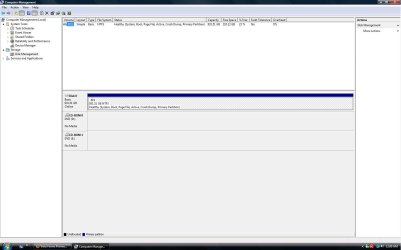
Before we make any specific recommendations will you please post a snip/screen-shot of the entire Windows disk management drive map with a full description as to which drive/partition is which, so we can see what you have going on as there may be a fairly simple way to resolve the situation.

In the Windows start menu right click computer and click manage, in the left pane of the "Computer Management" window that opens click disk management and post a maximized snip of that.


My Computer My Computer

At a glance

W 7 64-bit UltimateIntel Q9550 Yorkfield8GB Dominator 8500C5DATI : XFX 5870
Computer Manufacturer/Model Number
* BFK Customs *
OS
W 7 64-bit Ultimate
CPU
Intel Q9550 Yorkfield
Motherboard
ASUS P5Q Pro
Memory
8GB Dominator 8500C5D
Graphics Card(s)
ATI : XFX 5870
Sound Card
Realtek HD Audio 7-1
Monitor(s) Displays
1x 47" LCD HDMI & 3x 26" LCD HDMI
Screen Resolution
1920x1080P & 1920x1200
Hard Drives
1x 80GB Intel X25-M G2 SSD : 1x 500GB & 1x 640GB WD Caviar Black(s)
PSU
Corsair 620HX
Case
Cooler Master RC-690
Cooling
Tuniq Tower 120, 2x 140mm and 3x 120mm case fans
Keyboard
Microsoft 500
Mouse
Razer Diamondback 3G
Internet Speed
14 Mb/s
Other Info
1x Koutech 3Gb/s SATA HDD Hot Swap Rack
If you create a data partition to store files during install to the OS partition be aware that this is not a fully safe backup method, which requires external media or drive, transferring to another computer on network, even uploading to Skydrive which allows 14gb storage with each Windows Live ID.

There is also no reason to delete the OS partition for the purpose of having the installer create the 100mb System Reserved boot partition (which places Repair Console on F8 Advanced Boot tools) since saving the data partition will block installer from creating the SysReserved partition as will any pre-partitioning.

However if you want a cleaner install, then you can delete all other partitions besides data to create the OS install partition. Just be sure you don't touch the Data partition.
 
However if you want a cleaner install, then you can delete all other partitions besides data to create the OS install partition. Just be sure you don't touch the Data partition.

This was my idea. Create a data partition in Vista, put my data on it, and then format the Vista partition when installing Win 7. Will doing this allow for the 100MB System Reserved Boot partition?

And here is the screen shot:

http://img825.imageshack.us/img825/2342/discmanagement.jpg
 

Attachments

  • Disc Management.jpg
    Disc Management.jpg
    90.1 KB · Views: 8

My Computer My Computer

At a glance

Vista
OS
Vista
I was under the impression that deleting the Vista partition would let the the Windows 7 installer create a 100mb boot partition, but as gregrocker pointed out, that is not the case.

Looking at your screenshot, you have two choices:

1. Save all your personal data to an external drive (any of the methods described by gregrocker will be fine) then boot into your Windows 7 DVD, delete the C partition and create two new partitions for Windows and your data. In this case Windows will also create a 100mb boot partition, which will be the active partition.

2. Save all your personal date to an external drive then shrink the existing C partition and create a new partition for your data. In this case, your C drive will be the active partition and you won't have a 100mb boot partition.
 

My Computer My Computer

At a glance

Windows 7 Ultimate SP1 64-BitIntel Core i7 870 @ 2.93GHz8Gb Dual-Channel DDR3 @ 664MHznVidia GeForce GTX 460 1024MB dedicated RAM
Computer Manufacturer/Model Number
HP Pavilion Elite 495UK
OS
Windows 7 Ultimate SP1 64-Bit
CPU
Intel Core i7 870 @ 2.93GHz
Motherboard
MSI 2A9C (CPU1)
Memory
8Gb Dual-Channel DDR3 @ 664MHz
Graphics Card(s)
nVidia GeForce GTX 460 1024MB dedicated RAM
Sound Card
Realtek HD Audio
Monitor(s) Displays
HP2310i
Screen Resolution
1920 x 1080
Hard Drives
1x1954GB Hitachi HDS22020ALA 330 (RAID), 1x1954GB Hitachi External for backup and storage
PSU
460W
Case
HP Elite
Cooling
Air cooled
Keyboard
Logitech K750 solar-powered keyboard
Mouse
Logitech Wireless M180 mouse
Internet Speed
2Mb
Other Info
Pure Avanti Flow Internet Radio with iPod Dock, 64Gb iPod, HP USB Speakers, Sony MDR-V500 Headphones, Sony Vaio F-Series Laptop
Hello mate, you can have your cake and eat it too.


Create a "data" partition at the end of the Vista partition and move all the data to that.

During the Windows 7 installation process, delete the Vista partition and use the Windows 7 installer to create the System Reserved partition and a second partition to install Windows 7 to.

Create the SysResv in the first position at 200MB and it will automatically be created as a SysResv and I would suggest you only create a 100GB partition to install Windows 7 to; you can always extend the Windows partition to include the remaining unallocated space on the HDD / SSD or create additional Primary partitions or an Extended partition after the installation completes if you choose.

The Windows 7 installer will do all you need to create both partitions for the installation; though if you are comfortable using the command line, have a look at Step Two #3 of this tutorial for the complete process, do not use either the clean or the clean all first as that will over-write (destroy) all data on the entire HDD.
 

My Computer My Computer

At a glance

W 7 64-bit UltimateIntel Q9550 Yorkfield8GB Dominator 8500C5DATI : XFX 5870
Computer Manufacturer/Model Number
* BFK Customs *
OS
W 7 64-bit Ultimate
CPU
Intel Q9550 Yorkfield
Motherboard
ASUS P5Q Pro
Memory
8GB Dominator 8500C5D
Graphics Card(s)
ATI : XFX 5870
Sound Card
Realtek HD Audio 7-1
Monitor(s) Displays
1x 47" LCD HDMI & 3x 26" LCD HDMI
Screen Resolution
1920x1080P & 1920x1200
Hard Drives
1x 80GB Intel X25-M G2 SSD : 1x 500GB & 1x 640GB WD Caviar Black(s)
PSU
Corsair 620HX
Case
Cooler Master RC-690
Cooling
Tuniq Tower 120, 2x 140mm and 3x 120mm case fans
Keyboard
Microsoft 500
Mouse
Razer Diamondback 3G
Internet Speed
14 Mb/s
Other Info
1x Koutech 3Gb/s SATA HDD Hot Swap Rack
If you create a data partition to store files during install to the OS partition be aware that this is not a fully safe backup method, which requires external media or drive, transferring to another computer on network, even uploading to Skydrive which allows 14gb storage with each Windows Live ID.

There is also no reason to delete the OS partition for the purpose of having the installer create the 100mb System Reserved boot partition (which places Repair Console on F8 Advanced Boot tools) since saving the data partition will block installer from creating the SysReserved partition as will any pre-partitioning.

However if you want a cleaner install, then you can delete all other partitions besides data to create the OS install partition. Just be sure you don't touch the Data partition.

I was under the impression that deleting the Vista partition would let the the Windows 7 installer create a 100mb boot partition, but as gregrocker pointed out, that is not the case.

Looking at your screenshot, you have two choices:

1. Save all your personal data to an external drive (any of the methods described by gregrocker will be fine) then boot into your Windows 7 DVD, delete the C partition and create two new partitions for Windows and your data. In this case Windows will also create a 100mb boot partition, which will be the active partition.

2. Save all your personal date to an external drive then shrink the existing C partition and create a new partition for your data. In this case, your C drive will be the active partition and you won't have a 100mb boot partition.

Hello mate, you can have your cake and eat it too.


Create a "data" partition at the end of the Vista partition and move all the data to that.

During the Windows 7 installation process, delete the Vista partition and use the Windows 7 installer to create the System Reserved partition and a second partition to install Windows 7 to.

Create the SysResv in the first position at 200MB and it will automatically be created as a SysResv and I would suggest you only create a 100GB partition to install Windows 7 to; you can always extend the Windows partition to include the remaining unallocated space on the HDD / SSD or create additional Primary partitions or an Extended partition after the installation completes if you choose.

The Windows 7 installer will do all you need to create both partitions for the installation; though if you are comfortable using the command line, have a look at Step Two #3 of this tutorial for the complete process, do not use either the clean or the clean all first as that will over-write (destroy) all data on the entire HDD.

All comes down to, do you want to be safe with your DATA or not safe.

http://www.sevenforums.com/tutorials/11470-windows-easy-transfer-transfer-computers.html?ltr=W

http://www.sevenforums.com/tutorials/648-restore-backup-user-system-files.html
 

My Computer My Computer

At a glance

ME/XP/Vista/Win7
OS
ME/XP/Vista/Win7
Back
Top