Vista Home Premium to Win 7 Pro In Place Upgrade

What you are gaining by creating a System Reserved partition is having the Repair console normally only on the DVD/Repair CD placed on the F8 Advanced Boot Options menu. We report, you decide.

If you create one before install as suggested by BarefootKid then I would mark it Active to make sure installer writes SysReserved to it.

If not, you can do all of this with Disk Mgmt and installer. Shrink Win7 down to around 100gb, create Data partition, move data over to it. Partition or Volume - Shrink
Partition or Volume - Create New

Then just format and install to C from booted installer: Clean Install Windows 7
 
Hello mate, you can have your cake and eat it too.


Create a "data" partition at the end of the Vista partition and move all the data to that.

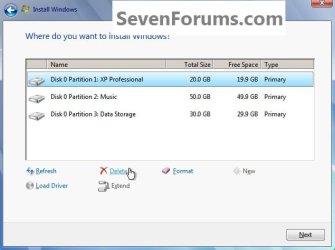
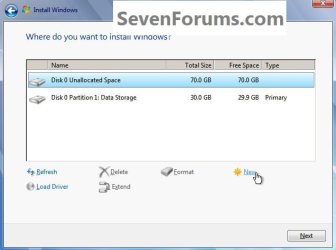
During the Windows 7 installation process, delete the Vista partition and use the Windows 7 installer to create the System Reserved partition and a second partition to install Windows 7 to.

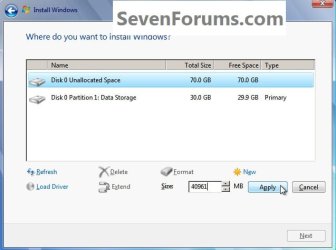
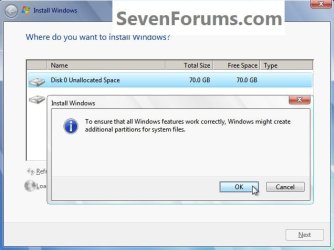
Create the SysResv in the first position at 200MB and it will automatically be created as a SysResv and I would suggest you only create a 100GB partition to install Windows 7 to; you can always extend the Windows partition to include the remaining unallocated space on the HDD / SSD or create additional Primary partitions or an Extended partition after the installation completes if you choose.

The Windows 7 installer will do all you need to create both partitions for the installation; though if you are comfortable using the command line, have a look at Step Two #3 of this tutorial for the complete process, do not use either the clean or the clean all first as that will over-write (destroy) all data on the entire HDD.


So if I do the following:

1) Create data partition on Vista, move data there.

2) When installing Win 7 I format it over Drive C (Vista partition) and create another 200MB (or 100MB?) partition called SysResv. How exactly do I put the SysResv partition in the "first position"?

3) When Windows 7 is installed, I shrink Drive C (Win 7 partition) and extend my data portion (with my data already on it). This will not erase any data correct?

As for backing up my data I have it on another HDD and important files are burned to DVDs.

If you create one before install as suggested by BarefootKid then I would mark it Active to make sure installer writes SysReserved to it.

How do I mark it Active? Is this done during the Windows 7 installation? And the 100MB (or 200MB) parition is the one that I mark Active and therefore becomes the SysReserved partition?
 

My Computer My Computer

At a glance

Vista
OS
Vista
1) Yes.

2) Windows 7 will take care of that as it will update the existing boot record during installation.

3) After you shrink your C drive you cannot use Disk Management to extend your D drive to unallocated space to the LEFT of the partition. You need to create a third-party boot disc that you boot into to edit your partition sizes. A good freebie is MiniTool's Partition Wizard.

Free Partition Magic alternative. Free Partition Manager Software for Windows 7/VISTA/XP/2000 and Windows Server 2003/2008/2000.

Alternatively, you could just create another partition in the unallocated space that is left after you shrink your C drive and use it as an extra data partition.

Providing you do nothing to your data partition during the install, the data on it will remain intact.

If ever you need to mark a partition as Active it can be done from within Windows 7's Disk Management by right-clicking the partition in question and choosing Mark As Active.

However, if the system reserved partition is already marked as Active as it should be, do not mark any other partition on the same drive as Active also as this will cause problems when Windows boots up.
 

My Computer My Computer

At a glance

Windows 7 Ultimate SP1 64-BitIntel Core i7 870 @ 2.93GHz8Gb Dual-Channel DDR3 @ 664MHznVidia GeForce GTX 460 1024MB dedicated RAM
Computer Manufacturer/Model Number
HP Pavilion Elite 495UK
OS
Windows 7 Ultimate SP1 64-Bit
CPU
Intel Core i7 870 @ 2.93GHz
Motherboard
MSI 2A9C (CPU1)
Memory
8Gb Dual-Channel DDR3 @ 664MHz
Graphics Card(s)
nVidia GeForce GTX 460 1024MB dedicated RAM
Sound Card
Realtek HD Audio
Monitor(s) Displays
HP2310i
Screen Resolution
1920 x 1080
Hard Drives
1x1954GB Hitachi HDS22020ALA 330 (RAID), 1x1954GB Hitachi External for backup and storage
PSU
460W
Case
HP Elite
Cooling
Air cooled
Keyboard
Logitech K750 solar-powered keyboard
Mouse
Logitech Wireless M180 mouse
Internet Speed
2Mb
Other Info
Pure Avanti Flow Internet Radio with iPod Dock, 64Gb iPod, HP USB Speakers, Sony MDR-V500 Headphones, Sony Vaio F-Series Laptop
If you create one before install as suggested by BarefootKid then I would mark it Active to make sure installer writes SysReserved to it.

How do I mark it Active? Is this done during the Windows 7 installation? And the 100MB (or 200MB) parition is the one that I mark Active and therefore becomes the SysReserved partition?

You have decided to create a System Reserved partition during install?

If so it's best to use a Partition Manager CD like the one seavixen linked above. Boot it to delete all but the Data partition you've created in Disk Mgmt containing your data. Then Create a New 200mb partition NTFS Primary with no letter, Modify>Set to Primary. Next Create your OS partition in the remaining space, NTFS Primary, letter C.

If you want to use the installer during install, use Custom>Drive Options to delete all but Data Partition, create 200mb SysReserved partition, then OS partition, Format both. Then abort install, boot back into installer, press Shift + F10 at first screen to open Command Prompt, use these Diskpart commands to mark 200mb SysReserved Active: Partition - Mark as Active (Method Two), then close Command Box, continue with install.
 
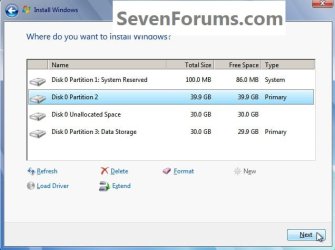
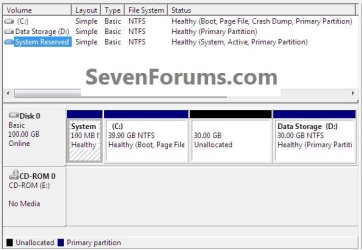
I just had a go at this, first I created the System Reserved and a partition for install but the installer create a second SysResv, so I had 2 of them the 200MB I created and the 100MB the installer created and the install partition.

So I created only a single partition for the install and the installer still created the SysResv and it is marked "System" have a look.


click to enlarge
1.jpg2.jpg

3.jpg4.jpg

5.jpg
 

My Computer My Computer

At a glance

W 7 64-bit UltimateIntel Q9550 Yorkfield8GB Dominator 8500C5DATI : XFX 5870
Computer Manufacturer/Model Number
* BFK Customs *
OS
W 7 64-bit Ultimate
CPU
Intel Q9550 Yorkfield
Motherboard
ASUS P5Q Pro
Memory
8GB Dominator 8500C5D
Graphics Card(s)
ATI : XFX 5870
Sound Card
Realtek HD Audio 7-1
Monitor(s) Displays
1x 47" LCD HDMI & 3x 26" LCD HDMI
Screen Resolution
1920x1080P & 1920x1200
Hard Drives
1x 80GB Intel X25-M G2 SSD : 1x 500GB & 1x 640GB WD Caviar Black(s)
PSU
Corsair 620HX
Case
Cooler Master RC-690
Cooling
Tuniq Tower 120, 2x 140mm and 3x 120mm case fans
Keyboard
Microsoft 500
Mouse
Razer Diamondback 3G
Internet Speed
14 Mb/s
Other Info
1x Koutech 3Gb/s SATA HDD Hot Swap Rack
here's the end result. ;)


6.jpg
 

My Computer My Computer

At a glance

W 7 64-bit UltimateIntel Q9550 Yorkfield8GB Dominator 8500C5DATI : XFX 5870
Computer Manufacturer/Model Number
* BFK Customs *
OS
W 7 64-bit Ultimate
CPU
Intel Q9550 Yorkfield
Motherboard
ASUS P5Q Pro
Memory
8GB Dominator 8500C5D
Graphics Card(s)
ATI : XFX 5870
Sound Card
Realtek HD Audio 7-1
Monitor(s) Displays
1x 47" LCD HDMI & 3x 26" LCD HDMI
Screen Resolution
1920x1080P & 1920x1200
Hard Drives
1x 80GB Intel X25-M G2 SSD : 1x 500GB & 1x 640GB WD Caviar Black(s)
PSU
Corsair 620HX
Case
Cooler Master RC-690
Cooling
Tuniq Tower 120, 2x 140mm and 3x 120mm case fans
Keyboard
Microsoft 500
Mouse
Razer Diamondback 3G
Internet Speed
14 Mb/s
Other Info
1x Koutech 3Gb/s SATA HDD Hot Swap Rack
Are you saying you were able to get the installer to create System Reserved in Unallocated Space when a data partition remains?

If so SeaVixen was correct. I was quoting the rule that you won't get SysReserved on a prepartitioned HD. It would be nice to know how many other exceptions there are to this rule.
 
I just had a go at this, first I created the System Reserved and a partition for install but the installer create a second SysResv, so I had 2 of them the 200MB I created and the 100MB the installer created and the install partition.

So I created only a single partition for the install and the installer still created the SysResv and it is marked "System" have a look.

click to enlarge

View attachment 171917


And this is in the Windows 7 installer? Once this is done, I will have the unallocated space. Can I merge it with my data partition? Or will doing this format/erase my data partition?

If that is the case must I boot into a 3rd party program, such as the one seavixen32 linked to to extend my data partition over the the unallocated space?


Here is my exact situation:

I currently have 1TB (930GB or so usable) on my HDD with a single partition (Drive C). I will make a new partition (Drive D) that is 300GB or so and place my data on it.

When installing Windows 7, I will install it onto Drive C. I will set the size for 100GB or so. Windows 7 will also make a 100MB SystemRes partition automatically. This means I will have roughly 530GB in an unallocated partition.

Can I merge this 530GB partition with the 300GB Drive D/data partition in Windows 7's Disk Management area? Or is this task done in a program such as Free Partition Management?

If I am still misunderstanding something let me know. :)


And I have another question. Currently I only have a .iso for Windows 7. This means I will have to start the installation via booting from the DVD drive. Can I still set my partitions (choose to format Drive C, shrink it, and leave Drive D alone) and whatnot just as I can from using a .exe installation from within Windows?
 

My Computer My Computer

At a glance

Vista
OS
Vista
Hello Greg.


I was as surprised as you are mate.

Evidentially it 'sees' the unallocated space and issues the SysResv, even if there is a SysResv already present (created using the installer) it will create one at 100MB and mark it "System" for the install.
 

My Computer My Computer

At a glance

W 7 64-bit UltimateIntel Q9550 Yorkfield8GB Dominator 8500C5DATI : XFX 5870
Computer Manufacturer/Model Number
* BFK Customs *
OS
W 7 64-bit Ultimate
CPU
Intel Q9550 Yorkfield
Motherboard
ASUS P5Q Pro
Memory
8GB Dominator 8500C5D
Graphics Card(s)
ATI : XFX 5870
Sound Card
Realtek HD Audio 7-1
Monitor(s) Displays
1x 47" LCD HDMI & 3x 26" LCD HDMI
Screen Resolution
1920x1080P & 1920x1200
Hard Drives
1x 80GB Intel X25-M G2 SSD : 1x 500GB & 1x 640GB WD Caviar Black(s)
PSU
Corsair 620HX
Case
Cooler Master RC-690
Cooling
Tuniq Tower 120, 2x 140mm and 3x 120mm case fans
Keyboard
Microsoft 500
Mouse
Razer Diamondback 3G
Internet Speed
14 Mb/s
Other Info
1x Koutech 3Gb/s SATA HDD Hot Swap Rack
Here is my exact situation:

I currently have 1TB (930GB or so usable) on my HDD with a single partition (Drive C). I will make a new partition (Drive D) that is 300GB or so and place my data on it.

When installing Windows 7, I will install it onto Drive C. I will set the size for 100GB or so. Windows 7 will also make a 100MB SystemRes partition automatically. This means I will have roughly 530GB in an unallocated partition.

Can I merge this 530GB partition with the 300GB Drive D/data partition in Windows 7's Disk Management area? Or is this task done in a program such as Free Partition Management?

If I am still misunderstanding something let me know. :)


And I have another question. Currently I only have a .iso for Windows 7. This means I will have to start the installation via booting from the DVD drive. Can I still set my partitions (choose to format Drive C, shrink it, and leave Drive D alone) and whatnot just as I can from using a .exe installation from within Windows?

After you have used Windows disk management to shrink the right of the C: partition and create a second partition and stored all the data you need to that new partition.

Here's what to do, boot the Windows 7 installer and use that to delete the C: partition and use the installer to create a single 100GB partition and the SysResv will be automatically issued.
 

My Computer My Computer

At a glance

W 7 64-bit UltimateIntel Q9550 Yorkfield8GB Dominator 8500C5DATI : XFX 5870
Computer Manufacturer/Model Number
* BFK Customs *
OS
W 7 64-bit Ultimate
CPU
Intel Q9550 Yorkfield
Motherboard
ASUS P5Q Pro
Memory
8GB Dominator 8500C5D
Graphics Card(s)
ATI : XFX 5870
Sound Card
Realtek HD Audio 7-1
Monitor(s) Displays
1x 47" LCD HDMI & 3x 26" LCD HDMI
Screen Resolution
1920x1080P & 1920x1200
Hard Drives
1x 80GB Intel X25-M G2 SSD : 1x 500GB & 1x 640GB WD Caviar Black(s)
PSU
Corsair 620HX
Case
Cooler Master RC-690
Cooling
Tuniq Tower 120, 2x 140mm and 3x 120mm case fans
Keyboard
Microsoft 500
Mouse
Razer Diamondback 3G
Internet Speed
14 Mb/s
Other Info
1x Koutech 3Gb/s SATA HDD Hot Swap Rack
After you have used Windows disk management to shrink the right of the C: partition and create a second partition and stored all the data you need to that new partition.

Here's what to do, boot the Windows 7 installer and use that to delete the C: partition and use the installer to create a single 100GB partition and the SysResv will be automatically issued.


I shrink the right of Drive C within Vista correct? So first I shrink (by 300GB), then create a 300GB drive with the new unallocated and put my data on it.

Then in the Win 7 installer I delete the C partition, create a 100GB partition. Win 7 automatically makes the SysResv partition.

I get that part now. But I am still a bit unsure about the final part:

Finally, I use/boot into Free Partition Management (or similar) to merge the remaining unallocated 500GB or so to drive D (with my data on it). And that is it?
 

My Computer My Computer

At a glance

Vista
OS
Vista
Yes use Vista disk management to do the shrink / create.

Forget about Partition Wizard for now, if you want the " D: " partition to be larger shrink / create the size you want it to be now, before you move the data.

You can use Windows disk management to extend the new Windows 7 C: into any left-over unallocated space after the Windows 7 install completes if you choose or you could create another partition from that space.
 

My Computer My Computer

At a glance

W 7 64-bit UltimateIntel Q9550 Yorkfield8GB Dominator 8500C5DATI : XFX 5870
Computer Manufacturer/Model Number
* BFK Customs *
OS
W 7 64-bit Ultimate
CPU
Intel Q9550 Yorkfield
Motherboard
ASUS P5Q Pro
Memory
8GB Dominator 8500C5D
Graphics Card(s)
ATI : XFX 5870
Sound Card
Realtek HD Audio 7-1
Monitor(s) Displays
1x 47" LCD HDMI & 3x 26" LCD HDMI
Screen Resolution
1920x1080P & 1920x1200
Hard Drives
1x 80GB Intel X25-M G2 SSD : 1x 500GB & 1x 640GB WD Caviar Black(s)
PSU
Corsair 620HX
Case
Cooler Master RC-690
Cooling
Tuniq Tower 120, 2x 140mm and 3x 120mm case fans
Keyboard
Microsoft 500
Mouse
Razer Diamondback 3G
Internet Speed
14 Mb/s
Other Info
1x Koutech 3Gb/s SATA HDD Hot Swap Rack
Yes use Vista disk management to do the shrink / create.

Forget about Partition Wizard for now, if you want the " D: " partition to be larger shrink / create the size you want it to be now, before you move the data.

Ideally I would like it to be 830GB (for everything aside from Win 7 and the SysRev partitions, 100GB and 100MB respectively). However I only have 236GB free right now. I am assuming with such little space left it would be impossible for me to shrink drive C to 100GB?
 

My Computer My Computer

At a glance

Vista
OS
Vista
If you want to make your own system partition, mark it Active before installing the o/s from the dvd.
 

My Computers My Computers

  • At a glance

    7 X64i5 84002x8gb 3200mhz
    Computer type
    PC/Desktop
    OS
    7 X64
    CPU
    i5 8400
    Motherboard
    gigabyte b365m ds3h
    Memory
    2x8gb 3200mhz
    Hard Drives
    various
    PSU
    pure power 11 400w cm
    Case
    Coolermaster
    Cooling
    cryorig m9i
  • At a glance

    7x64g54008gb ddr4 2400
    Computer type
    PC/Desktop
    OS
    7x64
    CPU
    g5400
    Motherboard
    ga b365m ds3h
    Memory
    8gb ddr4 2400
    PSU
    xfx pro 450w
If you want to make your own system partition, mark it Active before installing the o/s from the dvd.

If you create one before install as suggested by BarefootKid then I would mark it Active to make sure installer writes SysReserved to it.

I remember your lessons well, Si :geek:

You deserve credit for developing many of the methods we use here every day which have helped thousands of people.
 
Geez how sad, even when I show proof I'm not believed.

The installer will create the System Reserved and it will be "System", active without the use of diskpart.
 

My Computer My Computer

At a glance

W 7 64-bit UltimateIntel Q9550 Yorkfield8GB Dominator 8500C5DATI : XFX 5870
Computer Manufacturer/Model Number
* BFK Customs *
OS
W 7 64-bit Ultimate
CPU
Intel Q9550 Yorkfield
Motherboard
ASUS P5Q Pro
Memory
8GB Dominator 8500C5D
Graphics Card(s)
ATI : XFX 5870
Sound Card
Realtek HD Audio 7-1
Monitor(s) Displays
1x 47" LCD HDMI & 3x 26" LCD HDMI
Screen Resolution
1920x1080P & 1920x1200
Hard Drives
1x 80GB Intel X25-M G2 SSD : 1x 500GB & 1x 640GB WD Caviar Black(s)
PSU
Corsair 620HX
Case
Cooler Master RC-690
Cooling
Tuniq Tower 120, 2x 140mm and 3x 120mm case fans
Keyboard
Microsoft 500
Mouse
Razer Diamondback 3G
Internet Speed
14 Mb/s
Other Info
1x Koutech 3Gb/s SATA HDD Hot Swap Rack
I have another quick question.

I will keep my data and programs partition as one (Partition D). In the event that I reinstall Windows, I understand that most programs will not work due to the registry ect. being wiped. To properly reinstall such programs, I just manually deleted all of the programs folders and files right? Then I'd install them.

About the partitions I decided I will do the following. If I am still not understanding something let me know:

1) I have a 1TB drive with a single partition (Vista, data, ect.). I have 300GB or so of unused space. Within Vista I will create a new partition (drive/partition D). I will place my data on this partition.

2) I will install Windows 7. I will format and install it over my former partition/drive C during the Windows 7 installer. When Windows 7 is installing, I will shrink the partition down to 60GB.

3) This will leave me with roughly 570GB or so of unallocated space, correct?

4) I will create a 3rd partition (drive/partition F?) with this unallocated space.

5) I will extend my data partition/drive D over partition F. I will now have all of my data and 830GB of total usable space.

6) Windows 7 will create a System Reserve partition (100MB) automatically during installation, correct?

I'll be creating the partitions and installing Win 7 in 5 or possibly less hours. Wish me luck.
 

My Computer My Computer

At a glance

Vista
OS
Vista
I've been wondering about this so I looked, according to the disk management snip you posted earlier you only have just over 200GB of free space available, so you have an issue; WHERE are you going to store all the data you need to move?

No matter what program/how you shrink C: there's not enough room to store everything.


click to enlarge
free.jpg
 

My Computer My Computer

At a glance

W 7 64-bit UltimateIntel Q9550 Yorkfield8GB Dominator 8500C5DATI : XFX 5870
Computer Manufacturer/Model Number
* BFK Customs *
OS
W 7 64-bit Ultimate
CPU
Intel Q9550 Yorkfield
Motherboard
ASUS P5Q Pro
Memory
8GB Dominator 8500C5D
Graphics Card(s)
ATI : XFX 5870
Sound Card
Realtek HD Audio 7-1
Monitor(s) Displays
1x 47" LCD HDMI & 3x 26" LCD HDMI
Screen Resolution
1920x1080P & 1920x1200
Hard Drives
1x 80GB Intel X25-M G2 SSD : 1x 500GB & 1x 640GB WD Caviar Black(s)
PSU
Corsair 620HX
Case
Cooler Master RC-690
Cooling
Tuniq Tower 120, 2x 140mm and 3x 120mm case fans
Keyboard
Microsoft 500
Mouse
Razer Diamondback 3G
Internet Speed
14 Mb/s
Other Info
1x Koutech 3Gb/s SATA HDD Hot Swap Rack
According to the test Barefoot ran, the installer decided to create the System Reserved even with a partition remaining on the HD. There must have been some major change made as SysReserved isn't normally created on a pre-partitioned HD.

Then having SIW2 who developed many of our techniques used here check in to remind us to create and mark the SysReserved Active first is sobering. I remember when he would catch me forgetting to give that step two years ago :o so it is drilled into me.

Go ahead with your plan as the worst that can happen is you won't have SysReserved which many don't want anyway. If you get SysReserved then we have reconfirmed the change.

There is no reason to save the Programs partition as programs must be reinstalled as you know. It will just be wasted effort as there is nothing you can do with them.
 
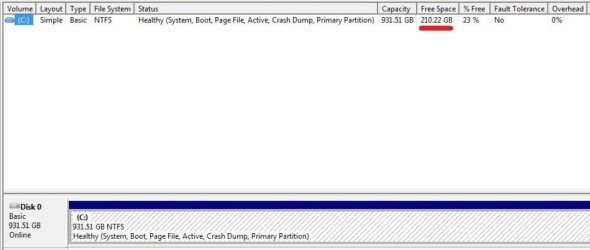
I've been wondering about this so I looked, according to the disk management snip you posted earlier you only have just over 200GB of free space available, so you have an issue; WHERE are you going to store all the data you need to move?

No matter what program/how you shrink C: there's not enough room to store everything.
click to enlarge
View attachment 172063

I only have 251GB worth of data I will transfer. I have 300GB of applications which I've already started to uninstall. Currently I have 300GB of free space. In an hour or so I will continue uninstalling programs to make more room.

So I should have enough room to create a data partition to store my data. Assuming this, am I on track? Steps 4-6 are still the parts I am not 100% sure on.

Greg, once I have my partitions set up and Win 7 installed I'll let you know about the SysReserved partition. ;)
 

My Computer My Computer

At a glance

Vista
OS
Vista
Back
Top