W7 will not boot - sorry for another thread

I want to try one more thing tonight. My computer is overclocked, not by very much, and I'm going to take the MB back to the original settings. If all else fails then I'll hit you up for doing a correct install - thank you!!
 

My Computer My Computer

Computer type
PC/Desktop
Computer Manufacturer/Model Number
Custome Build
OS
W7 Home Premium 64
CPU
i7-3770K
Motherboard
ASUS - P8Z77-V Pro
Memory
Corsair Vengence 8GB (2 x 4GB) DDR3 SDRAM DDR3 1600
Graphics Card(s)
EVGA GTX680 - superclocked - 02G-P4-2682-KR
Monitor(s) Displays
Viewsonic
Hard Drives
Crucial M4SSD256GB
PSU
CORSAIR HX750 750W ATX12V 2.3 / EPS12V 2.91
Cooling
Corsair H100
I have to admit I'm pretty confused about UEFI, CSM, and Legacy, even after googling. I've captured all my settings in the BIOS before I set to default, which I'm about to do.

There is something I've failed to mention. When I power up the computer and hit F8., I'll get the option to select boot device. When I put my W7 desk in the CD/ROM drive I get 3 options:
P5: HL-DT-ST DVDRAM CH24NS72 (316MB)
M4 - CT256M4SSD2
UEFI: P5: HL-DT-ST DVDRAM CH24NS72 (316MB) - This option shows up when I put the disk in.

When I selected UEFI it will take me to the system recover menu. When selecting System Repair I get an error message saying this version of W7 is not compatible...

When I did the boot from desk system repair yesterday I used the first boot option. Anyways, just wanted to throw that out there. I'll reset BIOS and report back. I'm sure I'll be asking for advice for a clean install, which I can see you have linked in your signature.
 

My Computer My Computer

Computer type
PC/Desktop
Computer Manufacturer/Model Number
Custome Build
OS
W7 Home Premium 64
CPU
i7-3770K
Motherboard
ASUS - P8Z77-V Pro
Memory
Corsair Vengence 8GB (2 x 4GB) DDR3 SDRAM DDR3 1600
Graphics Card(s)
EVGA GTX680 - superclocked - 02G-P4-2682-KR
Monitor(s) Displays
Viewsonic
Hard Drives
Crucial M4SSD256GB
PSU
CORSAIR HX750 750W ATX12V 2.3 / EPS12V 2.91
Cooling
Corsair H100
Just reset BIOS and no luck.
 

My Computer My Computer

Computer type
PC/Desktop
Computer Manufacturer/Model Number
Custome Build
OS
W7 Home Premium 64
CPU
i7-3770K
Motherboard
ASUS - P8Z77-V Pro
Memory
Corsair Vengence 8GB (2 x 4GB) DDR3 SDRAM DDR3 1600
Graphics Card(s)
EVGA GTX680 - superclocked - 02G-P4-2682-KR
Monitor(s) Displays
Viewsonic
Hard Drives
Crucial M4SSD256GB
PSU
CORSAIR HX750 750W ATX12V 2.3 / EPS12V 2.91
Cooling
Corsair H100
Is Win7 installed to UEFI or Legacy?

Download the latest official Win7 installer for your version and burn to DVD to try to overcome the wrong version error to repair, or to rescue files or reinstall which are all in the Failure To Boot tutorial.

I am flying around the world so others will hopefully pick this up.
 
Greg,

I'm really not sure if it's in Legacy or UEFI. I do have an image of the SSD from Macrium that is saved on an external HDD. I also have my files backed up on the same HDD

Thanks for you time and effort. If you are ever in the Washington, DC I owe you several drinks of your choice. Safe travels
 

My Computer My Computer

Computer type
PC/Desktop
Computer Manufacturer/Model Number
Custome Build
OS
W7 Home Premium 64
CPU
i7-3770K
Motherboard
ASUS - P8Z77-V Pro
Memory
Corsair Vengence 8GB (2 x 4GB) DDR3 SDRAM DDR3 1600
Graphics Card(s)
EVGA GTX680 - superclocked - 02G-P4-2682-KR
Monitor(s) Displays
Viewsonic
Hard Drives
Crucial M4SSD256GB
PSU
CORSAIR HX750 750W ATX12V 2.3 / EPS12V 2.91
Cooling
Corsair H100
When I selected UEFI it will take me to the system recover menu. When selecting System Repair I get an error message saying this version of Windows 7 is not compatible...

It means your current installation is on "Legacy" mode - not UEFI. Also the "Disk Management" screenshot you posted shows an MBR partitioned disk which further confirms a legacy mode install.

Before re-installing Windows, i highly recommend to update SSD firmware to the latest version.The current firmware version 000F is known to be buggy. Latest revision is 070H which is a must have for all Crucial M4 drives.

More info about the firmware issue : AnandTech | Crucial Provides a Firmware Update for M4 to Fix The BSOD Issue

To update the firmware, select your model and download "Manual Boot file for Windows and Mac" from the below link.

Crucial SSD Firmware Updates


Burn the bootable ISO to a blank CD and follow instructions on the accompanying PDF file. Once the firmware updated successfully, perform a clean install. Make sure to select DVD drive without UEFI prefix for an MBR mode install which is recommended for "Win 7".
 

My Computer My Computer

Computer type
PC/Desktop
OS
Windows 7 Ultimate x64
Anshad,

Thank you so much for the recommendation! I'll be sure to do that before I reinstall. Do you recommend using the Clean Reinstall Factory OEM that is in Greg's signature? I do have an installation disk.
 

My Computer My Computer

Computer type
PC/Desktop
Computer Manufacturer/Model Number
Custome Build
OS
W7 Home Premium 64
CPU
i7-3770K
Motherboard
ASUS - P8Z77-V Pro
Memory
Corsair Vengence 8GB (2 x 4GB) DDR3 SDRAM DDR3 1600
Graphics Card(s)
EVGA GTX680 - superclocked - 02G-P4-2682-KR
Monitor(s) Displays
Viewsonic
Hard Drives
Crucial M4SSD256GB
PSU
CORSAIR HX750 750W ATX12V 2.3 / EPS12V 2.91
Cooling
Corsair H100
Do you recommend using the Clean Reinstall Factory OEM that is in Greg's signature? I do have an installation disk.


Yes,of course. Greg's tut is the most complete guide covering OEM clean install procedures. Although the tutorial is aimed towards OEM edition, most of the steps are also applicable to retail versions.
 

My Computer My Computer

Computer type
PC/Desktop
OS
Windows 7 Ultimate x64
Hi Anshand,

Not sure if you are reading this but something very peculiar happened when I tried to update the curcial firmware. I created a ISO image on a CD. When I started the computer I pressed F8 to get the boot device order and selected DVD. Instead of recognizing the CD it went to my W7 Start Up menu and went into Startup Repair. I did not hear the DVD spinning. This leads me to think in my previous posts that I wasn't accessing the W7 startup repair from my installation disk.

It's hard to understand the problem. I can see all my files in Safe Mode, so it's a little difficult to start all over and reinstall W7. I use this computer for Flight simming and I have some many little tweaks to the computer.

This seems very strange.
 

My Computer My Computer

Computer type
PC/Desktop
Computer Manufacturer/Model Number
Custome Build
OS
W7 Home Premium 64
CPU
i7-3770K
Motherboard
ASUS - P8Z77-V Pro
Memory
Corsair Vengence 8GB (2 x 4GB) DDR3 SDRAM DDR3 1600
Graphics Card(s)
EVGA GTX680 - superclocked - 02G-P4-2682-KR
Monitor(s) Displays
Viewsonic
Hard Drives
Crucial M4SSD256GB
PSU
CORSAIR HX750 750W ATX12V 2.3 / EPS12V 2.91
Cooling
Corsair H100
When I started the computer I pressed F8 to get the boot device order and selected DVD. Instead of recognizing the CD it went to my Windows 7 Start Up menu and went into Startup Repair.


Try burning the disc with "Imgburn".

Download link : http://download.imgburn.com/SetupImgBurn_2.5.8.0.exe

Burn ISO properly using Imgburn : Burn .ISO Image Files ImgBurn - YouTube


Updating firmware via CD is the recommended method. If the above method also fails, use the Windows based update program which can be downloaded from the same link ( "Windows® 7 Updater Application" ).

I have seen similar cases where updating firmware solved failure to boot, hang , BSOD etc ( systems with Crucial SSD ).
 

My Computer My Computer

Computer type
PC/Desktop
OS
Windows 7 Ultimate x64
Hi Anshad,

Imgburn worked perfectly; thank you. I've done the clean install and everything is looking good so far. Now, I'm starting the very very long process of updating drivers and eventually get my computer back to where it was. I have many hours a head of me but thank you all for the help in trying to figure the problem out. I wish I knew what actually happened but this is a good reminder to take of my computer a little better. I thought I had an image copied of my c drive from Macrium, but it turns out I did it incorrectly. Oh well...lesson learned

Cheers
 

My Computer My Computer

Computer type
PC/Desktop
Computer Manufacturer/Model Number
Custome Build
OS
W7 Home Premium 64
CPU
i7-3770K
Motherboard
ASUS - P8Z77-V Pro
Memory
Corsair Vengence 8GB (2 x 4GB) DDR3 SDRAM DDR3 1600
Graphics Card(s)
EVGA GTX680 - superclocked - 02G-P4-2682-KR
Monitor(s) Displays
Viewsonic
Hard Drives
Crucial M4SSD256GB
PSU
CORSAIR HX750 750W ATX12V 2.3 / EPS12V 2.91
Cooling
Corsair H100
I spoke too soon. Everything was working fine until i started the W7 update. There were about 152 to update. Once it completed the computer has the original problem. Prior to doing all the updates, I did not have any problems.
 

My Computer My Computer

Computer type
PC/Desktop
Computer Manufacturer/Model Number
Custome Build
OS
W7 Home Premium 64
CPU
i7-3770K
Motherboard
ASUS - P8Z77-V Pro
Memory
Corsair Vengence 8GB (2 x 4GB) DDR3 SDRAM DDR3 1600
Graphics Card(s)
EVGA GTX680 - superclocked - 02G-P4-2682-KR
Monitor(s) Displays
Viewsonic
Hard Drives
Crucial M4SSD256GB
PSU
CORSAIR HX750 750W ATX12V 2.3 / EPS12V 2.91
Cooling
Corsair H100
What did you mean you had a "very long process of installing drivers" in a driver-complete OS? You were to only install Windows Updates which should update all drivers. If you forced a bunch of drivers like this is XP then I would start over following the correct reinstall procedure in link below. You may also be able to System Restore before you installed a bunch of drivers Win7 doesn't want, if you did

Otherwise System Restore to before the Updates. Check for Updates and install Important and Optional drivers only first.

Reboot and Check again. Install Updates in small groups testing performance after each group.

If the problem returns System Restore to before the last group and install those Updates singly to isolate problem Update.
 
Everything was working fine until i started the Windows 7 update. There were about 152 to update. Once it completed the computer has the original problem.


Do you mean the system will restart after displaying "Windows" logo ?. If yes, please press "F8" during startup and select "Disable automatic restarting on system failure".

F8_on_boot_Disable_automatic_restart_on_system_failure.jpg


This will cause "Windows" to hang on a blue screen instead of restarting itself. Please take a sscreenshot and post it with next reply. Also try booting in to "Safe Mode".
 

My Computer My Computer

Computer type
PC/Desktop
OS
Windows 7 Ultimate x64
I first started with MB drivers (it wasn't that long) and the computer worked fine after those driver updates. I was careful of what drivers to install When I wrote my msg "very long process of updating drivers" I was unclear. I really meant getting my computer ready for flight simming...I misspoke.

During installation of W7, I choose windows automatic updates, which had about 152 and I updated all of them. I can see that was my problem, based on what you said. I was following some steps in the tutorial http://www.sevenforums.com/tutorials/1649-clean-install-windows-7-a.html. Step 15 had me select "Use recommended Stetting". I should have been a little more diligent when choosing what to update.

Anshad - the computer does restart after the "starting Windows" screen. I choose "Disable automatic restart on system failure" but it did not work. My screen goes black.

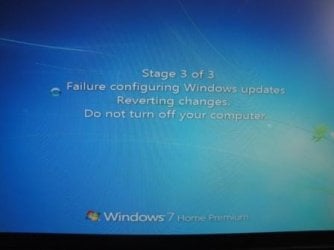
When I select Safe Mode with networking the screen hangs on: Stage 3 or 3 "Failure configuring Windows updates Reverting changes...don't not turn off computer. See attached JPEG
w7.jpg


Occasionally I'll get a BSOD for about 2 seconds but it doesn't seem consistent.

I'll start over with the W7 install and make sure i follow the steps in the tutorial. I may have missed something but thought I was being thorough. I'll do short batches of W7 updates and report back.

I've been having dreams of SSD's and W7 all week...hopefully the problem can be solved.

Thanks agin.
 

My Computer My Computer

Computer type
PC/Desktop
Computer Manufacturer/Model Number
Custome Build
OS
W7 Home Premium 64
CPU
i7-3770K
Motherboard
ASUS - P8Z77-V Pro
Memory
Corsair Vengence 8GB (2 x 4GB) DDR3 SDRAM DDR3 1600
Graphics Card(s)
EVGA GTX680 - superclocked - 02G-P4-2682-KR
Monitor(s) Displays
Viewsonic
Hard Drives
Crucial M4SSD256GB
PSU
CORSAIR HX750 750W ATX12V 2.3 / EPS12V 2.91
Cooling
Corsair H100
You can still try to System Restore from the booted Win7 installation disk's System Recovery Options to a point before you installed the drivers.

Then Check for Updates and install the Drivers in both Important and Optional first. Reboot to install small batches of Updates with time to test performance between each. A System Restore point will be set before each in case it fails so you can isolate the single update which is the problem, likely a performance update for your hardware that didn't agree with a driver you forced on it - so it may not fail this time.
 
Thanks, Greg. I'm going about it very slowly. I have 98/100 of the Important updates completed and not problem. There are 3 Important updates I was NOT going to install unless you think they are important:
1.Internet Explorer 11: I don't use explorer
2.Windows Malicious Software Removal Tool x64 - I figured MalwareBytes would take care of things
3.Definition Update for Windows Defender - KB915597

I'm installing 10 updates at one time, so taking it very slowly. I'm on to the Optional updates which are mostly, Update for W7.
 

My Computer My Computer

Computer type
PC/Desktop
Computer Manufacturer/Model Number
Custome Build
OS
W7 Home Premium 64
CPU
i7-3770K
Motherboard
ASUS - P8Z77-V Pro
Memory
Corsair Vengence 8GB (2 x 4GB) DDR3 SDRAM DDR3 1600
Graphics Card(s)
EVGA GTX680 - superclocked - 02G-P4-2682-KR
Monitor(s) Displays
Viewsonic
Hard Drives
Crucial M4SSD256GB
PSU
CORSAIR HX750 750W ATX12V 2.3 / EPS12V 2.91
Cooling
Corsair H100
Always accept Security and Performance Updates like Malicious Software Removal Tool from Updates.

Once you install MSE it will turn off Defender.

How many drivers were delivered by Windows Updates? Any remaining?

What drivers were installed from elsewhere, and where from?

How many are missing now in Device Manager and which are they?
 
All my Important updates are installed; no problems.

I had a ViewSonic (my monitor) driver during Windows Update. I didn't really notice any other device drivers except for what is below.

I have 2 Optional updates that I'm not going to install, if you agree
1. Logitech - other hardware-USB Input Device (Logitech Dowload Assistant)
2. nVidia - Graphics Adapter WDDM1.1...... (I have a GTX680 Graphics card and will eventually update it through the manf.)

Prior to starting the Windows Updates, I put in the MB CD and updated the following:
1. Intel Chipset Driver
2. Realtek Audio Driver
3. Asmedia SATA Controller Driver
4. Intel USB 3.0 Driver
4. Asmedia USB 3.0 Driver
5. Intel LAN Driver

I don't "think" I have any missing in the device manager. Would there be an exclamation mark next to the device? If so, there aren't any.

Part of me is happy and the other part is scared since I still haven't found the problem. I'm on Step 11 of your tutorial (Installing programs over time) and will do that very slowly.

I do need to update my graphics card and I do have other devices for my computer (flight simming stuff)
 

My Computer My Computer

Computer type
PC/Desktop
Computer Manufacturer/Model Number
Custome Build
OS
W7 Home Premium 64
CPU
i7-3770K
Motherboard
ASUS - P8Z77-V Pro
Memory
Corsair Vengence 8GB (2 x 4GB) DDR3 SDRAM DDR3 1600
Graphics Card(s)
EVGA GTX680 - superclocked - 02G-P4-2682-KR
Monitor(s) Displays
Viewsonic
Hard Drives
Crucial M4SSD256GB
PSU
CORSAIR HX750 750W ATX12V 2.3 / EPS12V 2.91
Cooling
Corsair H100
Back
Top