Window Explorer Toolbar - Remove

How to Remove Windows Explorer Toolbar in Windows 7


   Information
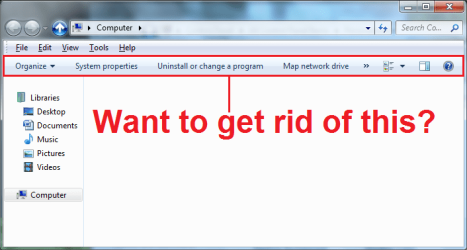
In windows 7 Microsoft implemented a new toolbar in Windows Explorer. It has options like: Organize, Share with, Burn, New Folder. Do you want to get rid of this for good? This is how.

attachment.php

   Note
If you do this you will not be able to access any of the features that are on this bar, that includes changing which panes are up. You can however use these tutorials registry edits to turn them on or off:

To use custom themes after removing the explorer toolbar, you will have to extract the file to:

C:\Windows\Resources\Themes\"Custom Theme"\Shell\NormalColor


OPTION ONE

To Remove Windows Explorer Toolbar


1. Click on the Download button below to download the Remove Explorer Bar.zip file.

Download


2. Disable Aero.

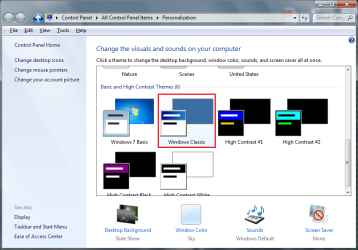
  1. Right click on the Desktop, select "Personalize"
  2. Select "Windows Classic" theme:

    attachment.php
3. Download and install "Add_Take_Ownership.reg".

  1. Extract: "Add_Take_Ownership.reg"
  2. Run: "Add_Take_Ownership.reg"
  3. If prompted by User Access Control, then select "Yes".
  4. "Registry Editor" will ask something like:

    attachment.php
  5. Select "Yes"
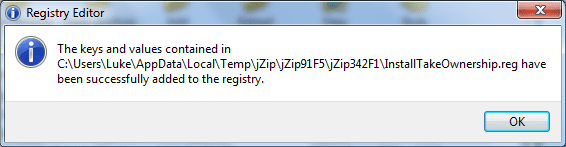
  6. "Registry Editor" will say something like:

    attachment.php
  7. Select "OK"
4. Determine whether your operating system is 64 bit or 32 bit.

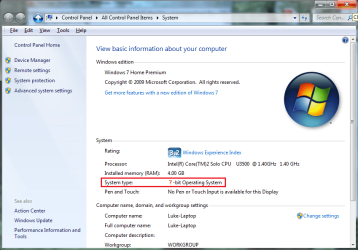
  1. Right Click on "Computer", select "Properties"
  2. Look next to "System type:", it will say one of these: "64-bit Operating System" or "32-bit Operating System":

    attachment.php
5. Taking control of necessary files.
   Warning
You MUST back up the following files if you ever wish to revert back. One way you might backup a file is by copying the original file and then renaming the copy "shellstyle - Original.dll" or "shellstyle - Backup.dll". Make sure you do a backup file for each file that you are going to change.


  1. Navigate to the folder:
    Code:
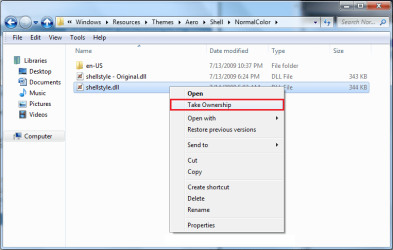
    C:\Windows\Resources\Themes\Aero\Shell\NormalColor
  2. Right click on the file: "shellstyle.dll", select "Take Ownership":

    attachment.php
  3. If prompted by User Access Control, then select "Yes".
  4. The following Steps 5-7 are for "64-bit Operating System" only.
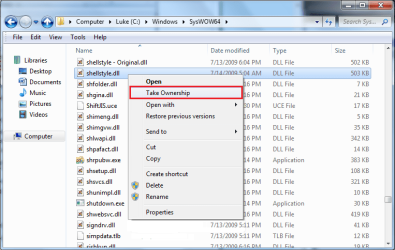
  5. Navigate to the folder: "C:\Windows\SysWOW64"
  6. Right click on the file: "shellstyle.dll", select "Take Ownership":

    attachment.php
  7. If prompted by User Access Control, then select "Yes".

6. If your system is a "64-bit Operating System" perform steps 1-2.
  1. Extract (drag and drop to your desktop) and run the following files: "Shellstyle Extract x64.exe", "Shellstyle Extract x64_2.exe" from the download in step 1 above.
  2. If prompted by User Access Control, then select "Yes".
7. If your system is a "32-bit Operating System" perform steps 1-2.

  1. Extract (drag and drop to your desktop) and run the following file: "Shellstyle Extract x86.exe" from the download in step 1 above.
  2. If prompted by User Access Control, then select "Yes".
8. Re enable your original theme.

  1. Right click on your Desktop, click "Personalize"
  2. Enable your desired theme
9. You are Done!


OPTION TWO

To Restore Windows Explorer Toolbar


1. Disable Aero.

  1. Right click on your desktop, click "Personalize"
  2. Select "Windows Classic" theme
2. Restore Backups.

  1. Navigate to the folder:
    Code:
    C:\Windows\Resources\Themes\Aero\Shell\NormalColor
  2. Change the file "shellstyle.dll" to another name I.E. "shellstyle - NEW.dll"
  3. Put the original file back in this folder and name it "shellstyle.dll"
  1. Navigate to the folder: "C:\Windows\SysWOW64" (Note this folder is only on 64 bit versions of windows 7)
  2. Change the file "shellstyle.dll" to another name I.E. "shellstyle - NEW.dll"
  3. Put the original file back in this folder and name it "shellstyle.dll"
3. Re enable your original theme.

  1. Right click on your Desktop, click "Personalize"
  2. Enable your desired theme
4. You are Done!


Attachments

  • registry asks.png
    registry asks.png
    9.4 KB · Views: 27,738
  • shell resource.png
    shell resource.png
    26.5 KB · Views: 29,809
  • shell SysWOW64.png
    shell SysWOW64.png
    34.3 KB · Views: 28,238
  • system type.png
    system type.png
    52.5 KB · Views: 28,177
  • want to get rid of this.png
    want to get rid of this.png
    23.9 KB · Views: 31,747
  • Registry editor.png
    Registry editor.png
    9.9 KB · Views: 27,819
  • Personailize.png
    Personailize.png
    48.3 KB · Views: 28,307
  • Remove Explorer Bar.zip
    Remove Explorer Bar.zip
    334.6 KB · Views: 5,067
Last edited by a moderator:
You can also use Resource Hacker to edit shell32.dll to remove the FolderBand. That's what I did, and it should work for any and all themes. But if you mess up, it's shell32, and Windows Explorer might fail to work.

But, here's how to remove the FolderBand. See this post, as well as this one. gumballguy, the author of the second post, stated that he tried that method on the release candidate and not on the RTM. Well, I'm here to tell you that his method works nicely on the RTM!

I also found this article from a German Wiki, and had to translate it through Google. The translation reveals two methods: the first, which
kookster kindly provided here, and then the second ("Another method is:"), which involves editing shell32. In case you can't access the web page, though, the text that you're supposed to look for is

Code:
<Element layoutpos="Top" layout="filllayout()" sheet="folderbandstyle" animation="rectanglev|s|fast"> <TemplateBackground id="atom(BackLayer)"/> <TemplateBackground id="atom(FolderBandShineLayer)"/> <FolderBandModule ModuleID="FolderBandModule"/> </Element> <element Layoutpos="Top" layout="filllayout()" sheet="folderbandstyle" animation="rectanglev|s|fast"> <TemplateBackground id="atom(BackLayer)"/> <Template Background id = atom (Folder Shine Band Layer) "/> <FolderBandModule ModuleID="FolderBandModule"/> </ element>

In summary, you delete any references to FolderBand in the UIFILEs 12, 27, 28, 32, and 46. I hope I've helped!
 

My Computer

OS
Windows 7 Home Premium x64
yeah thats what I originally did, but i figured it would be easier to include self installing ones. Problem though is its pretty hard to actually edit this specific file, and if you do its pretty easy to screw things up.

Now I remember why i never did it, I could never successfully edit that file for some reason, resource editor and xn wont save it, dunno why.
 
Last edited:

My Computer

Computer Manufacturer/Model Number
acer timeline 3810t
OS
Windows 7 64-bit Windows 7 32-bit
CPU
Intel Core 2 Solo (1.4 GHz)
Memory
4 GB DDR3 SDRAM - 1066 MHz SO DIMM 204-pin
Graphics Card(s)
Intel GMA 4500MHD Dynamic Video Memory Technology 5.0
Monitor(s) Displays
Widescreen 13.3 in TFT active matrix
Hard Drives
# 250 GB - Serial ATA-150 - 5400 rpm
Case
# Ultraportable (Under 4 lbs.) , Budget
yeah thats what I originally did, but i figured it would be easier to include self installing ones. Problem though is its pretty hard to actually edit this specific file, and if you do its pretty easy to screw things up.

Now I remember why i never did it, I could never successfully edit that file for some reason, resource editor and xn wont save it, dunno why.
What I had to do was copy shell32.dll to the Desktop, and then edit the copy with Resource Hacker. Once you're done editing, take ownership of the original shell32.dll, and rename it to shell32.dll.bak (or some other filename). Then move the copied shell32.dll back into the system32 directory.

If you use a 64-bit system, you'll have to do this for the SysWOW64 directory as well.
 

My Computer

OS
Windows 7 Home Premium x64
thats exactly what i did but the resource editors just wont save the changes for some reason.
 

My Computer

Computer Manufacturer/Model Number
acer timeline 3810t
OS
Windows 7 64-bit Windows 7 32-bit
CPU
Intel Core 2 Solo (1.4 GHz)
Memory
4 GB DDR3 SDRAM - 1066 MHz SO DIMM 204-pin
Graphics Card(s)
Intel GMA 4500MHD Dynamic Video Memory Technology 5.0
Monitor(s) Displays
Widescreen 13.3 in TFT active matrix
Hard Drives
# 250 GB - Serial ATA-150 - 5400 rpm
Case
# Ultraportable (Under 4 lbs.) , Budget
This is exactly what I want to do, and I got it working, but only in Aero themes.

Does anyone have any idea how to make this work in "Windows Classic" theme? There is no shellstyle.dll in the "Ease of Access Themes" folder.

The other option that would work for me is an "Aero" theme that perfectly replicates "windows classic"... if that exists.
 

My Computer

OS
Win7 x64 home premium
Wow, this is exactly what I need. And I took about 6-7 hours to get to here! Thanks!
 

My Computer

OS
Windows 7 x64 and x86
CPU
Q8200
Motherboard
Gigabyte EP45-UD3P
Memory
Patriot 6400LL 2GBx4 ddr2-800
Graphics Card(s)
ASUS 9600GSO
Monitor(s) Displays
Sony 19
Screen Resolution
1280x1024
Hard Drives
WD 80G SATA I
Seagate 80G SATA I
PSU
Antec SmartPower 350w
Case
Antec
Cooling
Intel box cpu cooling
Keyboard
Lenovo 101
Mouse
Microsoft Wireless IntelliMouse Explorer 2.0
Internet Speed
slow dsl
Kookster, did you ever find any kind of a solution or work-around for used of customized classic themes? I use a customized classic theme, and also run Ivo's Classic Shell. I've tried everything but can't get rid of the dang toolbar. In the past tried to use the resource hacker but alas, I'm too stupid to figure it out.

After I go through the steps in your tutorial the toolbar is smaller (odd) but still present.

Thanks,

Steve
 

My Computer

Computer Manufacturer/Model Number
Dell T3400
OS
Windows 7 Pro x64 (dual-booting XPSP3 and Win7)
CPU
Intel Core-2 Quad
Memory
4GB 800 Mhz PC2 unbuffered ECC
Graphics Card(s)
NVIDIA Quadro FX 570
Sound Card
Creative SB X-Fi model SB0770
Monitor(s) Displays
Dell 19" FP
Screen Resolution
1680x1050
Hard Drives
SATA disk0 250GB disk1 500GB
Internet Speed
TW RR
Other Info
Just a baby compared to my work box!
I havent. But I must admit I havent been trying. I used to have the problem that the reshacker wasnt saving but I found out what that problem was so I should try again. :sarc:
 

My Computer

Computer Manufacturer/Model Number
acer timeline 3810t
OS
Windows 7 64-bit Windows 7 32-bit
CPU
Intel Core 2 Solo (1.4 GHz)
Memory
4 GB DDR3 SDRAM - 1066 MHz SO DIMM 204-pin
Graphics Card(s)
Intel GMA 4500MHD Dynamic Video Memory Technology 5.0
Monitor(s) Displays
Widescreen 13.3 in TFT active matrix
Hard Drives
# 250 GB - Serial ATA-150 - 5400 rpm
Case
# Ultraportable (Under 4 lbs.) , Budget
Worked great here, thanks a lot. That toolbar is ugly and wastes space.
 

My Computer

OS
Windows 7 Ultimate x64
CPU
Intel E8500 @ 3.8GHz
Motherboard
ASUS P5E Crossflashed to Maximus Formula BIOS
Memory
8GB Corsair DDR2 1066
Graphics Card(s)
EVGA GTX580 3GB
Sound Card
Razer Megalodon Headset
Monitor(s) Displays
Samsung 245T
Screen Resolution
1920x1200
Hard Drives
4*Samsung 2TB
PSU
PCP&C Silencer 750
Case
Antec P182SE
Cooling
Thermalright Ultra-120 Xtreme
Keyboard
Razer Black Widow Ultimate
Mouse
Razer Mamba
Kookster, did you ever find any kind of a solution or work-around for used of customized classic themes? I use a customized classic theme, and also run Ivo's Classic Shell. I've tried everything but can't get rid of the dang toolbar. In the past tried to use the resource hacker but alas, I'm too stupid to figure it out.

After I go through the steps in your tutorial the toolbar is smaller (odd) but still present.

Thanks,

Steve

I finally removed it successfully. I did a quick fix which I have no clue how stable and what effects this might have. But I will have a much more stable and thorough version up soon.

[Edit]
I uploaded the new files, there is one folder for the aero themes and then one folder for non that goes in windows/system32 which will alter the windows classic theme. Though they are not self installers they do work you just have to place them yourself. I am going to do a program that will install them for you and take control yadda yadda later. But this will do for now.
 

Attachments

Last edited:

My Computer

Computer Manufacturer/Model Number
acer timeline 3810t
OS
Windows 7 64-bit Windows 7 32-bit
CPU
Intel Core 2 Solo (1.4 GHz)
Memory
4 GB DDR3 SDRAM - 1066 MHz SO DIMM 204-pin
Graphics Card(s)
Intel GMA 4500MHD Dynamic Video Memory Technology 5.0
Monitor(s) Displays
Widescreen 13.3 in TFT active matrix
Hard Drives
# 250 GB - Serial ATA-150 - 5400 rpm
Case
# Ultraportable (Under 4 lbs.) , Budget
A year on (and a bit) after my first experiments with Win7 -- which died and prompted a reformat back to XP when I couldn't get Exploder looking how I wanted -- I considered trying it again, and remembered I'd posted to this thread waaaay back when. Needless to say, I was very thrilled to log back in and see kookster had an update that was less than a month old that included a non-aero patched ready-to-rumble file!

Kookie ol' son, your new patch works a treat -- I am now enjoying Win7 as I want it to be (well, almost, but nuking FolderBand was a MAJOR block that's now gone!)
 

My Computer

OS
Windows 7 Home
*sigh*

I spoke too soon. If I then add Classic Shell (to eliminate the rest of the W7 crud) it breaks, badly.

Seems I can have Classic Shell to get a Windows2000-like Explorer look but with the godsawful FolderBand, or no FolderBand but then I'm stuck with the rest of the godsawful W7 Explorer window.

Ah well. Back to XP, until someone can figure out how to get the real W2K/XP Explorer runing as the default.
 

My Computer

OS
Windows 7 Home
*sigh*

I spoke too soon. If I then add Classic Shell (to eliminate the rest of the W7 crud) it breaks, badly.

Seems I can have Classic Shell to get a Windows2000-like Explorer look but with the godsawful FolderBand, or no FolderBand but then I'm stuck with the rest of the godsawful W7 Explorer window.

Ah well. Back to XP, until someone can figure out how to get the real W2K/XP Explorer runing as the default.

I have Classic Shell with no problem. Hmm. If you post your working shellstyle.dll I can make the changes to it for you.
 

My Computer

Computer Manufacturer/Model Number
acer timeline 3810t
OS
Windows 7 64-bit Windows 7 32-bit
CPU
Intel Core 2 Solo (1.4 GHz)
Memory
4 GB DDR3 SDRAM - 1066 MHz SO DIMM 204-pin
Graphics Card(s)
Intel GMA 4500MHD Dynamic Video Memory Technology 5.0
Monitor(s) Displays
Widescreen 13.3 in TFT active matrix
Hard Drives
# 250 GB - Serial ATA-150 - 5400 rpm
Case
# Ultraportable (Under 4 lbs.) , Budget
This is absolutely fantastic. I'm *very* thankful for your help in my War on Screen Clutter.
 

My Computer

Computer Manufacturer/Model Number
Alienware m17x r2
OS
Windows 7 Ultimate x64
Thanks for the tutorial but for some reason the toolbar has diapered like it should on all of the menus except for "Documents,Music,Pictures,Videos" i have no idea why, can you help me.
 

My Computer

OS
Windows 7 Home Premium 64bit
But will it work if I normally use the normal non-aero theme instead? Or will it work under aero only?
 

My Computer

Computer type
Laptop
Computer Manufacturer/Model Number
Toshiba Sattelite A665-S6092
OS
Windows 7 Ultimate x64
CPU
Intel Core i7-740QM
Memory
8 GB DDR3
Graphics Card(s)
NVIDIA GeForce 330GT
Screen Resolution
1366x768
Hard Drives
Samsung 840 SSD 500GB
1TB USB3 external HD
Cooling
Coolermaster Notepal U3 notebook cooling pad
Internet Speed
3mbps ASDL
Antivirus
ClamWin 0.98.7
Browser
Opera 12.17 x86 (main), Firefox 38 (sec), IE11 (last resort)
i got mine to work,, i am running win 7 starter 32 bit..
just follow step 1 download the shellstyle extract x86
then go to
C:\Windows\Resources\Themes\Aero\Shell\NormalColor and rename the shell.dll file into whatever you want it to be just make sure there is still .dll at the end of the name
but also before doing so check the security tab of that folder make sure you have the permission to change the name,
assume that you do know how to change permission right??
after successfully changing the name close the folder and run as administrator shellstyle x86.
if your not sure it runs just re run it and restart your pc,, am sure toolbars is gone now..

God bless......
 

My Computer

Computer Manufacturer/Model Number
785 E-65
OS
windows 7 starter
CPU
AMD
Motherboard
MSI
Memory
2 gig
Graphics Card(s)
hd4200
Sound Card
built-in
Monitor(s) Displays
intex 18.5''
Hard Drives
WD 160 G
PSU
trendsonic
Case
trendsonic
Cooling
trendsonic
I know this tutorial is pretty old, but still seems to have some activity every once in awhile, im just wondering, did anyone ever manage to fix the problem with 64 bit Windows users using the Windows Classic theme? I know its fixed for the 32 bit version, but dont know if anyone ever figured anything out for the x64 version (trying to repeat same process used in system32 in syswow64 is for some reason ineffective).
 

My Computer

OS
Windows 7 x64
Signed up especially to thank author of this post.

It works with every theme, just too bad the paths to the .dll's are hardcoded.
Im using a custom theme, not Aero, its just that the file you have to modify has to be located in the Aero folder. Im on Windows 7 Ultimate x64.

---Use my solution for other styles than Aero below at own risk.---

1. If you want this on another theme than Aero make sure the theme you want is NOT selected, also Aero may NOT be select.

2. Backup your shellstyle.dll for your theme you want to mod and for Aero. (Backing up the SysNode64 one and modifying it works exactly as in OP post, so I will not mention it here.)

3. Take ownership of both the one you want to mod and orginal Aero .dll.

4. Delete Aero .dll (orginal, not backup!).

5. Copy the shellstyle.dll you want to modify to the Aero folder.

6. Run authors provided tool, the shellstyle.dll in Aero should now be modified.

7. Copy shellstyle.dll back to the theme you want to mod.

8. Restore original Aero .dll.

9. Select your Theme. This one should be modded and Aero should not be changed.


@Aquifel, maybe this helps you as well.
 

My Computer

Computer Manufacturer/Model Number
HP EliteBook 8540W
OS
Windows 7 Ultimate x64
Monitor(s) Displays
ASUS 27' + AOC 27'
When I swap the shellstyle.dlls, the folder will freeze and I can't access the folder. I use a customized windows classic theme.

If anyone has trouble like I did with this shellstyle.dll, you can simply edit the shell32.dll file to remove the toolbar. Follow the instructions here to remove it.
 
Last edited:

My Computer

OS
Windows 7 64-bit
Back
Top