Solved Windows 7 boot failure: error ‘0xc0000225’: can't repair or reinstall

expeditionist

New member
Local time
1:58 AM
Messages
6
Windows 7 boot failure: error ‘0xc0000225’: can't repair or reinstall

Hi guys


I’d be very grateful for a bit of help please.


My 3 year old Samsung RV720 laptop wouldn’t boot into Windows 7 today – , was fine yesterday, but today it just hung at the Win7 startup logo.


I haven’t installed anything new on the laptop since July (except Windows updates) because I only really use the laptop for photography hols away from home, and to watch catchup programmes on my TV each day from the BBC and Channel 4 here in the UK, whose websites can be trusted.


I tried to reboot it from the recovery console, in safe mode and also in safe mode with command prompt, it hung as soon as it started loading drivers.


I tried to start windows from the recovery console with the last known good configuration and it hung at the startup logo again.


I checked the bios and my 4mb of memory in 1 slot is listed and my 750gb hdd is listed in the boot priority, CD first, HDD second, same as usual.


I tried to invoke the Samsung recovery via F4 at boot and I got the message ‘an error occurred while attempting to read the boot configuration data’ and error code ‘0xc0000225’ and telling me to insert recovery disk.


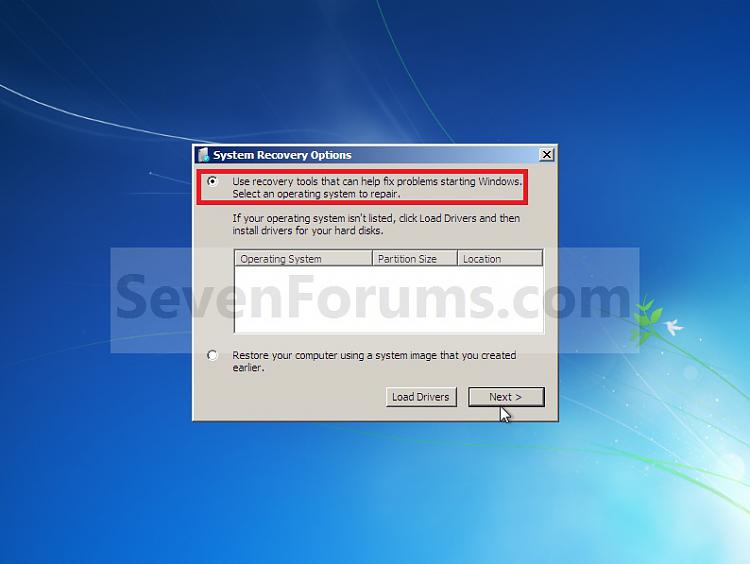
I tried to use repair your computer from the built in recovery console and it loaded files but it hung at the first blue Windows background screen (with the leaves and the bird), just a cursor never got any text or options.


I tried to run repair your computer from my bootable rescue disk and from a second bootable Win7 system repair disk, it loaded files, then hung with a spinning disk at the first system recovery options prompt, ‘select an operating system to repair’. Waited ages several times.


I tried to reinstall Windows and after pressing install it went to the next screen, said it was starting and hung. Waited an hour...


I downloaded an ISO and ran Sea Tools for DOS HDD Diagnostic and that told me there was no hard disk - why?


I downloaded Samsung HUTIL HDD ISO but it came back with lots of errors I didn’t understand including an 'out of mem error' ?


I downloaded an ISO for MemTest86 and it passed all the memory tests the first time around, but the second time around it said bits in error: total 1, error confidence value: 236


I’m thinking it’s a new HDD? But I’m worried about the memory too?


Spent 6 hours all in all reading and testing and I’m out of ideas now. Please can somebody who knows more about PCs help me maybe?


Many thanks.
 

My Computer My Computer

At a glance

Win 7 Home Premium 64 bit
Computer type
PC/Desktop
OS
Win 7 Home Premium 64 bit
Wow, you really tried a lot of stuff. Good on you. One thing ... you stated you ran Seagate Tools and got 'no hard drive' then you ran the Samsung tools and got errors. Is the hard drive a Samsung or a Seagate? Each manufacturer has its own hard drive tools, so if you don't have a Seagate, that's why the Seagate tool said there was no hard drive installed.

Even within a manuf they sometimes have different tools for different series' of drives. So first thing is, I'd find the exact model of the hard drive, then find the tool for that exact drive from the manuf and run that tool.

The mem test could also be a problem, but if it were me I'd start with squaring away the HD. If I kept getting errors trying to do that that I thought might be due to a bad memory stick (i.e. stick of RAM), then I'd swap that stick out with another if I had another compatible stick on hand. But as far as the odds, it's more likely the hard drive is having a problem than the RAM stick. RAM has no moving parts and while a stick can certainly go bad, the hard disk is more vulnerable and more likely to develop a problem. JMO.

EDIT: I don't know if you have any Linux Live drives (memory sticks with a bootable portable version of Linux), but if you do you could boot from the mem stick into Linux, then mount the internal drive from within Linux and format it from there. This would of course wipe all your data but you have already tried steps to reinstall Windows so I am assuming you don't mind. Once the drive is formatted from inside Linux you could power down, then boot from a Windows CD and try re-installing Windows again, or better first, boot from the manuf HD tool (assuming there is an ISO and you can make a bootable CD or mem stick with it) and check the drive first.
 

My Computer My Computer

At a glance

Win 7 Ultimate 64-bit
OS
Win 7 Ultimate 64-bit
Thanks

HDD is a Samsung HN-M750MBB. I guess that's why Seatools for DOS said no disk then.

I just ran Windows Memory Diagnostic Test from the recovery disk and it passed ok so we'll park that for now then.

So I guess I need to get Samsung HUTIL or another bootable HDD diagnostic test to run. I tried to check I was using the correct utility on the Samsung website (Samsung Hard Drives) but I can't see it?

Samsung HUTIL errors scroll off screen. What I can see says:
'Can't open CD driver CD001.
'SHSUCDX can't install'
Turbodisk 2.42 Drive C:
Size: 4096 Kbytes
Memory: Extended (XMS)
Sector size: 512
Root entries: 384
Sectors/cluester: 4
2040 clusters (FAT12)
your ram drive is loaded at C:
Out of memory error.
Bad command or filename.
C:\>

Tried to dir *.exe at C: for log, nothing

It's nearly 3am here, I'm off to bed, will pick this up again tomorrow afternoon then. Thanks in advance for your further reply please.
 

My Computer My Computer

At a glance

Win 7 Home Premium 64 bit
Computer type
PC/Desktop
OS
Win 7 Home Premium 64 bit
There isn't a bootable utility for Samsung, so running SeaTools for DOS - How to Use - Windows 7 Help Forums is fine as long as you are sure it is burned correctly. Does it detect any other PC's hard drive? An alternative is Partition surface test with Partition Wizard bootable CD

But the fact you were able to boot it sounds like you can boot a disk, so I'd burn the Win7 ISO to DVD to use for repairs or reinstall depending upon what HD test finds. To confirm the HD condition use the System Recovery Options Command Line to run a full Disk Check
 
@expeditionist: You're in good hands with gregrocker so I'll leave you to it. Hope you have better luck tomorrow.
 

My Computer My Computer

At a glance

Win 7 Ultimate 64-bit
OS
Win 7 Ultimate 64-bit
Thanks for your help remm

gregrocker - thank you very much for joining and helping me

had a good kip, I'm now 6 hours in to testing with your suggestions, lots of downloads on the troubleshooting - they're very slow here. Exhausted again.


Let me just skip to the useful results so far maybe: full surface scan with Partition Wizard Home Edition v8.1.1 bootable, found one error on HDD: Read error in this block (after about 93% ok)


Can't get to this screen yet: http://www.sevenforums.com/attachme...-recovery-options-system_recovery_options.jpg , because recovery disk and system repair disk both hang here with spinning cursor: http://www.sevenforums.com/attachme...79263829t-system-recovery-options-xp-w7_3.jpg


Gonna make another Win7 DVD and bootable USB flash drive and try again as suggested. Also, I have a full retail box version of Win7 64 bit from my desktop, maybe try that DVD too next...


But, assuming I can get to the System Recovery Options after that, can I fix the bad block at the command prompt somehow?


And should I run Paragon rescue disk which I downloaded to try and recover data before or after trying to fix the bad block at the command prompt?

I looked at copy disk in Partition Wizard Home Edition v8.1.1 but didn't use it because I'd quite like to just copy a few files and ditch the rest of the disk if needs be cos it's full with films that I already have elsewhere.


Thanks?
 

My Computer My Computer

At a glance

Win 7 Home Premium 64 bit
Computer type
PC/Desktop
OS
Win 7 Home Premium 64 bit
I would rescue files first since the disk is still in question until it is tested with one other bootable solution like Seatools which works for all models, followed by Disk Check from the Recovery Options Command Line.

I'd try the retail DVD if its same version. If disk fails try writing ISO to flash stick.

The repairs order I'd run after rescuiing file and disk check are Startup Repair, System Restore, check for infection and attempt repair of System files (SFC) to see if it will boot into Windows or Safe Mode: Troubleshooting Windows 7 Failure to Start
 
I recovered the data I wanted with Paragon Rescue Disk, it'd only boot off linux/flash usb, so I must've done something wrong making the DVD, but that job is done now. Took ages to copy 8GB of data to USB though.

I tested booting the SeaTools for DOS CD in my desktop and it found my disks fine so I went back in to my laptop's BIOS and figured out that the AHCI automatic/manual setting switch wasn't enough, it brought up another AHCI enabled/disabled switch after setting AHCI to manual and I hadn't seen that before (at 2am yesterday). Moral of the story - when you're tired, go to bed.

Running a long surface test now on my HDD with SeaTools, guess that'll finish overnight, maybe it'll fix HDD too?

Win 7 64bit ISO is still only at 30%, my connection is so slow, it's a concern cos my connection often goes down in the early hours, hope it finishes overnight.

Have a plan of action after surface test, like you said - try the retail dvd, make win7 dvd/flash from iso that is downloading if retail dvd don't work, then disk check from the recovery console command line followed by the rest in the order you said. I have the Windows Defender bootable flash drive made already in case it's not the HDD.

I've come to the conclusion that you must be very methodical and very patient to do this for a job and not get stressed easily - you're a better man than me.

Can I ask, my HDD is partitioned, c and f, system and data. Is it right that I need chkdsk C: /p /r and chkdsk F: /p /r if I get to the recovery console command prompt?

Monday tomorrow, I might have to put progress on hold for a few days now.

Thanks for your help.
 

My Computer My Computer

At a glance

Win 7 Home Premium 64 bit
Computer type
PC/Desktop
OS
Win 7 Home Premium 64 bit
Hi gregrocker

Hope you're good.

Long story short...

SeaTools long test failed, it found 8 errors and said 'Sector Repair Failure' notice...'Repair was unsuccessful on the hard drive.

I got past the hanging screens here: http://www.sevenforums.com/attachme...7431645-system-recovery-options-select_os.jpg and here: http://www.sevenforums.com/attachme...79263829t-system-recovery-options-xp-w7_3.jpg by using the full retail DVD that I had from my other computer, rather than the recovery disk and system repair disk I had from the laptop, but it took ages on the second screen with a prompt 'searching for window installations' and then it went straight to the startup repair window without giving me any options - 'Your computer was unable to start', 'Startup repair is checking your system for problems...' then it asked me if I wanted to allow system restore and I said ok, but after reboot a BSOD flashed up and it rebooted back in to 'Your computer was unable to start', 'Startup repair is checking your system for problems...' and it just hung there for hours, so I gave up waiting and killed the power. I tried to boot back into the Windows DVD, but it just hung again every time on the screen linked to above.

I then loaded the bootable CD, Partition Wizard Home and I tried to use the option 'set windows boot partition' on the system partition, but it said 'failed to find windows directory', even though I could navigate to it and see it was there.

So by this time I was willing to reinstall as you suggested and stop wasting time, so I deleted the system partition in Partition Wizard Home and opted to start Windows reinstall, but after clicking on Install it just hung with the message 'Setup is starting', even with the flash USB ISO version you gave me, no luck. The only way I could get Windows to reinstall was by deleted the data partition as well, and as soon as I'd removed all partitions in Partition Wizard Home Windows installation worked easy. Excepting that I have to put everything back that is!

After Windows basic installation finished I ran chkdsk C:/f/v/r on restart and it tells me that it found bad clusters, corrected errors in the volume bimap, made corrections to the file system.

Should I buy a new HDD now before I reinstall fully? What would you do? How hard is it to fit one?
 

My Computer My Computer

At a glance

Win 7 Home Premium 64 bit
Computer type
PC/Desktop
OS
Win 7 Home Premium 64 bit
If Seatools can't repair the HD until both it and Diskcheck find no problems, then I'd replace it.

The best Upgrade you can have is an SSD which is lightning fast and well worth the price which are coming down.

The hard drive looks pretty easy to swap out on your model according to Can I Upgrade The Hard Disk Drive On My Notebook? : Notebooks | Samsung

I'd go to the Samsung Support Downloads webpage for your model and read the Manual to see if there is more.
 
If the laptop were just used at home I would buy a SSD, but I sometimes take it on trips and I fill the hard drive with photos and films so I value the size, don't want to have to take a portable HDD too.

Also, it's 3 year old, and I only use it at home hooked up to my TV for watching web TV, so I'm not too bothered about HDD speed. Of course, if my new HDD fails again before I change laptop, I'll kick myself. Have ordered one of these. Samsung 1TB 2.5 inch 5400RPM SATA II Hard Disk Drive: Amazon.co.uk: Computers & Accessories

Hope I find the fit as easy as is sugested.

Thanks for all your help gregrocker. You've been invaluable.
 
Last edited:

My Computer My Computer

At a glance

Win 7 Home Premium 64 bit
Computer type
PC/Desktop
OS
Win 7 Home Premium 64 bit
Back
Top