Solved Windows 7 fails to load completely

Joneszee

New member
Local time
4:56 AM
Messages
22
I would like to be able to solve a problem with my operating system which is not loading all the way. I want to solve it without having to do a clean install.

The Problem:
Windows will stop loading at a point just before the initial desktop screen “Windows 7 screen”. The screen is black with the mouse cursor and stops. No matter how long I wait it will not proceed any further.
The History:
I purchase this laptop (Dell Studio 1747) 13 months ago with a touch screen, i7, 320gig/5400rpm hard drive, 4 gig of ram and with Windows 7 home premium. The first modification I made to the system in Jan 2011 was to add a Kingston 128gig v+ SSD. In installed Win7 with the ability to boot to either drive. In Sept I installed the Win8 developers preview. I shrank the original hard drive to be able to install Win8 in a new partition. I now had three OS's installed. I have been using the SSD drive as my main system for obvious reasons. Every week I would install any updates in the original Win7 installation.
The events leading to the initial problem:
This past week when I booted to Win8 I was unable to access the other disk partitions using Windows Explorer. I also was presented with a window indicating that a large number of files had an 'invalid security code and was being replaced with a default security code. After logging off Win8, I restarted Windows7(SSD) and found that it would stop loading at the place I described earlier. I then tried 'Safe BOOT' and it stopped at the same place. I then tried Win7 on the original hard drive and found the same issue/problem.
What I've done so far:
I've reinstalled Win7 in the original partition on the 320gig drive and run all updates. At this point Windows Explorer sees the SSD drive but ‘assess is denied’. I can still boot to the Win8 partition.
When booting Win7 on the SSD, the Win7 load still stops at the point I described earlier even in safe mode. I ran my ‘System Repair’ disk without success.
I then inserted the original OS/DVD which came with the computer and started from the DVD. I tried both the ‘repair’ and ‘system restore’ options. System repair did not find any issues and system restore did not find any restore points to use. I did open the command prompt option and was able to review all drives, directories and files including those in the SSD.
I was able to open/view log and ini files. In reviewing the 'windowsupdate.log’ file it shows the last update was on Nov 09th 2011. I didn’t see any issues in that log.
I ran ‘chkdsk’ and the process did not find any disk errors or issues on the SSD.
I tried booting with boot logging but have not found any file showing the list of boot processes.
I was hoping to find the reason why it stops and correct it but I'm at a loss on where to turn.
It’s not that I can’t reinstall the OS... It’s trying to find the problem and fix it. That is one way I learn.
But I could use some help...
How would I find out what failed in the load process?
Could it be a registry issue?... a bad dll?.. a bad ini file?
How would I find out?

Thanks in advance for any thoughts you may have!..

Joneszee
 

My Computer My Computer

Computer Manufacturer/Model Number
Dell 1747 laptop
OS
Win 7 Home premium 64 bit
CPU
i7 Q720 1.6gh
Motherboard
Intel PCH PM55
Memory
4 gig
Graphics Card(s)
ATI HD 4650
Sound Card
IDT high definition Audio codec
Monitor(s) Displays
? touch screen
Screen Resolution
1600 x 900
Hard Drives
Kingston V+ SNVP325s2 128gig SSD
WDC WD3200BEVT
Case
laptop
Mouse
Microsoft 4000
Internet Speed
5000
What a mess.

Can you post back a screenshot of maximized Disk Management drive map with listings of any of the OS's which are still bootable, while all HD's are plugged in. We can advise you better.

If not, unplug all but the SSD, making sure it is set to boot first in BIOS setup (after DVD drive), mark Win7 partition on it Active so it will accept the System boot files: Partition - Mark as Active (Method Two)

Next boot into Win7 DVD Repair console to run Startup Repair - Run 3 Separate Times until Win7 starts with its own boot files instead of booting off of the other HD.

You can now plug back in the other HD and boot it using the BIOS one-time Boot Menu key so the HD's remain independent. If it needs repair to start, do so using the same procedure as above with the SSD unplugged using the Win8 DVD Repair console.

If you still want to boot the rescue Win7 you installed on HD, add it to Dual boot when starting that HD only, using EasyBCD 2.0 from Win8. But I would delete it's partition in Disk Mgmt unless you have an extra Product Key to activate it and a need to keep it.
 
Thank... Here is part of you request...
I've booted to the original OS on the 320g disk. This disk also includes a partition for Win8 which is part of a dual boot on this drive.
The SSD drive was/is my main system which is not part of the dual boot process so I use the BIOS to place it in first boot sequence.
I've also unplugged the original 320g HD and performed the suggested boot on the SSD from the install DVD where I run the repair process multiple time... but still have the issue.
 

Attachments

  • Disk Management.JPG
    Disk Management.JPG
    152.8 KB · Views: 36

My Computer My Computer

Computer Manufacturer/Model Number
Dell 1747 laptop
OS
Win 7 Home premium 64 bit
CPU
i7 Q720 1.6gh
Motherboard
Intel PCH PM55
Memory
4 gig
Graphics Card(s)
ATI HD 4650
Sound Card
IDT high definition Audio codec
Monitor(s) Displays
? touch screen
Screen Resolution
1600 x 900
Hard Drives
Kingston V+ SNVP325s2 128gig SSD
WDC WD3200BEVT
Case
laptop
Mouse
Microsoft 4000
Internet Speed
5000
SSD is correctly marked Active but must have the System Boot files written to it to boot on its own. Did you run Startup Repair 3 separate times with reboots in between, with the other HD unplugged and SSD set to boot first?

If so boot free Partition Wizard bootable CD, confirm Win7 active flag, then click on HD to highlight it, from Disk tab select Rebuild MBR, Apply. Reboot to see.

Next I would try installing EasyBCD 2.0 to the other HD to Add Win7 on SSD with all HD's connected.

If this fails it is likely because Recovery partition is not accepting the editing of the System boot files it holds. I hope you made your Recovery Disks because it may be otherwise corrupted. If you'd like to move your System boot files to C to try adding SSD, follow the procedure given earlier with SSD unplugged. You can later move Active flag back to Recovery if you need to run it, use the Disks as back up.

It might be easier to clean reinstall to SSD with HD unplugged, if repair efforts fail.
 
Good question... not sure if I did startup repair 3 times with the HD unplugged followed by reboots... I'll go thru that right now and get back to you.
Thanks
 

My Computer My Computer

Computer Manufacturer/Model Number
Dell 1747 laptop
OS
Win 7 Home premium 64 bit
CPU
i7 Q720 1.6gh
Motherboard
Intel PCH PM55
Memory
4 gig
Graphics Card(s)
ATI HD 4650
Sound Card
IDT high definition Audio codec
Monitor(s) Displays
? touch screen
Screen Resolution
1600 x 900
Hard Drives
Kingston V+ SNVP325s2 128gig SSD
WDC WD3200BEVT
Case
laptop
Mouse
Microsoft 4000
Internet Speed
5000
well, I'm back after removing the HD and running the System repair from the DVD 4 times... I still have the same problem...

Each time it says there is no problem...

Joneszee
 

My Computer My Computer

Computer Manufacturer/Model Number
Dell 1747 laptop
OS
Win 7 Home premium 64 bit
CPU
i7 Q720 1.6gh
Motherboard
Intel PCH PM55
Memory
4 gig
Graphics Card(s)
ATI HD 4650
Sound Card
IDT high definition Audio codec
Monitor(s) Displays
? touch screen
Screen Resolution
1600 x 900
Hard Drives
Kingston V+ SNVP325s2 128gig SSD
WDC WD3200BEVT
Case
laptop
Mouse
Microsoft 4000
Internet Speed
5000
If you don't mind me jumping in, I don't know whether this has any relevance, but I see on your hard drive you have the recovery partition marked as active, when normally it's the system (OEM) partition that is active.
 

My Computer My Computer

Computer Manufacturer/Model Number
HP Pavilion Elite 495UK
OS
Windows 7 Ultimate SP1 64-Bit
CPU
Intel Core i7 870 @ 2.93GHz
Motherboard
MSI 2A9C (CPU1)
Memory
8Gb Dual-Channel DDR3 @ 664MHz
Graphics Card(s)
nVidia GeForce GTX 460 1024MB dedicated RAM
Sound Card
Realtek HD Audio
Monitor(s) Displays
HP2310i
Screen Resolution
1920 x 1080
Hard Drives
1x1954GB Hitachi HDS22020ALA 330 (RAID), 1x1954GB Hitachi External for backup and storage
PSU
460W
Case
HP Elite
Cooling
Air cooled
Keyboard
Logitech K750 solar-powered keyboard
Mouse
Logitech Wireless M180 mouse
Internet Speed
2Mb
Other Info
Pure Avanti Flow Internet Radio with iPod Dock, 64Gb iPod, HP USB Speakers, Sony MDR-V500 Headphones, Sony Vaio F-Series Laptop
Ok... back again... I've downloaded the Partition Wizzard (bootable cd) and burned to a dvd...
I removed the original HD and booted to the wizzard...
It shows the SSD as active but the Mini version does not support the disk option to rebuild the MBR..
The option is grayed out..
I'll see about downloading the professional version and try again...
Will pick this up again tomorrow...

Thanks for the help.
 

My Computer My Computer

Computer Manufacturer/Model Number
Dell 1747 laptop
OS
Win 7 Home premium 64 bit
CPU
i7 Q720 1.6gh
Motherboard
Intel PCH PM55
Memory
4 gig
Graphics Card(s)
ATI HD 4650
Sound Card
IDT high definition Audio codec
Monitor(s) Displays
? touch screen
Screen Resolution
1600 x 900
Hard Drives
Kingston V+ SNVP325s2 128gig SSD
WDC WD3200BEVT
Case
laptop
Mouse
Microsoft 4000
Internet Speed
5000
Rebuild MBR is included in the free version.

You must have not highlighted the HD first by clicking on it.


If you don't mind me jumping in, I don't know whether this has any relevance, but I see on your hard drive you have the recovery partition marked as active, when normally it's the system (OEM) partition that is active.

Some OEM's mark Recovery Active so you don't have to use the hotkey to do so, normally when F8 Repair console is used for Factory Recovery. I'd try to Repair it first while keeping Active flag there (if that's where it was orgiinally) but before giving up I'd move the Active flag to Win7 partition to try 3 Repairs again.
 
You are again correct gregrocker. I had not highlited the disk icon.. This morning I was able to 'rebuild to MBR' but I still have the same issue where the boot process starts but stops between the "Starting Window" screen and the "Welcome" screen.
Just wondering if there is a dll, regestry, data file, bootloader something that is bad that I could replace...
I wish I could find out what was loading at the time it stops and maybe replace that file/program/etc.
... Ok... I have a question before moving on to the next try..
You stated earlier "Next I would try installing EasyBCD 2.0 to the other HD to Add Windows 7 on SSD with all HD's connected.".. I'm assuming that the "other HD" is my 320g WD disk which is working/booting just fine. Is that what you ment?.. Secondly... What does "Add Windows 7 on SSD" do?.. Will it move the OS from the 320 disk to the SSD?
Thanks again...
 

My Computer My Computer

Computer Manufacturer/Model Number
Dell 1747 laptop
OS
Win 7 Home premium 64 bit
CPU
i7 Q720 1.6gh
Motherboard
Intel PCH PM55
Memory
4 gig
Graphics Card(s)
ATI HD 4650
Sound Card
IDT high definition Audio codec
Monitor(s) Displays
? touch screen
Screen Resolution
1600 x 900
Hard Drives
Kingston V+ SNVP325s2 128gig SSD
WDC WD3200BEVT
Case
laptop
Mouse
Microsoft 4000
Internet Speed
5000
Another question about the "active" label/code on the disks... What is the difference between active and inactive?
Thanks...
 

My Computer My Computer

Computer Manufacturer/Model Number
Dell 1747 laptop
OS
Win 7 Home premium 64 bit
CPU
i7 Q720 1.6gh
Motherboard
Intel PCH PM55
Memory
4 gig
Graphics Card(s)
ATI HD 4650
Sound Card
IDT high definition Audio codec
Monitor(s) Displays
? touch screen
Screen Resolution
1600 x 900
Hard Drives
Kingston V+ SNVP325s2 128gig SSD
WDC WD3200BEVT
Case
laptop
Mouse
Microsoft 4000
Internet Speed
5000
Sorry... I just read your comment about Active... It appears that this setting tells the system where to look for the "Recovery" tool... Is that correct?... If so, with multiple drives set to active, which one is the default... I've been using the "original OS DVD" to fire up the recovery tool so far...
Do I need to 'redo' the process with only the "recovery" partition set to active?
Thanks
 

My Computer My Computer

Computer Manufacturer/Model Number
Dell 1747 laptop
OS
Win 7 Home premium 64 bit
CPU
i7 Q720 1.6gh
Motherboard
Intel PCH PM55
Memory
4 gig
Graphics Card(s)
ATI HD 4650
Sound Card
IDT high definition Audio codec
Monitor(s) Displays
? touch screen
Screen Resolution
1600 x 900
Hard Drives
Kingston V+ SNVP325s2 128gig SSD
WDC WD3200BEVT
Case
laptop
Mouse
Microsoft 4000
Internet Speed
5000
If I understand you correctly...
Remove the active flags from the SSD and Recovery and try the Repair 3 time... Am I hearing this correct?
 

My Computer My Computer

Computer Manufacturer/Model Number
Dell 1747 laptop
OS
Win 7 Home premium 64 bit
CPU
i7 Q720 1.6gh
Motherboard
Intel PCH PM55
Memory
4 gig
Graphics Card(s)
ATI HD 4650
Sound Card
IDT high definition Audio codec
Monitor(s) Displays
? touch screen
Screen Resolution
1600 x 900
Hard Drives
Kingston V+ SNVP325s2 128gig SSD
WDC WD3200BEVT
Case
laptop
Mouse
Microsoft 4000
Internet Speed
5000
Another question about the "active" label/code on the disks... What is the difference between active and inactive?
Thanks...

If an active partition does not contain the boot files you may render your computer unbootable.

There can only be one active partition on a hard drive, which can either be the System Reserved partition (normally when dual-booting) or the C drive that contains the operating system.

Marking a partition as active makes the others inactive.
 

My Computer My Computer

Computer Manufacturer/Model Number
HP Pavilion Elite 495UK
OS
Windows 7 Ultimate SP1 64-Bit
CPU
Intel Core i7 870 @ 2.93GHz
Motherboard
MSI 2A9C (CPU1)
Memory
8Gb Dual-Channel DDR3 @ 664MHz
Graphics Card(s)
nVidia GeForce GTX 460 1024MB dedicated RAM
Sound Card
Realtek HD Audio
Monitor(s) Displays
HP2310i
Screen Resolution
1920 x 1080
Hard Drives
1x1954GB Hitachi HDS22020ALA 330 (RAID), 1x1954GB Hitachi External for backup and storage
PSU
460W
Case
HP Elite
Cooling
Air cooled
Keyboard
Logitech K750 solar-powered keyboard
Mouse
Logitech Wireless M180 mouse
Internet Speed
2Mb
Other Info
Pure Avanti Flow Internet Radio with iPod Dock, 64Gb iPod, HP USB Speakers, Sony MDR-V500 Headphones, Sony Vaio F-Series Laptop
  • Like
Reactions: Arc
thanks seavixen32
 

My Computer My Computer

Computer Manufacturer/Model Number
Dell 1747 laptop
OS
Win 7 Home premium 64 bit
CPU
i7 Q720 1.6gh
Motherboard
Intel PCH PM55
Memory
4 gig
Graphics Card(s)
ATI HD 4650
Sound Card
IDT high definition Audio codec
Monitor(s) Displays
? touch screen
Screen Resolution
1600 x 900
Hard Drives
Kingston V+ SNVP325s2 128gig SSD
WDC WD3200BEVT
Case
laptop
Mouse
Microsoft 4000
Internet Speed
5000
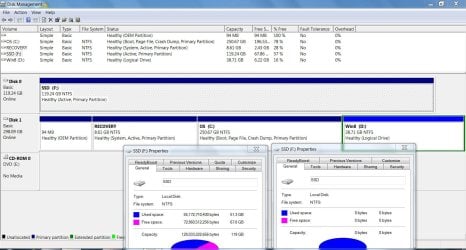
I have another question about disk access... It has changed in from allowing access to dening access since this problem arose. I've attached a screen view of the properties from two points of view. 1) from disk managment and 2) from windows explorier.. What do I do to set the drive to "access"
Thanks
 

Attachments

  • Disk management space.JPG
    Disk management space.JPG
    187.1 KB · Views: 11

My Computer My Computer

Computer Manufacturer/Model Number
Dell 1747 laptop
OS
Win 7 Home premium 64 bit
CPU
i7 Q720 1.6gh
Motherboard
Intel PCH PM55
Memory
4 gig
Graphics Card(s)
ATI HD 4650
Sound Card
IDT high definition Audio codec
Monitor(s) Displays
? touch screen
Screen Resolution
1600 x 900
Hard Drives
Kingston V+ SNVP325s2 128gig SSD
WDC WD3200BEVT
Case
laptop
Mouse
Microsoft 4000
Internet Speed
5000
Confirm you have unplugged the HD, marked SSD Win7 Active, from Disk tab of PW CD run Rebuild MBR, Apply. If it doesn't start boot into Win7 DVD/Repair CD to run Startup Repair up to 3 separate times with reboots checking to see if Win7 starts each time.

If this fails, swap SSD cable to HD so it is in Disk0 slot, plug Disk1 cable into SSD, mark Win7 on SSD Inactive using PW CD, Apply.

Boot into Win7 on HD, install EasyBCD to add Win7 on SSD by Type and Drive Letter, Save, Reboot to Multi Boot menu.

If this fails it is likely because Recovery partition is interfering with System Boot files which manage the Multi-Boot. Try moving the Active flag to Win7 partition then run Rebuild MBR, if Win7 starts without Boot Menu add the other OS's by name and drive letter using EasyBCD installed to Win7 on HD. If Win7 doesn't start run three Startup Repairs until it does, add missing OS's using EasyBCD. EasyBCD 2.0.2 - NeoSmart Technologies
 
Good morning again...
ok... I've removed the 320g HD leaving only the SSD in the laptop..

I started the system using the MiniTool bootable CD and did a "rebuild MBR" and applied. I then re-booted the system with only the SSD in the laptop and it still stops the load process at the same spot.

After replacing the 320g HD (in the same location) I booted to that OS and have downloaded EasyBCD 2.1.1 and added the SSD to the Boot Loader... I then rebooted and chose the Win7 SSD from the list... It still stops after "Starting Windows" screen but before the " Welcome" screen.

My next step will be to remove the 320g HD and re-run the "Repair" from the DVD 3 times... It does take about 35 minutes each time so be back after 2 hrs..
Thanks
 

My Computer My Computer

Computer Manufacturer/Model Number
Dell 1747 laptop
OS
Win 7 Home premium 64 bit
CPU
i7 Q720 1.6gh
Motherboard
Intel PCH PM55
Memory
4 gig
Graphics Card(s)
ATI HD 4650
Sound Card
IDT high definition Audio codec
Monitor(s) Displays
? touch screen
Screen Resolution
1600 x 900
Hard Drives
Kingston V+ SNVP325s2 128gig SSD
WDC WD3200BEVT
Case
laptop
Mouse
Microsoft 4000
Internet Speed
5000

My Computer My Computer

Computer Manufacturer/Model Number
HP Pavilion Elite 495UK
OS
Windows 7 Ultimate SP1 64-Bit
CPU
Intel Core i7 870 @ 2.93GHz
Motherboard
MSI 2A9C (CPU1)
Memory
8Gb Dual-Channel DDR3 @ 664MHz
Graphics Card(s)
nVidia GeForce GTX 460 1024MB dedicated RAM
Sound Card
Realtek HD Audio
Monitor(s) Displays
HP2310i
Screen Resolution
1920 x 1080
Hard Drives
1x1954GB Hitachi HDS22020ALA 330 (RAID), 1x1954GB Hitachi External for backup and storage
PSU
460W
Case
HP Elite
Cooling
Air cooled
Keyboard
Logitech K750 solar-powered keyboard
Mouse
Logitech Wireless M180 mouse
Internet Speed
2Mb
Other Info
Pure Avanti Flow Internet Radio with iPod Dock, 64Gb iPod, HP USB Speakers, Sony MDR-V500 Headphones, Sony Vaio F-Series Laptop
Ok... gregrocker,
Back again..
Here's what's I done so far...
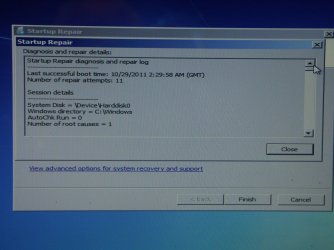
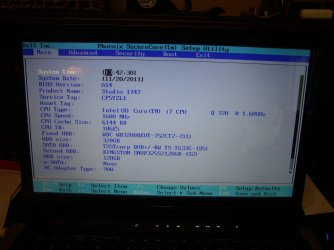
I removed the 320g HD leaving only the SSD in the laptop.. Using the PW bootable CD, I did a 'rebuild MBR',,,, it didn't complete the boot so I ran the Repair 3 separate times with 'restart' each time... I've posted a photo of the page from the last one.. It shows that I have run it 11 times. It always stops between the "starting windows' screen and the 'Welcome" screen. I had to shut down each time using the power button.

I then swapped the positions of the SSD and the WD HD. I maked the SSD "Inactive" using the PW CD and applied the change.

I had earlier added the Win7 on SSD using EasyBCD so I booted where the BIOS listed the 320g HD as first to boot.
I chose Win7 on the 320g HD (first choice) and it boots just fine.
I chose Win8 on the 320g HD (second choice) and it boots just fine.
I chose Win7 on the SSD and it stops booting following the "Starting Windows" screen but before the "Welcome" screen leaving the screen black with mouse cusior that moves fine but nothing that's it...

Questions:
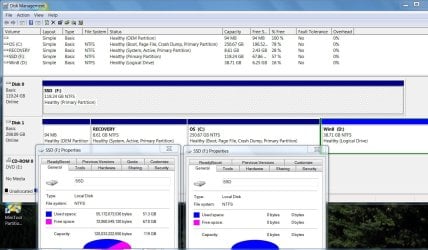
1) When I moved the SSD to disk1 and the 320gWD HD, why didn't the disk management view change?
2) You stated that the recovery partition may be interfering with the boot process... So how is it interfering with the boot process when I remove the 320g HD leaving only the SSD in the computer which doesn't have a boot order loader or a recovery partition?
3) Is there a list somewhere of the processes/DLL's that windows is loading during boot up? and is there a boot loader log that shows where it was when the system stalls?

I'm willing to monkey with this SSD by coping files from the 320 to the SSD if I knew where in the process that it failed. I don't have anything to loose at this point..

Thanks again for your time..

Joneszee
 

Attachments

  • PICT8015.JPG
    PICT8015.JPG
    242.8 KB · Views: 4
  • PICT8017.JPG
    PICT8017.JPG
    163.7 KB · Views: 5
  • PICT8016.JPG
    PICT8016.JPG
    234.2 KB · Views: 5
  • Disk management space3.JPG
    Disk management space3.JPG
    186.7 KB · Views: 4

My Computer My Computer

Computer Manufacturer/Model Number
Dell 1747 laptop
OS
Win 7 Home premium 64 bit
CPU
i7 Q720 1.6gh
Motherboard
Intel PCH PM55
Memory
4 gig
Graphics Card(s)
ATI HD 4650
Sound Card
IDT high definition Audio codec
Monitor(s) Displays
? touch screen
Screen Resolution
1600 x 900
Hard Drives
Kingston V+ SNVP325s2 128gig SSD
WDC WD3200BEVT
Case
laptop
Mouse
Microsoft 4000
Internet Speed
5000
Back
Top