Solved Windows 7 not booting

chromium

New member
Member
Local time
8:27 PM
Messages
56
Ok so i had a dualboot setup with windows 7 and ubuntu.
I decided to remove the ubuntu partition to install windows 8 instead.
I used Easybcd to change the bootloader from grub to windows 7 bootloader, and i then deleted the ubuntu partition. I also deleted my windows 7 recovery partition to gain some more space (which i now regret). I then needed to combine the unallocated spaces, so i used easeus partition master to move my C: drive all the way to the left, and have the 2 unallocated spaces beside each other so that they could be merged. When i applied the changes and the computer rebooted, i was presented with an error that said:

PXE-E61 : media test failure check cable
PXE-M0F : Exiting PXE ROM
Insert bootable media and press any key to continue

It also said something to do with my network card, which im guessing means that it has not found any bootable os on my hdd so it is booting from network as a last resort.

Please help! I would like to now if it will be possible the get my os running again, or if i will have to reinstall windows, or even if my hdd is so destroyed to the point that i cant install an os.

Thanks, any help is greatly appreciated
 

My Computer

Computer type
Laptop
OS
Windows 7 Home Premium 64Bit
CPU
Intel Core i5-2450m @ 2.5GHz
Memory
6GB
Unplug all other HD's and peripherals. Make sure Win7 HD remains set first to boot in BIOS setup, and that the HD itself is detected under Storage devices there. If not replace the cable, and if necessary the HD.

Boot into Windows 7 DVD System Recovery Options or Windows 7 System Repair Disk to Mark Win7 or it's 100mb System Reserved Partition (preferred if you have it) Active.

Then run Startup Repair - Run up to 3 Separate Times until Windows 7 starts and it's boot partition holds the System Active flags.

If this fails when System Reserved partition is marked Active, move the Active flag to Win7 partition itself and then try the 3 repairs again.

Be aware that sometimes GRUB can corrupt Windows 7 beyond repair when on the same HD. If problems persist I would delete it completely and then for any future Linux Dual Boots use separate HD's booted only via BIOS, or Dual Boot - Windows 7 and Linux - Windows 7 Forums.

If all else fails it may be necessary to wipe the boot sector of interfering code using Diskpart Clean Command before Clean Reinstall - Factory OEM Windows 7 which steps are same for retail.
 
Ok thanks, I tried some of the mbr fixing commands but nothing is working. I think I'm just going to do a clean install of windows 7. It doesn't really matter too much because I was able to get my data off the drive with a Ubuntu livecd. Anyways when I reinstall which command should I use- the clean or clean all?
Also instead of doing this command in cmd prompt, could I just press the delete button during the windows 7 install when it asks you which partition to install on?
 

My Computer

Computer type
Laptop
OS
Windows 7 Home Premium 64Bit
CPU
Intel Core i5-2450m @ 2.5GHz
Memory
6GB
What MBR commands? I gave you specific steps which resolve this in 90% of cases none of which involve running XP-era commands that are now all automated in Win7 Startup Repair which tests and fixes a dozen other parameters at the same time.

Use Diskpart Clean Command

The closer you follow these steps to Clean Reinstall - Factory OEM Windows 7, the more of a perfect install you'll get and keep by sticking with the tools and methods given.
 
You could use clean command in diskpart. Clean all will take long . Doubt you have the time to wait for clean all to complete .

You could run Diskpart in the Install NOW window by pressing on Shift+F10 to open up the command prompt. It will open up to X:\Windows\System32 . Type in

DISKPART

LIST DISK

SELECT DISK # ( # DRIVE NUMBER )

CLEAN

CREATE PARTITION PRIMARY

SELECT PARTITION 1

ACTIVE

FORMAT FS=NTFS LABEL="NAME"(OPTIONAL) QUICK

ASSIGN LETTER= ? ( OPTIONAL )

EXIT ( 2x )
 

My Computer

Computer Manufacturer/Model Number
Custom Built
OS
Windows 7 Ultimate 32-Bit & Windows 7 Ultimate 64-Bit
CPU
Intel Core i7 CPU 950 @ 3.07GHz
Motherboard
ASUS P6T DELUXE V2
Memory
OCZ 6GB (3 x 2GB) 240-Pin DDR3 SDRAM DDR3 1600 OCZ3X1600R2
Graphics Card(s)
ATI Radeon HD 5700 Series
Sound Card
OnBoard
Hard Drives
WD6400AACS-00M3B0 (640GB SATA )
PSU
CORSAIR 850w
Case
NZXT LEXA
Cooling
Intel Stock Heatsink Fan
Keyboard
Microsoft Wireless Laser Keyboard 7000
Mouse
Microsoft Wireless Laser Mouse 7000
Thanks I did the diskpart clean command and successfully installed windows 7. I only have one issue-before all this trouble started I had a dell recovery partition which I erased to get some more space.(it was around 15gb from what I remember) I no longer see this partition in my computer or disk management.

I don't really want to do anything major to get it back since its pretty small, but if anyone knows if its a simple fix please let me know.

Anyways thanks for all the help. From now on,if I want to play around with operating systems, I guess I'll just stick to a virtual machine. Lol
 

My Computer

Computer type
Laptop
OS
Windows 7 Home Premium 64Bit
CPU
Intel Core i5-2450m @ 2.5GHz
Memory
6GB
Had you read Clean Reinstall - Factory OEM Windows 7 it anticipates the Dell Recovery and Diagnostics Tools partitions in a Special Note for Dell Owners at end so you would know all of your options and best choices.

To repeat, Recovery partition will not run on Dell Systems that relied on F8 System Recovery Options to trigger Dell Windows 7 PC Restore.

You were also to test the Diagnostics to see if it runs to decide whether to save its partition.

You should rely on a Win7 backup image of your fresh install for recovery or reinstall going forward. Backup Complete Computer - Create an Image Backup
 
I dont need to make a system image backup, I already have a windows 7 disc. I read what it said for dell users on the guide, but that doesn't really apply to me. I had already wiped that partition before my computer got all messed up, so the dell recovery options don't exist. What I'm asking is where did I that partition go? It no longer shows up in My Computer or Disk Management.
 

My Computer

Computer type
Laptop
OS
Windows 7 Home Premium 64Bit
CPU
Intel Core i5-2450m @ 2.5GHz
Memory
6GB
When you ran the " clean " command you wiped out all of the partitions on the hard drive. Including the Dell recovery partition. Its a hidden partition. To get it back you would have to send the PC back to Dell for them to reimage your PC. Hopefully you created the Dell recovery discs before you did anything to the PC when you first bought it .

A lot of people create the Recovery discs then wipe the Recovery partition cause it does take up space that most people need.
 

My Computer

Computer Manufacturer/Model Number
Custom Built
OS
Windows 7 Ultimate 32-Bit & Windows 7 Ultimate 64-Bit
CPU
Intel Core i7 CPU 950 @ 3.07GHz
Motherboard
ASUS P6T DELUXE V2
Memory
OCZ 6GB (3 x 2GB) 240-Pin DDR3 SDRAM DDR3 1600 OCZ3X1600R2
Graphics Card(s)
ATI Radeon HD 5700 Series
Sound Card
OnBoard
Hard Drives
WD6400AACS-00M3B0 (640GB SATA )
PSU
CORSAIR 850w
Case
NZXT LEXA
Cooling
Intel Stock Heatsink Fan
Keyboard
Microsoft Wireless Laser Keyboard 7000
Mouse
Microsoft Wireless Laser Mouse 7000
That's also why it says in Clean Reinstall - Factory OEM Windows 7 to make your Recovery disks first in case you ever need to restore to factory condition. This is so rare I've never heard of anyone needing it, but might be needed if Dell wants their factory preinstall on there to ship it back under warranty, or you wanted to sell it just like it came from factory.

But why would you need that for yourself now that you have a Clean Reinstall which is vastly superior install? Once it's set up according to the tutorial, save a Win7 backup image to use in place of Recovery or reinstall.
 
Oh, i understand now. I didnt make any recovery disks. Does that means i cant get that partition back without sending it back to dell?
 

My Computer

Computer type
Laptop
OS
Windows 7 Home Premium 64Bit
CPU
Intel Core i5-2450m @ 2.5GHz
Memory
6GB
Why would you want to do that? If you wanted the bloated Factory install, why did you Clean Reinstall in the first place?

Maybe it's not been made clear enough: the Factory Preinstalled Win7 which comes with a store-bought PC is a grossly inferior install that smothers the best OS ever with layers of bloatware and useless Duplicate utilities that have much better versions built into the OS to begin with.

No tech enthusiast would run such an install, but instead choose to Clean Reinstall - Factory OEM Windows 7.

So why would you want a partition on the HD that recovers the bloated preinstall which is the worst install you can have vs. the Clean Reinstall which if done correctly according to the steps is the BEST install you can have?

Instead use a Win7 backup image saved externally in place of the Recovery partition and so you never have to reinstall again: Backup Complete Computer - Create an Image Backup
System Image Recovery
 
OK I don't think we are on the same page. I am aware of the fact that dells original system image sucks. I understand that the dell recovery partition was meant to restore the PC to dells version of windows 7 with tons of bloatware, and that a stock windows 7 is much better. That is what I currently have installed (original windows 7 home premium-not dells slipstreamed version)

Let me try to make this more clear. Before I screwed up my computer I had formatted/wiped the 14gb dell recovery partition.
Now that I have run the clean command in diskpart and installed windows 7, the 14gb partition seems to be missing.

This is how my hard used to look: C: 465GB D: 14GB
This is how it looks after clean command+win reinstall: C: 465GB

The reason I want it back is for the disk space, not the dell recovery functionality.
 

My Computer

Computer type
Laptop
OS
Windows 7 Home Premium 64Bit
CPU
Intel Core i5-2450m @ 2.5GHz
Memory
6GB
Please post back a screenshot of your maximized Disk Management drive map and listings:

1. Type Disk Management in Start :orb: Search box.
2. Open Disk Mgmt. window and maximize it.
3. Type Snipping Tool in Start Search box.
4. Open Snipping Tool, choose Rectangular Snip, click New, draw a box around full drive map and all listings.
5, Save Snip, attach using paper clip in Reply Box.
 
Lol I know how to take a screenshot.
I'll upload the pic tomorrow when I'm at my PC(I'm on my phone now), but from what I remember it only showed one partition.
Anyways like I said I'll check tomorrow and post it.

BTW thanks for your quick replies and help.
 

My Computer

Computer type
Laptop
OS
Windows 7 Home Premium 64Bit
CPU
Intel Core i5-2450m @ 2.5GHz
Memory
6GB
Try these steps just to see if you do or do not have the recovery partition

Start the computer.
As the computer starts, press the F8 key until the Advanced Boot Options menu appears on the screen.
Press the down arrow to select Repair Your Computer on the Advanced Boot Options menu, then press Enter.
Specify the language settings that you want, and then click Next.
Log in as a user who has administrative credentials, and then click OK.
Click Dell Factory Image Restore.
In the Dell Factory Image Restore window, click Next.
Click to select the check box for Yes, reformat hard drive and restore system software to factory condition.
Click Next. The computer is restored to the default factory configuration.
When the restore operation is completed, click Finish to restart the computer.

@ Greg … how did you do the little start orb ? Did you use the snipping tool and just upload the bmp file ?
 

My Computer

Computer Manufacturer/Model Number
Custom Built
OS
Windows 7 Ultimate 32-Bit & Windows 7 Ultimate 64-Bit
CPU
Intel Core i7 CPU 950 @ 3.07GHz
Motherboard
ASUS P6T DELUXE V2
Memory
OCZ 6GB (3 x 2GB) 240-Pin DDR3 SDRAM DDR3 1600 OCZ3X1600R2
Graphics Card(s)
ATI Radeon HD 5700 Series
Sound Card
OnBoard
Hard Drives
WD6400AACS-00M3B0 (640GB SATA )
PSU
CORSAIR 850w
Case
NZXT LEXA
Cooling
Intel Stock Heatsink Fan
Keyboard
Microsoft Wireless Laser Keyboard 7000
Mouse
Microsoft Wireless Laser Mouse 7000
It's actually on the post toolbar in the Smilies>Show all Smiles, toward the end: :orb:

The post is a template which can be created in your UserCP at the bottom of Your Control Panel bar.
 

My Computer

Computer Manufacturer/Model Number
Custom Built
OS
Windows 7 Ultimate 32-Bit & Windows 7 Ultimate 64-Bit
CPU
Intel Core i7 CPU 950 @ 3.07GHz
Motherboard
ASUS P6T DELUXE V2
Memory
OCZ 6GB (3 x 2GB) 240-Pin DDR3 SDRAM DDR3 1600 OCZ3X1600R2
Graphics Card(s)
ATI Radeon HD 5700 Series
Sound Card
OnBoard
Hard Drives
WD6400AACS-00M3B0 (640GB SATA )
PSU
CORSAIR 850w
Case
NZXT LEXA
Cooling
Intel Stock Heatsink Fan
Keyboard
Microsoft Wireless Laser Keyboard 7000
Mouse
Microsoft Wireless Laser Mouse 7000
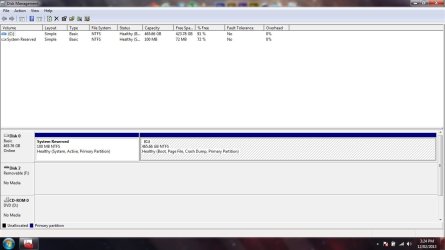
Heres the screenshot.
@VistaKing like i said above, disk management or diskpart dont show the partition, so i dont think the issue is that its a hidden partition.
 

Attachments

  • diskmgmt.jpg
    diskmgmt.jpg
    78.4 KB · Views: 3

My Computer

Computer type
Laptop
OS
Windows 7 Home Premium 64Bit
CPU
Intel Core i5-2450m @ 2.5GHz
Memory
6GB
The reason why the partition isn't being shown in the Disk Management is cause you wiped it when you did the clean command in diskpart. You could try to recover that partition in the link I gave you partition recovery. What size is your hard drive total.
 

My Computer

Computer Manufacturer/Model Number
Custom Built
OS
Windows 7 Ultimate 32-Bit & Windows 7 Ultimate 64-Bit
CPU
Intel Core i7 CPU 950 @ 3.07GHz
Motherboard
ASUS P6T DELUXE V2
Memory
OCZ 6GB (3 x 2GB) 240-Pin DDR3 SDRAM DDR3 1600 OCZ3X1600R2
Graphics Card(s)
ATI Radeon HD 5700 Series
Sound Card
OnBoard
Hard Drives
WD6400AACS-00M3B0 (640GB SATA )
PSU
CORSAIR 850w
Case
NZXT LEXA
Cooling
Intel Stock Heatsink Fan
Keyboard
Microsoft Wireless Laser Keyboard 7000
Mouse
Microsoft Wireless Laser Mouse 7000
Back
Top