Solved Windows 7 slipstreaming with Dism++

Miller13

New member
Local time
9:33 PM
Messages
9
I'm trying to make an up-to-date ISO for Windows 7 Pro 32-bit and chose DISM++ for the task.

The problem is, I can't get past the 'mount image' step. It asks me for a part to the image file and I point to an 'universal' Windows 7 ISO image (containing all versions: Basic, Home, Pro etc.).

Then I select a folder on the C: drive for a mounting point (C:\1).

The error is 'Filename or volume label syntax is incorrect'.

I'm sure there is a glaring error in here somewhere. How do I fix this?
 

My Computer

Computer type
Laptop
Computer Manufacturer/Model Number
IBM X31
OS
Windows 7 Pro 32-bit
It is expecting a .wim file, not an .iso file.
Extract the iso file to folder.
Then browse to the extracted-folder\sources\install.wim

The mount folder has to already exist and be empty. So you need to create the folder c:\mount or
c:\1 or whatever you want to name it.

Or you can try my updater - it integrates critical drivers and (optionally) uses Simplix update pack to integrate updates as well.

Update your Win 7 installation media.
 

My Computers

System One System Two

  • Computer type
    PC/Desktop
    OS
    7 X64
    CPU
    i5 8400
    Motherboard
    gigabyte b365m ds3h
    Memory
    2x8gb 3200mhz
    Hard Drives
    various
    PSU
    pure power 11 400w cm
    Case
    Coolermaster
    Cooling
    cryorig m9i
  • Computer type
    PC/Desktop
    OS
    7x64
    CPU
    g5400
    Motherboard
    ga b365m ds3h
    Memory
    8gb ddr4 2400
    PSU
    xfx pro 450w
Thanks a lot, got it working with DISM++. I can't believe how well it went, I was done as soon as the installer finished - drivers and all.
 

My Computer

Computer type
Laptop
Computer Manufacturer/Model Number
IBM X31
OS
Windows 7 Pro 32-bit
Just a note of caution: the UAC control setting under System Optimiser may not work properly.
 

My Computer

Computer type
PC/Desktop
OS
Windows 7 Ultimate x86
Just a note of caution: the UAC control setting under System Optimiser may not work properly.

Not really an issue for me, so all good.

On another note, how do you edit what Windows versions are listed in the prompt before install?

In my case, I used an universal installer with 5 images: Starter, Home Basic, Premium, Pro and Ultimate. But the installer had been originally modified not to give a prompt with options, it goes straight to installing Home Basic.

After the mod, and after using Dism7v4 to change the names, I am presented with 3 options - all Home Basic, which I presume are as follows:

1. Home Basic (original install)
2. Home Basic (slipstreamed Starter - just because I couldn't SET EDITION to call it Starter, so it remained Home Basic)
3. Home Basic (slipstreamed Home Basic)

These would be images no. 1, 6 and 7 respectively. How do I delete the first 2 from the list?
 

My Computer

Computer type
Laptop
Computer Manufacturer/Model Number
IBM X31
OS
Windows 7 Pro 32-bit
after using Dism7v4 to change the names

What do you mean by Dism7v4. Is that something I made?

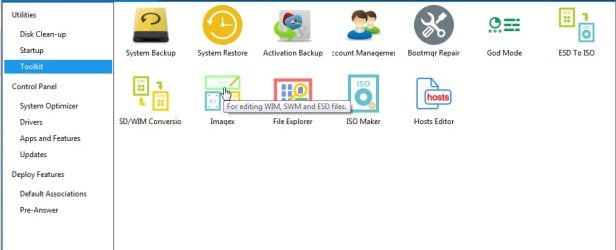
You can use dism++ to change name, description and/or delete images

Dism++ >Toolkit >Imagex

dism++-imagex.jpg
 

My Computers

System One System Two

  • Computer type
    PC/Desktop
    OS
    7 X64
    CPU
    i5 8400
    Motherboard
    gigabyte b365m ds3h
    Memory
    2x8gb 3200mhz
    Hard Drives
    various
    PSU
    pure power 11 400w cm
    Case
    Coolermaster
    Cooling
    cryorig m9i
  • Computer type
    PC/Desktop
    OS
    7x64
    CPU
    g5400
    Motherboard
    ga b365m ds3h
    Memory
    8gb ddr4 2400
    PSU
    xfx pro 450w
Not really an issue for me, so all good.

In my case, I used an universal installer with 5 images: Starter, Home Basic, Premium, Pro and Ultimate.

In that case, you would have been better using my 7updater. It has an option to update ALL images
 

My Computers

System One System Two

  • Computer type
    PC/Desktop
    OS
    7 X64
    CPU
    i5 8400
    Motherboard
    gigabyte b365m ds3h
    Memory
    2x8gb 3200mhz
    Hard Drives
    various
    PSU
    pure power 11 400w cm
    Case
    Coolermaster
    Cooling
    cryorig m9i
  • Computer type
    PC/Desktop
    OS
    7x64
    CPU
    g5400
    Motherboard
    ga b365m ds3h
    Memory
    8gb ddr4 2400
    PSU
    xfx pro 450w
Yes, it was you who came up with that little app. I misspoke, it doesn't change the names (I'll do that with Imagex), but in effect it's a means to update all images. See this thread, post #7.

Updated to Date Windows 7 ISO Failure ???

My understanding was that when I do the 'save image > incremental' from DISM++ 5 times at the end, I save 5 slipstreamed image copies of Home Basic (images 6 to 10). And then use your DISM7v4 app function SET EDITION - to make images 6, 8, 9, 10 into their respective versions. The only caveat is, you can only bump them up from whatever version you started with. I could make Home Premium, Pro and Ultimate, but couldn't have image 6 to set edition to Starter, so it remained Home Basic.

So at the moment I have:
Image 1 - Starter
Image 2 - Home Basic
Image 3 - Home Premium
Image 4 - Pro
Image 5 - Ultimate
Image 6 - Slipstreamed Home Basic (couldn't set edition to Starter, as I said)
Image 7 - Slipstreamed Home Basic
Image 8 - Slipstreamed Home Premium
Image 9 - Slipstreamed Pro
Image 10 - Slipstreamed Ultimate

It didn't change any name tags, so I do that with Imagex.

This Windows 7 installer that I have was downloaded from 'the-eye.eu'. It was listed as 'Home Basic with SP1', so the question is - how does a true universal installer becomes single version? What files are deleted/modified, and can it be restored to an universal installer again? Currently, my installer shows 'Home Basic' 3 times. All other versions appeared to have been suppressed. If the image is not called 'Home Basic', it doesn't appear. It would be nice to have them all available again, since the hard work has been done and all images seem to be all there (apart from Starter, which I don't care much about).

Failing that, I'll have to do the whole process again and this time use a true universal installer to begin with.
 

My Computer

Computer type
Laptop
Computer Manufacturer/Model Number
IBM X31
OS
Windows 7 Pro 32-bit
Can't downgrade an edition using dism.

Either delete 1-6 and rename the others ( in which case you are only missing Starter).


If you are desperate for an updated Starter, you will have to update that separately, then

EITHER:

export the updated starter image into the wim with the 4 already updated images. That will work fine - cosmetically Starter would then be image 5.

OR

If you want the images in the usual order - Starter as image 1, Home Basic as image 2 and so on:

Delete images 2-5 from the wim you just updated Starter in and export the other 4 that you previously updated into it.

( Delete the ei.cfg file from the installation media sources folder to make all images available for installation )
 

My Computers

System One System Two

  • Computer type
    PC/Desktop
    OS
    7 X64
    CPU
    i5 8400
    Motherboard
    gigabyte b365m ds3h
    Memory
    2x8gb 3200mhz
    Hard Drives
    various
    PSU
    pure power 11 400w cm
    Case
    Coolermaster
    Cooling
    cryorig m9i
  • Computer type
    PC/Desktop
    OS
    7x64
    CPU
    g5400
    Motherboard
    ga b365m ds3h
    Memory
    8gb ddr4 2400
    PSU
    xfx pro 450w
Ideally, you should have updated the lowest edition (Starter ), then saved it 4 times, then changed editions and names on those 4 saved images.

That is how my cmd file 7updater does it.
Update your Win 7 installation media.

I had forgotten I had posted this
Updated to Date Windows 7 ISO Failure ???

It is correct. Your issue is that you updated the second image in install.wim, instead of the first
 

My Computers

System One System Two

  • Computer type
    PC/Desktop
    OS
    7 X64
    CPU
    i5 8400
    Motherboard
    gigabyte b365m ds3h
    Memory
    2x8gb 3200mhz
    Hard Drives
    various
    PSU
    pure power 11 400w cm
    Case
    Coolermaster
    Cooling
    cryorig m9i
  • Computer type
    PC/Desktop
    OS
    7x64
    CPU
    g5400
    Motherboard
    ga b365m ds3h
    Memory
    8gb ddr4 2400
    PSU
    xfx pro 450w
Ideally, you should have updated the lowest edition (Starter ), then saved it 4 times, then changed editions and names on those 4 saved images.

That is how 7updater does it.

Yeah, I figured that after the fact. But it's unlikely I'll ever use Starter, didn't even know it existed until now.

Question remains, how do I get ALL versions to show up on the list at install time? As I said, I only get the Home Basic versions.
 

My Computer

Computer type
Laptop
Computer Manufacturer/Model Number
IBM X31
OS
Windows 7 Pro 32-bit
1.Delete the ei.cfg file from the sources folder of the installation media

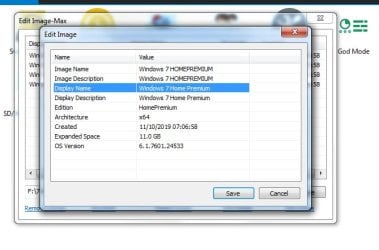
2. Make sure you have set the DisplayName and DisplayDescription to the correct edition.

displayname-displaydescription.jpg
 

My Computers

System One System Two

  • Computer type
    PC/Desktop
    OS
    7 X64
    CPU
    i5 8400
    Motherboard
    gigabyte b365m ds3h
    Memory
    2x8gb 3200mhz
    Hard Drives
    various
    PSU
    pure power 11 400w cm
    Case
    Coolermaster
    Cooling
    cryorig m9i
  • Computer type
    PC/Desktop
    OS
    7x64
    CPU
    g5400
    Motherboard
    ga b365m ds3h
    Memory
    8gb ddr4 2400
    PSU
    xfx pro 450w

My Computers

System One System Two

  • Computer type
    PC/Desktop
    OS
    7 X64
    CPU
    i5 8400
    Motherboard
    gigabyte b365m ds3h
    Memory
    2x8gb 3200mhz
    Hard Drives
    various
    PSU
    pure power 11 400w cm
    Case
    Coolermaster
    Cooling
    cryorig m9i
  • Computer type
    PC/Desktop
    OS
    7x64
    CPU
    g5400
    Motherboard
    ga b365m ds3h
    Memory
    8gb ddr4 2400
    PSU
    xfx pro 450w
Excellent. Used the Image-Properties tools as well, time to give it a test run now.
 

My Computer

Computer type
Laptop
Computer Manufacturer/Model Number
IBM X31
OS
Windows 7 Pro 32-bit
Ok, so I deleted the ei.cfg file and that seems to have broken something. The ISO is not recognised as an installer anymore.

If I add the ei.cgf file back, the ISO becomes a Home Basic installer again and works fine, with updated image names in the version selector as expected.

I must say I've updated the Image Name/Description and Edition too, even though I only had to update Display name/Description.
 

My Computer

Computer type
Laptop
Computer Manufacturer/Model Number
IBM X31
OS
Windows 7 Pro 32-bit
Hi Miller13,

Ok, so I deleted the ei.cfg file and that seems to have broken something. The ISO is not recognised as an installer anymore.

If I add the ei.cgf file back, the ISO becomes a Home Basic installer again and works fine, with updated image names in the version selector as expected.

[1] How did you delete it?
[2] Did you use the ei.cfg removal tool?

You simply run the => eicfg_removal_utility against the ISO.

I hope this helps!
 

My Computer

Computer type
Laptop
Computer Manufacturer/Model Number
Fujitsu LIFEBOOK
OS
Win 7 HP SP1 64-bit Vista HB SP2 32-bit Linux Mint 18.3
CPU
Intel(R) Pentium(R) CPU P6200 @ 2.13GHz
Motherboard
FUJITSU FJNBB06
Memory
4.00 GB
Graphics Card(s)
Intel(R) Graphics Media Accelerator HD
Sound Card
[1] Realtek High Definition Audio [2] Intel(R) Display Audio
Screen Resolution
1366 x 768 x 32 bits (4294967296 colors) @ 59 Hz
Hard Drives
TOSHIBA MK5076GSX
Antivirus
AVG FREE
Ok, so I deleted the ei.cfg file and that seems to have broken something. The ISO is not recognised as an installer anymore.

Deleting ei.cfg is standard practice.

Don't know what you are trying to say with rest of your post.

Are you able to select any of the images now using the normal windows setup?
 

My Computers

System One System Two

  • Computer type
    PC/Desktop
    OS
    7 X64
    CPU
    i5 8400
    Motherboard
    gigabyte b365m ds3h
    Memory
    2x8gb 3200mhz
    Hard Drives
    various
    PSU
    pure power 11 400w cm
    Case
    Coolermaster
    Cooling
    cryorig m9i
  • Computer type
    PC/Desktop
    OS
    7x64
    CPU
    g5400
    Motherboard
    ga b365m ds3h
    Memory
    8gb ddr4 2400
    PSU
    xfx pro 450w
Hi Miller13,

[1] How did you delete it?
[2] Did you use the ei.cfg removal tool?

You simply run the => eicfg_removal_utility against the ISO.

I hope this helps!


I have an unpacked version of the Windows 7 installer which was used with DISM++, so I deleted the ei.cfg file manually, before making another ISO.


Deleting ei.cfg is standard practice.

Don't know what you are trying to say with rest of your post.

Are you able to select any of the images now using the normal windows setup?

What I was saying is I've changed Image descriptors to Home Premium, Pro etc. in all 5 fields (see pict). You mentioned only 2 fields (Display Name and Description) need to be modified. Just saying in case it's relevant and I wasn't supposed to.

I also deleted Image 1 and Image 6 (Starter installers).

So with that in mind, I removed the ei.cfg file, compiled the ISO with DISM++ and it's not being recognised as an installer anymore. My test rig is Parallels under Mac OS, it normally lets you select and ISO file for a fresh install. Also trying to create a bootable USB with the official Microsoft Windows 7 USB DVD Download Tool gives an error.

If I add back the ei.cfg file and compile the ISO again, it installs under Parallels (with 2 selectable options: Home Basic and Home Basic Slipstreamed - just as expected). The Microsoft bootable USB maker also complete the process successfully.
 

Attachments

  • displayname-displaydescription.jpg
    displayname-displaydescription.jpg
    139.3 KB · Views: 10

My Computer

Computer type
Laptop
Computer Manufacturer/Model Number
IBM X31
OS
Windows 7 Pro 32-bit
Removing the ei.cfg file has no effect on the viability of an iso.

Something else went wrong.
 

My Computers

System One System Two

  • Computer type
    PC/Desktop
    OS
    7 X64
    CPU
    i5 8400
    Motherboard
    gigabyte b365m ds3h
    Memory
    2x8gb 3200mhz
    Hard Drives
    various
    PSU
    pure power 11 400w cm
    Case
    Coolermaster
    Cooling
    cryorig m9i
  • Computer type
    PC/Desktop
    OS
    7x64
    CPU
    g5400
    Motherboard
    ga b365m ds3h
    Memory
    8gb ddr4 2400
    PSU
    xfx pro 450w
Removing the ei.cfg file has no effect on the viability of an iso.

Something else went wrong.

Indeed, I made a mistake in making the ISO (targeting the wrong folder). When I put the ei.cfg file back in, I targeted the right folder, of course :-)

Anyway, the installer without the ei.cfg file is now being recognised as such, but still, it only gives me the two Home Basic options. Very strange. I think the problem is with the Windows 7 installer that I originally used. So I took the original unmodified installer (as I said, it was downloaded from the-eye.eu - reputable site), extracted it, done nothing to it except removing the ei.cfg file manually, make it back into an ISO and when I try to install it - it does NOT give me options. Goes straight to installing Home Basic. That's not how an original Microsoft installer behaves, so they must have done something to it.
 

My Computer

Computer type
Laptop
Computer Manufacturer/Model Number
IBM X31
OS
Windows 7 Pro 32-bit
Back
Top