RootBeet
Your posts were not completely helpful, but in generaly helped me to step on the proper way, so thank you for them. I will describe it below.
AddRAM
As I mentioned already in some post before Asus support was useless and did not help me anyway. Generally they are able to solve maybe 90 % issues that can be also done by IT advanced users. For the rest of 10 % maybe they help maybe users have to check forums for help as thousands users are able to see the problem and may have already facing them. So your question is not waiting somewhere in a ticket system waiting for the support person. In my case I received the answer, but was not helpful at all.
teckneeculler
If you want to install UEFI Windows 7 with USB flash drive follow this advice. Maybe not all of them are necessary, but I did not check it with or without them, so I basically describe how was my procedure:
Note: My mobo is Sabertooth Z170 Mark 1, but this may work for other mobos from ASUS as well.
Note: I used USB 2.0 and USB 2.0 port as Sabertooth is familiar with this.
non RAID
1. Set BIOS to defaults, but in CSM settings set all options as UEFI driver first, because default are in Legacy (my case)
Note: Hard drive was not formatted so in case of troubles delete all partitions on your drive and keep it unformatted and unallocated.
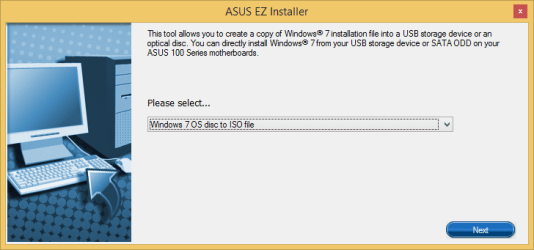
2. Download EZ Installer from ASUS support wb page. It is under Drivers \ Utilities
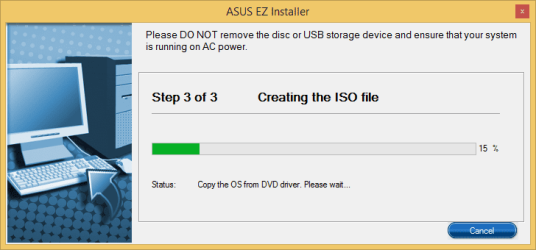
EZ installer allows you to create ISO file from DVD or "burn" it to USB flash drive
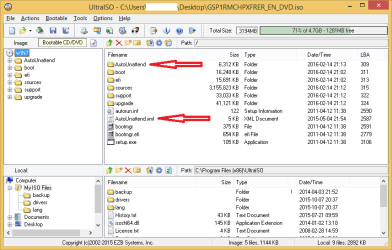
3. Insert Windows 7 DVD (I used original OEM version) and Create ISO file with EZ installer
4. Download Rufus
https://rufus.akeo.ie/ and run it (no need to install). Choose the iso file you created with EZ installer
5. Choose the method of creating USB - ISO Image and click the icon to the right and choose your ISO file
Set partition scheme and target system type to:
GPT partition scheme for UEFI
File system to:
FAT32 (Default)
Other settings keep default no need to change them. Cluster size in my case was by default 8192 bytes.
Don't forget to backup your USB files.
Click on Start
Note: If you want to copy some files to your Bootable USB you can do it now.
6. Restart the computer and keep pressing F8 to show up Boot menu. You will have there 2 options for your USB Flash Drive, e.g.
1. UEFI: ABC Flash Drive
2. ABC Flash Drive
Choose UEFI
Let the installation process begin

.
For those who want to use Raid
Follow steps 1-5.
7. In BIOS go to Advanced and choose PCH Storage Configuration. Set SATA Mode Selection to RAID instead of AHCI, or turn the Intel Rapid Storage Technology
On in the EZ mode (first you enter to BIOS)
8. In Advanced mode go to Advanced and you will see Intel Rapid Storage Technology on the bottom. Go there and set up RAID to your own. If you don't see it save the settings, restart and go back to BIOS. You will see it.
Note: You can also follow the instructions in video posted by
RootBeet:
https://www.youtube.com/watch?v=SMFE6mF4NgA
9. Since the RAID is set up you still have to download RAID drivers and copy it to your USB drive created in steps 1-5. Download it from ASUS Support Driver web page. They are under SATA and its name is for example: Intel(R) Rapid Storage Technology Driver Software V14.5.0.1081 for Windows 7 32bit & 64bit / 8.1 64bit / 10 64bit.
10. Create a directory on your USB drive. Unpack the drivers downloaded from Asus and copy the directory to the new one on USB drive.
11. Restart the computer and keep pressing F8 to show up Boot menu. You will have there 2 options for your USB Flash Drive, e.g.
1. UEFI: ABC Flash Drive
2. ABC Flash Drive
12. Your install will stop at the moment the installation process will not see any drives where to install the OS. Now choose Load Driver - Find your directory with drivers, my way was IRST_Win7-81-10_V14501081\Driver\Disk\64bit . You will get one listed (iaStorAC.inf). Click Next and your hard drive will be shown. Now continue on your own
.
I also did all these steps before, but probably did something wrong (the results were in some posts before). I Probably used wrong partition settings in Rufus.
RootBeet posts and links motivated me to try it again, so thanks for posting them. Now I have no doubts about UEFI, as UEFI is everywhere exactly same as by installing W8 or W10.
There is also one issue. What to do if you have only USB 3 ports. You have to download USB 3 drivers the same way like I described RAID (and load them at the same moment). If this will not help you, try this
How to Install Windows 7 with only USB 3.0 Ports
I did that as well even if it was not necessary to me (I used USB 2.0 flash drive and USB 2.0 port)
Hopefully this can help some users and spent time was worth it. Also thanks to all comments that tried to show the proper way

.
So the result is that you are able to install Windows 7 UEFI from USB on your Sabertooth (and probably other ASUS mobos). If you use DVD only you can install it with Legacy settings in Bios (but you can do UEFI boot and it creates EFI partition to Boot) or create customized DVD with RAID drivers.



 . It's quite far from Slovakia to Ohio yet
