Windows 7 Universal Installation Disc - Create

How to Create a Windows 7 Universal Installation Disc

Introduction

For Windows users who installed or upgraded Windows Vista, there is one big difference that will be immediately noticed when installing or upgrading to Windows 7: The Windows 7 installation wizard no longer prompts, or asks, for the user to select which edition of the operating system to install. Instead, each Windows 7 DVD disc will automatically install the specific edition which it’s limited to. So a Windows 7 Home Premium disc will only install Windows 7 HP, a Pro disc will only install Pro, etc.

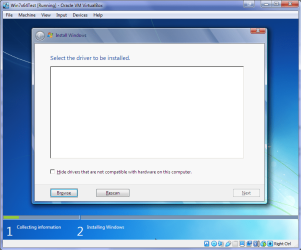
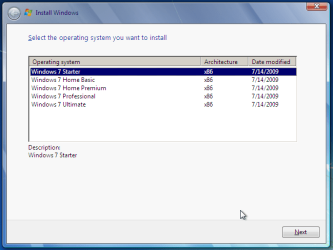
Although Microsoft does not provide any such universal Windows 7 installation media, the function is indeed feasible. (see Screenshot below) A disc such as this can be especially helpful to PC technicians, IT staff, and the like who need to reinstall Win7 frequently. Remember you will still need a valid license key specific to the version you are installing. In addition, Microsoft has eliminated the differences between the retail and OEM install discs with Windows 7, so this disc can be used to reinstall Win7 on PC’s where the owner has lost, or is unable to find, the OEM restore discs. In order to create such a disc; just delete and remove the ei.cfg from any Windows 7 ISO to convert that image into a universal disc for all editions of Windows 7.
Win7 Universal Install Disc SS.PNG


STAGE 1 UNIVERSAL DVD - ALL 32 OR 64 BIT ON 1 DVD

For any user who has the Windows 7 install DVD or ISO and wishes to make a universal installer disc now there is an easier way to modify the ISO. Normally this was accomplished by manually unpacking and extracting the contents of the ISO image (or copying files from DVD to HDD), deleting the ei.cfg and then repacking the installation files back into an ISO to burn. Users can now eliminate these tedious procedures by making use of the “ei.cfg Removal Utility”.

The ei.cfg Removal Utility is a simple tool that will disable the ei.cfg from any Windows 7 ISO disc image, thereby converting the image into a “universal disc” that will prompt the user to select their preferred edition during setup. The ei.cfg Removal Utility works directly to patch the ISO image, by toggling the deletion bit in the UDF file table to instruct the operating system to ignore and remove ei.cfg, or treat it as if it does not exist. Best of all, the ei.cfg Removal Utility can reverse the patching to restore the ISO disc image to its original state when the tool is been used to apply on a disc image that previously been patched by the utility.

The ei.cfg Removal Utility is a standalone portable app, and requires no installation. In fact, the program does not have much of a user interface at all. Simply selecting the target Windows 7 ISO, and the disc image (ISO) will be patched right away. So make sure a backup copy of your ISO is created beforehand.

Download the ei.cfg Removal Utility here:eicfg_removal_utility.zip


STAGE 2 UNIVERSAL DVD - ALL 32 AND ALL 64 BIT ON 1 DVD

I was amazed at how easy it is to merge Win7 x86 and Win7 x64 editions (DVDs) in a single DVD or 4GB USB. The process is pretty simple, you need a copy of both any 32 bit and any 64 bit Windows 7 install DVD or ISO. Either copy the DVD's contents to a folder on a HDD, or extract the ISO's contents to a folder. Run 4 commands from the prompt, then create and burn your new Universal install DVD/USB.


Requirements:

  1. WAIK (Windows Automation Installation Kit) Download WAIK
  2. Windows Win7 x86 and Windows Win7 x64 DVDs.
  3. An application that can extract the files from an ISO (if using a downloaded ISO). I use WinRAR, but many apps can do this extraction.
  4. An application that allows you to build a new iso or create a bootable DVD/USB. I use UltraISO for this.
  5. Single Layer DVD, compatible DVD Burner and, of course DVD burning software… or a 4GB USB flash drive.
We will merge the four Windows 7 x64 editions into the Win7 x86 DVD contents, because Win7 x64 DVD has 64-bit content that can’t run some of the Win32 installation components.


Getting Started


1. Install WAIK in your Windows (doesn’t matter you are running Win7 or Windows XP)

2. Make two folders, in my examples I use Win7_64 and Win7_32. Now copy both Windows 7 x64 and x86 DVDs contents into their respective folders. Or extract your downloaded ISO’s into their respective folder.

   Note
If copying files over from a DVD to the above folders, you actually only need the Sources\install.wim file from the Windows 7 x64 DVD.


3. Run WAIK command prompt (Run as Administrator if UAC enabled):
Start à All Programs àWindows AIK àWindows AIK and PE Command Prompt

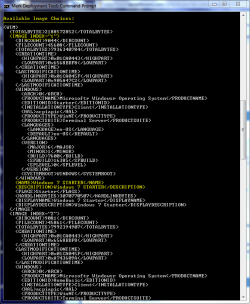
4. Each and every Win7 edition has an index no. in the install.wim (WIM file), you can check using the following command:
Code:
Imagex/info G:\Win7_32\Sources\install.wim
   Note
Where G:\Win7_32 represents the location of your 32 bit DVD files

Win7 Universal Install Disc cmd 1.PNG

The results will look something like above.
This shows that INDEX=1 denotes Windows 7 Starter and so on… (you may have to scroll down to observe these entries)

5. We will use the Imagex /export command to move our x64 WIM entries into the x86 wim file.
   Note
The syntax for this command is:
   Note

imagex /export src_file src_number src_name dest_file dest_name


Now execute the following commands with appropriate INDEX no. to export a copy of the specified image to the Windows 7 32bit (x86) WIM file.

For Win7 Home Basic x64:
Code:
Imagex/export G:\Win7_64\Sources\install.wim 1 G:\Win7_32\Sources\install.wim "Windows 7 Home Basic (x64)"
For Win7 Home Premium x64:
Code:
Imagex/export G:\Win7_64\Sources\install.wim 2 G:\Win7_32\Sources\install.wim "Windows 7 Home Premium (x64)"
For Win7 Professional x64:
Code:
Imagex/export G:\Win7_64\Sources\install.wim 3 G:\Win7_32\Sources\install.wim "Windows 7 Professional (x64)"
For Win7 Ultimate x64:
Code:
Imagex /export G:\Win7_64\Sources\install.wim 4 G:\Win7_32\Sources\install.wim "Windows 7 Ultimate (x64)"
6. After execution of above commands Win7_32's WIM file will be the universal WIM file that contains all version of Win7. You can export only desired versions into the image. For example you could make a Win7 DVD, which includes Win7 Ultimate x86 and x64 version only.

7. Now to make bootable DVD image...


Last edited by a moderator:
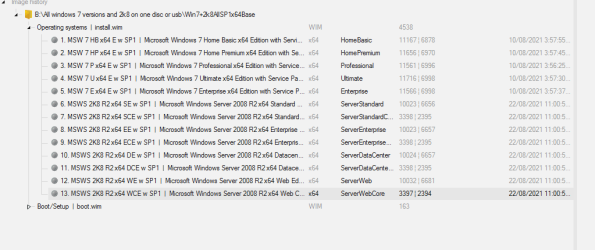
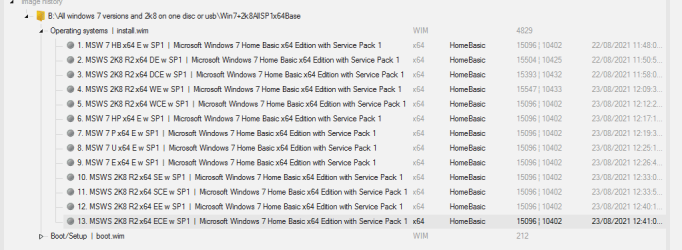
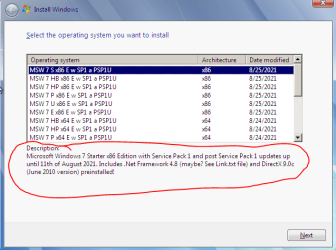
I figured a way how to change the selection order! I used NTLite for this, so you have to export your individial operating system's install.wim file out to another install.wim file and appending to it, not overriding it and order it that way; the first one starts at the top, the second one below the first one, the third one below the second one and so on and so forth! This will take a while if you have a universal install media, so for me would take 19 tries to specifically order the operating system in whatever order you want them to be seen as on the setup screen.

I had to do this when I screwed up an batch update, so had to deleted the corrupted operating system image in the wim file, make a new wim file with the imagex /export commands I copied and edited out so I would only pick that specific corrupted operating system image that needed replacing, and then used NTLite to export and re-order using the new wim file, since I don't see a way to re-order he current one with the replacement operating system image sitting all the way down at the bottom of the selection list...

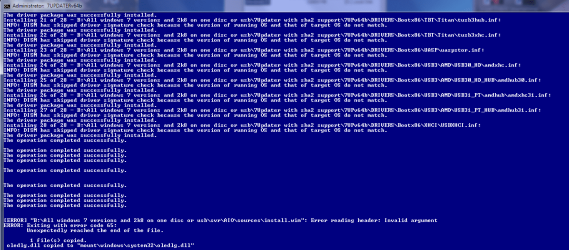
Apparently integrating KB5005392 update seems touchy for some reason.... and I'm guessing this error: Wrong architecture (x86): KB2533552 - Servicing Stack Update (B:\All windows 7 versions and 2k8 on one disc or usb\Win7+2k8AllSP1x64Base\sources\$OEM$\$$\Setup\Updates\Windows6.1-KB2533552-x86.cab) is because I have both 32-bit and 64-bit updates which presumesly can't be preintegrated and must be installed once the OS is installed first....

And holy crap the install media is now almost 9GB - 8.74 GB (9,390,724,272 bytes) after almost finishing integrating all updates to all versions of windows 7 and 2008 R2! And I'm not sure if it matters, but I've also done:
Code:
Copied over adprep from support folder from 2k8 r2
Copied over samples from support folder from 2k8 r2
Copied over license from sources folder from 2k8 r2
Copied over install_Windows 7 ENTERPRISE.clg from sources folder from enterprise (There is one for both 32-bit and 64-bit)
Copied over install_Windows Server 2008 R2 SERVERDATACENTER.clg from sources folder from 2k8 r2
Copied over install_Windows Server 2008 R2 SERVERDATACENTERCORE.clg from sources folder from 2k8 r2
Copied over install_Windows Server 2008 R2 SERVERENTERPRISE.clg from sources folder from 2k8 r2
Copied over install_Windows Server 2008 R2 SERVERENTERPRISECORE.clg from sources folder from 2k8 r2
Copied over install_Windows Server 2008 R2 SERVERSTANDARD.clg from sources folder from 2k8 r2
Copied over install_Windows Server 2008 R2 SERVERSTANDARDCORE.clg from sources folder from 2k8 r2
Copied over install_Windows Server 2008 R2 SERVERWEB.clg from sources folder from 2k8 r2
Copied over install_Windows Server 2008 R2 SERVERWEBCORE.clg from sources folder from 2k8 r2
Edited  product.ini in sources folder so it combines the contents of both win7,  win7 enterprise and 2k8; 32-bit version has STARTER line at the bottom  which the 64-bit one doesn't, otherwise the two files are identical.
Which Hoopstar didn't mention in his instruction manual, but I did it just in case the setup needed these files since there were versions of these on the non-enterprise and 2008 R2 SP1 ISOs or in case anyone else wants to know what I did different to my universal copy.

- - - Updated - - -

Question about the recovery and repair environment; I noticed when I load the images, the individual OSs have recovery environment, would I be able to export that out and then put it somewhere on the install wim or boot wim or that won't work? In this case would have two recovery environments - one for 32-bit and one for 64-bit.

Recovery environment inside os image.PNG
 
Last edited:

My Computer

Computer type
PC/Desktop
Computer Manufacturer/Model Number
custom build
OS
The one I am using to register is my Windows 7 Professional x64 one.
CPU
Intel Core i7-3970x
Motherboard
Asus Rampage 4 Extreme
Memory
Cosair Dominator Platinum
Graphics Card(s)
2x eVGA GTX 770 4GB CLassified with ACX cooler
Antivirus
I have KIS 2016 which is an internet security suite....?
Browser
Fiefox
Question about the recovery and repair environment; I noticed when I load the images, the individual OSs have recovery environment, would I be able to export that out and then put it somewhere on the install wim or boot wim or that won't work? In this case would have two recovery environments - one for 32-bit and one for 64-bit.

Not clear what you are asking.

You said you had decided to have separate media for each bit version.

Why would you want to extract winre.wim? The exact same system recovery options are available in boot.wim.

You might want to add updates/drivers to winre.wim. It would be quite laborious doing one at a time, which is why I use the upgrade method in my little updater.

Update your Win 7 installation media
 

My Computers

System One System Two

  • Computer type
    PC/Desktop
    OS
    7 X64
    CPU
    i5 8400
    Motherboard
    gigabyte b365m ds3h
    Memory
    2x8gb 3200mhz
    Hard Drives
    various
    PSU
    pure power 11 400w cm
    Case
    Coolermaster
    Cooling
    cryorig m9i
  • Computer type
    PC/Desktop
    OS
    7x64
    CPU
    g5400
    Motherboard
    ga b365m ds3h
    Memory
    8gb ddr4 2400
    PSU
    xfx pro 450w
You said you had decided to have separate media for each bit version.
Thats because I couldnt find a way to have both on one disc and then realised, after noticing each image having their own winre.wim, "What if I could just drag any one of those 32-bit recovery environments from the 32-bit images (that I can either use from my 32-bit base or the 64-bit base) and put it in the same group where boot.wim is, along with winpe and winsetup images are?" I wasn't sure if that would work which is why I asked first before doing it...

Why would you want to extract winre.wim? The exact same system recovery options are available in boot.wim.
How else are you gonna get 32-bit recovery environment on a 64-bit base install/boot wim?

You might want to add updates/drivers to winre.wim. It would be quite laborious doing one at a time, which is why I use the upgrade method in my little updater.
Why do I need to add it to that as well? Thought just adding them to install wim for each image was enough....
 

My Computer

Computer type
PC/Desktop
Computer Manufacturer/Model Number
custom build
OS
The one I am using to register is my Windows 7 Professional x64 one.
CPU
Intel Core i7-3970x
Motherboard
Asus Rampage 4 Extreme
Memory
Cosair Dominator Platinum
Graphics Card(s)
2x eVGA GTX 770 4GB CLassified with ACX cooler
Antivirus
I have KIS 2016 which is an internet security suite....?
Browser
Fiefox
How else are you gonna get 32-bit recovery environment on a 64-bit base install/boot wim?

During the normal setup routine, winre.wim is deployed from windows\system32\recovery to a hidden folder on the disk.

It can be booted by autofailover or using the f8 key to access the system recovery options.

It should be obvious that if the machine requires certain drivers, they should be in winre.wim as well.

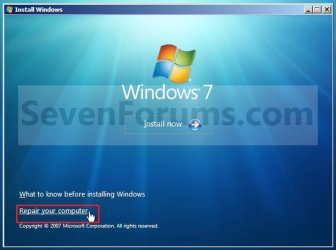
Boot.wim also has the exact same recovery options, which can be accessed by selecting "Repair your computer" here:

Repair_Option.jpg

If you want be able to boot to 32 bit recovery environment directly from your 64 bit installation media, you could add either 32 bit boot.wim or 32 bit winre.wim to the sources folder and add the appropriate bcd entry. But that would only function using bios boot, not efi boot. If you are making separate 32 bit installation media, there doesnt seem to be any point.
 

My Computers

System One System Two

  • Computer type
    PC/Desktop
    OS
    7 X64
    CPU
    i5 8400
    Motherboard
    gigabyte b365m ds3h
    Memory
    2x8gb 3200mhz
    Hard Drives
    various
    PSU
    pure power 11 400w cm
    Case
    Coolermaster
    Cooling
    cryorig m9i
  • Computer type
    PC/Desktop
    OS
    7x64
    CPU
    g5400
    Motherboard
    ga b365m ds3h
    Memory
    8gb ddr4 2400
    PSU
    xfx pro 450w
During the normal setup routine, winre.wim is deployed from windows\system32\recovery to a hidden folder on the disk.

It can be booted by autofailover or using the f8 key to access the system recovery options.

It should be obvious that if the machine requires certain drivers, they should be in winre.wim as well.

Boot.wim also has the exact same recovery options, which can be accessed by selecting "Repair your computer" here:

View attachment 420058

If you want be able to boot to 32 bit recovery environment directly from your 64 bit installation media, you could add either 32 bit boot.wim or 32 bit winre.wim to the sources folder and add the appropriate bcd entry. But that would only function using bios boot, not efi boot. If you are making separate 32 bit installation media, there doesnt seem to be any point.

I see, so I should also be integrating updates and drivers into winre.wim as well as boot.wim (pesumeably the setup image or both the pe and setup?).

But that would only function using bios boot, not efi boot.
And when the recovery or repair environment asks to insert the install media, this is where that matters or is that something completely different? Coz I remember making AIO (without enterprise or server 2008 r2), somehow borked that install after using it and it would only into recovery/repair mode and requests that I give it the repair/recovery disc for it to fix itself but none of the discs I gave it worked...including the same AIO disc I used to install it with. So what I did was just wipe the whole install and reinstall a new and problem solved(after moving files and folders that I wanted to recover from the hard drive using linux mate). Never did figure out why my AIO didnt work as the recovery disc it needed...

It is patched so you can use x64 recovery environment.

Easiest to let whd do it for you. whd

View attachment 420027

View attachment 420026

View attachment 420025

View attachment 420024

View attachment 420023


You can then manually add Boot\bootx64.efi to the efi folder

View attachment 420022

View attachment 420021

View attachment 420020

Maybe I should start all over and use your Windows Hotfix Downloader to create my win7/2008 AIO ISO which also supposedly adds a 64-bit recovery and repair mode (dunno if the same mode also works for 2008 assuming its recovery and repair mode is based on the windows 7 version) and then use your little updater to integrate all updates and universal drivers for me automatically and then I get can put my feet up on a chair and relax? Oh wait... I remember you saying something that your little updater won't work on a special AIO such as mine since it's multibit (32bit + 64bit)?
There is an updater on this site, however it is not for multi bit version.
Oh you did too! God damnit, well back to the drawing board...(d) If only I could read russian, I'd try out that other multibit updater you gave me, since the english translated version is borked, according to your testings.
 

My Computer

Computer type
PC/Desktop
Computer Manufacturer/Model Number
custom build
OS
The one I am using to register is my Windows 7 Professional x64 one.
CPU
Intel Core i7-3970x
Motherboard
Asus Rampage 4 Extreme
Memory
Cosair Dominator Platinum
Graphics Card(s)
2x eVGA GTX 770 4GB CLassified with ACX cooler
Antivirus
I have KIS 2016 which is an internet security suite....?
Browser
Fiefox
You could try the following:

update the 64 (x64) bit media and create an iso.

Then update the 32 (x86) bit media and create an iso.

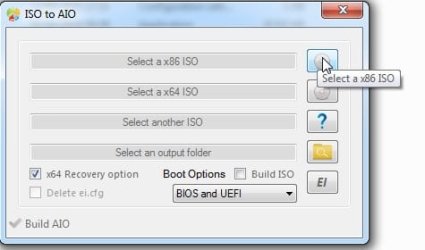
Then you browse to those already updated iso files with WHD to create the aio

whd5.jpg
 

My Computers

System One System Two

  • Computer type
    PC/Desktop
    OS
    7 X64
    CPU
    i5 8400
    Motherboard
    gigabyte b365m ds3h
    Memory
    2x8gb 3200mhz
    Hard Drives
    various
    PSU
    pure power 11 400w cm
    Case
    Coolermaster
    Cooling
    cryorig m9i
  • Computer type
    PC/Desktop
    OS
    7x64
    CPU
    g5400
    Motherboard
    ga b365m ds3h
    Memory
    8gb ddr4 2400
    PSU
    xfx pro 450w
Your little updater seems to be crash prone around here:
crash once.PNG
As soon as I press enter, BOOM CRASH! But only sometimes though... just to let you know....

Otherwise there's no more crashes after that! I've also noticed, via NTLite, it has renamed the names and description for all images aside from the first one it touches:
Looks like your editor re-edited the description and names of the images after the first one.....PNG


....It looks like it did the same to my 64-bit and override every single image (first image is original, 2nd is after running your little updater):
Capture.PNG
Capture1.PNG

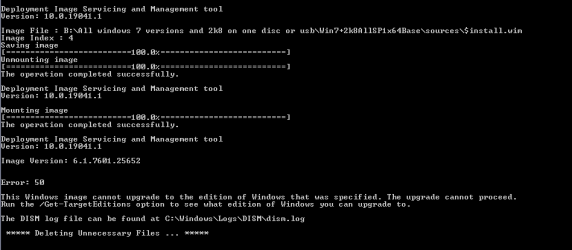
Did a fresh run and it made every single install the first image which is Home Basic...and let's not forget this error when it gets to image 4 to 13:
error 50.PNG
...and why is it trying to upgrade windows? I thought this was an updating process not an upgrade process?

...are you sure your little updater is okay with my universal windows 7 and 2008 r2 install media...? My 32-bit one went without hiccups(ok well maybe the name and description changes that looked like they were shifted, name to description and whatever value as the new name which I all had to rename back and redescibed back) but 64-bit......ooooh....

- - - Updated - - -

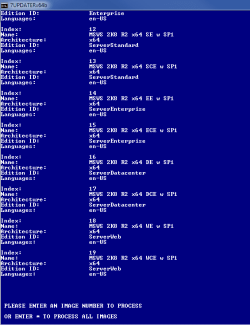
Ok so maybe it might work if I did it one by one....except how do I scroll up and down here? I've increased the buffer and window size and they didn't allow me to go up and down to see the others that are cut off here:
no way to scroll up.PNG
 

My Computer

Computer type
PC/Desktop
Computer Manufacturer/Model Number
custom build
OS
The one I am using to register is my Windows 7 Professional x64 one.
CPU
Intel Core i7-3970x
Motherboard
Asus Rampage 4 Extreme
Memory
Cosair Dominator Platinum
Graphics Card(s)
2x eVGA GTX 770 4GB CLassified with ACX cooler
Antivirus
I have KIS 2016 which is an internet security suite....?
Browser
Fiefox
...and why is it trying to upgrade windows?

Because it more efficient to integrate the updates into image 1 then upgrade image 1 to the other editions.

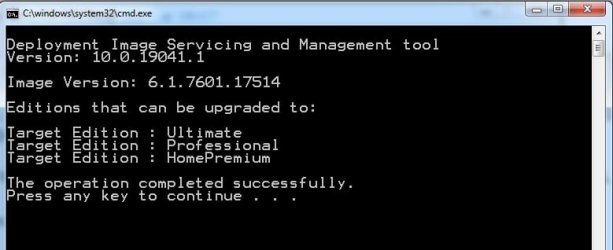
The consumer editions can be upgraded thus:

upgrade-image.jpg

The mess you made is because you added other images to the wim.

Add a couple of colons to comment out line 4

mode.jpg
 

My Computers

System One System Two

  • Computer type
    PC/Desktop
    OS
    7 X64
    CPU
    i5 8400
    Motherboard
    gigabyte b365m ds3h
    Memory
    2x8gb 3200mhz
    Hard Drives
    various
    PSU
    pure power 11 400w cm
    Case
    Coolermaster
    Cooling
    cryorig m9i
  • Computer type
    PC/Desktop
    OS
    7x64
    CPU
    g5400
    Motherboard
    ga b365m ds3h
    Memory
    8gb ddr4 2400
    PSU
    xfx pro 450w
Because it more efficient to integrate the updates into image 1 then upgrade image 1 to the other editions.

The consumer editions can be upgraded thus:

View attachment 420079

The mess you made is because you added other images to the wim.
You told me it works for all images as long as there isnt a mix of 32-bit and 64-bit which is what I fixed (I took out 32-bit windows 7 images from 64-bit wim and 64-bit windows 7 from 32-bit wim) but it still broke... Unless you meant to say that it doesn't work on a multi-image wim that isn't windows 7(that means I would have to seperate out server 2008 r2 from the wim file and do that seperately and then recombine them back afterwards) and not that it doesn't work on multibit wim? Or both??!:huh:

Add a couple of colons to comment out line 4

View attachment 420078
And what does this do?

Also I found another crash area:
crash area2.PNG
Sometimes it would crash here.

Also also, another request, since I'm doing this one by one manually (or else your little updater will turn all other images upside down...) if the program could restart itself and then do the next one like if I had restarted it to do the next image.
 

My Computer

Computer type
PC/Desktop
Computer Manufacturer/Model Number
custom build
OS
The one I am using to register is my Windows 7 Professional x64 one.
CPU
Intel Core i7-3970x
Motherboard
Asus Rampage 4 Extreme
Memory
Cosair Dominator Platinum
Graphics Card(s)
2x eVGA GTX 770 4GB CLassified with ACX cooler
Antivirus
I have KIS 2016 which is an internet security suite....?
Browser
Fiefox
Crashes are a problem at your end . I dont know waht you are doing to cause that.
 

My Computers

System One System Two

  • Computer type
    PC/Desktop
    OS
    7 X64
    CPU
    i5 8400
    Motherboard
    gigabyte b365m ds3h
    Memory
    2x8gb 3200mhz
    Hard Drives
    various
    PSU
    pure power 11 400w cm
    Case
    Coolermaster
    Cooling
    cryorig m9i
  • Computer type
    PC/Desktop
    OS
    7x64
    CPU
    g5400
    Motherboard
    ga b365m ds3h
    Memory
    8gb ddr4 2400
    PSU
    xfx pro 450w
Crashes are a problem at your end . I dont know waht you are doing to cause that.

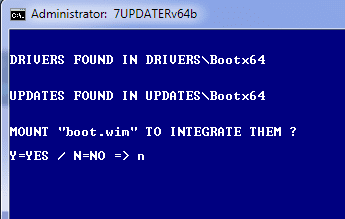
Nothing that is out of order, just been following your picture guide instructions:
Instructions.png
So unless something there is incorrect....or missing....

Also you've not answered what commenting out line 4 does... Or was that to fix the upgrade issue (and or renaming the name and description of each image bug) when I would type in * for when it asks which image I would update instead of doing them one by one and restarting your little updater each time for each image that needs to be updated?

- - - Updated - - -

Ok, got it all sorted now and combined both 32-bit and 64-bit ISOs using WHD with recovery mode checked and with boot with BIOS and UEFI selected.

Final size came to around 9.6GB, far bigger than even a dual layer DVD9 could fit! So used NTLite to convert the install.wim into install.esd, created an ISO and now it will fit on a single DVD9 disc!

However, booting with this results in an unpassable driver request screen(tested using virtual box and a native box):
Drivers missing for VBox.PNG

I don't suppose you have this... "mysterious" missing driver it's requesting, do you that I could integrate and retry?

Ok, googled around and tried a different method - used a windows 10 boot.wim (by the way, do you have a 7Updater with sha2 support but for windows 10? I tried it and it gave me an error (naturally) so can't integrate the drivers into win10 boot wim so it would be equivalently updated as my win7 boot wim....) in place of the windows 7 boot.wim that I have. It bypasses this mysterious missing driver request and I could select any of the 19 operating systems I have on the disc! Wooo!

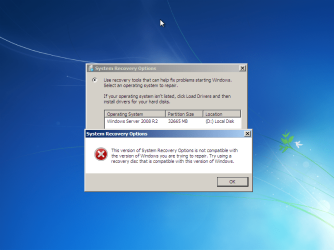
Recovery mode does not work. After installation of windows and then rebooting so it boots off the DVD and clicking on the same link here, It says the windows version is incompatible with the recovery disc I have. So that either means WHD failed making a working recovery and repair environment for 64-bit windows 7 or it doesn't work with install.esd. Need further testing...

UEFI boot mode also does not work, I tested with Virtual box and it skips towards shell with no option to press any button to start the setup....

- - - Updated - - -

K - update 2; did some more testing with the recovery environment(using windows 7 home basic 64-bit if it matters --Yes it does matter, since 32-bit version home basic has no problem getting into recovery mode.) and yeah, it doesn't work even with the normal install.wim file(win2k8 example too):
incompatible windows version VBox.PNGincompatible windows version VBox5.PNG

lol something already wrong with my 2k8 r2 installation:
lol something already wrong with my 2k8 r2 installation....png

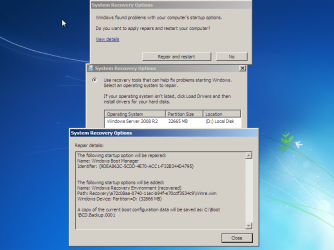
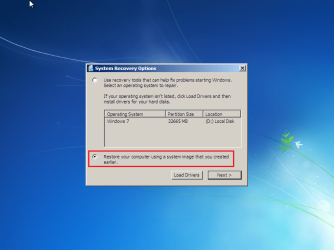
But, I don't know if it's a bug or glitch but I still managed to get into the repair and recovery mode:
incompatible windows version VBox1.PNG

But you need to click here and then click next:
incompatible windows version VBox2.PNG

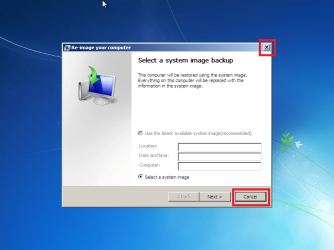
Then you'll get this window and click cancel:
incompatible windows version VBox3.PNG

And then finally here you can either cross out with that x at the top right corner or click cancel again:
incompatible windows version VBox4.PNG

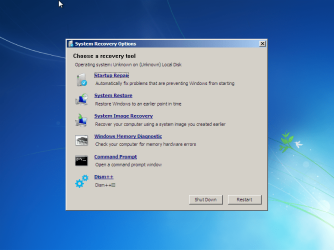
And then you should be able to get to this:
incompatible windows version VBox1.PNG

Ok, back to the boot wim, if you got windows 10 equivalent version drivers for both x86 and x64 boot wim, I'd like that please or else I get:
image.png

Oh yeah and is there a way to increase the description character cap here:
image.png

It seems I can only add about 3 lines of description and no more... I wanted to also add details about individual versions and why choose this over the others bla bla thing just for my own sake.

- - - Updated - - -


Oh yeah, coming back here, WHD's AIO with BIOS and UEFI selected, has its own BOOTx64.efi but apparently doesn't work:
UEFI boot error.png

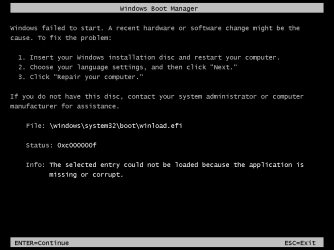
but using yours, almost works(at least it shows the screen where you can press any key to boot from the DVD) but still get the same winload.efi error with both virtual box and native box!

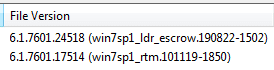
Upon checking, your version appears to be RTM (which is older) over the one WHD created (that is newer) which is ldr escrow whatever version that is:
image.png
 
Last edited:

My Computer

Computer type
PC/Desktop
Computer Manufacturer/Model Number
custom build
OS
The one I am using to register is my Windows 7 Professional x64 one.
CPU
Intel Core i7-3970x
Motherboard
Asus Rampage 4 Extreme
Memory
Cosair Dominator Platinum
Graphics Card(s)
2x eVGA GTX 770 4GB CLassified with ACX cooler
Antivirus
I have KIS 2016 which is an internet security suite....?
Browser
Fiefox
Am finding I'm unable to make a universal installer by removing the ei.cfg file from the en_windows_7_enterprise_with_sp1_x86_dvd_u_677710.iso. I had this ISO marked as hash checked and just searched the hash again and it appears correct.

First try - used eicfg_removal_utility directly on the iso, then used Windows7-USB-DVD-tool to make the thumb drive. Did a clean install on a Dell GX280, wiping the existing partitions first during install. Result was that the Enterprise version installed, with no version options screen ever showing.

Second try - used 7-Zip to extract the ISO, deleted ei.cfg from the sources folder, reformatted the 8GB thumb drive to EX-FAT, then copied over all the extracted files. Again, same Enterprise version installation.

I have made universal *x64* W7 installers before, but that may not have been from the Enterprise ISO. Is Enterprise the issue?

Going to go find the ISO for a different version, and try again.

Update: was able to make a universal installer starting with
en_windows_7_ultimate_with_sp1_x86_dvd_u_677460.iso
 
Last edited:

My Computer

Computer type
PC/Desktop
Computer Manufacturer/Model Number
custom
OS
Windows 7 Pro x64
CPU
Intel i7 6th Gen
Motherboard
Asus Z170e
Memory
16GB
Antivirus
Eset NOD32
Browser
Firefox
Back
Top