This worked well for me.
https://answers.microsoft.com/en-us...solution/f39a65fa-9d10-42e7-9bc0-7f5096b36d0c
https://answers.microsoft.com/en-us...solution/f39a65fa-9d10-42e7-9bc0-7f5096b36d0c
My Computer
At a glance
Linux
- OS
- Linux

====Quote Quote: Originally Posted by vickyv View Post
This has worked for me every time:
The solution:
Stop the Windows Update Service (wuauserv).
Download and install KB3050265
reboot
Download and install KB3102810
Reboot and check for updates again. All of our machines found their required updates in less than 5 minutes.

I know this is an old post but this will fix all you update issues:
Here is a 100% guaranteed solution to the updating blues for Windows 7
You should first download these 6 files:
1. 64 Bit- https://download.microsoft.com/down...020-EC41D56B074F/Windows6.1-KB3020369-x64.msu
32 Bit- https://download.microsoft.com/down...B0A-35769CBBE6B0/Windows6.1-KB3020369-x86.msu 2. 64 Bit- http://download.windowsupdate.com/d..._2dafb1d203c8964239af3048b5dd4b1264cd93b9.msu
32 Bit- http://download.windowsupdate.com/d..._ba1ff5537312561795cc04db0b02fbb0a74b2cbd.msu 3. 64 Bit- https://download.microsoft.com/down...6F1-B25B137E3C87/Windows6.1-KB3102810-x64.msu
32 Bit- https://download.microsoft.com/down...371-1A7F5AC417E9/Windows6.1-KB3102810-x86.msu 4. 64 Bit- https://download.microsoft.com/down...199-5B335EE092F6/Windows6.1-KB3112343-x64.msu
32 Bit- https://download.microsoft.com/down...199-5B335EE092F6/Windows6.1-KB3112343-x64.msu 5. 64 Bit- https://download.microsoft.com/down...67F-C713F7821374/Windows6.1-KB3172605-x64.msu
32 Bit- https://download.microsoft.com/down...A9C-6B30C3E1735A/Windows6.1-KB3172605-x86.msu 6. 64 Bit- https://download.microsoft.com/down...7A1-BF8608449C85/Windows6.1-KB3161664-x64.msu
32 Bit- https://download.microsoft.com/down...0B6-F243DDC20D51/Windows6.1-KB3161664-x86.msu Ok Now that you’ve downloaded everything, here is the precise process. Please don’t skip any steps or it may or may not work properly for you. I’ve included the 32 bit links even though most people have problems with the 64 Bit.
1. Click Start, type in CMD, right click the search result “command Prompt” and left click on run as administrator, click yes
2. In the “elevated” command box, type in NET STOP WUAUSERV and press enter, after service is stopped, install the first on you downloaded earlier (KB3020369)
3. Click close after in finishes
4. Click back into the command box and again type NET STOP WUAUSERV and press enter, after service is stopped, install the second one you downloaded (KB3125574)
5. Restart the computer at the end when it asks you to do so.
6. Click Start, type in CMD, right click the search result “command Prompt” and left click on run as administrator, click yes
7. In the “elevated” command box, type in NET STOP WUAUSERV and press enter, after service is stopped, install the third download (KB3102810)
8. Click close after in finishes
9. Click back into the command box and again type NET STOP WUAUSERV and press enter, after service is stopped, install the fourth download (KB3112343)
10. Click close after in finishes
11. Click back into the command box and again type NET STOP WUAUSERV and press enter, after service is stopped, install the fifth download (KB3172605)
12. Restart the computer at the end when it asks you to do so.
13. Click Start, type in CMD, right click the search result “command Prompt” and left click on run as administrator, click yes
14. In the “elevated” command box, type in NET STOP WUAUSERV and press enter, after service is stopped, install the final downloaded file (KB3161664)
15. Your updates will now work! You’re Welcome
Hello!
Here are a couple of Methods that could work for you. Please let me know if your issue does -OR- doesn't get resolved.
Here are 3 Methods that I've found, that worked for people in the past.
Note: Try to make sure you Windows Update is/isn't working by letting it "Checking for updates" for at least 1 hour.
Method 1: Difficulty: Easy
- Download the following tool below.
- Download this tool: Microsoft Fixit Tool
- Run the file once it finishes downloading.
- Once the window appears on your screen, click the "Next" Button.
- Let the program scan for errors, DO NOT click "Cancel". (This process may take some time.)
- Once the program finishes scanning, it will list the following errors that have been "Fixed" or "Not Fixed".
- If any errors were "Not Fixed", report them to me here. Left-Click the "Close the troubleshooter" Button.
- Restart your computer. Try to update your Windows.
If Method 1 doesn't work proceed to Method 2.
Method 2: Difficulty: Moderate
Now this Method doesn't necessarily fix Windows Update right away (does after updates are done) but rather than a bypass or a workaround. I will provide images with this Method sense it's a little tricky.
- Press the Windows Key and the "R" Key simultaneously. [Win+R]
- A "Run" Box should appear. Type "services.msc" into the search box and press the "OK" button.
- The "Services" window should appear on your screen. Scroll down to "Windows Update" Service in the Services (Local) section.
- Right-Click on "Windows Update", then Left-Click "Stop" button. Please wait until the service completely stops. Do not close the Window.
- Press the Windows Key and the "R" Key simultaneously. [Win+R] again.
- Remove "services.msc" then type "C:\Windows\SoftwareDistribution" into the search bar then Left-Click "OK". Windows Explorer should appear on your screen.
- Delete all contents within this folder. Left-Click + Hold + Drag until you completely highlight all the contents. Let go of Left-Click and press the "Delete" Button and Left-Click "Yes".
- Close Windows Explorer and return to the "Services" Window. Right-Click "Windows Update" then Left-Click "Start". Wait for the service to completely start then close the window.
- Restart your computer. Then try to update Windows.
If Method 2 doesn't work proceed to Method 3.
I hope this works. 99% sure it will! Good luck!
Method 3: Difficulty: Somewhat Hard
- Please download the following tools below.
- Download: WSUS Offline Update
- Go to your downloads file. (Usually C:\Users\"Profile Name"\Downloads) and Right-Click "Extract All..."
- The Extract Window should appear on your screen. Click the "Browse" Button on the window. Navigate and Left-Click the "Desktop" icon then press the "OK" Button.
- Open the new folder that appears on your Desktop.
- Navigate to the following images below.
- Navigate to...
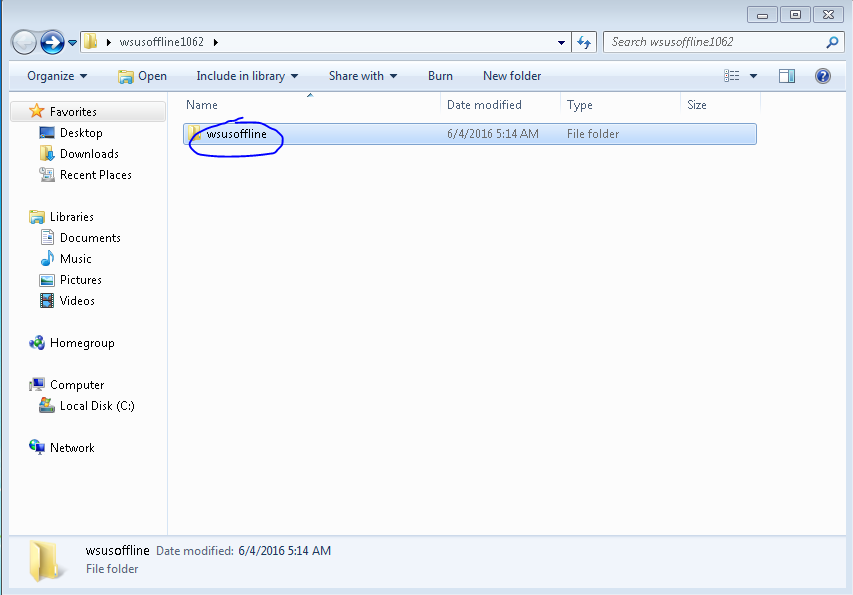
- Navigate to...
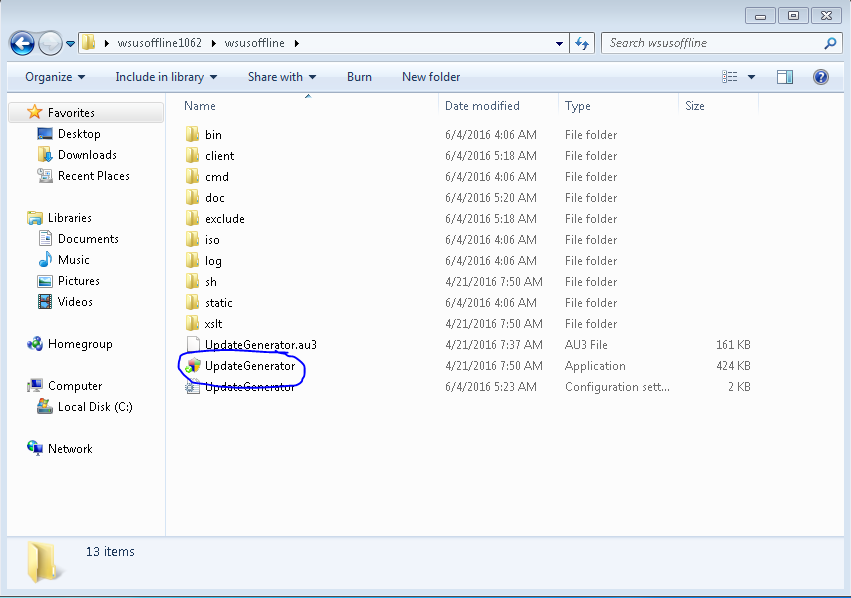
- Checkmark these boxes and click "Start"...
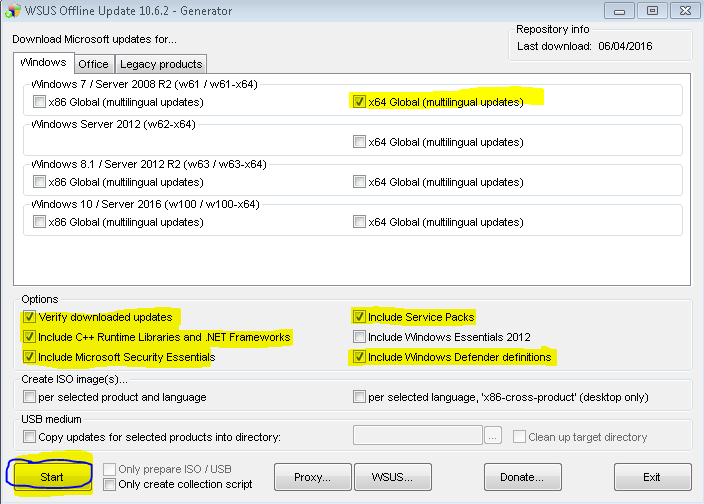
- This cmd will download all Windows Updates from Microsoft's Database. Please do not exit out of the cmd, it will take a while to complete.

- After the downloading is done. Close the program and navigate to the following images.
- Navigate to...

- Navigate to...

- Checkmark the following boxes and click "Start". Checkmark the other boxes once you have SP1 installed.
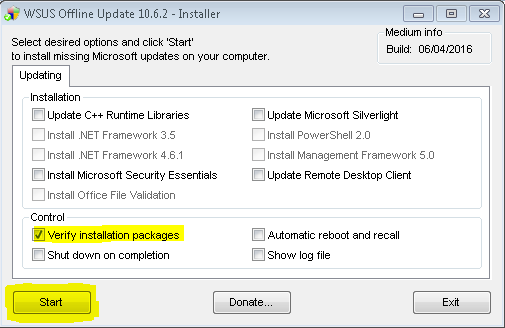
-OR-
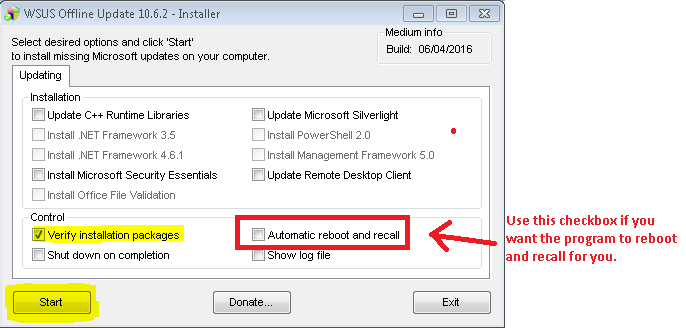
- This cmd will install all downloaded updates. You might have to run this installer more than once due to the fact that SP1 has to be installed first. Then Microsoft Security Updates.
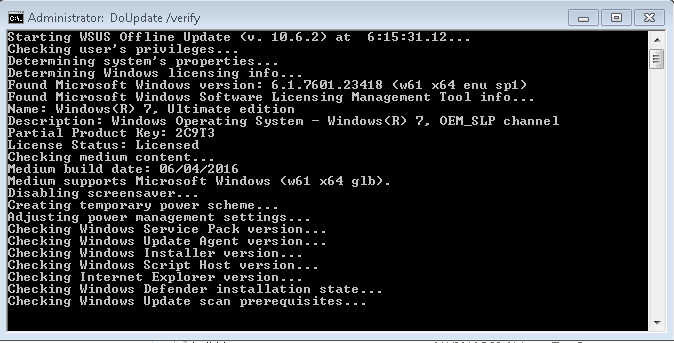
- You will have to restart every time the installer completes a certain section of updates.
- Once most updates are installed, your Windows Updater should be working again. Around 100+ installed.


