Solved windows 7 update stuck at "checking for updates..."

Hi jdlweb,

Good day! I am writing to thank you for the detailed instructions for fixing the Windows 7 update problem.

I have had the issue since Sep '16 and couldn't find a way to fix it. After following your instructions (in downloading the 6 Windows updates and installing each of them), I am downloading 92 updates and installing them while writing this.

Thank you so much indeed for offering the solution and in helping many users like me with issues updating Windows 7! You are the best!


Best regards,
Hayden Green
 

My Computer

Computer type
PC/Desktop
Computer Manufacturer/Model Number
HO ProBook 4331s
OS
Windows 7
CPU
2.3GHz
Memory
8GB
Hard Drives
500GB
Antivirus
Norton Antivirus
New update agent for what. New backdoors into your windows?

Funny its called Windows.
 

My Computer

Computer type
Laptop
Computer Manufacturer/Model Number
Asus
OS
Windows7
CPU
i5
Memory
4GB
Graphics Card(s)
Intel 7 series
Hard Drives
SSD
Vickyv solution is valid even as of 19/03/2017

Quote Quote: Originally Posted by vickyv View Post
This has worked for me every time:

The solution:

Stop the Windows Update Service (wuauserv).
Download and install KB3050265
reboot
Download and install KB3102810
Reboot and check for updates again. All of our machines found their required updates in less than 5 minutes.
====
After following the above within 8 minutes of running update I got 302 important and 10 optional updates reaching 3,120.7 MB.

Although I had other solutions that I was using until August 2016, they did not work for this clean installation. It kept me busy for two days reading forums and trying out different solutions. This one worked!
Confirming that it is valid till date 19/03/2017. Thanks for sharing it mate :)
 
Last edited:

My Computer

Computer type
Laptop
Computer Manufacturer/Model Number
HP
OS
Microsoft Windows 7 Professional
CPU
Intel64 Family 6 Model 23 Stepping 6 GenuineInt
Motherboard
Intel
Memory
4,060 MB
Graphics Card(s)
ATI
Hard Drives
Mechanical Drive
Antivirus
None
Browser
Chrome
Delete Windows\SoftwareDistribution contents

This totally worked for me after a lot of time trying downloads, etc mentioned on this thread:
Method 2: Difficulty: Moderate
Press the Windows Key and the "R" Key simultaneously. [Win+R]
A "Run" Box should appear. Type "services.msc" into the search box and press the "OK" button.
The "Services" window should appear on your screen. Scroll down to "Windows Update" Service in the Services (Local) section.
Right-Click on "Windows Update", then Left-Click "Stop" button. Please wait until the service completely stops. Do not close the Window.
Press the Windows Key and the "R" Key simultaneously. [Win+R] again.
Remove "services.msc" then type "C:\Windows\SoftwareDistribution\" into the search bar then Left-Click "OK". Windows Explorer should appear on your screen.
Delete all contents within this folder. Left-Click + Hold + Drag until you completely highlight all the contents. Let go of Left-Click and press the "Delete" Button and Left-Click "Yes".
Close Windows Explorer and return to the "Services" Window. Right-Click "Windows Update" then Left-Click "Start". Wait for the service to completely start then close the window.
Restart your computer. Then try to update Windows.

Many Thanks to Tyler1118
 

My Computer

OS
Windows 7 Home Premium 32bit
I know this is an old post but this will fix all you update issues:
Here is a 100% guaranteed solution to the updating blues for Windows 7
You should first download these 6 files:
1. 64 Bit- https://download.microsoft.com/down...020-EC41D56B074F/Windows6.1-KB3020369-x64.msu
32 Bit- https://download.microsoft.com/down...B0A-35769CBBE6B0/Windows6.1-KB3020369-x86.msu 2. 64 Bit- http://download.windowsupdate.com/d..._2dafb1d203c8964239af3048b5dd4b1264cd93b9.msu
32 Bit- http://download.windowsupdate.com/d..._ba1ff5537312561795cc04db0b02fbb0a74b2cbd.msu 3. 64 Bit- https://download.microsoft.com/down...6F1-B25B137E3C87/Windows6.1-KB3102810-x64.msu
32 Bit- https://download.microsoft.com/down...371-1A7F5AC417E9/Windows6.1-KB3102810-x86.msu 4. 64 Bit- https://download.microsoft.com/down...199-5B335EE092F6/Windows6.1-KB3112343-x64.msu
32 Bit- https://download.microsoft.com/down...199-5B335EE092F6/Windows6.1-KB3112343-x64.msu 5. 64 Bit- https://download.microsoft.com/down...67F-C713F7821374/Windows6.1-KB3172605-x64.msu
32 Bit- https://download.microsoft.com/down...A9C-6B30C3E1735A/Windows6.1-KB3172605-x86.msu 6. 64 Bit- https://download.microsoft.com/down...7A1-BF8608449C85/Windows6.1-KB3161664-x64.msu
32 Bit- https://download.microsoft.com/down...0B6-F243DDC20D51/Windows6.1-KB3161664-x86.msu Ok Now that you’ve downloaded everything, here is the precise process. Please don’t skip any steps or it may or may not work properly for you. I’ve included the 32 bit links even though most people have problems with the 64 Bit.
1. Click Start, type in CMD, right click the search result “command Prompt” and left click on run as administrator, click yes
2. In the “elevated” command box, type in NET STOP WUAUSERV and press enter, after service is stopped, install the first on you downloaded earlier (KB3020369)
3. Click close after in finishes
4. Click back into the command box and again type NET STOP WUAUSERV and press enter, after service is stopped, install the second one you downloaded (KB3125574)
5. Restart the computer at the end when it asks you to do so.
6. Click Start, type in CMD, right click the search result “command Prompt” and left click on run as administrator, click yes
7. In the “elevated” command box, type in NET STOP WUAUSERV and press enter, after service is stopped, install the third download (KB3102810)
8. Click close after in finishes
9. Click back into the command box and again type NET STOP WUAUSERV and press enter, after service is stopped, install the fourth download (KB3112343)
10. Click close after in finishes
11. Click back into the command box and again type NET STOP WUAUSERV and press enter, after service is stopped, install the fifth download (KB3172605)
12. Restart the computer at the end when it asks you to do so.
13. Click Start, type in CMD, right click the search result “command Prompt” and left click on run as administrator, click yes
14. In the “elevated” command box, type in NET STOP WUAUSERV and press enter, after service is stopped, install the final downloaded file (KB3161664)
15. Your updates will now work! You’re Welcome :geek:

THANK YOU!!

Your solution worked. My Win 7 Pro absolutely refused to update, and I tried everything. I messed with the little bugger for hours, and hours, and hours. Much to my disbelief, your solution worked (I followed your instructions EXACTLY), I am so pleased. Thanks again jdlweb!
 

My Computer

Computer type
PC/Desktop
OS
Win 7 Pro 64
windows upate stuck at "checking for updates"

Just got mine fixed. The last time I was able to do updates(10/21/2016), it locked up installing KB3170735 and I cancelled install. Had been locked up ever since. Got back to it today. Tried manually installing that update. When it downloaded, the pop-up stated it was for windows 7 x86 not x64! I then followed instructions For manually installing KB3020369 and KB3172605. (disable windows update first). After this Windows update would run. On the first pass KB3170735 came up. I deselected it. Next pass worked also, but KB3170735 did not appear and all subsequent passes have been successful.

Hope this helps
 

My Computer

Computer type
PC/Desktop
Computer Manufacturer/Model Number
Custom Build
OS
WINDOWS 7 HOME PREMIUM x64 Service Pack 1
CPU
AMD FX-4100 QUAD CORE 3.6 GHZ
Motherboard
ASUS M5A99X EVO
Memory
8 GB
Graphics Card(s)
AMD RADEON HD 6800 SERIES
Hard Drives
WD SATA
I know I am late to the party - but there was a major issue with the Windows Update components with memory leaks and CPU cycles -- especially on machines that were recently reimaged/reinstalled -- there were a series of updates that were released in April-August 2016 that caused WU to exhibit these odd behaviors in the scans. The fastest ways I have dealt with them (but this comes as I was thick provisioning workstations [not my process, I hated it] for use) - was using WSUSoffline

Its a nice little tool that you select your OS, some of the optional Office components you had installed, and then you would download the updates offline, then it would script the installs for all of the critical/security updates (which this issue was addressed in) -- otherwise there is a series of 6 patches you would have to install manually and then it would work...so I generally like to get 80/90% of the updates out of the way up front...

It will even autoreboot and resume installs and then when done, simply delete the folder, run your WU to capture any of the recommended/optionals if you like, and done...

It's cut my provisioning time in fractions (as I used to have to wait for SCCM to deploy -- yeah the last org I worked for was a mess lol) -- generally WSUSOffline isn't for everyday, but it is amazing if you are reinstalling, severely behind updates, WU wont scan (initially and just to take care of the immediate issue at hand which is the security)...there are tons of other ways...but anyhoo just my two cents because this was super common for Win7s
 

My Computer

Computer type
PC/Desktop
OS
Windows 10 Enterprise x64
Hello!

Here are a couple of Methods that could work for you. Please let me know if your issue does -OR- doesn't get resolved.

Here are 3 Methods that I've found, that worked for people in the past.

Note: Try to make sure you Windows Update is/isn't working by letting it "Checking for updates" for at least 1 hour.

Method 1: Difficulty: Easy

  1. Download the following tool below.
  2. Download this tool: Microsoft Fixit Tool
  3. Run the file once it finishes downloading.
  4. Once the window appears on your screen, click the "Next" Button.
  5. Let the program scan for errors, DO NOT click "Cancel". (This process may take some time.)
  6. Once the program finishes scanning, it will list the following errors that have been "Fixed" or "Not Fixed".
  7. If any errors were "Not Fixed", report them to me here. Left-Click the "Close the troubleshooter" Button.
  8. Restart your computer. Try to update your Windows.

    If Method 1 doesn't work proceed to Method 2.

Method 2: Difficulty: Moderate

  1. Press the Windows Key and the "R" Key simultaneously. [Win+R]
  2. A "Run" Box should appear. Type "services.msc" into the search box and press the "OK" button.
  3. The "Services" window should appear on your screen. Scroll down to "Windows Update" Service in the Services (Local) section.
  4. Right-Click on "Windows Update", then Left-Click "Stop" button. Please wait until the service completely stops. Do not close the Window.
  5. Press the Windows Key and the "R" Key simultaneously. [Win+R] again.
  6. Remove "services.msc" then type "C:\Windows\SoftwareDistribution" into the search bar then Left-Click "OK". Windows Explorer should appear on your screen.
  7. Delete all contents within this folder. Left-Click + Hold + Drag until you completely highlight all the contents. Let go of Left-Click and press the "Delete" Button and Left-Click "Yes".
  8. Close Windows Explorer and return to the "Services" Window. Right-Click "Windows Update" then Left-Click "Start". Wait for the service to completely start then close the window.
  9. Restart your computer. Then try to update Windows.

    If Method 2 doesn't work proceed to Method 3.
Now this Method doesn't necessarily fix Windows Update right away (does after updates are done) but rather than a bypass or a workaround. I will provide images with this Method sense it's a little tricky.

I hope this works. 99% sure it will! Good luck!

Method 3: Difficulty: Somewhat Hard

  • Please download the following tools below.
  • Download: WSUS Offline Update
  • Go to your downloads file. (Usually C:\Users\"Profile Name"\Downloads) and Right-Click "Extract All..."
  • The Extract Window should appear on your screen. Click the "Browse" Button on the window. Navigate and Left-Click the "Desktop" icon then press the "OK" Button.
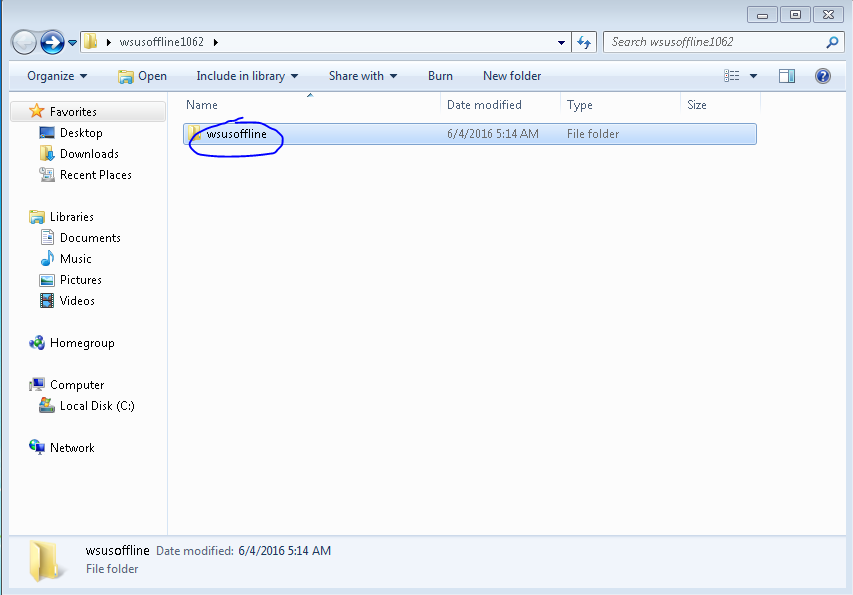
  • Open the new folder that appears on your Desktop.
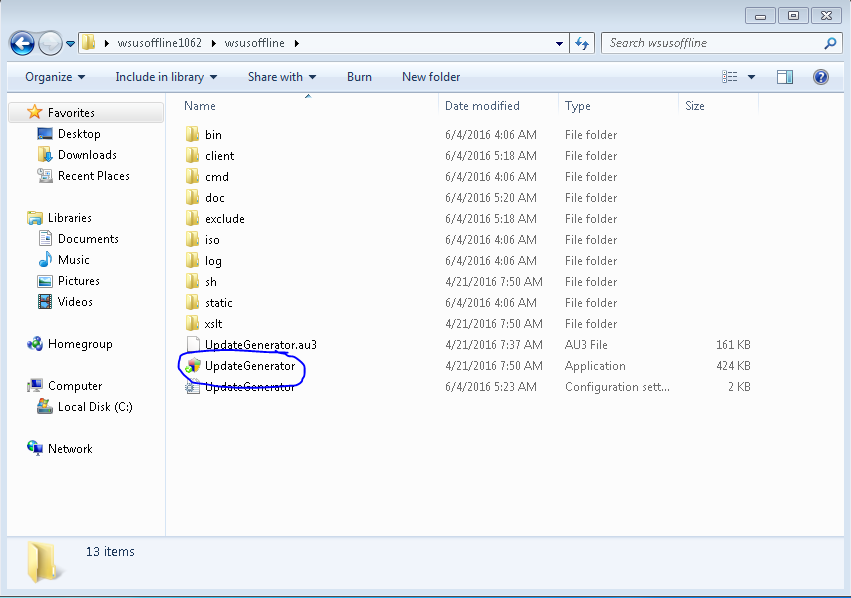
  • Navigate to the following images below.
  • Navigate to...
    MlYebty.png
  • Navigate to...
    sx6B56U.png
  • Checkmark these boxes and click "Start"...
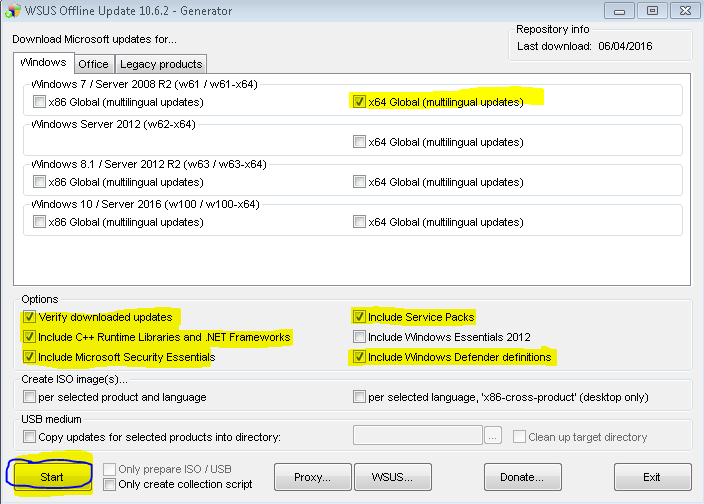
    8hSAMcC.png
  • This cmd will download all Windows Updates from Microsoft's Database. Please do not exit out of the cmd, it will take a while to complete.
    y6K1WI5.png
  • After the downloading is done. Close the program and navigate to the following images.
  • Navigate to...
    tLoTbfc.png
  • Navigate to...
    OsVD1N8.png
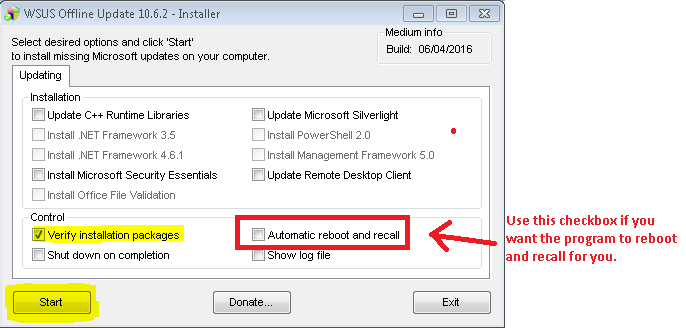
  • Checkmark the following boxes and click "Start". Checkmark the other boxes once you have SP1 installed.
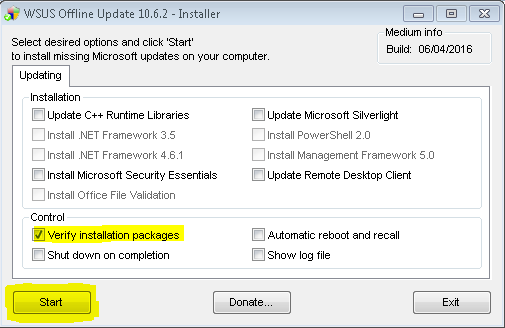
    gRV6tml.png

    -OR-
    DlOR6NR.png
  • This cmd will install all downloaded updates. You might have to run this installer more than once due to the fact that SP1 has to be installed first. Then Microsoft Security Updates.
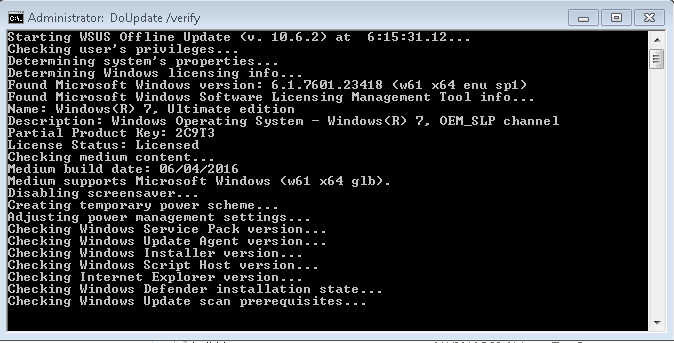
    hdNaI0S.png

  • You will have to restart every time the installer completes a certain section of updates.
  • Once most updates are installed, your Windows Updater should be working again. Around 100+ installed.

Thanks for this extensive list of fixes. I am trying the 3rd one now. Fingers crossed
 

My Computer

Computer type
PC/Desktop
OS
Microsoft Windows 7 Ultimate 64-bit 7601 Multiprocessor Free Service Pack 1
CPU
Intel(R) Core(TM) i5-2400 CPU @ 3.10GHz
Motherboard
ASRock P67 Pro
Memory
8.00 GB
Graphics Card(s)
AMD Radeon HD 5670
Sound Card
(1) ASUS Xonar DX Audio Device (2) AMD High Definition Aud
Screen Resolution
1920 x 1080 x 32 bits (4294967296 colors) @ 60 Hz
Hard Drives
(1) Crucial_CT500MX200SSD1 ATA Device (2) WDC WD10EZEX-08WN4A0 ATA Device (3) WDC WD20EARS-60MVWB0 ATA Device (4) Seagate Backup+ Desk USB Device
unfort did not work for me. Lots of errors etc and didn't seem to install much
 

My Computer

Computer type
PC/Desktop
OS
Microsoft Windows 7 Ultimate 64-bit 7601 Multiprocessor Free Service Pack 1
CPU
Intel(R) Core(TM) i5-2400 CPU @ 3.10GHz
Motherboard
ASRock P67 Pro
Memory
8.00 GB
Graphics Card(s)
AMD Radeon HD 5670
Sound Card
(1) ASUS Xonar DX Audio Device (2) AMD High Definition Aud
Screen Resolution
1920 x 1080 x 32 bits (4294967296 colors) @ 60 Hz
Hard Drives
(1) Crucial_CT500MX200SSD1 ATA Device (2) WDC WD10EZEX-08WN4A0 ATA Device (3) WDC WD20EARS-60MVWB0 ATA Device (4) Seagate Backup+ Desk USB Device
time consuming mess

hey djpete, instead of wasting hours doing this list, follow my guide in this same thread...
Windows 7 Update Problems
I know this is an old post but this will fix all you update issues:
Here is a 100% guaranteed solution to the updating blues for Windows 7
You should first download these 6 files:
1. 64 Bit- Microsoft Download Center: Windows, Office, Xbox More
32 Bit- Microsoft Download Center: Windows, Office, Xbox More 2. 64 Bit- http://download.windowsupdate.com/d/...1264cd93b9.msu
32 Bit- http://download.windowsupdate.com/d/...b0a74b2cbd.msu 3. 64 Bit- Microsoft Download Center: Windows, Office, Xbox More
32 Bit- Microsoft Download Center: Windows, Office, Xbox More 4. 64 Bit- Microsoft Download Center: Windows, Office, Xbox More
32 Bit- Microsoft Download Center: Windows, Office, Xbox More 5. 64 Bit- Microsoft Download Center: Windows, Office, Xbox More
32 Bit- Microsoft Download Center: Windows, Office, Xbox More 6. 64 Bit- Microsoft Download Center: Windows, Office, Xbox More
32 Bit- Microsoft Download Center: Windows, Office, Xbox More Ok Now that you’ve downloaded everything, here is the precise process. Please don’t skip any steps or it may or may not work properly for you. I’ve included the 32 bit links even though most people have problems with the 64 Bit.
1. Click Start, type in CMD, right click the search result “command Prompt” and left click on run as administrator, click yes
2. In the “elevated” command box, type in NET STOP WUAUSERV and press enter, after service is stopped, install the first on you downloaded earlier (KB3020369)
3. Click close after in finishes
4. Click back into the command box and again type NET STOP WUAUSERV and press enter, after service is stopped, install the second one you downloaded (KB3125574)
5. Restart the computer at the end when it asks you to do so.
6. Click Start, type in CMD, right click the search result “command Prompt” and left click on run as administrator, click yes
7. In the “elevated” command box, type in NET STOP WUAUSERV and press enter, after service is stopped, install the third download (KB3102810)
8. Click close after in finishes
9. Click back into the command box and again type NET STOP WUAUSERV and press enter, after service is stopped, install the fourth download (KB3112343)
10. Click close after in finishes
11. Click back into the command box and again type NET STOP WUAUSERV and press enter, after service is stopped, install the fifth download (KB3172605)
12. Restart the computer at the end when it asks you to do so.
13. Click Start, type in CMD, right click the search result “command Prompt” and left click on run as administrator, click yes
14. In the “elevated” command box, type in NET STOP WUAUSERV and press enter, after service is stopped, install the final downloaded file (KB3161664)
15. Your updates will now work! You’re Welcome
 

My Computer

Computer type
PC/Desktop
Computer Manufacturer/Model Number
custom
OS
Windows 7 home premium 64 bit
sorry but those links are not working for me
 

My Computer

Computer type
PC/Desktop
OS
Microsoft Windows 7 Ultimate 64-bit 7601 Multiprocessor Free Service Pack 1
CPU
Intel(R) Core(TM) i5-2400 CPU @ 3.10GHz
Motherboard
ASRock P67 Pro
Memory
8.00 GB
Graphics Card(s)
AMD Radeon HD 5670
Sound Card
(1) ASUS Xonar DX Audio Device (2) AMD High Definition Aud
Screen Resolution
1920 x 1080 x 32 bits (4294967296 colors) @ 60 Hz
Hard Drives
(1) Crucial_CT500MX200SSD1 ATA Device (2) WDC WD10EZEX-08WN4A0 ATA Device (3) WDC WD20EARS-60MVWB0 ATA Device (4) Seagate Backup+ Desk USB Device
windows update

He djpete, It may be better if you are still having problems to post a new thread under Windows Updates.

Whenever I have had problems I have gone by Thrashzone's instructions, with just the 2 updates to get it

going again. KB3020369 and KB3172605. :D
 

My Computer

Computer type
PC/Desktop
Computer Manufacturer/Model Number
ASUS A85XM-A custom build
OS
Windows 10 Pro 64 bit
CPU
AMD A4-5300 APU with Radeon(tm) HD Graphics
Motherboard
ASUSTeK COMPUTER INC. A85XM-A
Memory
8.00 GB
Graphics Card(s)
AMD Radeon HD 7480D
Sound Card
(1) High Definition Audio Device (2) Realtek High Definiti
Monitor(s) Displays
HP W2072a 20 inch Led Backlit Monitor
Screen Resolution
1600 x 900 x 32 bits (4294967296 colors) @ 60 Hz
Hard Drives
TOSHIBA DT01ACA100 SATA Disk Device
Keyboard
Acer
Mouse
Acer
Internet Speed
varies
Antivirus
Windows Defender Antivirus
Browser
Waterfox, Edge
the prob i am having to be clear is updating an already installed win 7 os. Putting disc in with win running and choosing update. I am doing this to solve some issues I have but it hangs at gathering files and settings...
Hope that makes it clear.
 

My Computer

Computer type
PC/Desktop
OS
Microsoft Windows 7 Ultimate 64-bit 7601 Multiprocessor Free Service Pack 1
CPU
Intel(R) Core(TM) i5-2400 CPU @ 3.10GHz
Motherboard
ASRock P67 Pro
Memory
8.00 GB
Graphics Card(s)
AMD Radeon HD 5670
Sound Card
(1) ASUS Xonar DX Audio Device (2) AMD High Definition Aud
Screen Resolution
1920 x 1080 x 32 bits (4294967296 colors) @ 60 Hz
Hard Drives
(1) Crucial_CT500MX200SSD1 ATA Device (2) WDC WD10EZEX-08WN4A0 ATA Device (3) WDC WD20EARS-60MVWB0 ATA Device (4) Seagate Backup+ Desk USB Device
Hi djpete.

First off you do not need it use a Windows 7 disc to get Windows 7 Updates.

It appears like you are installing the Windows 7 disc and trying to Upgrade/Clean Install.

Once you have installed Windows 7 all you need to do is type in Windows Update in the Start Menu Search and tick on it and the Windows Update program will open.

I also recommend starting your own thread to get help solving your particular problem.

Jack
 

My Computer

Computer type
PC/Desktop
Computer Manufacturer/Model Number
Home made Desktop
OS
Windows 10 Pro. 64/ version 1709 Windows 7 Pro/64
CPU
Intel i7-6800K @ 4.3
Motherboard
ASUS X-99 Deluxe II
Memory
Corsair Platinum 16 gig @2400
Graphics Card(s)
EVGA GTX 1070 OC
Monitor(s) Displays
Asus 27" LED LCD/VE278Q
Screen Resolution
1920-1080 or 1280-720 HDMI
Hard Drives
INTEL SSD 730-240 Gb Sata 3.0/
PSU
EVGA Platium 1200W
Case
Phanteks Luxe Tempered Glass 8 fans/ one radiator
Cooling
XSPC/ Water Cooled CPU
Keyboard
Das 4 Professional
Mouse
Logitech M705/MX Anywhere 2-S
Internet Speed
100 mbits
Antivirus
Microsoft Security Essentials/ Malwarebytes Premium 3.0/ SAS
Browser
I.E. 11 default/Firefox/ ISP Time Warner Cable/Spectrum
Other Info
LG BluRay Burner/
Sound system-KLipsch-THX/
Icy Dock ssd Hot Swap bays.
yes exactly. It seems that will only take me to update area of windows. But I would like to reinstall windows 7 over the top therefore use the disc way.
Is that right?

Main reason is that I read it solved the chrome won't update issue that I have been unable to solve for almost 6 months now.
 

My Computer

Computer type
PC/Desktop
OS
Microsoft Windows 7 Ultimate 64-bit 7601 Multiprocessor Free Service Pack 1
CPU
Intel(R) Core(TM) i5-2400 CPU @ 3.10GHz
Motherboard
ASRock P67 Pro
Memory
8.00 GB
Graphics Card(s)
AMD Radeon HD 5670
Sound Card
(1) ASUS Xonar DX Audio Device (2) AMD High Definition Aud
Screen Resolution
1920 x 1080 x 32 bits (4294967296 colors) @ 60 Hz
Hard Drives
(1) Crucial_CT500MX200SSD1 ATA Device (2) WDC WD10EZEX-08WN4A0 ATA Device (3) WDC WD20EARS-60MVWB0 ATA Device (4) Seagate Backup+ Desk USB Device
When you say you would like to install Windows 7 over the top, what do you mean. If you already have Windows 7 installed you can do a Repair Install when Windows is running.

If you wish to reinstall Windows you will need an installation DVD & this is done from the actual start up of the computer. If you do a reinstall you will lose all you existing software programs & they will have to be reinstalled. Also unless you have a backed up all your files you lose those as well.

As far as Chrome is concerned the best thing do is to uninstall your existing Chrome browser & download & install the latest fresh version. To do that, remember to download a new version of Chrome first into your Download Folder or to the Desktop & then uninstall your old version & then install the new one. All your saved settings & bookmarks should be retained & transferred to the new installation. Just make sure your download the correct version. If you are running Windows 7 32 bit, you need the 32 bit version of Chrome, or the 64 bit version of Chrome if you are running the 64 bit version of Windows 7.
 

My Computer

Computer type
PC/Desktop
Computer Manufacturer/Model Number
Self built using existing case
OS
Windows 7 Home Premium 64 bit sp1
CPU
Intel i5 3570 3.4Ghz Ivy Bridge SKT 1155 quad core
Motherboard
Gigabyte Z77-HD3 SKT 1155 2xSata 3, 4x USB 3.0
Memory
G-Skill Rip Jaws 16Gb (8x2) DDR3 -1600 PC3 12800 CL 10 red
Graphics Card(s)
Gigabyte NVIDIA GT610 1Gb DDR3 810/1200 PCI-E 2.0 Silent
Sound Card
NVIDIA High Definition & Realtech High Definition Audio
Monitor(s) Displays
2 x Philips 226V4L 16:9 aspect ratio
Screen Resolution
1920 x 1080 HD
Hard Drives
Samsung 840 Pro 256gb SSD, SATA 3.
Hitachi Touro Portable 1tb, USB 3.0 HDD used for image b/ups.
PSU
Corsair VS450
Case
Codeng
Cooling
PSU fan & CPU fan
Keyboard
Logitech
Mouse
Logitech Wireless trackball M570
Internet Speed
Wireless 3G. 3mg down & 550kb up.
Antivirus
Bitdefender Internet Security 2020
Browser
Opera (Current Version) & Firefox
Other Info
MS Office 2013 Pro. Davis weather station software. MGE Nova 600 avr UPS.

My Computer

Computer type
PC/Desktop
Computer Manufacturer/Model Number
Home made Desktop
OS
Windows 10 Pro. 64/ version 1709 Windows 7 Pro/64
CPU
Intel i7-6800K @ 4.3
Motherboard
ASUS X-99 Deluxe II
Memory
Corsair Platinum 16 gig @2400
Graphics Card(s)
EVGA GTX 1070 OC
Monitor(s) Displays
Asus 27" LED LCD/VE278Q
Screen Resolution
1920-1080 or 1280-720 HDMI
Hard Drives
INTEL SSD 730-240 Gb Sata 3.0/
PSU
EVGA Platium 1200W
Case
Phanteks Luxe Tempered Glass 8 fans/ one radiator
Cooling
XSPC/ Water Cooled CPU
Keyboard
Das 4 Professional
Mouse
Logitech M705/MX Anywhere 2-S
Internet Speed
100 mbits
Antivirus
Microsoft Security Essentials/ Malwarebytes Premium 3.0/ SAS
Browser
I.E. 11 default/Firefox/ ISP Time Warner Cable/Spectrum
Other Info
LG BluRay Burner/
Sound system-KLipsch-THX/
Icy Dock ssd Hot Swap bays.
well here is my main issue and I have tried everything from reinstall to revo uninstall etc even used Tweaking.com - Windows Repair Free/Pro. Tried to repair reg admins etc etc. All to no avail. I read in another forum that using to uppgrade from install disc overwrites the files and fixed their chrome update prob. That is the main reason.

Anyway here is the thread just about chrome from me here
chrome wont update Solved - Windows 7 Help Forums
I have had no more help on it so was getting desperate
 

My Computer

Computer type
PC/Desktop
OS
Microsoft Windows 7 Ultimate 64-bit 7601 Multiprocessor Free Service Pack 1
CPU
Intel(R) Core(TM) i5-2400 CPU @ 3.10GHz
Motherboard
ASRock P67 Pro
Memory
8.00 GB
Graphics Card(s)
AMD Radeon HD 5670
Sound Card
(1) ASUS Xonar DX Audio Device (2) AMD High Definition Aud
Screen Resolution
1920 x 1080 x 32 bits (4294967296 colors) @ 60 Hz
Hard Drives
(1) Crucial_CT500MX200SSD1 ATA Device (2) WDC WD10EZEX-08WN4A0 ATA Device (3) WDC WD20EARS-60MVWB0 ATA Device (4) Seagate Backup+ Desk USB Device

My Computer

Computer type
PC/Desktop
Computer Manufacturer/Model Number
Home made Desktop
OS
Windows 10 Pro. 64/ version 1709 Windows 7 Pro/64
CPU
Intel i7-6800K @ 4.3
Motherboard
ASUS X-99 Deluxe II
Memory
Corsair Platinum 16 gig @2400
Graphics Card(s)
EVGA GTX 1070 OC
Monitor(s) Displays
Asus 27" LED LCD/VE278Q
Screen Resolution
1920-1080 or 1280-720 HDMI
Hard Drives
INTEL SSD 730-240 Gb Sata 3.0/
PSU
EVGA Platium 1200W
Case
Phanteks Luxe Tempered Glass 8 fans/ one radiator
Cooling
XSPC/ Water Cooled CPU
Keyboard
Das 4 Professional
Mouse
Logitech M705/MX Anywhere 2-S
Internet Speed
100 mbits
Antivirus
Microsoft Security Essentials/ Malwarebytes Premium 3.0/ SAS
Browser
I.E. 11 default/Firefox/ ISP Time Warner Cable/Spectrum
Other Info
LG BluRay Burner/
Sound system-KLipsch-THX/
Icy Dock ssd Hot Swap bays.
Back
Top