Windows 7

win764

New member
Local time
7:32 AM
Messages
4
I have two hard drives in this PC. One of them just did something crazy.

This is what I did and this is what happened.

1) Erased whole hard drive from first sector to last. Complete format (Even the bootmgr)

2) Put in the windows 7 64 bit installation DVD. The installation showed two hard drives. HD1 and HD2. All space was unallocated on both of them, so I clicked "New" and created 1 new partition on HD1. I left HD2 alone and did not allocate any space or partition anything. I then installed Windows.

3) Booted into windows and opened up an encryption program that only works if Windows is booting from the drive it's installed in. I received an error saying that Windows IS NOT booting from the same drive it was installed on.

4) I restarted and clicked escape to view the boot menu. I tried booting from the hard drive that windows is installed on AND IT GAVE ME A DISK FAILURE ERROR. I then rebooted and tried to boot from the hard drive that windows IS NOT installed on AND IT BOOTED!!!!!!!!!!! WTF! I JUST WIPED THAT DRIVE!


There is only C:\ on my PC. Windows is installed on HD1 BUT IT'S BOOTING FROM HD2! I didn't even partition anything on HD2 and I JUST WIPED OUT THE WHOLE DRIVE.

I guess what I'm really needing to know is how to find out exactly where windows 7 is booting from so I can figure out why it's booting from HD2 and installed on HD1...and how in the heck did Windows 7 manage to put it's boot loader on a completely different hard drive when I didn't even partition andjust now erased.
 

My Computer

OS
Windows 7
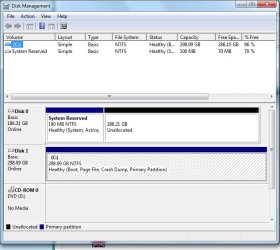
Here is the screen shot. As you can see there is a system reserve that windows 7 created on Disk 0, but windows is installed on Disk 1.

As long as it's doing that then I can't do what I'm trying to do which is to use an encryption program that requires windows boots from the same disk it's installed on.

Is there anyway to make Windows stop putting the boot files on Disk 0? I need windows to boot from the same disk it's installed on.
 

Attachments

  • screen.jpg
    screen.jpg
    58.1 KB · Views: 21

My Computer

OS
Windows 7
What you call HD1 is Disk0
What you call HD2 is Disk1

You have install to windows to Disk 1.
Looks like your wiped Partition 2 on Disk 0.
 

My Computer

OS
ME/XP/Vista/Win7
Windows is installed on Disk 1 (298Gb). Are you saying if I install Windows on Disk 0 then it will put all the files on Disk 0? What if I install Windows on Disk 0 and it puts the files on Disk 1?
 

My Computer

OS
Windows 7
As you did not format Partition 2 of Disk 0, Windows installed to Disk 1.
 

My Computer

OS
ME/XP/Vista/Win7
No I purposely wanted to install to Disk 1 because it's larger. I formatted both hard drives before installing.

But I didn't want anything on Disk 0. Windows is booting from Disk 0 but it is installed on Disk 1.

I know it is because it won't let me boot from Disk 1, it will only let me boot from Disk 0. I tried both.

I want windows installed on Disk 1...is there anyway to get it to install all files to disk 1 so that it stops booting from disk 0 ?
 

My Computer

OS
Windows 7
Maybe I'm missing something, but why not temporarily disconnect the drive you don't want Windows on and proceed with the installation from there?
 

My Computer

Computer Manufacturer/Model Number
Self
OS
Main - Windows 7 Pro SP1 64-Bit; 2nd - Windows Server 2008 R2
CPU
Main - Core i7 2600K; 2nd - Core i7 920
Motherboard
Main - Asus P8Z68-V Pro/Gen3; 2nd - Gigabyte GA-EX58-UDR3
Memory
Main - 16GB Corsair Vengeance; 2nd - 12GB Corsair Vengeance
Graphics Card(s)
Main - XFX Radeon 6870 1GB; 2nd - XFX Radeon 4870 1GB
Sound Card
Both: Onboard Realtek Azalia
Monitor(s) Displays
Main - Hann 25" + I-INC 25" + Acer 23"; 2nd - Upgrading Soon
Screen Resolution
Main - 1920x1080 (All Three Monitors); 2nd - Upgrading Soon
Hard Drives
Main - (1) Crucial M4 128GB (Boot)
Main - (1) Seagate 2TB 64MB Cache (Data)
Main - (1) Seagate 2TB 64MB Cache (Data Backup)
2nd - (1) Intel X25-M SSD 80GB (Boot)
2nd - (3) Seagate 1TB 32MB Cache (Data Backup)
2nd - (1) Seagate 320GB (Because)
PSU
Main - OCZ 600W Modular; 2nd - OCZ 600W
Case
Main - Thermaltake Element G; 2nd - NZXT something or other
Cooling
Main - Corsair H80; 2nd - Prolimatech Megahalems
Keyboard
Main - Razer Reclusa; 2nd - Old MS Keyboard
Mouse
Main - Logitech MX Revolution; 2nd - Old MS Mouse
Internet Speed
20Mbps Time-Warner Cable
Windows will always boot from Disk 0.
If you want windows to boot from your 298gb HD, you need to make it Disk 0 by changing the cable round.
 

My Computer

OS
ME/XP/Vista/Win7
In order to do what you are trying to do, you need to disconnect HD0 and re-install Win7. Are both of these disks SATA or IDE? Is one SATA and one IDE? After you complete in the install, you will probably need to go into your BIOS and make sure the boot order is set to start with Disk HD1. The install will always place the system reserved partition on the disk that is processed first, even if that disk doesn't contain the OS files.
 

My Computer

Computer Manufacturer/Model Number
MPC Transport T2500 Laptop
OS
Windows 7 x64 (RTM via MSDN)
CPU
Intel Core 2 Duo T9300 (2.5 GHz)
Motherboard
MPC
Memory
4 GB SODIMMS (System Max)
Graphics Card(s)
nVidia 8600M GS 256MB
Sound Card
Realtek On-Board
Monitor(s) Displays
15.4" LCD with a Dell 2005FPW 20" attached
Screen Resolution
1680x1050 (15.4") and 1680x1050 (20")
Hard Drives
Toshiba 2.5" 320 GB 7200 RPM
This is why all other HD's should be unplugged during install. You apparently didn't notice that it had set up 100mb Sys Reserved partition on first HD and selected second one for install.

Do you actually need the 100mb System Reserved partition? It places the Repair console on F8 Advanced Boot Tools menu and is used for Bitlocker encryption. It is also useful if you plan to have a Dual Boot.

If you need the 100mb then reinstall with only one HD plugged in and format using installer.

If not, then unplug DISK0, swap its cable to DISK1 or set DISK1 as first HD to boot (after DVD drive) then mark WIn7 active using Diskpart from installer Command Line, next select Repair to click through to Recovery Tools list to run Startup Repair up to 3 separate times with reboots to write the System MBR to Win7.

You can then plug the other HD back in to delete 100mb and reformat.
 
Right on profdlp

Always install Windows with only one drive connected. It will always turn out to
be primary and C:. And, never have those nasty USB multiple slots connected
when you are installing. Once installed, reconnect all the other stuff.
 

My Computer

Computer Manufacturer/Model Number
Custom Build
OS
Win7 Pro 64bit
CPU
AMD Athlon II x4
Motherboard
Gigabyte 790 chipset
Memory
8 gigs DDR 3 GSkill
Graphics Card(s)
ATI 5770 1 gig
Sound Card
Built in
Monitor(s) Displays
AOC V22+
Hard Drives
WD 640 SATA 6
WD 750 SATA 3
PSU
Corsair 650
Case
Antec III
Cooling
Stock
Back
Top