Windows Boot Manager won't boot the correct drive

TheAntColony

New member
Local time
11:32 PM
Messages
6
Hi,

I installed Windows 7 in UEFI mode to an SDD and I figured it would be easy to take my old drive which also had Windows 7 installed, hook it up to a SATA port, and copy over the files that I wanted.

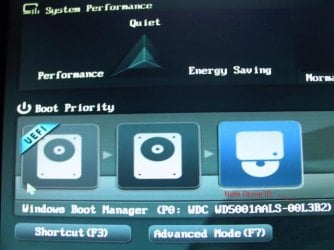
In my BIOS interface I can select the SSD drive to boot from, or "Windows Boot Manager". Only selecting the later boots allows me to boot from the SSD, and only if the old drive is not hooked up. When I hook up my old drive (which had Windows 7 installed WITHOUT UEFI), selecting "Windows Boot Manager" will cause my system to try (and fail) to boot from my old drive.

Does anyone know how to fix this problem? Why is Windows Boot Manager choosing to try and boot from my old drive? Windows Boot Manager I believe resides on the SSD since that was the only drive connected during my new Windows 7 install, so why the heck wouldn't it default to booting the Windows 7 installation on that drive?! I've tried moving the old drive to different SATA ports and to a secondary SATA controller but it makes no difference, Windows Boot Manager always insists on trying to boot from it.

If I hadn't used UEFI I could have just told the bios what drive to boot from. But thanks to this new and "improved" standard I can't exercise this simplest of controls. Any ideas?

My mobo is a Gigabyte G1.Assassin 2 btw.

Thanks in advance
 

My Computer

OS
Windows 7 Professional 64 bit

My Computer

Computer Manufacturer/Model Number
Insane hobo technologies. ;-)
OS
Windows 7 x64
CPU
Intel i7 2600k
Motherboard
Asrock z68 extreme 4 gen 3
Memory
G.skill Ripjaw 16gigs @ 1866
Graphics Card(s)
Nvidia gtx580 (evga)
Sound Card
Integrated HD audio + hdmi
Monitor(s) Displays
24" ASUS widescreen + 42" insignia
Screen Resolution
1080p (1920x1080)
Hard Drives
128 Samsung 830
256 Samsung 840
3 x 1tb storage drive (various)
1 western digital 1tb (eSATA)
1 Seagate 1tb (eSATA)
PSU
1 kilowatt SLI/Crossfire rated Silverstone modular
Case
NZXT Phantom + additional 220 fan
Cooling
Zalmann
Keyboard
Microsoft wireless 3000 (v2)
Mouse
MS - wireless 5000 (bluetrack)
Internet Speed
depends on if you ask me or my provider.
Other Info
The above information is provided as is, and the author assumes no responsibility for issues it may cause with your sanity or fanboyism.
Using the Windows Boot Manager should boot to the SSD. Are you saving that option when you select it in the bios?

Look in the bios to see if it gives priority to the Legacy System. Changing around boot devices might reset the boot priority. Use the Boot device key (maybe F8 or F12) to make sure it is booting to the Windows Boot Manager.

Could you use the snipping tool to take a picture of your Disk Management Window and attach using the paperclip.
 

My Computer

Computer Manufacturer/Model Number
Homebuilt
OS
Windows 7 x64
CPU
i7-2600K
Motherboard
Asus P8Z77-v Pro
Memory
8 G
Graphics Card(s)
GTX 480
Sound Card
Onboard
Monitor(s) Displays
LG W2753V
Screen Resolution
1920x1080
Hard Drives
Crucial M4 128 G SSD
Please post back a screenshot of your maximized Disk Management drive map and listings:

1. Type Disk Management in Start Search box.
2. Open Disk Mgmt. window and maximize it.
3. Type Snipping Tool in Start Search box.
4. Open Snipping Tool, choose Rectangular Snip, draw a box around full map and all listings.
5, Save Snip, attach using paper clip in Reply Box.

Tell us what is on each partition.

You might be able to foil Boot Manager from seeing the old HD by marking it's Win7 Inactive from the booted Win7 installer first: Partition - Mark as Inactive - Windows 7 Forums

If not I'd move the User folders off the old HD to wipe it using Diskpart Clean Command
then move the User folders back on, boot into SSD to add the HD User folders to the related Library - Include a Folder - Windows 7 Forums
 
I'm 100% sure that the bios is booting to the Windows Boot Manager on the SSD since I tried adding extra entries and changing the names of them when I'm in windows with only the SSD hooked up, and later when I hook up the other drive I see these options. The phenomenally stupid win7 UEFI boot technology is trying to boot my old non-UEFI drive even from the boot manager which resides on the drive I actually want to boot from (the SSD).

My question is: how does Windows Boot Manager decide what drive/partition to boot win7 on? In the entry for Windows 7 which I can see with EasyBCD (although that program won't work properly with UEFI in general) it only lists a letter path to some .efi file. Surely this is madness, since there cannot be any drive letter assignments until after windows has started...

It turns out my problem is similar to this guys:
Tricky boot manager issue.

he had to give up in disgust and was never able to boot his SSD with the old drive connected in its original state. He transferred his files with neither drive booted and then reformatted the old drive. I may also consider turning the old drive into a removable drive with an enclosure. I feel like I shouldn't need to do this...


Using the Windows Boot Manager should boot to the SSD. Are you saving that option when you select it in the bios?

Look in the bios to see if it gives priority to the Legacy System. Changing around boot devices might reset the boot priority. Use the Boot device key (maybe F8 or F12) to make sure it is booting to the Windows Boot Manager.

Could you use the snipping tool to take a picture of your Disk Management Window and attach using the paperclip.
 

My Computer

OS
Windows 7 Professional 64 bit
In the thread you mention, there were some glitches on his system.. Still, a picture of your Disk Management window might help.

I have not seen a system boot into a MBR install when a EFI boot was requested. Does your Windows Boot Manger have a drive identifier attached?

For the next few hours, I will be testing what appears to be your situation. Although I have dual booted EFI installs of Windows 7 and Linux, and EFI of Windows and MBR of linux, I have not yet had a problem...but who knows what might be lurking...!

Edit: Just in case, I also do not use any Rapid Start software the will use an SSD to start a up a Normal Hard drive system.
 

My Computer

Computer Manufacturer/Model Number
Homebuilt
OS
Windows 7 x64
CPU
i7-2600K
Motherboard
Asus P8Z77-v Pro
Memory
8 G
Graphics Card(s)
GTX 480
Sound Card
Onboard
Monitor(s) Displays
LG W2753V
Screen Resolution
1920x1080
Hard Drives
Crucial M4 128 G SSD
Looking forward to the results of Saltgrass' tests.

Why did you install to SSD in UEFI mode? I would install in Legacy mode to an MBR disk unless there is a direct benefit to using GPT mode.
 
Please post back a screenshot of your maximized Disk Management drive map and listings:

1. Type Disk Management in Start Search box.
2. Open Disk Mgmt. window and maximize it.
3. Type Snipping Tool in Start Search box.
4. Open Snipping Tool, choose Rectangular Snip, draw a box around full map and all listings.
5, Save Snip, attach using paper clip in Reply Box.

Tell us what is on each partition.

You might be able to foil Boot Manager from seeing the old HD by marking it's Win7 Inactive from the booted Win7 installer first: Partition - Mark as Inactive - Windows 7 Forums

If not I'd move the User folders off the old HD to wipe it using Diskpart Clean Command
then move the User folders back on, boot into SSD to add the HD User folders to the related Library - Include a Folder - Windows 7 Forums


Marking the old drive as inactive didn't work unfortunately. Windows Boot Manager in all of its wisdom still tries to boot from it (I bet it thinks its a UEFI installation, so the "active marker" makes no difference). And I have files spread all over the old drive that I want to copy, and I'm not even sure what they all are right now and I don't want to have to move them all in one go with no second chances, so I won't be copying and then formatting as per your second suggestion. It looks like I'm going to have to buy a drive enclosure for my old drive just so I can copy stuff over. Gotta love new untested technologies brought to market like UEFI support in Windows... :rolleyes:
 

My Computer

OS
Windows 7 Professional 64 bit
Looking forward to the results of Saltgrass' tests.

Why did you install to SSD in UEFI mode? I would install in Legacy mode to an MBR disk unless there is a direct benefit to using GPT mode.


Well, I had no idea what the distinction was at the time. And it's extremely non-intuitive that the mode used to boot the installation DVD would influence the mode used to install windows 7 to the SSD. To be sure, this is how I can force the install to use legacy mode, by making sure the DVD boots into that mode too?

I could just reinstall windows 7 onto the SSD in legacy mode. I may do a re-installation either way. Supposedly UEFI has benefits though, right?
 

My Computer

OS
Windows 7 Professional 64 bit
Supposedly UEFI has benefits though, right?


Although it's not 3 decades old like BIOS is, it's not really all that new. They've been working on it since the late 90s; it just hasn't really made it into the wild quite yet. It was almost two years ago when I first noticed that a few OEMs had EFI in big box stores.

In addition to supposedly quicker boot times and greater boot media security, this from Wikipedia:
  • Ability to boot from large disks (over 2 TB) with a GUID Partition Table, GPT.
  • CPU-independent architecture
  • CPU-independent drivers
  • Flexible pre-OS environment, including network capability
  • Modular design
A few links to peruse:

https://en.wikipedia.org/wiki/Extensible_Firmware_Interface

Say Goodbye To Your BIOS: Hello, UEFI! : On the Verge Of UEFI

UEFI - About UEFI

HTG Explains: Learn How UEFI Will Replace Your PC’s BIOS - How-To Geek

Demystifying UEFI, the long-overdue BIOS replacement | ExtremeTech
 

My Computer

OS
Windows 7 Ultimate x64
As I thought, no problems mixing UEFI and MRB installs. Something on your install may have a problem. Not sure if it might the bios itself, or the actual install.

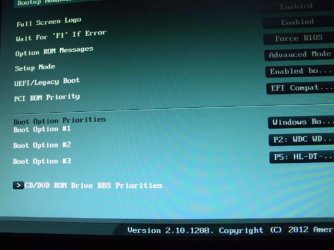
You can check my bios Boot options. Since it will default to the MBR install if the UEFI one is not available, possibly yours is doing that.

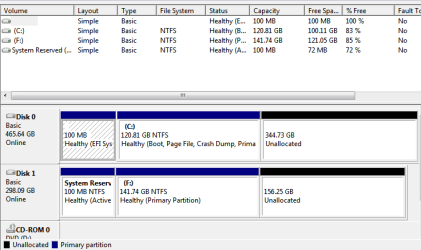
Still would like to see a picture of your Disk Management window. But at least, you can compare yours to mine.
 

Attachments

  • EFI Bios 1.JPG
    EFI Bios 1.JPG
    41.4 KB · Views: 14
  • EFI Bios 3.JPG
    EFI Bios 3.JPG
    38.3 KB · Views: 21
  • EFIandMBR.PNG
    EFIandMBR.PNG
    11.3 KB · Views: 26

My Computer

Computer Manufacturer/Model Number
Homebuilt
OS
Windows 7 x64
CPU
i7-2600K
Motherboard
Asus P8Z77-v Pro
Memory
8 G
Graphics Card(s)
GTX 480
Sound Card
Onboard
Monitor(s) Displays
LG W2753V
Screen Resolution
1920x1080
Hard Drives
Crucial M4 128 G SSD
I notice Disk1 which appears to be MBR disk has no System label. Does this mean it is being booted off of the EFI System partition? Or is it booted via BIOS Boot Menu key?
 
The EFI partition is the System partition and was booted to.

Had I booted MBR, of course, the other 100 mb partition would have been system.
 

My Computer

Computer Manufacturer/Model Number
Homebuilt
OS
Windows 7 x64
CPU
i7-2600K
Motherboard
Asus P8Z77-v Pro
Memory
8 G
Graphics Card(s)
GTX 480
Sound Card
Onboard
Monitor(s) Displays
LG W2753V
Screen Resolution
1920x1080
Hard Drives
Crucial M4 128 G SSD
So you can boot directly to the MBR disk in BIOS boot menu at boot?
 
Yep, all I do is select the drive you can see in the bios pictures.

These are two separate installs. If you had two separate MBR installs, would it not work the same way with a boot option for each install? Each install would have its own active partition that showed as System when booted into that install...
 

My Computer

Computer Manufacturer/Model Number
Homebuilt
OS
Windows 7 x64
CPU
i7-2600K
Motherboard
Asus P8Z77-v Pro
Memory
8 G
Graphics Card(s)
GTX 480
Sound Card
Onboard
Monitor(s) Displays
LG W2753V
Screen Resolution
1920x1080
Hard Drives
Crucial M4 128 G SSD
Actually two distinct MBR installs on separate HD's should have each have a System Active flag on the partition holding boot files. It's when they are both booting off one that it is the only one to hold the System flag. Yet sometimes they will both still boot independently via the BIOS Boot order and/or BIOS Boot menu key.

It isn't likely that an EFI System partition could also boot an MBR disk, is it? Just askin. :geek:

Saltgrass your return here is just in the nick of time.:party: We are facing retooling all of our install and repair procedures for EFI even in the midst of still handling more of these types of cases than all other forums on the web combined.
 
Back
Top