Windows can't go past start up repair? Endless loop

Obviously Power Management is not Storage. Look elsewhere

It may be Hard drive boot settings shown in the last picture in post 18. What happens if you highlight and press Enter. What does the explanatory text to the right say then?

Look on the HD for the brand. Look up the makers diagnostics we've linked repeatedly, download, burn to CD with Windows Image Burner. Boot disk to see if it detects HD.
 
Sorry :( Okay so I clicked the option like in post 18, the highlighted option doesn't give me any information, which do I click?
tumblr_nblgqnF1FP1rf0jg3o1_1280.jpg
 

My Computer My Computer

At a glance

Windows 7
Computer type
PC/Desktop
OS
Windows 7
You can try IDE mode to see if it will start because the settings somehow was changed, however AHCI is the optimal setting and should be kept for a reinstall if that is not the issue.

If there are no other places where storage or hard drive are listed or referenced in BIOS on all of its pages (tabs) and you can not get it to register anywhere in BIOS by securing or changing out the cable, then the problem is most likely a failed hard drive. But you can test this if you find the HD brand to run its bootable HD Diagnostic CD scan linked repeatedly before.

You can also boot the Win7 disk provided in Troubleshooting Windows 7 Failure to Start to browse in to see if you can see your files using the method to Copy & Paste - in Windows Recovery Console.

You can also boot free Partition Wizard from the same tutorial to see if the partition structure is intact, post back a picture of its drive map and listings so we can possibly spot the problem. The same PW disk can test the HD with a Partition Wizard Partition surface test
 
Ok, I did as you said and switched it to IDE mode but it was even worse then before (my computer wouldn't even boot from my system repair disc) so I switched it back and reset bios to default :( now, it's still looping back to start up repair...

I went to your second option to check for make and model of my hard drive but it says I need to acess Start menu to see,but I can't, plus I don't have another computer to burn the CD with :( is there another way to see what hard drive I have?

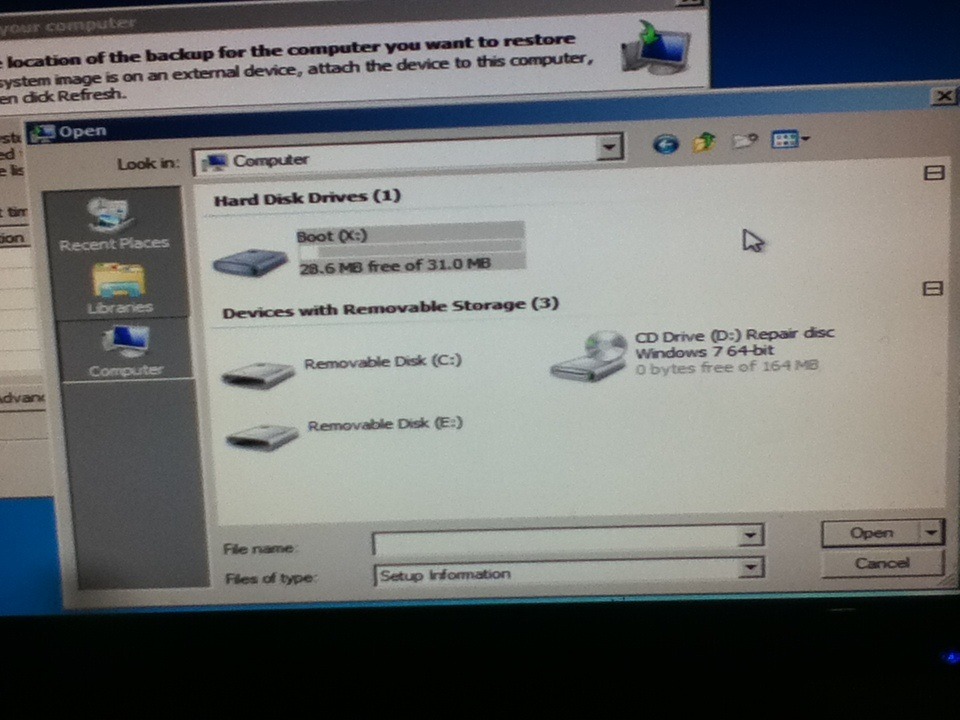
As for the copy n paste method thing, it says to Load drivers, where should load them from? My system recovery disc? Where do I copy files from? :( it only shows me the X drive
:( what should I copy and paste, please help

As for your last link, I can't access the web page via iPod because it says I need the latest version of Java script installed to view it but I can't do that DX

Okay, what's my Drive map?
Which window do I click so I can post the picture? :)
 

My Computer My Computer

At a glance

Windows 7
Computer type
PC/Desktop
OS
Windows 7
I said look on the Hard drive for its brand.

When is it prompting for drivers? If its when you boot the installer then it is burned wrong and needs to be done over. Are you using a fresh ISO and the Windows tool to burn to DVD or flash stick.

You would be booting in following the tutorial to see if files are visible and then copy them out.

You need another PC to make the media necessary, not an IPod
 
Uhh the repair disc CD I burned is an ISO I think I'm not really sure what it is :( I'm not using a cd, it doesn't prompt me to load drivers I clicked that option myself, a little window shows up (the one I posted with the X drive) I can also see Sys 32 folders, and my repair disc, I can't see anything else :(
 

My Computer My Computer

At a glance

Windows 7
Computer type
PC/Desktop
OS
Windows 7
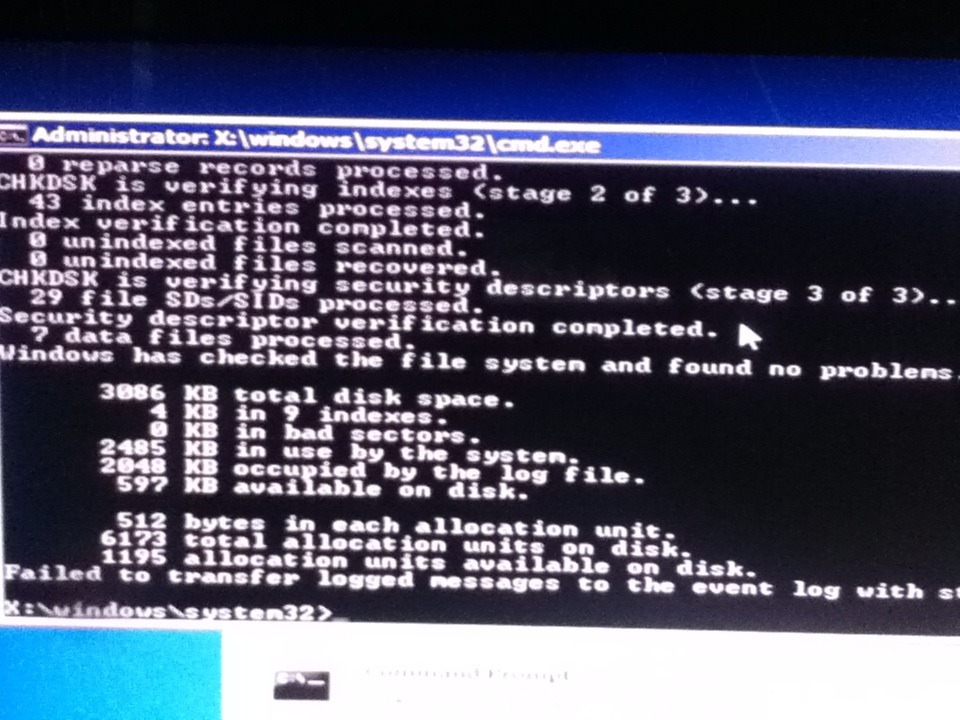
Also I typed chkdsk in command prompt
This is what it said about my HD, but my HD does not have 2,000kb it had 500gb...
tumblr_nblwzmtt2J1rf0jg3o1_1280.jpg
 

My Computer My Computer

At a glance

Windows 7
Computer type
PC/Desktop
OS
Windows 7
Which drive did you Disk Check? You had to specify a letter.

Type in Command prompt:

Diskpart
List disk

Report back what it finds verbatim.

Sel disk # (Replace # with each Disk number found, one at a time)
List partition

Report back each partition info

Sel part # (replace # with each partition number, one at a time)
Detail part

Report back every detail on each partition. If you take pictures do not leave out any sizes.
 
tumblr_nbm0ejw52I1rf0jg3o1_1280.jpg


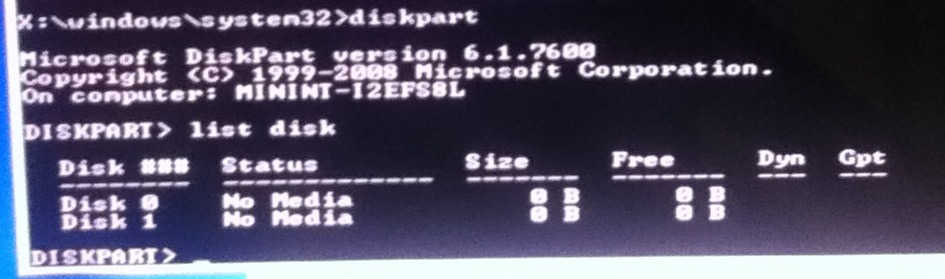
Okay this is the photo of Diskpart
And below it is List Disk

As for Sel disk, can you explain just a little bit more ? :( I did as told and typed "Sel disk
But then changed "#" to "1" it then said "Disk 1 is now the selected disk." Am I doing this right?
 

My Computer My Computer

At a glance

Windows 7
Computer type
PC/Desktop
OS
Windows 7
Oops I forgot to say, I didn't specify a letter when I typed chkdsk :( what disk do you think the computer scanned?
 

My Computer My Computer

At a glance

Windows 7
Computer type
PC/Desktop
OS
Windows 7
tumblr_nbm0ejw52I1rf0jg3o1_1280.jpg


Okay this is the photo of Diskpart
And below it is List Disk

As for Sel disk, can you explain just a little bit more ? :( I did as told and typed "Sel disk
But then changed "#" to "1" it then said "Disk 1 is now the selected disk." Am I doing this right?

Oops I forgot to say, I didn't specify a letter when I typed chkdsk :( what disk do you think the computer scanned?

You need a working HD Drive first. As disk 0.
 

My Computer My Computer

At a glance

ME/XP/Vista/Win7
OS
ME/XP/Vista/Win7
It shows two disks are plugged in but neither have any recognized disk space.

Continue with the steps I gave you to see if when Selecting Disk 0 and then 1 (Sel disk 0) it shows any partitions and then when they are selected it will Detail each partition.

If it says it is now the selected disk when you type Sel disk 1 then obviously you have selected it. Proceed! :huh:

If it won't show or detail partitions then I would run the manufacturer's diagnostics on it, determining the brand by looking on the drive. Are there two drives? Or just replace it.
 
Thanks, Ray. That would explain why there is "No Media" and no size.
 
*screams* ahh I'm just going to assume my Hard drive doesn't work anymore.... :( I don't know wh.. Anyway, Thank you everyone for your help/support, and for patience. I think I'm going run manufacture diagnosis, on my hard drive what numbers do I look for 4 my make and model? Also if I do replace hard drive, do I have to install OS on it? Thanks..
 

My Computer My Computer

At a glance

Windows 7
Computer type
PC/Desktop
OS
Windows 7
Look for the make & model of HDD.
Yes, you will need to reinstall Windows.
 

My Computer My Computer

At a glance

ME/XP/Vista/Win7
OS
ME/XP/Vista/Win7
What if I buy a hard drive from Best Buy, will those be compatible with my computer? I want one with 1TB of memory :) also, is there ways so I can prevent this from happening in the future? I had another computer, it lasted right to the last megabyte with zero problems.. It's ironic because that was the older computer
 

My Computer My Computer

At a glance

Windows 7
Computer type
PC/Desktop
OS
Windows 7
It should say the brand name on the hard drive. If not google the model number.

Otherwise boot Partition Wizard CD to run Surface Scan linked earlier.

I've also already told you that you will need to do a http://www.sevenforums.com/tutorials/219487-clean-reinstall-factory-oem-windows-7-a.html#post1839164. If you follow the steps in the tutorial you will get and keep a perfect install.

Take the HDD to Best Buy to buy replacement. The best upgrade you can get for Win7 is an SSD, faster than buying a high end gaming PC without one.
 
I don't have any spare DVD or flash drive for factory OEM :( but if I do get some DVDs and create that installation disc will it restore my hard drive? :) :D also, whats an SSD, more information please, if that's ok
 

My Computer My Computer

At a glance

Windows 7
Computer type
PC/Desktop
OS
Windows 7
   Information
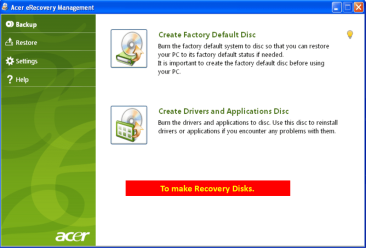
We always assume you have made your Recovery Disks using the OEM manufacturer's Recovery Media Creator app the first day you had your new PC.
& made the Startup Repair CD.
startup repair disc-create


Did you make the OEM manufacturer's Recovery Disks?

Acer001-11.PNG

You can order Microsoft official OEM Recovery disks from your OEM manufacturer's website.


https://secure.tx.acer.com/RCDB/Main.aspx?brand=acer
or
Acer | Recovery Media
Check in Accessories
or check the main web site.
Acer Worldwide - Select your local country or region
 

My Computer My Computer

At a glance

ME/XP/Vista/Win7
OS
ME/XP/Vista/Win7
Back
Top