Windows DISKPART Clean command used on Wrong Disk

harperrn

New member
Local time
7:00 AM
Messages
13
Hi all...
Yesterday, I was going about my drive management on my windows server machine, and I was cleaning two disks that I had just bought. I did not unplug the drives that I was not trying to clean from the PC, so something went horribly wrong. I accidentally cleaned one of the three of the 1.5TB drives, and it was the wrong one! I looked into using Test Disk, but I don't know what to choose or anything. I had some movies and Windows ISOs that I need to get off. Also a folder of documents that were network shared. PLEASE HELP! :sleepy: I also used Recuva, and I could not get the ISO files to show up. After I cleaned the disk, I made a new partition that takes up the entire drive. And Recuva was finding some of the files that I had on there.
 

My Computer

Computer type
Laptop
Computer Manufacturer/Model Number
Dell Latitude E4310
OS
Windows 8.1 Pro x64, Ubuntu 14.04 x64, and Windows 10 Tech Preview
CPU
Core i7 620M Dual Core
Memory
8GB Crucial Laptop Memory
Graphics Card(s)
Indel HD Graphics Arandale
Monitor(s) Displays
Broken Dell Laptop Displays
Screen Resolution
1366 X 768
Hard Drives
Crucial M4 SSD 128GB, WD Scorpio Black 500GB
Internet Speed
145 MB/S
Browser
Chrome and Project Spartan
Other Info
Broken display
Did you use the Diskpart CLEAN or the CLEAN ALL command?

The CLEAN command just deletes the file table. So if that is all you did then the data will still be on the drive and you can usually use recovery software to rebuild the file table.

Formatting creates a new file table. This is where I am not sure. Formatting could make the recovery of the data on the disk difficult or impossible. I can't say for sure.

The CLEAN ALL command will write all zeros to every sector on the drive, overwriting any data that already exists there. It is supposed to be final.
 

My Computer

Computer type
PC/Desktop
Computer Manufacturer/Model Number
Home Built - Jan 2013
OS
Windows 7 64 Bit Home Premium SP1
CPU
i7-3820
Motherboard
Asus P9X79-PRO - Bios 4608
Memory
GSkill F3-14900CL9Q - 16GB
Graphics Card(s)
EVGA GeForce GTX660 - Driver 352.86
Sound Card
On board Realtek ALC898
Monitor(s) Displays
Acer S271HL
Screen Resolution
1920 x 1080
Hard Drives
#1- Samsung 840 Pro Series
#2- Western Digital WD1002FAEX Sata3 Black
#3- Western Digital WD1002FAEX Sata3 Black
PSU
Corsair CMPSU-850TX-V2 - 850 watt (by Seasonic)
Case
Corsair Obsidian 550D
Cooling
Standard 3 120mm case fans, Cooler Master Hyper 212 EVO
Keyboard
MS KC-0405
Mouse
Intellimouse 5-button
Internet Speed
56 Mbits/Sec (on a good day)
Antivirus
Avast & Malwarebytes
Browser
Firefox
Other Info
Asus DVD - DRW-24B1ST 24X
I didn't use the clean all command. After I did the clean, I went into windows disk manager and made the new partitions. Here is the exact code I entered.

Code:
DISKPART
LIST DISK
SELECT DISK 1
CLEAN

And then I did the partitioning in the disk manager. I used the test disk software and it wrote the correct part it on table to the disk, but if I right click it, it says to put the disk online, and I click that and it trues to and says that the partitions failed in the state category in the windows disk manager. I am currently running a recovery deep scan in the mini tool partition editor... Hopefully this works.
 

My Computer

Computer type
Laptop
Computer Manufacturer/Model Number
Dell Latitude E4310
OS
Windows 8.1 Pro x64, Ubuntu 14.04 x64, and Windows 10 Tech Preview
CPU
Core i7 620M Dual Core
Memory
8GB Crucial Laptop Memory
Graphics Card(s)
Indel HD Graphics Arandale
Monitor(s) Displays
Broken Dell Laptop Displays
Screen Resolution
1366 X 768
Hard Drives
Crucial M4 SSD 128GB, WD Scorpio Black 500GB
Internet Speed
145 MB/S
Browser
Chrome and Project Spartan
Other Info
Broken display
I didn't use the clean all command. After I did the clean, I went into windows disk manager and made the new partitions. Here is the exact code I entered.

Code:
DISKPART
LIST DISK
SELECT DISK 1
CLEAN

And then I did the partitioning in the disk manager. I used the test disk software and it wrote the correct part it on table to the disk, but if I right click it, it says to put the disk online, and I click that and it trues to and says that the partitions failed in the state category in the windows disk manager. I am currently running a recovery deep scan in the mini tool partition editor... Hopefully this works.


So far at about 20℅, its found about 100 partitions. Some of them have names, and some of them are just called "boot" only the name of one of the other partitions is in that list. Not the other one so far...
 

My Computer

Computer type
Laptop
Computer Manufacturer/Model Number
Dell Latitude E4310
OS
Windows 8.1 Pro x64, Ubuntu 14.04 x64, and Windows 10 Tech Preview
CPU
Core i7 620M Dual Core
Memory
8GB Crucial Laptop Memory
Graphics Card(s)
Indel HD Graphics Arandale
Monitor(s) Displays
Broken Dell Laptop Displays
Screen Resolution
1366 X 768
Hard Drives
Crucial M4 SSD 128GB, WD Scorpio Black 500GB
Internet Speed
145 MB/S
Browser
Chrome and Project Spartan
Other Info
Broken display
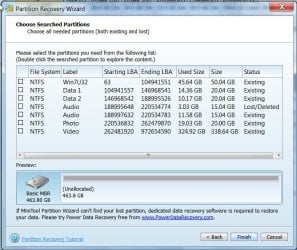
Let Partition Wizard complete the full scan.At the end of it post a screenshot of the partitions found, something like the following screenshot.

27-05-2015 11-53-13.jpg

Wait for further instructions.

You may go to sleep now. Post the screenshot by about 0830 your time, that is eight hours from now. I shall be online at that time.

If full scan is not completed by then, post the staus at that time - % completed.
 

My Computer

OS
Windows 7 Home Premium 32 bit
100 Partitions ?
 

My Computer

Computer type
PC/Desktop
Computer Manufacturer/Model Number
Skylake Special #666
OS
Windows 10 Pro x64
CPU
Intel Core i7 6700K
Motherboard
Asus Sabertooth Z170 Mark 1
Memory
GSkill TridentZ RGB 16GB 3600 16-16-16-36
Graphics Card(s)
EVGA GTX 980 Ti SC x2
Sound Card
Realtek High Definition
Monitor(s) Displays
AOC G2460PG
Screen Resolution
1920 x 1080 144Hz
Hard Drives
Samsung 860 Pro 256GB, Seagate Barracuda 4TB x2
PSU
EVGA 1000 P2, EVGA White Custom Braided Cables
Case
Corsair Vengeance C70 Gunmetal Black
Cooling
Corsair H100i v2, Corsair ML120 x2, Thermal Grizzly Kryonaut
Keyboard
Logitech G910 Orion Spectrum
Mouse
Logitech G700s
Internet Speed
Verizon Fios Quantum Gateway 75/75
Antivirus
Windows Defender, Malwarebytes Free 3.8.3
Browser
Chrome
Other Info
Corsair SP120 x4, LG Blu-ray Drive, Durabrand HT-395 100 Watt Dolby Digital Amp, Corsair H2100 Wireless 7.1 Headset
All files of any importance need at least one backup copy. Files of particular importance need 2 or more backup copies. Fail to do this and sooner or later you WILL loose important files.
 

My Computer

Computer type
PC/Desktop
Computer Manufacturer/Model Number
HP
OS
Windows 7 Pro 64 bit
CPU
Xeon W3520
Memory
8 GB
Graphics Card(s)
Nvidia Geforce 210
Here is the screenshot... This is an OLD drive. And for the backup part of things, I am planning to buy 2 synology DiskStations and put them off site, at the office and at my immediate family's house.

Screenshot by Lightshot

See how many partitions there are? Look at the scroll bar. There are partitions at the bottom and in the middle that were on the disk. I can't find the partition that had the media on it, but that is not the most important thing now, because I have all of the movies that were on there and I can re-rip them. What do I do now?
 

My Computer

Computer type
Laptop
Computer Manufacturer/Model Number
Dell Latitude E4310
OS
Windows 8.1 Pro x64, Ubuntu 14.04 x64, and Windows 10 Tech Preview
CPU
Core i7 620M Dual Core
Memory
8GB Crucial Laptop Memory
Graphics Card(s)
Indel HD Graphics Arandale
Monitor(s) Displays
Broken Dell Laptop Displays
Screen Resolution
1366 X 768
Hard Drives
Crucial M4 SSD 128GB, WD Scorpio Black 500GB
Internet Speed
145 MB/S
Browser
Chrome and Project Spartan
Other Info
Broken display

I fixed the screenshot. Here it is.

img.png
 

My Computer

Computer type
Laptop
Computer Manufacturer/Model Number
Dell Latitude E4310
OS
Windows 8.1 Pro x64, Ubuntu 14.04 x64, and Windows 10 Tech Preview
CPU
Core i7 620M Dual Core
Memory
8GB Crucial Laptop Memory
Graphics Card(s)
Indel HD Graphics Arandale
Monitor(s) Displays
Broken Dell Laptop Displays
Screen Resolution
1366 X 768
Hard Drives
Crucial M4 SSD 128GB, WD Scorpio Black 500GB
Internet Speed
145 MB/S
Browser
Chrome and Project Spartan
Other Info
Broken display

My Computer

Computer type
PC/Desktop
Computer Manufacturer/Model Number
home built
OS
Multi-Boot W7_Pro_x64 W8.1_Pro_x64 W10_Pro_x64 +Linux_VMs +Chromium_VM
CPU
AMD Athlon II x4 620
Motherboard
Gigabyte GA-MA785G-UD3H
Memory
6GB GSkill DDR2 800
Graphics Card(s)
AMD 4670 GPU + AMD 4200 IGP
Sound Card
on board Realtek ALC889A
Monitor(s) Displays
RCA 40" LCD TV, Insignia 32" LCD TV, HP 15" LCD monitor
Screen Resolution
1680 x 1050
Hard Drives
OCZ Vertex 3 120GB,
Samsung F3 1TB (3),
Several others - WD, Seagate, Hitachi, ...
PSU
Corsair 500 W
Case
Rosewill mid tower
Cooling
CM 90mm rifle
Keyboard
Gyration wireless, Logitech wireless, Dell USB wired
Mouse
Gyration wireless, Logitech wireless, V7 USB wired
Internet Speed
Spectrum - 100Mbps D / 10Mbps U
Antivirus
Avast, MBAM3, EMET, WinPatrol
Browser
Pale Moon, Firefox, IE
Other Info
2 multi-boot PC's
Mainly HTPC/Office/Gen purpose (no gaming).
Trendnet USB KVM.
LG DVD burner/Blue Ray Player.
Tray system for removable SATA backup drives.

Not currently OCd, under-volted.
I use Hybrid sleep, rarely re-boot or shutdown.

Hauppauge HD-PVR, Avermedia PCIe TV Tuner, Hauppauge PCI TV Tuner.
Sorry, I waited for sometime for the screenshot and then went off to bed.

In the screenshot I can see only one valid lost/deleted NTFS partition named NAS Server ( the second one) but it shows used size of 219.42MB. So you will not find any files on it even if you recover that partition.

Scroll down and see whether it shows any other NTFS partition with substantially large used space.( You must be knowing how much the used space would have been). All other entries in the table like Starting LBA, Ending LBA, Size should remain more or less the same.

If you do not find any such partition, then there is no hope of recovering that partition and restoring your drive.

1. Try what DavidE has suggested for data recovery.

2. You can also try to recover the data using PhotoRec. But if the majority of your files are in .vob, those cannot be recovered. .iso however can be recovered. See list of file formats that can be recovered here File Formats Recovered By PhotoRec - CGSecurity

If you decide to try PhotoRec a guide to familiarise yourself here
http://www.sevenforums.com/software/193467-guide-using-photorec-recovery-software.html

3. You may also try the trial version of GetDataback simple https://www.runtime.org/data-recovery-software.htm If the trial version shows all your files, you may have buy a licence to copy those.

Finally, if you have decided that the data is not that important and worth all these attempts, then run diskpart clean all on the correct drive wiping it clean and then format it. Of course take care that you do it on the right drive.( Remove all other external HDDs)

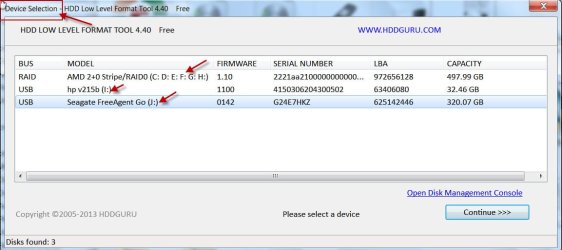
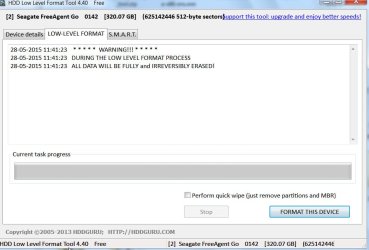
For a clean all I always suggest HDD LLF Low Level Format Tool HDDGURU: HDD LLF Low Level Format Tool

With a Graphical User Interface the chances of performing it on a wrong drive is minimized. You can also watch the progress - not possible with diskpart cleanall

28-05-2015 11-42-37.jpg

28-05-2015 11-46-07.jpg

After the LLF format, you have to do the normal formatting.

I have finished blowing my conch. :) Good Luck

Note: In future please upload the screenshots to Seven Forums servers and not any third party servers. Please read this and practice http://www.sevenforums.com/tutorials/9733-screenshots-files-upload-post-seven-forums.html Help us to help you.
 

My Computer

OS
Windows 7 Home Premium 32 bit
Back
Top