Windows Explorer in Windows 7: Why the confusing behavior?

TC0

New member
Local time
12:25 AM
Messages
8
I'm new to Windows 7, and I'm confused about Windows Explorer in this new version of Windows. I've already installed Classic Explorer and I've already disabled libraries. Nevertheless, I'm still baffled by Explorer's behavior, and I have several questions:

1) First of all, Explorer seems to be showing something related to, but clearly different from, the file structure. For instance, Desktop/TC and Desktop/Computer/Users/TC seem to be the same folder mysteriously represented at two different places in Explorer's hierarchy, and shown with two different paths in the address bar ("TC" vs. "C:\Users\TC"). I'm sure this is a feature somehow meant to simplify things, but it is just confusing me. What is Explorer showing me? Is there any way to turn off this feature and see the file structure?

2) When I look in folder "TC", I see two subfolders called "Documents" which seem to be identical. What's the deal with that?

3) I keep my files in "C:\Users\TC\Documents". Is there any way to make that folder appear at the root level in the navigation pane? Now, when I'm working in Documents, there are so many irrelevant folders displayed in the navigation pane that the pane becomes worthless as a visual map of my folder structure.

4) Nothing is on my desktop, but Explorer says that several things are. I can accept that "Desktop" may simply be the word Microsoft is using to describe the root level of the file system, in which case it does make some sense to say that "Computer", "Network", and "Recycle Bin" belong under "Desktop". However, I have two additional icons, "Homegroup" and "Control Panel" also beneath "Desktop". Does that make sense to anyone? Is there any way to get rid of those?


-TC
 

My Computer

OS
Windows 7 x64

My Computer

Computer type
Laptop
Computer Manufacturer/Model Number
Employer provided Dell Latitude
OS
W7 Pro SP1 64bit
CPU
i7
Memory
8GB
Graphics Card(s)
Intel HD Graphics
Hard Drives
crappy SSD
Antivirus
Employer mandated Symantec Endpoint Protection
Browser
Pale Moon 64bit, IE11 64bit & Chrome 64bit
To be honest, installing Classic Explorer and disabling Libraries probably did all this. You're using Explorer in a way it wasn't designed to be used.
  1. This is normal. Explorer (normally) shows your files in different ways: you have your favourites, then Libraries, then Computer, then Network. The Computer node will show you the files in hierarchical order (C:\users\TC\etc...).
  2. Not sure about the two identical folders - are they the same folder? Are they definitely in the same place? Not shortcuts?
  3. Yes - using libraries.
  4. Normal. They can be hidden from the Desktop, but not this folder in Explorer.
 

My Computer

Computer Manufacturer/Model Number
CreepinJesus Mk. IV
OS
Windows 7 Ultimate x64
CPU
Intel Core i5-2500 3.3GHz
Motherboard
Asus P8H67-M PRO
Memory
8GB DDR3 1333MHz
Graphics Card(s)
On-board
Sound Card
On-board
Monitor(s) Displays
Samsung SyncMaster BX2250 22.5" LED-backlit LCD
Screen Resolution
1920 * 1080
Hard Drives
OCZ Agility 3 120GB, SATA-III
PSU
Thermaltake Toughpower Grand TPG-650M
Case
Lian-Li PC-A04
Cooling
Standard fans. They blow.
Keyboard
Logitech K360
Mouse
Generic Logitech from the bargain-bin by the checkout
Internet Speed
Over 9000! ...Mbps.
Other Info
Chocolate digestives are my favourite biscuit.
UsernameIssues and CreepinJesus,

Thanks to both of you for the helpful advice. I did not know about "junctions" before, and they explain a lot of Explorer weirdness. Since my original post, I did some research and found that many useful workarounds have been posted in this very forum. Referring to my original list:

1. Unintuitive and redundant folder hierarchy -- Solved, thanks to Brink at http://www.sevenforums.com/tutorials/48123-user-folder-add-remove-navigation-pane.html.

2. Duplicate "Documents" folders -- Swept under the rug. I'm sure that bug still infects my system, but I've removed the errant faux-folder from my folder hierarchy, so I simply don't see this problem any more.

3. Elevating useful folders to the root level of the navigation pane -- Thank you, CreepinJesus, for the tip on using libraries to bring a folder closer to the root level. I've adopted your suggestion for now. However, I was really hoping for a solution that would let me elevate a folder all the way to the root level. In XP, the command line option "/root" accomplished this nicely. That command doesn't seem to work in the new Explorer. Is there really no support for this functionality any more?

4. Irrelevant "Homegroups" and "Control Panel" appearing in the file hierarchy -- Solved, thanks to Brink at http://www.sevenforums.com/tutorials/39670-homegroup-add-remove-navigation-pane.html and http://www.sevenforums.com/tutorials/47341-control-panel-add-remove-navigation-pane.html.

Yay! I have Explorer working reasonably well... almost. Unfortunately, I have one more thing to add to my original list:

5. Windows Explorer displays a rather useless toolbar which says "Organize, Share with, New folder". I don't see any reason to keep that toolbar, but I can't seem to get rid of it. Please restore my faith in Microsoft and tell me that there is some way to hide this thing.

-TC
 

My Computer

OS
Windows 7 x64
I spoke too soon. New issues:

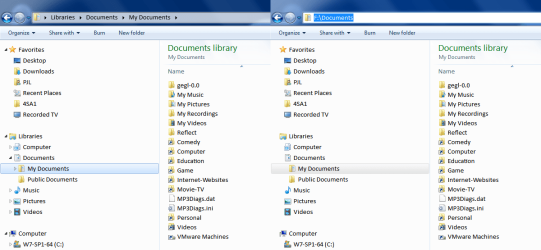
6. I have a library called "Library1". The only thing in that library is the folder C:\Users\TC\Documents. I have a subfolder called C:\Users\TC\Documents\Folder1. If I navigate to Folder1 through the navigation pane, the address bar tells me I'm at Libraries/Library1/Documents/Folder1, but if I navigate to the same location via the file pane, the address bar tells me I'm at Libraries/Library1/Folder1. This is clearly a bug. Is there a known solution?

7. Whenever I navigate to a folder through a library, Explorer uses some of the space in the folder pane to tell me the name of the library. I have no interest in this feature. Is there any way to turn it off and use all of the space for the file list?


-TC
 

My Computer

OS
Windows 7 x64
Yay! I have Explorer working reasonably well... almost. Unfortunately, I have one more thing to add to my original list:

5. Windows Explorer displays a rather useless toolbar which says "Organize, Share with, New folder". I don't see any reason to keep that toolbar, but I can't seem to get rid of it. Please restore my faith in Microsoft and tell me that there is some way to hide this thing.

-TC
Well screw me sideways, I remember doing that with help from here but I don't remember how or when :confused: Should be in one of the tutorials, feels like there was a reg edit in here somewhere.

Edit:
Also certain there's a reg edit for removing Libraries from the folder pane. Need to find the tutorial for that too. Shoulda taken notes or something, sigh. Remember just being glad to get rid of them.
 

My Computer

Computer Manufacturer/Model Number
Self-built rig
OS
Win7 Pro x64
CPU
Koa i5-2550K
Memory
8 GB
Graphics Card(s)
Sapphire ATI 6870 1GB GDDR5
Sound Card
RealTek HD Audio / ATI HDMI Audio
Monitor(s) Displays
Samsung HDTV Monitor T23A350
Screen Resolution
1920 x 1080
Hard Drives
- SSD (C:)
- HDD (D:)
- BD-ROM (E:)
Keyboard
Logitech G110
Internet Speed
Unifi home (5mbps)
Try these links

5. Windows Explorer displays a rather useless toolbar which says "Organize, Share with, New folder". I don't see any reason to keep that toolbar, but I can't seem to get rid of it. Please restore my faith in Microsoft and tell me that there is some way to hide this thing.

Try these links:
How to Auto-Hide or Disable Command Bar (aka Folder Band) in Windows Vista and 7 Explorer? - Tweaking with Vishal
Appatic: Windows Command Bar Tweaker: Hide The Command Bar In Windows Explorer

Customise the Command Bar
http://www.intowindows.com/explorer-toolbar-editor-add-new-options-to-windows-7-explorer-toolbar/
 

My Computer

Computer type
PC/Desktop
Computer Manufacturer/Model Number
n/a
OS
W7 Ultimate SP1, LM19.2 MATE, W10 Home 1703, W10 Pro 1703 VM, #All 64 bit
CPU
AMD Phenom II x6 1100T, 3.3 GHz
Motherboard
ASUS M4A88T-M/USB3 (AM3)
Memory
12GB DDR3 1333 G-Skill (4GB x 2), G-Skill (2GB x 2)
Graphics Card(s)
NVIDIA GeForce GTX 660
Sound Card
Realtek?
Monitor(s) Displays
Samsung S23B350
Screen Resolution
1920x1080
Hard Drives
WD Green 2TB (SATA), WD Green 3TB (SATA), WD Blue 4TB (SATA), WD Blue 6TB (SATA)
PSU
Cooler Master
Case
Antec GX300 Tower
Cooling
3x Antec TRICOOL 120mm Fans
Mouse
Wired Optical
Internet Speed
DSL
Antivirus
Avast
Browser
Pale Moon (64 bit)
Other Info
2018-12-27 Upgraded HDDs
2015-12-10 Upgraded case, graphics card, storage
2015-08-15 Upgraded motherboard & RAM
2015-07-15 Upgraded LM17.1 to LM17.2
My advice would be to stop expecting a new OS to behave and work like an 11 year old OS. People upgrade for a reason, and there's no need to fear change. It's the best OS Microsoft has put out for the desktop to date....so enjoy it.
 

My Computer

OS
Windows 7 Ultimate x64 SP1
CPU
Intel Core i7-2600
Motherboard
Gigabyte GA-P67A-UD3P-B3
Memory
12 GB Patriot Extreme DDR3-1333
Graphics Card(s)
Nvidia GTX 470
Monitor(s) Displays
Dell UltraSharp 2209WA
Hard Drives
OCZ Agility3 240 GB, WD5001AALS, WD7501AALS
PSU
OCZ ModStream 700W
Case
CoolerMaster HAF 912 Advanced
Cooling
CoolerMaster Hyper 212 Plus
1) First of all, Explorer seems to be showing something related to, but clearly different from, the file structure. For instance, Desktop/TC and Desktop/Computer/Users/TC seem to be the same folder mysteriously represented at two different places in Explorer's hierarchy, and shown with two different paths in the address bar ("TC" vs. "C:\Users\TC"). I'm sure this is a feature somehow meant to simplify things, but it is just confusing me. What is Explorer showing me? Is there any way to turn off this feature and see the file structure?

That's actually to aid the moving of libraries.

My Music, Video, Pictures, Documents all sow up like that, but I have moved the actual folders to my D: drive. Windows attempts to make the move transparent to applications, so they don't try to create a ~/Documents folder if you didn't update them to the new directory.
 

My Computer

Computer type
PC/Desktop
Computer Manufacturer/Model Number
Apple 17" iMac MA199LL (Early 2006)
OS
Windows 8 Pro (32-bit)
CPU
1.83GHz Intel Core Duo
Memory
2GB 667MHz DDR2 SDRAM (PC2-5300) (upgrade)
Graphics Card(s)
ATI Radeon X1600 with 128MB GDDR3 memory
Monitor(s) Displays
17-inch TFT active-matrix LCD, millions of colors
Screen Resolution
1440 x 900
Hard Drives
Hitachi 320GB HDT721032SLA360 7200RPM SATA II (upgrade)
Keyboard
Microsoft Wired Keyboard 600
Mouse
Microsoft Basic Optical Mouse v2.0
Internet Speed
4 Mbps
Antivirus
Microsoft Security Essentials
Browser
Google Chrome
Other Info
WEI:
Base Score: 3.9 Processor: 4.4 Memory 4.7
Graphics: 3.9 Gaming Graphics: 4.1 Primary HD: 5.9
UsernameIssues and CreepinJesus,


3. Elevating useful folders to the root level of the navigation pane -- Thank you, CreepinJesus, for the tip on using libraries to bring a folder closer to the root level. I've adopted your suggestion for now. However, I was really hoping for a solution that would let me elevate a folder all the way to the root level. In XP, the command line option "/root" accomplished this nicely. That command doesn't seem to work in the new Explorer. Is there really no support for this functionality any more?


-TC

I use the favorites for this... It even works across networks. You can make any folder you access often instantly available for opening under the favorites part of the tree which is always visible at the top.
 

My Computer

Computer Manufacturer/Model Number
Scratch built
OS
Windows 7 x64 Ultimate
CPU
i7 960
Motherboard
Asus P6X58D
Memory
12 Gig Corsair Dominator
Graphics Card(s)
Nvidia 480
Sound Card
Maudio Delta 44 + breakout box
Monitor(s) Displays
Dell UltraSharp U2410 24in and Samsung 21 dual monitors
Screen Resolution
1920x1200 and 1280x1024
Hard Drives
Primary: Intel X-25M G2 160G SSD
Secondary: Segate baracuda 1.0 TB
HDs in AHCI mode.
PSU
Corasair TX850
Case
Cooler Master HAF
Cooling
Corsair H50
Keyboard
Logitech G15 + N52 game pad
Mouse
Logitech MX518
Internet Speed
15kbs down 4.5kbps up
Other Info
WEI 7.6
CPU & RAM 7.6
Graphics 7.9
Hard disk 7.7
I recommend a full reinstall of the OS, followed by reading up on all of the new features Windows 7 has implemented, how they work, and how to use them. You've already started a chain reaction of things that has compromised system components and their intended purposes. You're setting yourself up for continued problems down the road by altering so many things just because you didn't understand what they were or what they did. The system is going to work best when you let it work how it was intended.
 

My Computer

OS
XP / Win7 x64 Pro
CPU
Intel Quad-Core Q9450 @ 3.2GHz
Motherboard
Asus P5-E
Memory
2x2GB GSkill DDR2
Graphics Card(s)
NVIDIA GeForce 8600 GTS (EVGA)
Monitor(s) Displays
Dell 2408WFP
Screen Resolution
1920x1200

My Computer

Computer Manufacturer/Model Number
HP Pavilion Elite 495UK
OS
Windows 7 Ultimate SP1 64-Bit
CPU
Intel Core i7 870 @ 2.93GHz
Motherboard
MSI 2A9C (CPU1)
Memory
8Gb Dual-Channel DDR3 @ 664MHz
Graphics Card(s)
nVidia GeForce GTX 460 1024MB dedicated RAM
Sound Card
Realtek HD Audio
Monitor(s) Displays
HP2310i
Screen Resolution
1920 x 1080
Hard Drives
1x1954GB Hitachi HDS22020ALA 330 (RAID), 1x1954GB Hitachi External for backup and storage
PSU
460W
Case
HP Elite
Cooling
Air cooled
Keyboard
Logitech K750 solar-powered keyboard
Mouse
Logitech Wireless M180 mouse
Internet Speed
2Mb
Other Info
Pure Avanti Flow Internet Radio with iPod Dock, 64Gb iPod, HP USB Speakers, Sony MDR-V500 Headphones, Sony Vaio F-Series Laptop
Thanks to everyone for the replies. I am making progress in my quest for a happy Windows Explorer. My latest notes:

3. Elevating useful folders to the root level of the navigation pane -- I've learned that there simply is no replacement for the "/root" command. See this post: Explorer.exe Command-Line Options for Windows 7 - root setting - Microsoft Answers. That is sad. So, I'm taking CreepinJesus' advice and using libraries; they don't work as well as /root, but they are tolerable. (Fseal, I tried Favorites, but they didn't create a shallower hierarchy; they just gave me a quick way to jump down to layers deep in the hierarchy. That's a very different functionality than I'm looking for.)

5. Useless Command toolbar -- Solved, thanks to lehnerus2000 and the post he referred me to, Appatic: Windows Command Bar Tweaker: Hide The Command Bar In Windows Explorer.

6. The address bar shows the wrong path when I navigate to a library subfolder via the file pane -- No fix yet. (Is this happening to anyone else?)

7. Wasted space displaying the library name in the file pane -- No fix yet.

And two new issues:

8. I've discovered that if you use arrow keys to navigate in the navigation pane, the file pane doesn't stay synchronized. Another bug. Is there a fix?

9. This is a minor thing, but I'd like folders to expand when I click on them in the navigation pane. (Currently, you have to double-click on them -- yes, I said it was minor!) I suspect that the change from single-click to double-click between XP and 7 was an oversight, and not a deliberate design decision on the part of Microsoft developers. Has anyone found a tweak to restore the single-click functionality?


-TC
 

My Computer

OS
Windows 7 x64
Do it Microsoft's way or else?

Many people dislike the "Libraries".
A lot of programs don't integrate with them correctly/properly (including MS programs).
You can't search them without "Indexing" turned on (you can search the actual real locations without problems though).
Adding content to them is painful (I've got ~11,000 folders in My Documents and My Pictures).

"Libraries" are more useful in an enterprise network setting.

You are better off using the "Favourites" section, unless you have huge numbers of regularly used folders.

6. The address bar shows the wrong path when I navigate to a library subfolder via the file pane -- No fix yet. (Is this happening to anyone else?)

I'm not sure what you mean.
Have you tried clicking in an empty section of the Address Bar?
Address Bar.png
9. This is a minor thing, but I'd like folders to expand when I click on them in the navigation pane. (Currently, you have to double-click on them -- yes, I said it was minor!) I suspect that the change from single-click to double-click between XP and 7 was an oversight, and not a deliberate design decision on the part of Microsoft developers. Has anyone found a tweak to restore the single-click functionality?

You should see a little triangle to the left of folders that contain sub-folders.
Clicking on that should expand the tree.
 
Last edited:

My Computer

Computer type
PC/Desktop
Computer Manufacturer/Model Number
n/a
OS
W7 Ultimate SP1, LM19.2 MATE, W10 Home 1703, W10 Pro 1703 VM, #All 64 bit
CPU
AMD Phenom II x6 1100T, 3.3 GHz
Motherboard
ASUS M4A88T-M/USB3 (AM3)
Memory
12GB DDR3 1333 G-Skill (4GB x 2), G-Skill (2GB x 2)
Graphics Card(s)
NVIDIA GeForce GTX 660
Sound Card
Realtek?
Monitor(s) Displays
Samsung S23B350
Screen Resolution
1920x1080
Hard Drives
WD Green 2TB (SATA), WD Green 3TB (SATA), WD Blue 4TB (SATA), WD Blue 6TB (SATA)
PSU
Cooler Master
Case
Antec GX300 Tower
Cooling
3x Antec TRICOOL 120mm Fans
Mouse
Wired Optical
Internet Speed
DSL
Antivirus
Avast
Browser
Pale Moon (64 bit)
Other Info
2018-12-27 Upgraded HDDs
2015-12-10 Upgraded case, graphics card, storage
2015-08-15 Upgraded motherboard & RAM
2015-07-15 Upgraded LM17.1 to LM17.2
Do it Microsoft's way or else?

Many people dislike the "Libraries".
A lot of programs don't integrate with them correctly/properly (including MS programs).

What programs are you referring to and how do they not integrate correctly?

lehnerus2000 said:
You can't search them without "Indexing" turned on (you can search the actual real locations without problems though).

So, then you can search them. You just can't search a junction, which makes sense as it's not a tangible file/folder to search, just a symlink.

lehnerus2000 said:
Adding content to them is painful (I've got ~11,000 folders in My Documents and My Pictures).

I add content to them just like I add content to any other folder on my system. I'm not sure how adding content to a Library specifically is more painful. Can you explain?

lehnerus2000 said:
"Libraries" are more useful in an enterprise network setting.

What does an Enterprise Network setting have to do with using Libraries?

lehnerus2000 said:
You are better off using the "Favourites" section, unless you have huge numbers of regularly used folders.

What does the Favorites folder have to do with Libraries? They both serve particular purposes, each being different. I'm not sure how using Favorites would serve to better organize files into Pictures, Movies, and Documents. Can you explain?
 

My Computer

OS
XP / Win7 x64 Pro
CPU
Intel Quad-Core Q9450 @ 3.2GHz
Motherboard
Asus P5-E
Memory
2x2GB GSkill DDR2
Graphics Card(s)
NVIDIA GeForce 8600 GTS (EVGA)
Monitor(s) Displays
Dell 2408WFP
Screen Resolution
1920x1200
Please guys, don't debate the merits of Windows 7 design decisions here.

I'm just trying to make a few specific changes to the behavior Windows Explorer. If you can help me with those changes, I'm grateful for the advice. But if you want to argue over whether or not the Explorer redesign is good or bad, I think there are plenty of other threads for that.

-TC
 

My Computer

OS
Windows 7 x64
The problem is that in "fixing" some of these things in explorer (removing "errant faux-folder"s that aren't actually errant, disabling or trying to remove toolbar options that aren't meant to be removed, ...), you can easily remove something that could render it unusable or cause further issues stemming from it. We're talking about the merits of explorer because they are all purposefully built into it. Some options you can easily change with no repercussion, which you are finding out. However, going around deleting folders you deem unnecessary and modifying it to remove things you think shouldn't be there are setting you up for more threads down the line like "Explorer constantly crashes", "Why is Explorer always freezing?", "My desktop loads to a blank screen, what can I do?".

Wanting to modify the system to your liking is not a bad thing, but there are both intelligent and destructive ways to go about it. You are toeing the line on destructive, which is why others are chiming in about it, having seen and answered a multitude of problem threads stemming from the same types of activities you're doing. If you don't care to hear or heed the warnings, then I'm sure several in here have no problem bowing out of the thread, but there's obviously no promise you'll get any future help from them in the future if/when things go awry. That just needs to be kept in mind.

So, take from that what you will. There is always a fix to something you want to change in the Windows OS, a portion unfortunately break more than they fix. That's why it's good to have tenured guys in here speaking from experience about what those are instead of just giving you the answers you want. We've all been there and done that in terms of messing with the OS and suffering repercussions. Take advantage of that experience from others.
 

My Computer

OS
XP / Win7 x64 Pro
CPU
Intel Quad-Core Q9450 @ 3.2GHz
Motherboard
Asus P5-E
Memory
2x2GB GSkill DDR2
Graphics Card(s)
NVIDIA GeForce 8600 GTS (EVGA)
Monitor(s) Displays
Dell 2408WFP
Screen Resolution
1920x1200

My Computer

Computer Manufacturer/Model Number
HP Pavilion Elite 495UK
OS
Windows 7 Ultimate SP1 64-Bit
CPU
Intel Core i7 870 @ 2.93GHz
Motherboard
MSI 2A9C (CPU1)
Memory
8Gb Dual-Channel DDR3 @ 664MHz
Graphics Card(s)
nVidia GeForce GTX 460 1024MB dedicated RAM
Sound Card
Realtek HD Audio
Monitor(s) Displays
HP2310i
Screen Resolution
1920 x 1080
Hard Drives
1x1954GB Hitachi HDS22020ALA 330 (RAID), 1x1954GB Hitachi External for backup and storage
PSU
460W
Case
HP Elite
Cooling
Air cooled
Keyboard
Logitech K750 solar-powered keyboard
Mouse
Logitech Wireless M180 mouse
Internet Speed
2Mb
Other Info
Pure Avanti Flow Internet Radio with iPod Dock, 64Gb iPod, HP USB Speakers, Sony MDR-V500 Headphones, Sony Vaio F-Series Laptop
Yes and No

Can you explain?

I could, but since TCO politely asked that Windows Explorer design/operation not be debated, I won't.
 

My Computer

Computer type
PC/Desktop
Computer Manufacturer/Model Number
n/a
OS
W7 Ultimate SP1, LM19.2 MATE, W10 Home 1703, W10 Pro 1703 VM, #All 64 bit
CPU
AMD Phenom II x6 1100T, 3.3 GHz
Motherboard
ASUS M4A88T-M/USB3 (AM3)
Memory
12GB DDR3 1333 G-Skill (4GB x 2), G-Skill (2GB x 2)
Graphics Card(s)
NVIDIA GeForce GTX 660
Sound Card
Realtek?
Monitor(s) Displays
Samsung S23B350
Screen Resolution
1920x1080
Hard Drives
WD Green 2TB (SATA), WD Green 3TB (SATA), WD Blue 4TB (SATA), WD Blue 6TB (SATA)
PSU
Cooler Master
Case
Antec GX300 Tower
Cooling
3x Antec TRICOOL 120mm Fans
Mouse
Wired Optical
Internet Speed
DSL
Antivirus
Avast
Browser
Pale Moon (64 bit)
Other Info
2018-12-27 Upgraded HDDs
2015-12-10 Upgraded case, graphics card, storage
2015-08-15 Upgraded motherboard & RAM
2015-07-15 Upgraded LM17.1 to LM17.2

My Computer

Computer Manufacturer/Model Number
Scratch built
OS
Windows 7 x64 Ultimate
CPU
i7 960
Motherboard
Asus P6X58D
Memory
12 Gig Corsair Dominator
Graphics Card(s)
Nvidia 480
Sound Card
Maudio Delta 44 + breakout box
Monitor(s) Displays
Dell UltraSharp U2410 24in and Samsung 21 dual monitors
Screen Resolution
1920x1200 and 1280x1024
Hard Drives
Primary: Intel X-25M G2 160G SSD
Secondary: Segate baracuda 1.0 TB
HDs in AHCI mode.
PSU
Corasair TX850
Case
Cooler Master HAF
Cooling
Corsair H50
Keyboard
Logitech G15 + N52 game pad
Mouse
Logitech MX518
Internet Speed
15kbs down 4.5kbps up
Other Info
WEI 7.6
CPU & RAM 7.6
Graphics 7.9
Hard disk 7.7
Back
Top