Windows Explorer Taskbar Icon - Change Open To Target

How to Change the Windows 7 Pinned Windows Explorer Taskbar Icon Open To Target


   Information
This will show you how to change the Windows 7 pinned Windows Explorer taskbar icon from the default Open To the Libraries window target to Open To the Computer window target or other possible locations that are available to choose from instead when you click on the Windows Explorer icon on the taskbar.
   Note
Special thanks to Chappy (aka: Dave) for pointing this out to me, and to Limneos for the additional locations.
   Warning
By design in Windows, these shortcuts will open a new window in a new process (explorer.exe) each time you use the shortcut. When you close the opened window from the shortcut, the extra explorer.exe process will close with it as well a few moments afterwards.

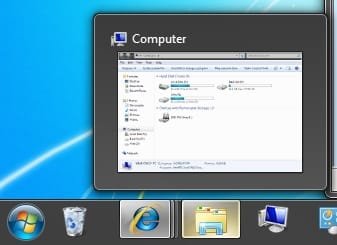
EXAMPLE: Windows Explorer icon pinned to the taskbar
3580d1232887815-windows-explorer-taskbar-icon-change-open-target-taskbar.jpg

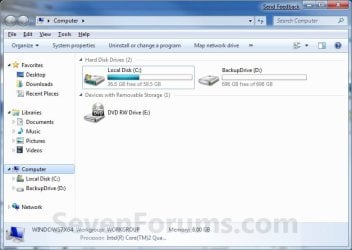
EXAMPLE: Opens to Libraries (default) or Computer
NOTE: You can also select from the other available options below.
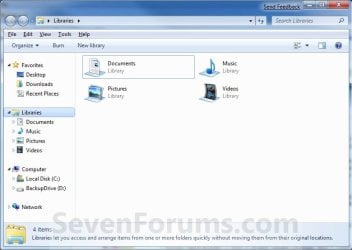
Libraries.jpg

Computer.jpg

Here's How:
1. Right click on the pinned Windows Explorer taskbar icon, then right click on Windows Explorer in the Jump List and click on Properties. (see screenshot below)
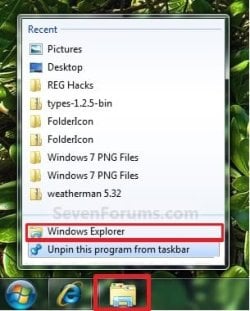
Unpin.jpg
2. In the Shortcut tab, make sure that the field box to the right of Start in is empty.

3. In the Shortcut tab and to the right of Target, type or copy the path (code) for the location below that you want the Windows Explorer icon to open to instead, then click on OK. (see screenshot below)

NOTE: You can do this for any item that you know it's {CLSID} registry entry for. You can also specify a specific folder e.g. :
%windir%\explorer.exe /n, /e, /select, C:\somefolder
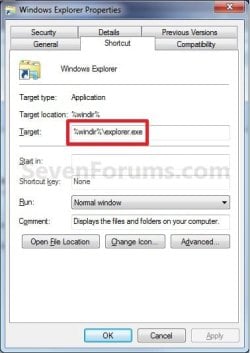
Target_Properties.jpg

   Note
Using the Explorer.exe Command Line Syntax/:


%windir%\explorer.exe [/n][/e][,/root],X,[[/Select],Y]
  • X - Secifies the object, and optionally with sub-object Y.
  • /e - Uses Windows Explorer view. Shows the left Windows Explorer tree view in the navigation pane together with the right pane in list view.
  • /n - Opens in a new window.
  • /root - Will have Explorer.exe explore the root object X and objects belonging to X. On the other hand, when the /root switch is not present, Explorer.exe explores the object X, its children, and other Explorer objects as well.
  • /Select - Puts the focus on a file or folder. The parent folder is opened and the specified object is selected.
  • /Separate - Opens in a separate process.
For example:

Code:
%windir%\explorer.exe /N,/Select,%WinDir%\system32\calc.exe
The command above will explore the C:\Windows\System32 folder and put the focus on the calc.exe (calculator) program.
   Tip
If you want the navigation pane to exand open to the item in Windows 8, then you will need to turn on "Expand to Current Folder" in the navigation pane.


  • Windows Explorer (default) (opens to Libraries)
(Windows 7)
Code:
%windir%\explorer.exe
(Windows 8)
Code:
%AppData%\Microsoft\Windows\Start Menu\Programs\System Tools\File Explorer.lnk

  • Computer
(Opens in new process)
Code:
%windir%\explorer.exe /n /Separate,::{20D04FE0-3AEA-1069-A2D8-08002B30309D}

OR
Code:
%windir%\explorer.exe shell:MyComputerFolder

  • My Documents
(Opens in new process)
Code:
%windir%\explorer.exe /n /Separate,::{450D8FBA-AD25-11D0-98A8-0800361B1103}

  • Documents Library
Code:
%UserProfile%\AppData\Roaming\Microsoft\Windows\Libraries\Documents.library-ms

  • Downloads
Code:
%UserProfile%\Downloads

  • Recycle Bin
(Opens in new process)
Code:
%windir%\explorer.exe /n /Separate,::{645FF040-5081-101B-9F08-00AA002F954E

  • Network Neighborhood
(Opens in new process)
Code:
%windir%\explorer.exe /n /Separate,::{208D2C60-3AEA-1069-A2D7-08002B30309D}

  • Default Web Browser (ex: Internet Explorer)
(Opens in new process)
Code:
%windir%\explorer.exe /n /Separate,::{871C5380-42A0-1069-A2EA-08002B30309D}

  • Computer Search Results Folder
(Opens in new process)
Code:
%windir%\explorer.exe /n /Separate,::{1F4DE370-D627-11D1-BA4F-00A0C91EEDBA}

  • Network Search Results Folder
(Opens in new process)
Code:
%windir%\explorer.exe /n /Separate,::{E17D4FC0-5564-11D1-83F2-00A0C90DC849}

  • Web Folders
(Opens in new process)
Code:
%windir%\explorer.exe /n /Separate,::{20D04FE0-3AEA-1069-A2D8-08002B30309D}\::{BDEADF00-C265-11D0-BCED-00A0C90AB50F}

  • Control Panel
(Opens in new process)
Code:
%windir%\explorer.exe /n /Separate,::{20D04FE0-3AEA-1069-A2D8-08002B30309D}\::{21EC2020-3AEA-1069-A2DD-08002B30309D}

  • Printers and Faxes
(Opens in new process)
Code:
%windir%\explorer.exe /n /Separate,::{20D04FE0-3AEA-1069-A2D8-08002B30309D}\::{21EC2020-3AEA-1069-A2DD-08002B30309D}\::{2227A280-3AEA-1069-A2DE-08002B30309D}

  • Scanners and Cameras
(Opens in new process)
Code:
%windir%\explorer.exe /n /Separate,::{20D04FE0-3AEA-1069-A2D8-08002B30309D}\::{21EC2020-3AEA-1069-A2DD-08002B30309D}\::{E211B736-43FD-11D1-9EFB-0000F8757FCD}

  • Fonts
(Opens in new process)
Code:
%windir%\explorer.exe /n /Separate,::{20D04FE0-3AEA-1069-A2D8-08002B30309D}\::{21EC2020-3AEA-1069-A2DD-08002B30309D}\::{D20EA4E1-3957-11d2-A40B-0C5020524152}

  • Network Connections or My Network Place
(Opens in new process)
Code:
%windir%\explorer.exe /n /Separate,::{20D04FE0-3AEA-1069-A2D8-08002B30309D}\::{21EC2020-3AEA-1069-A2DD-08002B30309D}\::{7007ACC7-3202-11D1-AAD2-00805FC1270E}

  • Administrative Tools
(Opens in new process)
Code:
%windir%\explorer.exe /n /Separate,::{20D04FE0-3AEA-1069-A2D8-08002B30309D}\::{21EC2020-3AEA-1069-A2DD-08002B30309D}\::{D20EA4E1-3957-11d2-A40B-0C5020524153}

  • Tasks Scheduler
(Opens in new process)
Code:
%windir%\explorer.exe /n /Separate,::{20D04FE0-3AEA-1069-A2D8-08002B30309D}\::{21EC2020-3AEA-1069-A2DD-08002B30309D}\::{D6277990-4C6A-11CF-8D87-00AA0060F5BF}

  • User Profile (personal) Folder
Code:
%windir%\explorer.exe shell:Profile

That's it,
Shawn


Attachments

  • Taskbar.jpg
    Taskbar.jpg
    8.5 KB · Views: 194,553
Last edited:
As a test, try this below. It will remove and replace your current pinned Windows Explorer taskbar icon.
  • Right click on the Windows Explorer icon on the taskbar and click on Unpin this program from the taskbar.
  • Open the Start menu.
  • Click on All Programs, Accessories, and right click on the Windows Explorer shortcut and click on Properties.
  • Change the Target to: %windir%\explorer.exe /root,::{20D04FE0-3AEA-1069-A2D8-08002B30309D}
  • Right click on the Windows Explorer shortcut in the Start menu, and click on Pin to Taskbar.
Hopefully it will now only open with the one icon on the taskbar for you now.

nope. just tried it. same damn thing. darn it.

Well I found a workaround I guess I can use until the RC which will hopefully fix it.

I just made a custom toolbar on the taskbar with a shortcut to My Computer... When I click on it, it actually uses the Windows Explorer icon... so I guess it'll have to do for now.
 
Last edited:

My Computer My Computer

OS
Windows 7, of course.
Strange,

Have you done any skin customizing or installed anything that may affect the Start menu and taskbar area?
 

My Computer My Computer

Computer type
PC/Desktop
Computer Manufacturer/Model Number
Self built custom
OS
64-bit Windows 11 Pro for Workstations
CPU
Intel i7-8700K OC'd to 5 GHz
Motherboard
ASUS ROG Maximus XI Formula Z390
Memory
64 GB (4x16GB) G.SKILL TridentZ RGB DDR4 3600 MHz
Graphics Card(s)
ASUS ROG-STRIX-GTX1080TI-O11G-GAMING
Sound Card
Integrated
Monitor(s) Displays
2 x Samsung Odyssey G7 27"
Screen Resolution
2560x1440
Hard Drives
1TB Samsung 990 PRO M.2,
4TB Samsung 990 PRO PRO M.2,
TerraMaster F8 SSD Plus NAS
PSU
Seasonic Prime Titanium 850W
Case
Thermaltake Core P3
Cooling
Corsair Hydro H115i
Keyboard
Logitech wireless K800
Mouse
Logitech MX Master 4
Internet Speed
2 Gb/s Download and 100 Mb/s Upload
Antivirus
Malwarebyte Anti-Malware Premium
Browser
Google Chrome
Other Info
Logitech Z625 speaker system,
Logitech BRIO 4K Pro webcam,
HP Color LaserJet Pro MFP M477fdn,
APC SMART-UPS RT 1000 XL - SURT1000XLI,
Galaxy S23 Plus phone
I'm stumped, I'm not sure why it is opening a separate icon like that for you either. :(
 

My Computer My Computer

Computer type
PC/Desktop
Computer Manufacturer/Model Number
Self built custom
OS
64-bit Windows 11 Pro for Workstations
CPU
Intel i7-8700K OC'd to 5 GHz
Motherboard
ASUS ROG Maximus XI Formula Z390
Memory
64 GB (4x16GB) G.SKILL TridentZ RGB DDR4 3600 MHz
Graphics Card(s)
ASUS ROG-STRIX-GTX1080TI-O11G-GAMING
Sound Card
Integrated
Monitor(s) Displays
2 x Samsung Odyssey G7 27"
Screen Resolution
2560x1440
Hard Drives
1TB Samsung 990 PRO M.2,
4TB Samsung 990 PRO PRO M.2,
TerraMaster F8 SSD Plus NAS
PSU
Seasonic Prime Titanium 850W
Case
Thermaltake Core P3
Cooling
Corsair Hydro H115i
Keyboard
Logitech wireless K800
Mouse
Logitech MX Master 4
Internet Speed
2 Gb/s Download and 100 Mb/s Upload
Antivirus
Malwarebyte Anti-Malware Premium
Browser
Google Chrome
Other Info
Logitech Z625 speaker system,
Logitech BRIO 4K Pro webcam,
HP Color LaserJet Pro MFP M477fdn,
APC SMART-UPS RT 1000 XL - SURT1000XLI,
Galaxy S23 Plus phone
I discovered a bug in this tutorial!

I found that if I followed this tutorial and used
%windir%\explorer.exe /root,::{20D04FE0-3AEA-1069-A2D8-08002B30309D} to make Libraries point to My Computer, then after opening My Computer, if I went ahead and opened any drive by double clicking it, it would open in a new window which was very annoying for me!

Then I went back to the CLSID list and saw that the switch /root was used for "Computer" location whereas /n was used for all other locations.

I simply replaced /root in the computer location command by /n to make it:
%windir%\explorer.exe /n,::{20D04FE0-3AEA-1069-A2D8-08002B30309D}

And now the drives of My Computer open in the same window!

I think this might fix thenext8seconds 's problem as well!

Hope this helps!

Thanks for your time!
 

My Computer My Computer

Computer type
PC/Desktop
Computer Manufacturer/Model Number
Custom built
OS
Windows 7 Ultimate (64 bit) dual boot with Fedora KDE
CPU
Intel Corei5-3470 @ 3.20Ghz (Turbo 3.60Ghz) [6MB L3 cache]
Motherboard
GIGABYTE GA-B75M-D3H [intel B75 Express Chipset]
Memory
8 GB [4 GB x 2] DDR3 1600 Mhz G.Skill
Graphics Card(s)
Zotac nVidia GeForce GTX 650 1024 MB GDDR5 (128 bit)
Sound Card
Realtek ALC 887 HD Audio codec onboard
Monitor(s) Displays
Samsung SyncMaster 2033SW+
Screen Resolution
1600 x 900 @ 60Hz
Hard Drives
1 x S-ATA II Seagate 1 TB [Win7 Ultimate x86-64 RTM]
1 x S-ATA Samsung 1 TB [Fedora]
PSU
Cooler Master Thunder 650W
Case
Cooler Master Elite 344 - USB 3
Cooling
All Fan [1 on front and 1 at back]
Keyboard
Microsoft PS/2 Multimedia keyboard
Mouse
Microsoft Optical Mouse USB
Internet Speed
1 Mbps Cable
Antivirus
Kaspersky Internet Security
Browser
Firefox
Thank you Dragor. Tutorial updated. :)
 

My Computer My Computer

Computer type
PC/Desktop
Computer Manufacturer/Model Number
Self built custom
OS
64-bit Windows 11 Pro for Workstations
CPU
Intel i7-8700K OC'd to 5 GHz
Motherboard
ASUS ROG Maximus XI Formula Z390
Memory
64 GB (4x16GB) G.SKILL TridentZ RGB DDR4 3600 MHz
Graphics Card(s)
ASUS ROG-STRIX-GTX1080TI-O11G-GAMING
Sound Card
Integrated
Monitor(s) Displays
2 x Samsung Odyssey G7 27"
Screen Resolution
2560x1440
Hard Drives
1TB Samsung 990 PRO M.2,
4TB Samsung 990 PRO PRO M.2,
TerraMaster F8 SSD Plus NAS
PSU
Seasonic Prime Titanium 850W
Case
Thermaltake Core P3
Cooling
Corsair Hydro H115i
Keyboard
Logitech wireless K800
Mouse
Logitech MX Master 4
Internet Speed
2 Gb/s Download and 100 Mb/s Upload
Antivirus
Malwarebyte Anti-Malware Premium
Browser
Google Chrome
Other Info
Logitech Z625 speaker system,
Logitech BRIO 4K Pro webcam,
HP Color LaserJet Pro MFP M477fdn,
APC SMART-UPS RT 1000 XL - SURT1000XLI,
Galaxy S23 Plus phone
Thank you Dragor. Tutorial updated. :)

Actually yes Dragor, I also had the same problem and realized that changing it to "n" fixed that.

Anyway, I finally figured out a fix for my problem. It must be a bug, unless it's just my computer, but, apparently, unchecking the box for "Store and display recently opened programs in the Start menu" is what was making it use a new button. When I make sure it is checked, it works like its supposed to... hrm... weird.
 

My Computer My Computer

OS
Windows 7, of course.
Hey!
Have you guys noticed that when you change default location to any that would open computer instead of libraries, that launches an extra explorer.exe every time? So, if you open 5 explorer windows you will have 6 explorer.exe's running? RC maintains the same behaviour. Any way to change the tweak so it wouldn't open new explorer.exe's?
 

My Computer My Computer

Computer Manufacturer/Model Number
DIY
OS
Windows 7 RTM x64
CPU
i7 [email protected]
Motherboard
EVGA Classified
Memory
12gb@2000Mhz
Graphics Card(s)
2 of HD 4870 X2 Quad GPU CrossfireX
Sound Card
Creative X-Fi Platinum
Monitor(s) Displays
HP LP3065c 30''
Screen Resolution
2560x1600
Hard Drives
~13Tb in 17 drives
OS: 2x 640gb WD Raid-0
PSU
OCZ ProXstream 1000W
Case
Thermaltake Kandalf LCS
Cooling
Apogee GTZ+MCP355+3x120mm rad
Keyboard
Dinovo Edge/ Logitech V250 numpad
Mouse
Mx Revolution
Internet Speed
10 mbit
Other Info
Z-5500 speakers
Etymotic HF2 headphones
Samsung SE-224Q 22X External USB 2.0 DVD Writer
Epson Photoperfection 1650U Scanner
Konica Minolta 2400W Laser Colour Printer
Linksys WRT300N 802.11n
Hello Maxstep,

If you only click on the Windows Explorer icon on the taskbar, then it will only open one instance of Computer. However, if you right click on the Windows Explorer icon on the taskbar and click on the Windows Explorer in the jump list, then it will open a new instance of Computer everytime by design though.

Hope this helps,
Shawn
 

My Computer My Computer

Computer type
PC/Desktop
Computer Manufacturer/Model Number
Self built custom
OS
64-bit Windows 11 Pro for Workstations
CPU
Intel i7-8700K OC'd to 5 GHz
Motherboard
ASUS ROG Maximus XI Formula Z390
Memory
64 GB (4x16GB) G.SKILL TridentZ RGB DDR4 3600 MHz
Graphics Card(s)
ASUS ROG-STRIX-GTX1080TI-O11G-GAMING
Sound Card
Integrated
Monitor(s) Displays
2 x Samsung Odyssey G7 27"
Screen Resolution
2560x1440
Hard Drives
1TB Samsung 990 PRO M.2,
4TB Samsung 990 PRO PRO M.2,
TerraMaster F8 SSD Plus NAS
PSU
Seasonic Prime Titanium 850W
Case
Thermaltake Core P3
Cooling
Corsair Hydro H115i
Keyboard
Logitech wireless K800
Mouse
Logitech MX Master 4
Internet Speed
2 Gb/s Download and 100 Mb/s Upload
Antivirus
Malwarebyte Anti-Malware Premium
Browser
Google Chrome
Other Info
Logitech Z625 speaker system,
Logitech BRIO 4K Pro webcam,
HP Color LaserJet Pro MFP M477fdn,
APC SMART-UPS RT 1000 XL - SURT1000XLI,
Galaxy S23 Plus phone
I think I've got a bug here. This happened with the RC 7100, and sure enough is happening with 7600.. It works fine for a while but after using the target to make it open to Computer by default for a few days, it starts flashing yellow automatically every time I click the icon on the taskbar even though there's no reason why it should be doing this.

Has anyone else had this happen to them? I'm quite befuddled and annoyed.

It's apparently not being activated or focused on or whatever.
 

My Computer My Computer

OS
Windows 7, of course.
I only have it flash yellow when I have a Windows Explorer window open and move the mouse point over it.

Yellow.jpg
 

My Computer My Computer

Computer type
PC/Desktop
Computer Manufacturer/Model Number
Self built custom
OS
64-bit Windows 11 Pro for Workstations
CPU
Intel i7-8700K OC'd to 5 GHz
Motherboard
ASUS ROG Maximus XI Formula Z390
Memory
64 GB (4x16GB) G.SKILL TridentZ RGB DDR4 3600 MHz
Graphics Card(s)
ASUS ROG-STRIX-GTX1080TI-O11G-GAMING
Sound Card
Integrated
Monitor(s) Displays
2 x Samsung Odyssey G7 27"
Screen Resolution
2560x1440
Hard Drives
1TB Samsung 990 PRO M.2,
4TB Samsung 990 PRO PRO M.2,
TerraMaster F8 SSD Plus NAS
PSU
Seasonic Prime Titanium 850W
Case
Thermaltake Core P3
Cooling
Corsair Hydro H115i
Keyboard
Logitech wireless K800
Mouse
Logitech MX Master 4
Internet Speed
2 Gb/s Download and 100 Mb/s Upload
Antivirus
Malwarebyte Anti-Malware Premium
Browser
Google Chrome
Other Info
Logitech Z625 speaker system,
Logitech BRIO 4K Pro webcam,
HP Color LaserJet Pro MFP M477fdn,
APC SMART-UPS RT 1000 XL - SURT1000XLI,
Galaxy S23 Plus phone
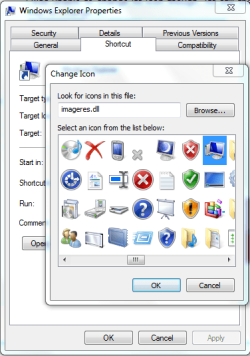
Nice work Shawn. I pinned Windows Explorer to the taskbar and changed it to open Computer. However, i was unable to change its icon though. Its still the same old Windows Explorer icon showing up. Is there a way to change it?
Capture.PNG

I want that highlighted icon.
Captured.PNG
 

My Computer My Computer

Computer Manufacturer/Model Number
Samsung NP530U4B-S02IN
OS
Windows® 8 Pro (64-bit)
CPU
Intel® Core™ i5 Processor 2467M (1.60GHz, 3MB L3 Cache)
Motherboard
Samsung Electronics
Memory
6GB DDR3 System Memory at 1,333MHz (on BD 4GB + 2GB x 1)
Graphics Card(s)
AMD Radeon™ HD7550M 1GB DDR3 (Ext. Graphic)
Sound Card
Realtek High Definition Audio
Monitor(s) Displays
35.56cm (14.0) SuperBright 300nit HD LED Display
Screen Resolution
1366x768
Hard Drives
1TB S-ATA II Hard Drive (5400RPM) with ExpressCache 16GB SSD
Internet Speed
sucks
Antivirus
Microsoft Security Essentials
Browser
Google Chrome (Sync enabled)

My Computer My Computer

Computer type
PC/Desktop
Computer Manufacturer/Model Number
Self built custom
OS
64-bit Windows 11 Pro for Workstations
CPU
Intel i7-8700K OC'd to 5 GHz
Motherboard
ASUS ROG Maximus XI Formula Z390
Memory
64 GB (4x16GB) G.SKILL TridentZ RGB DDR4 3600 MHz
Graphics Card(s)
ASUS ROG-STRIX-GTX1080TI-O11G-GAMING
Sound Card
Integrated
Monitor(s) Displays
2 x Samsung Odyssey G7 27"
Screen Resolution
2560x1440
Hard Drives
1TB Samsung 990 PRO M.2,
4TB Samsung 990 PRO PRO M.2,
TerraMaster F8 SSD Plus NAS
PSU
Seasonic Prime Titanium 850W
Case
Thermaltake Core P3
Cooling
Corsair Hydro H115i
Keyboard
Logitech wireless K800
Mouse
Logitech MX Master 4
Internet Speed
2 Gb/s Download and 100 Mb/s Upload
Antivirus
Malwarebyte Anti-Malware Premium
Browser
Google Chrome
Other Info
Logitech Z625 speaker system,
Logitech BRIO 4K Pro webcam,
HP Color LaserJet Pro MFP M477fdn,
APC SMART-UPS RT 1000 XL - SURT1000XLI,
Galaxy S23 Plus phone
yep the download method worked. Thanks. :D
 

My Computer My Computer

Computer Manufacturer/Model Number
Samsung NP530U4B-S02IN
OS
Windows® 8 Pro (64-bit)
CPU
Intel® Core™ i5 Processor 2467M (1.60GHz, 3MB L3 Cache)
Motherboard
Samsung Electronics
Memory
6GB DDR3 System Memory at 1,333MHz (on BD 4GB + 2GB x 1)
Graphics Card(s)
AMD Radeon™ HD7550M 1GB DDR3 (Ext. Graphic)
Sound Card
Realtek High Definition Audio
Monitor(s) Displays
35.56cm (14.0) SuperBright 300nit HD LED Display
Screen Resolution
1366x768
Hard Drives
1TB S-ATA II Hard Drive (5400RPM) with ExpressCache 16GB SSD
Internet Speed
sucks
Antivirus
Microsoft Security Essentials
Browser
Google Chrome (Sync enabled)
You're welcome Dinesh. :)
 

My Computer My Computer

Computer type
PC/Desktop
Computer Manufacturer/Model Number
Self built custom
OS
64-bit Windows 11 Pro for Workstations
CPU
Intel i7-8700K OC'd to 5 GHz
Motherboard
ASUS ROG Maximus XI Formula Z390
Memory
64 GB (4x16GB) G.SKILL TridentZ RGB DDR4 3600 MHz
Graphics Card(s)
ASUS ROG-STRIX-GTX1080TI-O11G-GAMING
Sound Card
Integrated
Monitor(s) Displays
2 x Samsung Odyssey G7 27"
Screen Resolution
2560x1440
Hard Drives
1TB Samsung 990 PRO M.2,
4TB Samsung 990 PRO PRO M.2,
TerraMaster F8 SSD Plus NAS
PSU
Seasonic Prime Titanium 850W
Case
Thermaltake Core P3
Cooling
Corsair Hydro H115i
Keyboard
Logitech wireless K800
Mouse
Logitech MX Master 4
Internet Speed
2 Gb/s Download and 100 Mb/s Upload
Antivirus
Malwarebyte Anti-Malware Premium
Browser
Google Chrome
Other Info
Logitech Z625 speaker system,
Logitech BRIO 4K Pro webcam,
HP Color LaserJet Pro MFP M477fdn,
APC SMART-UPS RT 1000 XL - SURT1000XLI,
Galaxy S23 Plus phone
7Tweaker - Change pinned windows explorer shortcut

Hello everyone,

I'm totally new to these forums but I wanted my pinned windows explorer shortcut on my taskbar to open Computer instead of Libraries.

So I've figured it out and wrote a application for it.

It will open anything you select from the list. (Thanks Brink for the list)

Program is attached.

It'd be nice to see some replies regarding this.

P.S App is written in C# for those who wonder...

7Tweaker is the GUI application that gives you a list of options.
 

Attachments

Last edited:

My Computer My Computer

OS
Windows Seven
not My Docs but LIbrary Docs

i was wondering if it is possible to target the Library's Documents (preserving the layout as it shows up in library) instead of the normal Documents Location.

even though both point to the same location, i just want to preserve the library drop down layout for Library Documents.

Thanks
 

My Computer My Computer

OS
7
Hello Ish, and welcome to Seven Forums.

You can change the target path to the one in bold to have it open directly to the Documents Library. :)

%UserProfile%\AppData\Roaming\Microsoft\Windows\Libraries\Documents.library-ms
 

My Computer My Computer

Computer type
PC/Desktop
Computer Manufacturer/Model Number
Self built custom
OS
64-bit Windows 11 Pro for Workstations
CPU
Intel i7-8700K OC'd to 5 GHz
Motherboard
ASUS ROG Maximus XI Formula Z390
Memory
64 GB (4x16GB) G.SKILL TridentZ RGB DDR4 3600 MHz
Graphics Card(s)
ASUS ROG-STRIX-GTX1080TI-O11G-GAMING
Sound Card
Integrated
Monitor(s) Displays
2 x Samsung Odyssey G7 27"
Screen Resolution
2560x1440
Hard Drives
1TB Samsung 990 PRO M.2,
4TB Samsung 990 PRO PRO M.2,
TerraMaster F8 SSD Plus NAS
PSU
Seasonic Prime Titanium 850W
Case
Thermaltake Core P3
Cooling
Corsair Hydro H115i
Keyboard
Logitech wireless K800
Mouse
Logitech MX Master 4
Internet Speed
2 Gb/s Download and 100 Mb/s Upload
Antivirus
Malwarebyte Anti-Malware Premium
Browser
Google Chrome
Other Info
Logitech Z625 speaker system,
Logitech BRIO 4K Pro webcam,
HP Color LaserJet Pro MFP M477fdn,
APC SMART-UPS RT 1000 XL - SURT1000XLI,
Galaxy S23 Plus phone
first off
you always reply so quick, you actually care abt ppl in your forum...ur great

second
r u God? cuz looks like u know everything.

God bless
 

My Computer My Computer

OS
7
Thank you and your welcome Ish. :o
 

My Computer My Computer

Computer type
PC/Desktop
Computer Manufacturer/Model Number
Self built custom
OS
64-bit Windows 11 Pro for Workstations
CPU
Intel i7-8700K OC'd to 5 GHz
Motherboard
ASUS ROG Maximus XI Formula Z390
Memory
64 GB (4x16GB) G.SKILL TridentZ RGB DDR4 3600 MHz
Graphics Card(s)
ASUS ROG-STRIX-GTX1080TI-O11G-GAMING
Sound Card
Integrated
Monitor(s) Displays
2 x Samsung Odyssey G7 27"
Screen Resolution
2560x1440
Hard Drives
1TB Samsung 990 PRO M.2,
4TB Samsung 990 PRO PRO M.2,
TerraMaster F8 SSD Plus NAS
PSU
Seasonic Prime Titanium 850W
Case
Thermaltake Core P3
Cooling
Corsair Hydro H115i
Keyboard
Logitech wireless K800
Mouse
Logitech MX Master 4
Internet Speed
2 Gb/s Download and 100 Mb/s Upload
Antivirus
Malwarebyte Anti-Malware Premium
Browser
Google Chrome
Other Info
Logitech Z625 speaker system,
Logitech BRIO 4K Pro webcam,
HP Color LaserJet Pro MFP M477fdn,
APC SMART-UPS RT 1000 XL - SURT1000XLI,
Galaxy S23 Plus phone
Back
Top