Windows Explorer Taskbar Icon - Change Open To Target

How to Change the Windows 7 Pinned Windows Explorer Taskbar Icon Open To Target


   Information
This will show you how to change the Windows 7 pinned Windows Explorer taskbar icon from the default Open To the Libraries window target to Open To the Computer window target or other possible locations that are available to choose from instead when you click on the Windows Explorer icon on the taskbar.
   Note
Special thanks to Chappy (aka: Dave) for pointing this out to me, and to Limneos for the additional locations.
   Warning
By design in Windows, these shortcuts will open a new window in a new process (explorer.exe) each time you use the shortcut. When you close the opened window from the shortcut, the extra explorer.exe process will close with it as well a few moments afterwards.

EXAMPLE: Windows Explorer icon pinned to the taskbar
3580d1232887815-windows-explorer-taskbar-icon-change-open-target-taskbar.jpg

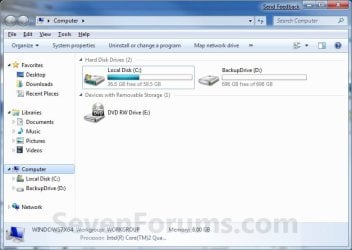
EXAMPLE: Opens to Libraries (default) or Computer
NOTE: You can also select from the other available options below.
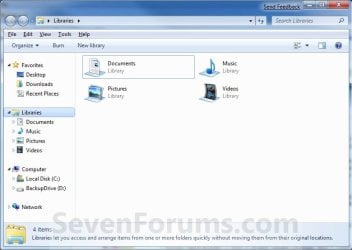
Libraries.jpg

Computer.jpg

Here's How:
1. Right click on the pinned Windows Explorer taskbar icon, then right click on Windows Explorer in the Jump List and click on Properties. (see screenshot below)
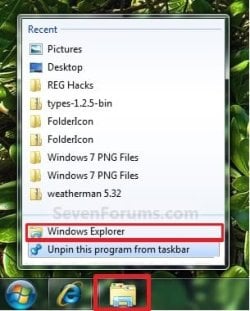
Unpin.jpg
2. In the Shortcut tab, make sure that the field box to the right of Start in is empty.

3. In the Shortcut tab and to the right of Target, type or copy the path (code) for the location below that you want the Windows Explorer icon to open to instead, then click on OK. (see screenshot below)

NOTE: You can do this for any item that you know it's {CLSID} registry entry for. You can also specify a specific folder e.g. :
%windir%\explorer.exe /n, /e, /select, C:\somefolder
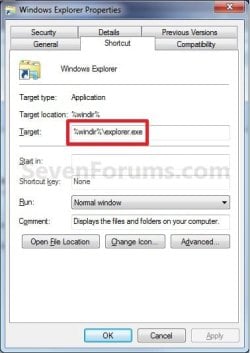
Target_Properties.jpg

   Note
Using the Explorer.exe Command Line Syntax/:


%windir%\explorer.exe [/n][/e][,/root],X,[[/Select],Y]
  • X - Secifies the object, and optionally with sub-object Y.
  • /e - Uses Windows Explorer view. Shows the left Windows Explorer tree view in the navigation pane together with the right pane in list view.
  • /n - Opens in a new window.
  • /root - Will have Explorer.exe explore the root object X and objects belonging to X. On the other hand, when the /root switch is not present, Explorer.exe explores the object X, its children, and other Explorer objects as well.
  • /Select - Puts the focus on a file or folder. The parent folder is opened and the specified object is selected.
  • /Separate - Opens in a separate process.
For example:

Code:
%windir%\explorer.exe /N,/Select,%WinDir%\system32\calc.exe
The command above will explore the C:\Windows\System32 folder and put the focus on the calc.exe (calculator) program.
   Tip
If you want the navigation pane to exand open to the item in Windows 8, then you will need to turn on "Expand to Current Folder" in the navigation pane.


  • Windows Explorer (default) (opens to Libraries)
(Windows 7)
Code:
%windir%\explorer.exe
(Windows 8)
Code:
%AppData%\Microsoft\Windows\Start Menu\Programs\System Tools\File Explorer.lnk

  • Computer
(Opens in new process)
Code:
%windir%\explorer.exe /n /Separate,::{20D04FE0-3AEA-1069-A2D8-08002B30309D}

OR
Code:
%windir%\explorer.exe shell:MyComputerFolder

  • My Documents
(Opens in new process)
Code:
%windir%\explorer.exe /n /Separate,::{450D8FBA-AD25-11D0-98A8-0800361B1103}

  • Documents Library
Code:
%UserProfile%\AppData\Roaming\Microsoft\Windows\Libraries\Documents.library-ms

  • Downloads
Code:
%UserProfile%\Downloads

  • Recycle Bin
(Opens in new process)
Code:
%windir%\explorer.exe /n /Separate,::{645FF040-5081-101B-9F08-00AA002F954E

  • Network Neighborhood
(Opens in new process)
Code:
%windir%\explorer.exe /n /Separate,::{208D2C60-3AEA-1069-A2D7-08002B30309D}

  • Default Web Browser (ex: Internet Explorer)
(Opens in new process)
Code:
%windir%\explorer.exe /n /Separate,::{871C5380-42A0-1069-A2EA-08002B30309D}

  • Computer Search Results Folder
(Opens in new process)
Code:
%windir%\explorer.exe /n /Separate,::{1F4DE370-D627-11D1-BA4F-00A0C91EEDBA}

  • Network Search Results Folder
(Opens in new process)
Code:
%windir%\explorer.exe /n /Separate,::{E17D4FC0-5564-11D1-83F2-00A0C90DC849}

  • Web Folders
(Opens in new process)
Code:
%windir%\explorer.exe /n /Separate,::{20D04FE0-3AEA-1069-A2D8-08002B30309D}\::{BDEADF00-C265-11D0-BCED-00A0C90AB50F}

  • Control Panel
(Opens in new process)
Code:
%windir%\explorer.exe /n /Separate,::{20D04FE0-3AEA-1069-A2D8-08002B30309D}\::{21EC2020-3AEA-1069-A2DD-08002B30309D}

  • Printers and Faxes
(Opens in new process)
Code:
%windir%\explorer.exe /n /Separate,::{20D04FE0-3AEA-1069-A2D8-08002B30309D}\::{21EC2020-3AEA-1069-A2DD-08002B30309D}\::{2227A280-3AEA-1069-A2DE-08002B30309D}

  • Scanners and Cameras
(Opens in new process)
Code:
%windir%\explorer.exe /n /Separate,::{20D04FE0-3AEA-1069-A2D8-08002B30309D}\::{21EC2020-3AEA-1069-A2DD-08002B30309D}\::{E211B736-43FD-11D1-9EFB-0000F8757FCD}

  • Fonts
(Opens in new process)
Code:
%windir%\explorer.exe /n /Separate,::{20D04FE0-3AEA-1069-A2D8-08002B30309D}\::{21EC2020-3AEA-1069-A2DD-08002B30309D}\::{D20EA4E1-3957-11d2-A40B-0C5020524152}

  • Network Connections or My Network Place
(Opens in new process)
Code:
%windir%\explorer.exe /n /Separate,::{20D04FE0-3AEA-1069-A2D8-08002B30309D}\::{21EC2020-3AEA-1069-A2DD-08002B30309D}\::{7007ACC7-3202-11D1-AAD2-00805FC1270E}

  • Administrative Tools
(Opens in new process)
Code:
%windir%\explorer.exe /n /Separate,::{20D04FE0-3AEA-1069-A2D8-08002B30309D}\::{21EC2020-3AEA-1069-A2DD-08002B30309D}\::{D20EA4E1-3957-11d2-A40B-0C5020524153}

  • Tasks Scheduler
(Opens in new process)
Code:
%windir%\explorer.exe /n /Separate,::{20D04FE0-3AEA-1069-A2D8-08002B30309D}\::{21EC2020-3AEA-1069-A2DD-08002B30309D}\::{D6277990-4C6A-11CF-8D87-00AA0060F5BF}

  • User Profile (personal) Folder
Code:
%windir%\explorer.exe shell:Profile

That's it,
Shawn


Attachments

  • Taskbar.jpg
    Taskbar.jpg
    8.5 KB · Views: 194,553
Last edited:

My Computer My Computer

Computer type
PC/Desktop
Computer Manufacturer/Model Number
Airbot 2.0
OS
Windows 7 Ultimate x64 SP1
CPU
Core i7 920 (D0) @ 4Ghz, *26c idle *65c full load on air
Motherboard
Asus P6X58D Premium - Sata 6Gb/s - USB 3.0
Memory
12GB DDR3 Corsair Dominator -CMD12GX3M6A1600C8 at 1600MHz
Graphics Card(s)
Zotac Geforce GTX 770
Sound Card
ASUS Xonar D2X
Monitor(s) Displays
1 LG 24" Flatron W2453V-PF 1 Samsung 24" P2450H both 2ms RT
Screen Resolution
1920x1080@60hz
Hard Drives
1 Samsung 250GB 840 Evo SSD
1 OCZ Vertex2 180GB SSD
1 TB Samsung Spinpoint F1 7200RPM 32MB cache
2 500GB WD Caviar Blacks 7200RPM 32MB cache (WD5001AALS)

Pioneer DVD Burner DVR-S18M
PSU
Corsair HX1000W
Case
Cooler Master HAF 932
Cooling
Case Fans *3 230mm, *1 140mm/CPU - *Tuniq Tower 120 Extreme
Keyboard
Logitech Wireless MK700
Mouse
Logitech Wireless MK700
Internet Speed
DL 15 Mbps UL 0.98 Mbps
Antivirus
None
Browser
Firefox Nightly
Other Info
Processor-7.7 *RAM- 7.9 *Graphics-7.9 *Gaming Graphics- 7.9 *SSD- 7.8 W.E.I final score= 7.7
*Phone- LG Nexus 5
Thank you Aaron.

The %windir% is the correct command to use. I have updated Limneos's post to replace %systemroot%. :)
 

My Computer My Computer

Computer type
PC/Desktop
Computer Manufacturer/Model Number
Self built custom
OS
64-bit Windows 11 Pro for Workstations
CPU
Intel i7-8700K OC'd to 5 GHz
Motherboard
ASUS ROG Maximus XI Formula Z390
Memory
64 GB (4x16GB) G.SKILL TridentZ RGB DDR4 3600 MHz
Graphics Card(s)
ASUS ROG-STRIX-GTX1080TI-O11G-GAMING
Sound Card
Integrated
Monitor(s) Displays
2 x Samsung Odyssey G7 27"
Screen Resolution
2560x1440
Hard Drives
1TB Samsung 990 PRO M.2,
4TB Samsung 990 PRO PRO M.2,
TerraMaster F8 SSD Plus NAS
PSU
Seasonic Prime Titanium 850W
Case
Thermaltake Core P3
Cooling
Corsair Hydro H115i
Keyboard
Logitech wireless K800
Mouse
Logitech MX Master 4
Internet Speed
2 Gb/s Download and 100 Mb/s Upload
Antivirus
Malwarebyte Anti-Malware Premium
Browser
Google Chrome
Other Info
Logitech Z625 speaker system,
Logitech BRIO 4K Pro webcam,
HP Color LaserJet Pro MFP M477fdn,
APC SMART-UPS RT 1000 XL - SURT1000XLI,
Galaxy S23 Plus phone
Thank you Shawn. :)
 

My Computer My Computer

Computer type
PC/Desktop
Computer Manufacturer/Model Number
Airbot 2.0
OS
Windows 7 Ultimate x64 SP1
CPU
Core i7 920 (D0) @ 4Ghz, *26c idle *65c full load on air
Motherboard
Asus P6X58D Premium - Sata 6Gb/s - USB 3.0
Memory
12GB DDR3 Corsair Dominator -CMD12GX3M6A1600C8 at 1600MHz
Graphics Card(s)
Zotac Geforce GTX 770
Sound Card
ASUS Xonar D2X
Monitor(s) Displays
1 LG 24" Flatron W2453V-PF 1 Samsung 24" P2450H both 2ms RT
Screen Resolution
1920x1080@60hz
Hard Drives
1 Samsung 250GB 840 Evo SSD
1 OCZ Vertex2 180GB SSD
1 TB Samsung Spinpoint F1 7200RPM 32MB cache
2 500GB WD Caviar Blacks 7200RPM 32MB cache (WD5001AALS)

Pioneer DVD Burner DVR-S18M
PSU
Corsair HX1000W
Case
Cooler Master HAF 932
Cooling
Case Fans *3 230mm, *1 140mm/CPU - *Tuniq Tower 120 Extreme
Keyboard
Logitech Wireless MK700
Mouse
Logitech Wireless MK700
Internet Speed
DL 15 Mbps UL 0.98 Mbps
Antivirus
None
Browser
Firefox Nightly
Other Info
Processor-7.7 *RAM- 7.9 *Graphics-7.9 *Gaming Graphics- 7.9 *SSD- 7.8 W.E.I final score= 7.7
*Phone- LG Nexus 5
Oddly enough, this launch string has caused me insurmountable amounts of frustration over the years, unbeknownst to me at the time of course.

As maxstep mentioned months ago, the problem of seeing multiple instances of explorer.exe in the task manager confused the heck out of me, as it chewed up system resources, and I had to periodically end their processes (note: that no explorer windows were open, but their processes were still active). I had the problem since Vista beta. I had used this launch string in XP as well, but never encountered this issue there.

I would like to thank these forums for ending a long and painful googlefest by finally providing the CORRECT solution to the problem. Reverting back to the default string fixed it, unfortunately. :(

If there is anyone else having these issues, refer to the explorer.exe thread. I'm also very curious if there are people not having this problem with the launch string active, and moreover, why not? O_o
 

My Computer My Computer

OS
Windows 7 x86 Build 7100
I've got a couple more related questions.

1. I now have an altered path explorer on the Start menu and the desktop. However, I tried dragging the desktop instance to the taskbar (as I could do under Vista) but got an 'X' for my effort. Right clicking on the new desktop icon, the Start explorer icon or even the actual program under Accessories does not include the option to pin to the taskbar?

2. Now to my pet peeve carried over from Vista. I own this computer. I own this instance of the OS. Yet the d*mn thing does not outright consider my administrator privileges as global for all purposes. An easy example: I tried pasting a file over an existing file and was 'told' I don't have the creds to do it! Okay, now that I've done my mini-rant, is there a way that I can set this computer to ack me as the total boss :-)?

Thanks,

Mark
 

My Computer My Computer

Computer type
PC/Desktop
OS
Windows 7 & Windows 10

My Computer My Computer

Computer type
PC/Desktop
Computer Manufacturer/Model Number
Self built custom
OS
64-bit Windows 11 Pro for Workstations
CPU
Intel i7-8700K OC'd to 5 GHz
Motherboard
ASUS ROG Maximus XI Formula Z390
Memory
64 GB (4x16GB) G.SKILL TridentZ RGB DDR4 3600 MHz
Graphics Card(s)
ASUS ROG-STRIX-GTX1080TI-O11G-GAMING
Sound Card
Integrated
Monitor(s) Displays
2 x Samsung Odyssey G7 27"
Screen Resolution
2560x1440
Hard Drives
1TB Samsung 990 PRO M.2,
4TB Samsung 990 PRO PRO M.2,
TerraMaster F8 SSD Plus NAS
PSU
Seasonic Prime Titanium 850W
Case
Thermaltake Core P3
Cooling
Corsair Hydro H115i
Keyboard
Logitech wireless K800
Mouse
Logitech MX Master 4
Internet Speed
2 Gb/s Download and 100 Mb/s Upload
Antivirus
Malwarebyte Anti-Malware Premium
Browser
Google Chrome
Other Info
Logitech Z625 speaker system,
Logitech BRIO 4K Pro webcam,
HP Color LaserJet Pro MFP M477fdn,
APC SMART-UPS RT 1000 XL - SURT1000XLI,
Galaxy S23 Plus phone
Guys how do I get Explorer to open to my Local Disk (C) by default?
I can't figure it out.
Thanx and regards,

scoopyx.

PS: Glad I found this place.
:-)

EDIT: Don't worry, I worked it out.
Thnx.
 
Last edited:

My Computer My Computer

OS
Windows 7 Professional
thanks for the info, really appreciate it!

i found that %SystemRoot%\explorer.exe shell:Profile is the best going into your personal folder for everything!

thanks!
 

My Computer My Computer

OS
Windows 7
Hello Plater, and welcome to Seven Forums.

Thank you. That has been added. :)
 

My Computer My Computer

Computer type
PC/Desktop
Computer Manufacturer/Model Number
Self built custom
OS
64-bit Windows 11 Pro for Workstations
CPU
Intel i7-8700K OC'd to 5 GHz
Motherboard
ASUS ROG Maximus XI Formula Z390
Memory
64 GB (4x16GB) G.SKILL TridentZ RGB DDR4 3600 MHz
Graphics Card(s)
ASUS ROG-STRIX-GTX1080TI-O11G-GAMING
Sound Card
Integrated
Monitor(s) Displays
2 x Samsung Odyssey G7 27"
Screen Resolution
2560x1440
Hard Drives
1TB Samsung 990 PRO M.2,
4TB Samsung 990 PRO PRO M.2,
TerraMaster F8 SSD Plus NAS
PSU
Seasonic Prime Titanium 850W
Case
Thermaltake Core P3
Cooling
Corsair Hydro H115i
Keyboard
Logitech wireless K800
Mouse
Logitech MX Master 4
Internet Speed
2 Gb/s Download and 100 Mb/s Upload
Antivirus
Malwarebyte Anti-Malware Premium
Browser
Google Chrome
Other Info
Logitech Z625 speaker system,
Logitech BRIO 4K Pro webcam,
HP Color LaserJet Pro MFP M477fdn,
APC SMART-UPS RT 1000 XL - SURT1000XLI,
Galaxy S23 Plus phone
You're most welcome Koumy. :)
 

My Computer My Computer

Computer type
PC/Desktop
Computer Manufacturer/Model Number
Self built custom
OS
64-bit Windows 11 Pro for Workstations
CPU
Intel i7-8700K OC'd to 5 GHz
Motherboard
ASUS ROG Maximus XI Formula Z390
Memory
64 GB (4x16GB) G.SKILL TridentZ RGB DDR4 3600 MHz
Graphics Card(s)
ASUS ROG-STRIX-GTX1080TI-O11G-GAMING
Sound Card
Integrated
Monitor(s) Displays
2 x Samsung Odyssey G7 27"
Screen Resolution
2560x1440
Hard Drives
1TB Samsung 990 PRO M.2,
4TB Samsung 990 PRO PRO M.2,
TerraMaster F8 SSD Plus NAS
PSU
Seasonic Prime Titanium 850W
Case
Thermaltake Core P3
Cooling
Corsair Hydro H115i
Keyboard
Logitech wireless K800
Mouse
Logitech MX Master 4
Internet Speed
2 Gb/s Download and 100 Mb/s Upload
Antivirus
Malwarebyte Anti-Malware Premium
Browser
Google Chrome
Other Info
Logitech Z625 speaker system,
Logitech BRIO 4K Pro webcam,
HP Color LaserJet Pro MFP M477fdn,
APC SMART-UPS RT 1000 XL - SURT1000XLI,
Galaxy S23 Plus phone
You all resolved my initial question(s) in this thread regarding changing the target open of explorer and now, having used the result, I have another question.

I prefer seeing an expanded 'directory tree' in the left panel pointing to the target sub-directory.

The opening target that I set was C:\MyData. I had expected to see the left panel open to a dir tree expanded to C:\MyData with the consequent sub-directories in the right panel (or even expanded in the left panel). However, What I have is a left panel showing C:\ and in the right panel the directories under C:\MyData with C:\MyData never showing.

Is it possible to have the view wherein the left panel opens already expanded to C:\MyData and below instead of me having to click, click down to it?

Thanks,

Mark
 

My Computer My Computer

Computer type
PC/Desktop
OS
Windows 7 & Windows 10

My Computer My Computer

Computer type
PC/Desktop
Computer Manufacturer/Model Number
Self built custom
OS
64-bit Windows 11 Pro for Workstations
CPU
Intel i7-8700K OC'd to 5 GHz
Motherboard
ASUS ROG Maximus XI Formula Z390
Memory
64 GB (4x16GB) G.SKILL TridentZ RGB DDR4 3600 MHz
Graphics Card(s)
ASUS ROG-STRIX-GTX1080TI-O11G-GAMING
Sound Card
Integrated
Monitor(s) Displays
2 x Samsung Odyssey G7 27"
Screen Resolution
2560x1440
Hard Drives
1TB Samsung 990 PRO M.2,
4TB Samsung 990 PRO PRO M.2,
TerraMaster F8 SSD Plus NAS
PSU
Seasonic Prime Titanium 850W
Case
Thermaltake Core P3
Cooling
Corsair Hydro H115i
Keyboard
Logitech wireless K800
Mouse
Logitech MX Master 4
Internet Speed
2 Gb/s Download and 100 Mb/s Upload
Antivirus
Malwarebyte Anti-Malware Premium
Browser
Google Chrome
Other Info
Logitech Z625 speaker system,
Logitech BRIO 4K Pro webcam,
HP Color LaserJet Pro MFP M477fdn,
APC SMART-UPS RT 1000 XL - SURT1000XLI,
Galaxy S23 Plus phone
Hi All;

This thread shows the most promise to solve a very similar problem.

I's like to customize Explorer to always open to MyComputer in the left pane. I can easily use this tutorial to make that happen with an explorer icon or with it pinned to taskbar .... BUT

I always open explorer with windows-e key combo, never by clicking on an icon! My fingers twitch for that combo. It is burned into my soul. Windows-e and Windows-r are my utmost favorite things to do .... (that sounds odd :shock:).

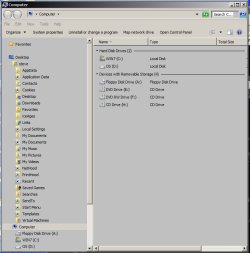
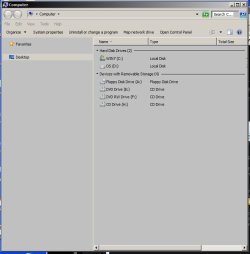
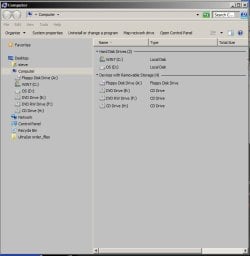
When I hit windows-e now, I see the following annoying expanded view of my desktop in the left hand pane
explorer1.JPG

But, if I collapse Desktop, then I can't see my hard drives at all! Why the heck are they under Desktop?
explorer2.JPG

... I just want to quickly browse the contents of my hard disks, and I hate the way the left-pane list jumps up and down when one clicks on the "+/-" icons in the tree view.


Any help greatly appreciated!

Raargh
 

My Computer My Computer

Computer Manufacturer/Model Number
Dell T3400
OS
Windows 7 Pro x64 (dual-booting XPSP3 and Win7)
CPU
Intel Core-2 Quad
Memory
4GB 800 Mhz PC2 unbuffered ECC
Graphics Card(s)
NVIDIA Quadro FX 570
Sound Card
Creative SB X-Fi model SB0770
Monitor(s) Displays
Dell 19" FP
Screen Resolution
1680x1050
Hard Drives
SATA disk0 250GB disk1 500GB
Internet Speed
TW RR
Other Info
Just a baby compared to my work box!
Hello Raargh,

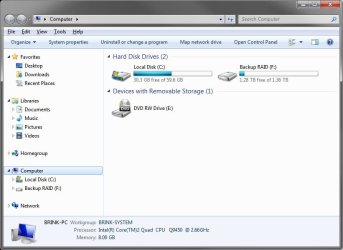
I have both right click in navigation pane options unchecked. When you press Win + E, expand Computer, then close the window. When you press Win + E again is should open like below for how you wanted it.

Computer.jpg

Hope this helps,
Shawn
 

My Computer My Computer

Computer type
PC/Desktop
Computer Manufacturer/Model Number
Self built custom
OS
64-bit Windows 11 Pro for Workstations
CPU
Intel i7-8700K OC'd to 5 GHz
Motherboard
ASUS ROG Maximus XI Formula Z390
Memory
64 GB (4x16GB) G.SKILL TridentZ RGB DDR4 3600 MHz
Graphics Card(s)
ASUS ROG-STRIX-GTX1080TI-O11G-GAMING
Sound Card
Integrated
Monitor(s) Displays
2 x Samsung Odyssey G7 27"
Screen Resolution
2560x1440
Hard Drives
1TB Samsung 990 PRO M.2,
4TB Samsung 990 PRO PRO M.2,
TerraMaster F8 SSD Plus NAS
PSU
Seasonic Prime Titanium 850W
Case
Thermaltake Core P3
Cooling
Corsair Hydro H115i
Keyboard
Logitech wireless K800
Mouse
Logitech MX Master 4
Internet Speed
2 Gb/s Download and 100 Mb/s Upload
Antivirus
Malwarebyte Anti-Malware Premium
Browser
Google Chrome
Other Info
Logitech Z625 speaker system,
Logitech BRIO 4K Pro webcam,
HP Color LaserJet Pro MFP M477fdn,
APC SMART-UPS RT 1000 XL - SURT1000XLI,
Galaxy S23 Plus phone
@Brink;

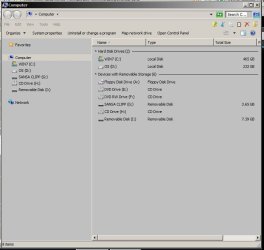
I see how Explorer from Win+E seems to remember the last view, and that is helping. Here is what I get now when I open it::cool:
explorer3.JPG

This is pretty close to what I would like in the left hand pane - it would be perfect if "Computer" was not under "Desktop", but I guess that's just the way MS thinks of it. (In my mind, call me wacky:p, the Desktop in my Windows 7 computer is only alive because it's in the computer, not the other way around!)

But, I'm confused about what you mean by
I have both right click in navigation pane options unchecked.
Can you elaborate on this a bit?

Thanks!

Raargh
 

My Computer My Computer

Computer Manufacturer/Model Number
Dell T3400
OS
Windows 7 Pro x64 (dual-booting XPSP3 and Win7)
CPU
Intel Core-2 Quad
Memory
4GB 800 Mhz PC2 unbuffered ECC
Graphics Card(s)
NVIDIA Quadro FX 570
Sound Card
Creative SB X-Fi model SB0770
Monitor(s) Displays
Dell 19" FP
Screen Resolution
1680x1050
Hard Drives
SATA disk0 250GB disk1 500GB
Internet Speed
TW RR
Other Info
Just a baby compared to my work box!

My Computer My Computer

Computer type
PC/Desktop
Computer Manufacturer/Model Number
Self built custom
OS
64-bit Windows 11 Pro for Workstations
CPU
Intel i7-8700K OC'd to 5 GHz
Motherboard
ASUS ROG Maximus XI Formula Z390
Memory
64 GB (4x16GB) G.SKILL TridentZ RGB DDR4 3600 MHz
Graphics Card(s)
ASUS ROG-STRIX-GTX1080TI-O11G-GAMING
Sound Card
Integrated
Monitor(s) Displays
2 x Samsung Odyssey G7 27"
Screen Resolution
2560x1440
Hard Drives
1TB Samsung 990 PRO M.2,
4TB Samsung 990 PRO PRO M.2,
TerraMaster F8 SSD Plus NAS
PSU
Seasonic Prime Titanium 850W
Case
Thermaltake Core P3
Cooling
Corsair Hydro H115i
Keyboard
Logitech wireless K800
Mouse
Logitech MX Master 4
Internet Speed
2 Gb/s Download and 100 Mb/s Upload
Antivirus
Malwarebyte Anti-Malware Premium
Browser
Google Chrome
Other Info
Logitech Z625 speaker system,
Logitech BRIO 4K Pro webcam,
HP Color LaserJet Pro MFP M477fdn,
APC SMART-UPS RT 1000 XL - SURT1000XLI,
Galaxy S23 Plus phone

Excellent, this works! It also makes the left-hand pane "hold still" when clicking the "+" - very close to the old "proper" behavior of XP.

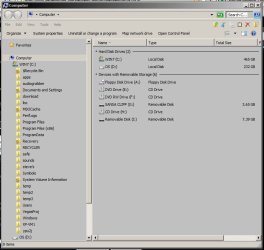
Now, when I press win+e I see this:
Win+e=1.JPG

Clicking the + beside the Win7 c: disk shows this:
Win+e=2.JPG

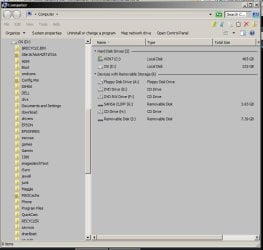
and clicking the + beside the OS d: disk causes the left-hand pane to properly re-arrange to this:
Win+e=3.JPG


Happy Happy Joy Joy!

Raargh
 

My Computer My Computer

Computer Manufacturer/Model Number
Dell T3400
OS
Windows 7 Pro x64 (dual-booting XPSP3 and Win7)
CPU
Intel Core-2 Quad
Memory
4GB 800 Mhz PC2 unbuffered ECC
Graphics Card(s)
NVIDIA Quadro FX 570
Sound Card
Creative SB X-Fi model SB0770
Monitor(s) Displays
Dell 19" FP
Screen Resolution
1680x1050
Hard Drives
SATA disk0 250GB disk1 500GB
Internet Speed
TW RR
Other Info
Just a baby compared to my work box!
I'm happy to hear that got it sorted for you Raargh. :)
 

My Computer My Computer

Computer type
PC/Desktop
Computer Manufacturer/Model Number
Self built custom
OS
64-bit Windows 11 Pro for Workstations
CPU
Intel i7-8700K OC'd to 5 GHz
Motherboard
ASUS ROG Maximus XI Formula Z390
Memory
64 GB (4x16GB) G.SKILL TridentZ RGB DDR4 3600 MHz
Graphics Card(s)
ASUS ROG-STRIX-GTX1080TI-O11G-GAMING
Sound Card
Integrated
Monitor(s) Displays
2 x Samsung Odyssey G7 27"
Screen Resolution
2560x1440
Hard Drives
1TB Samsung 990 PRO M.2,
4TB Samsung 990 PRO PRO M.2,
TerraMaster F8 SSD Plus NAS
PSU
Seasonic Prime Titanium 850W
Case
Thermaltake Core P3
Cooling
Corsair Hydro H115i
Keyboard
Logitech wireless K800
Mouse
Logitech MX Master 4
Internet Speed
2 Gb/s Download and 100 Mb/s Upload
Antivirus
Malwarebyte Anti-Malware Premium
Browser
Google Chrome
Other Info
Logitech Z625 speaker system,
Logitech BRIO 4K Pro webcam,
HP Color LaserJet Pro MFP M477fdn,
APC SMART-UPS RT 1000 XL - SURT1000XLI,
Galaxy S23 Plus phone
Thanks for the tutorial. Can you help me a little bit more and tell me exactly what text should I put as "Target" in the properties in order to open D:\ ? Thanks in advance :)
I couldn't do it myself. Right now it is opening the Computer window.
 

My Computer My Computer

Computer Manufacturer/Model Number
Dell Vostro 1700
OS
Windows 7 Ultimate x64
CPU
Intel Core2Duo T9300 @2.5 GHz, 6 MB L2 cache
Motherboard
Dell
Memory
2x2048 DDR2 800 MHz
Graphics Card(s)
nVidia GeForce 8600M GT 256 MB DDR2
Screen Resolution
1440x900
Hard Drives
Samsung 470 Series 128GB SSD;
Western Digital Scorpio 250GB SATA 5400RPM 8 MB Cache
Back
Top