windows explorer

g8vkv

New member
Hi,

I'm new to W7 (from XP) - my old machine just got too creaky for proper use.

My new machine runs fast - but I have one big gripe about Windows 7, and it goes like this ...

I'm a semi-organised individual, and kept most documents under (the old, XP) "My Documents". Many of these are in folders ("tax", "car", etc), but I have lots just lying "loose". In XP, I could open Explorer and select organise by "type" and then by "name" and I would then see all the folders grouped together and all file types (PDF, JPG, etc) likewise.

In W7, I can't get this. I can select organise by "folder", I see all folders together, everything else alphabetical - if I then select "type", it mixes up types from all folders.

It's driving me bonkers - is there anyway to recover the "old style" way of doing things, or do I have to go for a completely "folder-driven" means of storage?

(or go back to XP??)
 

My Computer

OS
home premium 64 bit
Just click on Type, not Name. That works for me. I then see all folders first then all files organized by type, as expected.
 

My Computer

Computer type
PC/Desktop
Computer Manufacturer/Model Number
Lenovo IdeaCenter 450
OS
Windows 10 Pro X64
CPU
Intel Quad Core i7-4770 @ 3.4Ghz
Memory
16.0GB PC3-12800 DDR3 SDRAM 1600 MHz
Graphics Card(s)
Intel Integrated HD Graphics
Sound Card
Realtek HD Audio
Monitor(s) Displays
HP 22" LCD
Screen Resolution
1680 x 1050
Hard Drives
250GB Samsung EVO SATA-3 SSD
2TB Seagate ST2000DM001 SATA-2
1.5TB Seagate ST3150041AS SATA
Keyboard
Dell USB
Mouse
Lenovo USB
Internet Speed
Cable via Road Runner 3MB Upload, 30MB Download
Antivirus
Windows Defender, MBAM Pro, MBAE
Browser
Seamonkey
Other Info
UEFI/GPT
PLDS DVD-RW DH16AERSH
Just click on Type, not Name. That works for me. I then see all folders first then all files organized by type, as expected.

Thanks for replying.

For me, the results are different.

Selecting "sorting by folder" shows folders followed by files in alpha order. Selecting "type" removes all folders and shows different file types from all folders grouped together.

b*gger
 

My Computer

OS
home premium 64 bit
To be honest, I am not sure where can you select "sorting by folder". My experience is more similar to what Ztruker is talking about.

I use Details View almost exclusively. Above file names I have column headers. Sorting amounts to clicking on the column header. Typically, I have it sorted by name alphabetically, in fact, I don't even show the "type" column. However, if I reinstate the column "Type" and click on its header, then I have the folders listed first followed by all files organized by their extensions.
 

My Computer

Computer Manufacturer/Model Number
Dell Inspiron 530
OS
Windows 7 Ultimate (x64)
CPU
Q6600
Memory
8 GB
Graphics Card(s)
ATI Radeon HD 2600 XT
Monitor(s) Displays
Samsung Syncmaster P2450
Screen Resolution
1920x1080
Hard Drives
Samsung HD103UJ
Samsung HD501LJ
Internet Speed
25 Mb/s
<<In XP, I could open Explorer and select organise by "type" and then by "name" and I would then see all the folders grouped together and all file types (PDF, JPG, etc) likewise.>>

That's how it is for me. Try right clicking on a blank space and then choose 'type'
 

My Computer

Computer Manufacturer/Model Number
Acer 7738G
OS
Windows 7 Home Premium X64 SP1
CPU
Intel Core2 duo T6600
Memory
4gb
Graphics Card(s)
Nvidia GeForce GT 1gb
Hard Drives
2 X 500 gb
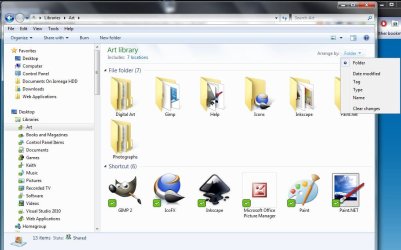
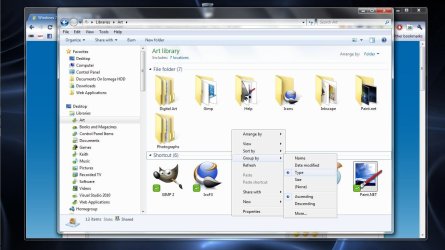
I think What you want is.

1. Arrange by->Folder
2. Group by->Type

Capture1.JPGCapture2.JPG
 

My Computer

Computer type
Laptop
Computer Manufacturer/Model Number
Hewlett-Packard/G62-107SA Notebook
OS
Microsoft Windows 7 Home Premium 64-bit Service Pack 1
CPU
Intel(R) Core(TM) i3 CPU M 330 @ 2.13GHz
Motherboard
Hewlett-Packard 1425
Memory
8 GB DDR3
Graphics Card(s)
Intel(R) HD Graphics
Sound Card
Realtek High Definition Audio
Monitor(s) Displays
Builtin
Screen Resolution
1366 x 768 x 32 bits (4294967296 colors) @ 60 Hz
Hard Drives
250 GB SATA Hard Disk Drive 7200 rpm
2TB Seagate GoFlex USB 2 Drive
1TB Iomega Prestige USB 2 Drive
1.5TB Iomega Prestige USB 2 Drive (Samsung)
2TB WD MyBook Live NAS.
Mouse
Logitech Anywhere MX
Internet Speed
152 Mbs download 10 Mbs upload
Antivirus
Norton 360
Browser
Chrome
Looks like the key is to use Details view which I also always use.
 

My Computer

Computer type
PC/Desktop
Computer Manufacturer/Model Number
Lenovo IdeaCenter 450
OS
Windows 10 Pro X64
CPU
Intel Quad Core i7-4770 @ 3.4Ghz
Memory
16.0GB PC3-12800 DDR3 SDRAM 1600 MHz
Graphics Card(s)
Intel Integrated HD Graphics
Sound Card
Realtek HD Audio
Monitor(s) Displays
HP 22" LCD
Screen Resolution
1680 x 1050
Hard Drives
250GB Samsung EVO SATA-3 SSD
2TB Seagate ST2000DM001 SATA-2
1.5TB Seagate ST3150041AS SATA
Keyboard
Dell USB
Mouse
Lenovo USB
Internet Speed
Cable via Road Runner 3MB Upload, 30MB Download
Antivirus
Windows Defender, MBAM Pro, MBAE
Browser
Seamonkey
Other Info
UEFI/GPT
PLDS DVD-RW DH16AERSH
Here's how my 'Ken' folder looks - I threw a few different things into it to demonstrate - folders -jpg - txt - mp3 - mp4

Maybe I should add that I don't use libraries - but I don't think it makes a difference in this case
 

Attachments

  • 2011-03-10_005817.jpg
    2011-03-10_005817.jpg
    129.1 KB · Views: 18
Last edited:

My Computer

Computer Manufacturer/Model Number
Acer 7738G
OS
Windows 7 Home Premium X64 SP1
CPU
Intel Core2 duo T6600
Memory
4gb
Graphics Card(s)
Nvidia GeForce GT 1gb
Hard Drives
2 X 500 gb
Thanks for the responses - all very helpful. Sorry I didn't respond sooner - I was out all day yesterday.

I failed to mention that my version of W7 is French (don't ask!) and I was getting doubly confused by the new look and unfamilar foreign-language jargon (not to mention the AZERTY keyboard).

I must say though, that the option to "sort by" (trier in my version) is not exactly up-front.

Now - how to figure out showing PDF files as proper thumbnails.
 

My Computer

OS
home premium 64 bit
PDF files show up with mini-previews by default with any version of Adobe Acrobat or Reader I've installed on any Windows 7 system.
 

My Computer

OS
Windows 7 Ultimate x64 SP1
CPU
Intel Core i7-2600
Motherboard
Gigabyte GA-P67A-UD3P-B3
Memory
12 GB Patriot Extreme DDR3-1333
Graphics Card(s)
Nvidia GTX 470
Monitor(s) Displays
Dell UltraSharp 2209WA
Hard Drives
OCZ Agility3 240 GB, WD5001AALS, WD7501AALS
PSU
OCZ ModStream 700W
Case
CoolerMaster HAF 912 Advanced
Cooling
CoolerMaster Hyper 212 Plus
PDF files show up with mini-previews by default with any version of Adobe Acrobat or Reader I've installed on any Windows 7 system.

That's interesting - they don't on mine.

I've got the latest version of Adobe Reader installed.

I followed a registry hack I found and I've now got them - but I
shouldn't really have to that that kind of stuff in the 21st century :shock:

My version is "Edition Familiale Premium" (64 bit)
 

My Computer

OS
home premium 64 bit
They are hit and miss for me. I have to view them in an open/close dialog for them to show and then they stay for a while. it's a bit of a pain really. :confused:
 

My Computer

Computer type
Laptop
Computer Manufacturer/Model Number
Hewlett-Packard/G62-107SA Notebook
OS
Microsoft Windows 7 Home Premium 64-bit Service Pack 1
CPU
Intel(R) Core(TM) i3 CPU M 330 @ 2.13GHz
Motherboard
Hewlett-Packard 1425
Memory
8 GB DDR3
Graphics Card(s)
Intel(R) HD Graphics
Sound Card
Realtek High Definition Audio
Monitor(s) Displays
Builtin
Screen Resolution
1366 x 768 x 32 bits (4294967296 colors) @ 60 Hz
Hard Drives
250 GB SATA Hard Disk Drive 7200 rpm
2TB Seagate GoFlex USB 2 Drive
1TB Iomega Prestige USB 2 Drive
1.5TB Iomega Prestige USB 2 Drive (Samsung)
2TB WD MyBook Live NAS.
Mouse
Logitech Anywhere MX
Internet Speed
152 Mbs download 10 Mbs upload
Antivirus
Norton 360
Browser
Chrome
Back
Top