Windows Features - Create Shortcut

How to Create a Windows Features Shortcut in Windows 7 and Windows 8


   Information
Windows Features will allow you to easily turn features on or off at will in Windows.

This tutorial will show you how to create or download a Windows Features shortcut that opens directly to the Turn Windows features on or off settings in Windows 7 and Windows 8.

   Warning
You will need to be logged in as an administrator to be able to open Windows Features.


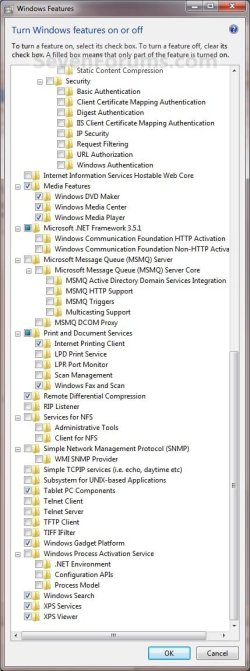
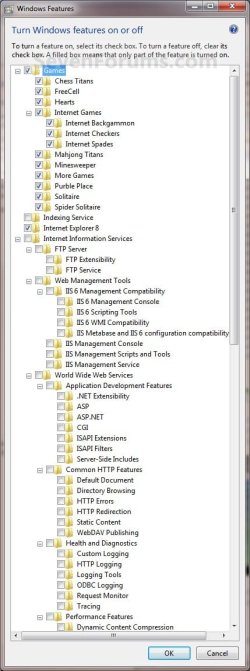
EXAMPLE: Windows Features
NOTE: These are the default settings in Windows 7 Ultimate.
Features-1.jpgFeatures-2.jpg


OPTION ONE

To Download a "Windows Features" Shortcut


1. Click/tap on the download button below to download the file below.
Windows_Features.zip

Download


2. Save the .zip file to your desktop.

3. Open the .zip file and extract the Windows Features shortcut to the desktop.

4. Unblock the Windows Features shortcut, and click on Properties, General tab, and on the button.

5. In Windows 7, you can now Pin to Taskbar or Pin to Start Menu, add to Quick Launch, assign a keyboard shortcut to it, or move this shortcut to where you like for easy use.

6. In Windows 8, you can Pin to Taskbar on desktop, Pin to Start screen, add to Quick Launch, assign a keyboard shortcut to it, or move this shortcut to where you like for easy use.

7. When finished, you can delete the downloaded .zip file if you like.


OPTION TWO

To Manually Create a "Windows Features" Shortcut


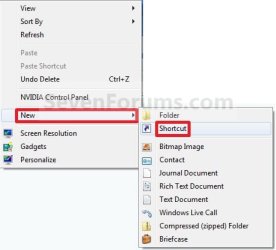
1. Right click or press and hold on an empty area on your desktop, and click/tap on New and Shortcut. (see screenshot below)
Right_Click.jpg
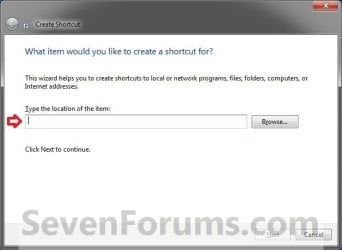
2. Copy and paste either location below into the location area, and click/tap on the Next button. (See screenshot below)
rundll32.exe shell32.dll,Control_RunDLL appwiz.cpl,,2

OR

%windir%\System32\OptionalFeatures.exe
Step1.jpg
3. Type Windows Features for the name, and click/tap on the Finish button. (See screenshot below)
NOTE: You can name this anything you would like though.
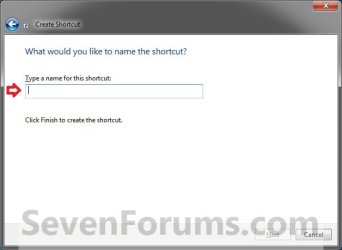
Step2.jpg
4. Right click or press and hold on the new Windows Features shortcut, and click/tap on Properties.

5. Click/tap on the Shortcut tab, then click/tap on the Change Icon button. (see screenshot below)
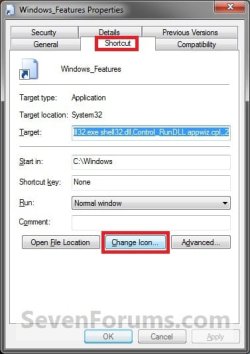
Step3.jpg
6. In the line under "Look for icons in this file", copy and past the path below ,and press Enter. (see screenshot below)
%windir%\System32\imageres.dll
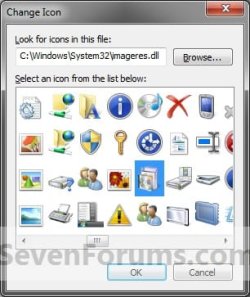
Step4.jpg
7. Select the icon highlighted in blue above ,and click/tap on OK. (see screenshot above)
NOTE: You can use any icon that you would like instead though.

8. Click/tap on OK. (see screenshot below)
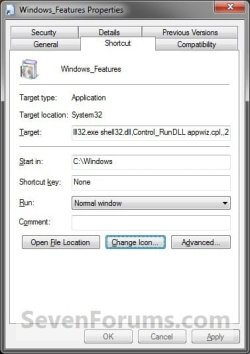
Step5.jpg
9. In Windows 7, you can now Pin to Taskbar or Pin to Start Menu, add to Quick Launch, assign a keyboard shortcut to it, or move this shortcut to where you like for easy use.

10. In Windows 8, you can Pin to Taskbar on desktop, Pin to Start screen, add to Quick Launch, assign a keyboard shortcut to it, or move this shortcut to where you like for easy use.
That's it,
Shawn


Attachments

Last edited:
Thank you for the shortcut!
 

My Computer

Computer Manufacturer/Model Number
Acer Aspire One 722 (AO722)
OS
Windows 7 Home Premium Service Pack 1 32-bit Build 7601
CPU
AMD C-50 Processor 1.0 Ghz
Memory
2 GB DDR3 RAM (1.73 usable in System Properties)
Graphics Card(s)
AMD Radeon HD 6200 series Graphics
Sound Card
High Definition Audio Device
Monitor(s) Displays
Generic PnP Monitor
Screen Resolution
1366 x 768 (recommended)
Hard Drives
320 GB HDD storage
298.09 GB in Disk Management (REAL)
Keyboard
Built-in on my laptop
Mouse
External mouse
Other Info
Installed Windows 7 Service Pack 1 by 9/9/2012
Thanks Shawn., I do great repair with this shortcut, and it can be used for fix: "Cannot open Turn Windows features on or off - Getting Errror: "Windows cannot find 'C:\ProgramData\Microsoft\Windows\Start Menu\Programs\Administrative Tools\Server Manager.lnk'. Make sure you typed the name correctly, and then try again." I use command (path) rundll32.exe shell32.dll,Control_RunDLL appwiz.cpl ,,2 and make shortcut, name it to "Server Manager" and move to C:\ProgramData\Microsoft\Windows\Start Menu\Programs\Administrative Tools !!! Now I can open it from Control panel (programs and features) !!! Please think about it to post it as solution for that ! I can not find solution on web, but thin a little and make this ! P.S. And one question for you Brink: As i think something like "Server Manager.lnk" never was exist in Windows 7 ! It's look very strange in ProgramData\Microsoft\Windows\Start Menu\Programs\Administrative Tools , but it's solve problem and working !!! - Maybe it was, but with different name ??? , So if you be so kind to solve that mystery and explain what was happen ???
 
Last edited:

My Computer

Computer type
PC/Desktop
Computer Manufacturer/Model Number
HP
OS
Windows 7 Ultimate x64

My Computer

Computer type
PC/Desktop
Computer Manufacturer/Model Number
Self built custom
OS
64-bit Windows 11 Pro for Workstations
CPU
Intel i7-8700K OC'd to 5 GHz
Motherboard
ASUS ROG Maximus XI Formula Z390
Memory
64 GB (4x16GB) G.SKILL TridentZ RGB DDR4 3600 MHz
Graphics Card(s)
ASUS ROG-STRIX-GTX1080TI-O11G-GAMING
Sound Card
Integrated
Monitor(s) Displays
2 x Samsung Odyssey G7 27"
Screen Resolution
2560x1440
Hard Drives
1TB Samsung 990 PRO M.2,
4TB Samsung 990 PRO PRO M.2,
TerraMaster F8 SSD Plus NAS
PSU
Seasonic Prime Titanium 850W
Case
Thermaltake Core P3
Cooling
Corsair Hydro H115i
Keyboard
Logitech wireless K800
Mouse
Logitech MX Master 4
Internet Speed
2 Gb/s Download and 100 Mb/s Upload
Antivirus
Malwarebyte Anti-Malware Premium
Browser
Google Chrome
Other Info
Logitech Z625 speaker system,
Logitech BRIO 4K Pro webcam,
HP Color LaserJet Pro MFP M477fdn,
APC SMART-UPS RT 1000 XL - SURT1000XLI,
Galaxy S23 Plus phone
Shawn, Thanks for quick reply, but you maybe don't see my question !!! Does Server Manager.lnk even ever was exist in ProgramData\Microsoft\Windows\Start Menu\Programs\Administrative Tools ??? I never see this since windows 7 exist !!! (There is "C:\Windows\System32\OptionalFeatures.exe") but nothing called as "Server Manager" should not be in Windows 7 !!! So please answer me if there this as default shortcut there ??? Thank You in advance !!! Zenicablues
 

My Computer

Computer type
PC/Desktop
Computer Manufacturer/Model Number
HP
OS
Windows 7 Ultimate x64
Server Manager is not included in Administrative Tools.

The target location/path you used for Server Manager is actually for Windows Features instead though.
 

My Computer

Computer type
PC/Desktop
Computer Manufacturer/Model Number
Self built custom
OS
64-bit Windows 11 Pro for Workstations
CPU
Intel i7-8700K OC'd to 5 GHz
Motherboard
ASUS ROG Maximus XI Formula Z390
Memory
64 GB (4x16GB) G.SKILL TridentZ RGB DDR4 3600 MHz
Graphics Card(s)
ASUS ROG-STRIX-GTX1080TI-O11G-GAMING
Sound Card
Integrated
Monitor(s) Displays
2 x Samsung Odyssey G7 27"
Screen Resolution
2560x1440
Hard Drives
1TB Samsung 990 PRO M.2,
4TB Samsung 990 PRO PRO M.2,
TerraMaster F8 SSD Plus NAS
PSU
Seasonic Prime Titanium 850W
Case
Thermaltake Core P3
Cooling
Corsair Hydro H115i
Keyboard
Logitech wireless K800
Mouse
Logitech MX Master 4
Internet Speed
2 Gb/s Download and 100 Mb/s Upload
Antivirus
Malwarebyte Anti-Malware Premium
Browser
Google Chrome
Other Info
Logitech Z625 speaker system,
Logitech BRIO 4K Pro webcam,
HP Color LaserJet Pro MFP M477fdn,
APC SMART-UPS RT 1000 XL - SURT1000XLI,
Galaxy S23 Plus phone
That is what I talking about ! But therefor why I was get this wired error message: 'Windows cannot find 'C:\ProgramData\Microsoft\Windows\Start Menu\Programs\Administrative Tools\Server Manager.lnk'
 

My Computer

Computer type
PC/Desktop
Computer Manufacturer/Model Number
HP
OS
Windows 7 Ultimate x64
Got me, but you can delete the rogue shortcut to get rid of it.
 

My Computer

Computer type
PC/Desktop
Computer Manufacturer/Model Number
Self built custom
OS
64-bit Windows 11 Pro for Workstations
CPU
Intel i7-8700K OC'd to 5 GHz
Motherboard
ASUS ROG Maximus XI Formula Z390
Memory
64 GB (4x16GB) G.SKILL TridentZ RGB DDR4 3600 MHz
Graphics Card(s)
ASUS ROG-STRIX-GTX1080TI-O11G-GAMING
Sound Card
Integrated
Monitor(s) Displays
2 x Samsung Odyssey G7 27"
Screen Resolution
2560x1440
Hard Drives
1TB Samsung 990 PRO M.2,
4TB Samsung 990 PRO PRO M.2,
TerraMaster F8 SSD Plus NAS
PSU
Seasonic Prime Titanium 850W
Case
Thermaltake Core P3
Cooling
Corsair Hydro H115i
Keyboard
Logitech wireless K800
Mouse
Logitech MX Master 4
Internet Speed
2 Gb/s Download and 100 Mb/s Upload
Antivirus
Malwarebyte Anti-Malware Premium
Browser
Google Chrome
Other Info
Logitech Z625 speaker system,
Logitech BRIO 4K Pro webcam,
HP Color LaserJet Pro MFP M477fdn,
APC SMART-UPS RT 1000 XL - SURT1000XLI,
Galaxy S23 Plus phone
Back
Top