Windows Home Server Power Pack 3 update

z3r010

Administrator
Staff member
Local time
11:30 PM
Messages
53,479
Location
Douglas, Isle of Man
We’ve talked extensively about the improvements that Power Pack 3 for Windows Home Server will deliver for users.  We were proud to show off the beta code of Power Pack 3 at the recent CEDIA 2009 custom installer technology show, where we got lots of positive reception to the feature set.  It’s clear that the anticipation of using Windows Home Server with the upcoming Windows 7 client PC operating system is reaching feverish pitch!  OK, maybe that was a slight exaggeration…But the bottom line is that we’ve gotten tremendous feedback (and test coverage) from you, our enthusiasts, around Power Pack 3 – and we couldn’t be more excited.

This being said, our top priority is to ensure the absolute highest level of product quality, and to this end, we will continue with additional testing of the software. As with past software releases, our team will not ship the official final release of Power Pack 3 until the community has validated our work. We expect to deliver before the end of the year.

For those Windows 7 users who do not have the Beta installed, there are a few important scenarios they should be aware of. These scenarios can be addressed by downloading and installing the Power Pack 3 Beta for the most optimal experience for Windows 7 users on a Windows Home Server network:


  • Restoring a full image of a Win7 client PC (or ‘bare metal restore’):  there are a few rare cases where a Win7 client PC may not be able to restore his or her full image backup from a Windows Home Server.  This has to do with how Windows 7 uses hard links for some system files.  Power Pack 3 beta fixes this issue.
  • Windows 7 client PCs will not automatically wake up to do a backup:  Windows 7 users can work around this by doing manual backups, or also by turning on the wakeup timer in the Windows client Control Panel.  Power Pack 3 beta also fixes this issue.
  • Mounting a backup hangs at 79% with Autoplay enabled:  Although we’ve seen only a few cases of this, Windows 7 users may see a stall during a file/folder restore operation, which is caused by Autoplay being triggered during the operation.  As a workaround, users can disable Autoplay in the Windows client Control Panel.  Power Pack 3 beta also fixes this issue.
  • Cannot install the Windows Home Server Client PC Connector software on Windows 7 Starter Edition PCs:  while there currently isn’t a workaround for this, Power Pack 3 beta addresses this issue and allows users to install the Connector software correctly.
So the net result is that there are a number of reasons that Windows 7 users should check out the Power Pack 3 release – from great new features to fixes of the above technical issues.   For the optimal experience of running Windows 7 PCs on a Windows Home Server network, we point you to our Microsoft Connect site to download the current beta release of Power Pack 3:    https://connect.microsoft.com/WindowsHomeServer.  Enjoy!

- Posted on behalf of Dave Berkowitz


aggbug.aspx

More...
 

My Computer My Computer

Computer type
PC/Desktop
OS
Windows 11
Thanks John

Im downloading it now
 

My Computer My Computer

Computer Manufacturer/Model Number
HP Pavillion dv-7 1005 Tx
OS
Win 8 Release candidate 8400
CPU
[email protected]
Memory
4 gigs
Graphics Card(s)
Nvidia 9600M
Sound Card
HD built-in
Monitor(s) Displays
17" Wxga
Screen Resolution
1440x900
Cooling
none
Internet Speed
45Mb down 5Mb up
Thanks for the heads up John. Noticed some changes. Must have to wait until morning to see the message in action center about not being backed up go away.
 

My Computer My Computer

Computer Manufacturer/Model Number
Gateway GT5692
OS
Windows 7 Ulti. x64
CPU
AMD Phenom 8450 triple-core 2.10 ghz
Memory
4GB
Graphics Card(s)
ATI Radion HD 3200
Monitor(s) Displays
Gateway FPD1775W
Screen Resolution
1280x720
Hard Drives
465.6613 Gibibytes
Is this something I can upgrade my current one with? Or do I need to do a reinstall?

~Lordbob
 

My Computer My Computer

Computer Manufacturer/Model Number
Hera
OS
Windows 7 Ultimate x64, Mint 9
CPU
Intel i5-2500k
Motherboard
ASUS P8P67 Pro
Memory
2x 4Gb Corsair VENGEANCE DDR3-1600
Graphics Card(s)
NVidia GeForce N260GTX Twin Frozr
Sound Card
Realtek HD OnBoard Audio
Monitor(s) Displays
ASUS 24" Monitor
Screen Resolution
1920x1080
Hard Drives
G.SKILL Phoenix Series 60GB SATA II MLC Internal Solid State Drive (SSD)
SAMSUNG Spinpoint F3R 1TB 7200 RPM 32MB Cache SATA II
PSU
Cooler Master Real Power Pro 750W
Case
Cooler Master Haf 932
Cooling
Fans
Keyboard
Razer Tarantula
Mouse
Razer Lachesis
Internet Speed
not fast enough
Is this something I can upgrade my current one with? Or do I need to do a reinstall?

~Lordbob
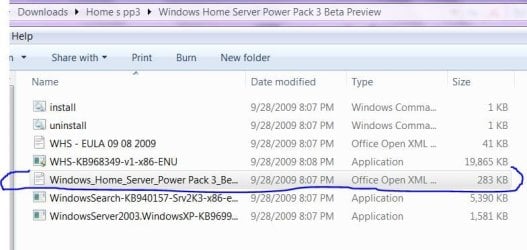
This is a upgrade that someday will come to WHS as a update but right now it is a beta and you can if you want dl and install it.
I copied this from a file found in the download.


Installation:
Download the Power Pack 3 Beta from https://connect.microsoft.com/WindowsHomeServer/Downloads  using a home computer on the same network as your home server.
Copy the downloaded Windows Home Server Power Pack 3 Beta folder to your home server at the following location
\\<yourservername>\software.
Access the Windows Home Server Administrator’s Desktop. (
How to connect to the Windows Home Server Administrator’s Desktop)
Navigate to the Windows Home Server Power Pack 3 Beta folder at Start > My Computer > D:  > Shares > Software > Windows Home Server Power Pack 3 Beta.
Double click install.cmd file to install Power Pack 3 Beta. Do not run any other executable files in the folder. After installation Windows Home Server will reboot.

install instructions pp3.JPG


My Computer My Computer

Computer Manufacturer/Model Number
Gateway GT5692
OS
Windows 7 Ulti. x64
CPU
AMD Phenom 8450 triple-core 2.10 ghz
Memory
4GB
Graphics Card(s)
ATI Radion HD 3200
Monitor(s) Displays
Gateway FPD1775W
Screen Resolution
1280x720
Hard Drives
465.6613 Gibibytes
Is this something I can upgrade my current one with? Or do I need to do a reinstall?

~Lordbob
This is a upgrade that someday will come to WHS as a update but right now it is a beta and you can if you want dl and install it.
I copied this from a file found in the download.


Installation:
Download the Power Pack 3 Beta from https://connect.microsoft.com/WindowsHomeServer/Downloads  using a home computer on the same network as your home server.
Copy the downloaded Windows Home Server Power Pack 3 Beta folder to your home server at the following location
\\<yourservername>\software.
Access the Windows Home Server Administrator’s Desktop. (
How to connect to the Windows Home Server Administrator’s Desktop)
Navigate to the Windows Home Server Power Pack 3 Beta folder at Start > My Computer > D:  > Shares > Software > Windows Home Server Power Pack 3 Beta.
Double click install.cmd file to install Power Pack 3 Beta. Do not run any other executable files in the folder. After installation Windows Home Server will reboot.

View attachment 29846

Thanks much, will do.

~Lordbob
 

My Computer My Computer

Computer Manufacturer/Model Number
Hera
OS
Windows 7 Ultimate x64, Mint 9
CPU
Intel i5-2500k
Motherboard
ASUS P8P67 Pro
Memory
2x 4Gb Corsair VENGEANCE DDR3-1600
Graphics Card(s)
NVidia GeForce N260GTX Twin Frozr
Sound Card
Realtek HD OnBoard Audio
Monitor(s) Displays
ASUS 24" Monitor
Screen Resolution
1920x1080
Hard Drives
G.SKILL Phoenix Series 60GB SATA II MLC Internal Solid State Drive (SSD)
SAMSUNG Spinpoint F3R 1TB 7200 RPM 32MB Cache SATA II
PSU
Cooler Master Real Power Pro 750W
Case
Cooler Master Haf 932
Cooling
Fans
Keyboard
Razer Tarantula
Mouse
Razer Lachesis
Internet Speed
not fast enough
New in Power Pack 3 Beta

Windows 7 Backup & Recovery

Windows Home Server performs a full image-based backup of Windows 7-based computers, allowing for a complete computer recovery in the case of a hard drive failure, or restoration of a single file or folder in the event of accidental deletion or loss. After the Windows Home Server Connector software has been installed on a computer running Windows 7, Windows 7 Backup warnings will be suppressed and users will no longer receive a notification to back up their computer. Windows Home Server can back up Windows XP SP2 or later, Windows Vista and Windows 7-based computers.

This works now, good deal. Action center has no current issues, where before this pp3 it had been telling me I was not backing up my files.
 

My Computer My Computer

Computer Manufacturer/Model Number
Gateway GT5692
OS
Windows 7 Ulti. x64
CPU
AMD Phenom 8450 triple-core 2.10 ghz
Memory
4GB
Graphics Card(s)
ATI Radion HD 3200
Monitor(s) Displays
Gateway FPD1775W
Screen Resolution
1280x720
Hard Drives
465.6613 Gibibytes
Hey myzr7, it is not able to install. I get either nothing, or a "Not enough Memory" error...

~Lordbob
 

My Computer My Computer

Computer Manufacturer/Model Number
Hera
OS
Windows 7 Ultimate x64, Mint 9
CPU
Intel i5-2500k
Motherboard
ASUS P8P67 Pro
Memory
2x 4Gb Corsair VENGEANCE DDR3-1600
Graphics Card(s)
NVidia GeForce N260GTX Twin Frozr
Sound Card
Realtek HD OnBoard Audio
Monitor(s) Displays
ASUS 24" Monitor
Screen Resolution
1920x1080
Hard Drives
G.SKILL Phoenix Series 60GB SATA II MLC Internal Solid State Drive (SSD)
SAMSUNG Spinpoint F3R 1TB 7200 RPM 32MB Cache SATA II
PSU
Cooler Master Real Power Pro 750W
Case
Cooler Master Haf 932
Cooling
Fans
Keyboard
Razer Tarantula
Mouse
Razer Lachesis
Internet Speed
not fast enough
Are you doing this ?
How to connect your Windows Home Server Administrator’s Desktop from any home computer running Windows Vista and Windows 7
On your home computer, click Start, point to All Programs, and then point to Accessories.
In the Accessories menu click Remote Desktop Connection.
In the Computer box, type the name of your home server.
Click Connect.
When the Log On to Windows dialog box appears, type "Administrator" as the user name and use your Windows Home Server Console password as the password, and then click OK
Do this instead of connecting the usual way with the connecter.
 

My Computer My Computer

Computer Manufacturer/Model Number
Gateway GT5692
OS
Windows 7 Ulti. x64
CPU
AMD Phenom 8450 triple-core 2.10 ghz
Memory
4GB
Graphics Card(s)
ATI Radion HD 3200
Monitor(s) Displays
Gateway FPD1775W
Screen Resolution
1280x720
Hard Drives
465.6613 Gibibytes
Are you doing this ?
How to connect your Windows Home Server Administrator’s Desktop from any home computer running Windows Vista and Windows 7
On your home computer, click Start, point to All Programs, and then point to Accessories.
In the Accessories menu click Remote Desktop Connection.
In the Computer box, type the name of your home server.
Click Connect.
When the Log On to Windows dialog box appears, type "Administrator" as the user name and use your Windows Home Server Console password as the password, and then click OK
Do this instead of connecting the usual way with the connecter.
I will try this, and let you know.

~Lordbob
 

My Computer My Computer

Computer Manufacturer/Model Number
Hera
OS
Windows 7 Ultimate x64, Mint 9
CPU
Intel i5-2500k
Motherboard
ASUS P8P67 Pro
Memory
2x 4Gb Corsair VENGEANCE DDR3-1600
Graphics Card(s)
NVidia GeForce N260GTX Twin Frozr
Sound Card
Realtek HD OnBoard Audio
Monitor(s) Displays
ASUS 24" Monitor
Screen Resolution
1920x1080
Hard Drives
G.SKILL Phoenix Series 60GB SATA II MLC Internal Solid State Drive (SSD)
SAMSUNG Spinpoint F3R 1TB 7200 RPM 32MB Cache SATA II
PSU
Cooler Master Real Power Pro 750W
Case
Cooler Master Haf 932
Cooling
Fans
Keyboard
Razer Tarantula
Mouse
Razer Lachesis
Internet Speed
not fast enough
Back
Top